

Πώς να δημιουργήσετε αντίγραφα ασφαλείας των iMessages σαν επαγγελματίας για να ασφαλίσετε τις συνομιλίες σας

Οι ψηφιακές μας συνομιλίες είναι κάτι περισσότερο από απλό κείμενο σε μια οθόνη. Είναι ένα ζωντανό αρχείο της ζωής μας. Από συναισθηματικές φωτογραφίες που μοιράζεται η οικογένεια μέχρι κρίσιμες επαγγελματικές λεπτομέρειες που στέλνει ένας συνάδελφος, το ιστορικό του iMessage σας είναι πολύτιμο. Ωστόσο, τα iPhone μπορεί να χαθούν, να καταστραφούν ή να υποφέρουν από σφάλματα λογισμικού. Γνωρίζοντας... πώς να δημιουργήσετε αντίγραφα ασφαλείας των iMessages είναι ουσιαστικά ένας καλός τρόπος για να διασφαλιστεί ότι αυτές οι αναμνήσεις και τα σημεία δεδομένων δεν θα εξαφανιστούν στο ψηφιακό κενό.
Σε αυτόν τον ολοκληρωμένο οδηγό, θα εξερευνήσουμε κάθε μέθοδο δημιουργίας αντιγράφων ασφαλείας των iMessages, είτε προτιμάτε την απρόσκοπτη αυτοματοποίηση του cloud είτε τη φυσική ασφάλεια ενός τοπικού σκληρού δίσκου.
ΠΕΡΙΕΧΟΜΕΝΟ ΣΕΛΙΔΑΣ:
- Μέρος 1: Γιατί πρέπει να δημιουργείτε αντίγραφα ασφαλείας των συνομιλιών iMessage τακτικά
- Μέρος 2: Δημιουργία αντιγράφων ασφαλείας iMessages χρησιμοποιώντας το iCloud
- Μέρος 3: Δημιουργία αντιγράφων ασφαλείας iMessages σε PC ή Mac
- Μπόνους: Δημιουργία αντιγράφων ασφαλείας iMessages με λειτουργία προεπισκόπησης
Μέρος 1: Γιατί πρέπει να δημιουργείτε αντίγραφα ασφαλείας των συνομιλιών iMessage τακτικά
Πολλοί χρήστες υποθέτουν ότι επειδή τα μηνύματά τους βρίσκονται στο cloud, είναι μόνιμα ασφαλή. Παρόλο που το οικοσύστημα της Apple είναι ισχυρό, μια απλή τυχαία διαγραφή ή ένα σφάλμα συγχρονισμού μπορεί να οδηγήσει σε απώλεια δεδομένων. Να γιατί είναι απαραίτητη μια ειδική στρατηγική δημιουργίας αντιγράφων ασφαλείας του ιστορικού iMessage:
Μετεγκατάσταση συσκευής: Κατά την αναβάθμιση σε νέο iPhone, ένα σωστό αντίγραφο ασφαλείας διασφαλίζει ότι τα νήματα θα μεταφέρονται απρόσκοπτα.
Διαχείριση αποθήκευσης: Αν χρειάζεται να ελευθερώσετε χώρο στο τηλέφωνό σας, μπορείτε να δημιουργήσετε αντίγραφα ασφαλείας των iMessages σε έναν υπολογιστή και στη συνέχεια να τα διαγράψετε από τη συσκευή.
Νομικά και Επαγγελματικά Αρχεία: Μερικές φορές, χρειάζεστε ένα έντυπο αντίγραφο ή ένα PDF με δυνατότητα αναζήτησης μιας συνομιλίας για επαγγελματικούς ή νομικούς σκοπούς.
Μέρος 2: Δημιουργία αντιγράφων ασφαλείας iMessages χρησιμοποιώντας το iCloud
Για τους περισσότερους χρήστες, η πιο βολική μέθοδος δημιουργίας αντιγράφων ασφαλείας των iMessages σε iPhone ή iPad είναι το αντίγραφο ασφαλείας iMessage στο iCloud. Αυτό συμβαίνει αυτόματα στο παρασκήνιο, εφόσον έχετε αρκετό χώρο αποθήκευσης. Υπάρχουν δύο τρόποι με τους οποίους τα iMessages λειτουργούν με το iCloud: Αντίγραφα ασφαλείας iCloud και Μηνύματα στο iCloud.
1. Ενεργοποίηση Μηνυμάτων στο iCloud
Αυτό δεν είναι αντίγραφο ασφαλείας με την παραδοσιακή έννοια, αλλά μάλλον ένα υπηρεσία συγχρονισμούΔιατηρεί τα μηνύματά σας ενημερωμένα σε iPhone, iPad και Mac. Εάν διαγράψετε ένα μήνυμα σε ένα από αυτά, αυτό εξαφανίζεται από όλα.
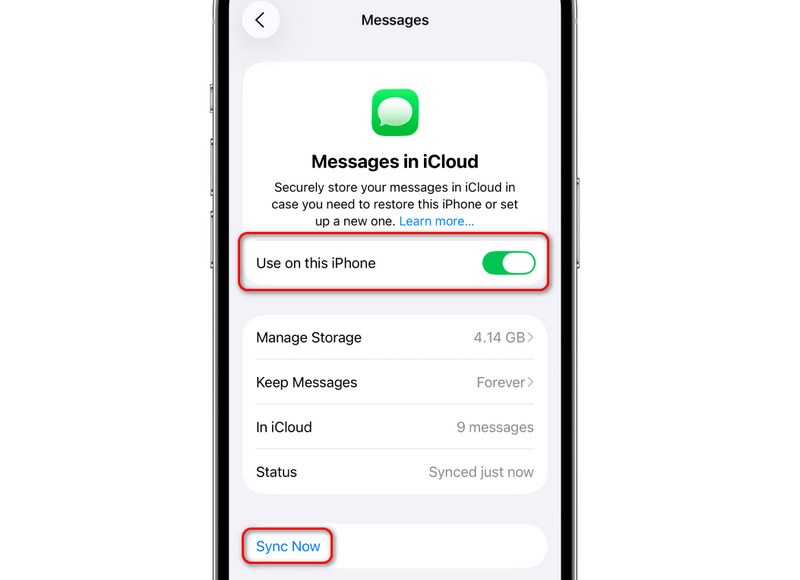
Βήμα 1. Μεταβείτε στις Ρυθμίσεις, πατήστε το προφίλ σας και, στη συνέχεια, επιλέξτε iCloud.
Βήμα 2. Πατήστε Προβολή όλων, και στη συνέχεια ενεργοποιήστε το Μηνύματα. Στη συνέχεια, επιλέξτε Χρήση σε αυτό το iPhoneΜπορείτε επίσης να πατήσετε το Συγχρονισμός τώρα για να δημιουργήσετε αντίγραφα ασφαλείας των iMessages σας στο iPhone αμέσως.
2. Τυπικό αντίγραφο ασφαλείας iCloud
Μπορείτε επίσης να δημιουργήσετε αντίγραφα ασφαλείας όλων των δεδομένων του iPhone σας στο iCloud, έτσι ώστε οι συνομιλίες σας στο iMessages και τα αρχεία πολυμέσων, όπως φωτογραφίες, βίντεο και αυτοκόλλητα, να δημιουργούνται επίσης αντίγραφα ασφαλείας στο iCloud. Αυτό είναι ένα πραγματικό αντίγραφο ασφαλείας, όχι συγχρονισμός.
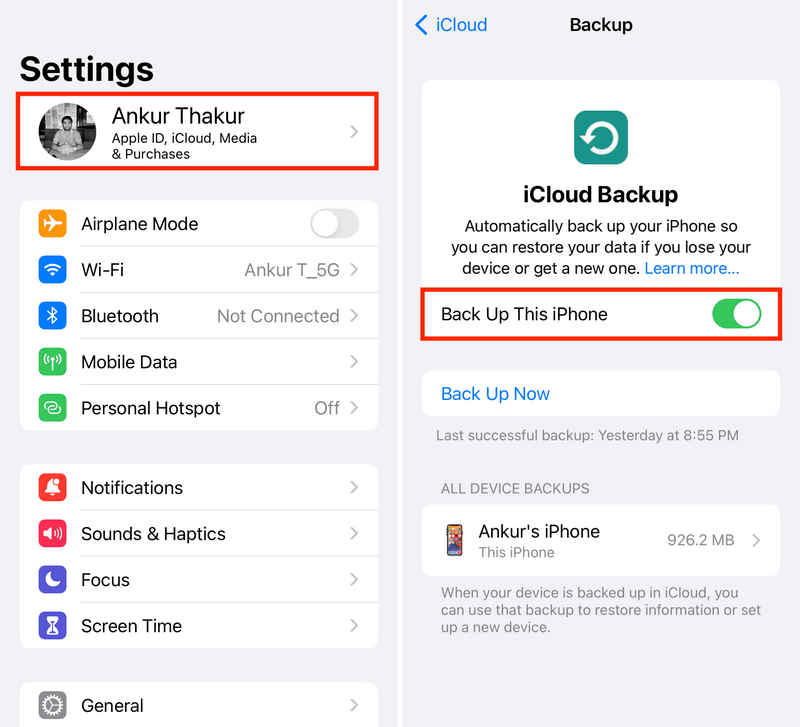
Βήμα 1. Ανοικτό Ρυθμίσειςκαι, στη συνέχεια, πατήστε το προφίλ σας.
Βήμα 2. Αγγίξτε το iCloud , και στη συνέχεια επιλέξτε iCloud δημιουργίας αντιγράφων ασφαλείας.
Βήμα 3. Ενεργοποιήστε την Δημιουργία αντιγράφων ασφαλείας αυτού του iPhone και πατήστε το Δημιουργία αντιγράφων ασφαλείας τώρα κουμπί για δημιουργία αντιγράφων ασφαλείας των iMessages στο iCloud.
Μέρος 3: Δημιουργία αντιγράφων ασφαλείας iMessages σε PC ή Mac
Αν δεν θέλετε να πληρώνετε για μηνιαία συνδρομή ή προτιμάτε να κρατάτε τα δεδομένα σας μακριά από το διαδίκτυο, θα πρέπει να δημιουργήσετε αντίγραφα ασφαλείας των iMessages στον υπολογιστή σας. Αυτό δημιουργεί ένα φυσικό αντίγραφο των δεδομένων σας στον σκληρό σας δίσκο.
Δημιουργία αντιγράφων ασφαλείας iMessages στο Finder σε Mac
Εργασία σε: macOS Catalina ή νεότερη έκδοση
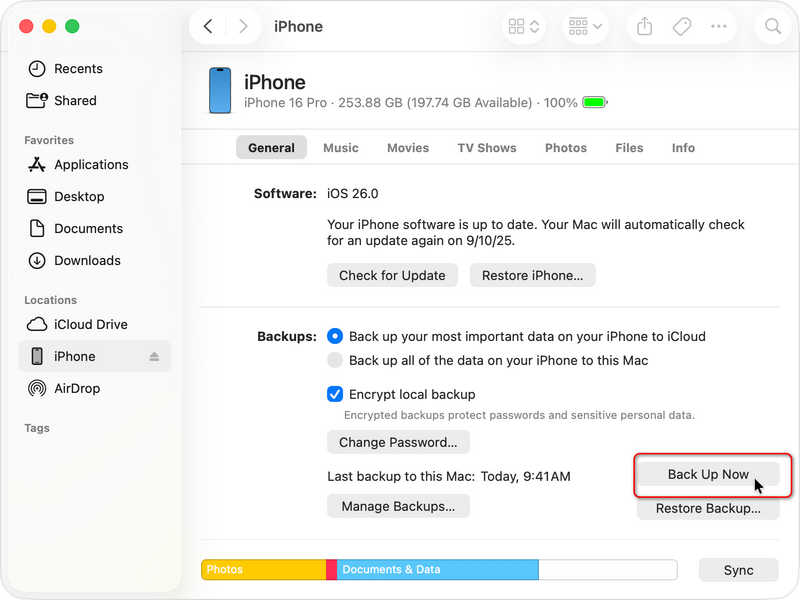
Βήμα 1. Συνδέστε το iPhone σας στο Mac σας μέσω USB.
Βήμα 2. Ανοίξτε το Finder και επιλέξτε το iPhone σας από την πλαϊνή γραμμή.
Βήμα 3. Στο Γενικός καρτέλα, επιλέξτε Δημιουργία αντιγράφων ασφαλείας όλων των δεδομένων του iPhone σας σε αυτόν τον Mac.
Βήμα 4. Πατήστε Δημιουργία αντιγράφων ασφαλείας τώρα για να δημιουργήσετε αντίγραφα ασφαλείας των iMessages σας στο Finder σε Mac.
Περισσότερες Πληροφορίες
Πώς να δημιουργήσετε αντίγραφα ασφαλείας των μηνυμάτων iMessages στο iTunes
Εργασία σε: Windows ή macOS στην περιοχή Catalina
Δεδομένου ότι τα Windows δεν διαθέτουν εγγενή εφαρμογή Μηνυμάτων για iOS, θα χρειαστεί να χρησιμοποιήσετε το iTunes ή την εφαρμογή Apple Devices.
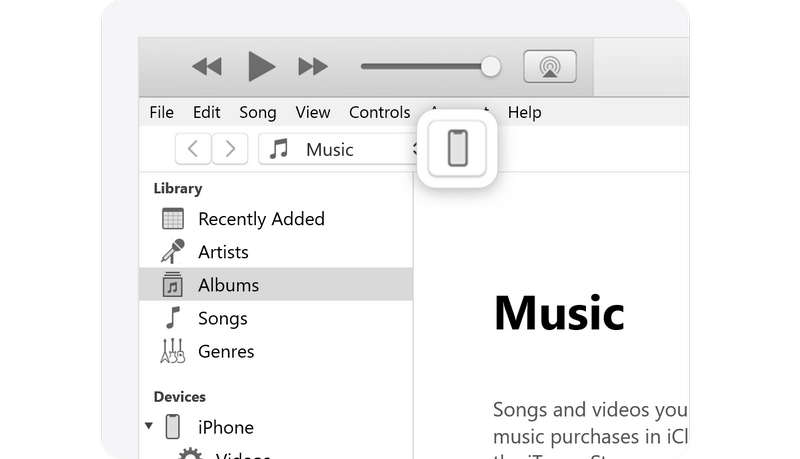
Βήμα 1. Συνδέστε το iPhone σας στον υπολογιστή σας. Ανοίξτε το iTunes (ή την εφαρμογή Apple Devices).
Βήμα 2. Κάντε κλικ στο iPhone σύμβολο κοντά στην επάνω αριστερή γωνία.
Βήμα 3. Στην ενότητα Αντίγραφα ασφαλείας, επιλέξτε Αυτός ο υπολογιστής.
Βήμα 4. Κάντε κλικ στο Δημιουργία αντιγράφων ασφαλείας τώρα για να δημιουργήσετε αντίγραφα ασφαλείας των iMessages σας στον υπολογιστή σας. Μπορείτε επίσης να ρυθμίσετε ένα iTunes κωδικό πρόσβασης για τα αντίγραφα ασφαλείας των αρχείων σας.
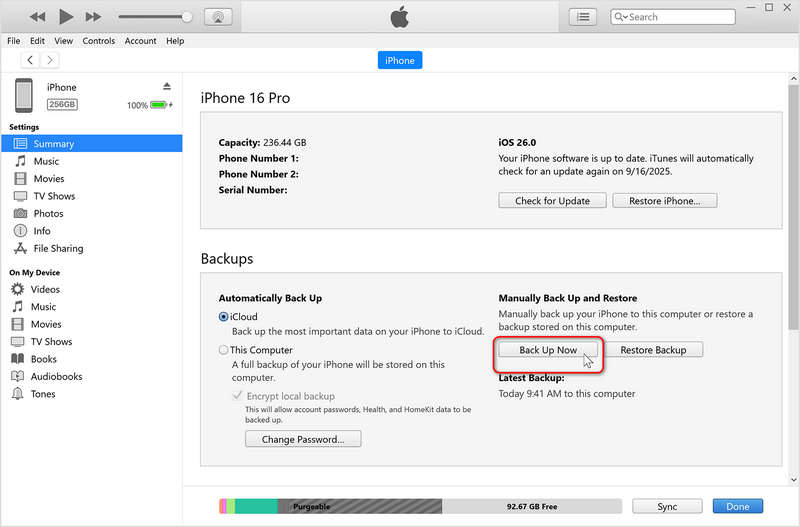
: Δεν μπορείτε εύκολα να ανοίξετε μια μεμονωμένη συνομιλία αντιγράφων ασφαλείας iMessage από ένα αρχείο iTunes χωρίς εξειδικευμένο λογισμικό ή πλήρη επαναφορά συσκευής.
Μπόνους: Δημιουργία αντιγράφων ασφαλείας iMessages με λειτουργία προεπισκόπησης
Το αντίγραφο ασφαλείας του iTunes ή του Finder δεν σας επιτρέπει να βλέπετε κάθε iMessage, πώς μπορείτε να τα δείτε και ακόμη και να επιλέξετε τα επιθυμητά iMessage για επαναφορά; Apeaksoft Δημιουργία αντιγράφων ασφαλείας και επαναφορά δεδομένων iOS μπορεί να σας βοηθήσει. Μπορεί να δημιουργήσει γρήγορα αντίγραφα ασφαλείας των iMessages σας στον υπολογιστή σας Windows ή Mac. Όταν χρειαστεί να επαναφέρετε iMessages σε ένα νέο iPhone, μπορείτε να χρησιμοποιήσετε ξανά αυτό το πρόγραμμα για να δείτε τα iMessages σας και να τα επαναφέρετε επιλεκτικά.
Ο ευκολότερος τρόπος για να δημιουργήσετε αντίγραφα ασφαλείας των iMessages
- Συνδέστε το iPhone ή το iPad σας σε υπολογιστή ή Mac για να δημιουργήσετε αντίγραφα ασφαλείας των iMessages.
- Δημιουργήστε γρήγορα αντίγραφα ασφαλείας των iMessages ή άλλων δεδομένων και πληροφοριών στις συσκευές iOS σας.
- Διατηρήστε τα αντίγραφα ασφαλείας των αρχείων iMessages σας ασφαλή.
- Επιλεκτικά δημιουργήστε αντίγραφα ασφαλείας και επαναφέρετε τα iMessages.
Ασφαλής λήψη
Ασφαλής λήψη

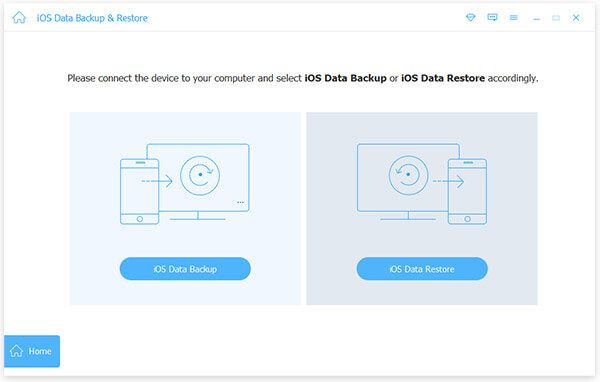
Βήμα 1. Λήψη, εγκατάσταση και εκκίνηση Δημιουργία αντιγράφων ασφαλείας και επαναφορά δεδομένων Apeaksoft iOSΣυνδέστε το iPhone σας στον υπολογιστή ή το Mac σας. Στη συνέχεια, κάντε κλικ στο iOS Data Backup κουμπί.
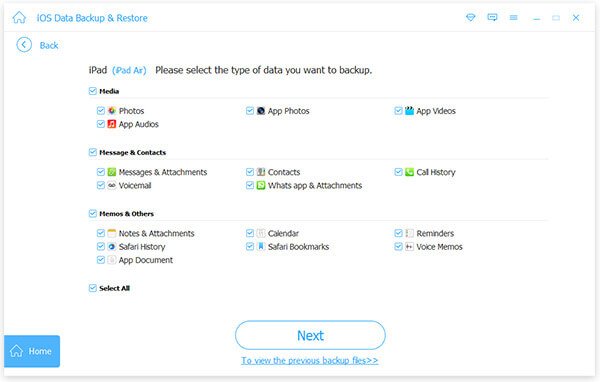
Βήμα 2. Επιλέξτε τους τύπους αρχείων που επιθυμείτε για δημιουργία αντιγράφων ασφαλείας. Εδώ, θα πρέπει να επιλέξετε Μηνύματα και ΣυνημμέναΜπορείτε επίσης να επιλέξετε άλλους τύπους αρχείων για δημιουργία αντιγράφων ασφαλείας. Στη συνέχεια, κάντε κλικ στο Επόμενο κουμπί.
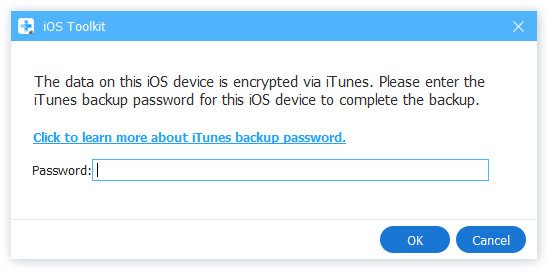
Βήμα 3. Εάν χρειάζεται, θα πρέπει να εισαγάγετε τον κωδικό πρόσβασης οθόνης iPhone και τον κωδικό πρόσβασης αντιγράφων ασφαλείας του iTunes για να δημιουργήσετε αντίγραφα ασφαλείας των iMessages στον υπολογιστή.
Συμπέρασμα
Μάθετε πώς να δημιουργία αντιγράφων ασφαλείας iMessages είναι ένα πολύ πρακτικό κόλπο για την προστασία των συνομιλιών και των αρχείων πολυμέσων σας στις συσκευές iOS σας. Για καθημερινή προστασία, η δημιουργία αντιγράφων ασφαλείας των iMessages στο iCloud είναι η καλύτερη επιλογή σας. Ωστόσο, για μακροπρόθεσμη αρχειοθέτηση ή μετάβαση σε συσκευή που δεν είναι Apple, η γνώση του τρόπου δημιουργίας αντιγράφων ασφαλείας των iMessages σε υπολογιστή παρέχει ένα επιπλέον επίπεδο για την προστασία των δεδομένων σας. Το Apeaksoft iOS Data Backup & Restore είναι η καλύτερη λύση σας. Μπορεί να δημιουργήσει αντίγραφα ασφαλείας και να επαναφέρει επιλεκτικά τα iMessages σας. Το αντίγραφο ασφαλείας του iPhone σας θα παραμείνει ασφαλές στον υπολογιστή σας.
Σχετικά άρθρα
Δεν λειτουργεί το πληκτρολόγιο του iPhone σας αυτήν τη στιγμή; Μην πανικοβάλλεστε. Αυτό το άρθρο θα σας βοηθήσει να λύσετε γρήγορα αυτό το ενοχλητικό πρόβλημα.
Αυτό το περιεκτικό άρθρο σάς εξηγεί γιατί ένα iPhone δεν φορτίζει και πώς να διορθώσετε αυτό το πρόβλημα στη συσκευή σας χωρίς απώλεια δεδομένων.
Αν εμφανιστεί το σφάλμα "ξεκλειδώστε το iPhone για να χρησιμοποιήσετε αξεσουάρ", μην ανησυχείτε. Μπορείτε να μάθετε τις λύσεις μας για να διορθώσετε αυτό το πρόβλημα.
Αν θέλετε να αποκτήσετε πρόσβαση στη συσκευή iOS κάποιου, είστε τυχεροί, καθώς αυτός ο οδηγός σας δείχνει τρεις τρόπους για να ξεκλειδώσετε το iPhone κάποιου.



