

3 Ways to Transfer WhatsApp to New iPhone Quickly and Easily

Upgrading to the latest iPhone is always an exciting experience, but the dread of losing years of conversations, voice notes, and cherished photos can dampen the mood. If you are wondering how to transfer WhatsApp from iPhone to iPhone without losing a single message, you aren't alone.
WhatsApp does not store your chats on its own servers for privacy reasons, which makes the migration process a bit more hands-on than other apps. Whether you want to migrate WhatsApp to a new iPhone using official cloud methods or need a faster, cable-based solution, this guide covers every possible scenario.
ΠΕΡΙΕΧΟΜΕΝΟ ΣΕΛΙΔΑΣ:
Part 1: Why You Need a Strategy to Transfer WhatsApp to New iPhone
Unlike iMessage, which stays linked to your Apple ID, WhatsApp requires a specific backup and restore handshake. If you simply log in to the app on your new device without following the proper steps, you will face a blank chat screen. To successfully transfer WhatsApp to a new iPhone, you must ensure that your phone numbers match and your iCloud settings are correctly configured.
Part 2: 3 Ways to Transfer WhatsApp to New iPhone
Method 1: The Official WhatsApp iCloud Backup
The most common way to move WhatsApp from iPhone to iPhone is via the built-in iCloud backup feature. This is the official method supported by Meta.
On old iPhone:
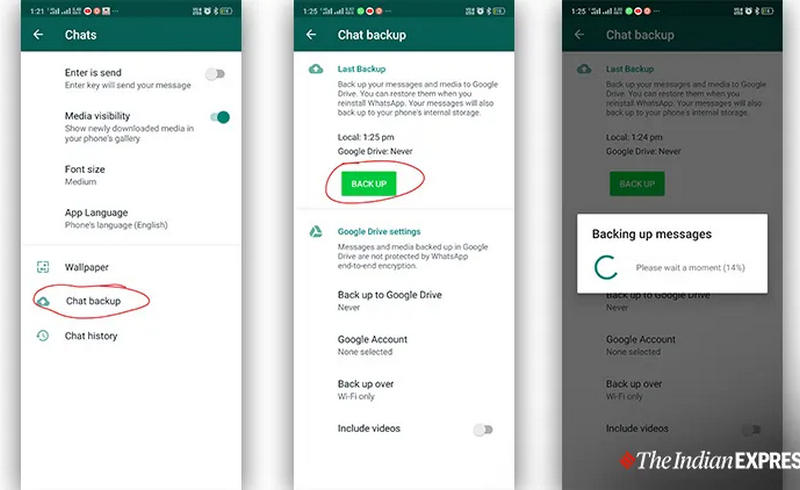
Βήμα 1. Open WhatsApp, and then go to Ρυθμίσεις. SelecΔημιουργία αντιγράφων συνομιλίας.
Βήμα 2. Πατήστε Δημιουργία αντιγράφων ασφαλείας τώρα. Ensure you include videos if they are important to you (though this increases file size).
On new iPhone:
Βήμα 1. Ensure you are signed into the same Apple ID and that iCloud Drive is turned ON.
Βήμα 2. Install WhatsApp from the App Store and verify your phone number.
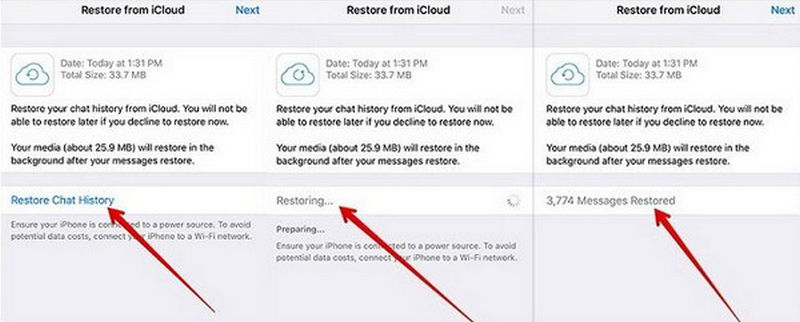
Βήμα 3. Όταν σας ζητηθεί, πιέστε Επαναφορά ιστορικού συνομιλιών to transfer WhatsApp to new iPhone. Ensure you have at least 2x the space available in your iCloud account and on your iPhone storage as the actual size of your backup.
Method 2: WhatsApp Chat Transfer (No iCloud Required)
In recent updates, WhatsApp introduced a localized way to transfer WhatsApp to a new iPhone using a QR code. This is perfect if your iCloud storage is full.
Βήμα 1. Keep both iPhones physically near each other.
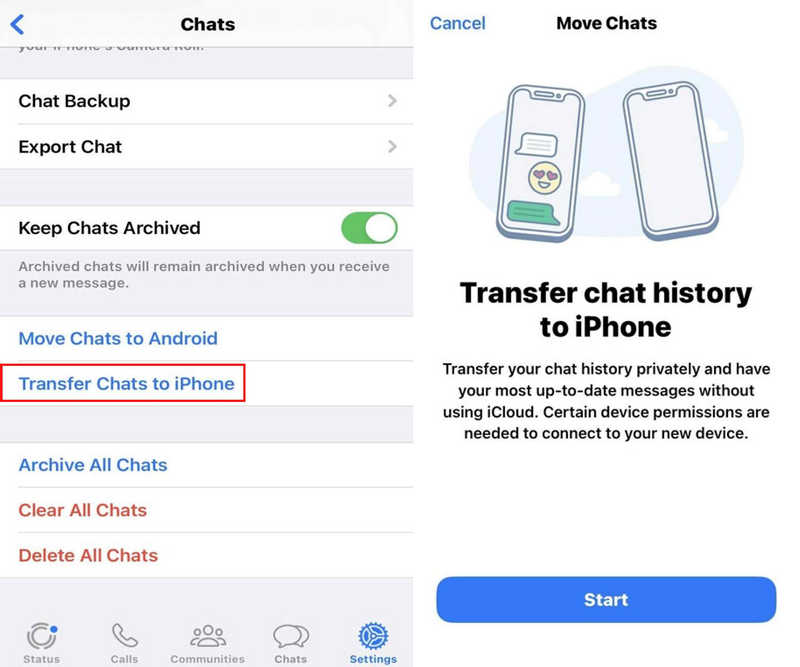
Βήμα 2. On the old phone, go to Settings > Chats > Transfer Chats to iPhone. Στη συνέχεια, πατήστε το Αρχική κουμπί.
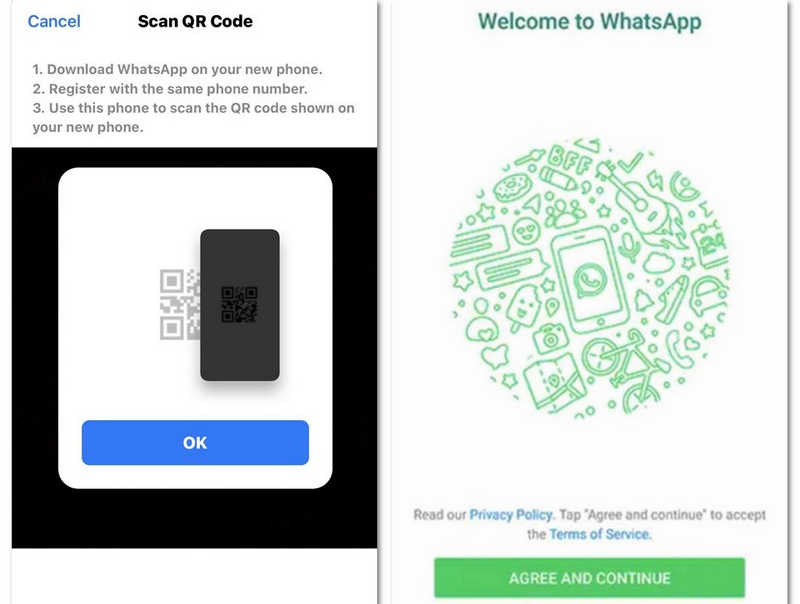
Βήμα 3. On your new iPhone, download WhatsApp and use the same phone number.
Βήμα 4. Scan the QR code displayed on the new phone using your old phone's camera.
Βήμα 5. Stay on the screen while the data is transferring. It’s significantly faster than downloading from the cloud to migrate WhatsApp to new iPhone.
Way 3: One-Stop Solution - Apeaksoft WhatsApp Transfer
The official methods can only move chats or media files on WhatsApp from iPhone to iPhone or require previous backup. Μεταφορά WhatsApp Apeaksoft can help you directly transfer WhatsApp app, chats, and media files like photos, videos, from old iPhone to new iPhone. Moreover, it can also back up WhatsApp files on a computer and restore them to multiple iOS devices.
Βήμα 1. Λήψη, εγκατάσταση και εκκίνηση Μεταφορά WhatsApp Apeaksoft στον υπολογιστή σας Windows ή Mac.
Ασφαλής λήψη
Ασφαλής λήψη
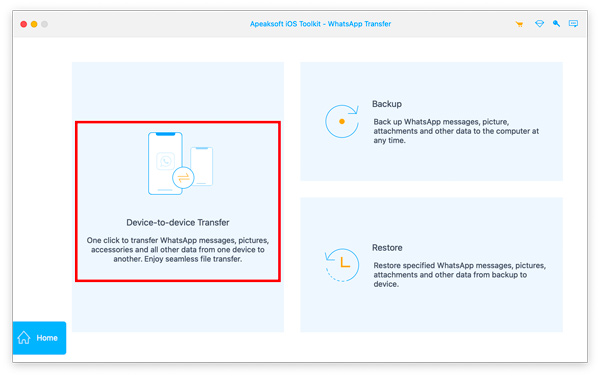
Βήμα 2. Connect your old and new iPhones to your computer via USB. Select Device to device Transfer στο πρόγραμμα.
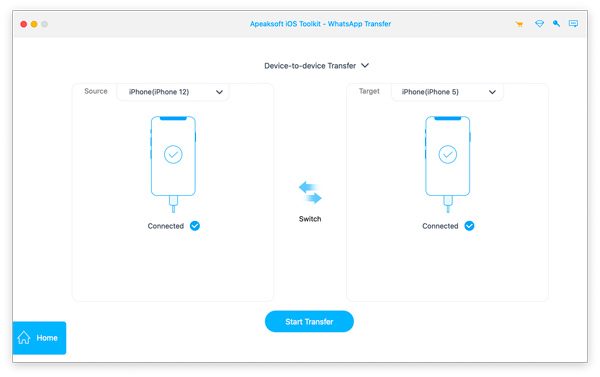
Βήμα 3. Now, determine your source and target iPhone. If they are opposite, you can click the διακόπτης κουμπί για να τα τροποποιήσετε.
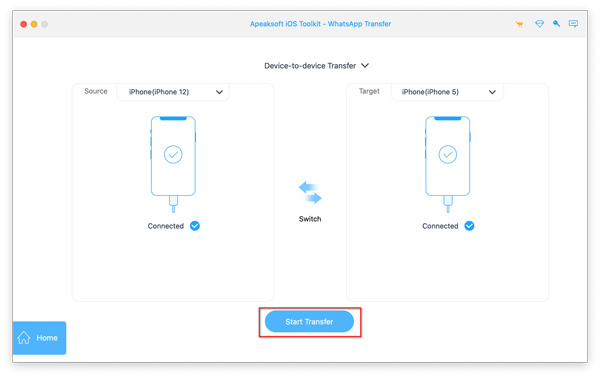
Βήμα 4. Τέλος, κάντε κλικ στο Μεταφορά button to transfer WhatsApp to new iPhone easily. This process will transfer WhatsApp app, media files, and chat history.
Περισσότερες Πληροφορίες
Part 3: Troubleshooting Common WhatsApp Migration Failures
Sometimes, the attempt to move WhatsApp from iPhone to iPhone hits a snag. If you find your transfer is stuck at 0% or failing, check the following:
1. The Phone Number Must Match
You cannot transfer chats if you are changing your phone number at the same time. You must first use the Change Number feature in WhatsApp settings on your old phone before performing the backup.
2. Check Your iCloud Drive Settings
Go to Settings > your profile > iCloud. Ensure iCloud Drive and WhatsApp are both toggled on. If these are off, the app won't be able to find the backup file.
3. Ενημερώστε το iOS σας
If your old phone is running iOS 15 and your new one is on iOS 18 or 26, the backup might fail due to a version mismatch. Update the iOS to transfer WhatsApp to new iPhone easily. Always update both devices to the latest available software before starting.
Συμπέρασμα
Αυτό το άρθρο σας λέει how to transfer WhatsApp from iPhone to iPhone in 3 official and proven ways. You can directly migrate WhatsApp chats and media files through 2 official ways via iCloud service or QR code. However, they cannot directly transfer all files. Apeaksoft WhatsApp Transfer can help you one-click transfer WhatsApp app, chats, photos, videos, and other media files from old iPhone to new iPhone. You don't need to wait for long, but quickly finish the transfer and start using WhatsApp on your new iPhone.
Σχετικά άρθρα
Εάν το WhatsApp Web δεν λειτουργεί στο iPhone σας, αυτή η ανάρτηση θα εξηγήσει γιατί και πώς να το διορθώσετε. Και υπάρχει ένα εργαλείο για τη διόρθωση όλων των προβλημάτων iOS.
Εξερευνήστε τον αναλυτικό οδηγό για την αποστολή ψεύτικων και ζωντανών τοποθεσιών WhatsApp. Βελτιώστε το απόρρητο και την ασφάλεια με οδηγίες και πληροφορίες βήμα προς βήμα.
Ο πιο αξιόπιστος τρόπος για να αποφύγετε την απώλεια σημαντικών πληροφοριών WhatsApp είναι να δημιουργείτε αντίγραφα ασφαλείας τακτικά. Αυτό το άρθρο θα σας καθοδηγήσει σχετικά με τον τρόπο δημιουργίας αντιγράφων ασφαλείας του WhatsApp.
Για να διαγράψετε μηνύματα στο WhatsApp, ανοίξτε την εφαρμογή. Επιλέξτε και κρατήστε πατημένο το μήνυμα που θέλετε να διαγράψετε μέχρι να εμφανιστεί το αναπτυσσόμενο μενού με την επιλογή Διαγραφή.



