Take a Minecraft Screenshot on Windows/Mac/iPhone/Android/PS/Xbox/Switch

Maybe you want to share the point of building something great in Minecraft with your friends. Or, perhaps you just want to memorize some beautiful scene. Whatever the purpose, screenshots are there to save you the hassle.
Luckily, it is easy to learn how to take screenshots in Minecraft, but the process varies across devices. Whether you are new to screenshots or simply want to learn how to screenshot in Minecraft on a new device, here you'll find instructions on how to take a screenshot in Minecraft σε όλες τις μεγάλες συσκευές.
ΠΕΡΙΕΧΟΜΕΝΟ ΣΕΛΙΔΑΣ:
Part 1: How to Take a Screenshot in Minecraft on Windows/Mac
Method 1: Take a Screenshot in Minecraft Java Edition
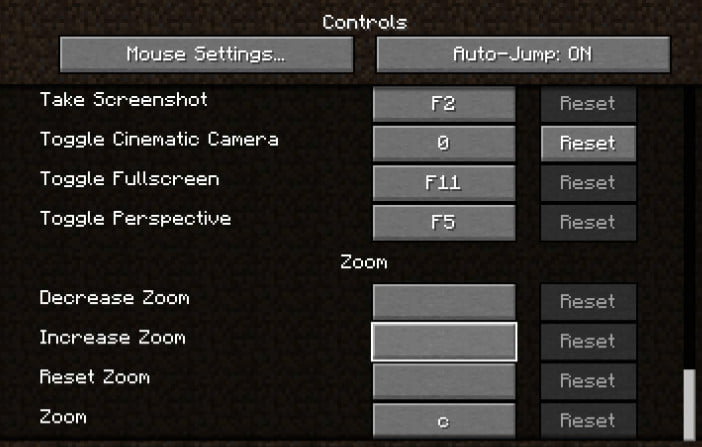
Minecraft Java Edition provides a built-in way to take screenshots on both Windows and Mac. Just press the F2 key to take a screenshot in Minecraft. The screenshot will be saved to ".minecraftscreenshots" on your computer.
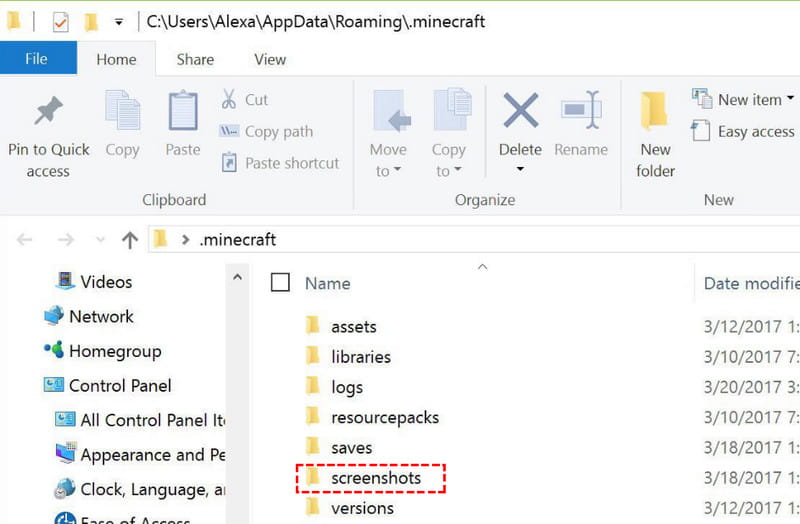
To find your screenshots, open the Minecraft game folder and navigate to .minecraft > screenshots. You can also use the following paths:
- Windows: %appdata%.minecraftscreenshots
- Mac: ~/Library/Application Support/minecraft/screenshots
Method 2: Take a Screenshot in Minecraft on Windows
For Windows 10/11 users, you can use any Windows built-in screen capture tools to capture Minecraft gameplay.
1. Use Windows + Alt + PrtScn
Μπορείτε να πατήσετε Windows + άλλος + PrtScn to create a screenshot of your Minecraft game. The screenshot will be saved as a PNG file in the Βίντεο > Καλύπτει φάκελο.
2. Χρησιμοποιήστε τη γραμμή παιχνιδιών Xbox
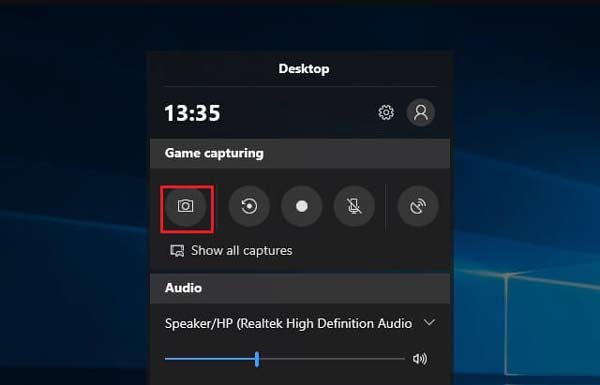
Τύπος Windows + G ταυτόχρονα για να ανοίξετε το παιχνίδι Ρυθμίσεις παράθυρο. Στη συνέχεια, κάντε κλικ στο φωτογραφική μηχανή κάτω από το κουμπί Λήψη παιχνιδιού to capture a screenshot in Minecraft. You can find the screenshot in the Βίντεο > Καλύπτει φάκελο στον υπολογιστή σας.
3. Χρησιμοποιήστε το Snipping Tool
Τύπος Windows + αλλαγή + S to open Snipping Tool. Then, select the area of the Minecraft gameplay screen you want to capture. The screenshot will be copied to your clipboard. There will be a prompt in the bottom right corner after the screenshot.
Method 3: Take a Screenshot in Minecraft on Mac
Mac users can also use built-in keyboard shortcuts to take screenshots of Minecraft gameplay.
| Περιοχή καταγραφής | Επιχείρηση | Αποθήκευση διαδρομής |
| Καταγράψτε ολόκληρη την οθόνη | Τύπος Shift + Εντολή + 3 συγχρόνως | The screenshot will be saved to your desktop by default. |
| Capture a Specific Area | Τύπος Shift + Εντολή + 4, then drag the crosshair to select the area you want to capture | The screenshot will also be saved to your desktop by default |
Method 4: Screenshot Minecraft More Flexibly with Apeaksoft Screen Recorder
Suppose you prefer to use a screenshot app that provides more advanced options. Apeaksoft οθόνη εγγραφής is your best option to take screenshots of Minecraft on Mac or Windows.

Λήψη από πάνω από 1,000,000 Χρήστες
- Take snapshots of Minecraft with high quality.
- Save the Minecraft screenshots in PNG, JPG, etc.
- Edit the Minecraft screenshot in real-time, adding arrows, texts, callouts, blur, and more.
- Record Minecraft gameplays with audio as well.
Ασφαλής λήψη
Ασφαλής λήψη

Βήμα 1. Εκκινήστε αυτό το εργαλείο καταγραφής οθόνης στον υπολογιστή σας και, στη συνέχεια, επιλέξτε το Οθόνη συλλαμβάνει χαρακτηριστικό στην κύρια διεπαφή.
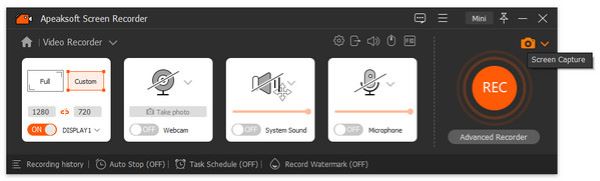
Βήμα 2. When the mouse cursor changes into a crosshair, place the crosshair at the upper left corner of the area you want to capture. Then, click your mouse and drag a box to cover the area you want to screenshot.
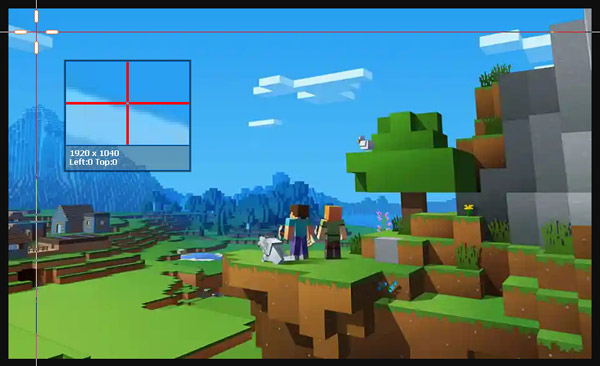
Βήμα 3. When you release the mouse button, the program will capture a screenshot of the highlighted area. Here you will see a lot of editing tools to edit your screenshot. You can draw the border, lines, or shapes, add callouts, and more.
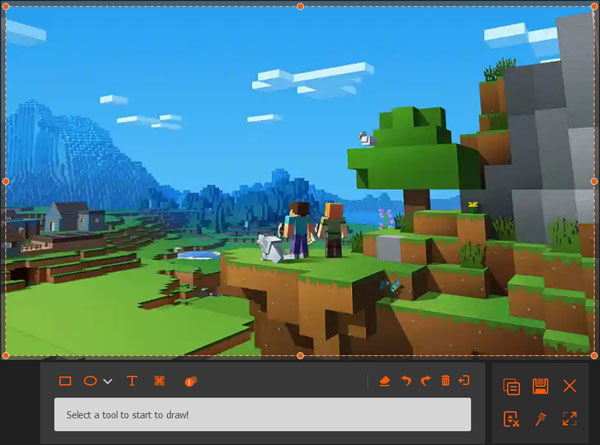
Βήμα 4. Τέλος, κάντε κλικ στο δίσκος και μετά επιλέξτε τη διαδρομή για να αποθηκεύσετε την εικόνα που δημιουργείτε.
Part 2: How to Take a Screenshot of Minecraft on iPhone/Android
If you are playing Minecraft on your smartphone, you can also use the built-in features to take a Minecraft screenshot.
Screenshot Minecraft on iPhone
- For iPhones without a Home button, press the Πλευρά κουμπί και όγκου Up button at the same time, then quickly release both buttons.
- For iPhones with a Home button, press the Πλάι (ή Πάνω) και το κουμπί Αρχική button at the same time, then quickly release both buttons.
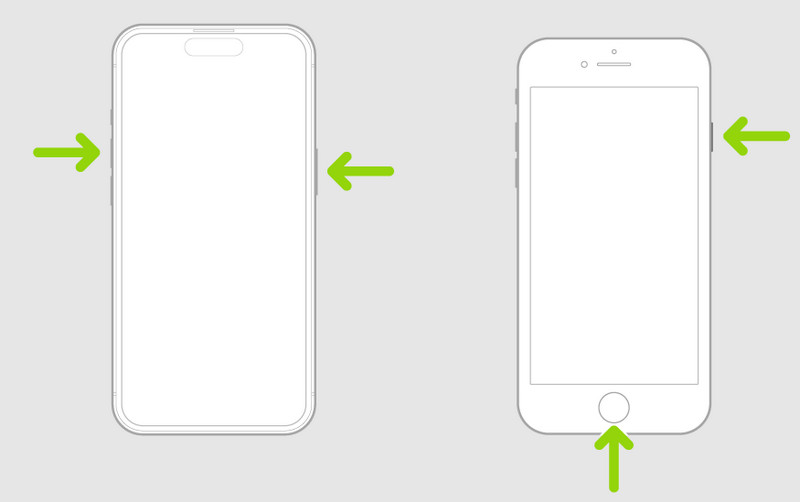
The screenshot will be saved in the Photos > Screenshots.
Screenshot Minecraft on Android
If you are using an Android phone, you can press the Power and Volume Down buttons at the same time to make a screenshot of Minecraft.
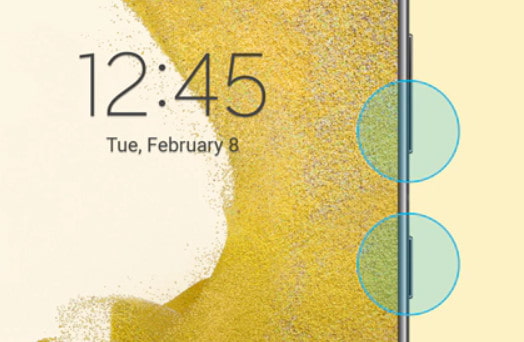
The screenshot will be saved in your Gallery or Photos app, depending on your device.
Part 3: How to Screenshot Minecraft on PS/Xbox/Switch
Take a Screenshot in Minecraft on PS4/PS5
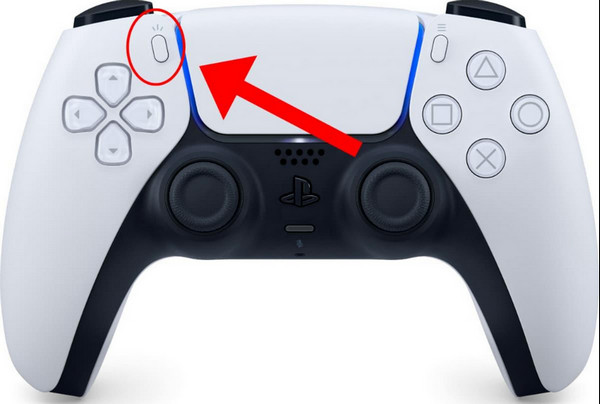
On PS5, you can press the δημιουργώ κουμπί για το Διπλή αίσθηση controller to open the Create menu. Then select Πάρτε Screenshot to capture your Minecraft gameplay.
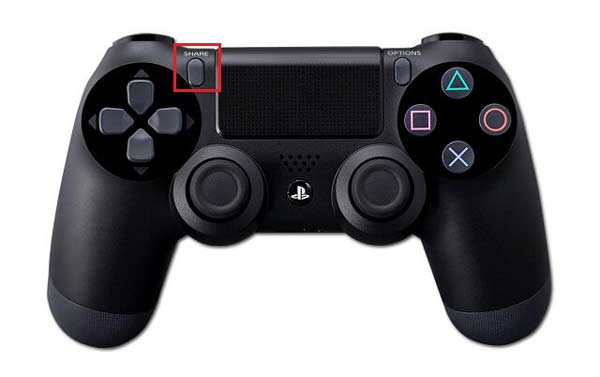
On PS4, you can hold down the ΜΕΡΊΔΙΟ button on the controller to get a screenshot. Or you can choose to tap the ΜΕΡΊΔΙΟ button to open a new menu where you can take a screenshot, record a video, and share your screencasts.
Capture a Screenshot of Minecraft on Xbox
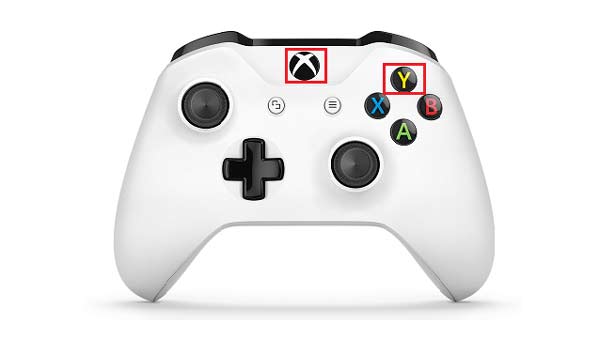
You need to double-tap the Xbox button on your controller. Then, press Y για να τραβήξετε ένα στιγμιότυπο οθόνης στο Minecraft ή X για εγγραφή βίντεο κλιπ.
Take a Screenshot in Minecraft on Nintendo Switch
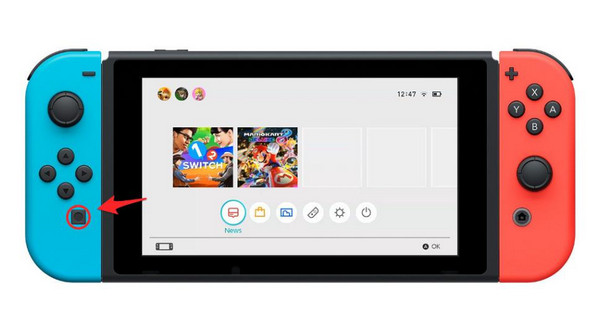
Πατήστε το κουμπί σύλληψη κουμπί για το Joy-Con or Pro Controller to take a screenshot of your Minecraft gameplay. The screenshot will be saved to the Άλμπουμ on your Nintendo Switch.
Part 4: FAQs About Taking a Screenshot in Minecraft
Is there any way to screenshot in Minecraft on PS3 or Xbox 360?
Unfortunately, there is no built-in screenshot creation function for PS3 and Xbox 360.
Can I take a screenshot in Minecraft on PS3?
Unfortunately, there is no built-in screenshot tool. You can use a third-party application like Apeaksoft οθόνη εγγραφής, which can take a screenshot of Minecraft on PlayStation 3.
Πώς να βρείτε στιγμιότυπα οθόνης Minecraft στον υπολογιστή;
On Windows, screenshots are saved in the .minecraftscreenshots inside the AppDataRoaming folder. This folder can be obtained by typing %appdata%.minecraftscreenshots into the File Explorer address bar.
For the Windows 11 version of Bedrock Edition, the default screenshot save folder is C:Users\VideosCaptures.
Σε macOS, τα στιγμιότυπα οθόνης αποθηκεύονται στο ~ / Library / Application Support / minecraft / screenshots.
Συμπέρασμα
In general, this tutorial covers how to take screenshots in Minecraft on almost all popular devices. Now, you're a screenshot pro ready to capture images of Minecraft on any device. To memorize the good times in Minecraft, you can even εγγραφή Minecraft σε Windows PC, Mac, iPhone ή Android.
 Apeaksoft οθόνη εγγραφής
 Εγγράψτε οποιοδήποτε βίντεο και ήχο στην οθόνη του τηλεφώνου και του υπολογιστή.
Ασφαλής λήψη
Ασφαλής λήψη
Σχετικά άρθρα