

Πώς να συγχρονίσετε γρήγορα τη συσκευή σας Android με έναν υπολογιστή

Συγχρονισμός Android με υπολογιστή σημαίνει άμεση μετακίνηση όλων των αρχείων ή συγκεκριμένων δεδομένων από τη συσκευή σας Android σε έναν υπολογιστή. Πριν ελευθερώσετε χώρο στο τηλέφωνό σας, για παράδειγμα, καλό είναι να συγχρονίσετε σημαντικά δεδομένα και πληροφορίες σε έναν υπολογιστή. Επιπλέον, σας επιτρέπει να διατηρείτε, να προβάλλετε και να διαχειρίζεστε δεδομένα Android στον υπολογιστή σας. Αυτός ο οδηγός προσδιορίζει πολλές αποδεδειγμένες μεθόδους και παρουσιάζει τις ροές εργασίας με βήματα.
ΠΕΡΙΕΧΟΜΕΝΟ ΣΕΛΙΔΑΣ:
Μέρος 1: Ένας ιδανικός τρόπος για να συγχρονίσετε το Android με έναν υπολογιστή
Για να συγχρονίσετε ένα τηλέφωνο Android, μπορεί να χρειαστείτε ένα εύχρηστο εργαλείο, όπως Apeaksoft MobieTransΕίναι σε θέση να έχει πρόσβαση στη συσκευή σας Android από έναν υπολογιστή και να μεταφέρει όλα τα δεδομένα στον υπολογιστή σας μέσω μιας φυσικής σύνδεσης.
Ένας γρήγορος τρόπος για να συγχρονίσετε το Android με έναν υπολογιστή
- Συγχρονίστε μηνύματα, αρχεία πολυμέσων και άλλα από το Android σε έναν υπολογιστή.
- Εργαστείτε για ένα ευρύ φάσμα τύπων δεδομένων.
- Προεπισκόπηση αρχείων για επιλεκτικό συγχρονισμό.
- Διαχειριστείτε τα αρχεία σας Android σε έναν υπολογιστή.
- Υποστηρίζει σχεδόν όλες τις μάρκες και τα μοντέλα Android.
Ασφαλής λήψη
Πώς να συγχρονίσετε ένα τηλέφωνο Android με έναν υπολογιστή
Βήμα 1. Συνδεθείτε στο Android
Εκκινήστε το λογισμικό συγχρονισμού Android μόλις το εγκαταστήσετε στον υπολογιστή σας. Υπάρχει μια άλλη έκδοση για χρήστες Mac. Συνδέστε τη συσκευή σας Android σε έναν υπολογιστή με ένα καλώδιο Lightning. Εάν συνδέετε τις δύο συσκευές για πρώτη φορά, πατήστε Εμπιστευθείτε στην οθόνη σας για να εμπιστευτείτε αυτόν τον υπολογιστή.
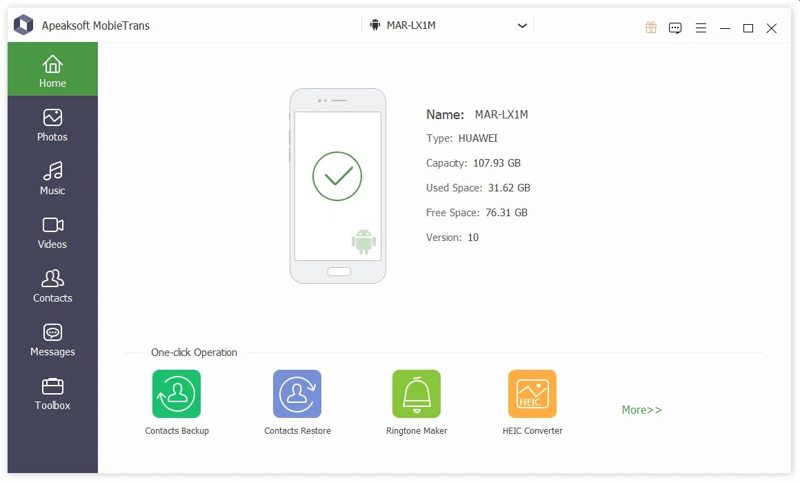
Συμβουλές: Βεβαιωθείτε ότι έχετε ενεργοποιήσει το Debugging USB λειτουργία στο τηλέφωνό σας Android.
Βήμα 2. Προεπισκόπηση δεδομένων Android
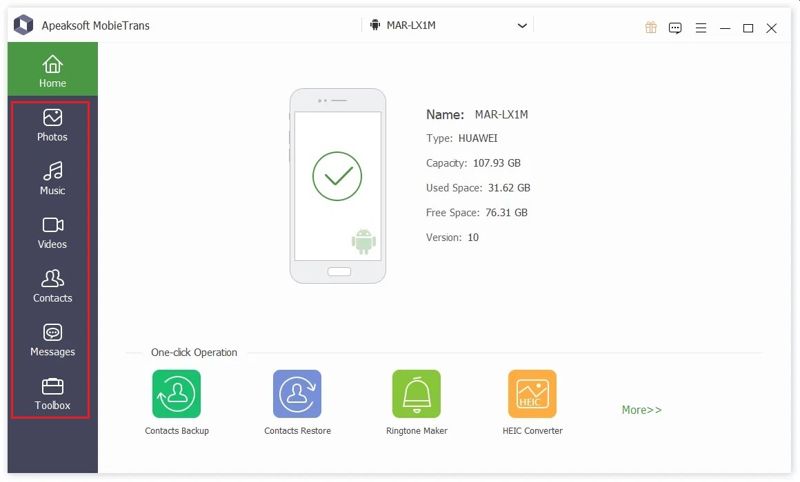
Στη συνέχεια, μπορείτε να κάνετε προεπισκόπηση των δεδομένων σας ανά τύπο. Για να δείτε βίντεο στο τηλέφωνό σας Android, για παράδειγμα, μεταβείτε στο Βίντεο καρτέλα στην πλαϊνή μπάρα.
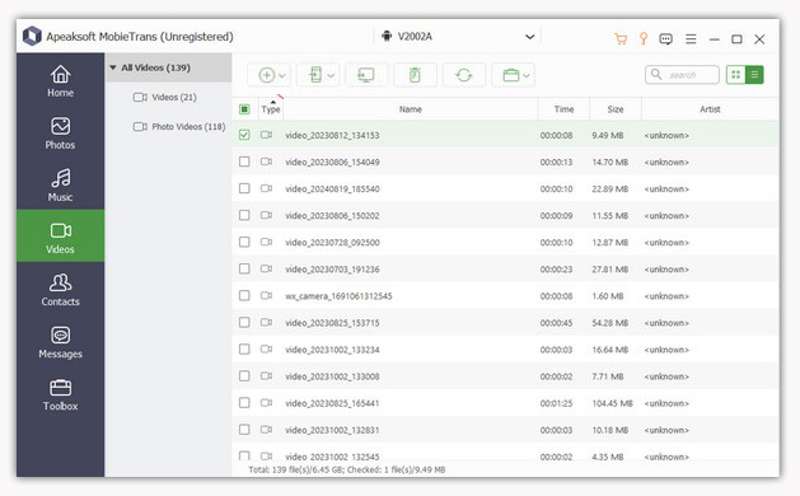
Βήμα 3. Συγχρονισμός τηλεφώνου Android
Επιλέξτε τα αρχεία και τα στοιχεία που θέλετε να συγχρονίσετε και κάντε κλικ στο PC κουμπί στην επάνω κορδέλα και επιλέξτε Εξαγωγή σε Η / ΥΟρίστε έναν φάκελο εξόδου και επιβεβαιώστε τον συγχρονισμό Android. Μπορείτε επίσης μεταφορά αρχείων από το Android στο iPhone με αυτό το πρόγραμμα.
Μέρος 2: Πώς να συγχρονίσετε το Android σε έναν υπολογιστή με καλώδιο
Το Android είναι ένα λειτουργικό σύστημα ανοιχτού κώδικα. Σας επιτρέπει να έχετε πρόσβαση στο σύστημα αρχείων που βρίσκεται στη μνήμη σας. Με άλλα λόγια, μπορείτε να συνδέσετε το τηλέφωνό σας σε έναν υπολογιστή με ένα καλώδιο USB και να συγχρονίσετε γρήγορα το Android σας με έναν υπολογιστή.
Βήμα 1. Ενεργοποιήστε τη συσκευή σας Android και εκτελέστε την Ρυθμίσεις app.
Βήμα 2. Κάντε κύλιση προς τα κάτω και μεταβείτε στο Επιλογές ανάπτυξης Tab.
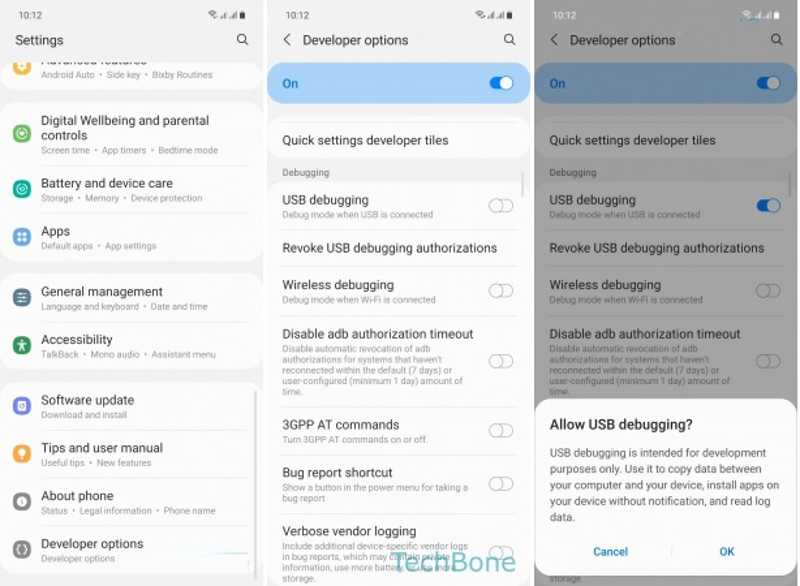
Συμβουλές: Εάν δεν μπορείτε να βρείτε τις Επιλογές προγραμματιστή, πατήστε Κατασκευή αριθμού στο Σχετικά με εμάς καρτέλα επτά φορές στη σειρά.
Βήμα 3. Εναλλαγή Εντοπισμός σφαλμάτων USB, και πατήστε OK για να το επιβεβαιώσετε.
Βήμα 4. Στη συνέχεια, πατήστε Προεπιλεγμένη διαμόρφωση USB, και επιλέξτε Μεταφορά αρχείων.
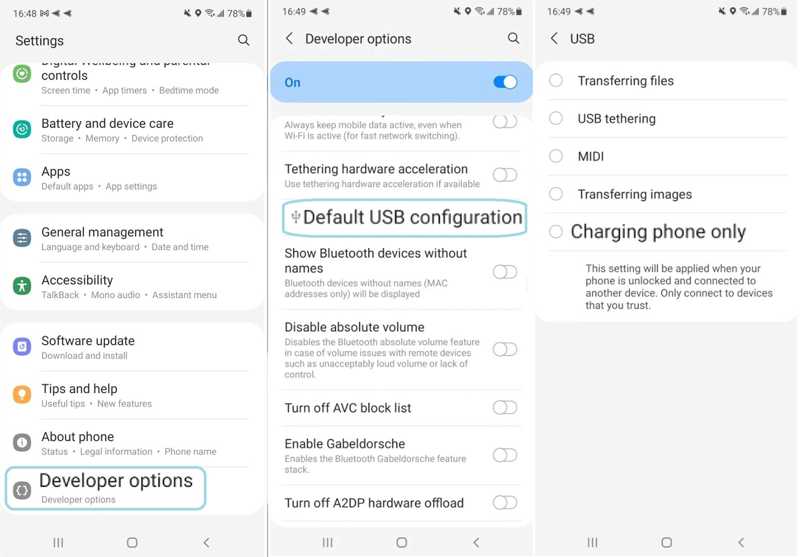
Βήμα 5. Στη συνέχεια, συνδέστε τη συσκευή σας Android στον υπολογιστή σας με ένα καλώδιο USB.
Βήμα 6. Ανοίξτε μια Εξερεύνηση Αρχείων και επιλέξτε τη συσκευή σας Android.
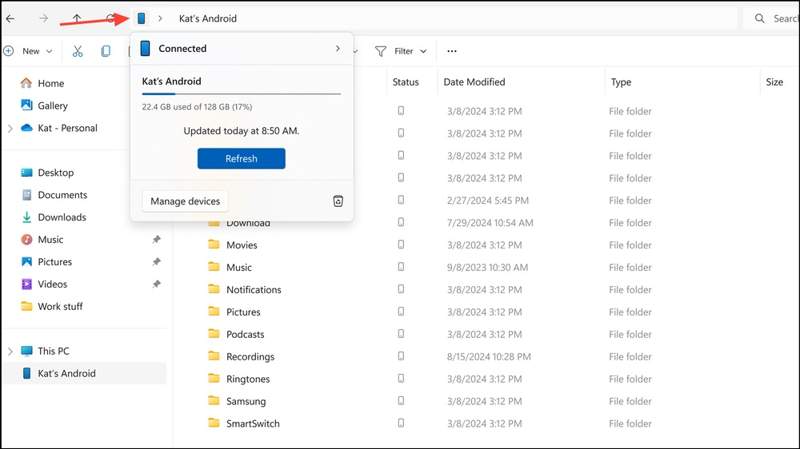
Βήμα 7. Δείτε τα αρχεία στη συσκευή σας Android και συγχρονίστε τα με τον υπολογιστή σας.
Σημείωση: Ορισμένα αρχεία Android, όπως τα μηνύματα, δεν ήταν δυνατό το άνοιγμα ή η ανάγνωση στον υπολογιστή σας.
Μέρος 3: Πώς να συγχρονίσετε το Android με τον υπολογιστή χρησιμοποιώντας το Phone Link
Για να συγχρονίσετε μηνύματα τηλεφώνου Android με υπολογιστή Windows 10, μπορείτε να χρησιμοποιήσετε την εφαρμογή Phone Link. Κυκλοφόρησε από τη Microsoft και χρησιμοποιείται για τον έλεγχο και την πρόσβαση στη συσκευή σας Android σε έναν υπολογιστή με Windows 11/10.
Βήμα 1. Ανοίξτε το Σύνδεσμος τηλεφώνου app από το Αρχική μενού στον υπολογιστή σας.
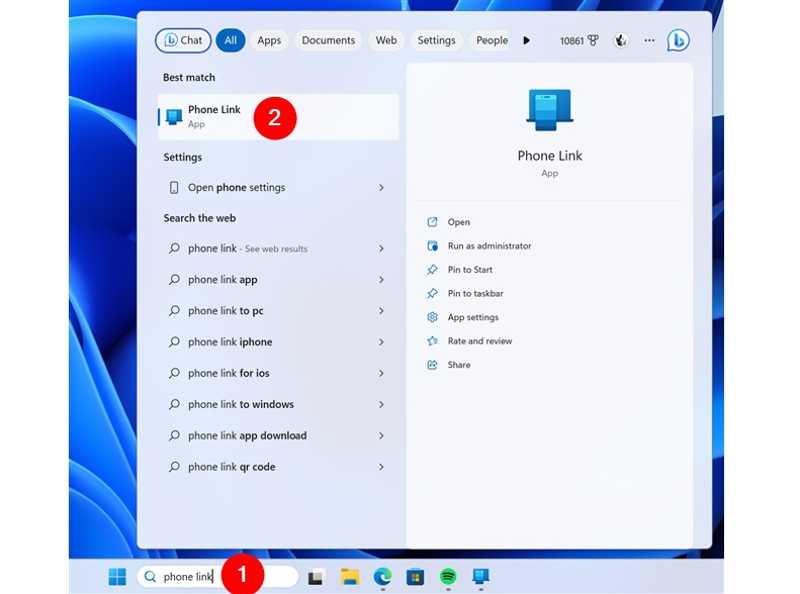
Συμβουλές: Μπορείτε να εγκαταστήσετε την εφαρμογή από το Microsoft Store δωρεάν.
Βήμα 2. Επιλέξτε Android υπό Διάλεξε το τηλέφωνό σου.
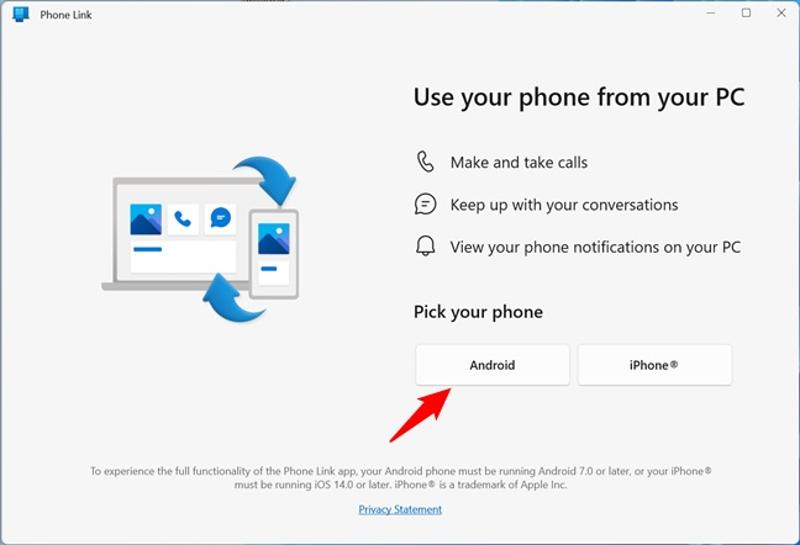
Βήμα 3. Όταν σας ζητηθεί, εγκαταστήστε το Σύνδεση με Windows εφαρμογή στη συσκευή σας Android ακολουθώντας τις οδηγίες στην οθόνη.
Βήμα 4. Στη συνέχεια, ελέγξτε Έχω έτοιμη την εφαρμογή Link to Windows, Και κάντε κλικ στο Σύζευξη με κωδικό QR κουμπί.
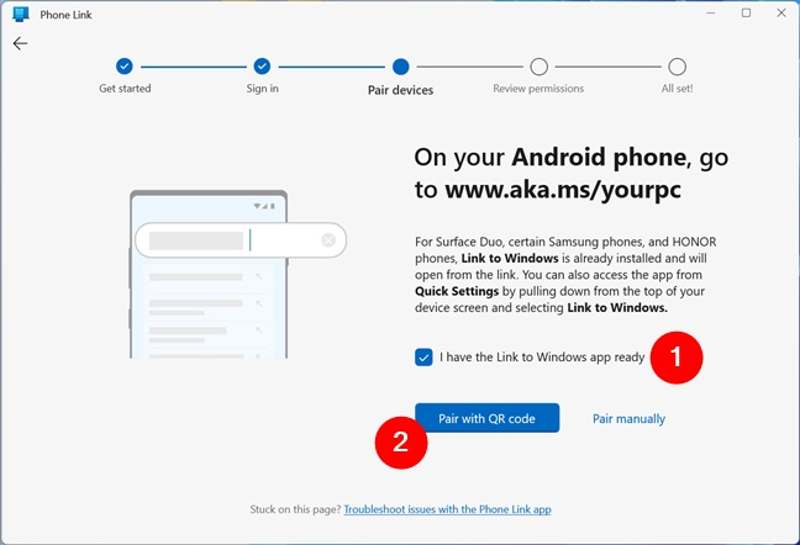
Βήμα 5. Μεταβείτε στο τηλέφωνό σας Android.
Βήμα 6. Ανοίξτε το Ρυθμίσεις app, πατήστε Συνδεδεμένες συσκευές και ενεργοποίηση Σύνδεση με Windows.
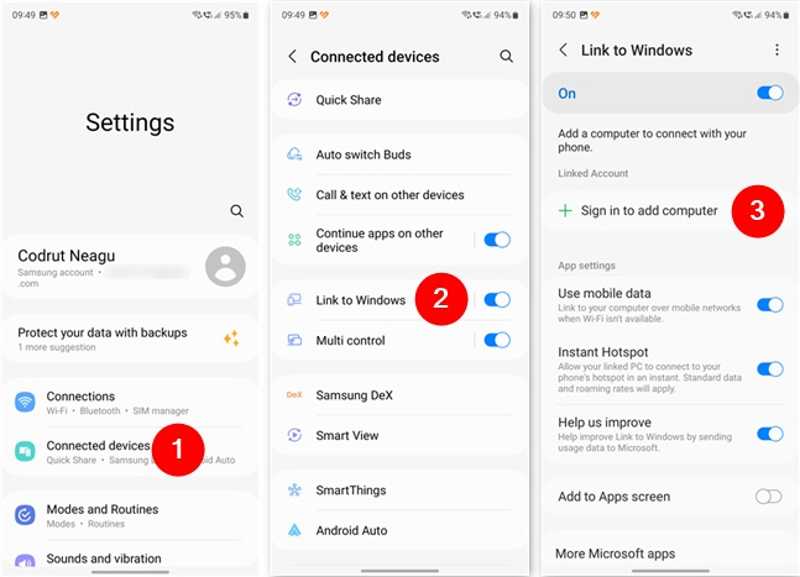
Βήμα 7. Πατήστε Συνδεθείτε για να προσθέσετε υπολογιστή, και χτυπήστε Προσθήκη υπολογιστή.
Βήμα 8. Εκτελέστε το Σύνδεση με Windows εφαρμογή από το συρτάρι εφαρμογών σας.
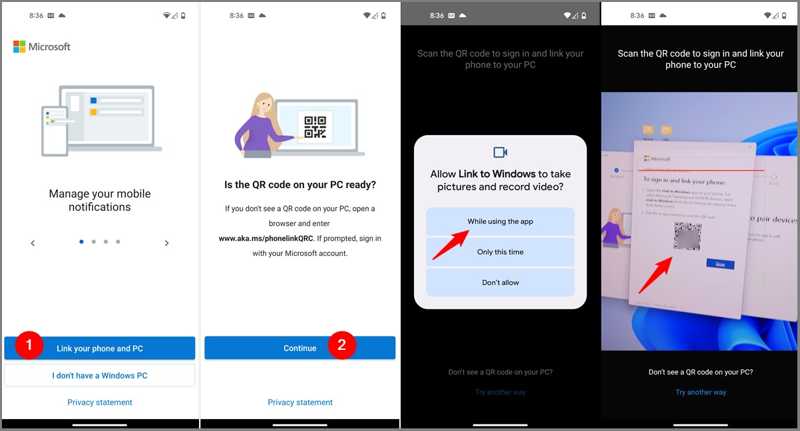
Βήμα 9. Πατήστε Συνδέστε το τηλέφωνο και τον υπολογιστή σας, και χτυπήστε ΣΥΝΕΧΕΙΑ.
Βήμα 10. Εάν σας ζητηθεί, επιλέξτε Ενώ χρησιμοποιείτε την εφαρμογή, σαρώστε τον κωδικό QR χρησιμοποιώντας το τηλέφωνό σας.
Βήμα 11. Στη συνέχεια, η εφαρμογή θα σας ενημερώσει ότι είναι πλέον Σύζευξη με υπολογιστή.
Βήμα 12. Πατήστε ΣΥΝΕΧΕΙΑ στην οθόνη δικαιωμάτων εφαρμογής και επιτρέψτε της να έχει πρόσβαση στο αρχείο, τις επαφές σας και πολλά άλλα.
Βήμα 13. Ακολουθήστε τις οδηγίες στην οθόνη για να παραμείνετε συνδεδεμένοι και να το εκτελέσετε στο παρασκήνιο.
Βήμα 14. Τέλος, πατήστε Ολοκληρώθηκε για να επιβεβαιώσετε τη διαμόρφωση.
Βήμα 15. Μεταβείτε στον υπολογιστή σας και το Phone Link θα πρέπει να συνδεθεί με το τηλέφωνό σας.
Βήμα 16. Πατήστε ΣΥΝΕΧΕΙΑ, και χτυπήστε Αγορά.
Βήμα 17. Επιλέξτε Προβολή φωτογραφιών μου και συγχρονίστε το τηλέφωνο Android με τον υπολογιστή.
Συμπέρασμα
Αυτός ο οδηγός παρουσίασε τρεις τρόπους για να Συγχρονισμός μηνυμάτων τηλεφώνου Android με υπολογιστή Windows 10 και άλλους τύπους δεδομένων. Μπορείτε να συνδέσετε τη συσκευή σας Android σε έναν υπολογιστή με ένα καλώδιο USB για απευθείας συγχρονισμό δεδομένων. Η εφαρμογή Link to Phone Link είναι ένας γρήγορος τρόπος για να συγχρονίσετε φωτογραφίες και βίντεο Android σε έναν υπολογιστή. Το Apeaksoft MobieTrans λειτουργεί για μια ποικιλία τύπων δεδομένων που συγχρονίζονται μεταξύ Android και ενός υπολογιστή.
Σχετικά άρθρα
Υπάρχουν πέντε αποτελεσματικές μέθοδοι για να μεταφέρετε φωτογραφίες από το iPhone στο Android χρησιμοποιώντας το Google Photos, το email, έναν υπολογιστή και άλλα.
Πώς να στείλετε βίντεο από Android σε iPhone; Εδώ προσφέρονται 7 λύσεις που θα σας βοηθήσουν να μεταφέρετε εύκολα μεγάλα βίντεο χωρίς να χάσετε την ποιότητα από Android σε iPhone.
Μπορείτε να μεταφέρετε μουσική Android στο iPhone χρησιμοποιώντας την εφαρμογή Move to iOS, καλώδιο USB, λογισμικό τρίτων ή την υπηρεσία ροής μουσικής.
Μπορείτε να μάθετε τρεις μεθόδους για να μεταφέρετε μηνύματα κειμένου από ένα iPhone σε ένα τηλέφωνο Android με καλώδιο USB ή ασύρματα.



