

Step-by-Step Guide: How to Transfer Files from PC to iPad

If you've got a new iPad and want to copy backups from PC to iPad, or need to take files with you on the go, you might be wondering how to transfer files from PC to iPad. In this guide, we'll show you various methods to transfer computer files to an iPad in different situations. Follow these steps to get your files on your iPad quickly and safely!
ΠΕΡΙΕΧΟΜΕΝΟ ΣΕΛΙΔΑΣ:
Part 1: How to Transfer Files from PC to iPad Using USB
Method 1: Transfer Files from PC to iPad via Data Transfer Tool
If you're looking for an all-in-one solution to transfer your files from PC to iPad, Apeaksoft iPhone Transfer should be your best choice. This powerful tool can transfer all types of data between iOS devices, PC and Mac in all directions, including photos, music, messages, videos, contacts, WhatsApp, and more.
Apeaksoft iPhone Transfer - One-Stop iOS Data Manager
- Transfer data between iPhone, iPad, iPod, PC, and Mac in all directions.
- Move all popular file types safely without data loss.
- Offers various features: HEIC conversion, iTunes data management and ringtone creation.
- Support all iOS models and versions, including the latest releases.
Ασφαλής λήψη
Ασφαλής λήψη

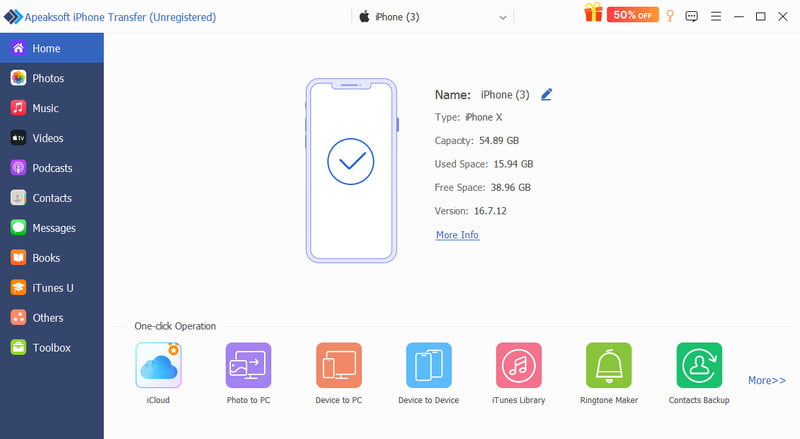
Βήμα 1. Connect your device to the PC using a USB cable. Launch the software and select the file type you want to copy in the sidebar.
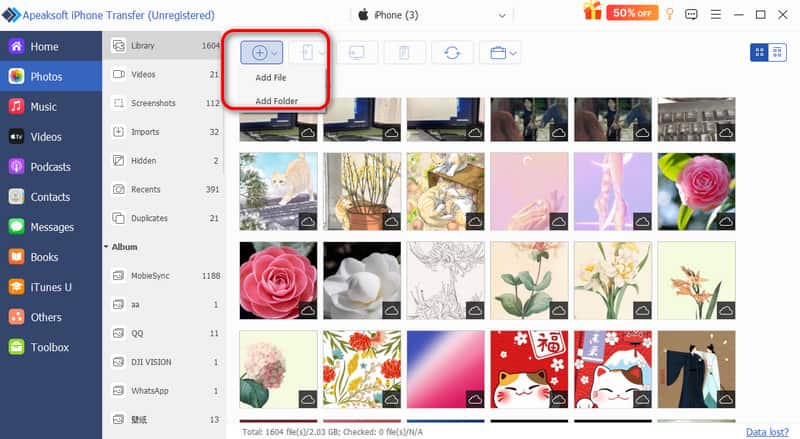
Βήμα 2. You can view all files on the screen. Click the πρόσθεση button to select the files or folder you need.
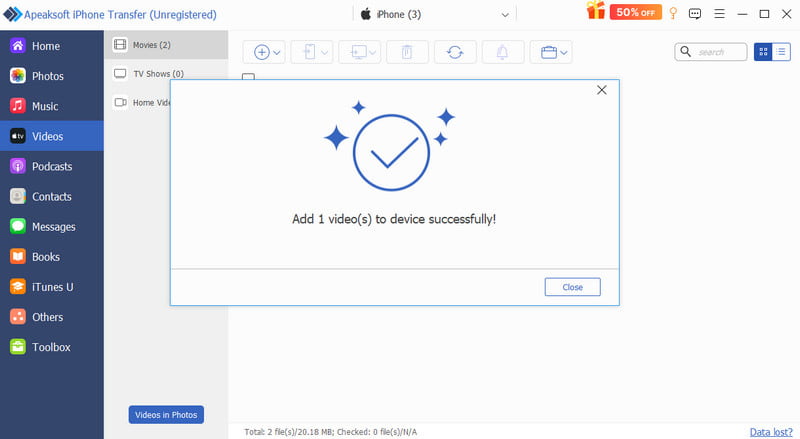
Βήμα 3. Click Open and the files will be moved to your device in a few minutes.
Συμβουλές: Μπορείτε επίσης να χρησιμοποιήσετε αυτό το λογισμικό για να transfer files from iPad to PC! It also supports transferring files between Mac and iPad!
Μέθοδος 2: Μεταφορά αρχείων από υπολογιστή σε iPad με το iTunes
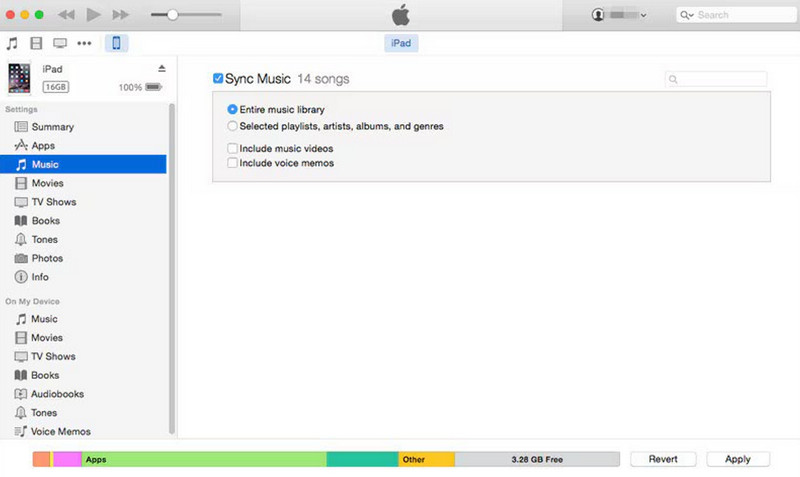
Apple provides an official way to transfer files from PC to iPad with iTunes. It supports two options: syncing data or using the File Sharing feature. Since syncing may overwrite the existing data on your iPad, it's safer to use the File Sharing feature to move files from PC to iPad.
Βήμα 1. Connect your iPad to your computer via USB.
Βήμα 2. Open iTunes on your PC, click the iPad κουμπί στην επάνω αριστερή γωνία.
Βήμα 3. Αγορά Κοινή χρήση αρχείων in the sidebar, then choose the app you want to copy a file from.
Βήμα 4. Πατήστε Προσθήκη αρχείου, select the files you want to transfer, then click Συγχρονισμός.
Method 3: Transfer Files from PC to iPad with File Explorer
You can also use Windows File Explorer to transfer photos and videos to your iPad. However, this method only gives you access to the DCIM folder, which stores photos and videos. So, you can't transfer documents, music, or other file types to your iPad.
Βήμα 1. Συνδέστε το iPad σας στον υπολογιστή σας χρησιμοποιώντας ένα καλώδιο USB.
Βήμα 2. Ανοικτό Εξερεύνηση αρχείων on your PC and find your iPad under αυτό το PC. Κλίκ Internal Storage > APPLE100 > DCIM.
Βήμα 3. Copy and paste photos and videos you want to transfer to your iPad into the DCIM φάκελο.
Βήμα 4. Check the transferred items on your iPad.
Part 2: How to Transfer Files from PC to iPad Wirelessly
Don't have a USB cable nearby? Wireless transfer is a more convenient way to move files between your PC and iPad. Below are three simple wireless methods you can try.
Μέθοδος 1: Μεταφορά αρχείων από υπολογιστή σε iPad μέσω ηλεκτρονικού ταχυδρομείου
You can use Email to send small files wirelessly. It requires no extra setup and works anywhere with an internet connection. However, most email services limit attachments to about 25MB, so this method is best suitable for small files.
Βήμα 1. Open your Email on PC and start a new email.
Βήμα 2. Add the files as attachments you want to transfer and send them to your own email address.
Βήμα 3. Locate the same email account on your iPad to download the attachments.
Method 2: Transfer Files from PC to iPad with Cloud Storage
Cloud storage is great for transferring large files. By keeping Συγχρονισμός iCloud across your devices, you can share your files with others on other devices and back up important data safely online. Popular cloud services include iCloud Drive, Google Drive, OneDrive, and Dropbox. One limitation is that free cloud services always come with limited storage space, and you may need to upgrade to a premium version.
Here we'll use iCloud as an example:
Βήμα 1. Στο iPad σας, πηγαίνετε στο Settings > [your name] > iCloud and toggle on iCloud Drive.
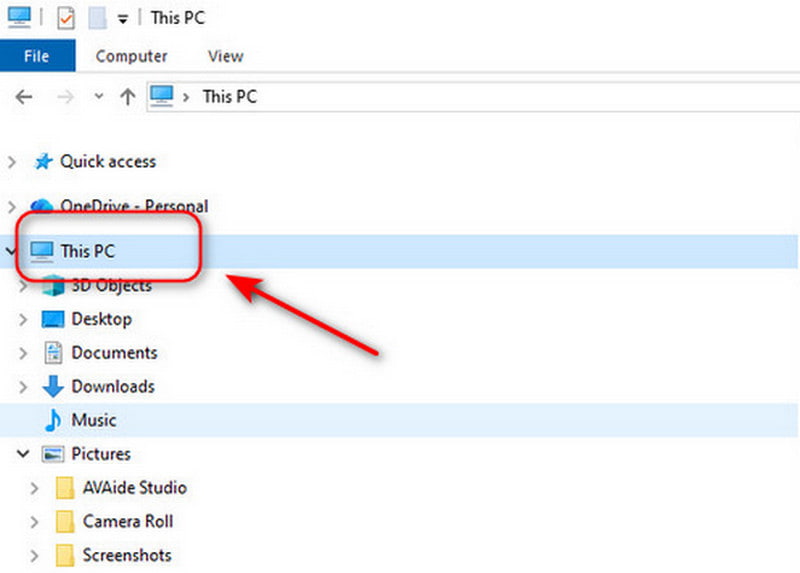
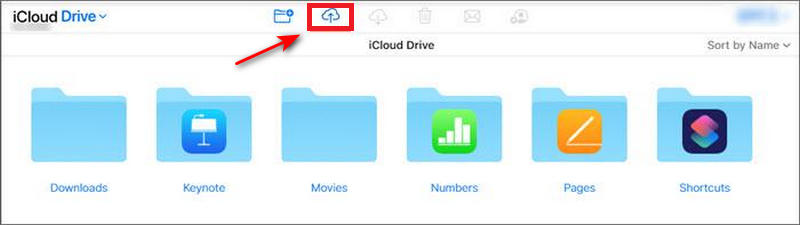
Βήμα 2. Log in to your iCloud account with the same Apple ID on PC. Go to αυτό το PC Και επιλέξτε το iCloud κίνησης folder. Then drag the files to the iCloud drive folder.
Βήμα 3. Ανοίξτε το Αρχεία app on your iPad, click Αναζήτηση Και επιλέξτε iCloud κίνησης to check the files.
Method 3: Transfer Files from PC to iPad Using Messaging Apps
You can also transfer files from PC to iPad using common messaging apps, such as Telegram, WhatsApp, Skype, AirDroid, and Discord. Simply log into the same account on both your PC and iPad, then send files to yourself and save them on your iPad.
This method is easy and convenient for daily use. But the transfer speed depends on your internet connection, and some apps may limit file size or compress media during transfer. Additionally, files remain in chat history, so you need to download them for long-term use.
Part 3: How to Transfer Files from PC to iPad with a USB Stick
If you don't have access to cloud services, a USB stick can help you transfer files effortlessly. This method works completely offline and requires no extra apps. Your iPad must support external storage devices, and you may need a compatible adapter.
Βήμα 1. Plug your USB stick into your PC. Copy the files you want to transfer onto the USB drive. Safely eject the USB when finished.
Βήμα 2. Connect the USB stick to your iPad with an adapter. If your USB stick has a regular USB‑A connector, choose a Lightning to USB Camera Adapter or USB‑C to USB Adapter, depending on your iPad model.
Βήμα 3. Ανοίξτε το Αρχεία app on your iPad. Find your USB drive under Tοποθεσίες and browse the files. αντίγραφο or Κίνηση the files you want to save to your iPad's local storage.
Συμπέρασμα
Transferring files from PC to iPad is simpler than you think. Whether you want to move photos, videos, music, or documents, you can copy files easily and safely by using a USB connection, wireless transfers, or a handy USB stick. Each method has its own advantages and limitations, so choose the one that best fits your needs and get started!
Σχετικά άρθρα
Πώς να μεταφέρετε φωτογραφίες από το iPhone στον υπολογιστή; Διαβάστε αυτό τον οδηγό για να μάθετε πολλούς καλύτερους τρόπους για να κατεβάσετε φωτογραφίες από το iPhone σε PC / Mac εύκολα και γρήγορα.
Μπορείτε να ακολουθήσετε τον οδηγό μας για να συγχρονίσετε αποτελεσματικά μηνύματα από το iPhone σας στο MacBook, συμπεριλαμβανομένων των μηνυμάτων κειμένου και του iMessage.
Χρησιμοποιείτε ακατάλληλους τρόπους μεταφοράς φωτογραφιών από iPhone σε iPad; Αυτό το άρθρο παρουσιάζει 5 αποτελεσματικούς τρόπους μεταφοράς φωτογραφιών από iPhone σε iPad.
Θέλετε να μάθετε πώς να μεταφέρετε βίντεο από το iPhone σας στον υπολογιστή σας χωρίς να θέσετε σε κίνδυνο την αρχική ποιότητα; Εδώ είναι οι πιο αποτελεσματικές από τις έξι μεθόδους.



