


Cómo recuperar archivos PST de Outlook eliminados o dañados

Un archivo PST, también conocido como Tabla de almacenamiento personal, es un archivo de Outlook que almacena información personal en Microsoft Outlook o Microsoft Exchange. Generalmente incluye mensajes, contactos, archivos adjuntos, direcciones y otra información. Si elimina accidentalmente un archivo PST o un archivo de Outlook se daña, perderá sus mensajes e información. Esta guía comparte cinco maneras de recuperar archivos PST de Outlook con o sin copia de seguridad.
CONTENIDO DE LA PAGINA:
- Parte 1: Cómo recuperar un archivo PST con la herramienta de reparación de la bandeja de entrada
- Parte 2: Cómo recuperar un archivo PST de Outlook eliminado de una versión anterior
- Parte 3: Cómo recuperar un archivo PST desde AutoArchive
- Parte 4: Cómo recuperar un archivo PST de Outlook mediante Copia de seguridad y restauración
- Parte 5: Cómo recuperar un archivo PST sin una copia de seguridad
Parte 1: Cómo recuperar un archivo PST con la herramienta de reparación de la bandeja de entrada
Microsoft Outlook incluye de forma predeterminada la herramienta de reparación de la bandeja de entrada. Esta herramienta puede recuperar rápidamente archivos PST de Outlook dañados. Sin embargo, este método no está disponible para archivos PST de Outlook eliminados o perdidos.
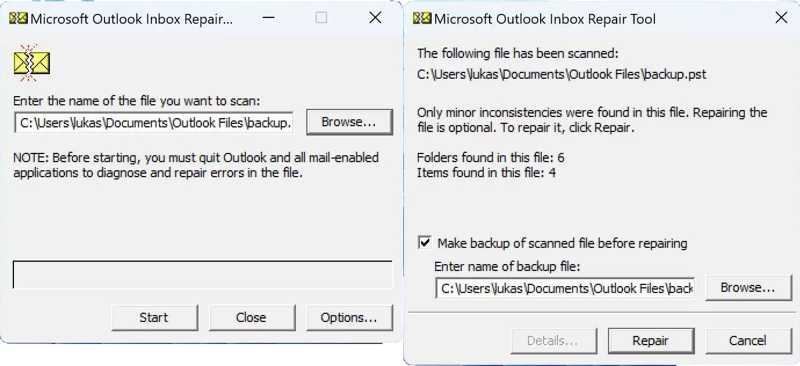
Paso 1: Diríjase al siguiente directorio de archivos:
Outlook 2019 y versiones posteriores: C:\Archivos de programa (x86)\Microsoft Office\Office16
Outlook 2016: C:Archivos de programa (x86)Microsoft OfficeootOffice16
Paso 2: Encuentra y abre el SCANPST.exe .
Paso 3: Haga clic en el botón Explorar Botón para seleccionar el archivo PST dañado.
Paso 4: Haga clic en el botón Comenzar Botón para escanear el archivo.
Paso 5: Si se detecta un error, haga clic aquí. Reparacion arreglarlo.
Paso 6: Cuando finalice la reparación, inicie Outlook con el perfil asociado.
Parte 2: Cómo recuperar un archivo PST de Outlook eliminado de una versión anterior
Historial de archivos es una función de copia de seguridad de Windows. Una vez configurada, esta función guarda automáticamente copias versionadas de archivos personales, incluidos los archivos PST de Outlook. Si pierde su archivo de Outlook, recupere el archivo PST eliminado desde la versión anterior.
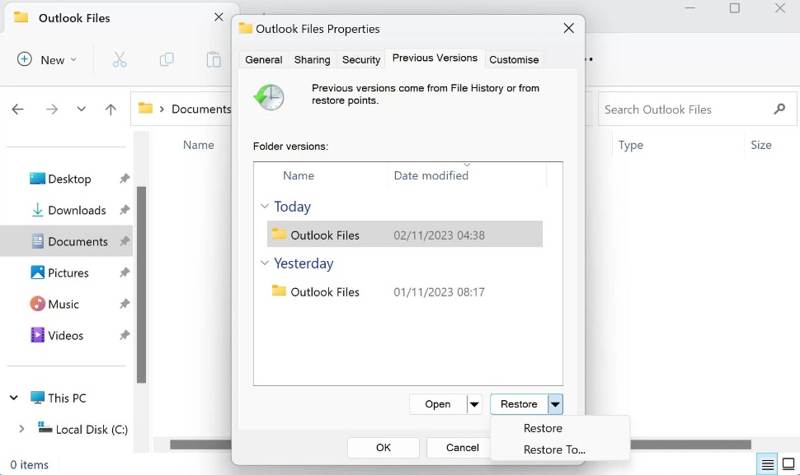
Paso 1: Abra el Explorador de archivos, busque Archivos de Outlooky abre la carpeta.
Paso 2: Haga clic derecho en la carpeta y elija Propiedades.
Paso 3: Cambie a la Versiones anteriores .
Paso 4: Seleccione la versión correcta y haga clic. Restaurar.
Paso 5: Ejecuta Outlook para comprobar si se ha recuperado el archivo PST eliminado.
Parte 3: Cómo recuperar un archivo PST desde AutoArchive
AutoArchivo es la función de copia de seguridad de Outlook 2003 y versiones posteriores. Una vez activada, realiza automáticamente copias de seguridad de los elementos de Outlook con una antigüedad determinada en una carpeta de archivo. Esto le permite recuperar el archivo PST de Outlook.
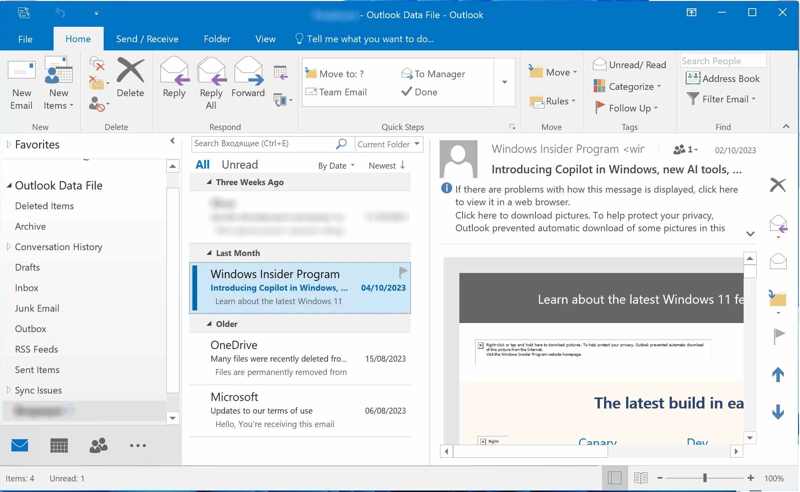
Paso 1: Ejecutar MS Outlook.
Paso 2: Vaya a la Archivo menú y elegir Abrir y Exportar en la barra lateral.
Paso 3: Haga clic en Abrir archivo de datos de Outlook y elige el archivo.
Consejos: La ubicación predeterminada es Documentos/Archivos de Outlook.
Paso 4: A continuación, explore el archivo en la sección Archivo de datos de Outlook .
Parte 4: Cómo recuperar un archivo PST de Outlook mediante Copia de seguridad y restauración
Además de la función de copia de seguridad de Outlook, Windows incluye la función de Copia de seguridad y restauración. Si activas esta función, podrás recuperar archivos PST de Outlook eliminados desde la copia de seguridad correcta.
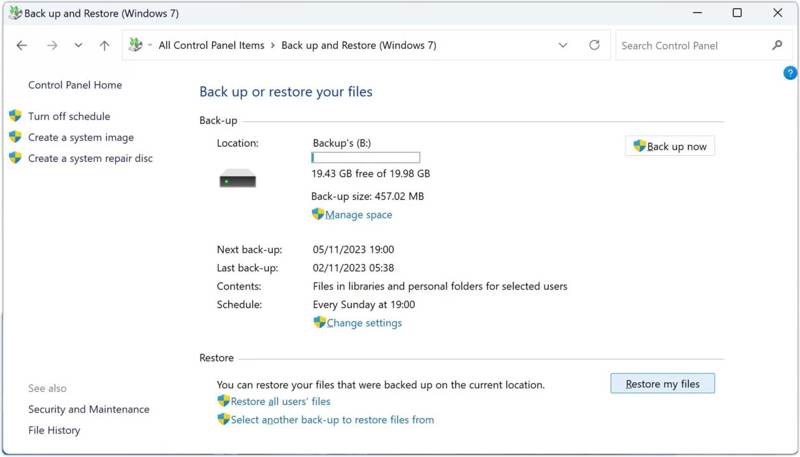
Paso 1: Abra el panel de Panel de Control del menú Comenzar .
Paso 2: Haga clic en el botón Copia de seguridad y restauración (Windows 7) .
Paso 3: Presione la tecla Restaurar mis archivos .
Paso 4: Haga clic en el botón Buscar archivos pulsa el botón y selecciona el archivo PST perdido.
Paso 5: Presione la tecla Siguiente botón y haga clic Restaurar.
Parte 5: Cómo recuperar un archivo PST sin una copia de seguridad
Si los métodos comunes no están disponibles, intente Recuperación de datos de ApeaksoftPuede recuperar archivos PST de Outlook sin copias de seguridad. Es capaz de escanear el disco duro y encontrar archivos borrados o perdidos. Además, su interfaz intuitiva agiliza el flujo de trabajo.

Descargado por más de 1,000,000 usuarios
- Recupere archivos PSF eliminados en tres pasos.
- Escanea discos duros y recupera archivos sin copia de seguridad.
- Previsualice los archivos PST perdidos y otros datos antes de recuperarlos.
- Admite una amplia gama de tipos de datos y formatos de archivo.
- Conserve los archivos recuperados en su estado original.
Descarga segura
Descarga segura

Cómo recuperar un archivo PST sin una copia de seguridad
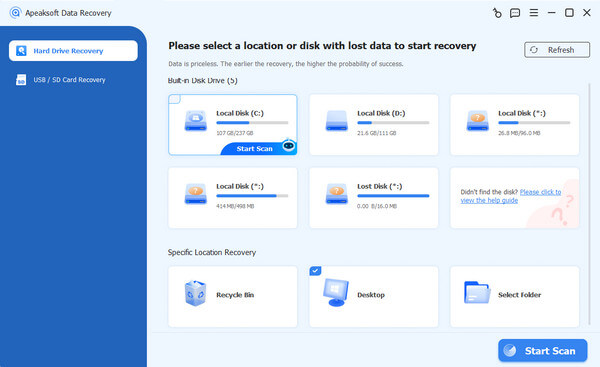
Paso 1: Escanear discos duros
Inicie el software de recuperación de datos después de instalarlo en su computadora. Es compatible con Windows 11/10/8.1/8/7/Vista/XP y macOS 10.7 o posterior. Vaya a la Recuperación de disco duro pestaña en la barra lateral y seleccione dónde está almacenado el archivo PST. Haga clic en el Iniciar escaneado Botón para comenzar a escanear la unidad.
Paso 2: Vista previa de archivos PST
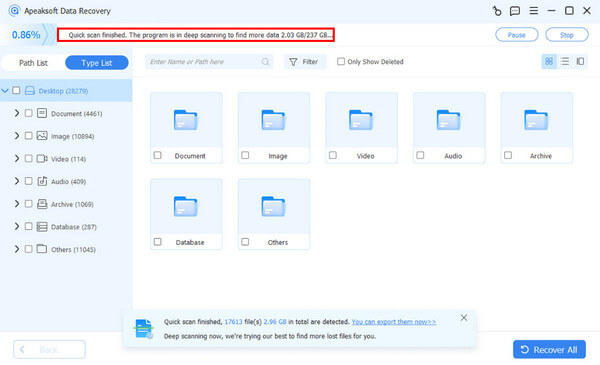
Después de un escaneo rápido, el software realizará automáticamente un escaneo profundo. Cuando termine, vaya a la Tipo de lista pestaña para previsualizar archivos por tipo. Alternativamente, vaya a la pestaña Lista de rutas y navegue hasta la carpeta de Outlook. Compruebe la Mostrar solo eliminados Cuadro para mostrar el archivo PST eliminado.
Paso 3: Recuperar archivos PST
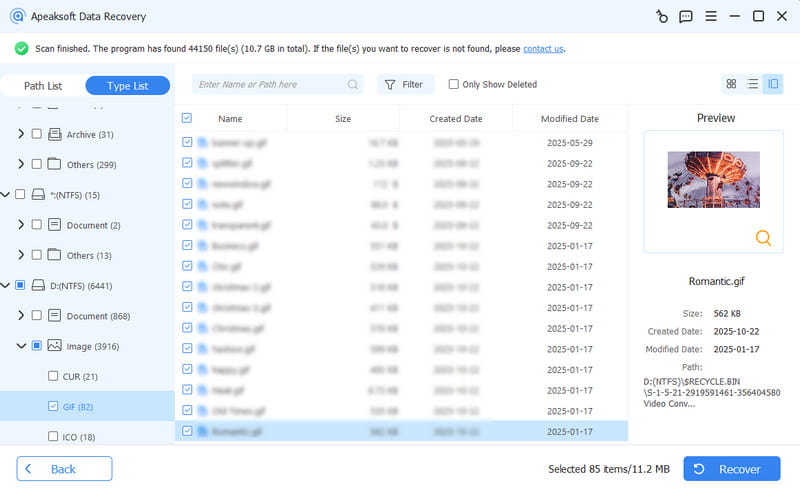
Seleccione el archivo PST eliminado y haga clic en el Recuperar botón en la parte inferior. Seleccione una carpeta de salida y haga clic en el Recuperar Vuelva a pulsar el botón. A continuación, mueva el archivo PST a la carpeta de Outlook.
OTRAS LECTURAS
Conclusión
Esta guía compartió cinco maneras de recuperar un archivo PST de Outlook Si el archivo está dañado o se elimina accidentalmente, tanto Windows como Outlook ofrecen funciones de copia de seguridad para recuperar los mensajes perdidos. Para archivos PST dañados, puede usar la herramienta de reparación de la bandeja de entrada integrada. Apeaksoft Data Recovery permite recuperar archivos PST sin copia de seguridad.
Artículos Relacionados




