

Cómo transferir contactos de iPhone a Android Samsung

Al cambiar de un iPhone a un dispositivo Samsung Android, transferir contactos puede ser una tarea abrumadora. Esto se debe, en parte, a que utilizan sistemas operativos y sistemas de archivos diferentes. En otras palabras, los contactos de iPhone no se pueden decodificar directamente en Android. Sin embargo, el proceso no es complicado si se utiliza el método adecuado. Esta guía completa identifica los métodos probados para... Transferir contactos de iPhone a AndroidDe esta manera podrás conservar tu libreta de contactos.
CONTENIDO DE LA PAGINA:
- Parte 1: Cómo transferir contactos de iPhone a Android directamente
- Parte 2: Cómo copiar contactos de iPhone a Android a través de iCloud
- Parte 3: Cómo importar contactos de iPhone a Android mediante Contactos de Google
- Parte 4: Cómo transferir contactos de iPhone a Samsung con Smart Switch
- Parte 5: Cómo transferir contactos de iPhone a Android mediante copia de seguridad
Parte 1: Cómo transferir contactos de iPhone a Android directamente
Como se mencionó anteriormente, iOS y Android usan sistemas de archivos diferentes. En otras palabras, Android no puede decodificar los contactos de tu iPhone. Afortunadamente, Apeaksoft MobieTrans Puede satisfacer sus necesidades. Transcodifica automáticamente sus datos al transferir contactos. Además, su interfaz intuitiva facilita su uso.
Una de las formas más fáciles de migrar contactos de iPhone a Android
- Migrar contactos de iPhone a Android directamente.
- Vista previa de los contactos del iPhone para transferencia selectiva.
- Decodifica y codifica tus contactos mientras te mueves.
- Gestiona tus contactos rápidamente
- Admite los últimos modelos de iPhone y iPad.
Descarga segura
Cómo migrar contactos de iPhone a Android
Paso 1: Vincula tus dispositivos
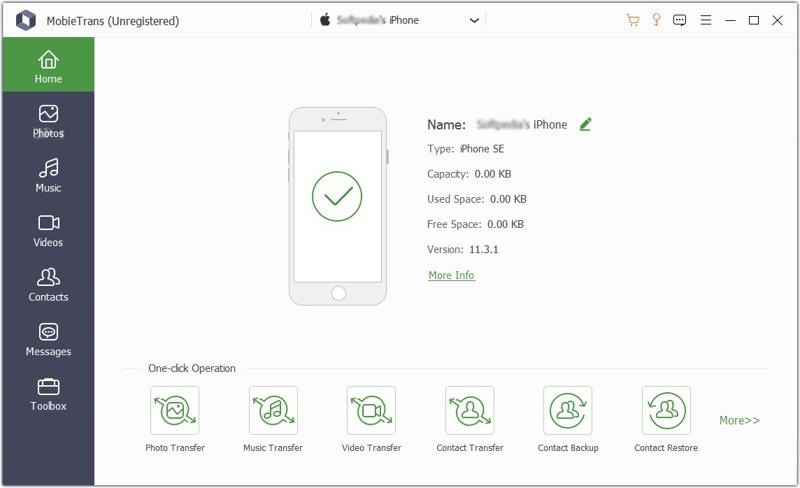
Ejecuta el mejor software de transferencia de contactos una vez instalado en tu computadora. Luego, conecta tu iPhone o teléfono Android a la computadora con cables compatibles. Asegúrate de que tu PC sea compatible si se te solicita.
Paso 2: Vista previa de contactos de iPhone
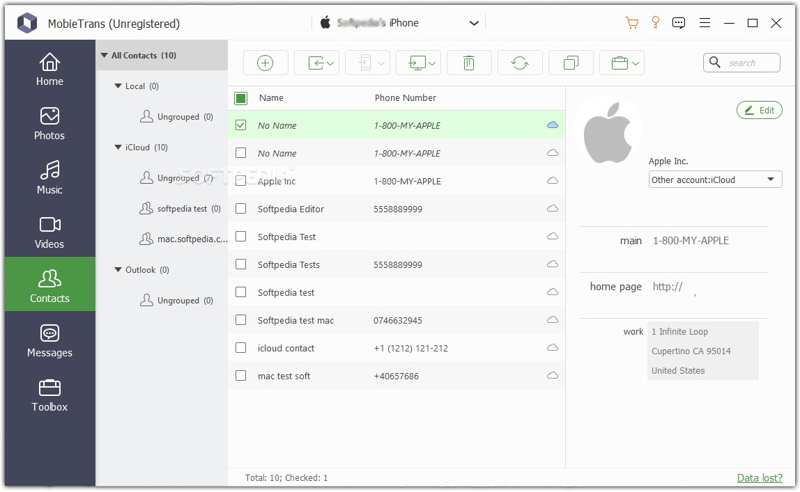
Despliega la opción superior y selecciona tu iPhone. El software escaneará todos los datos de tu dispositivo. Selecciona Contactos en la barra lateral y obtener una vista previa de todos los contactos en su iPhone.
Paso 3: Cambiar contactos de iPhone a Samsung
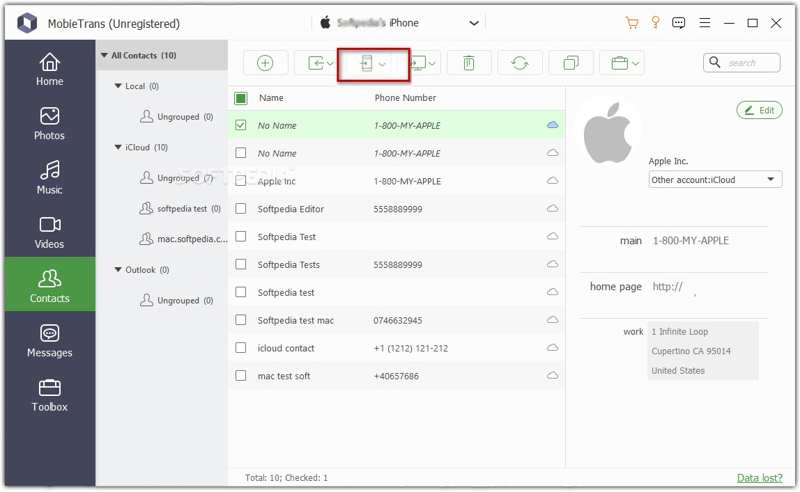
Marque todos los elementos que desea transferir. Luego, haga clic en el Teléfono en la barra de menú superior y selecciona tu dispositivo Android. Una vez hecho esto, puedes... fusionar contactos de iPhone y transferirlos a tu teléfono Android.
Parte 2: Cómo copiar contactos de iPhone a Android a través de iCloud
Si prefieres copiar los contactos de tu iPhone a un dispositivo Android de forma inalámbrica, iCloud puede ser la solución. Puedes sincronizar tus contactos de iPhone con iCloud, exportarlos a un archivo vCard e importarlos a tu teléfono Android. También puedes exportar los contactos de tu iPhone como un archivo VCF a iCloud Drive e importarlos a un dispositivo Android.
Opción 1: Sincronizar contactos con iCloud
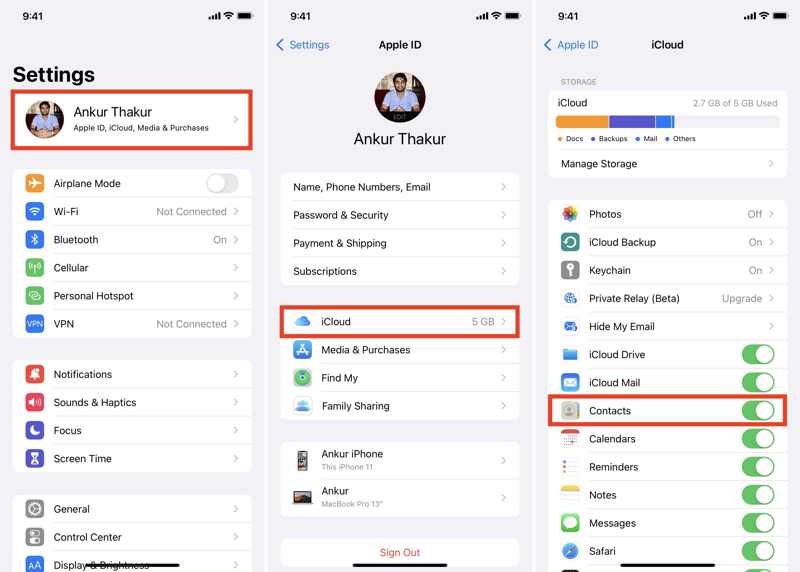
Paso 1: Abra el Configuración aplicación en tu iPhone.
Paso 2: Pulsa sobre tu perfil y elige iCloud, grifo Ver todoy activar Contactos.
Paso 3: Visita www.icloud.com/contacts en un navegador e inicia sesión con tu cuenta de Apple.
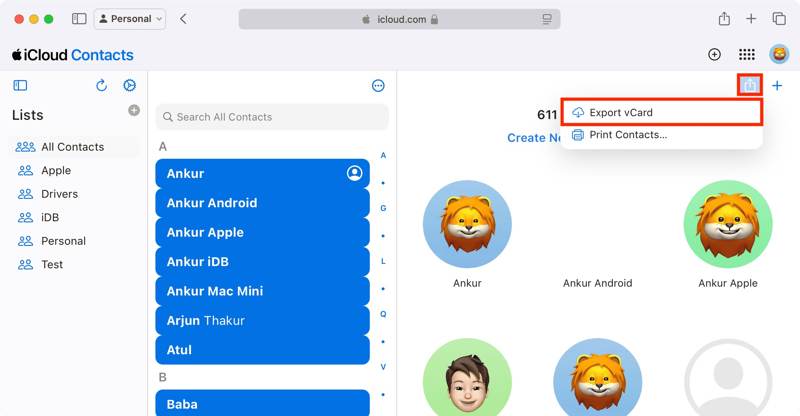
Paso 4: Seleccione los contactos deseados, haga clic en el Descargar botón, y elija Exportar vCard.
Paso 5: Establezca una carpeta de salida y deje un nombre.
Opción 2: Exportar contactos a iCloud Drive
Paso 1: Abra el Teléfono aplicación e ingrese al Contactos .
Paso 2: Seleccione los contactos deseados, manténgalos presionados y toque el Exportar .
Paso 3: Elija Guardar en archivosy navega hacia iCloud Drive.
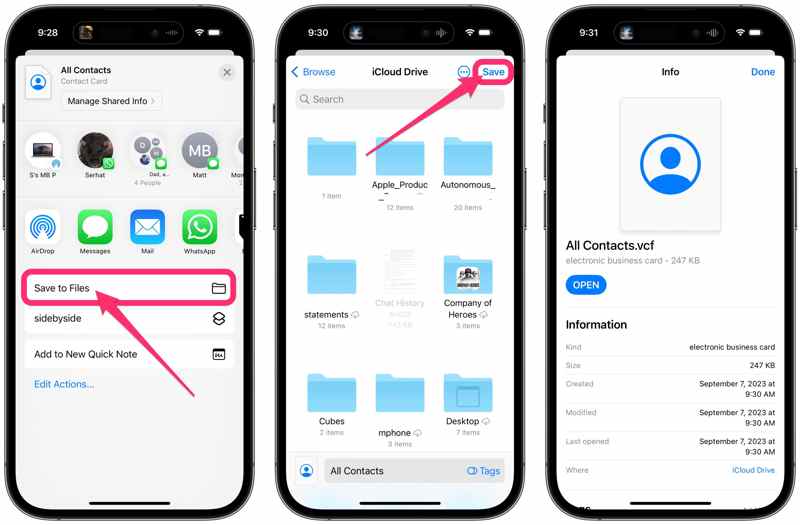
Paso 4: Pulsa para buscar Terminado para confirmarlo
Paso 5: Asegúrese de sincronizar iCloud Drive.
Importar contactos de iPhone a Samsung
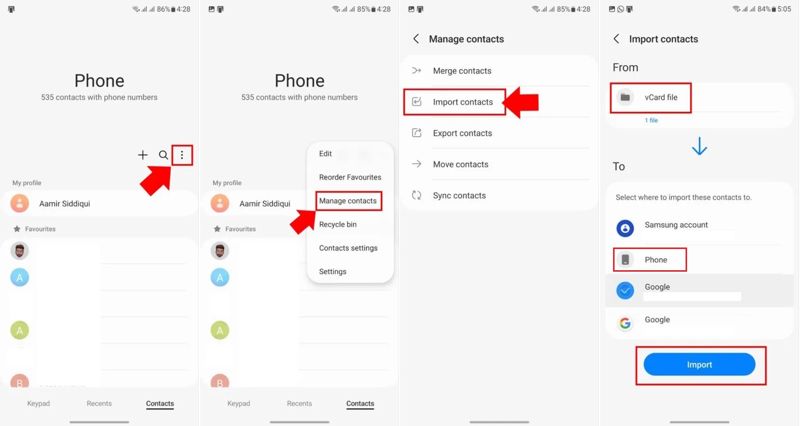
Paso 1: Transfiera el archivo de contactos a su teléfono Samsung Android usando una aplicación de mensajería instantánea o mediante un cable USB.
Paso 2: Ejecute el Teléfono .
Paso 3: Toque en el Menú Botón con un icono de tres puntos.
Paso 4: Elija Gestionar contactos y recoger Importar contactos.
Paso 5: Seleccione el archivo de contacto en De lo.
Paso 6: Luego, elija Teléfono bajo Ay golpear Importar.
Parte 3: Cómo importar contactos de iPhone a Android mediante Contactos de Google
Con una cuenta de Google, puedes usar Contactos de Google para importar contactos de iPhone a Android de forma inalámbrica. Este método no requiere software ni hardware adicional. Solo necesitas una conexión a internet estable.
Paso 1: Ejecuta tu Configuración .
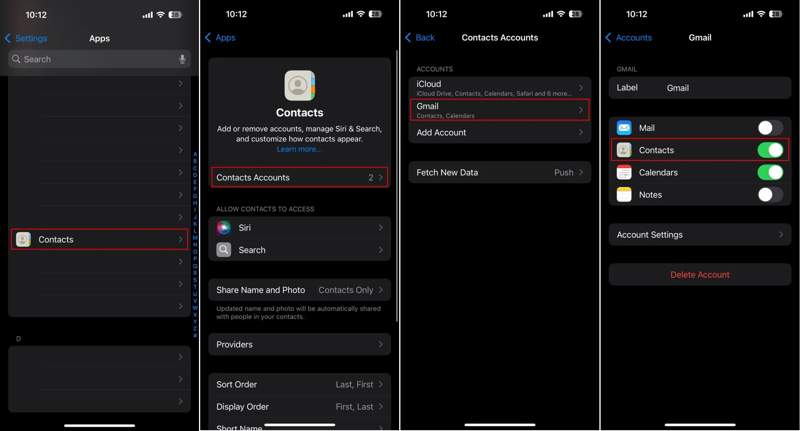
Paso 2: Navegue a Aplicaciones, Contactosy toque Contactos Cuentas.
Paso 3: Selecciona tu cuenta de Gmail. Si no has añadido ninguna, pulsa Agregar Cuenta, escoger Google, e ingresa a tu cuenta.
Paso 4: Active la sección Contactos .
Paso 5: Una vez que tus contactos estén sincronizados con Contactos de Google, cambia a tu dispositivo Android.
Paso 6: Abra el Configuración .
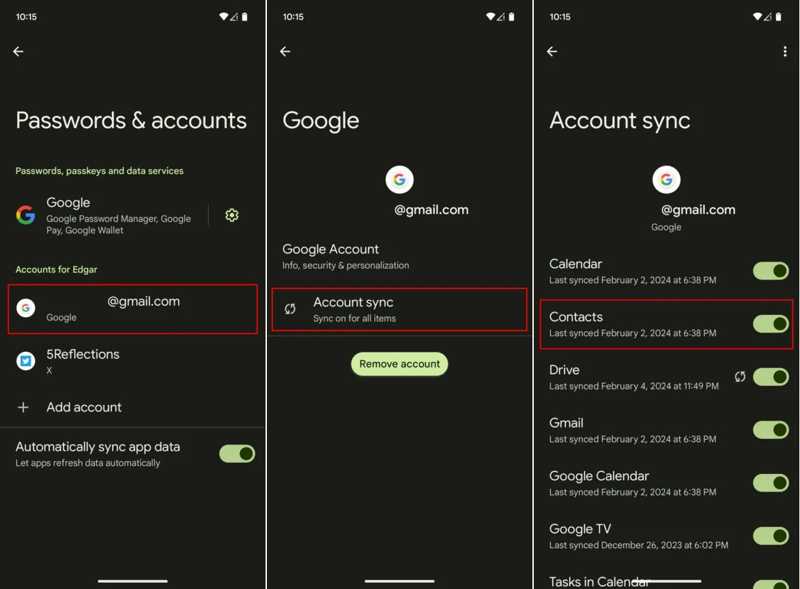
Paso 7: Vaya a Contraseñas y cuentasy elige tu cuenta de Google.
Paso 8: Pulsa para buscar sincronización de cuentay enciende Contactos.
Paso 9: Si tu teléfono está conectado, los contactos se importarán automáticamente. Al finalizar, podrás consultar la fecha y hora de la última sincronización.
Parte 4: Cómo transferir contactos de iPhone a Samsung con Smart Switch
Cuando configura un nuevo teléfono Samsung, la función integrada smart Switch Esta función te permite transferir contactos de un iPhone a un Samsung mediante un cable Lightning a USB-C. Es una forma rápida de transferir todos los contactos de tu iPhone a un Samsung.
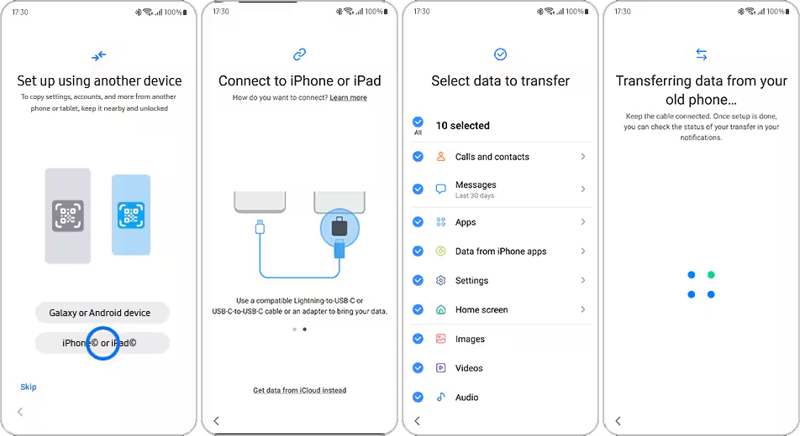
Paso 1: Pulsa para buscar iPhone o iPad en la pantalla de bienvenida.
Paso 2: Vincula tu dispositivo Samsung a tu iPhone con un cable USB-C Lightning.
Paso 3: Si se le solicita, toque Confianza en la pantalla de tu iPhone.
Paso 4: Asegúrate de seleccionar Llamadas y contactos y otros tipos de datos deseados.
Paso 5: Finalmente, toca el Transfer Botón para comenzar a enviar contactos desde tu iPhone a tu Samsung Galaxy.
Parte 5: Cómo transferir contactos de iPhone a Android mediante copia de seguridad
Google One es otra forma de transferir contactos de iPhone a Android de forma inalámbrica. Puedes hacer una copia de seguridad de tus contactos de iPhone en Google One y luego restaurarla rápidamente en tu dispositivo Android.
Paso 1: Ejecute el Google One aplicación en tu iPhone.
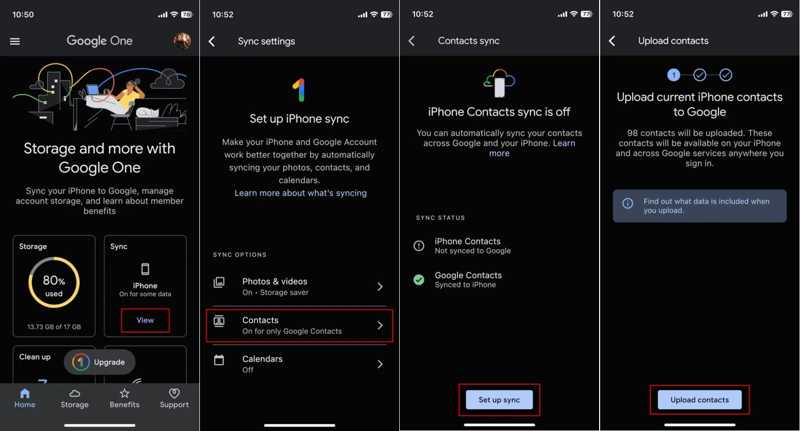
Paso 2: Inicia sesión con tu cuenta.
Paso 3: Pulsa para buscar Consultar en el cuadro Sincronizar caja y elija Contactos.
Paso 4: Pulsa para buscar Configurar la sincronizacióny golpear Subir contactos.
Paso 5: Cambie al teléfono Android y restablezcalo de fábrica.
Paso 6: Cuando su teléfono se reinicie, siga las instrucciones en pantalla para configurarlo.
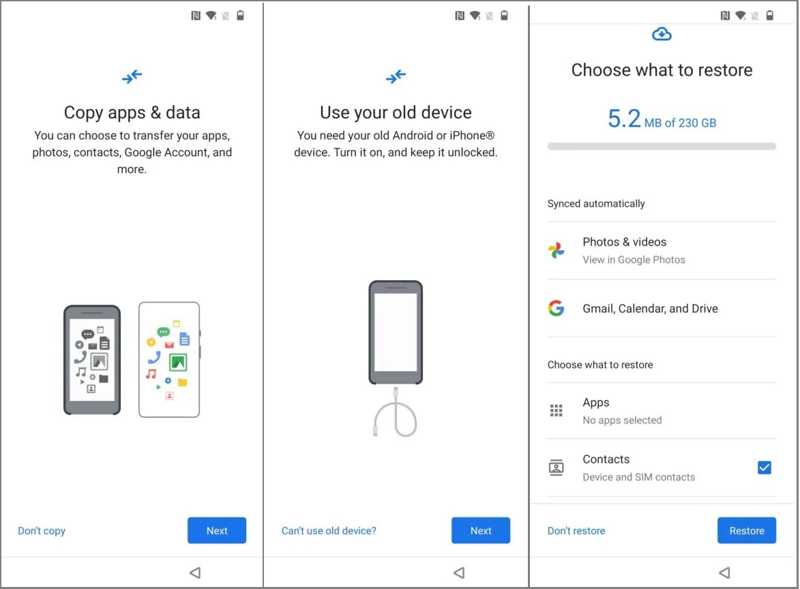
Paso 7: Cuando se le pide que Copiar aplicaciones y datos, grifo Siguientey elegir No se puede utilizar el dispositivo antiguo.
Paso 8: Inicie sesión en la misma cuenta de Google y seleccione una copia de seguridad.
Paso 9: Finalmente, toque Restaurar.
Conclusión
Esta guía explica Cómo transferir contactos de iPhone a Android con cables o de forma inalámbrica. Apeaksoft MobieTrans Es el método directo para migrar contactos. iCloud y Contactos de Google permiten sincronizar los contactos mediante una conexión a internet. Al configurar un nuevo dispositivo Samsung, Smart Switch y la copia de seguridad de Google One son las mejores opciones.
Artículos Relacionados
Este artículo muestra con detalles lo que necesita preparar antes y mientras refleja la pantalla de su iPhone o iPad en un dispositivo Android.
Este artículo describe instrucciones detalladas para duplicar la pantalla del iPhone en Sharp TV. Los usuarios de Android también pueden aprender cómo reflejar Android en TV con esta guía.
Hay cinco métodos efectivos para transferir fotos de iPhone a Android usando Google Photos, correo electrónico, una computadora y más.
Puedes aprender tres métodos para transferir mensajes de texto desde un iPhone a un teléfono Android con un cable USB o de forma inalámbrica.



