


Kuinka palauttaa poistetut tekstiviestit Android-puhelimesta

Tärkeiden tekstiviestien vahingossa poistaminen Android-puhelimesta voi olla suuri haaste. Olet kokeillut useita tapoja palauttaa ne puhelimestasi. Onnistumisprosenttia voidaan kuitenkin parantaa, jos käytät sitä oikein ja noudatat oikeita ohjeita. Tämä konkreettinen opas opastaa sinua käytännön tavoissa... palauta poistetut tekstiviestit Android-laitteestasi puhelin tai tabletti oikein.
SIVUN SISÄLTÖ:
- Osa 1: Kuinka palauttaa pysyvästi poistetut tekstiviestit Androidista ilman varmuuskopiointia
- Osa 2: Kuinka palauttaa poistettu teksti Androidilla lähettäjän toimesta
- Osa 3: Kuinka palauttaa poistetut tekstiviestit Androidilla Google Messagesista
- Osa 4: Poistettujen tekstiviestien palauttaminen Samsungilla
- Osa 5: Poistetun tekstin palauttaminen Androidilla varmuuskopiosta
Osa 1: Kuinka palauttaa pysyvästi poistetut tekstiviestit Androidista ilman varmuuskopiointia
Apeaksoft Android Data Recovery on nopea tapa palauttaa pysyvästi poistettuja tekstiviestejä Android-laitteella. Se pystyy etsimään kadonneita tietoja puhelimen muistista ja palauttamaan ne ennen kuin ne korvataan. Lisäksi käyttäjäystävällinen käyttöliittymä tekee siitä helpon vaihtoehdon aloittelijoille.

Ladannut yli 1,000,000 Käyttäjät
- Palauta kadonneet tiedot Androidista ilman varmuuskopiointia.
- Tukee tekstiviestejä, valokuvia, videoita, yhteystietoja ja paljon muuta.
- Hae tietoja, jotka menetetään pääkäyttäjän oikeuksien, järjestelmän kaatumisen tai vahingossa tapahtuvan poiston vuoksi.
- Esikatsele poistettuja tiedostoja Android-laitteilla.
- Yhteensopiva useiden Android-merkkien ja -mallien kanssa.
Suojattu lataus
Suojattu lataus
Kuinka palauttaa pysyvästi poistetut tekstiviestit Androidilla ilman varmuuskopiointia
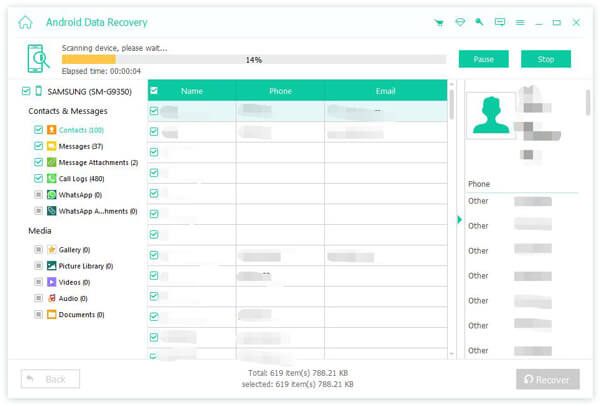
Vaihe 1. Yhdistä puhelimeesi
Käynnistä paras sovellus poistettujen Android-tekstiviestien palauttamiseksi, kun olet asentanut sen tietokoneellesi. Macille on olemassa toinen versio. Käynnistä puhelin ja ota se käyttöön. USB-testaus tilassa Asetukset sovellus. Yhdistä puhelimesi tietokoneeseen Lightning-kaapelilla. Valitse pyydettäessä Siirrä tiedostoja Käytä USB:tä -valintaikkunassa.

Vaihe 2. Esikatsele poistettuja tekstiviestejä
Kun puhelimesi on havaittu, valitse viestit ja Viestin liitetiedostot. osoita seuraava -painiketta aloittaaksesi poistettujen tekstiviestien skannauksen puhelimestasi. Ota sitten käyttöön Näytä vain poistetut kohteet nähdäksesi poistetut tekstiviestit.

Vaihe 3. Palauta tekstiviestit Androidilla ilman varmuuskopiota
Valitse seuraavaksi tekstiviestit, jotka haluat saada takaisin, ja napsauta toipua -painiketta. Siirry kohdekansioon ja vahvista Tekstiviestien palautusKun se on valmis, voit tarkistaa poistetut tekstiviestit tietokoneellasi.
Osa 2: Kuinka palauttaa poistettu teksti Androidilla lähettäjän toimesta
Jos vahingossa poistat tekstiviestin, voit pyytää lähettäjää lähettämään sen uudelleen. Jos et saa yhteyttä lähettäjään, yritä pyytää apua operaattoriltasi. Tutkimuksemme mukaan monet langattomat palveluntarjoajat säilyttävät tekstiviestitietojasi tietyn ajan.
Muista, että sinun on annettava tarvittavat tiedot poistettujen tekstiviestien palauttamiseksi Android-laitteilla, kuten puhelinnumerosi. Lisäksi sinun on käytävä operaattorisi myymälässä.
Osa 3: Kuinka palauttaa poistetut tekstiviestit Androidilla Google Messagesista
Sisäänrakennetussa Google Messages -sovelluksessa ei ole roskakori- tai kierrätyskorikansiota. Vaihtoehtoisesti siinä on arkistoitu-toiminto. On todennäköistä, että vain arkistoit viestisi, mutta et poista niitä. Siksi voit yrittää palauttaa poistetut tekstiviestit Android-puhelimellasi.
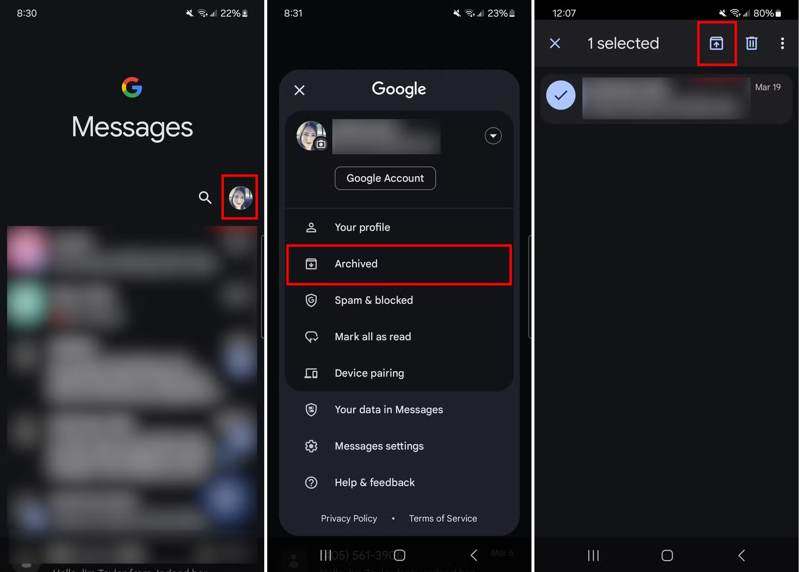
Vaihe 1. Suorita Googlen viestit sovellus sovellustarjottimelta.
Vaihe 2. Napauta profiilikuvaasi ja valitse Arkistoidut.
Vaihe 3. Valitse haluamasi viestit.
Vaihe 4. Paina pitkään valittua viestiä ja napauta Poista arkistosta painiketta.
Osa 4: Poistettujen tekstiviestien palauttaminen Samsungilla
Android on avoin käyttöjärjestelmä. Valmistajat mukauttavat älypuhelintensa Android-käyttöjärjestelmää. Esimerkiksi Samsung on lisännyt tuotteisiinsa viestisovelluksen, jossa on Roskakori-kansio. Kun poistat viestin, se siirtyy Roskakori-kansioon ja tallennetaan sinne 30 päiväksi. Ennen kuin tekstiviestit poistetaan pysyvästi, voit palauttaa poistetut viestit Androidilla ilman varmuuskopiota.
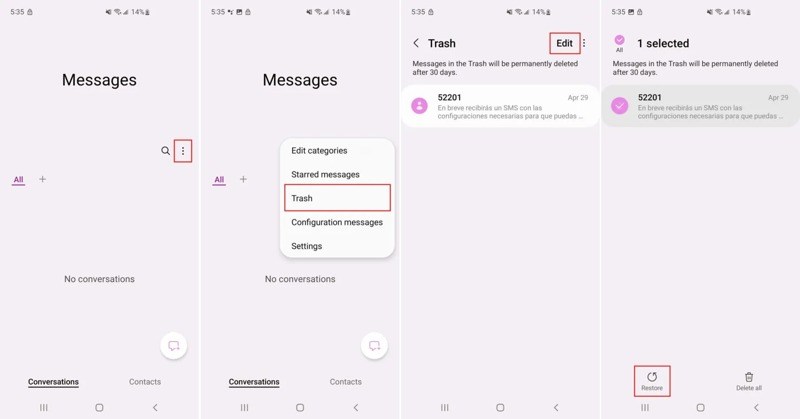
Vaihe 1. Avaa Samsung Messages -sovellus.
Vaihe 2. Napauta Lisää: painiketta kolmen pisteen kuvakkeella.
Vaihe 3. Valita Roskakori nähdäksesi äskettäin poistetut tekstiviestit.
Vaihe 4. Napauta muokata -painiketta ja valitse haluamasi viestit.
Vaihe 5. Napauta seuraavaksi Palauttaa painiketta alhaalla.
Vaihe 6. Lopuksi palaa Viestit-sovellukseen ja tarkista, onko poistetut tekstiviestit haettu.
Huomautus: Samsung on ottanut Google Messages -sovelluksen käyttöön uusissa puhelimissa. Jos et löydä roskakorikansiota, tämä tapa ei ole käytettävissä.
Osa 5: Poistetun tekstin palauttaminen Androidilla varmuuskopiosta
Toinen tapa palauttaa poistetut tekstiviestit Android-puhelimissa on varmuuskopioida ne. Jos olet ottanut varmuuskopioinnin käyttöön puhelimessasi, kuten Google Onen tai kolmannen osapuolen tekstiviestien varmuuskopiointisovelluksen, voit palauttaa pysyvästi poistetut tiedot nopeasti.
Kuinka palauttaa poistetut tekstiviestit Androidilla SMS Backup & Restore -toiminnolla
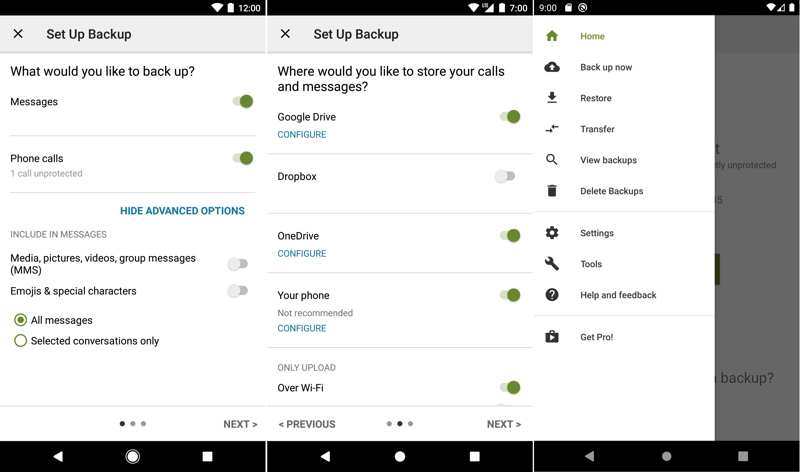
Vaihe 1. Suorita SMS-varmuuskopiointi ja palautus -sovellus.
Vaihe 2. Napauta Hampurilainen painiketta ja valitse Palauttaa.
Vaihe 3. Valitse sijainti, johon varmuuskopioit viestisi.
Vaihe 4. valita Pääsy vain SMS Backup & Restore -toiminnolla avattuihin tai luotuihin tiedostoihin ja kansioihin, ja napauta OK.
Vaihe 5. Valitse oikea varmuuskopio ja napauta Palauttaa.
Vaihe 6. Kun viestisi on ladattu, käynnistä Viestit-sovellus ja tarkista tekstiviestisi.
Kuinka palauttaa poistettu teksti Androidilla Google One -varmuuskopiosta
Vaihe 1. Jos olet määrittänyt Google One -varmuuskopioinnin Android-puhelimellasi, suorita Asetukset App.
Vaihe 2. Mene järjestelmä ja Palauta vaihtoehdot.
Vaihe 3. Napauttaa Poista kaikki tiedot (tehdasasetusten palautus). Tämä tulee tehdasasetusten palautus Android-puhelimesi.
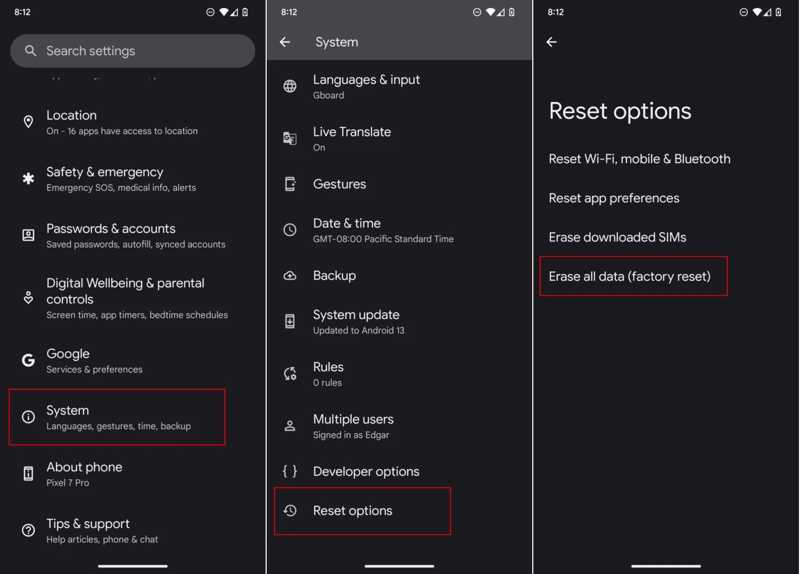
Vaihe 4. Kun puhelimesi käynnistyy uudelleen, määritä se uutena laitteena.
Vaihe 5. Varmista, että olet muodostanut yhteyden Wi-Fi-verkkoon.
Vaihe 6. Kun saavut Kopioi sovelluksia ja tietoja napauta seuraava.
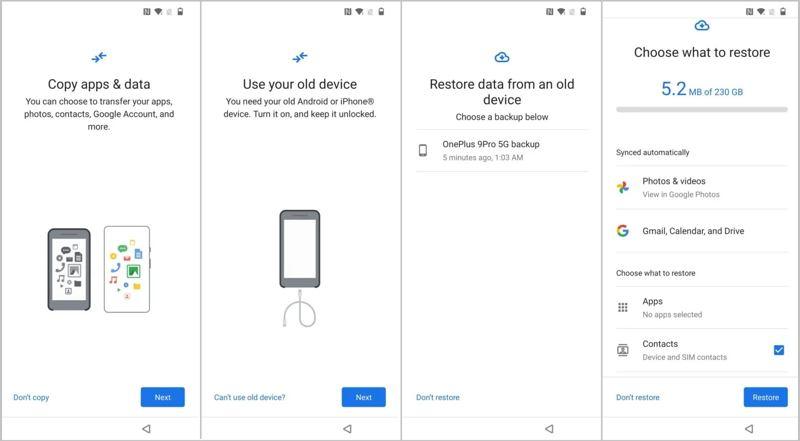
Vaihe 4. valita Vanhaa laitetta ei voi käyttää ja kirjaudu sisään Google-tiliisi.
Vaihe 5. Valitse viimeisin saatavilla oleva varmuuskopio, valitse tekstiviestit ja muut halutut tietotyypit ja napauta Palauttaa.
Kirjallisuutta
Yhteenveto
Tässä oppaassa jaettiin useita tapoja palauttaa poistetut tekstiviestit Androidissa puhelimissa ja tableteissa. Voit yrittää poistaa viestisi arkistosta, jos olet arkistoinut ne Google Messagesiin. Joissakin Samsung-puhelimissa voit hakea kadonneita viestejä roskakorista. Jos sinulla on varmuuskopio, palauta poistetut viestisi varmuuskopiosta. Apeaksoft Android Data Recovery voit palauttaa poistetut tekstiviestit ilman varmuuskopiointia.
 Apeaksoft Android Data Recovery
 Palauta erilaisia poistettuja tai kadonneita tietoja kaikista suosituista Android-laitteista.
Suojattu lataus
Suojattu lataus
Aiheeseen liittyvät artikkelit




