

Kuinka hakea poistetut kuvat Samsung-laitteista

Vahingossa tapahtuva kuvien poistaminen on yleinen ongelma, mutta älä huoli, niiden palauttamiseen on useita tapoja. Tietenkin on silti stressaavaa, jos menetät arvokkaita kuvia Samsung-laitteestasi ohjelmistohäiriöiden, vahingossa tapahtuvan poistamisen, SD-kortin vian, tehdasasetusten palautuksen ja muiden syiden vuoksi. Tässä on konkreettinen opas, joka tunnistaa todistetut menetelmät avuksesi. palauttaa poistetut valokuvat Samsungilla käyttämällä sisäänrakennettuja ominaisuuksia, pilvipalveluita ja edistyneitä tekniikoita.
SIVUN SISÄLTÖ:
Osa 1: Hae valokuva Samsungilla roskakorista
Kun poistat valokuvan Samsung Gallery -sovelluksesta, se siirretään roskakoriin ja tallennetaan sinne enintään 30 päiväksi. Ennen kuin se poistetaan pysyvästi, voit palauttaa poistetut valokuvat Samsungilla.
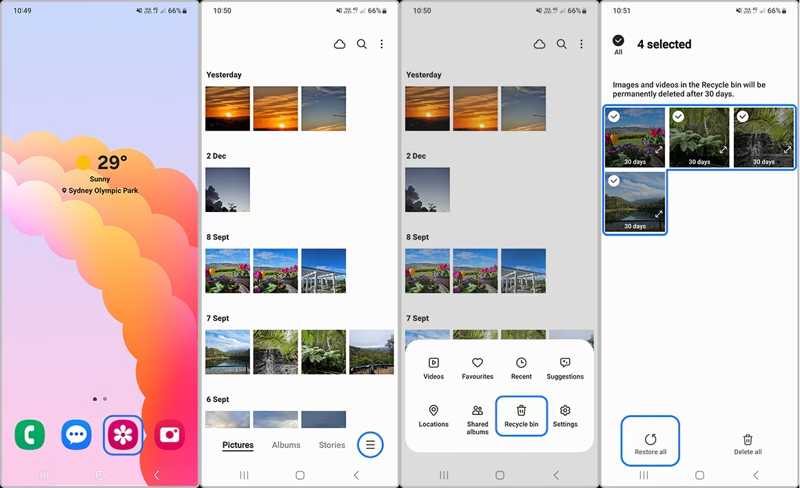
Vaihe 1. Avaa sinun Galleria App.
Vaihe 2. Napauta Hampurilainen -painiketta alareunassa ja valitse roskakoriin.
Vaihe 3. Napauta muokata painiketta.
Vaihe 4. Valitse palautettavat valokuvat ja napauta Palauta kaikki.
Osa 2: Palauta Samsungin kuvat Google Kuvista
Jotkut Samsungin käyttäjät haluavat tallentaa valokuvansa Google Kuviin. Se tallentaa poistetut valokuvat roskakoriin jopa 60 päiväksi. Sen jälkeen nämä valokuvat poistetaan pysyvästi. Ennen sitä voit löytää poistetut kuvat Samsung-puhelimellasi.
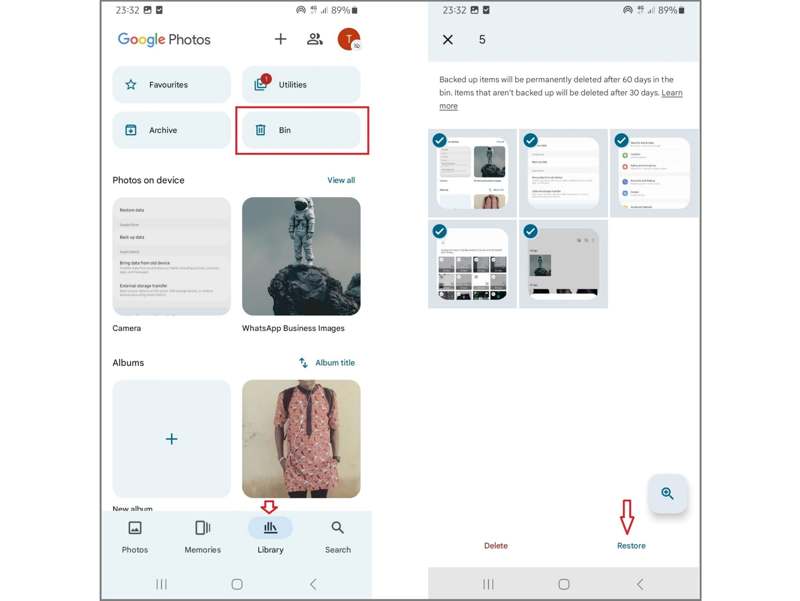
Vaihe 1. Suorita Google Kuvat App puhelimeesi.
Vaihe 2. Siirry Kirjasto välilehti.
Vaihe 3. Valitse Astia albumi nähdäksesi äskettäin poistetut kuvat.
Vaihe 4. Kosketa jokaista palautettavaa kuvaa.
Vaihe 5. Napauta Palauttaa -painiketta ja vahvista toimintosi.
Osa 3: Etsi poistetut kuvat Samsungista Samsung Cloudista
Jos olet asettanut Samsungin varmuuskopiointi Galleria-sovelluksessasi valokuvasi voidaan varmuuskopioida tilillesi. Toisin sanoen voit palauttaa poistetut valokuvat Samsung-puhelimesta. Edellytyksenä on, että sinulla on varmuuskopio.
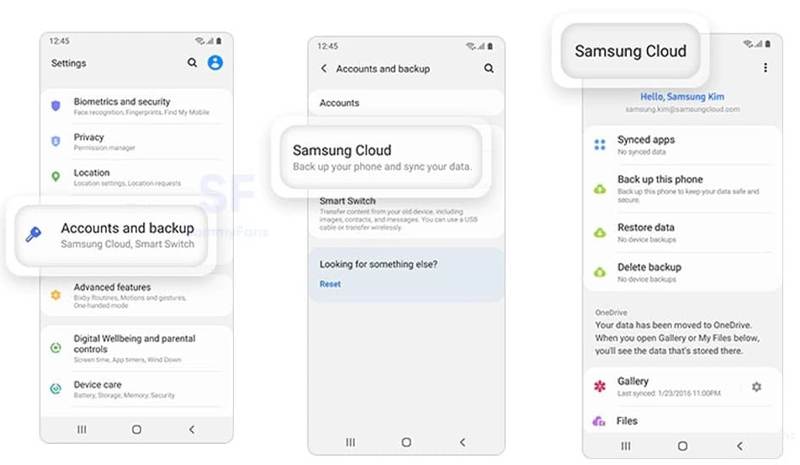
Vaihe 1. Suorita Asetukset sovellus Galaxy-puhelimellasi.
Vaihe 2. Napauttaa Tilit ja varmuuskopiointi, ja valitse Samsung Cloud.
Vaihe 3. valita Galleria katsellaksesi varmuuskopioituja kuvia.
Vaihe 4. Napauta sitten Palauttaa painike palauttaaksesi poistetut kuvat Samsung-puhelimesta.
Osa 4: Palauta Samsungin kuvat Smart Switchistä
Älykäs älykytkin on Samsung-käyttäjien virallinen varmuuskopiointipalvelu. Se voi varmuuskopioida kuvia tietokoneelle tai SD-kortille Samsung-laitteesta. Kun olet vahingossa poistanut kuvia, voit kumota poistetut kuvat Samsungilla.
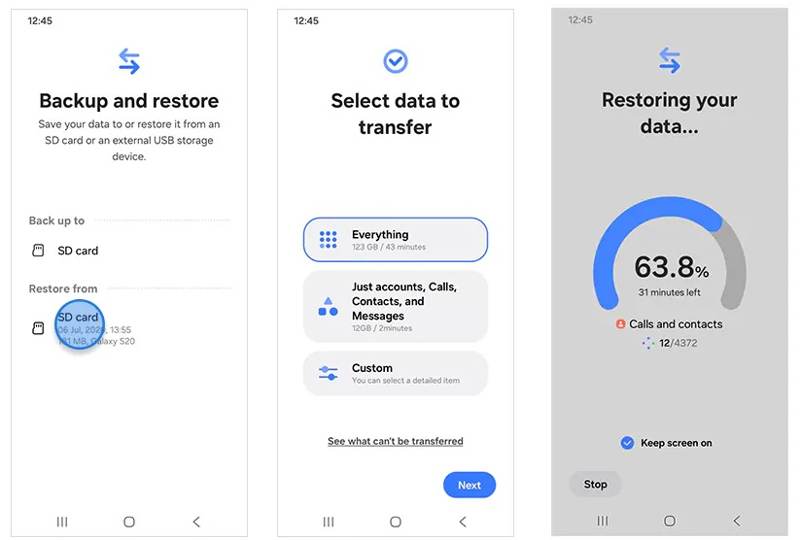
Vaihe 1. Suorita Smart Switch -sovellus puhelimessasi.
Vaihe 2. Aseta varmuuskopio-SD-kortti laitteeseesi.
Vaihe 3. Valita Varmuuskopioi ja palauta tietosi, ja napauta jatkaa.
Vaihe 4. Valitse sitten SD-kortti alla Palauta osiossa.
Vaihe 5. Napauttaa Kaikki or Mittatilaus ja valitse kuvia.
Vaihe 6. Osuma seuraava aloittaaksesi palauttamisen. Sitten voit tarkistaa poistetut valokuvat Samsungilla.
Osa 5: Lopullinen tapa Samsung Photo Recovery ilman varmuuskopiointia
Jos sinulla ei ole varmuuskopiota, pysyvästi poistettujen kuvien palauttaminen Samsung-laitteella on vaikeaa. Onneksi Apeaksoft Android Data Recovery voi auttaa sinua ratkaisemaan tämän ongelman. Se voi skannata puhelimesi muistin ja löytää kadonneet valokuvat, videot ja paljon muuta. Mikä tärkeintä, sen avulla voit palauttaa kadonneet valokuvat Samsungilla häiritsemättä puhelimesi olemassa olevia tietoja.
Paras tapa saada Samsung Photo Recovery ilman varmuuskopiointia
- Palauta pysyvästi poistetut valokuvat Samsungilta.
- Esikatsele poistettuja valokuvia ja etsi tiettyjä tiedostoja.
- Saatavilla lähes kaikkiin tilanteisiin.
- Poimi kadonneet valokuvat rikkinäisistä Samsung-laitteista.
- Tukee laajaa valikoimaa Samsung-puhelimia ja -tabletteja.
Suojattu lataus
Suojattu lataus

Kuinka palauttaa kuvia Samsungista ilman varmuuskopiointia
Vaihe 1. Yhdistä puhelimeesi
Kun olet asentanut parhaan valokuvien palautusohjelmiston tietokoneellesi, käynnistä se. Varmista, että USB-virheenkorjaustila on käytössä Samsung-puhelimellasi ja liitä se tietokoneeseen USB-kaapelilla. Valitse pyydettäessä Siirrä valokuvia or Siirrä tiedostoja.

Vaihe 2. Skannaa valokuvia
Kun ohjelmisto on tunnistanut laitteesi, valitse haluttujen tietotyyppien vieressä olevat ruudut, kuten Galleria, Kuvakirjasto, ja enemmän. Napsauta seuraava -painiketta skannataksesi valokuvia puhelimellasi.

Vaihe 3. Palauta poistetut valokuvat
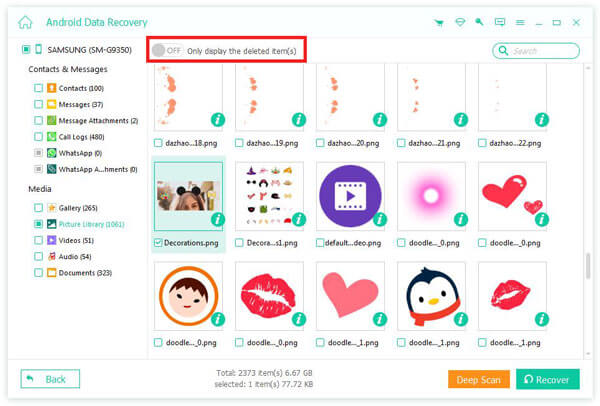
Kun se on valmis, voit katsella laitteellasi palautettavia valokuvia. Jos kuvia on liikaa, ota käyttöön Näytä vain poistetut kohteet näytön yläreunassa. Jos et löydä haluamiasi valokuvia, napsauta Deep Scan. Lopuksi napsauta toipua -painiketta, aseta tulostuskansio ja vahvista se.
Yhteenveto
Nyt sinun pitäisi ymmärtää Kuinka palauttaa poistetut valokuvat Samsung-puhelimellasi puhelimella tai tabletilla. Sisäänrakennettujen Galleria- ja Google Kuvat -sovellusten roskakori mahdollistaa äskettäin poistettujen kuvien palauttamisen. Lisäksi voit löytää kadonneita kuvia Samsung Cloudin tai Smart Switchin varmuuskopioista, jos olet varmuuskopioinut laitteesi. Apeaksoft Android Data Recovery on paras vaihtoehto palauttaa kuvia, vaikka sinulla ei olisi varmuuskopiota.
Aiheeseen liittyvät artikkelit
Kun vaihdat Samsungista iPhoneen, voit siirtää tietoja Siirrä iOS:ään -sovelluksen, tietokoneen, pilvipalvelun ja kolmannen osapuolen ohjelmiston avulla.
Täältä löydät neljä tapaa palauttaa tietoja Samsung-puhelimesta, vaikka puhelimen näyttö ei käynnistyisi tai olisi rikki.
Tämä viesti tarjoaa syvällisen selityksen Samsungin lukitusnäytöstä. Voit oppia, kuinka se otetaan käyttöön, mukautetaan ja poistetaan helposti.
Voit varmuuskopioida viestejä Samsungissa käyttämällä Apeaksoft Android Data Backup & Restore -sovellusta, Samsung Cloud -palvelua tai mobiilisovelluksia.



