

Kuinka siirtää muistiinpanoja iPhonesta tietokoneelle ja Mac-tietokoneelle

On muutamia tilanteita, joissa sinun on pakko synkronoi muistiinpanoja iPhonesta Maciin tai PC:henVaikka esimerkiksi kadottaisit iPhonesi, voit käyttää muistiinpanokopiotasi tietokoneellasi. Lisäksi sinun on parempi tallentaa muistiinpanosi PC:lle tai Macille ennen kuin vapautat tilaa iPhonessasi. Hyvä uutinen on, että sinulla on useita tapoja tallentaa muistiinpanojasi eri laitteille. Tämä opas jakaa työnkulut.
SIVUN SISÄLTÖ:
Osa 1: Nopea tapa synkronoida muistiinpanoja iPhonesta tietokoneeseen
Apple Muistiinpanot voivat tallentaa paljon tietoa ostoslistoista luoviin ideoihin, muistikirjoista salasanoihin. Apeaksoft iPhone Transfer pystyy varmuuskopioimaan muistiinpanoja iPhonesta tietokoneelle ilman Wi-Fi-yhteyttä. Mikä tärkeintä, intuitiivinen käyttöliittymä tekee siitä hyvän vaihtoehdon tavallisille ihmisille.
Nopea tapa siirtää muistiinpanoja iPhonesta tietokoneelle
- Siirrä iPhone-muistiinpanoja tietokoneelle kaapelilla.
- Esikatsele iPhone-muistiinpanoja ja varmuuskopioi tiettyjä kohteita.
- Tukee kaikkia muistiinpanoja ja liitteitä.
- Säilytä muistiinpanojesi alkuperäinen kunto.
- Yhteensopiva iOS:n ja iPadOS:n uusimpien versioiden kanssa.
Suojattu lataus

Kuinka siirtää muistiinpanoja iPhonesta tietokoneelle
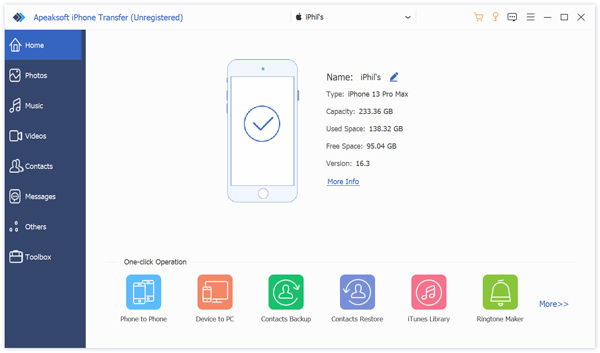
Vaihe 1. Tunnista iPhonesi
Suorita muistiinpanojen siirto-ohjelmisto, kun olet asentanut sen tietokoneellesi. Muistiinpanojen synkronointiin Maciin on olemassa toinen versio. Liitä iPhone tietokoneeseen Lightning-kaapelilla. Napauta pyydettäessä Luottamus näytölläsi, jotta voit luottaa tähän tietokoneeseen. iOS 13:ssa ja uudemmissa anna iPhonen salasanasi salliaksesi yhteyden.
Vaihe 2. Esikatsele iPhone-muistiinpanoja
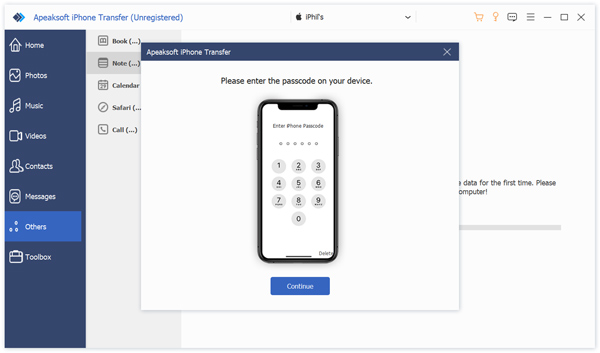
Kun laitteesi on havaittu, siirry kohtaan Muuta välilehti sivupalkissa ja valitse Huomautuksia esikatsellaksesi kaikkia muistiinpanoja iPhonessasi.
Vaihe 3. Siirtohuomautukset
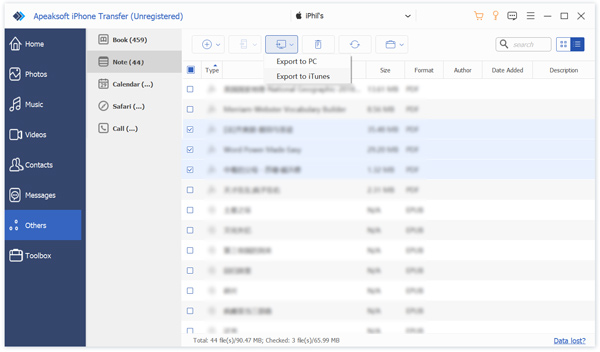
Valitse synkronoitavat muistiinpanot ja liitteet. Napsauta PC -painiketta ylänauhassa ja valitse Vie tietokoneeseen. Aseta tulostuskansio ja vahvista muistiinpanojen varmuuskopiointi. Voit myös siirtää valokuvia iPhonesta tietokoneelle tällä ohjelmalla.
Vinkki: Pidä iPhone kytkettynä tietokoneeseen prosessin aikana.
Osa 2: IPhonen muistiinpanojen synkronointi tietokoneeseen iCloudin kautta
Jos sinulla ei ole kaapelia, voit synkronoida muistiinpanoja iPhonestasi MacBookiin tai PC:hen langattomasti iCloudin avulla. Apple ID -tilisi avulla voit synkronoida muistiinpanosi eri laitteidesi, kuten iOS-laitteiden, Macin ja PC:n, välillä.
Vaihe 1. Suorita Asetukset-sovellus iPhonessasi.
Vinkki: Vinkki: Muista yhdistää iPhone internetyhteyteen.
Vaihe 2. Napauta profiiliasi ja valitse iCloud.
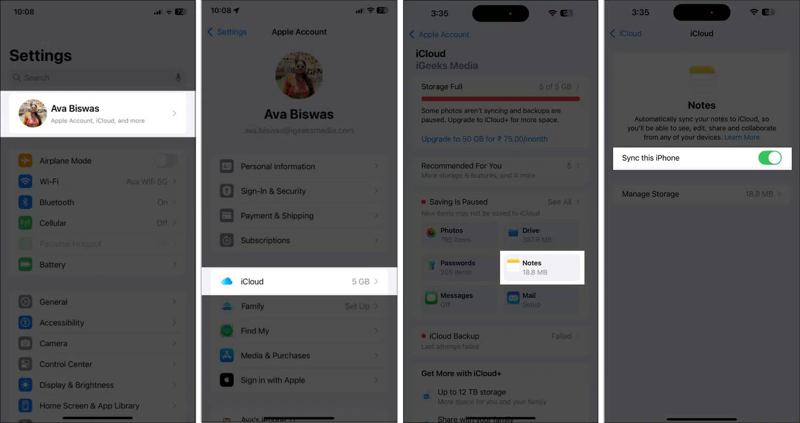
Vaihe 3. Napauttaa Huomautuksia alla Tallennettu iCloudiin osiossa.
Vaihe 4. Vaihda Synkronoi tämä iPhone synkronoidaksesi iPhonen muistiinpanot välittömästi.
Synkronoi muistiinpanoja iPhonesta MacBookiin
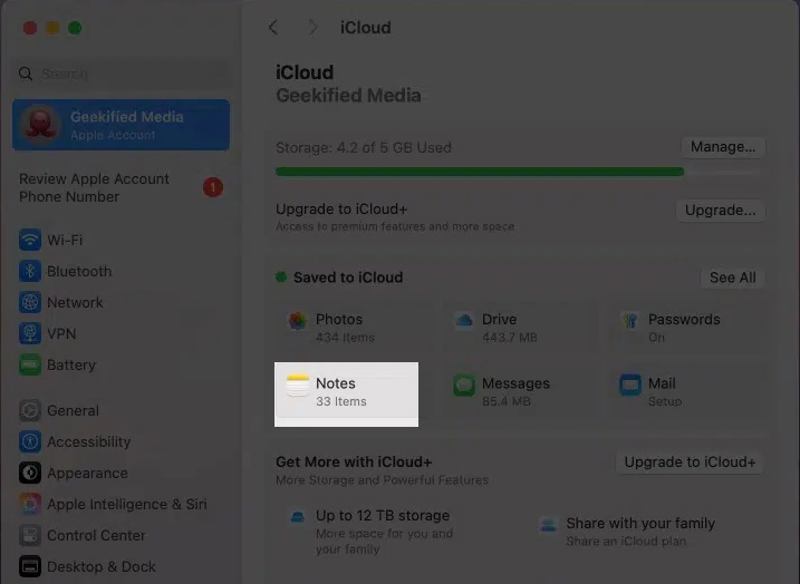
Vaihe 5. Valitse omena valikosta ja valitse Järjestelmäasetukset.
Vaihe 6. Valitse Apple-tili, ja valitse iCloud.
Vaihe 7. Valita Huomautuksia alla Tallennettu iCloudiin alueella.
Vaihe 8. Vaihda Synkronoi tämä Mac vaihtoehto ja napsauta valmis.
Vinkki: Huomautus: Sinun on kirjauduttava sisään samalla Apple ID -tilillä sekä iPhonessasi että MacBookissasi.
Synkronoi muistiinpanoja iPhonesta tietokoneeseen
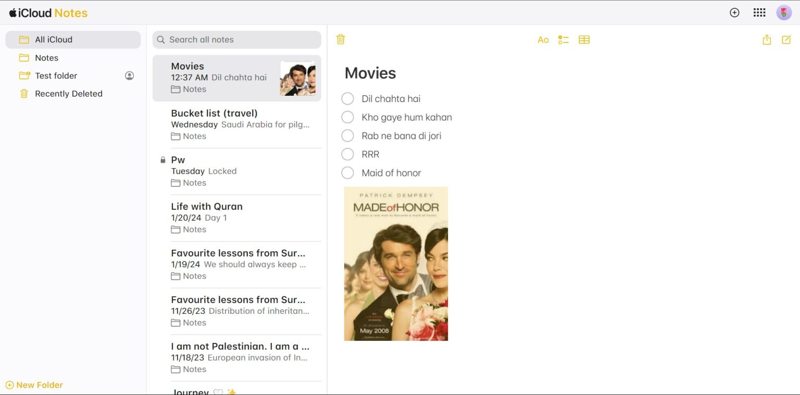
Vaihe 5. Siirry selaimessa osoitteeseen www.icloud.com ja kirjaudu sisään Apple ID:lläsi ja salasanallasi.
Vaihe 6. Valita Huomautuksia päästäksesi iCloud-muistiinpanoja sivu.
Vaihe 7. Valitse varmuuskopioitava muistiinpano ja kopioi se liitteineen.
Vaihe 8. Avaa uusi Word-asiakirja työpöydältäsi ja liitä muistiinpano siihen.
Osa 3: Muistiinpanojen kopioiminen iPhonesta tietokoneelle Gmailin kautta
Toinen tapa kopioida muistiinpanoja iPhonesta tietokoneelle on Gmail-tilisi kautta. Itse asiassa voit synkronoida iPhonen muistiinpanosi Gmailiin ja käyttää niitä millä tahansa digitaalisella laitteella. Tämä menetelmä ei vaadi ylimääräistä ohjelmistoa tai laitteistoa. Tarvitset vain vakaan internetyhteyden. Voit myös synkronoi iPhone-yhteystiedot Gmailiin.
Vaihe 1. Suorita Asetukset app iPhone-laitteellasi.
Vaihe 2. Navigoida johonkin Apps, Huomautuksiaja Muistiinpanotilit.
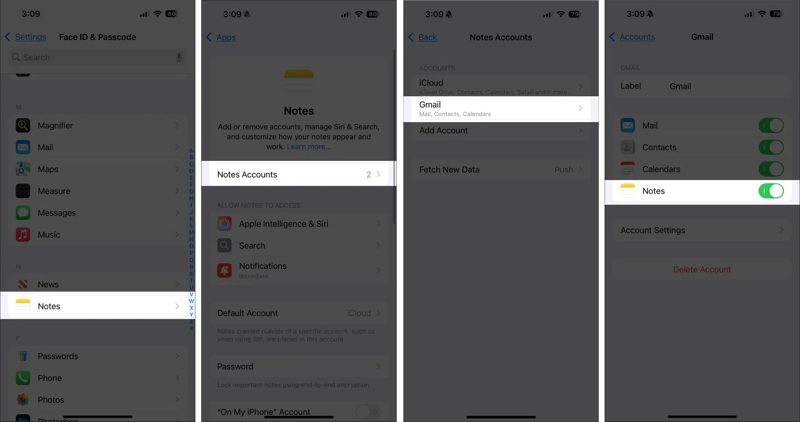
Vaihe 3. Napauttaa Lisää tili, ja valitse GoogleJos olet lisännyt Gmail-tilisi Muistiinpanoja varten, siirry kohtaan
Vaihe 4. Kirjaudu sisään Gmail-tililläsi.
Vaihe 5. Valitse seuraavaksi tilisi kohdasta Muistiinpanotilit -näyttöön.
Vaihe 6. Vaihda Huomautuksia vaihtoehto aloittaa iPhonen muistiinpanojen synkronoinnin Gmailiin.
Vaihe 7. Käännä tietokoneesi puoleen ja avaa verkkoselain.
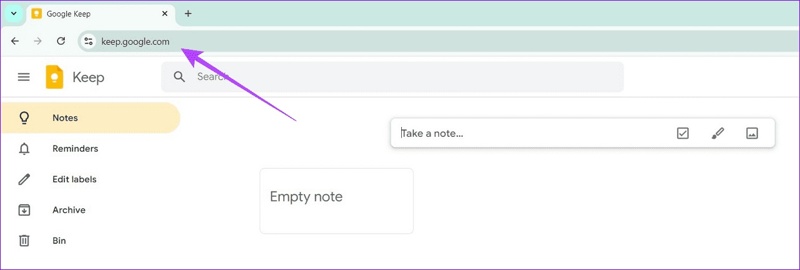
Vaihe 8. Siirry osoitteeseen keep.google.com ja kirjaudu sisään Gmail-tilillesi.
Vaihe 9. Valita Huomautuksia sivupalkissa ja kopioi iPhonen muistiinpanot tietokoneellesi.
Vinkki: Voit ladata muistiinpanosi myös Google Keep -sovelluksella tai -laajennuksella.
Yhteenveto
Yllä olevan jakamisemme perusteella sinun tulisi oppia ainakin kolme tapaa synkronoi muistiinpanoja iPhonesta MacBookiin tai PC:llä. Kun olet synkronoinut iPhone-muistiinpanot iCloudiin, voit käyttää niitä joko Macillasi tai PC:lläsi samalla Apple-tilillä. Lisäksi Gmailin ja Outlookin avulla voit varmuuskopioida iPhone-muistiinpanoja pilvitallennustilaan. Apeaksoft iPhone Transfer on ihanteellinen vaihtoehto, jos sinulla ei ole vakaata internetyhteyttä.
Aiheeseen liittyvät artikkelit
Ennen tiedostojen poistamista sinun kannattaa siirtää tiedostot iPadista tietokoneelle noudattamalla todistettuja menetelmiämme ja konkreettisia ohjeitamme.
Voit synkronoida musiikkia iPhonessa käyttämällä Apeaksoft iPhone Transferia, Apple Musicia, AirDropia, iTunesia, Finderia ja iCloud Drivea.
Oletko kohdannut tauko-ongelman synkronoidessasi iCloudin kanssa? Älä huoli. Tässä artikkelissa kerrotaan, kuinka pääset takaisin raiteilleen nopeasti.
Voit lisätä MP4-tiedostoja iPadiin iTunesin lisäksi käyttämällä myös pilvipalvelua, WALTR 2:ta, VLC:tä tai erillistä iOS-tiedonsiirto-ohjelmistoa.



