

User Guide
- Introduction
- Install and Register
- Remove iPhone Screen Passcode
- Remove Apple ID/iCloud Account
- Remove Screen Time Passcode
- Bypass MDM Mode
- Remove iTunes Backup Password
- Remove SIM Card Restrictions
Try It Now!
Introduction
Apeaksoft iFoneKit is a tool designed to remove iOS screen restrictions, Apple ID, and Screen Time passcodes. It can help you regain access to your iPhone, iPad, or iPod in just a few seconds. No matter whether you encounter a forgotten screen passcode or an Apple ID/iCloud account lost, you can turn to Apeaksoft iFoneKit for help. Follow this guide to wipe the iPhone passcode and remove the Apple ID, Screen Time, MDM, SIM restrictions, and iTunes backup encryption.
Install and Register
Install
Step 1: Download Apeaksoft iFoneKit from the official website or press the button below.
Step 2. Find your installation package at the top-right corner of the page, click it and choose Yes.
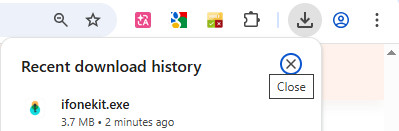
Step 3. Press Install in orange to start the installation. The installation will be finished in a few seconds.

Register
When you launch Apeaksoft iFoneKit, you should go to the top-right corner and click the Log in button.
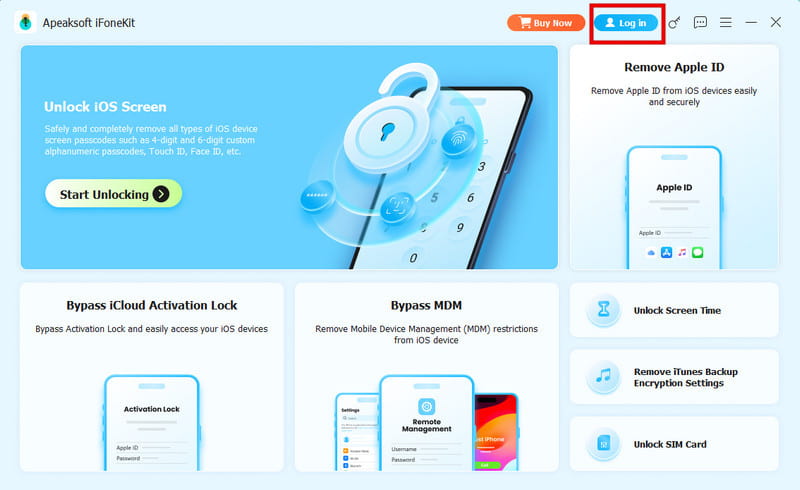
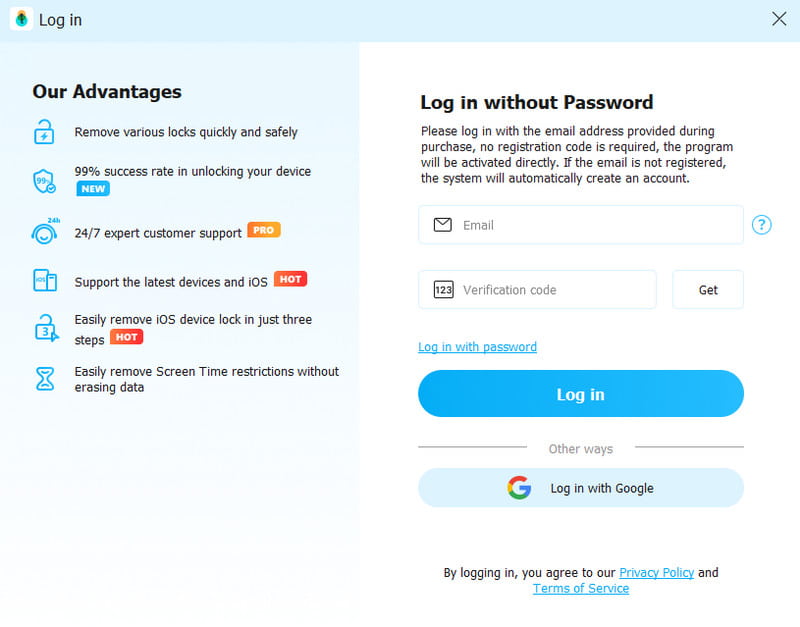
Input the Email Address and Verification Code. Then, click the Log in button to activate your VIP membership to enjoy all features within the program.
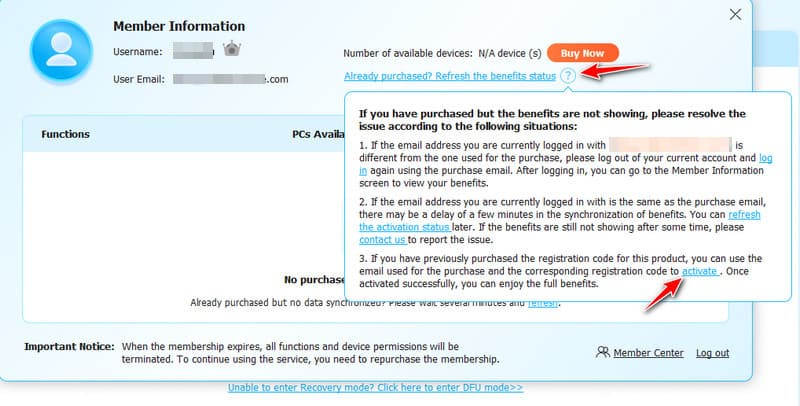
If there is a pop-up window like the image below, which shows you don’t have any PCs Available, don’t worry.
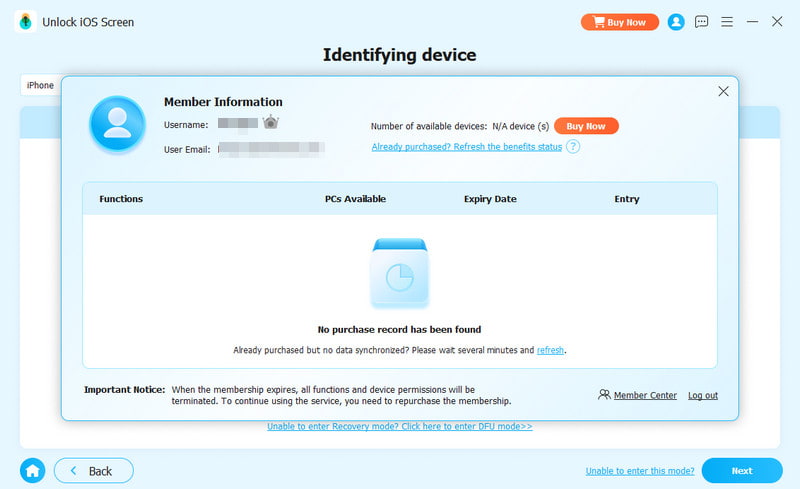
Click the question mark button, then click activate in the pop-up window.
In the prompt window, enter your email and the Registration code you have. Then, click the Register button to activate your rights.
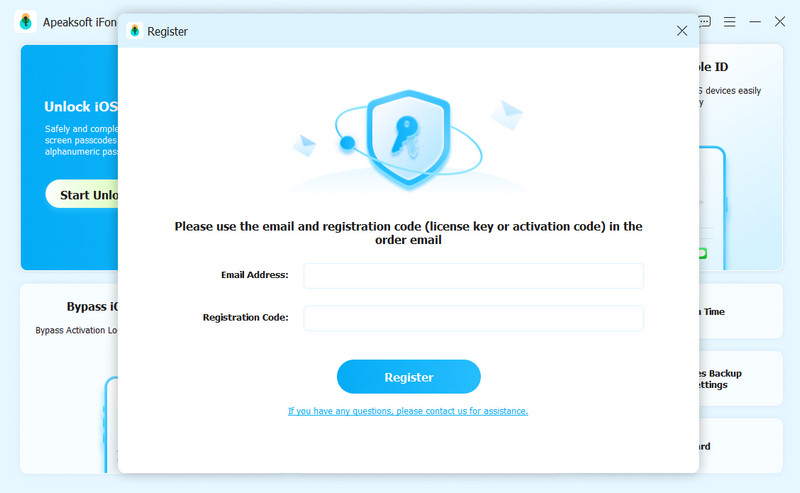
Email Address: The email address that you fill in the order form.
Registration Code: A string of characters marked as Activation key, license code or KEYCODE(S) in the order confirmation letter you received after the successful purchase.
Remove iPhone Screen Passcode
Wipe Passcode mode will help you solve the screen passcode issues when you forgot iPhone passcode or iPhone is disabled and unused. Before using this mode to remove your iPhone passcode, you need to know that:
1. Erasing the screen passcode will delete all your data.
2. Your iOS device will be updated to the latest iOS version.
3. Be sure that your iOS device is connected to computer all the time.
Step 1. Run Apeaksoft iFoneKit
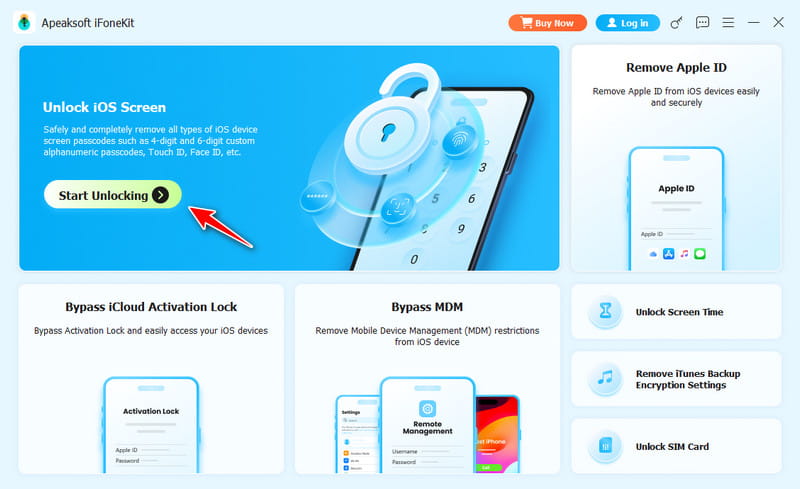
Launch Apeaksoft iFoneKit and choose the Remove iOS Screen mode. Meanwhile, connect your iOS device to computer via a USB cable.
Step 2. Confirm device information
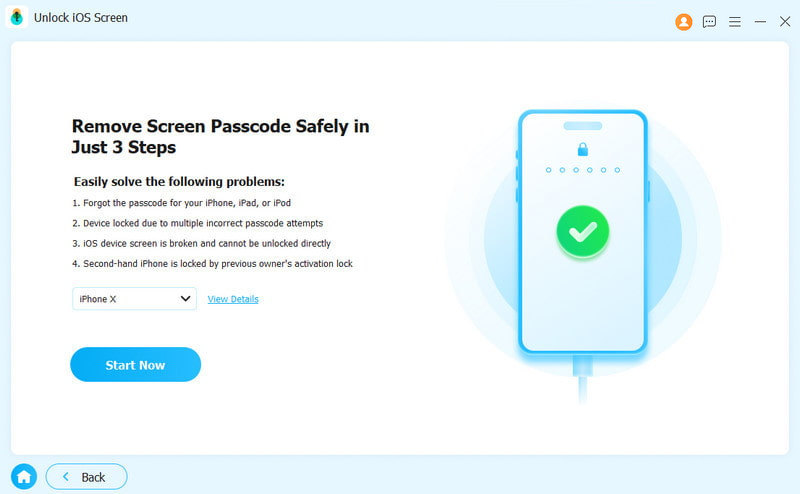
The information of your iOS device will be loaded. Confirm the information on your own, and click the Start Now button to proceed.
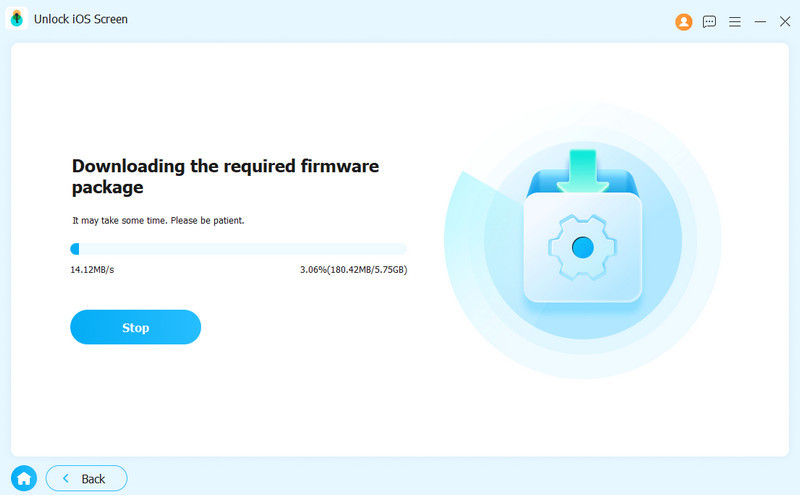
Step 3. Download firmware
Then it will start downloading the firmware package. It will take some time. Please wait patiently.
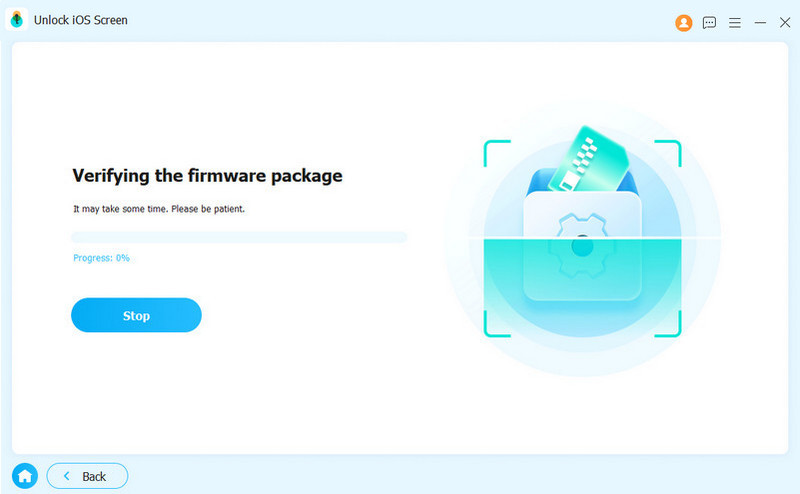
Step 4. Confirm the firmware
There will be a Confirmation window popping up after the firmware is downloaded successfully. Read it carefully and click OK. Then, you need to press the Confirm Again button to allow the program to verify the firmware.
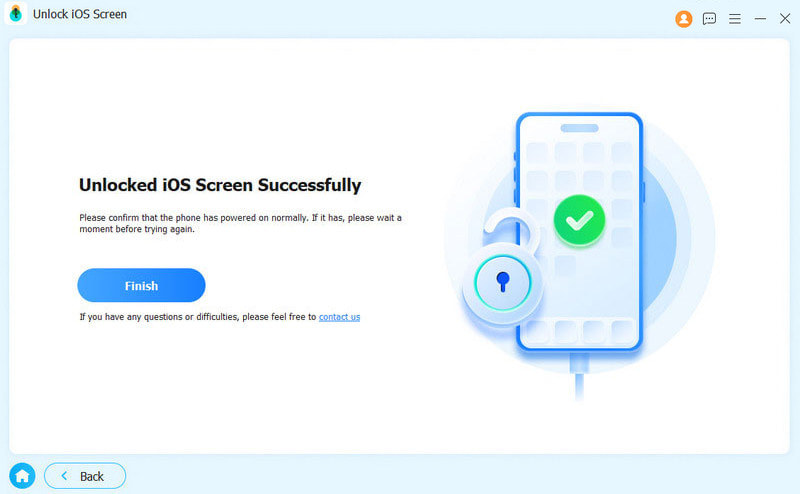
Step 5. Remove iPhone passcode
After verifying the firmware, the removing process will be initiated automatically. Wait patiently and the iOS screen passcode will be erased soon.
Remove Apple ID/iCloud Account
With Remove Apple ID option, you can easily delete Apple ID or iCloud account on your iOS devices. Before using this option, you need to be aware that:
1. The Remove Apple ID feature only supports activated iOS devices.
2. Remove Apple ID will erase all data on your iOS device.
3. Please make sure your device is connected during the process.
4. Don’t erase all content and settings on your device, or it will be linked to the original Apple ID permanently.
5. Don’t use iTunes to update or restore your device, or it will be blocked from the original Apple ID permanently.
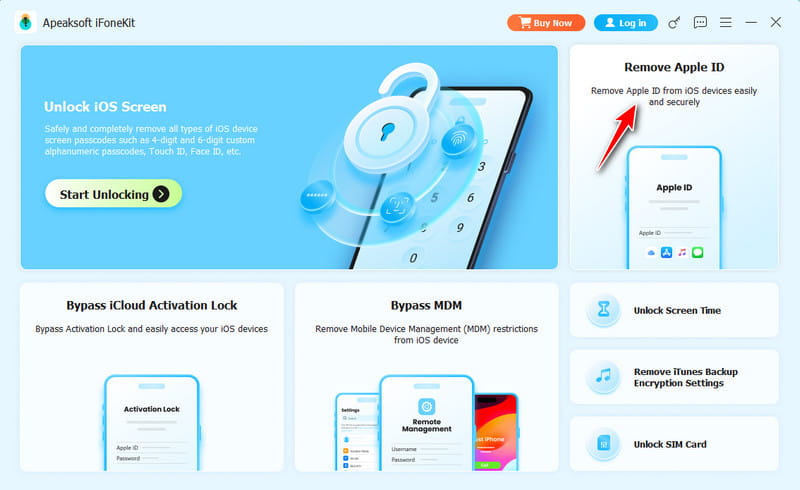
Step 1. Launch iFoneKit
Launch Apeaksoft iFoneKit on your computer, and choose Remove Apple ID mode. Connect your iOS device to computer, and tap Trust on your device to trust the computer.
Step 2. Remove Apple ID
Click the Start button to start removing the Apple ID and iCloud account associated to your iPhone, iPad or iPod touch. After that, Apeaksoft iFoneKit will start removing your Apple ID and iCloud account.
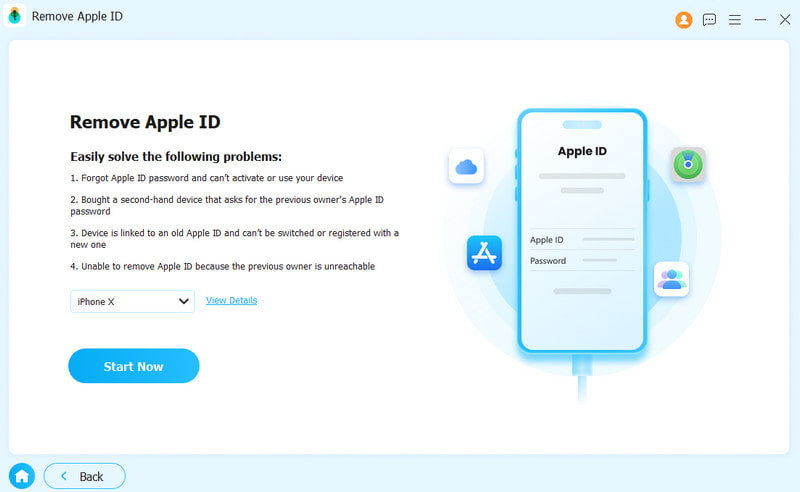
Situation 1. If Find My is disabled
If Find My is disabled on your iOS device, Apeaksoft iFoneKit will start removing your Apple ID and iCloud account right away. It may take moments to remove your Apple ID, please wait patiently.
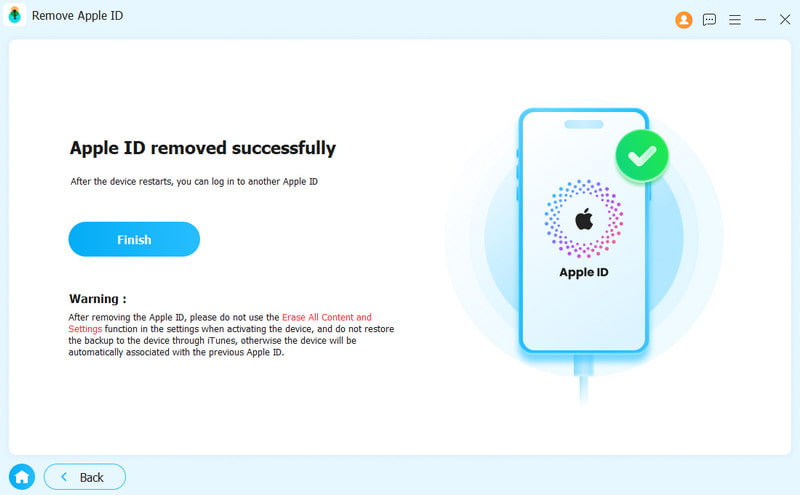
Situation 2. If Find My is enabled
You need to follow the instructions on the software interface to reset your iOS device first. Note that it will erase your device data. Back up relevant data in advance.
Note:
If you fail to reset your device, you need to click Retry to reflash the device.
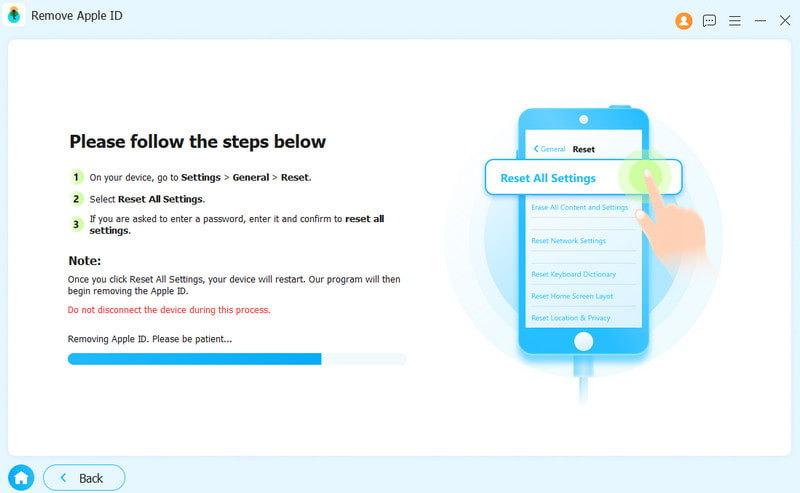
Then, click the OK button to initiate the process. You need to click the Confirm Again button to confirm the process.
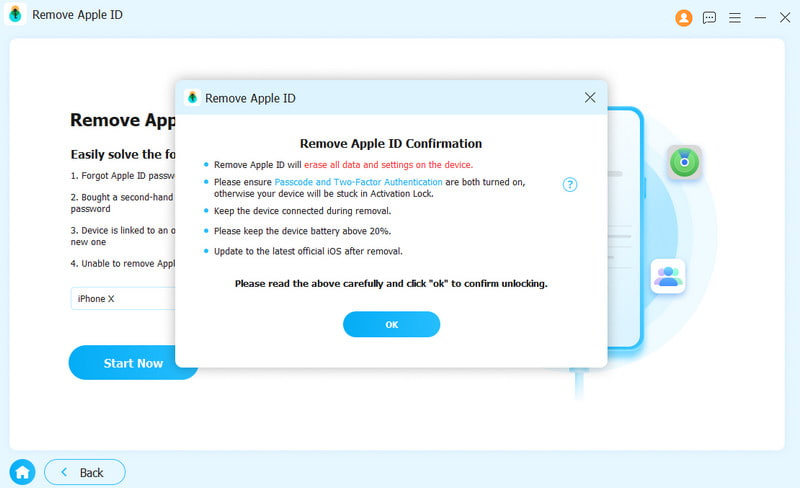
Wait for a while, and your Apple ID will be removed soon.
Remove Screen Time Passcode
Apeaksoft iFoneKit helps you remove Screen Time passcode and retrieve Restrictions passcode. Before using Screen Time mode, you need to be aware of the following:
1. Remove Screen Time passcode requires you to turn off Find My iPhone option.
2. After removing Screen Time passcode, you need to reset your device without losing data.
3. iTunes is needed for scanning your device. Make sure iTunes is updated to the latest version.
Step 1. Run Apeaksoft iFoneKit
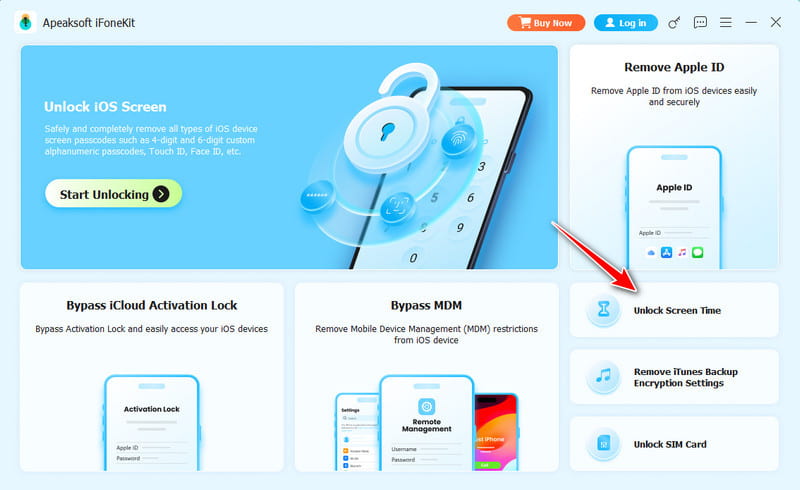
After installation, run Apeaksoft iFoneKit on your device. Select Unlock Screen Time mode to continue. Connect your iOS device to computer via a USB cable.
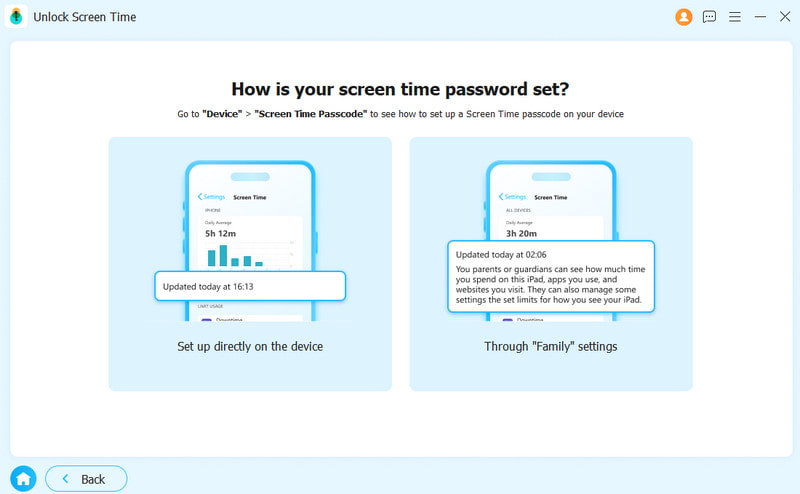
Step 2. Choose how your screen time passcode is set
If the screen passcode is set yourself, choose the left option. If it is set by your parents, select the right option.
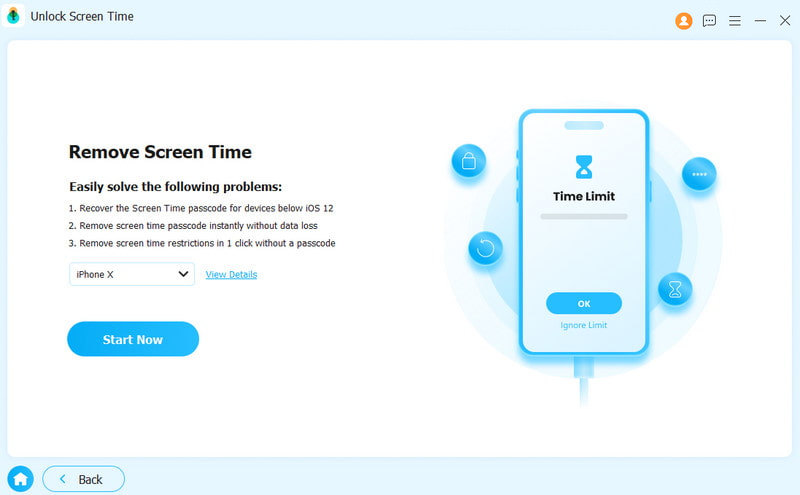
Step 3. Start to remove Screen Time passcode
Click the Start Now button to remove Screen Time passcode or Restrictions passcode.
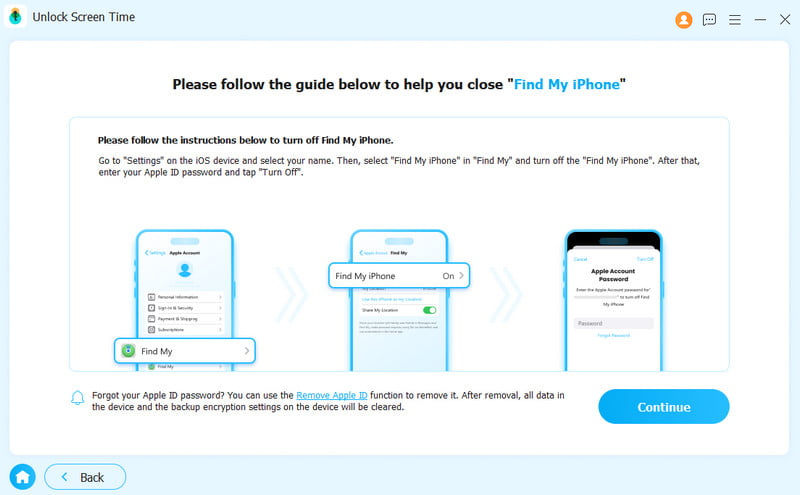
Step 4. Disable Find My
Follow the on-screen instructions to disable Find My on your iOS device.
Step 5. Remove Screen Time passcode
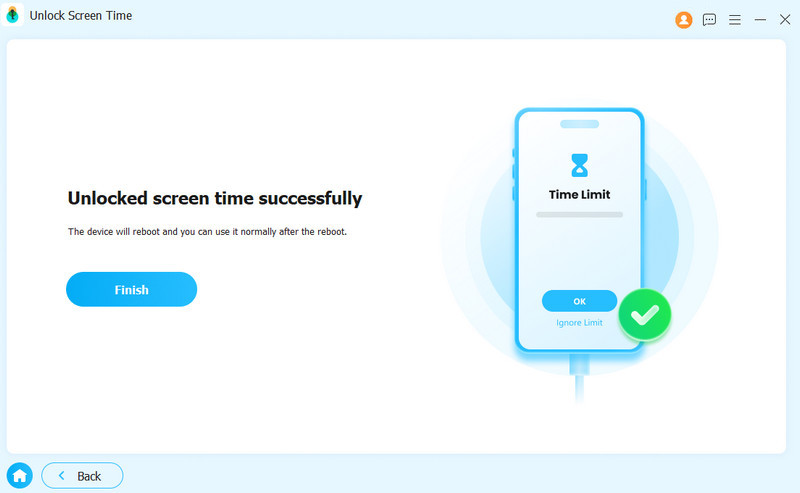
Your Screen Time passcode will be removed soon. Wait patiently.
Remove Screen Time passcode on iOS 12 or later
If your device is running iOS 12 or later, the program will start removing Screen Time on your device. Please wait patiently to remove Screen Time passcode.
Retrieve Restrictions passcode on iOS 11 or earlier
If your device is running iOS 11 or earlier and the iTunes backup is not encrypted, the program will start retrieving your Restrictions passcode on your device. If your iTunes backup has been encrypted, you need to decrypt the backup first.
After that, your Restrictions passcode will be retrieved in the program. You can use the passcode to reset the Restrictions passcode.
Remove MDM Mode
With the Bypass MDM mode, you can bypass the MDM and remove the MDM profile with simple steps. Before removing MDM, you should note that:
1. Removing MDM will not erase all data.
2. After removing MDM, the device will update to the latest iOS version.
3. If you enable Find My on your device, please input your iCloud password to reset your device after removing MDM.
Step 1. Run Apeaksoft iFoneKit
Connect your iOS device to your computer first. Launch Apeaksoft iFoneKit on a Windows computer.
Step 2. Bypass MDM mode
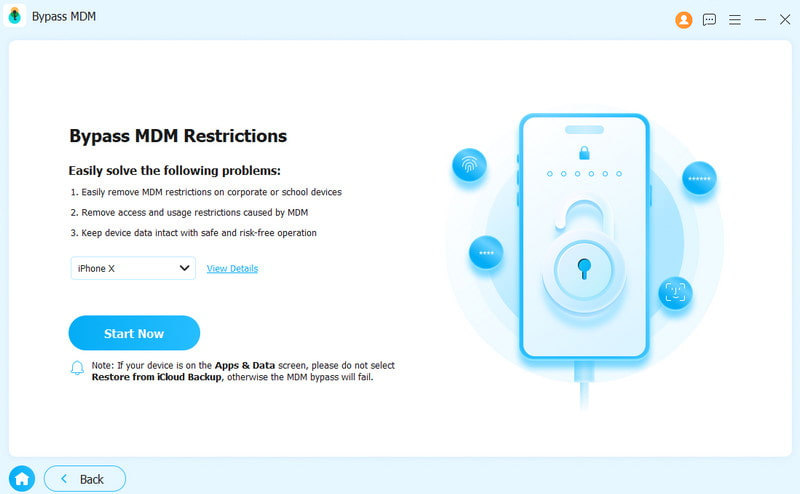
Choose the Bypass MDM mode. Then, click Start Now to remove MDM. The program will continue the removal process.
Situation 1. If Find My is disabled
If Find My is off, the MDM mode will be removed automatically.
Situation 2. If Find My is enabled
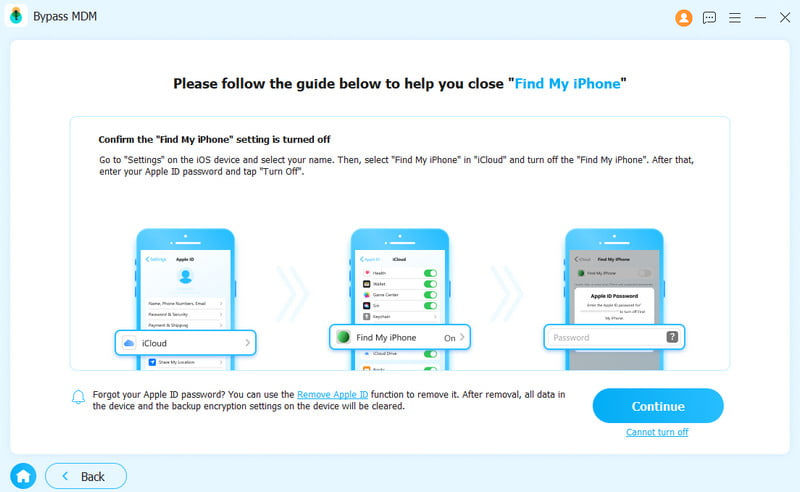
If Find My is enabled, you should follow the on-screen prompts to turn it off on your iOS device first.
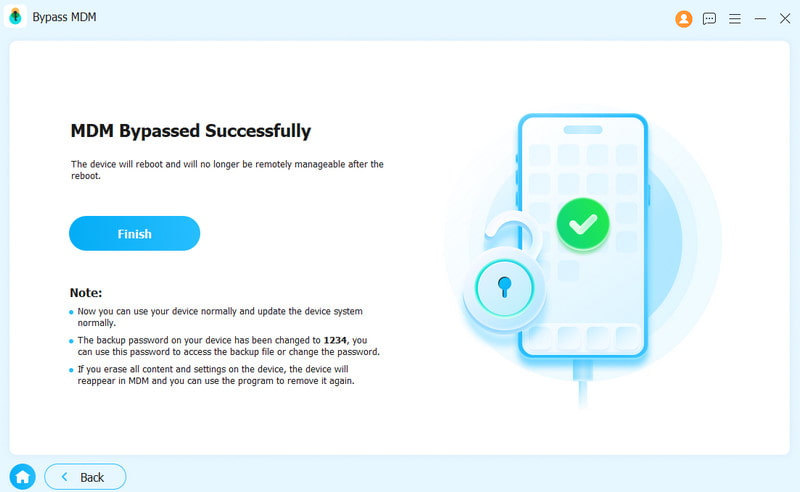
After removing MDM, your iOS device will restart automatically. Then, you can use it as a normal status.
Remove iTunes Backup Password
Want to check, sync, or update the backup on your iOS device via iTunes? What to do if you forget the iTunes backup password? Please follow the steps below to use the Remove iTunes Backup Password option.
Step 1. Run Apeaksoft iFoneKit
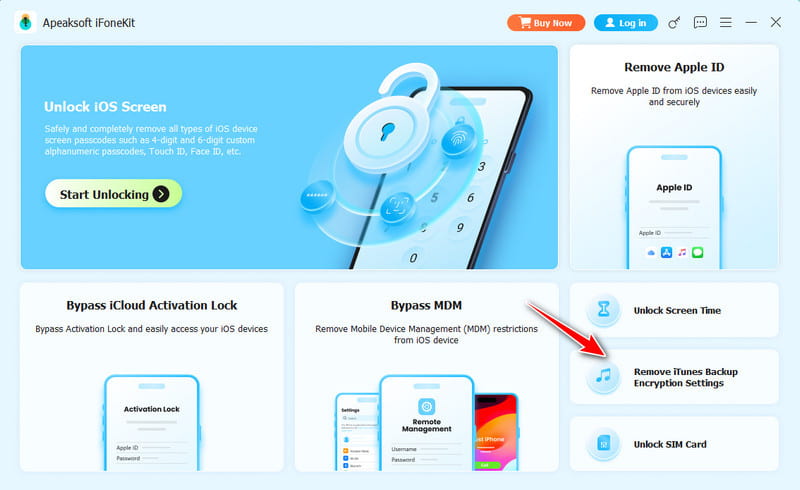
Connect your iOS device to a Windows computer first. Launch Apeaksoft iFoneKit and choose Remove iTunes Backup Password Encryption Settings mode.
Step 2. Remove iTunes Backup Password
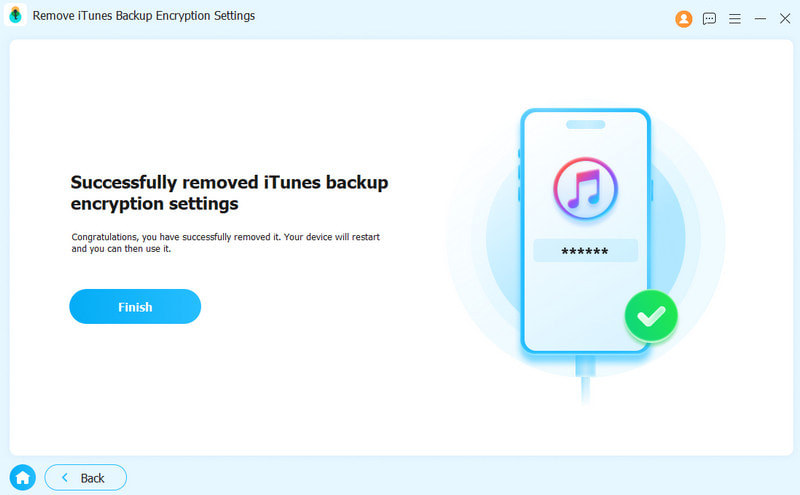
After starting, wait for a few seconds to finish the removal process. Then, the iOS device will restart, and you can use it normally. Finally, click Finish.
Note:
1. Ensure that Find My is turned off.
2. Do not open iTunes during this process.
3. Your device will restart during the removal process.
After removing it, you can back up and view data without encryption. But you should note that the old backup with encryption cannot be accessed without an iTunes backup password.
Remove SIM Card Restrictions
When traveling abroad, is your mobile phone restricted by the operator, unable to use the local SIM card, and thus incurs high roaming charges? Follow the steps below to get rid of the SIM card restrictions to switch freely between carriers legally:
Step 1. Run Apeaksoft iFoneKit
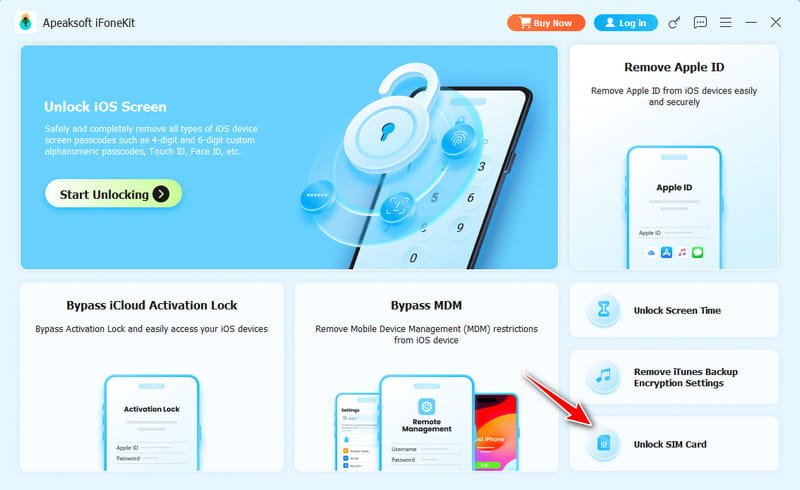
Connect your iPhone to the computer first. Choose the Remove SIM Locks option on the main interface.
Step 2. Start the SIM Removal Process
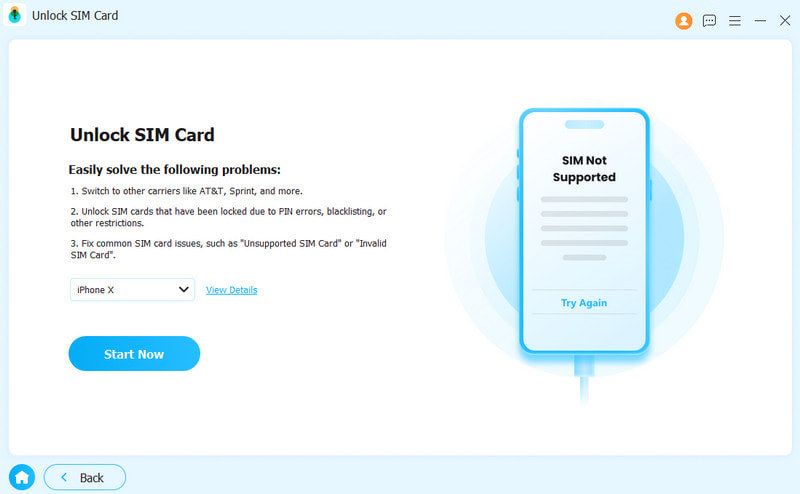
Connect your iOS device to the computer and hit the Start Now button to continue. Before starting, please read our statement and warnings carefully in case of unnecessary conflicts.
Step 3. Detect your device
You will see some necessary information about your device on the following page, such as the Device Model, iOS Version, Jailbreak Status, IMEI, etc. Press the Start Bypassing button to continue. If there is no jailbreak, you need to jailbreak first.
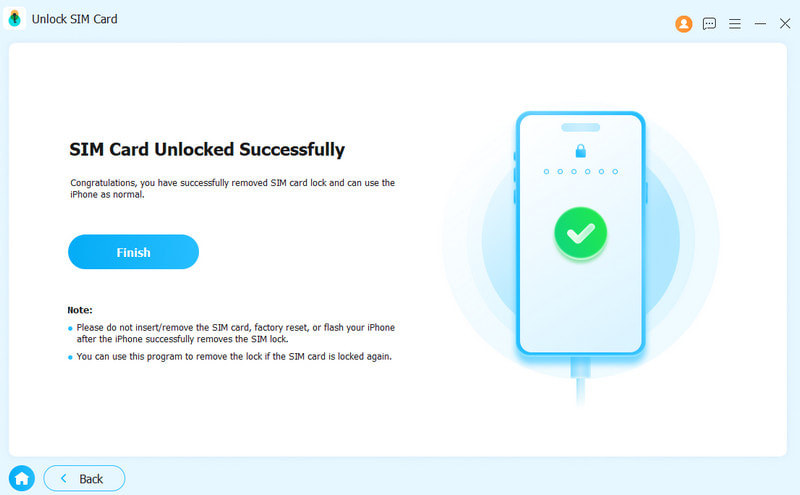
Step 4. Set your iOS devices
Follow the instructions on the screen to make relevant settings that will forget your current network. Then, press the OK button.
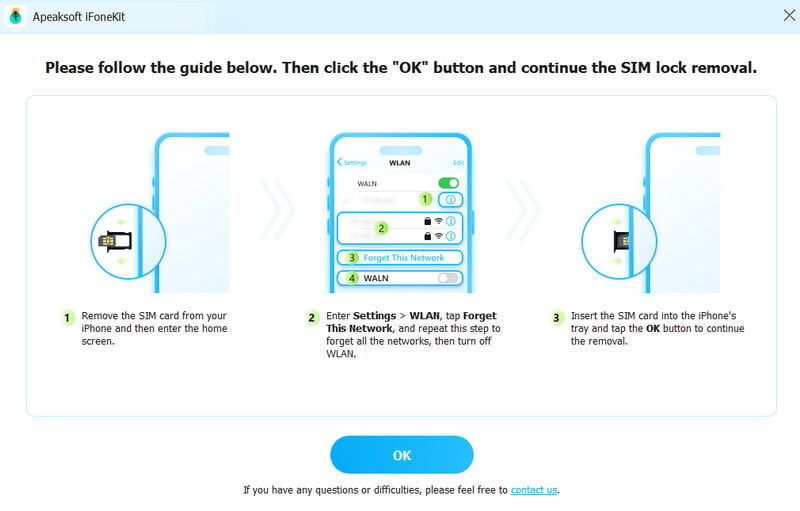
Step 5. Remove SIM Restrictions Successfully
Wait for a while, and your SIM card will be removed from restrictions successfully.
User Guide
- Introduction
- Install and Register
- Remove iPhone Screen Passcode
- Remove Apple ID/iCloud Account
- Remove Screen Time Passcode
- Remove MDM Mode
- Remove iTunes Backup Password
Try It Now!
Introduction
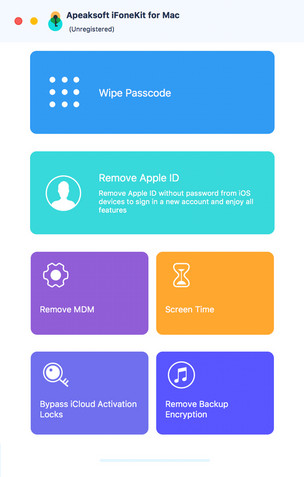
Apeaksoft iFoneKit for Mac is a tool for removing iOS screen passcode, Apple ID and Screen Time restrictions. It will quickly regain access to your iPhone, iPad or iPad in seconds. No matter if you encounter a screen passcode forgotten or an Apple ID/iCloud account lost, you can turn to Apeaksoft iFoneKit for help. Follow this guide to wipe iPhone passcode, remove Apple ID or find Scree Time passcode.
Install and Register
Install
Step 1. You can download Apeaksoft iFoneKit from the official website. Or you can get the Mac software by the link: https://downloads.apeaksoft.com/mac/ifonekit-for-mac.dmg.
Step 2. Drag the file button to the Applications folder.
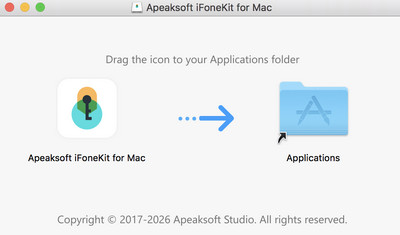
Step 3. Click the software button from the Launchpad on Mac. You will be asked to click Open to confirm the safety. Then, you can enter the program.

Register
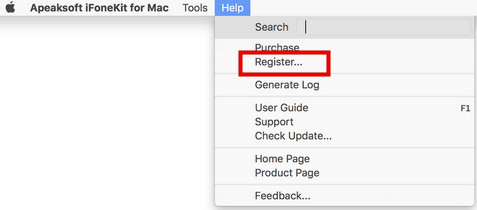
Step 1. When you open Apeaksoft iFoneKit for Mac for the first time, the register window will pop up. Or you can click Help from the top left of your computer screen. Select the Register option to enter the register window.
Step 2. Enter your Email Address and Registration Code directly. Then, click the Register button to access the full features.
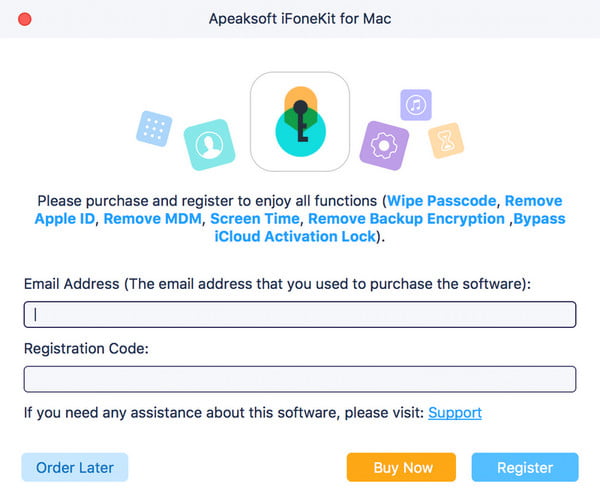
Note: Once you purchased Apeaksoft iFoneKit successfully, the registration code will be sent to your email address that you filled in the order form.
Email Address: The email address that you fill in the order form.
Registration Code: A string of characters marked as Activation key, license code or KEYCODE(S) in the order confirmation letter you received after the successful purchase.
Remove iPhone Screen Passcode
Wipe Passcode mode will help you solve the screen passcode issues when you forgot iPhone passcode or iPhone is disabled and unused. Before using this mode to remove your iPhone passcode, you need to know that:
1. Erasing the screen passcode will delete all your data.
2. Your iOS device will be updated to the latest iOS version.
3. Be sure that your iOS device is connected to computer all the time.
Step 1. Run Apeaksoft iFoneKit
Launch Apeaksoft iFoneKit and choose Wipe Passcode mode. Meanwhile, connect your iOS device to computer via a USB cable. Click the Start button to continue.
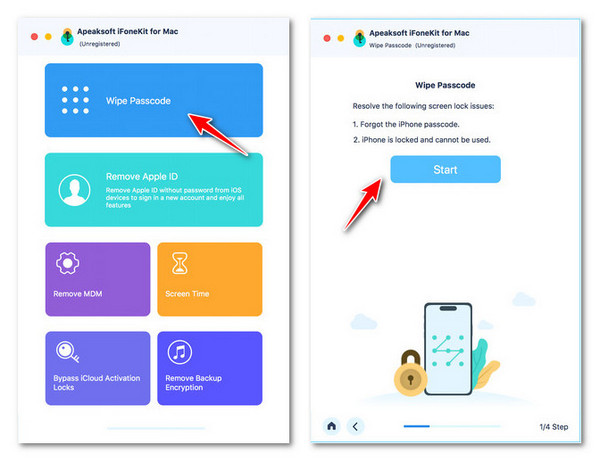
Step 2. Confirm device information
The information of your iOS device will be loaded. Confirm the information on your own, and click the Start button to proceed.
Step 3. Download firmware
Then it will start downloading the firmware package. It will take some time, please wait patiently.

Step 4. Remove iPhone passcode
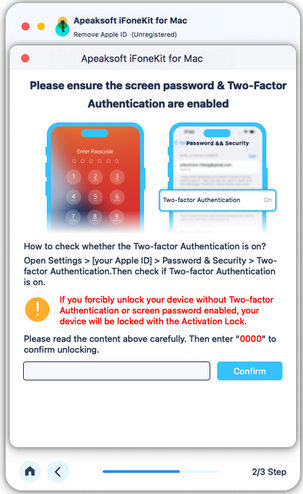
After the firmware downloading is complete, click the Unlock button to wipe your screen passcode. Then you are required to enter 0000 to confirm the process.
Remove Apple ID/iCloud Account
With Remove Apple ID option, you can easily delete Apple ID or iCloud account on your iOS devices. Before using this option, you need to be aware that:
1. The Remove Apple ID feature only supports activated iOS devices.
2. Remove Apple ID will erase all data on your iOS device.
3. Please make sure your device is connected during the process.
4. Don’t erase all content and settings on your device, or it will be linked to the original Apple ID permanently.
5. Don’t use iTunes to update or restore your device, or it will be blocked from the original Apple ID permanently.
Step 1. Launch Apeaksoft iFoneKit
Launch Apeaksoft iFoneKit on your computer, and choose Remove Apple ID mode. Connect your iOS device to computer, and tap Trust on your device to trust the computer.
Step 2. Remove Apple ID
Click the Start button to start removing the Apple ID and iCloud account associated to your iPhone, iPad or iPod touch. After that, Apeaksoft iFoneKit will start removing your Apple ID and iCloud account.
Situation 1. If Find My is disabled
If Find My is disabled on your iOS device, Apeaksoft iFoneKit will start removing your Apple ID and iCloud account right away. It may take moments to remove your Apple ID, please wait patiently.
Situation 2. If Find My is enabled
For iOS 11.3 or earlier:
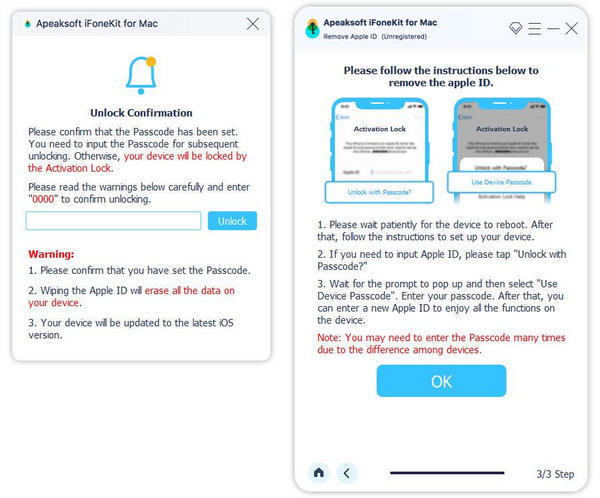
If Find My iPhone is enabled on your device, you need to reset all settings on your iOS device. Just go to Settings > General > Reset > Reset All Settings. After you reset all settings, your iOS device will restart. Then the program will remove your Apple ID automatically.
For iOS 11.4 or later:
1. You need to make sure that you have turned on Two-factor Authentication on your device. To enable this service, please go to Settings on your device. Tap on [your name], select Password & Security, and locate Two-factor authentication.
2. Then turn it on. After that input 0000. Then you can confirm your device information before removing. Click the Start button to download the firmware package.
3. After downloading the firmware package, you need to enter 0000 again to confirm removing. Click on the Unlock button. Once your Apple ID is removed, you can follow the instructions to activate your device.
Remove Screen Time Passcode
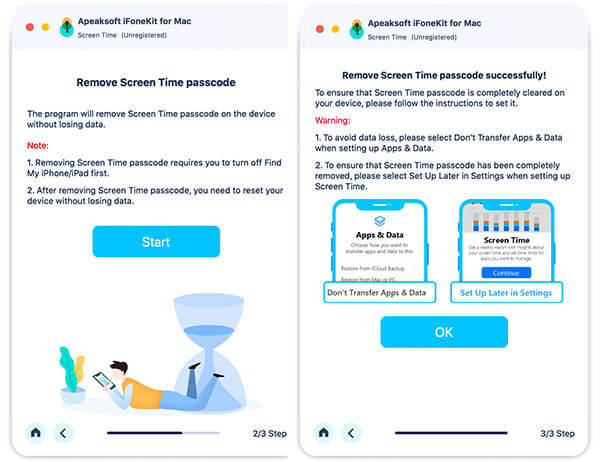
Apeaksoft iFoneKit helps you remove Screen Time passcode and retrieve Restrictions passcode. Before using Screen Time mode, you need to be aware of the following:
1. Remove Screen Time passcode requires you to turn off Find My iPhone option.
2. After removing Screen Time passcode, you need to reset your device without losing data.
3. iTunes is needed for scanning your device. Make sure iTunes is updated to the latest version.
Step 1. Run Apeaksoft iFoneKit
After installation, run Apeaksoft iFoneKit on your device. Select Screen Time mode to continue. Connect your iOS device to computer via a USB cable.
Step 2. Remove Screen Time passcode
Click the Start button to remove Screen Time passcode or Restrictions passcode.
Remove Screen Time passcode on iOS 12 or earlier
If your device is running iOS 12 or earlier, the program will start removing Screen Time on your device. Please wait patiently to remove the Screen Time passcode.
Retrieve Restrictions passcode on iOS 11 or earlier
If your device is running iOS 11 or earlier and the iTunes backup is not encrypted, the program will start retrieving your Restrictions passcode on your device. If your iTunes backup has been encrypted, you need to decrypt the backup first.
After that, your Restrictions passcode will be retrieved in the program. You can use the passcode to reset the Restrictions passcode.
Remove MDM Mode
The Remove MDM mode can help you remove the MDM restrictions and profile on iPhone & iPad. Just follow the quick steps here.
1. Removing MDM will not erase all data.
2. After removing MDM, the device will update to the latest iOS version.
3. If you enable Find My on your device, please input your iCloud password to reset your device after removing MDM.
Step 1. Run Apeaksoft iFoneKit
Connect your iPhone or iPad to your Mac first. Launch and run the program on the Mac.
Step 2. Remove MDM mode
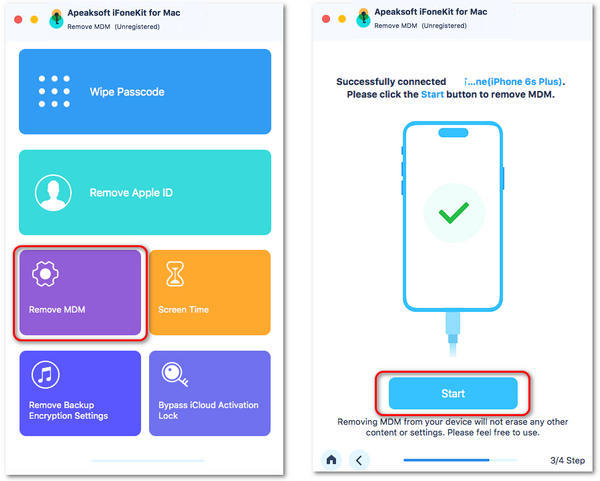
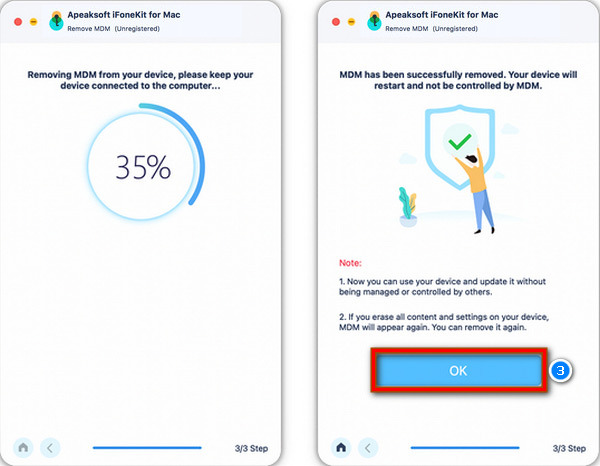
Select the Remove MDM mode. Then, click the Start button. The program will remove MDM. Finally, click the OK’ button.
Situation 1. If Find My is disabled
If Find My is off, the MDM restrictions on iOS device can be removed automatically.
Situation 2. If Find My is enabled
If Find My is enabled on your iOS device, you can follow the on-screen prompts to turn it off first.
After removing MDM, your iPhone or iPad will restart. And the iOS device will come to a normal status.
Remove iTunes Backup Password
The Remove iTunes Backup Password mode can help you easily check, sync, or update the backup content via iTunes. If you forget your iTunes backup password, you can read the quick steps to wipe it.
Step 1. Run Apeaksoft iFoneKit
Connect your iPhone & iPad to your Mac first. Launch the software and click Remove iTunes Backup Password. Then, click the Start button to proceed to the next step.
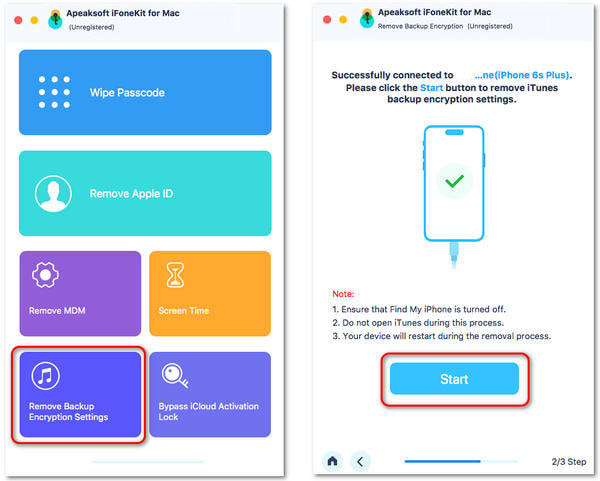
Step 2. Remove iTunes Backup Password
Wait for a few seconds until the removal process is ended. Then, click the OK button. Your iPhone or iPad will restart in normal statue.
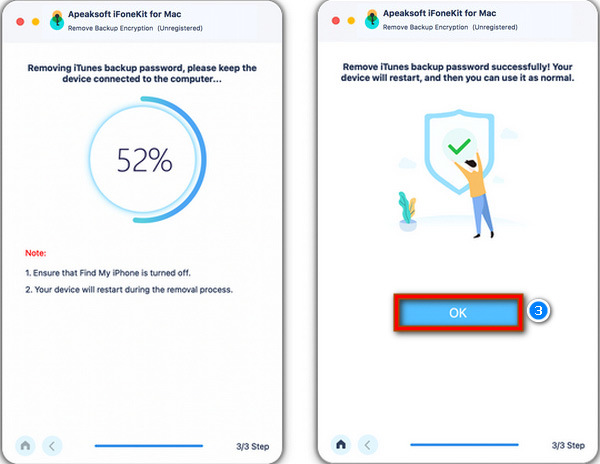
Note:
1.Ensure that Find My is turned off on your iOS device.
2.Do not open iTunes during the removal process.
After removing iTunes backup password, you can back up and manage data without encryption. However, you still cannot access the old backup with encryption without the iTunes backup password.
 Yes
Yes Thank you! Your feedback means a lot to us!