

How to Retrieve Deleted Text Messages on a Samsung Device

According to our survey, Samsung is still one of the most popular digital device brands around the world, especially in the smartphone market. Users store unlimited data and files on their Samsung devices, including important text messages. In fact, Samsung smartphones store text messages in different locations, depending on your settings. That gives you chances to retrieve deleted text messages on your Samsung phone. We identify the proven methods below.
CONTENUTO DELLA PAGINA:
- Part 1: Retrieve Deleted SMS on Samsung by Carrier
- Part 2: Find Deleted Texts on Samsung in Trash
- Part 3: Recover Deleted Text from Samsung Cloud
- Part 4: Restore Deleted SMS through Google Drive Backup
- Part 5: Retrieve Deleted SMS on Samsung by Smart Switch
- Part 6: Ultimate Way for SMS Recovery on Samsung
Part 1: Retrieve Deleted SMS on Samsung by Carrier
To find deleted texts on a Samsung Galaxy, the first place you can try is your carrier. Besides your phone memory, network providers store SMS and MMS on their servers for months to a few years. Verizon, for example, keeps text messages for up to 5 years.
Part 2: Find Deleted Texts on Samsung in Trash
Samsung has added many improvements to Android. The Trash folder in the Messages app, for example, allows you to get deleted text messages back on Samsung. This way works for the messages that were deleted recently.
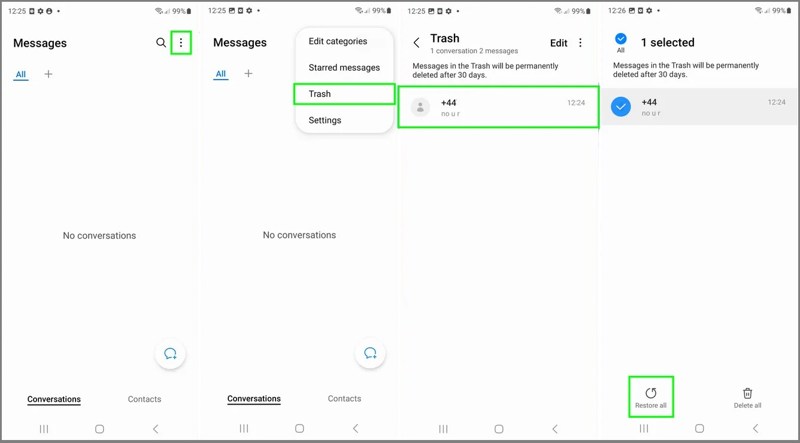
Passo 1. Corri il Messaggi on your app tray.
Passo 2. Clicca il Opzioni pulsante con un'icona a tre punti.
Passo 3. Scegli Cestino on the context menu to view all recently deleted SMS.
Passo 4. Select the chat you want to get back and tap Ripristinare tutto.
Passo 5. Go back to the Messages inbox and find the lost messages.
Part 3: Recover Deleted Text from Samsung Cloud
Samsung Nube is the cloud storage released by Samsung for users to back up their data, including messages. If you have backed up messages to Samsung Cloud, you can retrieve old text messages on Samsung.
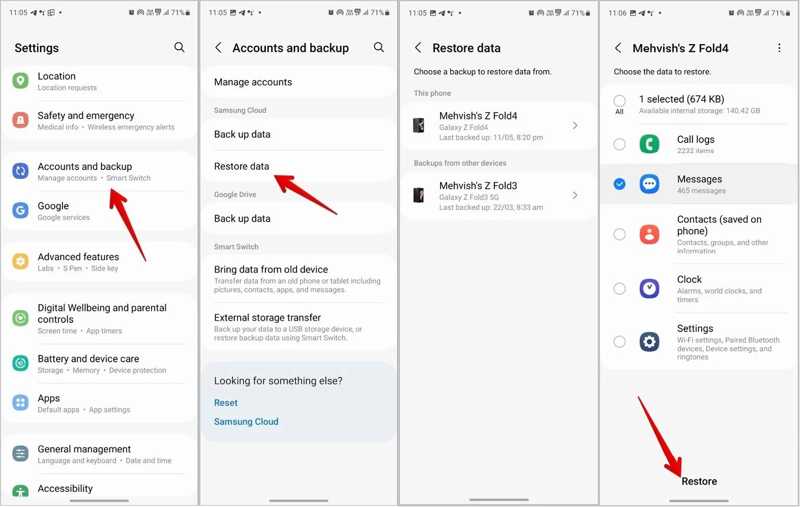
Passo 1. Corri il Impostazioni profilo App sul tuo telefono.
Passo 2. Scegli Account e backupe tocca Ripristinare i dati per Samsung Nube.
Passo 3. Now, you will see the available backups. Choose your device and proceed.
Passo 4. Seleziona la casella accanto a Messaggi e ha colpito l' Ripristinare pulsante.
Part 4: Restore Deleted SMS through Google Drive Backup
Some Samsung users prefer to back up their devices using Google Drive. If you have backed up your messages to Google Drive, you can restore deleted messages on your Samsung phone from the backup. The drawback is that you must ripristino di fabbrica your phone first.
Passo 1. Vai su Sistema nella vostra Impostazioni profilo app.
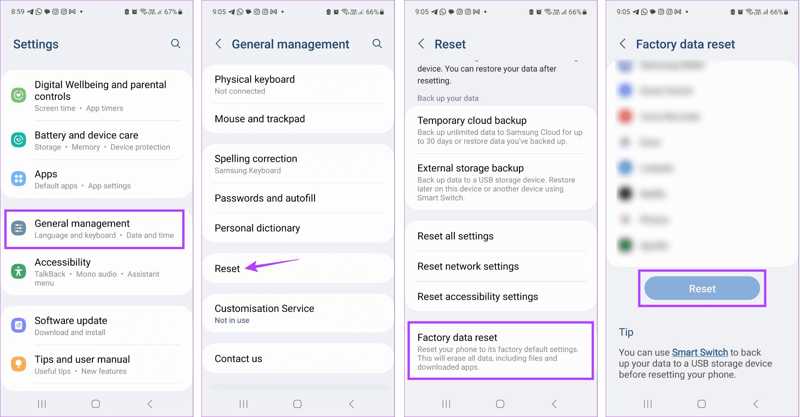
Passo 2. Scegli Rimuovie tocca Cancella tutti i dati or Reset di fabbrica.
Passo 3. When prompted, enter your phone password, and confirm erasing all data.
Passo 4. Once your phone restarts, set it up as a new device.
Passo 5. Assicurati di connetterti a una rete Wi-Fi.
Passo 6. Sulla Copia app e dati schermo, toccare Avantie scegli Non è possibile utilizzare il vecchio dispositivo.
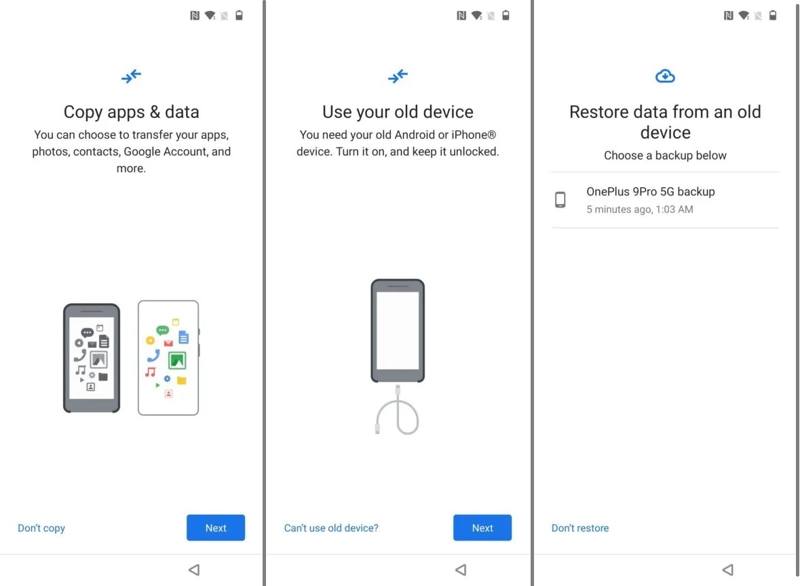
Passo 7. Sign in with your Google account credentials.
Passo 8. Choose the latest available backup, select Messaggi and other desired data, and hit Ripristinare.
Nota: If you don’t want to factory reset your Samsung, install the Google Drive app on your Samsung phone, open it, and log in to your Google account. Then, download the backup and find deleted messages.
Part 5: Retrieve Deleted SMS on Samsung by Smart Switch
Smart Switch is a powerful tool for managing data on your Samsung phone. Of course, it enables you to see deleted messages on Samsung if you have created a backup for your device using Smart Switch previously.
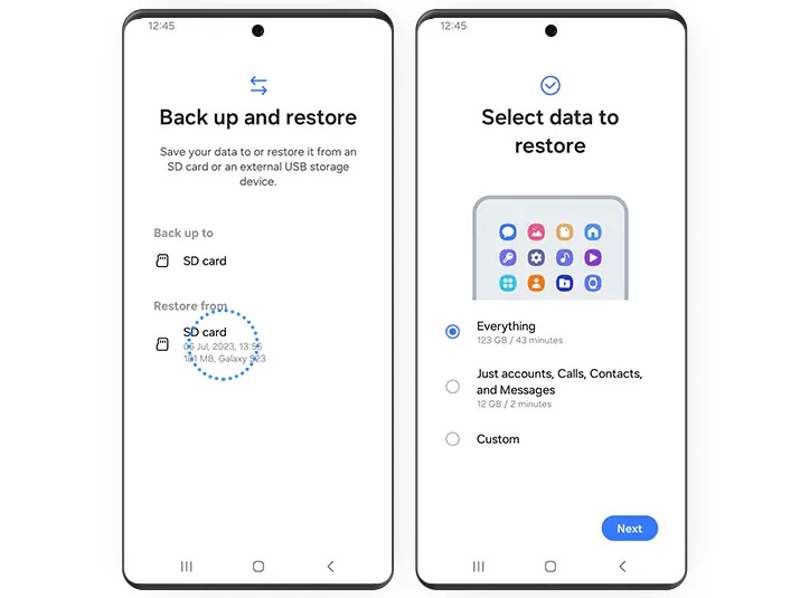
Passo 1. Insert the backup SD card into your Samsung phone.
Passo 2. Aprire il smart switch app.
Passo 3. Scegli Esegui il backup e il ripristino dei tuoi datie colpisci Continua.
Passo 4. Quindi, tocca Scheda SD sotto il Ripristino da .
Passo 5. Then, the app will read the backup on your SD card.
Passo 6. Pick Tutto or Just account, Calls, Contacts, and Messages on the Select-data-to-restore screen.
Passo 7. Colpire il Avanti button to begin getting Samsung text recovery.
Passo 8. When it is done, eject the SD card from your phone, and you will find the deleted messages on your device.
Part 6: Ultimate Way for SMS Recovery on Samsung
If the methods above are unavailable and you don’t have a backup, you will need a powerful data recovery tool to get deleted text messages back on your Samsung phone. Apeaksoft Android Data Recovery, for example, enables you to find lost SMS from your phone memory.
The Easiest Way to Recover Deleted Text Messages on Samsung
- Recover lost SMS and MMS on Samsung.
- Extract messages from a broken Samsung phone.
- Preview deleted text messages for selective recovery.
- Disponibile per messaggi e allegati multimediali.
- Work on almost all Android phone brands.
Download sicuro
Download sicuro

How to Get SMS Recovery on Samsung Without Backup
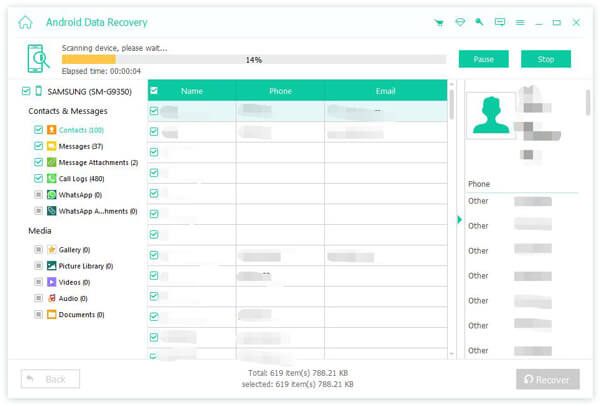
Passo 1. Connect to your Samsung
Start the best SMS recovery software for Samsung after you install it on your computer. Turn on the USB Debugging mode on your phone. Connect it to your computer with a compatible USB cable. If prompted, select Trasferisci file.

Passo 2. Scan messages on your phone
Seleziona le caselle accanto a Messaggi and Allegati di messaggi. Clicca il Avanti button to begin scanning messages on your device. Then, follow the onscreen instructions to authorize the FoneGo app, and permit it to access your information.

Passo 3. Recover SMS
When SMS scanning finishes, you can preview all messages recoverable. If there are too many messages, toggle on Mostra solo gli elementi eliminati at the top of your screen. If you cannot find the desired messages, click Scansione profonda. Select the messages you want to retrieve, and click Recuperare. Set an output folder and confirm it. That won’t overwrite existing data on your phone.
Conclusione
Questo articolo ha condiviso sei metodi per find deleted texts on Samsung Galaxy devices. Once you accidentally delete messages, you can find them from the Trash folder or your Carrier. Samsung Cloud, Google Drive backup, and Smart Switch allow you to restore messages from a backup if you have created one. Apeaksoft Android Data Recovery is the best option to retrieve your messages if you don’t have a backup.
Articoli Correlati
Hai perso messaggi, foto e video su WhatsApp e vuoi recuperarli? Questo articolo ti presenterà 3 software di recupero dati WhatsApp per Android.
Non sai dove trovare il Cestino sul tuo Android per recuperare foto o file cancellati? Questo articolo ti mostrerà in dettaglio come ripristinare il Cestino da Android.
La segreteria telefonica può contenere i tuoi messaggi vocali importanti. Se li hai persi, consulta questo articolo per recuperare i messaggi vocali eliminati su Android.
Google può eseguire il backup e il ripristino del tuo dispositivo, gestendo al meglio i tuoi dati. Questa guida ti mostrerà come recuperare il backup di Google su Android.



