

Slik tilbakestiller du raskt en Samsung-telefon eller et nettbrett til fabrikkinnstillinger

Det finnes noen scenarier der du må fabrikk tilbakestille Samsung-telefonenNår telefonens ytelse blir tregere, kan en tilbakestilling til fabrikkinnstillinger fjerne søppelfiler og forbedre hastigheten. Før du selger Samsung-enheten din, bør du tilbakestille den til fabrikkinnstillinger og slette dataene dine fullstendig for å beskytte personvernet ditt. I tillegg er det et viktig trinn for feilsøking og fiksing av programvarefeil. Uansett kan du lære flere måter å gjenopprette enheten til fabrikkinnstillinger i ulike situasjoner.
SIDEINNHOLD:
- Del 1: Hva skjer når du tilbakestiller en Samsung-enhet til fabrikkinnstillinger
- Del 2: Slik tilbakestiller du en Samsung-telefon til fabrikkinnstillinger med en kode
- Del 3: Slik tilbakestiller du en Samsung-telefon til fabrikkinnstillinger i Innstillinger
- Del 4: Slik tilbakestiller du en Samsung-enhet til fabrikkinnstillinger i gjenopprettingsmodus
- Del 5: Slik tilbakestiller du Samsung til fabrikkinnstillinger eksternt
Del 1: Hva skjer når du tilbakestiller en Samsung-enhet til fabrikkinnstillinger
Hvis du tilbakestiller en Samsung-telefon eller et nettbrett til fabrikkinnstillinger, slettes alle data på enheten din, inkludert bilder, videoer, musikk, kontakter, meldinger, kontoer, apper, appdata og tilpassede innstillinger. For å unngå datatap bør du ta en sikkerhetskopi.
Husk at en tilbakestilling til fabrikkinnstillinger ikke kan låse opp FRP på de fleste Android-enheter. Derfor må du fortsatt legge inn Google-kontoen din når du konfigurerer enheten etter tilbakestilling til fabrikkinnstillinger.
Før du tilbakestiller Samsung-telefonen din til fabrikkinnstillinger
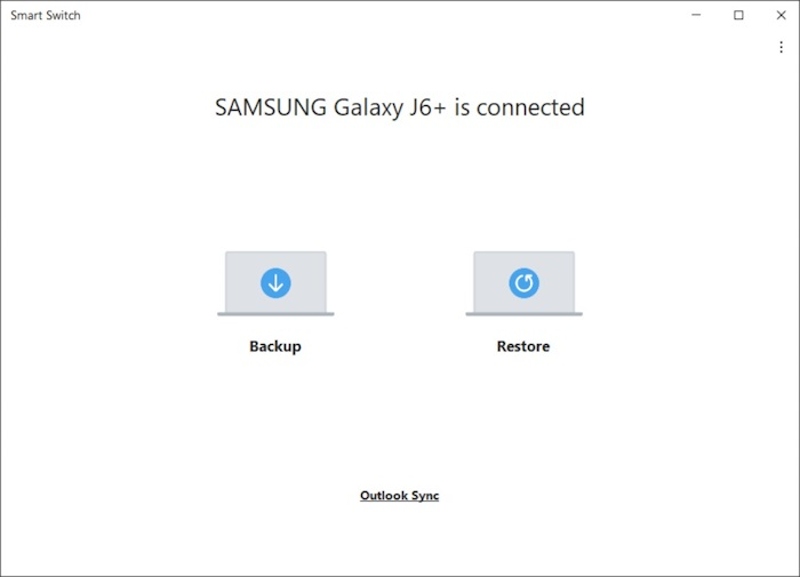
Trinn 1. Sikkerhetskopier telefonen din
Installer Smart Switch på en datamaskin.
Bruk en USB-kabel for å koble sammen datamaskinen og telefonen.
Åpne Smart Switch for å lese innholdet på enheten din.
Klikk Backup å fortsette.
Trykk på hvis du blir bedt om det TILLATE på telefonskjermen for å lage en sikkerhetskopi.
Når du er ferdig, kobler du fra telefonen.
Trinn 2. Fjern kontoer
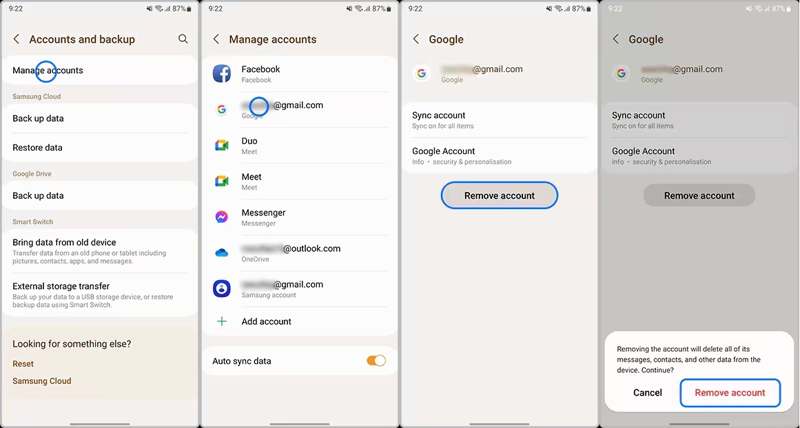
Kjør innstillinger app og velg Kontoer og sikkerhetskopiering.
Pek Administrer kontoer og velg Google-kontoen du vil fjerne.
Trykk på Fjern konto knapp.
Når du blir bedt om det, velg Fjern konto for å bekrefte det.
Del 2: Slik tilbakestiller du en Samsung-telefon til fabrikkinnstillinger med en kode
Hva er Samsungs tilbakestillingskode til fabrikkinnstillinger? Det er en numerisk og alfanumerisk sekvens for å utføre spesifikke oppgaver, som å tilbakestille en Samsung-enhet til fabrikkinnstillinger uten passord. Vi forklarer forutsetningene og arbeidsflyten nedenfor:
Forutsetninger:
1. Telefonen din er tilgjengelig.
2. Skjermen din fungerer.
3. Du bruker en gammel modell av en Samsung-telefon.

Trinn 1. Kjør Telefon-appen på telefonen din.
Trinn 2. Skriv inn tilbakestillingskoden: * 2767 * 3855 # or * # * # * # * # 7780.
Trinn 3. Hvis prosessen ikke starter automatisk, trykker du på Ring-knappen.
Trinn 4. Når du blir bedt om det, skriver du ja for å bekrefte.
Del 3: Slik tilbakestiller du en Samsung-telefon til fabrikkinnstillinger i Innstillinger
En enkel måte å tilbakestille en Samsung-telefon til fabrikkinnstillinger på er den innebygde funksjonen for tilbakestilling av fabrikkdata. Samsung har lagt til denne funksjonen på alle Samsung-telefoner og -nettbrett. Arbeidsflyten kan være litt forskjellig, avhengig av telefonmodellen din.
Forutsetninger:
1. Enheten din er tilgjengelig.
2. Du husker fortsatt passordet til kontoen din.
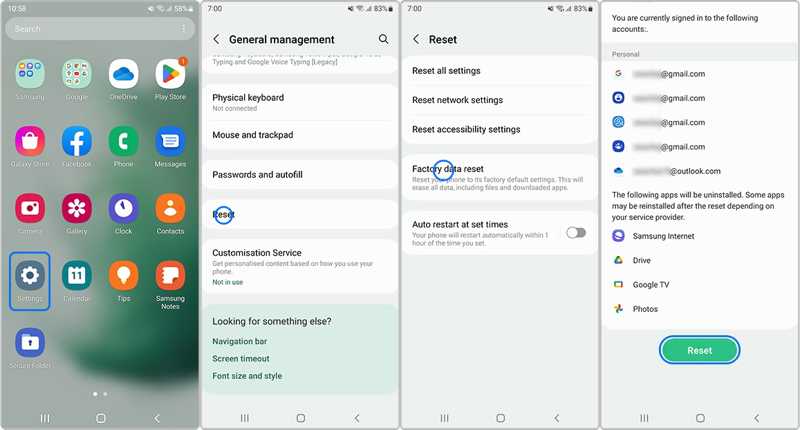
Trinn 1. Åpne innstillinger appen i appfeltet ditt.
Trinn 2. Rull ned og velg Generell ledelse.
Trinn 3. Pek Tilbakestill og velg Tilbakestilling til fabrikkinnstillinger.
Tips: Hvis du bare vil tilbakestille Samsung-telefonen din til fabrikkinnstillinger uten å slette data, velger du Tilbakestill alle innstillinger i stedet.
Trinn 4. Les varselet og trykk på Tilbakestill knappen igjen
Trinn 5. Hvis du blir bedt om det, skriver du inn kontopassordet eller telefonpassordet ditt.
Trinn 6. Trykk på Slett allel-knappen for å tilbakestille Samsung til fabrikkinnstillinger.
Del 4: Slik tilbakestiller du en Samsung-enhet til fabrikkinnstillinger i gjenopprettingsmodus
Selv om du har glemt telefonpassordet ditt eller er låst ute av enheten, kan du tilbakestille telefonen. Android Recovery Mode lar deg tilbakestille en Samsung-telefon til fabrikkinnstillinger med låst skjerm eller uten passord. Denne metoden krever litt teknisk ferdighet.
Forutsetninger:
1. Telefonknappene dine fungerer.
2. En USB-kabel.
3. En datamaskin.

Trinn 1. Trykk lenge på Power -knappen til telefonen slår seg av.
Trinn 2. Koble telefonen til datamaskinen med en kompatibel kabel.
Trinn 3. Hold nede Power/Bixby + Volum opp knappene sammen i 5 sekunder.
Trinn 4. Når telefonen din går inn i gjenopprettingsmodus, slipper du knappene.
Trinn 5. Trykk på volum ned knappen flere ganger for å markere Tørk data / fabrikkinnstilling. Trykk deretter på Power knappen for å velge den.
Trinn 6. Når du blir bedt om det, marker Ja ved hjelp av volumknappene, og trykk på Power for å starte Samsung-fabrikktilbakestillingen uten passord.
Trinn 7. Når det er ferdig, marker Reboot system nå med volumknappene, og trykk på Power for å starte enheten på nytt.
OBS: Hvis Samsung Galaxy Tab ikke tilbakestilles til fabrikkinnstillinger i normal modus, kan du prøve gjenopprettingsmodus.
Del 5: Slik tilbakestiller du Samsung til fabrikkinnstillinger eksternt
Hvis du mister telefonen din eller ikke har den i hånden din, må du tilbakestille den til fabrikkinnstillinger ved hjelp av SmartThings Find eller Samsung Find. Det er en nettbasert enhetsbehandler for Samsung-brukere. Du finner noen nyttige funksjoner, som å tilbakestille Samsung til fabrikkinnstillinger eksternt.
Forutsetninger:
1. Enheten din må være koblet til internett.
2. En Samsung-konto må legges til på telefonen eller nettbrettet.
3. Du husker Samsung-kontoinformasjonen din.

Trinn 1. Gå til https://smartthingsfind.samsung.com/ i en nettleser.
Trinn 2. Klikk Logg inn og skriv inn Samsung-kontoen og passordet ditt.
Trinn 3. Klikk Logg inn igjen og slo Enig på popup-dialogen.
Trinn 4. Deretter vil tjenesten umiddelbart finne enheten din på et kart.
Trinn 5. Klikk på Slett data knappen på verktøykassen.
Trinn 6. Hvis du blir bedt om det, skriver du inn kontopassordet ditt.
Trinn 7. Til slutt leser du varselet og klikker på Slett knappen for å starte en fabrikkinnstilling for Samsung S8 eller annen modell.
OBS: Denne metoden kan ikke omgå Samsungs fabrikkinnstillingsbeskyttelse.
Bonustips: Beste måten å gjenopprette data etter en Samsung-fabrikkinnstilling
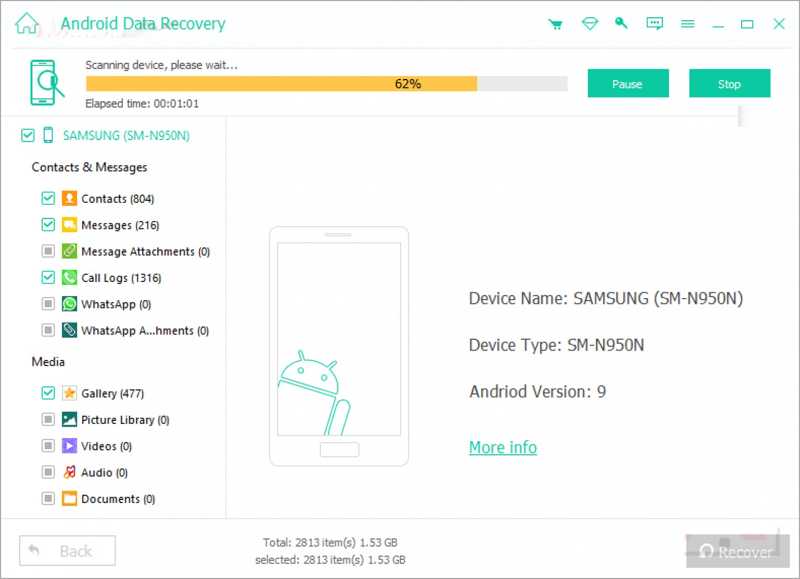
Det er velkjent at tilbakestilling til fabrikkinnstillinger på en Samsung-enhet vil slette alle data på enheten din. Hvis du ikke har sikkerhetskopiert telefonen eller nettbrettet, Apeaksoft Android Data Recovery kan hjelpe deg med å få tilbake dataene dine. Den kan skanne enhetens minne og oppdage tapte filer.
Den beste måten å gjenopprette data etter en Samsung-fabrikkinnstilling
- Hent data fra Samsung-enheter uten sikkerhetskopi.
- Tilgjengelig for tilbakestilling til fabrikkinnstillinger, utilsiktet sletting og mer.
- Forhåndsvis tapte filer for selektiv gjenoppretting.
- Kompatibel med et bredt spekter av datatyper.
- Støtter nesten alle Samsung-telefoner og -nettbrett.
Sikker nedlasting
Sikker nedlasting

Slik gjenoppretter du data etter en Samsung-fabrikkinnstilling
Trinn 1. Installer Samsung-gjenopprettingsverktøyet
Start den beste programvaren for datagjenoppretting for Samsung etter at du har installert den på PC-en. Det finnes en annen versjon for Mac. Slå på USB Debugging modus på telefonen din, og koble den til PC-en med en USB-kabel.
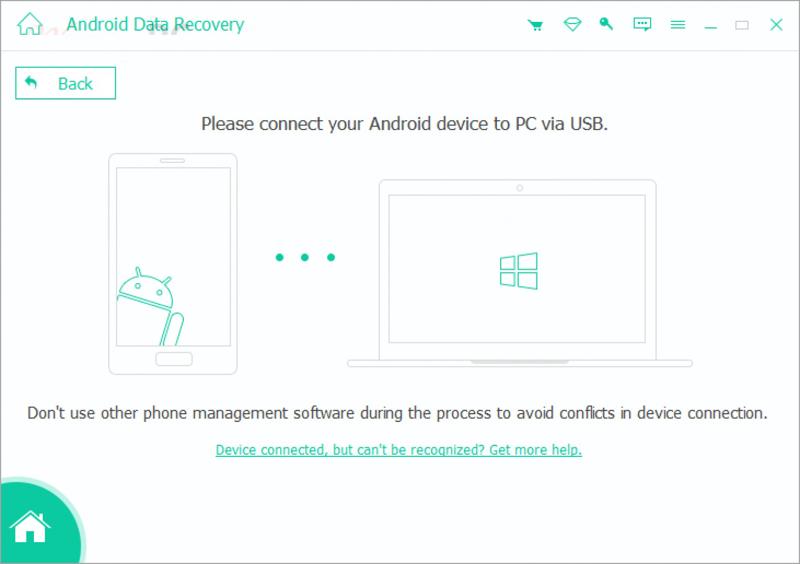
Trinn 2. Forhåndsvis tapte filer
Autoriser programvaren til å få tilgang til enheten din. Velg deretter datatypene du vil gjenopprette. Klikk på neste -knappen for å begynne å skanne enheten din. Når det er ferdig, kan du forhåndsvise data som kan gjenopprettes etter type.

Trinn 3. Gjenopprett Samsung-data
Velg filene og elementene du ønsker å få tilbake, og klikk på Gjenopprette knappen nederst. Angi en utmappe og trykk på Gjenopprette knappen igjen for å bekrefte datagjenoppretting.
Konklusjon
Denne guiden forklart hvordan tilbakestille et Samsung-nettbrett til fabrikkinnstillinger eller telefon i ulike situasjoner. Tilbakestillingskoden er en rask måte å tilbakestille til fabrikkinnstillinger på. Du kan også få tilgang til Innstillinger-appen for å tilbakestille enheten. Hvis telefonen er deaktivert, må du sette den i gjenopprettingsmodus og tilbakestille den til fabrikkinnstillinger. Samsung SmartThings Find er et nettbasert verktøy for tilbakestilling til fabrikkinnstillinger. Apeaksoft Android Data Recovery kan gjenopprette dataene dine etter at du har tilbakestilt Samsung-enheten din til fabrikkinnstillinger.
Relaterte artikler




