

Slik sikkerhetskopierer du WhatsApp-data og gjenoppretter dem enkelt

Å miste chathistorikken din på WhatsApp kan føles som å miste en digital dagbok. Enten du bytter til en elegant ny telefon eller bare ønsker trygghet, er det veldig viktig og praktisk å mestre. WhatsApp sikkerhetskopi og gjenopprette.
Denne veiledningen gir deg alt du trenger å vite om å sikre og gjenopprette dataene dine i WhatsApp, inkludert de nyeste sikkerhetsoppdateringene og overføringer på tvers av plattformer. Du vil lære hvordan du enkelt sikkerhetskopierer og gjenoppretter WhatsApp-meldinger, bilder, videoer og mer data.
SIDEINNHOLD:
Del 1: Slik sikkerhetskopierer du WhatsApp på Android og iPhone
WhatsApp lagrer ikke meldingene dine på sine egne servere av personvernhensyn. I stedet er de avhengige av din personlige skylagring. Du kan bruke noen populære skylagringstjenester, som Google Drive og iCloud, for å sikkerhetskopiere WhatsApp på iPhone eller Android-telefon.
Metode 1: Sikkerhetskopier WhatsApp med Google Drive (Android)
Trinn 1. Åpne WhatsApp-appen og trykk på Mer knappen øverst til høyre. Trykk deretter på innstillinger knapp.
Trinn 2. Pek Samtaler, Og velg deretter Chats BackupVelg deretter Google-kontoen din.
Trinn 3. Trykk deretter på Sikkerhetskopier -knappen for å starte sikkerhetskopiering av WhatsApp Chat.
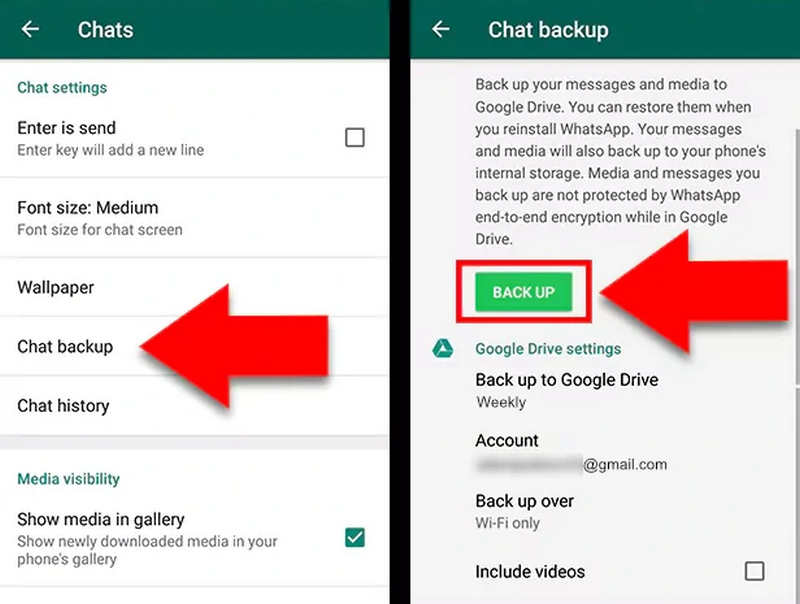
Tips: Du kan stille inn Sikkerhetskopier til Google Disk frekvens til Daglig for å minimere datatap. Fra og med 2026 har WhatsApp introdusert lagringsintegritetskontroller for å sikre at sikkerhetskopiene dine ikke blir ødelagt før de lastes opp.
Metode 2: Sikkerhetskopier WhatsApp til iCloud (iOS)
Hvis du vil vite hvordan du sikkerhetskopierer WhatsApp-bilder og -meldinger etter at telefonen er tilbakestilt på iOS-enheter, er iCloud et godt valg. Det kan sikkerhetskopiere mange typer informasjon og data i WhatsApp-en din på iPhone.
Trinn 1. Åpne WhatsApp og gå til Innstillinger nederst til høyre.
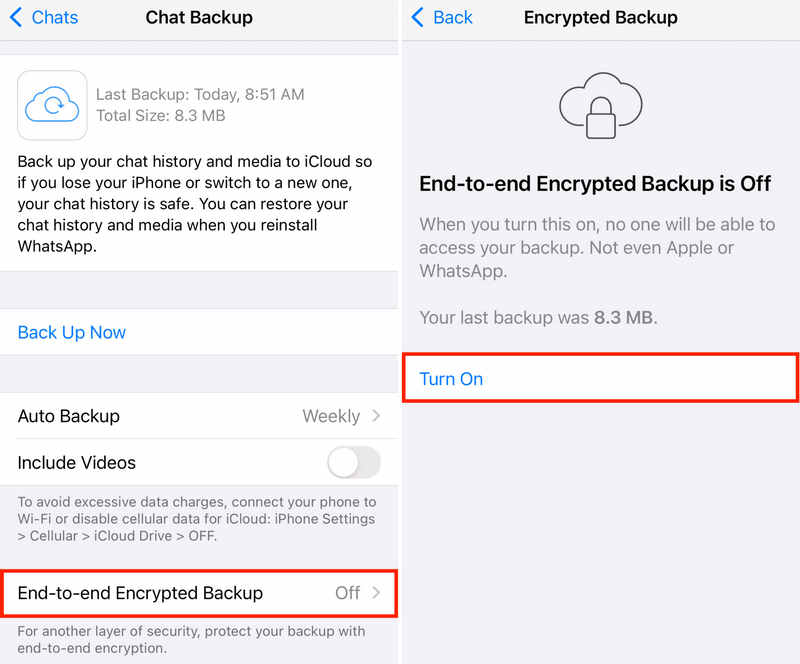
Trinn 2. Pek Samtaler, Og velg deretter Chats Backup. Trykk deretter på Sikkerhetskopier nå knapp. Slik sikkerhetskopierer du WhatsApp på iPhone 18 Pro/17/16.
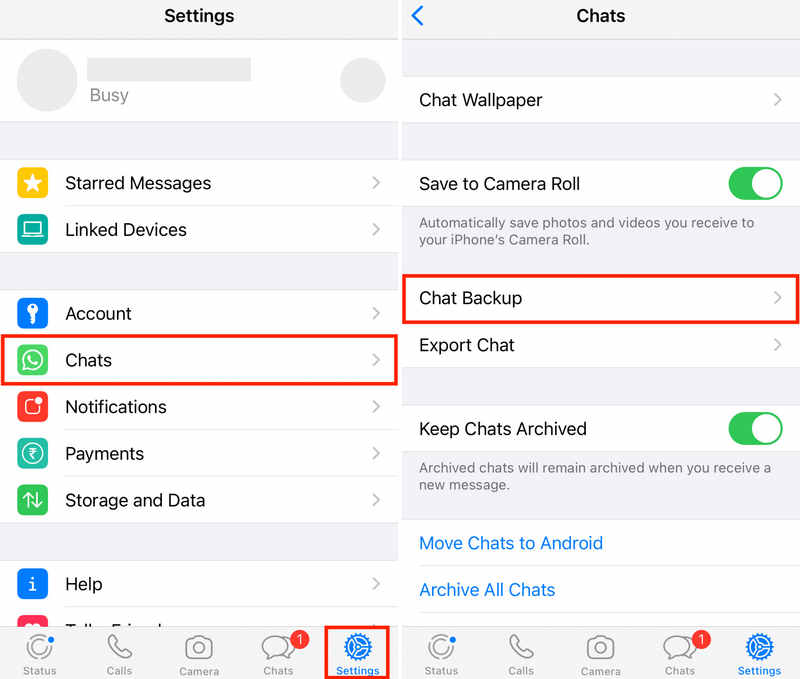
Tips: Du kan også velge Automatisk sikkerhetskopiering for å Daglig or Ukentlig for automatisk sikkerhetskopiering. Du kan også slå på Ende-til-ende kryptert sikkerhetskopiering for å beskytte sikkerhetskopien av WhatsApp-meldingene dine.
Del 2: Slik gjenoppretter du WhatsApp på Android og iPhone
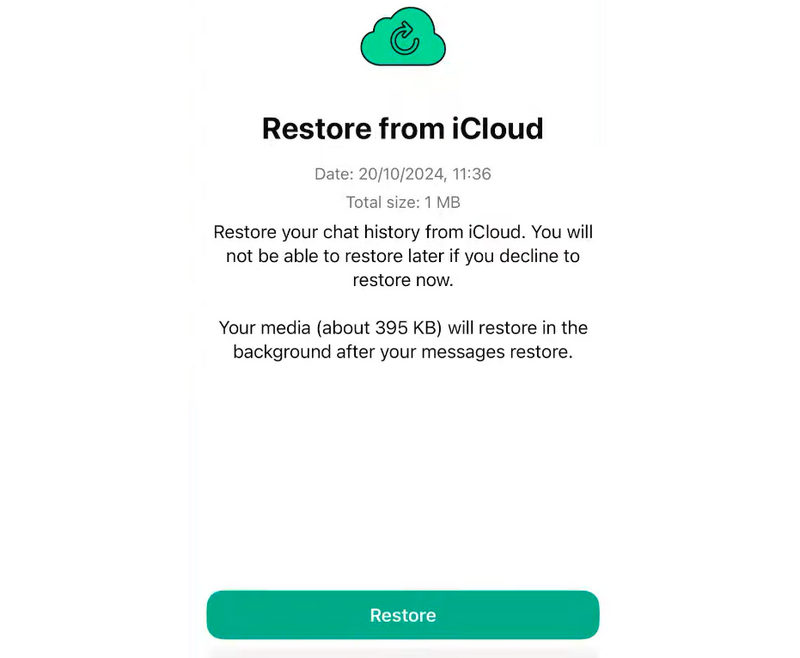
Hvis du noen gang har sikkerhetskopiert WhatsApp med iCloud eller Google Drive, er det veldig enkelt å gjenopprette WhatsApp-sikkerhetskopien. Du kan avinstallere og installere WhatsApp på nytt og følge instruksjonene på skjermen for å enkelt importere WhatsApp-sikkerhetskopien.
Trinn 1. Avinstaller WhatsApp og installer det deretter på nytt fra App Store eller Google Play.
Trinn 2. Følg veiledningen på skjermen for å sette opp og logge inn på WhatsApp-kontoen din.
Trinn 3. WhatsApp vil oppdage sikkerhetskopien på Google Drive eller iCloud. Trykk deretter på Gjenopprette knappen for å gjenopprette WhatsApp-dataene dine.
Trinn 4. Vent til prosessen er ferdig. Meldingene dine vises først, etterfulgt av media (bilder/videoer) i bakgrunnen.
Del 3: Det enkleste verktøyet for å sikkerhetskopiere og gjenopprette WhatsApp på iPhone
Hvordan kan du gjøre WhatsApp-sikkerhetskopiering og gjenoppretting enkelt? Apeaksoft iOS-sikkerhetskopiering og gjenoppretting kan hjelpe deg. Det er et veldig brukervennlig dedikert program for sikkerhetskopiering og gjenoppretting av data og informasjon for iOS-enheter som iPhone og iPad. Du kan raskt sikkerhetskopiere og gjenopprette data uten å trenge en internettforbindelse, samtidig som dataene dine er trygge og i god behold.
Dessuten kan den ikke bare sikkerhetskopiere og gjenopprette WhatsApp-meldinger og media, men også administrere lokale videoer, bilder, kontakter, meldinger og mer på iPhonen din. Du vil ikke oppleve datatap med dette programmet.
En rask måte å duplisere en iPhone med ett klikk
- Koble iPhonen din til datamaskinen for å sikkerhetskopiere og gjenopprette WhatsApp.
- Støtt meldinger, videoer, bilder og andre mediefiler i WhatsApp.
- Hold WhatsApp-dataene og informasjonen din trygg og beskytt personvernet ditt.
- Fungerer på alle iPhone- og iPad-serier og -modeller.
Sikker nedlasting
Sikker nedlasting

Slik sikkerhetskopierer du WhatsApp med Apeaksoft iOS Data Backup & Restore
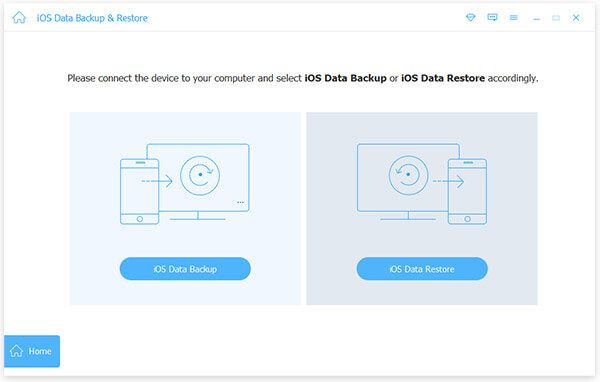
Trinn 1. Koble til telefonen
Last ned, installer og start Apeaksoft iOS Data Backup & RestoreKoble iPhonen eller iPaden til datamaskinen. Klikk deretter på iOS Data Backup knapp.
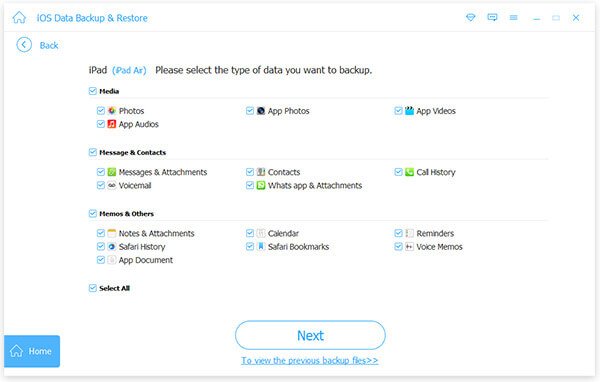
Trinn 2. Velg WhatsApp
Dette programmet vil oppdage telefonen din. Etter det bør du velge Whatsapp og vedlegg. Klikk på neste knapp.
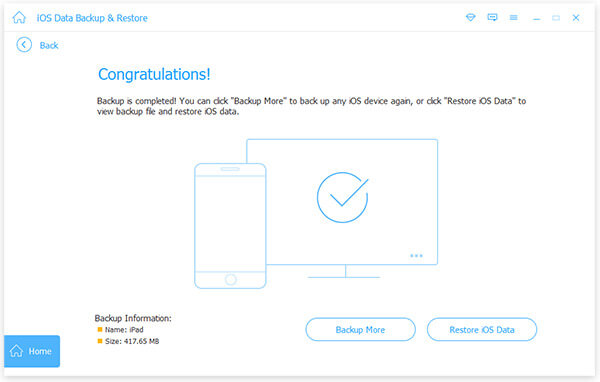
Trinn 3. Ta sikkerhetskopi av WhatsApp
Hvis du blir bedt om det, skriver du inn passordet på iPhonen din for å starte WhatsApp-sikkerhetskopiering på iPhonen. WhatsApp-dataene og -informasjonen din vil sikkerhetskopieres en stund.
Slik gjenoppretter du WhatsApp-sikkerhetskopi i Apeaksoft iOS Data Backup & Restore
Trinn 1. Koble til iPhone
For å gjenopprette WhatsApp-sikkerhetskopien på iPhonen din, må du fortsatt koble iPhonen til datamaskinen. Klikk deretter på IOS Data Gjenoppretting knapp.
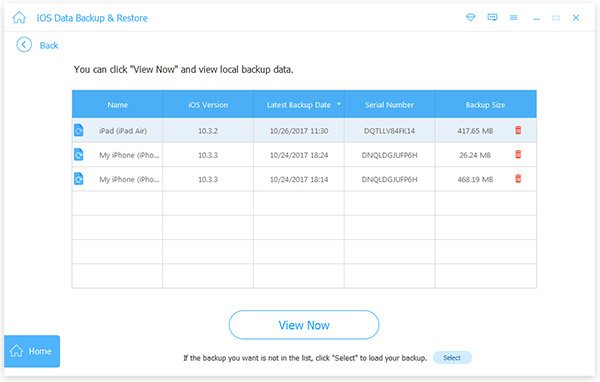
Trinn 2. Velg sikkerhetskopien din
Du kan se én eller flere sikkerhetskopieringshistorikker her. Velg én og klikk på Se nå knapp.
Trinn 3. Gjenopprett WhatsApp Backup
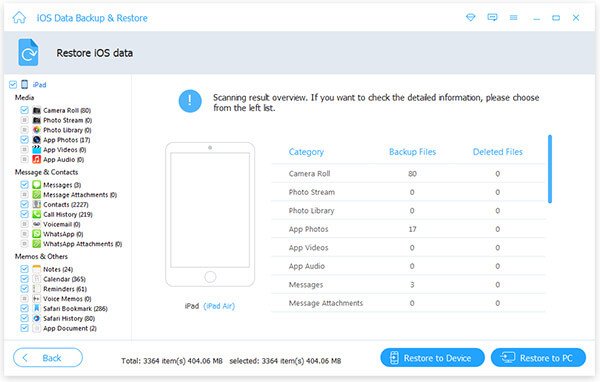
Deretter vil du se alle sikkerhetskopierte filer. Velg WhatsApp og WhatsApp Vedlegg og klikk på Gjenopprett til enhet -knappen for å importere WhatsApp-sikkerhetskopi til iPhone eller iPad.
Del 4: Tips og feilsøking for WhatsApp-sikkerhetskopiering og gjenoppretting
1. Gjenopprett eller overfør WhatsApp-data fra en annen telefon
Du kan også gjenopprette WhatsApp-sikkerhetskopien på en annen telefon med iCloud- eller Google Drive-sikkerhetskopien din. Denne metoden kan også brukes til å overføre WhatsApp-meldinger og mediefiler fra telefon til telefon.
2. Gjenopprett WhatsApp-sikkerhetskopi på Android til iPhone eller omvendt
Hvis du vil importere WhatsApp-sikkerhetskopier til et annet operativsystem, for eksempel fra Android til iPhone, vil ikke metodene ovenfor hjelpe. Du kan bare bruke metodene Flytt til iOS eller QR-skanning for å gjøre det.
3. Nye funksjoner i WhatsApp i 2026
WhatsApp støtter ende-til-ende-kryptering for å beskytte WhatsApp-sikkerhetskopien din.
En ny 2026-oppdatering lar deg sikkerhetskopier videoer ved hjelp av høyeffektive kodeker, sparer du opptil 40 % mer plass på Google Drive- eller iCloud-lagringen din.
For de som bruker flerkontofunksjonen, kan du nå administrere separate sikkerhetskopieringsplaner for dine personlige og profesjonelle profiler i samme app.
Konklusjon
Denne artikkelen forteller deg hvordan sikkerhetskopiere WhatsApp på iPhone og Android og hvordan du gjenoppretter sikkerhetskopier. WhatsApp lar deg sikkerhetskopiere WhatsApp-meldinger og mediefiler direkte til Google Drive eller iCloud i appen. Hvis du vil sikkerhetskopiere eller gjenopprette WhatsApp uten internettforbindelse, Apeaksoft iOS Data Backup & Restore er et godt valg. Den kan også raskt sikkerhetskopiere og gjenopprette WhatsApp-data uten datatap.
Relaterte artikler




