[Listed] Trustworthy GIF Recorders for High-Quality Outputs

Recording GIFs lets you create fun memes to share with friends or on social media. If you'd like to turn some of the funny moments in your daily life into GIFs, you'll need a powerful GIF recorder. After testing more than twenty tools, this post highlights the 6 best ones to help you create appealing GIFs.
SIDEINNHOLD:
- Testdatamaskin: A Windows 11 PC and MacBook Air (M5).
- Testscenarier: Extract a 3-second facial expression from a daily shooting video (shot using iPhone 17). Record from the clip to make a GIF.
- Evalueringsfaktorer: Recording process; editing tools; GIF effects.
The Best GIF Recorders for Stunning Effects
When it comes to the best GIF screen recorder, Apeaksoft Screen Recorder stands out for its simple workflow and support for both Windows and Mac. Its user interface is simple and intuitive, so even beginners can quickly follow the step-by-step instructions to create professional-quality GIFs. You can add various special effects or similar features as needed. In short, you'll find that the result may look even better than you imagined.

Lastet ned av over 1,000,000 Brukere
- Record video, gameplay, screen, and so on as GIFs.
- Optimize GIF quality automatically after recording.
- Offer screen recording editing tools for post-production.
- Create GIFs on Windows, Mac, and many other devices.
Sikker nedlasting
Sikker nedlasting

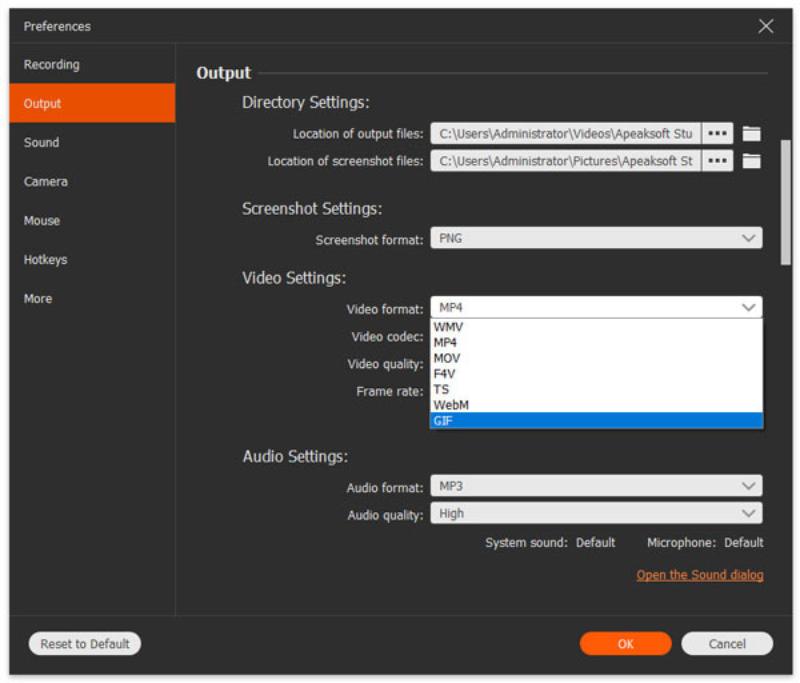
Trinn 1. Launch Apeaksoft Screen Recorder and click the innstillinger knapp. Under video~~POS=TRUNC innstillinger~~POS=HEADCOMP fanen, klikk på video Format knappen og deretter GIF knapp.
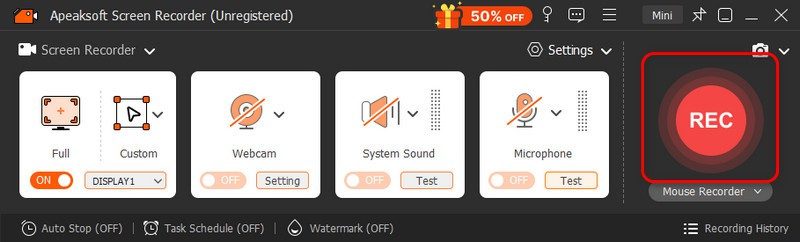
Trinn 2. Now you can use Apeaksoft Screen Recorder as a GIF recorder. Navigate to where you want to record a GIF, and click the Record knapp.
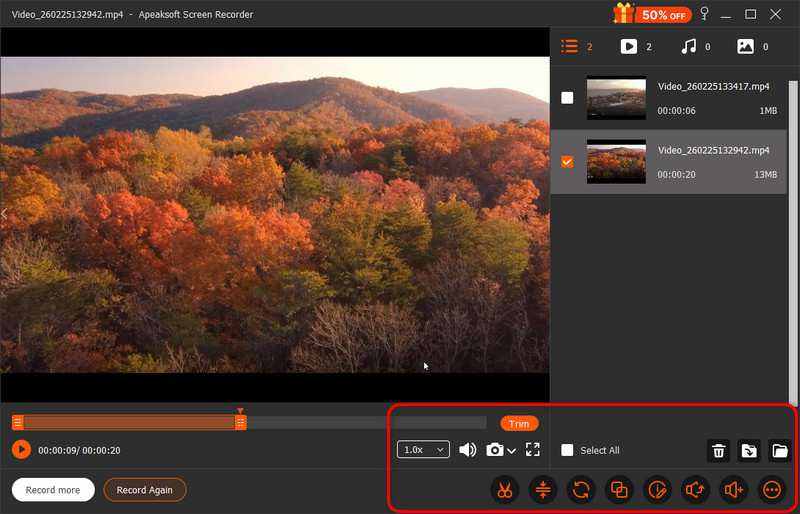
Trinn 3. Klikk på for å stoppe opptaket Stopp button. You can edit the GIF using the provided tools. Finally, click the Spar knapp.
5 Trustworthy GIF Recorders for Desktop Tasks
In addition to Apeaksoft Screen Recorder, we've found 5 other GIF recorders we've had good experiences with. This section provides an overview of each one, so you can decide whether to use them based on your needs.
Iron Maiden
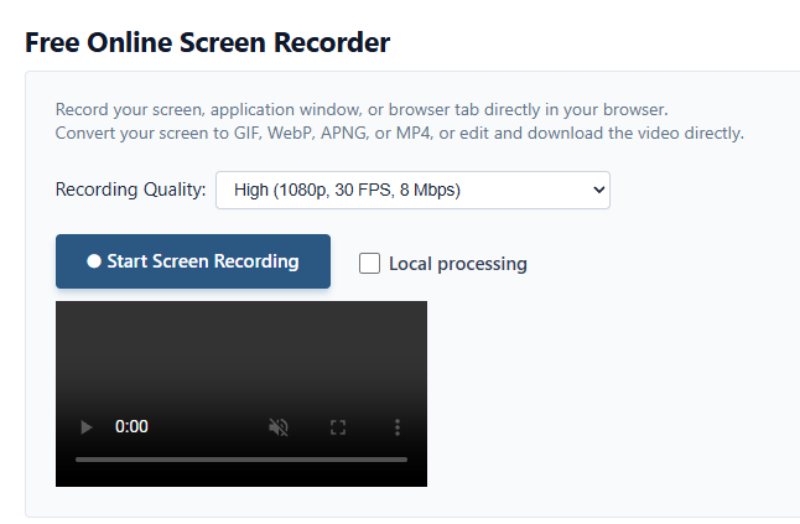
As a free and convenient tool, Ezgif lets you quickly record GIFs from your screen on your device. The recorded video clips are displayed directly in the tool's interface, allowing you to edit them. All you need to do is open your browser to access this handy tool and turn videoer til GIF-er på kort tid.
- Quick access via your browser.
- A completely free tool.
- Provides a preview so you can check your clips.
- It won't work without an internet connection.
- It supports up to 4K/30 fps and 12 Mbps output.
- It may fail to start the process if your browser cache is insufficient.
GIPHY
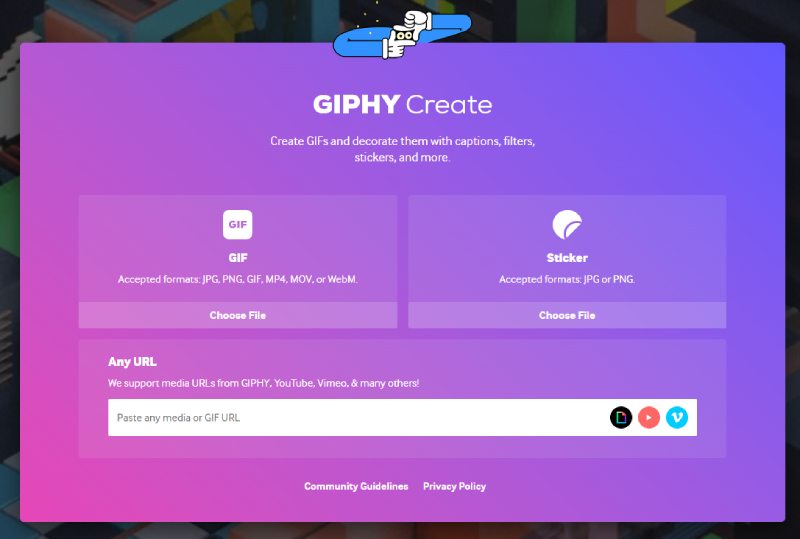
In addition to offering an extensive library of GIFs, GIPHY also lets you record spinning GIFs and similar effects. You can use the various elements provided by GIPHY to enhance your GIFs and make them more visually appealing. Once you've finished creating your GIFs, you can share them instantly.
- Extensive GIF library.
- Share directly to various platforms.
- Get inspiration from other trending GIFs.
- You must log in to use this feature.
- You need to upload the result to the GIPHY library.
- Tilpasningsmuligheter er begrenset.
ScreenToGif
ScreenToGif is a very useful animated GIF recorder. It offers a timeline-based workflow that lets you adjust each frame. This allows you to control the content of your GIF precisely. As a desktop solution, it takes up very little storage space.
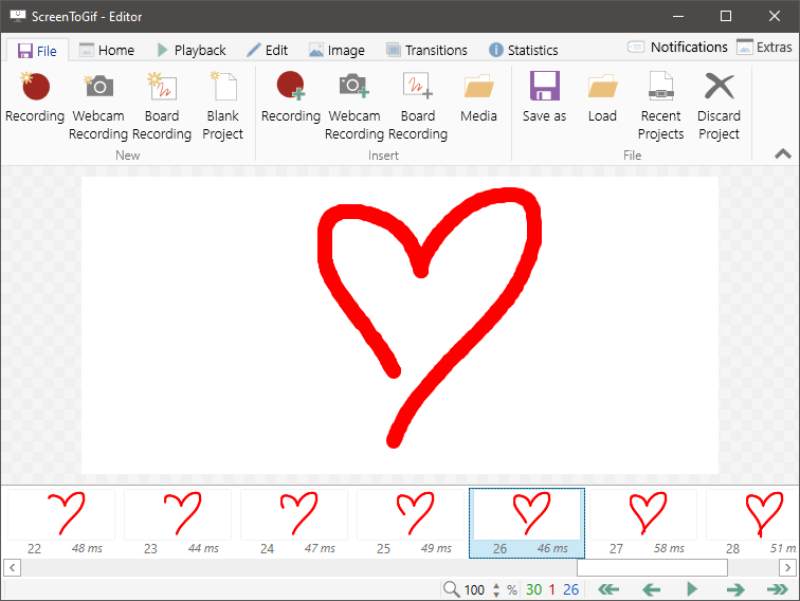
- Bilde for bilde GIF maker from videos.
- Save your GIF project as you go.
- Supports multiple recording methods.
- Kun for Windows.
- The interface is a bit complex for beginners.
- Some of the parameters can be confusing.
Snagit
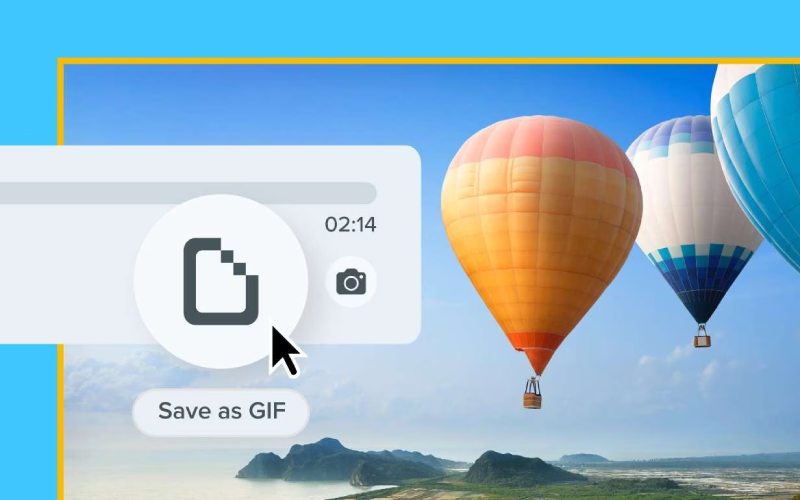
If you're familiar with screen recorders, you may have heard of Snagit. Although it isn't a dedicated tool for recording GIFs, it still does a great job. After you finish recording your screen, you can save the file directly as a GIF.
- A wide range of GIF editing tools.
- Collaborate with others to edit GIFs together.
- Quickly share recorded GIFs.
- A purchase is required to unlock all features.
- Its functionality is more similar to that of a screenshot tool.
- It consumes a certain amount of system resources while running.
gifox
How do you record a GIF on a Mac? Gifox offers a very practical solution. Its interface is specifically optimized for macOS, making it a very smooth experience for Mac users. At the same time, Gifox is integrated with multiple platforms, which means you can share your GIFs directly to various platforms after recording them.
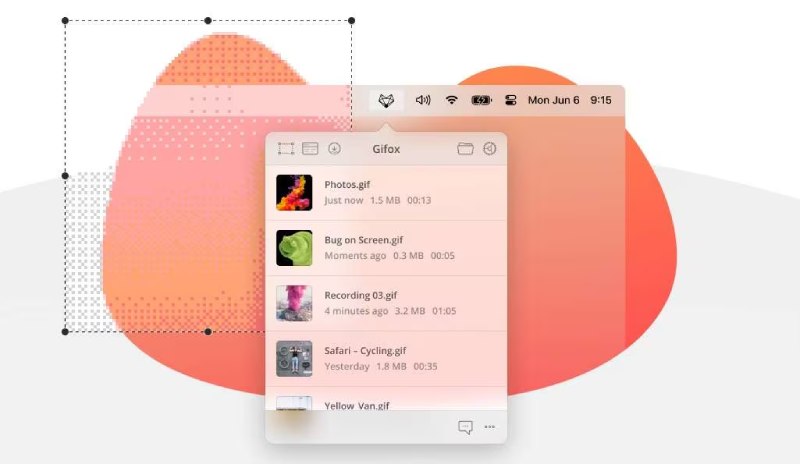
- A user interface designed specifically for macOS.
- Innebygde redigeringsverktøy.
- Record GIFs with a single click on your Mac.
- Runs only on macOS.
- The free version can record up to 10 seconds.
- The license is relatively expensive.
Tips for Creating Funny Memes with GIF Recorders
If you want to create GIFs with the potential to go viral, having the right GIF recorder isn't enough. You also need to make sure your GIFs are both entertaining and on point. Here are some tips you can follow:
- Hold det kort: It's best to keep your GIF between 2 and 4 seconds so viewers can quickly get the point.
- Focus on the punchline: Avoid filling the GIF with too many blank frames or unnecessary movements before the gag. This will only confuse viewers.
- Tekstplassering: If you need to include text, make sure it doesn't block the action on screen. At the same time, try not to let it overshadow the main content.
Konklusjon
This post introduces 6 GIF-opptakere. You can choose the one that best suits your needs. All of them can help you record GIFs quickly. For users who want to create more eye-catching GIFs, Apeaksoft Screen Recorder offers a simpler option.
 Apeaksoft Screen Recorder
Ta opp video og lyd på telefon- og datamaskinskjermen.
Sikker nedlasting
Sikker nedlasting
Relaterte artikler