Hvorfor lagres ikke FaceTime-bilder, og hvordan fikser du det?

«Jeg var på en FaceTime-video med vennen min, men ingen av bildene jeg tok ble lagret. Hvorfor er FaceTime-bilder lagres ikke"Du har kanskje lagt merke til kamerautløserknappen under FaceTime-samtaler. Den lar deg ta live-bilder under FaceTime-samtaler. Da lagres bildene vanligvis automatisk i Bilder-appen på iPhonen din. Hvis FaceTime-bildene dine ikke lagres i bildebiblioteket, kan du følge våre bekreftede løsninger for å bli kvitt feilen raskt.
SIDEINNHOLD:
Del 1: Hvorfor lagres ikke FaceTime-bilder
Under FaceTime-samtaler kan du ta Live Photos og skjermbilder ved å trykke på Shutter knapp. Du finner disse bildene i Bilder-appen din. FaceTime Live Photo lagres direkte i Live-albumet.
Du kan imidlertid oppdage at du ikke kan ta bilder under FaceTime-samtaler, eller at du ikke finner FaceTime-bilder i Bilder-appen. Hovedårsakene til at FaceTime-bildene dine ikke lagres, inkluderer:
| Hva skjer | Sannsynligvis årsak | Hva å gjøre |
| Det kommer en melding som sier «FaceTime Photos må være aktivert på begge enhetene». | En av dere og vennen din slår ikke på FaceTime Live Photos-funksjonen | Aktiver FaceTime Live Photos på begge enhetene |
| Lukkerknappen fungerer ikke | En midlertidig FaceTime- eller iOS-feil | Start FaceTime eller iPhonen din på nytt og prøv på nytt |
| Bildet ble tatt, men jeg finner det ikke igjen | Bildet kan være på en annen plassering i Bilder-appen, eller det kan være et problem med synkronisering mellom Bilder og iCloud | Sjekk innstillingene for Bilder-biblioteket, Live Photos og iCloud Bilder |
| FaceTime-bilder slutter plutselig å lagres | iPhonen din kan ha begrenset lagringsplass, eller et programvareproblem kan påvirke FaceTime | Sjekk iPhone-lagringen din og oppdater iOS |
Del 2: Slik fikser du FaceTime-bilder som ikke lagres
Løsning 1: Slå på FaceTime Live Photos på begge enhetene
Hvis FaceTime-bilder ikke lagres, må du først sørge for at FaceTime Live Photos er aktivert på begge enhetene. Derfor bør begge personene i FaceTime-samtalen sjekke funksjonen i Innstillinger-appen og slå den på for å ta FaceTime Live Photos.
Trinn 1. Kjør din innstillinger app.
Trinn 2. Rull ned til bunnen og klikk Apps. Velg FaceTime, og bla ned for å finne FaceTime Live Photos alternativet.

Trinn 3. Slå på bryteren ved siden av alternativet hvis det er deaktivert. Hvis alternativet allerede er aktivert, slår du det av, venter noen sekunder og slår det på igjen.
Løsning 2: Sjekk hvor FaceTime-bildene dine er lagret
Hvis FaceTime viser at bildet ble tatt, men du ikke finner det i Bilder-appen, kan du sjekke om det er slettet ved et uhell eller lagret et annet sted.
Først kan du åpne Bilder appen og sjekk bildebiblioteket ditt for å se om FaceTime-bildet er der. Hvis du fortsatt ikke finner det, kan du sjekke Nylig slettet albumet i tilfelle det ble fjernet ved et uhell.
Hvis du bruker iCloud-bilder, må du sørge for at iPhonen din er koblet til internett og vente til bildene dine er ferdige med å synkroniseres. Sjekk deretter bilder-biblioteket ditt på nytt.
Løsning 3: Sjekk iPhone-lagringen din
iOS tilbyr ikke noe alternativ for å tømme hurtigbuffer og søppelfiler. Hvis FaceTime-bilder ikke lagres på grunn av lite lagringsplass, bør du først frigjøre plass og deretter prøve å ta bilder under FaceTime-samtaler. Gå til innstillinger > Informasjon > iPhone Lagring for å sjekke hvor mye plass som er tilgjengelig.

Hvis lagringsplassen din nesten er full, slett unødvendige apper, videoer, bilder eller andre store filer, og prøv deretter å ta et nytt FaceTime Live Photo. Du kan også bruke verktøy som Apeaksoft iPhone Eraser for å frigjøre plass med ett klikk.
Løsning 4: Start FaceTime og iPhonen din på nytt
Midlertidige problemer med FaceTime eller iOS kan noen ganger forhindre at FaceTime-bilder lagres. Prøv å starte FaceTime på nytt først. Hvis problemet vedvarer, start iPhonen på nytt og test FaceTime Live Photos på nytt.
Slik starter du FaceTime på nytt:
Trinn 1. Velg FaceTime i innstillinger app.
Trinn 2. Slå av FaceTime alternativet.
Trinn 3. Noen minutter senere, slå på FaceTime muligheten til å starte den på nytt.

Slik starter du iPhone på nytt:
Trinn 1. Fortsett å trykke på Side knappen til du ser avstengingsskjermen.
Trinn 2. Flytt glidebryteren til høyre for å slå av enheten.
Trinn 3. Vent til skjermen blir svart, og hold deretter nede Side knappen igjen til Apple-logoen vises.

Nå kan du ringe via FaceTime og ta bilder. De skal være lagret i Bilder-appen din.
Løsning 5: Oppdater iOS
Utdatert programvare kan føre til diverse problemer, inkludert at FaceTime-bilder ikke lagres. Derfor bør du holde programvaren oppdatert. Da skal FaceTime Live Photos-funksjonen fungere normalt.

Trinn 1. Kjør din innstillinger app.
Trinn 2. naviger til Informasjon > programvare~~POS=TRUNC.
Løsning 6: Installer FaceTime på nytt
Hvis FaceTime-bilder fortsatt ikke lagres etter at du har prøvd løsningene ovenfor, kan det å installere FaceTime på nytt bidra til å løse apprelaterte problemer.
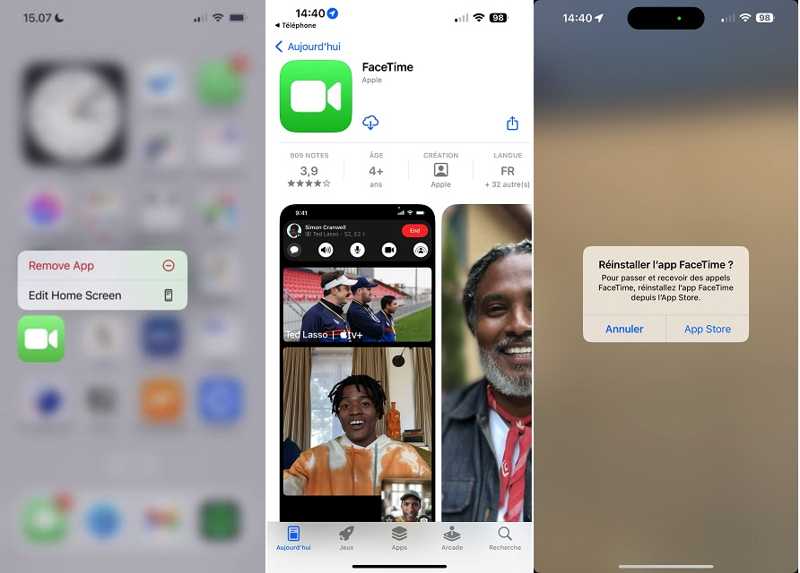
Trinn 1. Trykk dypt på FaceTime appen på skjermen din.
Trinn 2. Velg Fjern app på hurtigmenyen, velg Slett app, og trykk Delete hvis du blir bedt om det.
Trinn 3. Start iPhonen på nytt. Gå til App Store appen, og skriv inn FaceTime i søkefeltet.
Trinn 4. Trykk deretter på Last ned -knappen for å installere FaceTime på enheten din på nytt. Prøv deretter å ta live-bilder under en FaceTime-samtale.
Løsning 7: Løs iOS-systemproblemer (siste utvei)
Hvis problemet med at FaceTime-bilder ikke lagres vedvarer etter at du har prøvd alle løsningene ovenfor, kan problemet skyldes et underliggende iOS-systemproblem. I dette tilfellet kan du bruke Apeaksoft iOS System Recovery for å diagnostisere og fikse iOS-systemproblemer som kan påvirke FaceTime og andre funksjoner.
Sikker nedlasting
Sikker nedlasting
Trinn 1. Last ned dette verktøyet fra knappen ovenfor og velg iOS System Recovery alternativet.
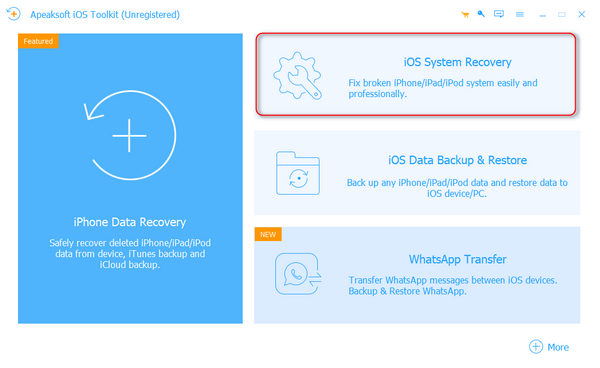
Trinn 2. Koble til enheten din og klikk System Repair.

Trinn 3. Velg en reparasjonsmodus og vent til programvaren laster ned nødvendig fastvare.
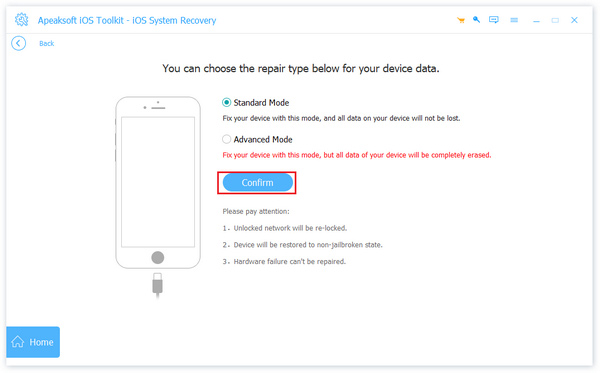
Trinn 4. Klikk på neste knappen og begynn å reparere iOS-problemer.
Del 3: Kan du gjenopprette FaceTime-bilder som ikke ble lagret
Det avhenger av hva som skjedde med FaceTime-bildet. Hvis du trykket på lukkerknappen, men FaceTime-bildet aldri ble lagret på iPhonen din, finnes det vanligvis ingen bildefil tilgjengelig for å gjenopprette. I dette tilfellet bør du prøve løsningene ovenfor for å fikse lagringsproblemet og ta bildet på nytt.
Men hvis FaceTime-bildet ble lagret tidligere, men senere ble slettet eller mistet på grunn av utilsiktet sletting, en iOS-oppdatering, tilbakestilling til fabrikkinnstillinger eller annet datatap, er det en mulighet for å gjenopprette det. Apeaksoft iPhone Data Recovery kan hjelpe deg med å skanne etter tapte bilder og gjenopprette dem fra iPhonen din eller tilgjengelige sikkerhetskopier.

Lastet ned av over 1,000,000 Brukere
- Gjenopprett FaceTime-bilder på iOS uten sikkerhetskopi.
- Forhåndsvis tapte FaceTime-bilder før gjenoppretting.
- Hent FaceTime-bilder fra iCloud/iTunes-sikkerhetskopi uten tilbakestilling.
- Støtt de nyeste iPhone-modellene.
- Tilgjengelig på Windows 11/10/8/7/Vista/XP og Mac OS X 10.7 eller nyere.
Sikker nedlasting
Sikker nedlasting

Slik gjenoppretter du FaceTime-bilder på iPhone uten sikkerhetskopi
Trinn 1. Koble til din iPhone
Last ned og kjør denne FaceTime-programvaren for bildegjenoppretting etter at du har installert den på datamaskinen. Gjenopprett fra iOS-enhetenKoble deretter iPhonen til datamaskinen med en Lightning-kabel. Hvis du blir bedt om det, trykker du på Stol på skjermen. Klikk på start Scan knappen for å fortsette.
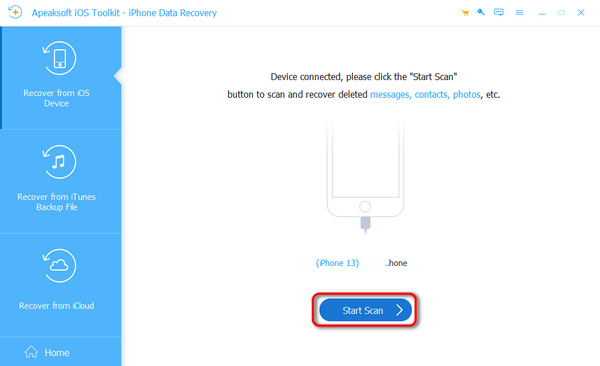
Trinn 2. Forhåndsvis FaceTime-bilder
Velg deretter kamera~~POS=TRUNC under Media-overskriften i venstre sidefelt i hovedgrensesnittet. Deretter kan du søke etter og se de tapte FaceTime-bildene.
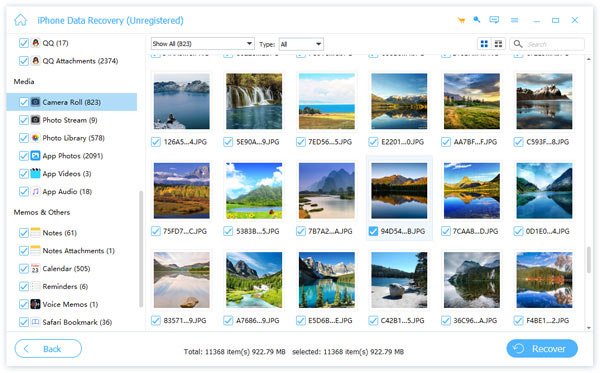
Trinn 3. Hent FaceTime-bilder
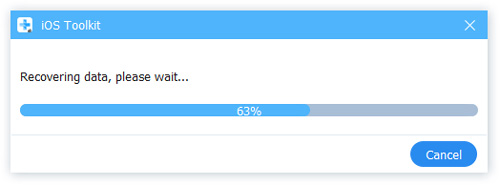
Velg FaceTime-bildene du vil få tilbake, og klikk på Gjenopprette knappen nederst til høyre. Angi en utdatamappe, og trykk på Gjenopprette igjen. Du kan også gjenopprette slettede Facebook-bilder på iPhonen din.
Konklusjon
Du kan fikse FaceTime-bilder er ikke lagret deg selv ved å følge artikkelen vår og løsningene ovenfor. De vanlige løsningene er tilgjengelige for både avanserte brukere og vanlige folk. Apeaksoft iPhone Data Recovery kan hjelpe deg med å få tilbake tapte FaceTime-bilder.
 Apeaksoft iOS System Recovery
 Løs virale iOS-systemproblemer på iPhone, iPad og iPod.
Sikker nedlasting
Sikker nedlasting
Relaterte artikler