


Slik gjenoppretter du iPad-en til fabrikkinnstillinger raskt

Fabrikkgjenoppretting er en viktig ferdighet for brukere av mobile enheter, som for eksempel iPad-brukere. Det bringer en iPad til fabrikkinnstillinger og fjerner alle data og personlige innstillinger. Før du gir bort enheten din, må du først gjenopprette iPad-en. Dessuten er det et viktig trinn for feilsøking. Uansett deler denne konkrete veiledningen velprøvde måter å gjøre det på. gjenopprett iPad-en din til fabrikkinnstillingene med eller uten passord.
SIDEINNHOLD:
- Del 1: Slik gjenoppretter du en iPad til fabrikkinnstillinger
- Del 2: Slik gjenoppretter du en iPad med en datamaskin
- Del 3: Slik gjenoppretter du en låst iPad
- Del 4: Slik gjenoppretter du iPad til fabrikkinnstillinger uten passord
- Del 5: Slik gjenoppretter du en deaktivert iPad til fabrikkinnstillinger
Del 1: Slik gjenoppretter du en iPad til fabrikkinnstillinger
Fabrikkgjenoppretting av en iPad returnerer telefonen til fabrikktilstanden den var i. Apple har lagt til alternativet i Innstillinger-appen. Hvis iPad-en din er tilgjengelig, kan du utføre en fabrikkgjenoppretting direkte. Denne måten krever ikke ekstra programvare eller maskinvare.
Trinn 1. Slå på iPad-en din.
Trinn 2. Åpne innstillinger app.
Trinn 3. Gå til Informasjon og Overfør eller tilbakestill iPad.
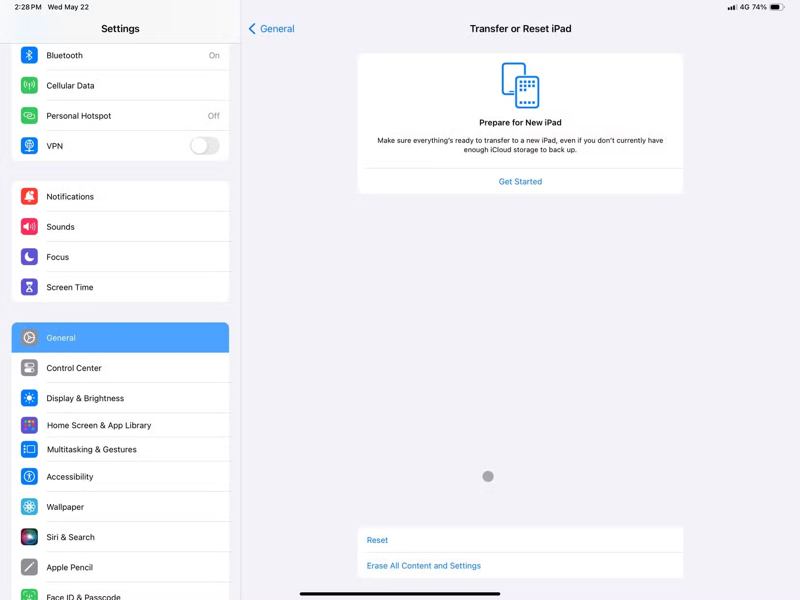
Trinn 4. Trykk på Slett alt innhold og alle innstillinger alternativet.
Trinn 5. Les meldingen og trykk på Fortsett.
Trinn 6. Hvis du har en 4G- eller 5G-iPad, velg Hold eSIM og slett data or Delete eSIM og slett data.
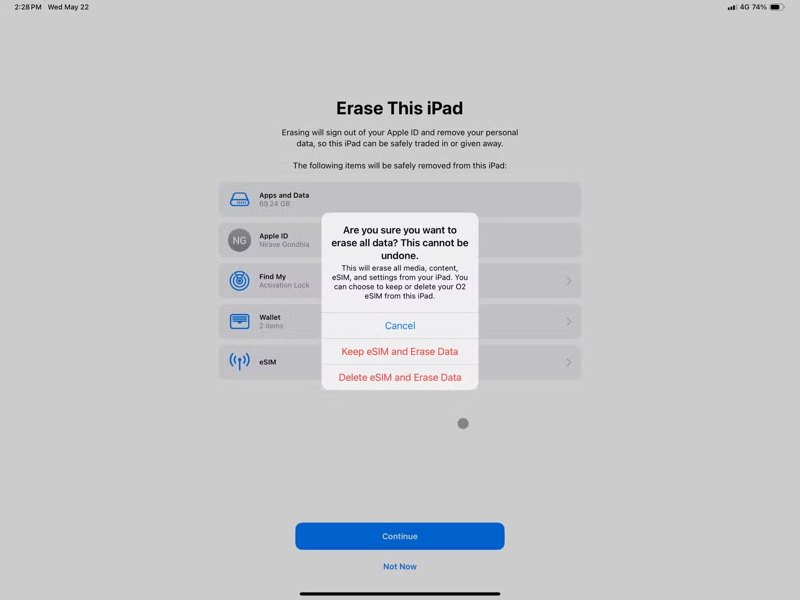
Trinn 7. Skriv inn iPad-passordet ditt for å autentisere.
Trinn 8. Bestem om du vil iCloud backup eller ikke.
Trinn 9. Hvis Finn iPad-en min er aktivert, skriver du inn passordet for Apple-kontoen din for å slå den av.
Trinn 10. Når gjenopprettingen av iPaden er fullført, vil enheten starte på nytt.
Del 2: Slik gjenoppretter du en iPad med en datamaskin
En annen måte å gjenopprette en iPad til fabrikkinnstillinger på er å bruke en datamaskin. Avhengig av operativsystemet ditt kan du gjenopprette enheten din ved hjelp av den nyeste versjonen av iTunes eller Finder. Denne måten krever også en USB-kabel.
På Windows og macOS Mojave eller tidligere
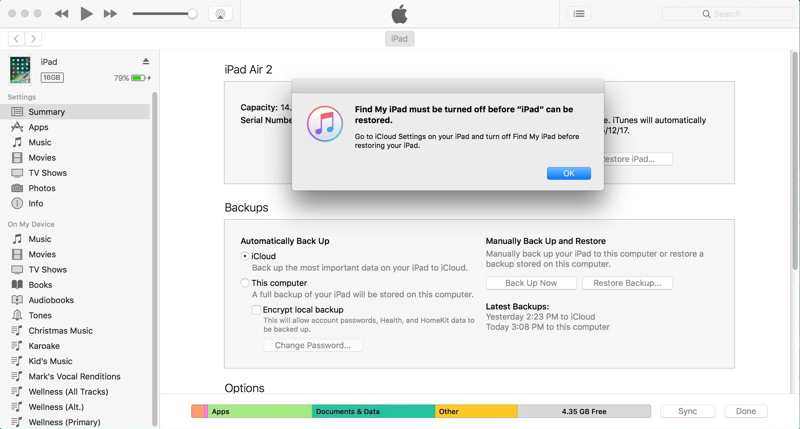
Trinn 1. Koble iPad-en til PC-en med en USB-kabel.
Trinn 2. Åpne den nyeste versjonen av iTunes.
Trinn 3. Klikk på Enhet knappen øverst til venstre etter at iPad-en din er oppdaget.
Trinn 4. Gå til Sammendrag fanen.
Trinn 5. Klikk på Gjenopprett iPad knapp.
Trinn 6. Hvis Finn iPad-en min er aktivert, blir du bedt om å slå den av først.
Trinn 7. Vent til iPad-en starter på nytt, og koble den fra.
På macOS Catalina eller nyere
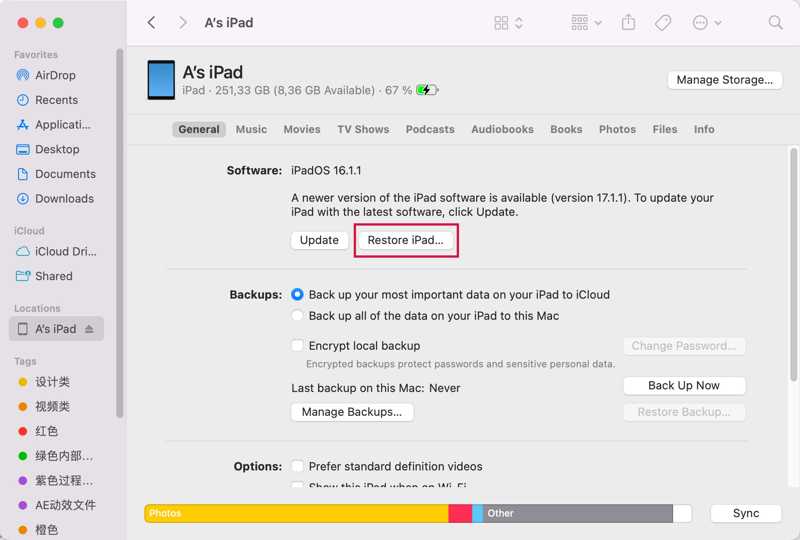
Trinn 1. Koble iPad-en til Mac-en med en kompatibel kabel.
Trinn 2. Åpne Finder-appen.
Trinn 3. Når iPad-en din er gjenkjent, klikker du på iPad-navnet ditt.
Trinn 4. Bytt til Informasjon fanen.
Trinn 5. Klikk på Gjenopprett iPad -knappen for å starte fabrikkgjenoppretting av iPaden.
Del 3: Slik gjenoppretter du en låst iPad
Når du glemmer passordet ditt, vil iPad-en din bli låst. Hvis du har oppdatert til iPadOS 15.2 eller nyere, kan du gjenopprette den låste iPad-en på sikkerhetslåsskjermen. Denne måten krever passordet til Apple-kontoen din.
På iPadOS 17 eller nyere
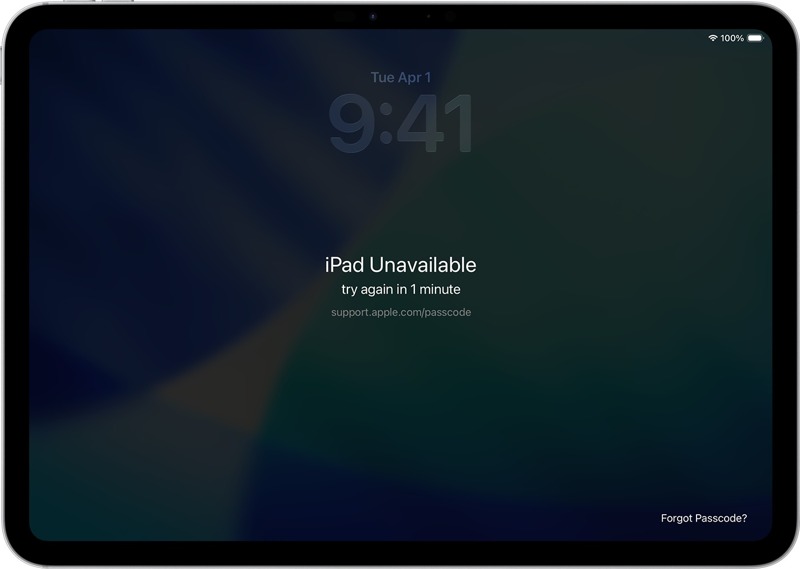
Trinn 1. Skriv inn feil passord gjentatte ganger inntil iPad utilgjengelig skjermen vises.
Trinn 2. Trykk på Glemt passord alternativ nederst.
Trinn 3. Les varselet og trykk på Start iPad Reset knapp.
Trinn 4. Skriv inn Apple-kontopassordet som er knyttet til iPad-en din.
Trinn 5. Når prosessen er ferdig, vil iPad-en din starte på nytt.
På iPadOS 15.2 eller nyere
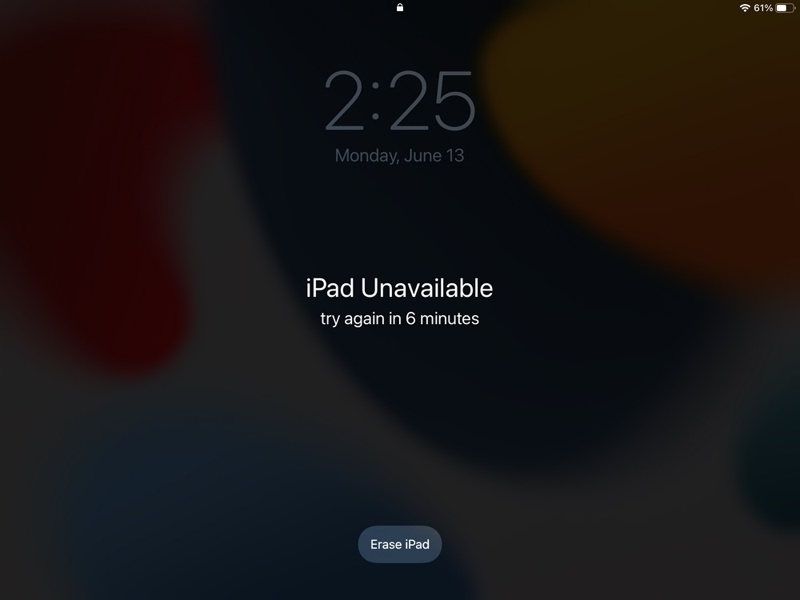
Trinn 1. Trykk på Slett iPad knappen på iPad utilgjengelig skjermen.
Trinn 2. Les varselet og trykk på Slett iPad en gang til.
Trinn 4. Skriv inn Apple-kontopassordet ditt for å starte prosessen.
Del 4: Slik gjenoppretter du iPad til fabrikkinnstillinger uten passord
Recovery Mode lar deg gjenopprette iPaden til fabrikkinnstillinger uten passord. Prosessen fungerer for låste og deaktiverte iPad-enheter. Husk at du fortsatt må oppgi det tilknyttede Apple-kontopassordet når du konfigurerer den på nytt.
Trinn 1. Koble iPad-en din til en datamaskin med en USB-kabel.
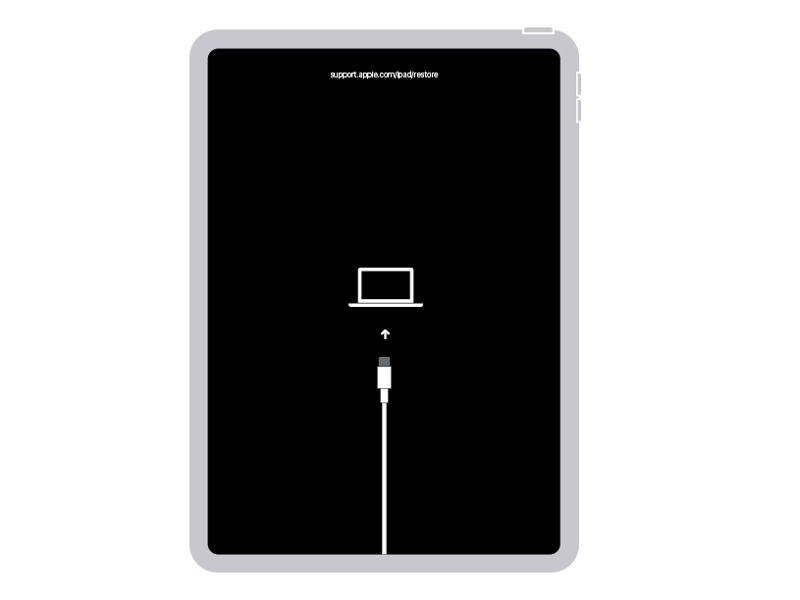
Trinn 2. Sett iPad-en i gjenopprettingsmodus:
På en iPad uten Hjem-knappen
Trykk raskt og slipp volum opp knapp.
Gjør det samme med volum ned knapp.
Trykk og hold inne Side -knappen til skjermbildet for gjenopprettingsmodus vises.
På en iPad med Hjem-knappen
Hold nede Home + Side knapper sammen.
Når gjenopprettingsmodus dukker opp, slipp knappene.
Trinn 3. Åpne iTunes eller Finder i henhold til operativsystemet ditt hvis det ikke dukker opp automatisk.
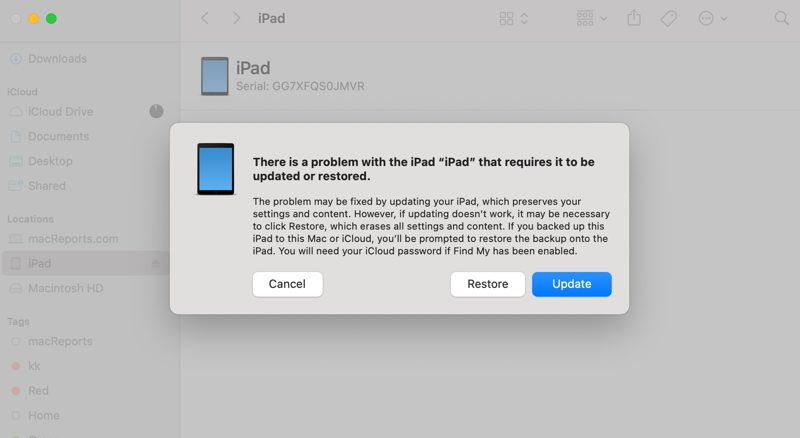
Trinn 4. Klikk på Gjenopprette knappen i dialogboksen.
Del 5: Slik gjenoppretter du en deaktivert iPad til fabrikkinnstillinger
Det er mulig å gjenopprette en iPad uten passord hvis du har et kraftig gjenopprettingsverktøy, for eksempel Apeaksoft iFoneKit iOS-opplåserDen kan slette alle data og personlige innstillinger på iPad-en din uten noen begrensninger. Den tydelige designen gjør den tilgjengelig for vanlige folk.

Lastet ned av over 1,000,000 Brukere
- Gjenopprett en iPad til fabrikkinnstillinger uten passord.
- Fullfør prosessen med tre trinn.
- Fjern sifrekoder, Face ID-er og Touch ID-er.
- Støtt de nyeste utgavene av iPadOS.
Sikker nedlasting
Sikker nedlasting

Slik gjenoppretter du en låst iPad til fabrikkinnstillinger uten passord
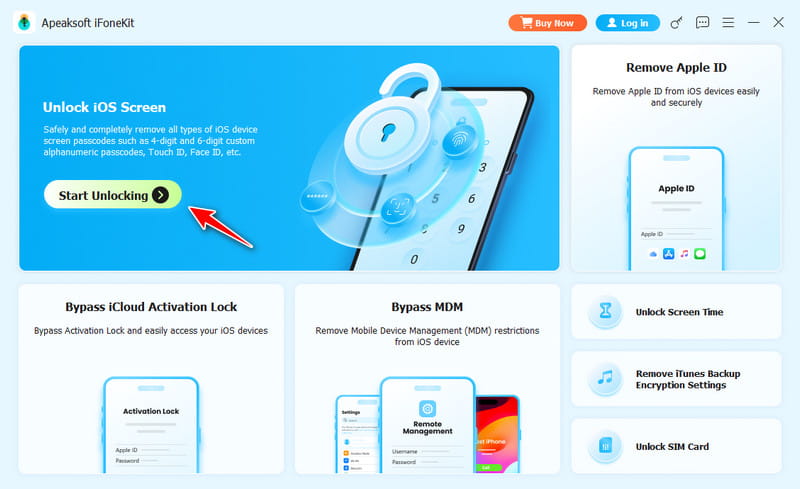
Trinn 1. Koble til iPaden din
Kjør iPad-gjenopprettingsprogramvaren når du har installert den på datamaskinen. Den er tilgjengelig på Windows 11/10/8/7/XP/Vista og Mac OS X 10.7 eller nyere. Velg Lås opp iOS-skjermen modus for å fortsette. Koble iPad-en til datamaskinen med en Lightning-kabel.
Trinn 2. Last ned firmware
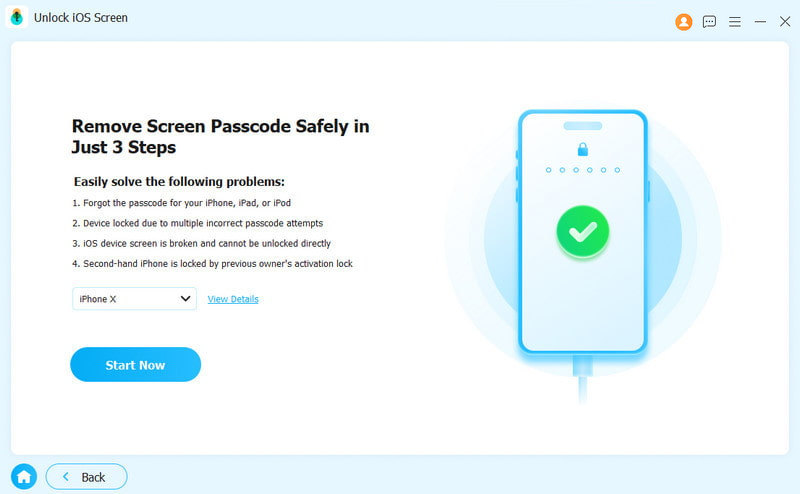
Når programvaren oppdager enheten din, les iPad-informasjonen. Klikk deretter på Start nå -knappen for å begynne å laste ned fastvaren.
Trinn 3. Gjenopprett iPad-en din
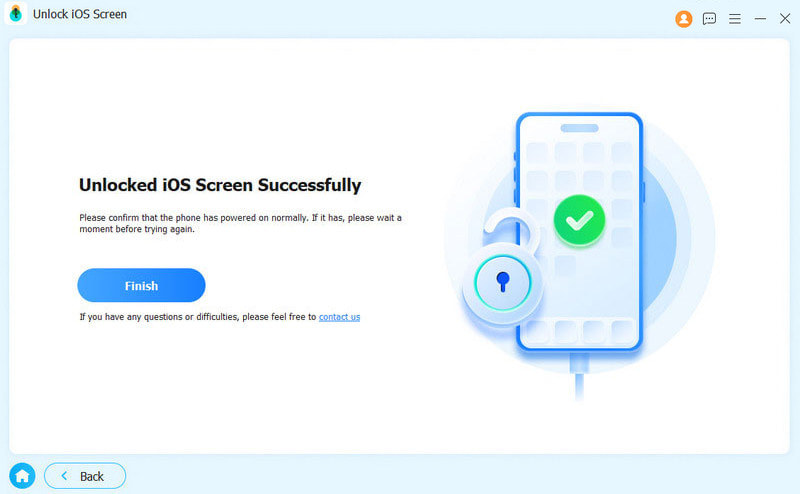
Når nedlastingen er ferdig, klikker du OK i bekreftelsesdialogboksen. Klikk deretter på Bekreft igjen -knappen for å bekrefte fastvaren. Når bekreftelsen er fullført, vil programvaren begynne å gjenopprette iPad-en din automatisk.
Konklusjon
Nå bør du forstå hvordan gjenopprett iPad-en din til fabrikkinnstillingene i ulike situasjoner. Avhengig av situasjonen din kan du gjenopprette håndsettet i Innstillinger-appen, ved hjelp av en datamaskin, med sikkerhetssperre eller i gjenopprettingsmodus. Hvis de vanlige metodene ikke er tilgjengelige, Apeaksoft iFoneKit iOS-opplåser er det ultimate alternativet for å bringe iPad-en din til fabrikkstatus uten passord.
 Apeaksoft iPhoneKit
 Lås opp alle typer iOS-passord fra iPhone, iPad og iPod.
Sikker nedlasting
Sikker nedlasting
Relaterte artikler




