

Everything You Should Know about System Restore on PC

As a built-in feature on Windows, system~~POS=TRUNC is useful. However, many people don’t understand this feature, such as what exactly System Restore does, whether there are any notable differences between Windows XP and Windows 11 System Restore, and more. This article will share a comprehensive guide about this feature and tell you how to perform it. Thus, you can fix and repair your Windows on your own.
SIDEINNHOLD:
Part 1: What Does System Restore Do
According to Wikipedia, System Restore is a feature on Microsoft Windows. It allows users to revert their PCs’ state to a previous point in time, including system files, installed apps, and system settings. It can be used to recover from system malfunctions or other problems.
It was first introduced in Windows Me. On Windows 11/10, System Restore is turned off by default and must be manually turned on in order to function. Bear in mind that System Restore doesn’t affect personal files, like your documents, music, pictures, and videos stored on user disks.
When should you perform System Restore?
1. Your PC is infected with viruses or malware.
2. Your PC cannot start.
3. You cannot enter Windows.
4. Your Windows works abnormally.
Of course, System Restore is not a perfect technology. It is old and outmoded. Before Windows Vista, System Restore was restricted to select locations and file types. It could not fully revert unwanted software installations, especially software upgrades. Moreover, all restore points will be deleted after a specific time.
How long does System Restore take? The process usually completes within 30 minutes to 2 hours under normal circumstances.
Part 2: How to Perform System Restore on Windows
Slik aktiverer du systemgjenoppretting i Windows 11/10
As mentioned previously, System Restore is disabled on Windows 11/10 by default. If you want to use this feature, you need to manually turn it on. For Windows 8 and earlier, skip creating a System Restore point directly.
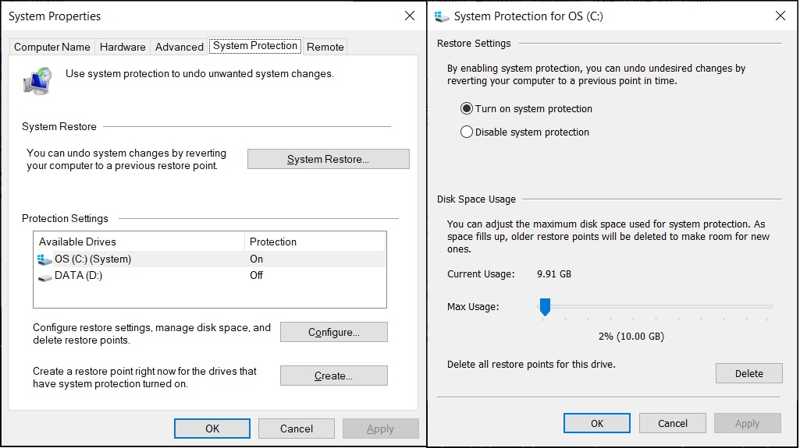
Trinn 1. Gå til Start menyen.
Trinn 2. Søk etter Opprett et gjenopprettingspunkt, og åpne system~~POS=TRUNC.
Trinn 3. Bytt til system~~POS=TRUNC fanen på system~~POS=TRUNC dialogen.
Trinn 4. If the system drive is on under the Beskyttelse Innstillinger section, System Restore is enabled. If not, click the Konfigurer knapp.
Trinn 5. Velg Slå på systembeskyttelseklikk Påfør, og treffer OK.
How to Create a System Restore Point
To perform a System Restore, you need to create a restore point. Plus, Windows creates restore points when installing software using an installer, installing new updates by Windows Update, or installing a driver.
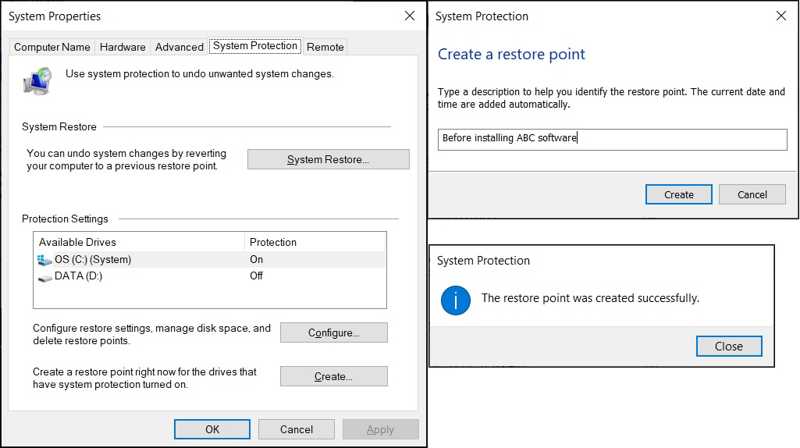
Trinn 1. Klikk på Start menyen og åpne system~~POS=TRUNC dialogen.
Trinn 2. Hodet til system~~POS=TRUNC kategorien og klikk på Opprett knapp.
Trinn 3. Enter a name for the restore point, and hit Opprett en gang til.
Trinn 4. Klikk på Lukke knappen og trykk OK.
How to Recover a PC Using System Restore
If your PC is still accessible, you can recover your machine using System Restore on the System Properties dialog directly. If your PC is inaccessible, use the method in the next part. Here are the steps below:
Trinn 1. Klikk på system~~POS=TRUNC knappen på system~~POS=TRUNC dialogen.
Trinn 2. hit neste and select a restore point.
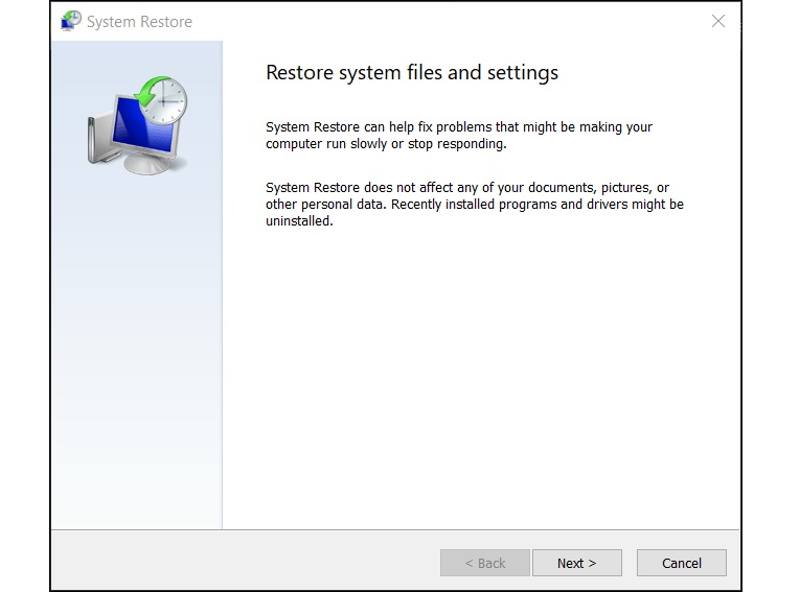
Tips: To check which apps or drivers will be removed, click Skann etter berørte programmer.
Trinn 3. Klikk på neste button to start restoring the system.
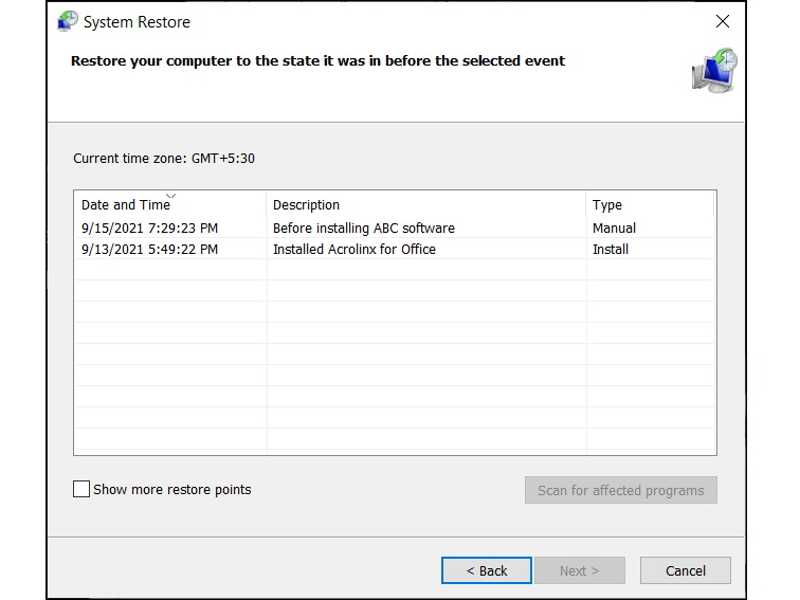
Trinn 4. Når det er gjort, klikker du på Finish knapp.
Videre Reading
How to Perform System Restore If Windows Cannot Start
If your Windows cannot start normally, you can also perform a system restore. The workflow is a little difference. You need to enter the boot menu screen and restore your system from a point.
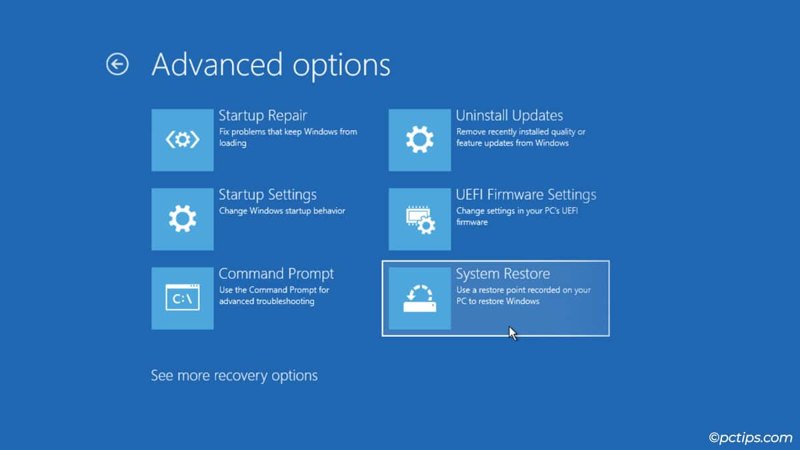
Trinn 1. Turn off your PC, and power it back on.
Trinn 2. Trykk gjentatte ganger på F11 key once your PC turns on until the loading screen appears.
Tips: The key may be different, depending on your PC brand.
Trinn 3. Velg Avanserte alternativerklikk Feilsøk, og velg Avanserte alternativer.
Trinn 4. Klikk system~~POS=TRUNC å åpne system~~POS=TRUNC dialogen.
Trinn 5. Then, select a point, and restore your system.
Part 3: How to Recover Data After System Restore
Does System Restore delete files? It won’t interrupt your files on other drives. If you save data in the startup drive, it will be removed when performing System Restore. Fortunately, Apeaksoft Data Recovery can help you resolve this problem. It can retrieve your lost files without a backup.
A Quick Way to Recover Data After System Restore
- Retrieve data after System Restore quickly.
- Forhåndsvis tapte filer for selektiv gjenoppretting.
- Støtt et bredt spekter av filtyper.
- Work on Windows 11/10/8/7/XP/Vista.
- Protect your data quality during recovery.
Sikker nedlasting
Sikker nedlasting

How to Recover Data After System Restore
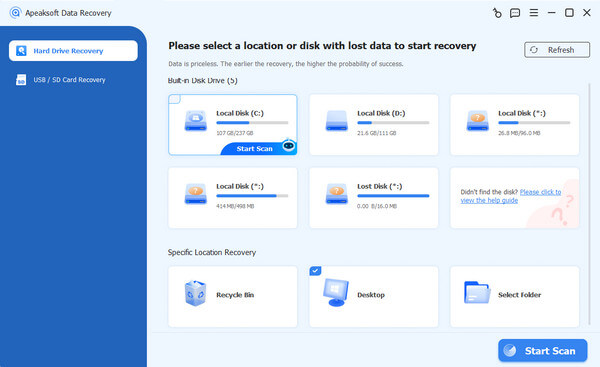
Trinn 1. Installer programvare for datagjenoppretting
Launch the data recovery software after you install it on your PC. Go to the Harddiskgjenoppretting tab on the sidebar and select where your lost files are stored. If you are ready, click on the start Scan -knappen for å begynne å skanne tapte filer på harddisken.
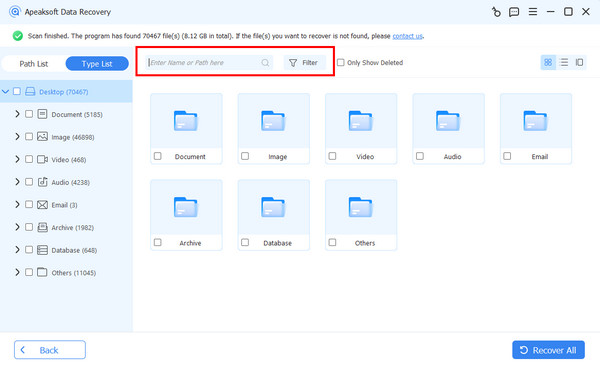
Trinn 2. Forhåndsvis tapte filer
Once the quickly scanning finishes, the software will perform a deep scan automatically. When it is done, you can view the lost files by type or path. The Filtrer option allows you to quickly locate specific files.
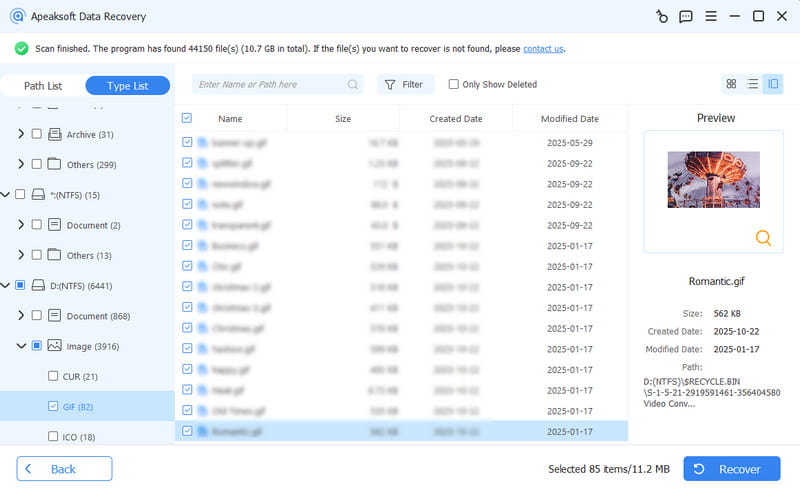
Trinn 3. Gjenopprett filer
Next, select the lost files you want to retrieve and click the Recover button at the bottom right corner. Set an output folder and confirm data recovery. You’d better set another location rather than the original destination. Then, you can navigate to the output folder and check the files.
Konklusjon
Denne guiden diskutert what System Restore does, how it works, and how to perform it. You can follow our steps to turn on this feature on Windows 11/10 and create a restore point manually. Moreover, you can perform System Restore in various situations. Apeaksoft Data Recovery enables you to recover data after System Restore.
Relaterte artikler
Bortsett fra å reparere datamaskinen din med en systemgjenopprettings-CD, kan du også velge å opprette Windows 7-gjenopprettings-USB.
Windows reboots kontinuerlig etter systemoppdatering? Ikke bekymre deg! Denne artikkelen vil veilede deg for å løse problemet som Windows fortsetter å starte.
Glemt Windows passord? Vil du gjenopprette og tilbakestille Windows-passord? Du kan få detaljerte trinn fra denne Windows Password Key-anmeldelsen.
Blåskjerm, også kalt BSOD, vises når Windows-systemet ditt ikke fungerer som det skal. Du kan følge dette innlegget for å løse dette problemet trinn for trinn.



