

Slik overfører du videoer fra Android-enheten din til datamaskinen

Det er enklere enn noen gang å ta opp video. For tiden har nesten alle Android-enheter utmerkede objektiver. Når du vil ta vare på minner, trenger du bare å ta frem telefonen, åpne en kameraapp og trykke på opptaksknappen. Det nye problemet er at du oppdager at minnet ditt raskt blir oppbrukt. Den gode nyheten er at du kan overfør videoer fra Android-enheten din til en datamaskin og deretter frigjøre plass.
SIDEINNHOLD:
Del 1: En rask måte å overføre videoer fra Android til datamaskin
Hvis du bryr deg om videokvalitet, Apeaksoft MobieTrans er et godt alternativ for å overføre videoer fra Android til PC og Mac. Den integrerer AI-teknologi for å beskytte videokvaliteten din mens den administreres og overføres.
En rask måte å overføre videoer fra Android til datamaskin
- Synkroniser videoer raskt mellom Android og en datamaskin.
- Behold videokvaliteten under overføring.
- Støtt et bredt spekter av videoformater.
- Administrer Android-videoer på en datamaskin.
- Kompatibel med nesten alle Android-merker.
Sikker nedlasting
Slik overfører du videoer fra Android til PC
Trinn 1. Oppdag telefonen din
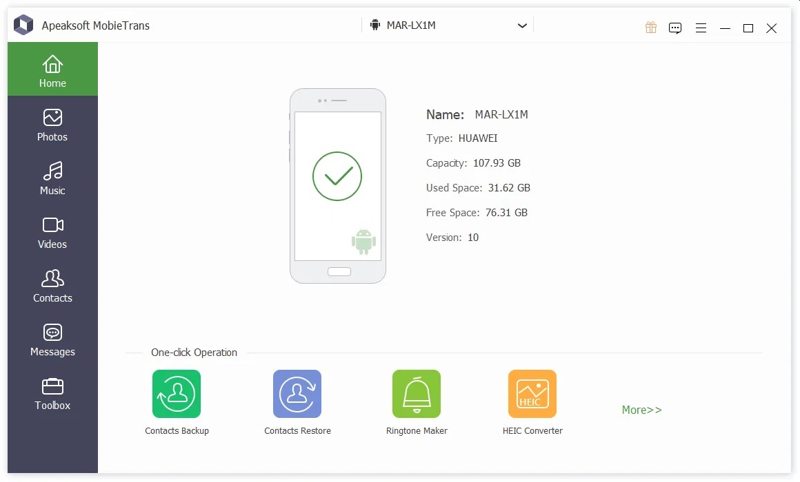
Start videooverføringsverktøyet når du har installert det på PC-en. Det finnes en annen versjon for Mac. Koble telefonen til PC-en med en USB-kabel. Sørg for å aktivere USB Debugging modus på telefonen.
Trinn 2. Forhåndsvisning av videoer
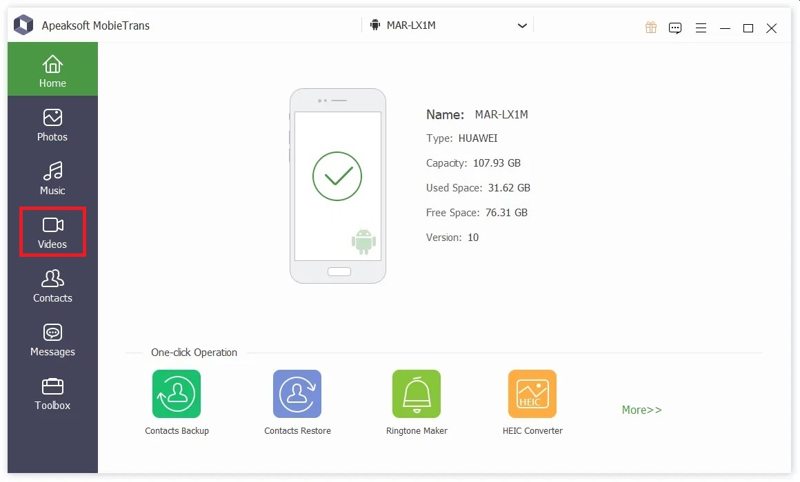
Etter at telefonen din er oppdaget, gå til videoer fanen i venstre sidefelt. Nå kan du se alle videoene på Android-enheten din.
Trinn 3. Overfør Android-videoer til PC
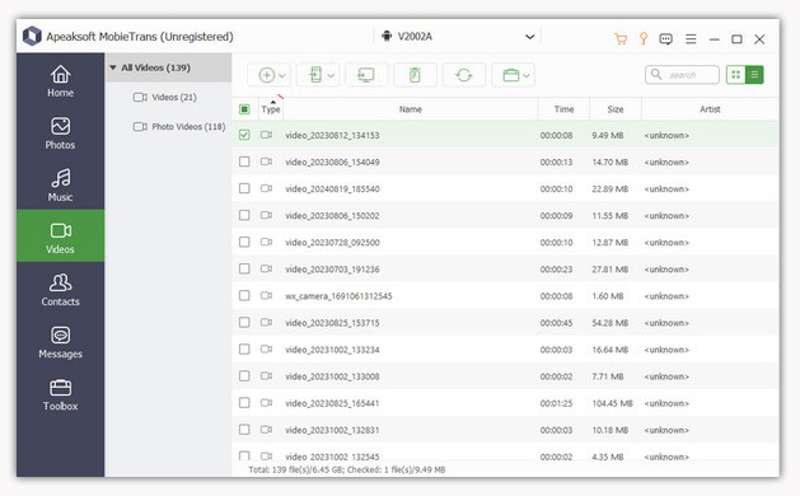
Velg alle videoene du vil overføre, klikk på PC knappen på det øverste båndet, og velg Eksporter til PCNaviger til utdatamappen og bekreft den. Du kan også overføre bilder fra Android til datamaskin.
Del 2: Slik overfører du Android-videoer til en datamaskin via skylagring
Med skylagring, som for eksempel Google Drive, kan du overføre Android-videoer til en datamaskin trådløst. Denne måten fungerer for både PC-er og Mac-maskiner. Her er trinnene for å sikkerhetskopiere Android-videoene dine:
Trinn 1. Kjør Google Bilder app på telefonen din.
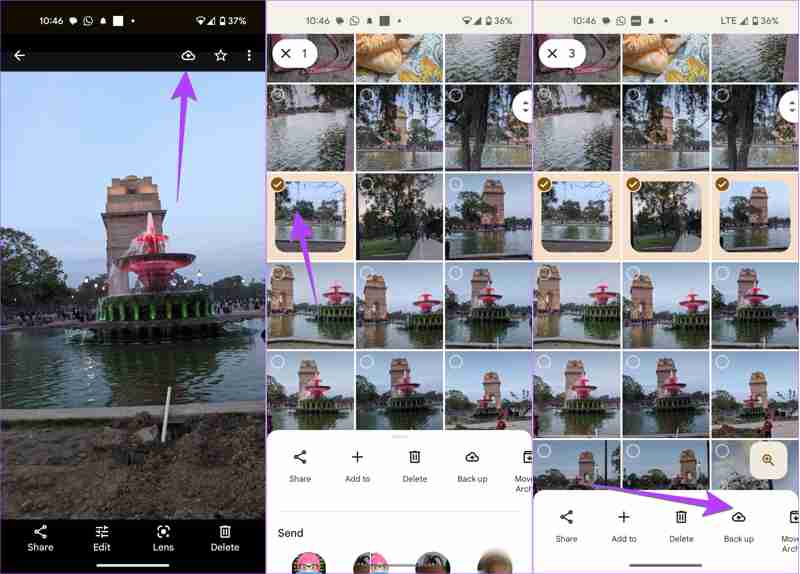
Trinn 2. Trykk på Last opp -knappen og velg ønskede videoer.
Tips: Gi Google Foto tilgang til galleriet ditt.
Trinn 3. Trykk deretter på Sikkerhetskopier knappen nederst.
Trinn 4. Gå til datamaskinen din og få tilgang photos.google.com i en nettleser.
Trinn 5. Logg inn med samme konto.
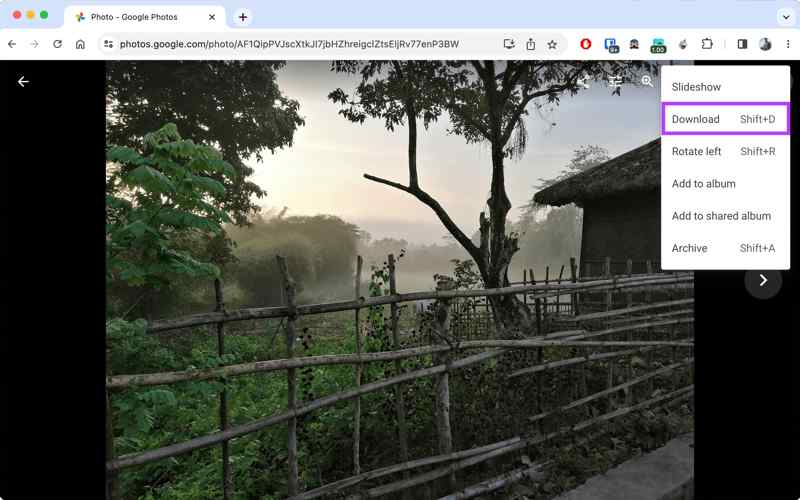
Trinn 6. Finn og velg videoene.
Trinn 7. Klikk på Mer knappen med et ikon med tre prikker, og velg Last ned.
Tips: Du finner videoen i nedlastingsmappen.
Del 3: Slik flytter du videoer fra Android til PC med en kabel
Android er et operativsystem med åpen kildekode. Det gir deg tilgang til minnet. Med andre ord kan du koble telefonen til PC-en med en kompatibel kabel for å overføre videoer direkte fra Android-enheten til PC-en.
Trinn 1. Kjør innstillinger app på telefonen din.
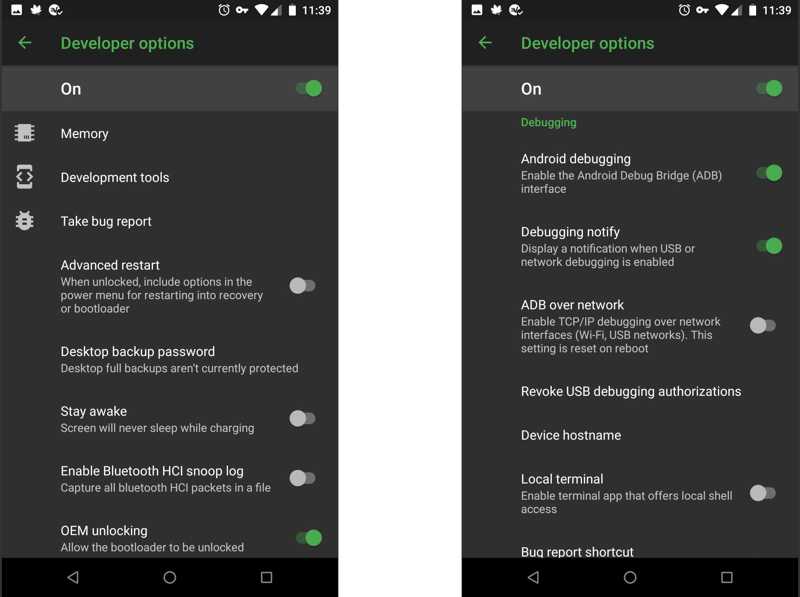
Trinn 2. Gå til Utviklermuligheter, og slå på USB Debugging modus.
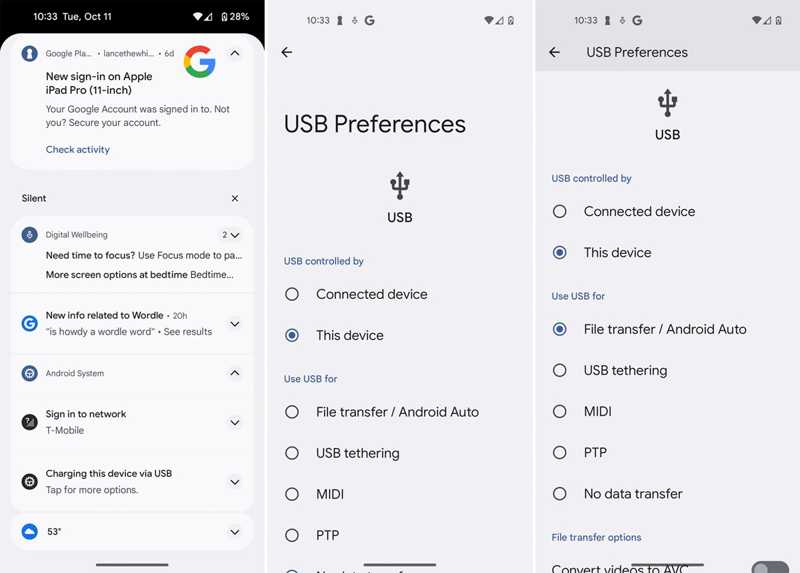
Trinn 3. Koble telefonen til PC-en din med en USB-kabel.
Trinn 4. Velg hvis du blir bedt om det filoverføring.
På Windows 11 / 10
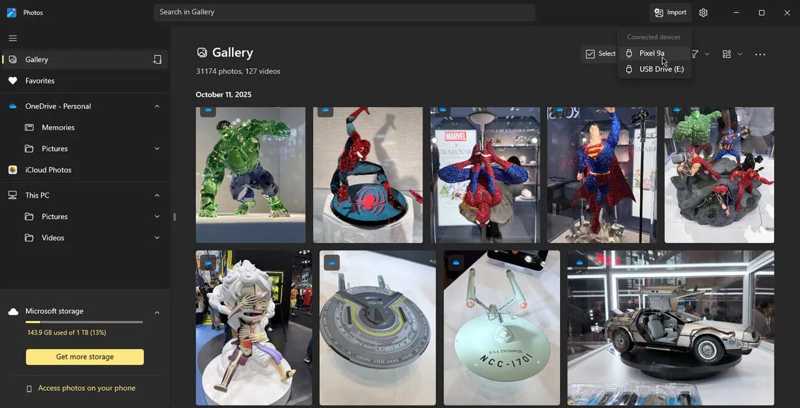
Trinn 5. Kjør Bilder app, klikk Import, og velg telefonen din.
Trinn 6. Velg de ønskede videoene og klikk Legg til N elementer.
På Windows 8/7/XP/Vista
Trinn 7. Klikk på telefonen din i en filutforsker.
Trinn 8. Finn videoene, kopier og lim dem inn på harddisken din.
Del 4: Slik laster du ned Android-videoer til en datamaskin via e-post
Du kan også overføre Android-videoer til en Mac eller PC ved hjelp av e-posten din. Denne måten er egnet for å migrere en eller flere videoer, siden alle e-postleverandører har en maksimal størrelse. Gmail, for eksempel, lar deg sende en melding på opptil 25 MB om gangen. Du kan også Overfør kontakter fra Android til iPhone med denne metoden.
Trinn 1. Åpne e-postappen på telefonen din.
Trinn 2. Gå til innboksen og trykk på Ny-knappen for å gå inn i skjermbildet for ny e-post.
Trinn 3. Skriv inn e-postadressen din i Til feltet og skriv ned et emne.
Trinn 4. Trykk på Vedlegg -knappen og velg videoene.
Trinn 5. Slå den sent knapp.
Trinn 6. Gå til datamaskinen din og få tilgang til e-posten din i en nettleser eller klientprogramvare.
Trinn 7. Les den nye e-posten og last ned videoene til harddisken din.
Tips: Hvis videoene dine er store, kan det hende du trenger en skytjeneste, for eksempel Google Drive.
Konklusjon
Denne guiden delte fire metoder for å overføre videoer fra Android til PC trådløst eller med kabel. En skytjeneste lar deg sende videoer fra Android-telefonen din til en annen digital enhet, som en Mac eller en PC. E-post er en annen måte å overføre video mellom Android og en datamaskin. Hvis du bruker en PC, kan du laste ned Android-videoer til harddisken din med en USB-kabel. Apeaksoft MobieTrans er en enkel metode for å synkronisere Android-videoer.
Relaterte artikler




