

How to Transfer iPhone WhatsApp Messages to Android

Switching from an iPhone to an Android device is an adventure, but you may lose years of WhatsApp conversations, including photos and videos. However, it is possible to transfer WhatsApp messages from an iPhone to an Android phone. With the major updates in 2025, you can use the official chat migration feature to keep your messages on your new Android device. This guide shares proven methods and tells you how to complete it.
SIDEINNHOLD:
- Part 1: How to Export WhatsApp Messages from iPhone to Android via Move Chats to Android
- Part 2: How to Migrate WhatsApp Messages from iPhone to Android via QR Code
- Part 3: How to Copy WhatsApp Messages from iPhone to Android with Email
- Bonus Tip: A Fast Way to Transfer WhatsApp Images iPhone to Android
Part 1: How to Export WhatsApp Messages from iPhone to Android via Move Chats to Android
Krav
1. Android 12 eller nyere.
2. Den nyeste versjonen av WhatsApp.
3. New models of iPhone.
4. A USB-C to Lightning cable.
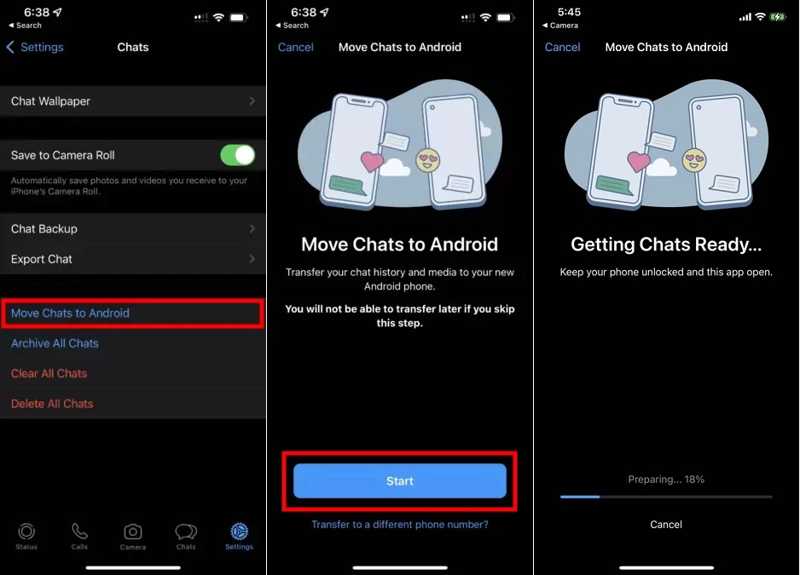
Trinn 1. Set up your Android phone and install the WhatsApp app.
Trinn 2. Sign in with the same phone number.
Trinn 3. Link your iPhone and Android phone with the USB-C to Lightning cable.
Trinn 4. Open the WhatsApp app on your iPhone.
Trinn 5. Gå til innstillinger fan nederst.
Trinn 6. Velg Flytt chatter til Android, og trykk Start to begin exporting WhatsApp messages from iPhone to Android.
OBS: If you don't log in with the same phone number in WhatsApp on both iPhone and Android, press Transfer to a different phone number under Start button. Then, follow the onscreen instructions to migrate messages.
Part 2: How to Migrate WhatsApp Messages from iPhone to Android via QR Code
Krav
1. Et Wi-Fi-nettverk.
2. An accessible Camera app on your iPhone.
3. Both devices must be charged at least 80%.
Trinn 1. Install WhatsApp from the Play Store on your phone. If you have already installed WhatsApp, uninstall it and download it again.
Trinn 2. Run the app from your app tray, select your language, and tap the green arrow to continue.
Trinn 3. Pek Enig og fortsett.
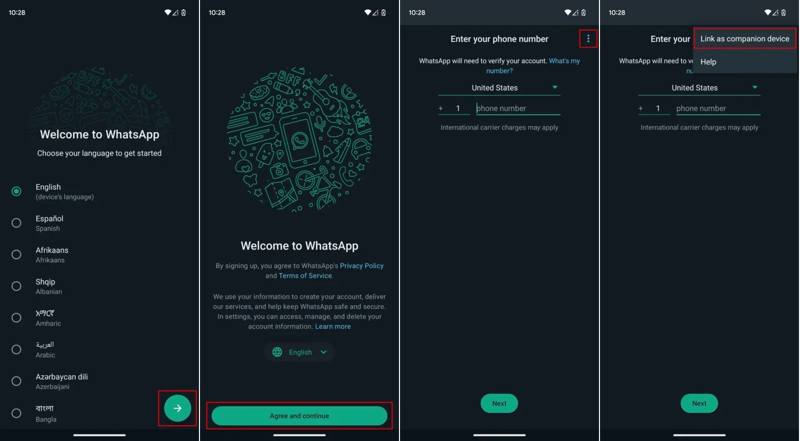
Trinn 4. If prompted, don't enter your phone number but tap the Meny knapp med et ikon med tre prikker.
Trinn 5. Velg Link as companion device to create a QR code.
Trinn 6. Turn to your iPhone and run WhatsApp.
Trinn 7. Gå til innstillinger tab from the bottom, and choose Koblede enheter.
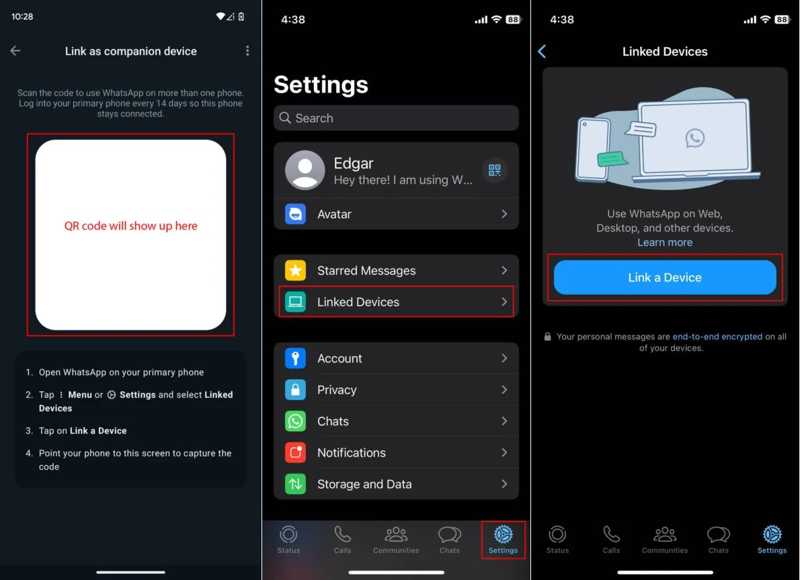
Trinn 8. Pek Koble en enhet, and scan the QR code on your Android phone.
Trinn 9. Once the connection is successful, WhatsApp message migration initiates from iPhone to Android.
Videre Reading
Part 3: How to Copy WhatsApp Messages from iPhone to Android with Email
Krav
1. An accessible email address.
2. Et Wi-Fi-nettverk.
3. Enough storage on your iPhone and Android phone.
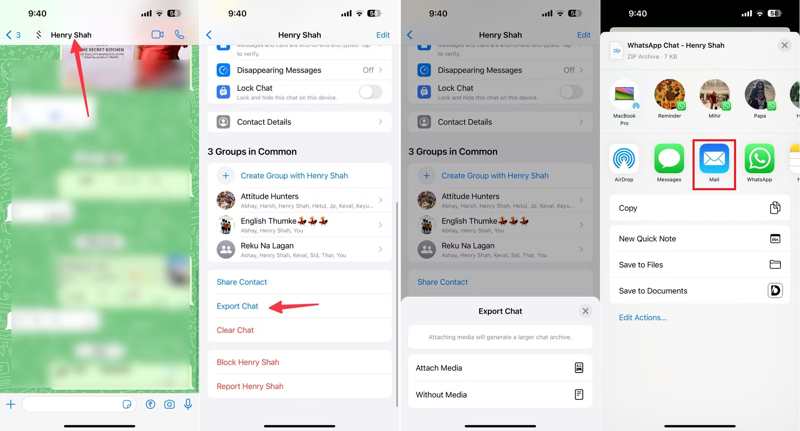
Trinn 1. Run WhatsApp on your iPhone, and locate the desired chat.
Trinn 2. Tap the contact at the top of your screen, and choose Eksporter Chat.
Trinn 3. Velg Fest media or Uten Media.
Trinn 4. Neste, velg Post from the toolbox to open the new email screen.
Trinn 5. Then, enter your email address in the To field and set a subject.
Trinn 6. Trykk på sent button to copy WhatsApp messages from iPhone to Android.
Trinn 7. Turn to your Android phone, access the email app, and open the new message.
OBS: This way only allows you to view WhatsApp messages on your phone. You cannot merge them with the WhatsApp app.
Bonus Tip: A Fast Way to Transfer WhatsApp Images iPhone to Android
If you want to move WhatsApp message attachments from iPhone to Android, Apeaksoft MobieTrans is a good option. It allows you to link an iPhone and an Android for data migration directly. Moreover, it is able to re-encode files according to the target device.
A Quick Way to Move WhatsApp Images from iPhone to Android
- Import WhatsApp images from iPhone to Android directly.
- Preview WhatsApp images for selective transferring.
- Beskytt fotokvaliteten underveis.
- Support a wide range of iPhone models and Android brands.
Sikker nedlasting
How to Export WhatsApp Images from iPhone to Android
Trinn 1. Link iPhone and Android
Launch the iPhone to Android transferring tool after installing it on your computer. Next, link both your iPhone and Android phone to your computer with compatible USB cables. If prompted, make sure to trust this computer.
Trinn 2. Preview WhatsApp
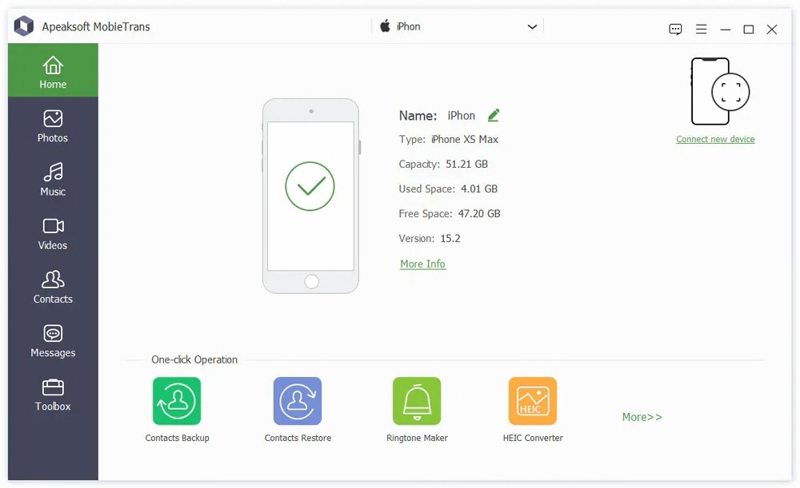
Choose your iPhone from the top option, and go to the Bilder tab on the sidebar. Now, you can view all WhatsApp images.
Trinn 3. Export WhatsApp images from iPhone to Android
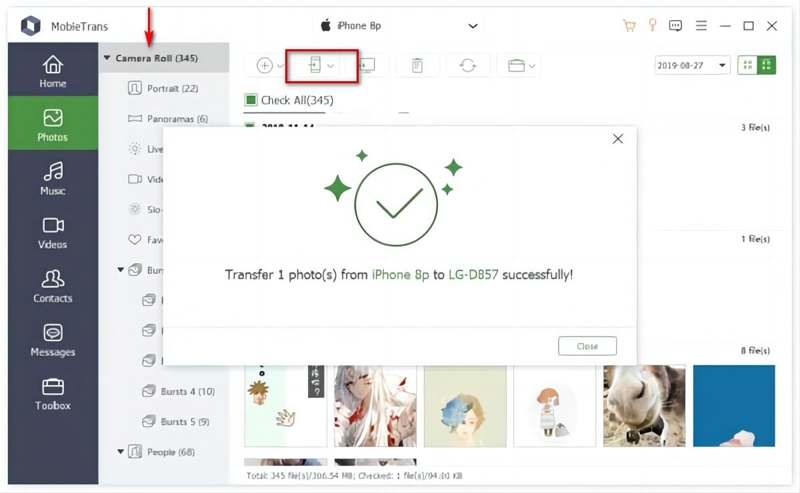
Next, select all images you want to export. Click the Telefon button on the top ribbon and choose your Android phone.
Konklusjon
This tutorial shared how to copy WhatsApp messages from an iPhone to an Android device quickly. More importantly, we explained the new features: Move Chats to Android. It enables you to migrate WhatsApp chats between iOS and Android. Moreover, you can try the linked device and email for WhatsApp message transferring. Apeaksoft MobieTrans is a good option to transfer WhatsApp images.
Relaterte artikler
Her er enkle trinn for å lagre klistremerker på WhatsApp på din iPhone eller Android. Du kan også overføre WhatsApp-klistremerker fra din gamle telefon til en ny helt.
WhatsApp kan sikkerhetskopieres til iCloud og Google Drive. Du kan gjenopprette gamle sikkerhetskopier av WhatsApp helt og delvis.
Hvordan sikkerhetskopiere WhatsApp-meldinger og chatter til iCloud, eller trekke ut filene fra iCloud? Bare lær mer detaljer fra trinn-for-trinn-guiden i artikkelen.
For å beskytte noen viktige PDF-dokumenter på iPhone, her er en guide som hjelper deg med å lagre PDF-dokumenter på en iPhone fra WhatsApp fra artikkelen.



