

How to Factory Reset a Samsung Phone or Tablet Quickly

There are a few scenarios when you have to przywróć ustawienia fabryczne telefonu Samsung. When your phone's performance slows down, a factory reset can remove junk files and improve speed. Before you sell your Samsung device, you should factory reset it and completely remove your data to protect your privacy. Plus, it is an essential step for troubleshooting and fixing software glitches. Anyway, you can learn multiple ways to restore your device to factory settings in various situations.
TREŚĆ STRONY:
Part 1: What Happens When You Factory Reset a Samsung Device
Factory resetting a Samsung phone or tablet will remove all data on your device, including photos, videos, music, contacts, messages, accounts, apps, app data, and customized settings. To avoid data loss, you'd better make a backup.
Bear in mind that a factory reset cannot unlock FRP on most Android devices. Therefore, you still need to input your Google account when setting up your device after factory resetting.
Before Factory Resetting Your Samsung Phone
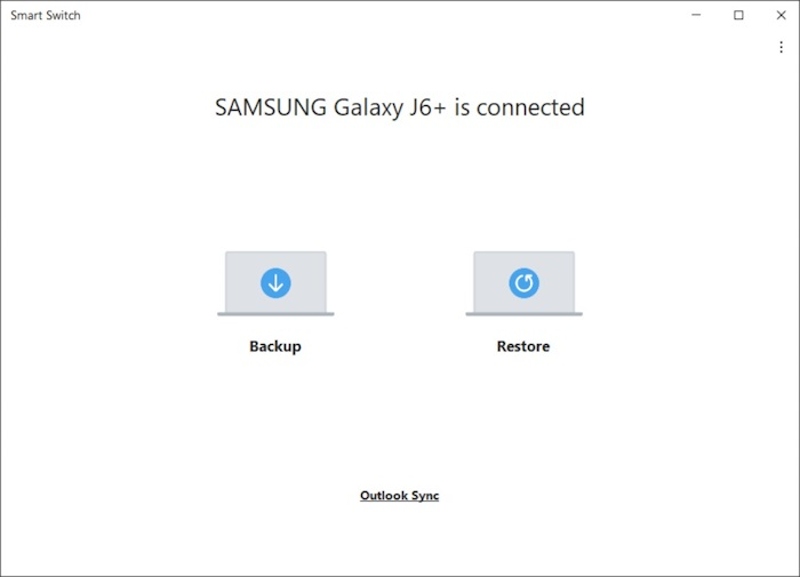
Krok 1. Back up your phone
Install Smart Switch on a computer.
Use a USB cable to link the computer and your phone.
Open Smart Switch to read the content on your device.
Kliknij backup kontynuować.
Po wyświetleniu monitu stuknij DOPUSZCZAĆ on your phone screen to create a backup.
When finished, disconnect your phone.
Krok 2. Usuń konta
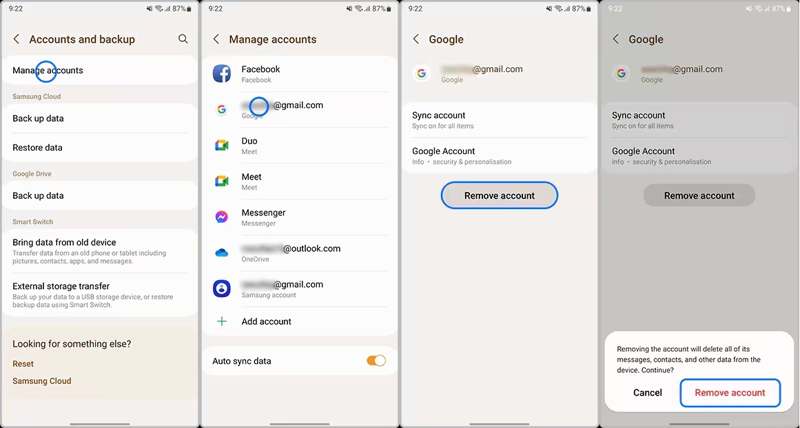
Uruchom Ustawienia aplikację i wybierz Konta i kopie zapasowe.
Stuknij Zarządzaj kontami and select the Google account you intend to remove.
Stuknij w Usuń konto przycisk.
Po wyświetleniu monitu wybierz Usuń konto aby to potwierdzić.
Part 2: How to Factory Reset a Samsung Phone with a Code
What is the Samsung factory reset code? It is a numeric and alphanumeric sequence for performing specific tasks, like resetting a Samsung device to factory settings without a password. We explain the prerequisites and workflow below:
Wymagania wstępne:
1. Your phone is accessible.
2. Your screen is working.
3. You are using an old model of a Samsung phone.

Krok 1. Run the Phone app on your phone.
Krok 2. Type the reset code: * 2767 * 3855 # or * # * # * # * # 7780.
Krok 3. If the process doesn't start automatically, tap the Call button.
Krok 4. When prompted, enter yes to confirm it.
Part 3: How to Factory Reset a Samsung Phone in Settings
One simple way to reset a Samsung phone to factory settings is the built-in Factory data reset feature. Samsung has added this feature to every Samsung phone and tablet. The workflow may be a little different, depending on your phone model.
Wymagania wstępne:
1. Your device is accessible.
2. You still remember your account password.
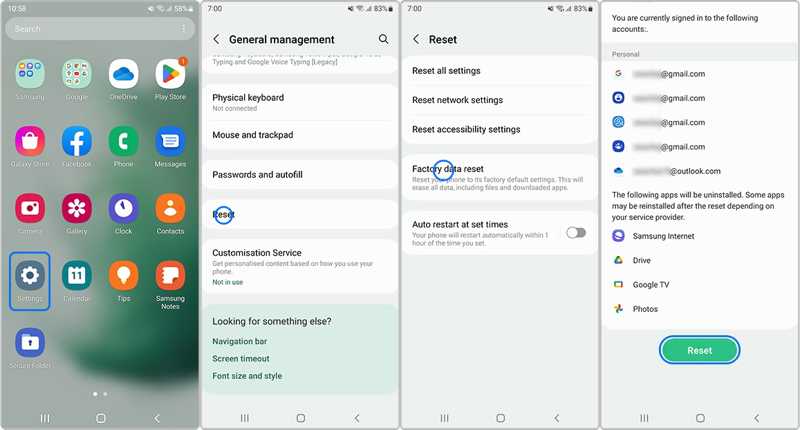
Krok 1. Otwórz Ustawienia app on your app tray.
Krok 2. Przewiń w dół i wybierz Dyrekcja generalna.
Krok 3. Stuknij Zresetuj and choose Factory data reset.
Porady: If you just want to reset your Samsung phone to factory settings without deleting data, choose Zresetuj wszystkie ustawienia zamiast.
Krok 4. Przeczytaj alert i naciśnij Zresetuj ponownie przycisk
Krok 5. If prompted, enter your account password or phone password.
Krok 6. Stuknij w Delete all button to reset Samsung to factory default.
Part 4: How to Factory Reset a Samsung Device in Recovery Mode
Even if you forgot your phone password or are locked out of your device, you can reset your phone. Tryb odzyskiwania Androida allows you to factory reset a Samsung phone with a locked screen or without a password. This method requires a little technical skill.
Wymagania wstępne:
1. Your phone buttons are working.
2. Kabel USB.
3. Komputer.

Krok 1. Naciśnij i przytrzymaj Prąd button until your phone shuts down.
Krok 2. Plug your phone into your computer with a compatible cable.
Krok 3. Przytrzymaj przycisk Zasilanie/Bixby + zwiększanie głośności buttons together for 5 seconds.
Krok 4. Once your phone enters Recovery Mode, release the buttons.
Krok 5. Naciśnij Ciszej button multiple times to highlight Wyczyść dane / przywróć ustawienia fabryczne. Następnie naciśnij Prąd przycisk, aby go wybrać.
Krok 6. When prompted, highlight Tak using the volume buttons, and press Prąd to start the Samsung factory reset without a password.
Krok 7. When it is done, highlight Reboot system now with the volume buttons, and hit Prąd aby ponownie uruchomić urządzenie.
Uwaga: If your Samsung Galaxy tab won't factory reset in normal mode, you can try Recovery Mode.
Part 5: How to Factory Reset Samsung Remotely
If your phone is lost or is not in your hand, you have to factory reset it using SmartThings Find or Samsung Find. It is the online device manager for Samsung users. You can find a few useful features, like factory resetting Samsung remotely.
Wymagania wstępne:
1. Your device must be connected to the internet.
2. A Samsung account must be added to your phone or tablet.
3. You remember your Samsung account credentials.

Krok 1. Odwiedź https://smartthingsfind.samsung.com/ w przeglądarce.
Krok 2. Kliknij Zaloguj and input your Samsung account and password.
Krok 3. Kliknij Zaloguj się znowu i uderz Akceptuję w wyskakującym oknie dialogowym.
Krok 4. Then, the service will locate your device on a map instantly.
Krok 5. Kliknij Kasowanie danych button on the toolbox.
Krok 6. If prompted, enter your account password.
Krok 7. Finally, read the alert, and click the wymazać button to initiate a factory reset Samsung S8 or other model.
Uwaga: This method cannot bypass Samsung factory reset protection.
Bonus Tip: Best Way to Recover Data After a Samsung Factory Reset
It is well known that factory resetting a Samsung will erase all data on your device. If you didn't back up your phone or tablet, Apeaksoft Android Data Recovery can help you get back your data. It is able to scan your device memory and discover lost files.
The Best Way to Recover Data After a Samsung Factory Reset
- Retrieve data from Samsung devices without backup.
- Available to factory reset, accidental deletion, and more.
- Preview lost files for selectively recovering.
- Compatible with a wide range of data types.
- Support almost all Samsung phones and tablets.

How to Recover Data After a Samsung Factory Reset
Krok 1. Install the Samsung recovery tool
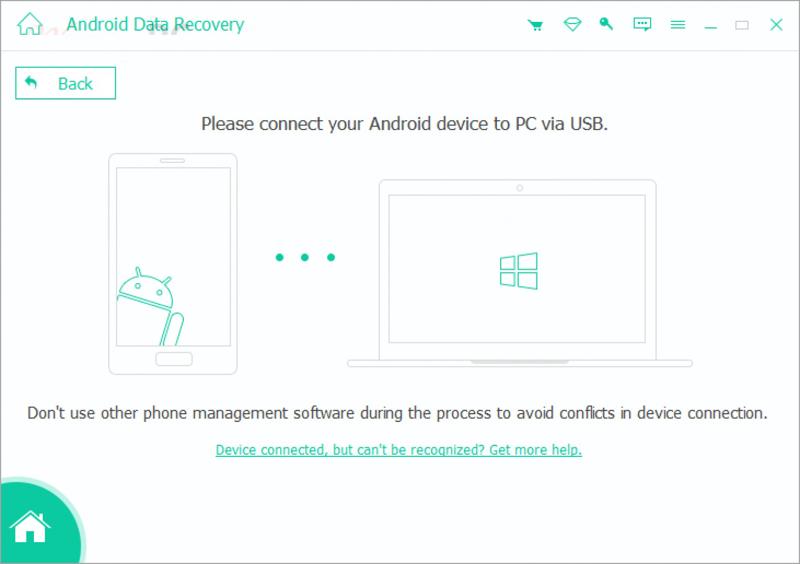
Launch the best data recovery software for Samsung after installing it on your PC. There is another version for Mac. Turn on the USB Debugging mode on your phone, and connect it to your PC with a USB cable.
Krok 2. Podgląd utraconych plików
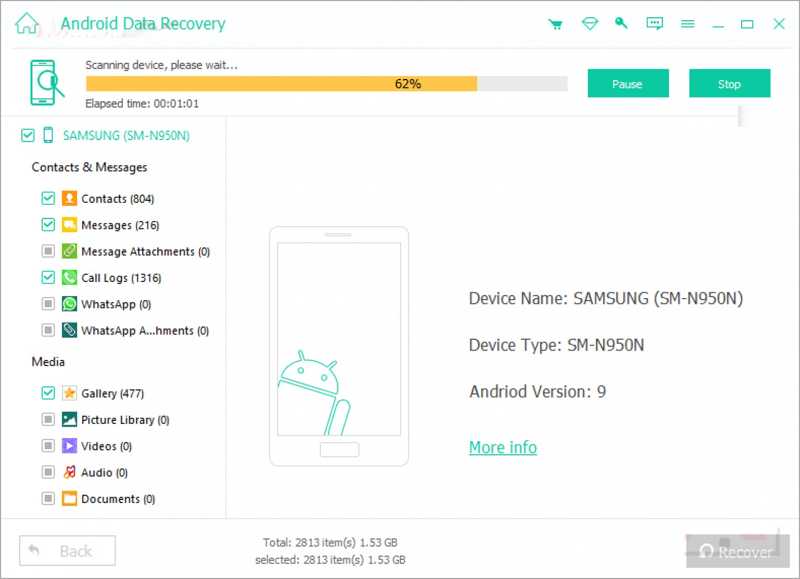
Authorize the software to access your device. Then, select the data types you want to recover. Click the Następna button to begin scanning your device. When it is done, you can preview data recoverable by type.

Krok 3. Recover Samsung data
Select the files and items you wish to get back, and click the Recover button at the bottom. Set an out folder and hit the Recover button again to confirm data recovery.
Podsumowanie
W tym przewodniku wyjaśniono how to factory reset a Samsung tablet or phone in various situations. The reset code is a quick way to perform a factory reset. You can access the Settings app to reset your device, too. If your phone is disabled, you have to put it in Recovery Mode and do a factory reset. Samsung SmartThings Find is an online tool for factory resetting. Apeaksoft Android Data Recovery is able to recover your data after factory resetting your Samsung device.
Powiązane artykuły
Możesz spróbować odzyskać notatki Samsunga z kopii zapasowej w chmurze Samsunga. Jeśli Ci się to nie uda, możesz użyć oprogramowania innej firmy, aby odzyskać notatki Samsunga bez kopii zapasowej.
Po przejściu z telefonu Samsung na iPhone'a możesz przenieść dane za pomocą aplikacji Move to iOS, komputera, usługi w chmurze i oprogramowania innych firm.
Tutaj możesz poznać cztery metody odzyskiwania danych z telefonu Samsung, nawet jeśli ekran telefonu nie włącza się lub jest uszkodzony.
Ten post oferuje szczegółowe wyjaśnienie ekranu blokady Samsunga. Dowiesz się, jak go łatwo skonfigurować, dostosować i usunąć.



