

Jak odzyskać utracone i usunięte kontakty na telefonie z Androidem

Telefony z Androidem wyposażone są w niesamowite funkcje, które uchronią Cię przed nieprzyjemnymi sytuacjami. Jedną z nich jest aplikacja Kontakty, preinstalowana na urządzeniach z Androidem. Umożliwia ona przechowywanie nieograniczonej liczby kontaktów i numerów telefonów. Dodatkowo, można nimi zarządzać, usuwając, dodając, przypisując nowe osoby, aktualizując i wiele więcej. Ten poradnik przedstawia kilka sprawdzonych metod… odzyskać usunięte numery telefonów z telefonu z systemem Android w różnych sytuacjach.
TREŚĆ STRONY:
Część 1: Jak znaleźć kontakty na karcie SIM w systemie Android
Gdzie Android przechowuje kontakty? W telefonie z Androidem kontakty można przechowywać w pamięci telefonu i na karcie SIM. W przypadku utraty kontaktów lokalnych można przywrócić usunięte kontakty z karty SIM i odwrotnie.
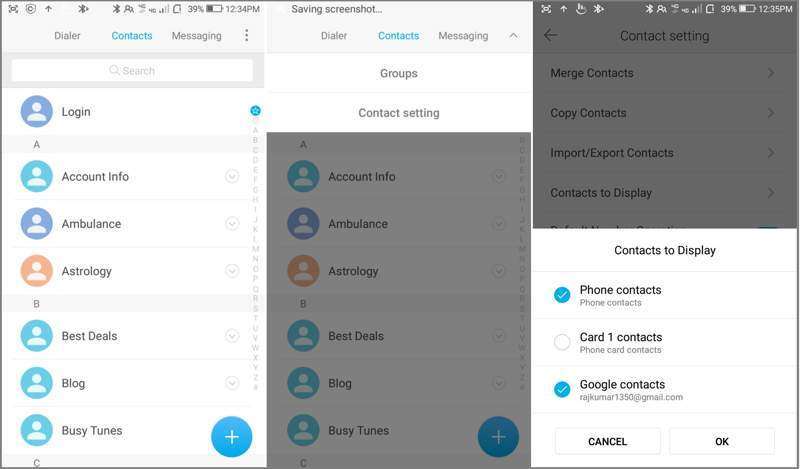
Krok 1. Otwórz wbudowany Kontakt Aplikację w telefonie.
Krok 2. Stuknij w Menu przycisk z ikoną trzech kropek.
Krok 3. Dodaj Kontakty do wyświetlenia kontynuować.
Krok 4. Następnie wybierz Phone Kontakty, jeśli przypadkowo usunąłeś kontakty na karcie SIM. Lub wybierz kartę SIM, jeśli usunąłeś kontakty w telefonie.
Krok 5. Stuknij w OK przycisk i możesz odzyskać usunięte kontakty z karty SIM w swoim urządzeniu z Androidem.
Część 2: Jak odzyskać kontakty z kosza
W niektórych modelach telefonów z systemem Android możesz odzyskać usunięte kontakty z folderu Kosz lub Kosz. Usunięte kontakty są przechowywane w tym folderze do 30 dni. Zanim zostaną trwale usunięte, możesz je przywrócić bezpośrednio na urządzeniu.
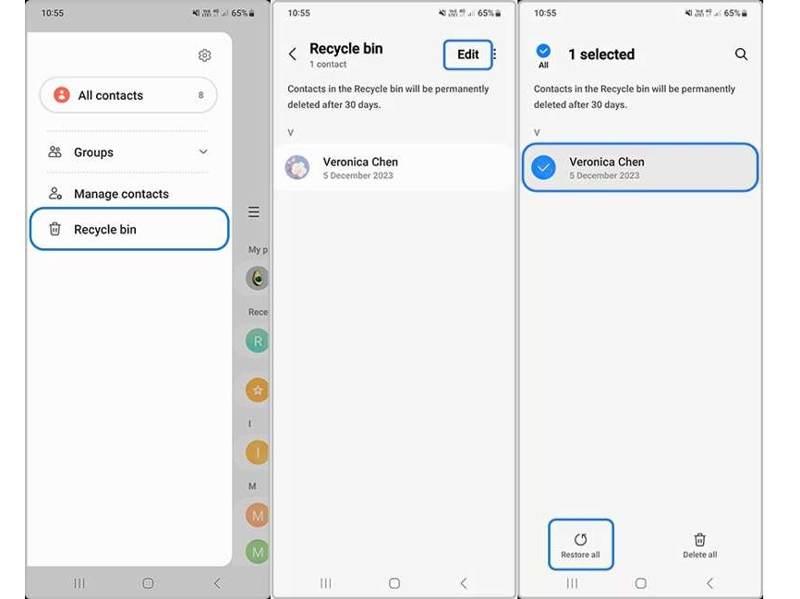
Krok 1. Uruchom aplikację Kontakty na pasku aplikacji.
Krok 2. Stuknij w Hamburger i wybierz Kosz or Kosz.
Krok 3. Uderz w Edytuj i wybierz kontakt, który chcesz odzyskać.
Krok 4. Następnie dotknij Przywracać przycisk umożliwiający przywrócenie usuniętych kontaktów na Androidzie.
Krok 5. Po zakończeniu możesz znaleźć kontakty na swojej liście kontaktów.
Uwaga: Jako przykład bierzemy telefon Samsung Galaxy. Przepływ pracy w telefonach innych marek może być inny, ale podobny.
Część 3: Jak odzyskać kontakty z Androida od Google
Po zakupie telefonu z Androidem należy go aktywować za pomocą konta Google. Jednocześnie możesz zsynchronizować kontakty i inne dane ze swoim kontem. Daje to możliwość przywrócenia kontaktów z Google do Androida.
Jak skopiować kontakty Google do systemu Android
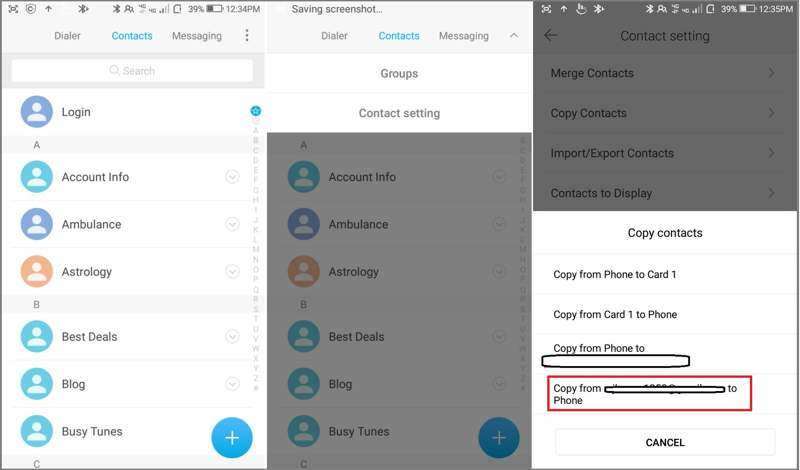
Krok 1. Otwórz aplikację Kontakty.
Krok 2. Stuknij w Menu przycisk z ikoną trzech kropek.
Krok 3. Dodaj Kopiuj kontakty z listy.
Krok 4. Następnie dotknij Kopiuj z [Twojego konta Google] na telefon.
Krok 5. Zaznacz pola wyboru obok wszystkich utraconych kontaktów i dotknij Skopiuj.
Jak odzyskać kontakty Google w aplikacji Kontakty na Androidzie
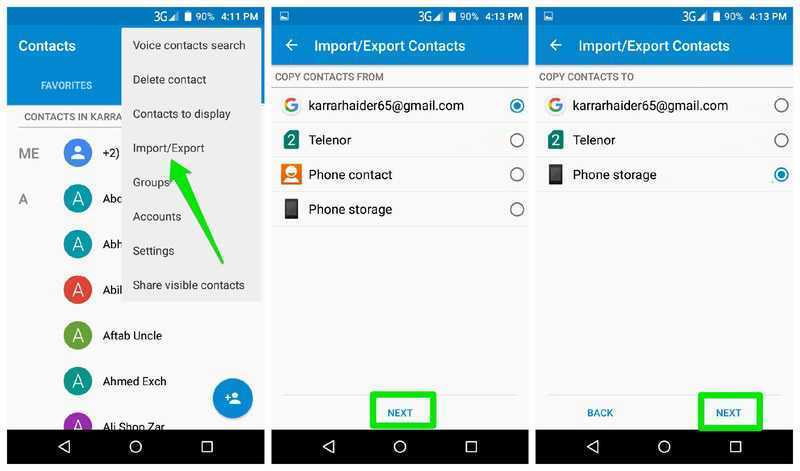
Krok 1. Stuknij w Menu w swoim Kontakt app.
Krok 2. Dodaj Import / Eksport z menu kontekstowego.
Krok 3. Wybierz swoje konto Google w KOPIUJ KONTAKTY Zi dotknij Następna.
Krok 4. Następnie wybierz pamięć swojego telefonu w SKOPIUJ KONTAKTY DO.
Krok 5. Na koniec kliknij Dalej i potwierdź odzyskiwanie kontaktów Google na urządzeniu z Androidem.
Jak odzyskać kontakty Google w Ustawieniach na Androidzie
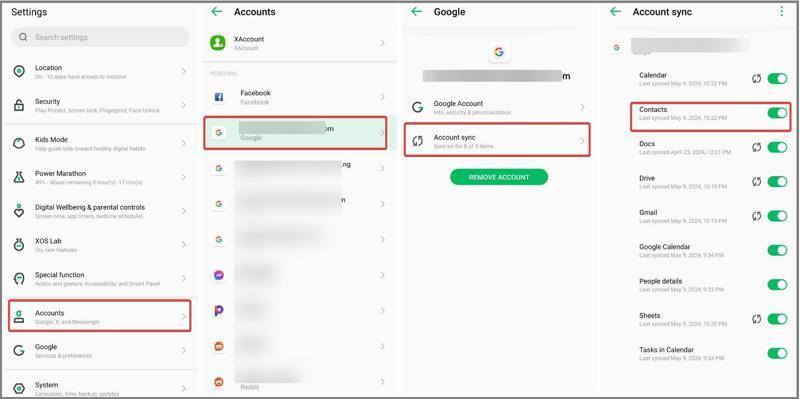
Krok 1. Po usunięciu kontaktów przejdź do Ustawienia aplikację i połącz swój telefon z Internetem.
Krok 2. Dodaj Hasło i konta i wybierz swoje konto Google.
Krok 3. Stuknij Synchronizacja konta i wyłącz Kontakt.
Krok 4. Następnie włącz Kontakt aby odzyskać usunięte kontakty na Androidzie.
Część 4: Jak przywrócić kontakty na Androidzie z kopii zapasowej
Telefony z Androidem mają wbudowaną funkcję tworzenia kopii zapasowych i przywracania danych, która korzysta z Google One do tworzenia kopii zapasowych większości danych. Jeśli wcześniej utworzyłeś/aś Android kopii zapasowej, możesz przywrócić usunięte kontakty na Androidzie.
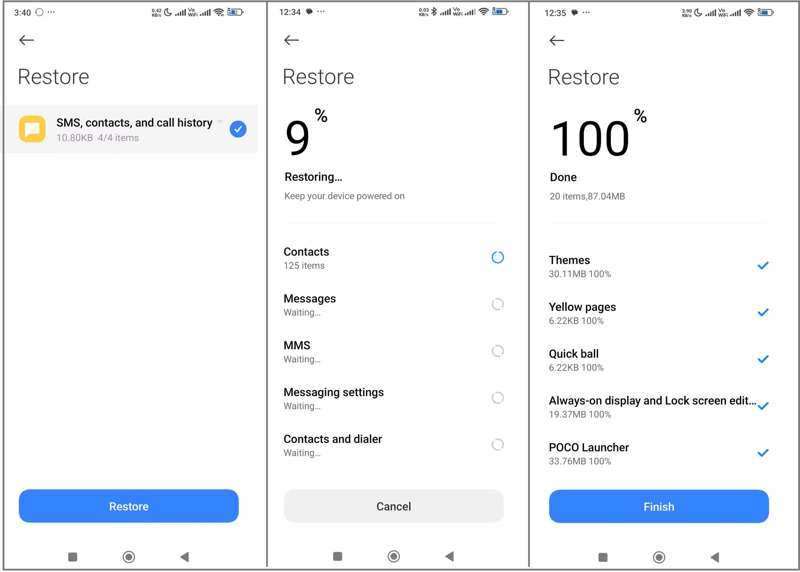
Krok 1. Uruchom Ustawienia app.
Krok 2. Dodaj Konfiguracja or O telefonie.
Krok 3. Stuknij Tworzenie kopii zapasowych i przywracania lub powiązaną opcję.
Krok 4. Wybierz odpowiednią kopię zapasową, w której przechowywane będą usunięte kontakty i dotknij Przywracać.
Krok 5. Krok 5: Następnie wybierz SMS-y, kontakty i historia połączeń i dotknij Przywracać ponownie.
Krok 6. Krok 6: Po wykonaniu tej czynności możesz znaleźć swoje kontakty w aplikacji Kontakty wbudowanej w systemie Android.
Część 5: Jak odzyskać kontakty z Androida bez kopii zapasowej
Jeśli nie zsynchronizowałeś ani nie utworzyłeś kopii zapasowej kontaktów, potrzebujesz zaawansowanego narzędzia do odzyskiwania danych, aby odzyskać usunięte kontakty na Androidzie bez kopii zapasowej. Odzyskiwanie danych Apeaksoft Android, na przykład potrafi wyodrębnić utracone kontakty z pamięci telefonu bez konieczności tworzenia kopii zapasowej.
Najlepszy sposób na odzyskanie kontaktów na Androidzie bez kopii zapasowej
- Odzyskaj usunięte kontakty bez kopii zapasowej.
- Dostępne na wypadek różnych sytuacji, w tym uszkodzenia urządzenia.
- Podgląd utraconych kontaktów w celu ich selektywnego odzyskania.
- Zachowaj styki w oryginalnym stanie.
- Obsługuje prawie wszystkie marki i modele telefonów z systemem Android.

Jak odzyskać kontakty z pamięci telefonu z systemem Android
Krok 1. Wykryj swój telefon
Uruchom najlepsze oprogramowanie do odzyskiwania kontaktów po zainstalowaniu go na komputerze. Włącz telefon i przejdź do Ustawienia aplikacja, wybierz Opcje programistycznei włącz debugowanie USB Następnie podłącz telefon do komputera kablem USB. Jeśli pojawi się monit, wybierz Przenieś pliki.

Krok 2. Podgląd kontaktów
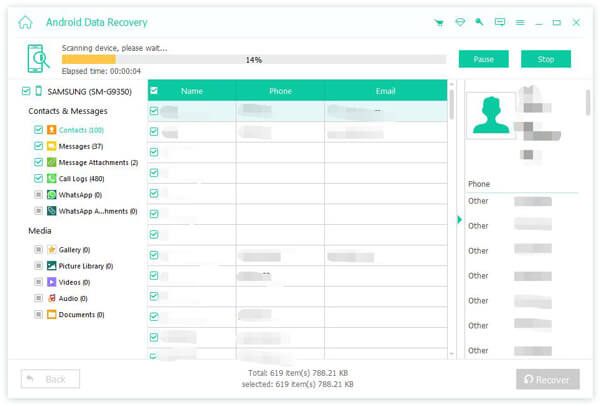
Zaznacz pole wyboru obok Kontakt i kliknij Następna Kliknij przycisk, aby rozpocząć skanowanie kontaktów, które można odzyskać na urządzeniu. Postępuj zgodnie z instrukcjami wyświetlanymi na ekranie, aby autoryzować i zezwolić na dostęp do urządzenia. Po zeskanowaniu włącz Wyświetlaj tylko usunięte elementy i przeglądaj usunięte kontakty.

Krok 3. Odzyskaj grupy wraz z numerami telefonów
Upewnij się, że wybrałeś kontakty, które chcesz odzyskać i kliknij Recover przycisk na dole. Jeśli nie możesz znaleźć poszukiwanych elementów, kliknij Głębokie skanowanie Aby wykonać głębokie skanowanie. Na koniec ustaw folder wyjściowy i potwierdź odzyskiwanie kontaktów z Androida. Możesz również użyć tego programu do odzyskaj usunięte filmy na Androida.
Podsumowanie
W tym przewodniku przedstawiono wiele sposobów przywróć kontakty na swoim Androidzie telefon. Po przypadkowym usunięciu kontaktów możesz je skopiować z karty SIM. Jeśli zsynchronizowałeś kontakty z kontem Google, możesz je skopiować, zaimportować lub pobrać na telefon. Co więcej, kopia zapasowa pozwala szybko odzyskać kontakty. Apeaksoft Android Data Recovery umożliwia odzyskanie utraconych kontaktów z pamięci telefonu bez pliku kopii zapasowej.
Powiązane artykuły
Czy kiedykolwiek przypadkowo usunąłeś pliki na swoim Androidzie? Ten post pokaże, jak odzyskać usunięte pliki z Androida, nawet jeśli wcześniej nie zrobiłeś kopii zapasowej!
W tym artykule dowiesz się, jak wyświetlić zablokowane wiadomości na urządzeniach z systemem Android takich marek jak Samsung, Google Pixel, One Plus, Asus, Motorola i inne.
Szukasz najlepszego oprogramowania do odzyskiwania danych z Androida? Jak wybrać najlepsze oprogramowanie do odzyskiwania danych z Androida na rynku, skoro tak wiele z nich twierdzi, że jest najlepsze?
Google może tworzyć kopie zapasowe i przywracać dane z Twojego urządzenia, sprawnie zarządzając Twoimi danymi. Ten poradnik pokaże Ci, jak odzyskać kopię zapasową Google na Androidzie.



