

Como recuperar fotos apagadas de dispositivos Samsung

A exclusão acidental de fotos é um problema comum, mas não se preocupe, existem vários métodos para recuperá-las. Claro, ainda é estressante perder fotos preciosas em seu dispositivo Samsung devido a falhas de software, exclusão acidental, falha do cartão SD, restauração de fábrica e outros motivos. Aqui está um guia prático que identifica métodos comprovados para ajudá-lo(a). Recuperar fotos apagadas no Samsung Utilizando funcionalidades integradas, serviços em nuvem e técnicas avançadas.
CONTEÚDO DA PÁGINA:
- Parte 1: Recuperar uma foto da Lixeira em um dispositivo Samsung
- Parte 2: Recuperar fotos do Google Fotos em um Samsung
- Parte 3: Encontre fotos apagadas no Samsung Cloud.
- Parte 4: Restaurar fotos no Samsung a partir do Smart Switch
- Parte 5: Método definitivo para recuperar fotos do Samsung sem backup
Parte 1: Recuperar uma foto da Lixeira em um dispositivo Samsung
Ao excluir uma foto no aplicativo Galeria da Samsung, ela será movida para a Lixeira e armazenada lá por até 30 dias. Antes de ser apagada permanentemente, você pode recuperar fotos excluídas no seu dispositivo Samsung.
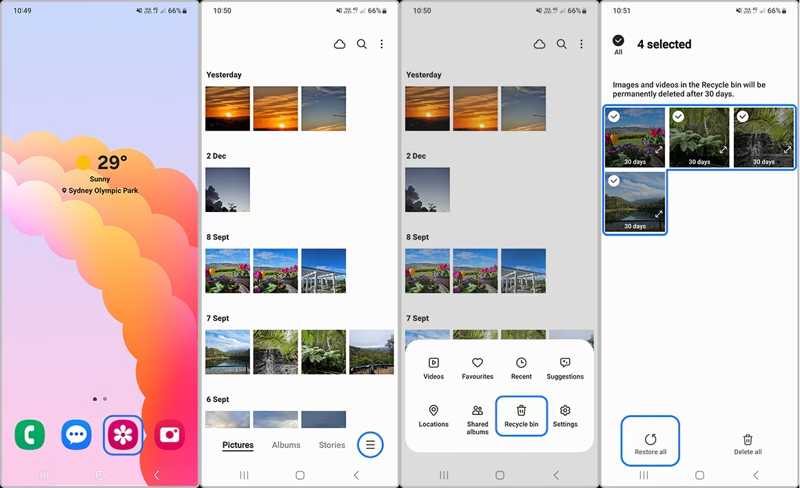
Passo 1. Abra o seu Galeria app.
Passo 2. Toque em Hambúrguer botão na parte inferior e escolha Lixeira.
Passo 3. Toque em Editar botão.
Passo 4. Selecione as fotos que deseja recuperar e toque em Restaurar tudo.
Parte 2: Recuperar fotos do Google Fotos em um Samsung
Alguns usuários da Samsung preferem armazenar suas fotos no Google Fotos. Ele armazena as fotos excluídas na Lixeira por até 60 dias. Depois disso, essas fotos serão excluídas permanentemente. Antes desse período, você pode encontrar as fotos excluídas no seu celular Samsung.
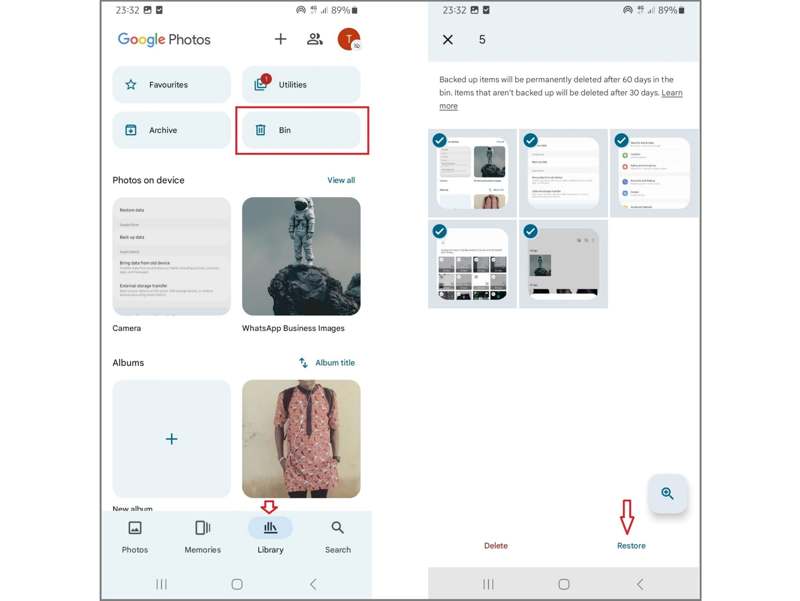
Passo 1. execute o Google Fotos Aplicativo no seu telefone.
Passo 2. Vou ao Biblioteca aba na parte inferior.
Passo 3. Escolha o Caixa álbum para visualizar fotos excluídas recentemente.
Passo 4. Toque em cada foto que deseja recuperar.
Passo 5. Toque em Restaurar botão e confirme sua ação.
Parte 3: Encontre fotos apagadas no Samsung Cloud.
Se você configurou Backup da nuvem da Samsung No aplicativo Galeria, suas fotos podem estar salvas em sua conta. Em outras palavras, você pode recuperar fotos apagadas de um celular Samsung. O pré-requisito é ter um backup.
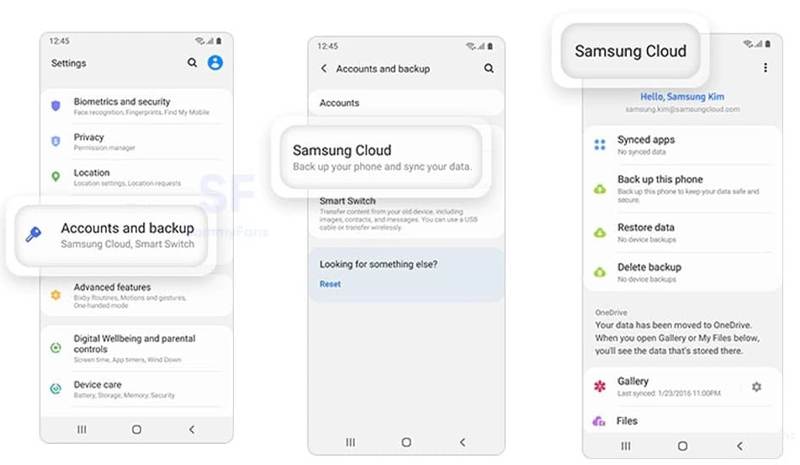
Passo 1. execute o Configurações aplicativo no seu telefone Galaxy.
Passo 2. Torneira Contas e backupe escolha Samsung Nuvem.
Passo 3. Selecionar Galeria Para visualizar as fotos armazenadas em backup.
Passo 4. Em seguida, toque no Restaurar Botão para restaurar fotos apagadas no celular Samsung.
Parte 4: Restaurar fotos no Samsung a partir do Smart Switch
Interruptor Inteligente é o serviço oficial de backup para usuários da Samsung. Ele permite fazer backup de fotos de um dispositivo Samsung para um computador ou cartão SD. Além disso, caso você exclua fotos acidentalmente, é possível restaurar as fotos excluídas no seu Samsung.
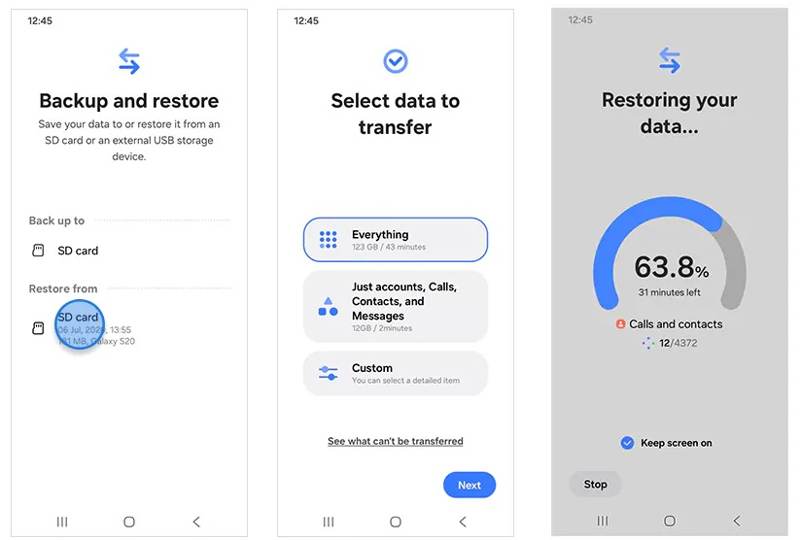
Passo 1. Execute o aplicativo Smart Switch no seu telefone.
Passo 2. Insira o cartão SD de backup no seu dispositivo.
Passo 3. Escolha Faça backup e restaure seus dadose toque em Continuar.
Passo 4. Em seguida, selecione o cartão SD sob a Restaurar de seção.
Passo 5. Torneira Tudo or Molduras por Medida e escolha fotos.
Passo 6. Acertar Seguinte Para iniciar a restauração, você poderá verificar as fotos excluídas no seu Samsung.
Parte 5: Método definitivo para recuperar fotos do Samsung sem backup
Se você não tiver um backup, é difícil recuperar fotos apagadas permanentemente em um dispositivo Samsung. Felizmente, Apeaksoft Android Data Recovery Pode ajudar você a resolver esse problema. Ele consegue escanear a memória do seu telefone e encontrar fotos, vídeos e outros arquivos perdidos. Mais importante ainda, permite recuperar fotos perdidas em dispositivos Samsung sem interferir nos dados existentes no seu telefone.
A melhor maneira de recuperar fotos do Samsung sem backup.
- Recupere fotos apagadas permanentemente do seu Samsung.
- Visualize fotos apagadas e encontre arquivos específicos.
- Disponível para quase todas as situações.
- Recuperar fotos perdidas de dispositivos Samsung danificados.
- Compatível com uma ampla gama de celulares e tablets Samsung.
Download seguro
Download seguro

Como recuperar fotos de um Samsung sem backup
Passo 1. Conecte-se ao seu telefone
Após instalar o melhor software de recuperação de fotos no seu computador, execute-o. Certifique-se de ativar o modo de depuração USB no seu celular Samsung e conecte-o ao computador com um cabo USB. Se solicitado, selecione Transferir fotos or Transferir arquivos.

Passo 2. Digitalizar fotos
Assim que o software detectar seu dispositivo, marque as caixas ao lado dos tipos de dados desejados, como por exemplo: Galeria, Biblioteca de Imagens, e mais. Clique no Seguinte Botão para digitalizar fotos no seu telefone.

Passo 3. Recuperar fotos excluídas
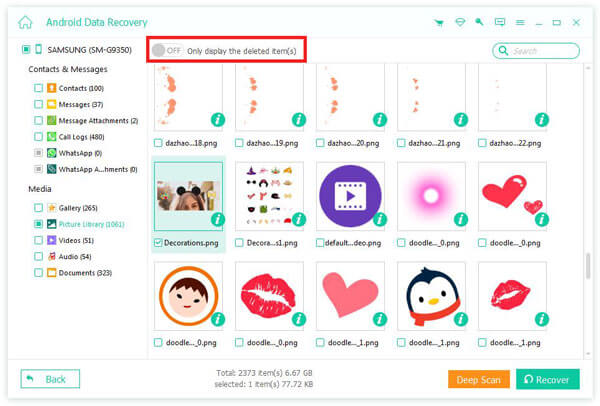
Quando terminar, você poderá visualizar as fotos recuperáveis no seu dispositivo. Se houver muitas fotos, habilite a opção correspondente. Exibe apenas os itens excluídos na parte superior da tela. Se não encontrar as fotos desejadas, clique Varredura profunda. Finalmente, clique no Recuperar botão, defina uma pasta de saída e confirme.
Conclusão
Agora, você deve entender Como recuperar fotos apagadas no seu Samsung Seja no seu celular ou tablet, a Lixeira nos aplicativos Galeria e Google Fotos permite recuperar fotos apagadas recentemente. Além disso, você pode encontrar fotos perdidas no backup do Samsung Cloud ou do Smart Switch, caso tenha feito backup do seu dispositivo. Apeaksoft Android Data Recovery É a melhor opção para restaurar fotos mesmo que você não tenha um backup.
Artigos Relacionados
Ao mudar do Samsung para o iPhone, você pode transferir dados usando o aplicativo Move to iOS, computador, serviço de nuvem e software de terceiros.
Aqui você pode aprender quatro métodos para recuperar dados de um telefone Samsung, mesmo que a tela do telefone não ligue ou esteja quebrada.
Este artigo oferece uma explicação detalhada da tela de bloqueio da Samsung. Você aprenderá como configurá-la, personalizá-la e removê-la facilmente.
Para fazer backup de mensagens em dispositivos Samsung, você pode usar o Apeaksoft Android Data Backup & Restore, o serviço Samsung Cloud ou aplicativos móveis.



