

Varför kan du inte ta bort foton på din iPhone och åtgärda problemet?

"Min iPhone X-lagring är full, men jag kan inte radera foton. När jag försöker radera foton går det inte att radera dem, och de dyker bara upp igen." Varför kan jag inte radera foton på min iPhoneEftersom iOS är ett slutet operativsystem kan du inte utöka det interna minnet. Därför måste användare frigöra utrymme regelbundet för att bibehålla prestandan. Om du stöter på samma problem, följ våra lösningar för att åtgärda det.
SIDINNEHÅLL:
Del 1: Varför iPhone inte tar bort foton
Innan vi går igenom lösningarna för felet om att din iPhone inte raderar foton, låt oss diskutera varför problemet uppstår. Den goda nyheten är att problemet oftast orsakas av programvarufel. Vanliga orsaker inkluderar:
- 1.Dina foton har synkroniserats med iCloud.
- 2.Dina foton har synkroniserats med iTunes.
- 3.Du kan inte ta bort foton i Delade album som lagts till av andra.
- 4.Otillräckligt lagringsutrymme.
- 5.Programvarufel.
Del 2: Hur man fixar problemet med att foton inte kan raderas från iPhone
Lösning 1: Starta om din iPhone
Om din iPhone inte låter dig radera foton är det första du kan göra att starta om enheten. Även om den här lösningen är enkel kan den snabbt lösa grundläggande problem. Sedan kan du ta bort foton på din iPhone igen.
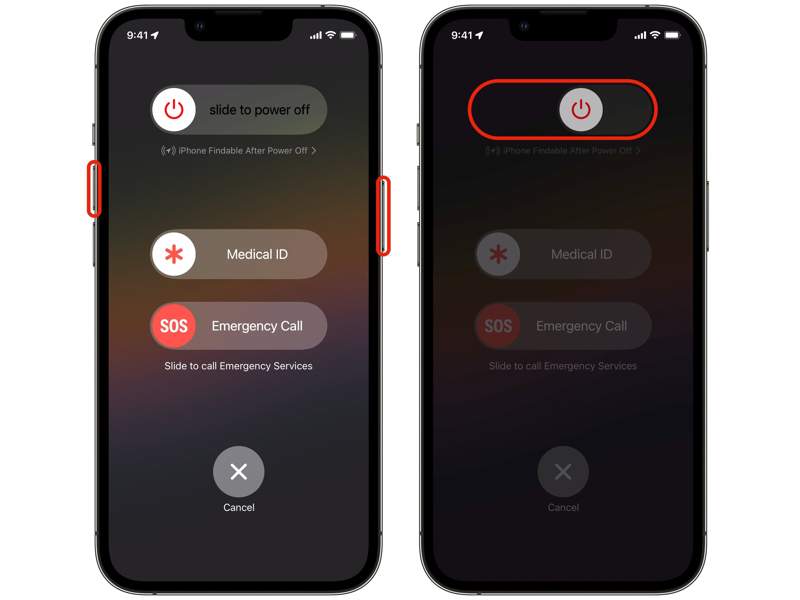
Steg 1. Håll antingen volymknappen och sidoknappen samtidigt tills avstängningsskärmen visas.
För iPhone utan Face ID, tryck länge på sidoknappen eller viloläges-/väckningsknappen för att utlösa avstängningsskärmen.
Steg 2. Flytta reglaget för att stänga av din iPhone.
Steg 3. Några minuter senare håller du ner sidoknappen eller viloläge/väckningsknappen tills du ser Apple-logotypen.
Steg 4. Slå sedan på enheten, gå till appen Foton och ta bort oönskade foton.
Lösning 2: Kontrollera iCloud-foton
Om du har synkroniserat foton till iCloud och valt Optimera iPhone-lagring kommer dina foton att hamna i molnservern. Det leder till att du inte kan ta bort foton från din iPhone eftersom de inte finns i ditt minne.
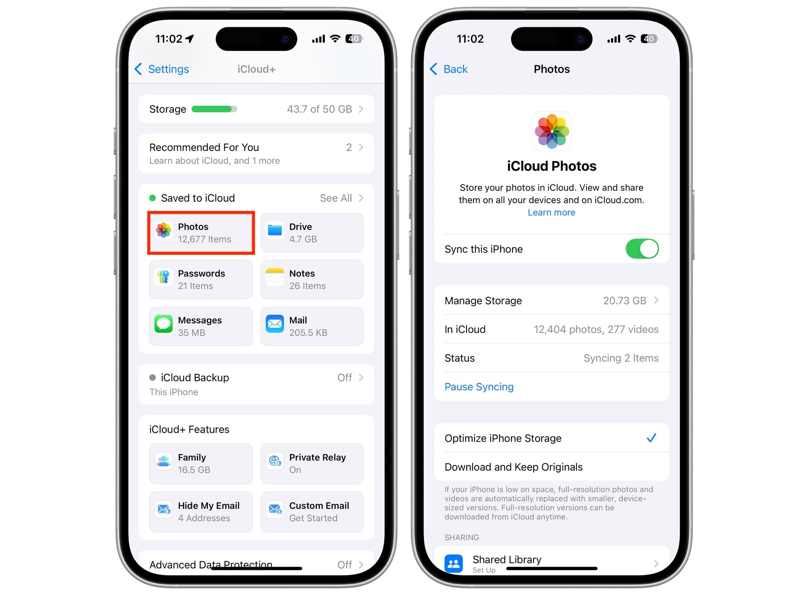
Steg 1. Kör Inställningar app på din iPhone.
Steg 2. Tryck på din profil och välj icloud.
Steg 3. Tryck Fotogalleri under Sparad till iCloud området.
Steg 4. If Synkronisera denna iPhone är aktiverat, se till att välja Hämta och behåll original.
Steg 5. Gå sedan till Fotogallerioch radera oönskade foton.
Lösning 3: Ta bort foton permanent
När du har raderat dina foton i Kamerarullen hamnar de i albumet Nyligen raderade och stannar där i upp till 30 dagar. Med andra ord tar de fortfarande upp ditt lagringsutrymme, och du kan få ett felmeddelande om att iPhone-lagringen är full och att du inte kan radera foton.
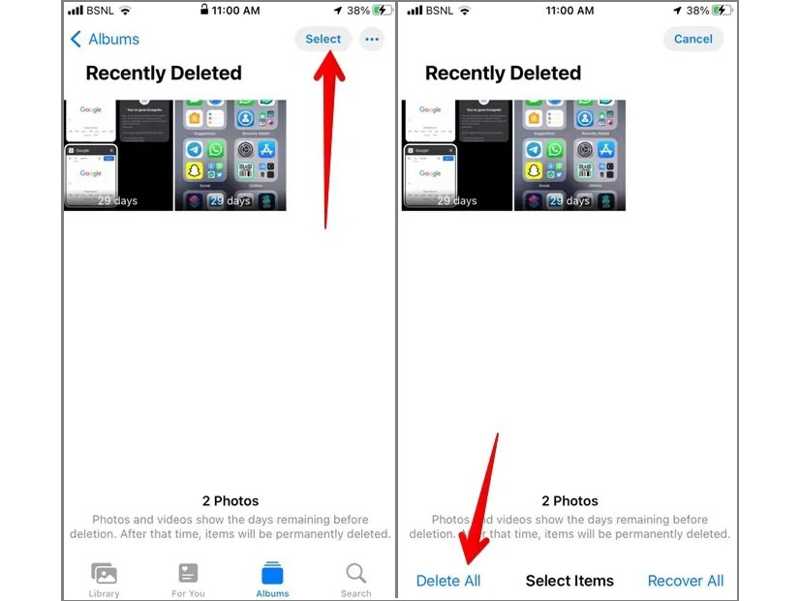
Steg 1. Öppna Fotogalleri app på din iPhone.
Steg 2. Gå till album fliken och välj Nyligen raderad.
Steg 3. Tryck på Snarare knapp med en ikon med tre punkter.
Steg 4. Sedan, slå Borttaget på botten.
Steg 5. Bekräfta din åtgärd när du uppmanas till det.
Lösning 4: Stäng av iTunes-synkronisering
iTunes kan säkerhetskopiera dina foton. Om du har aktiverat fotosynkronisering i iTunes kanske din iPhone inte raderar foton. Det är bäst att inaktivera iTunes-synkronisering och koppla bort din iPhone. Då kan problemet ha försvunnit.
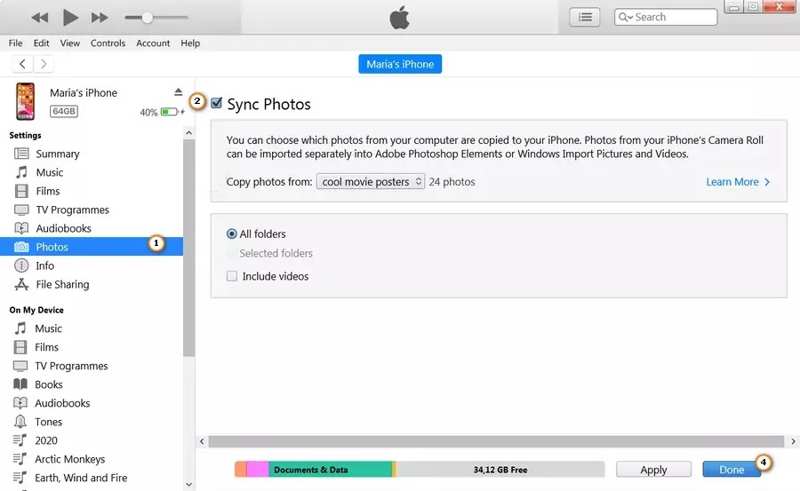
Steg 1. Anslut din iPhone till din dator med en USB-kabel.
Steg 2. Öppna den senaste versionen av iTunes.
Steg 3. När din enhet har upptäckts klickar du på Telefon: knapp.
Steg 4. Gå till Fotogalleri fliken under Inställningar.
Steg 5. Avmarkera synkroniserings Bilder, och klicka Ansök.
Lösning 5: Uppdatera iOS
Föråldrad programvara kan leda till diverse problem, inklusive att iPhone inte raderar foton. Apple åtgärdar buggar och lägger till nya funktioner i varje uppdatering. Därför bör du hålla din iOS uppdaterad.
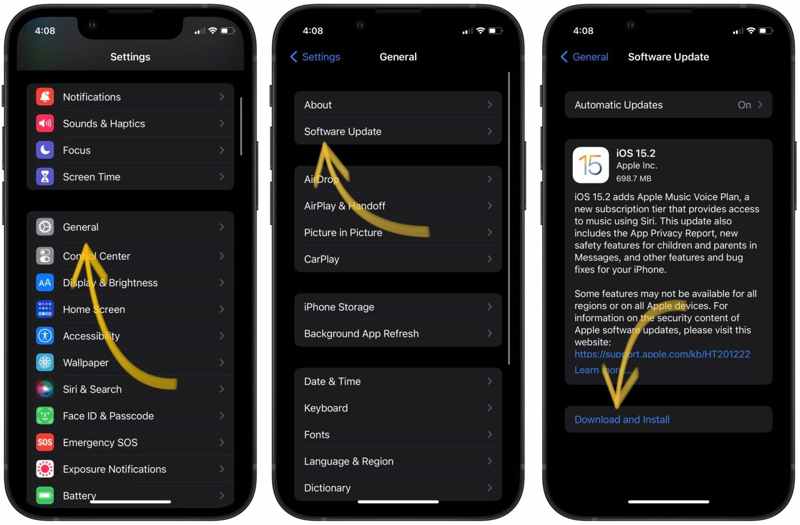
Steg 1. Bege dig till Allmänt i din Inställningar app.
Steg 2. Tryck Programuppdatering för att söka efter uppdateringar.
Steg 3. Om en uppdatering är tillgänglig trycker du på Hämta och installera knapp.
Steg 4. Följ instruktionerna på skärmen för att installera det.
Del 3: En enda lösning för att ta bort iPhone-foton
Apeaksoft iPhone Eraser är en komplett lösning för att åtgärda om iPhone inte raderar foton. Den kan tvångsvis ta bort alla foton från din iPhone och frigöra utrymme. Det intuitiva gränssnittet gör den enkel att använda.
En enda lösning för att ta bort foton från din iPhone
- Tvinga borttagning av foton på din iOS-enhet med ett klick.
- Använd avancerad teknik för att ta bort foton utan återställning.
- Förhandsgranska och hantera iPhone-foton.
- Stöd de senaste versionerna av iOS och iPadOS.

Hur man tar bort iPhone-foton
Steg 1. Länk till din iPhone
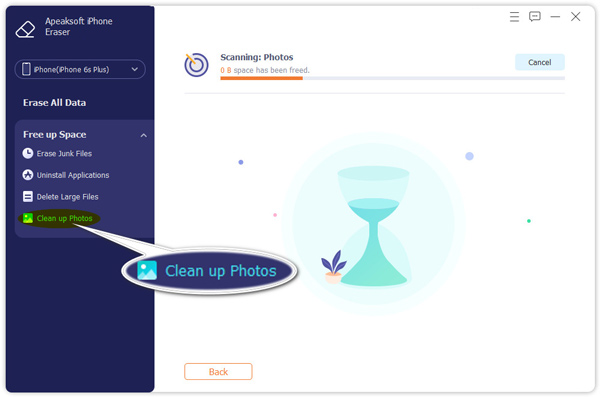
Starta programvaran för fotoradering efter att du har installerat den på din dator. Anslut din iPhone till din dator med en kompatibel kabel. Klicka på Frigör utrymme, och välj Rensa upp foton.
Steg 2. Radera foton på iPhone
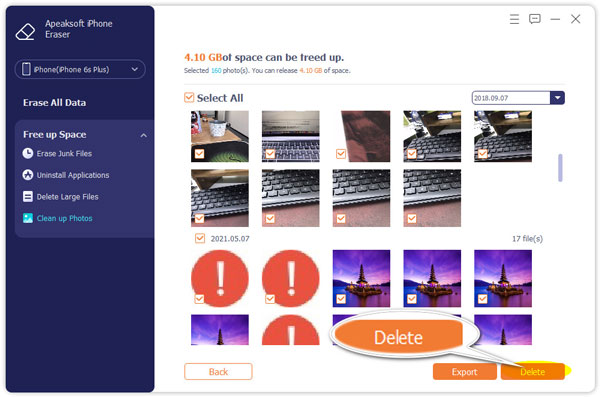
Klicka på Exportera & ta bort knappen för att skanna foton på din iPhone. Markera oönskade foton. För att ta bort alla foton, markera Markera allt. Slutligen klickar du på Radera knappen. Du kan också radera din iPhone med det här programmet.
Slutsats
Nu borde du förstå vad du kan göra om du iPhone raderar inte fotonDet här problemet orsakas vanligtvis av programvarufel, begränsat lagringsutrymme, felaktiga inställningar och mer. Du kan följa våra vanliga lösningar för att bli av med problemet. Apeaksoft iPhone Eraser kan hjälpa dig att snabbt radera alla foton eller specifika foton från din enhet.
Relaterade artiklar
Om du har för många kontakter på din iOS-enhet kan du följa vår guide för att snabbt radera kontakter på din iPhone.
Lär dig hur du kontrollerar iPhones batteristatus och rensar användningshistoriken med vår snabba och tydliga guide för bättre enhetsprestanda.
För att återställa den borttagna Kalender-appen på din iPhone kan du installera om den från App Store, kontrollera den i Appbiblioteket eller återställa startsidan.
Vill du dela ett affärsschema i kalendern på iPhone med dina kollegor? Lär dig bara mer information om de bästa metoderna från artikeln.



