

How to Delete Games on iPhone and Erase Game Data Completely

Want to free up space or remove games you no longer play? Deleting iPhone games is simpler than you think! This guide shows you how to delete games on iPhone safely from Settings, Home Screen, or App Library, and how to permanently erase leftover data if needed.
SIDINNEHÅLL:
Part 1: How to Delete Games on iPhone from Settings
If you want to free up storage or remove games that you no longer play, deleting games directly from iPhone Settings is the easiest and most effective method. In Settings, you can see how much storage space each game takes up. Follow the steps below to clear the game data safely and quickly on iPhone.
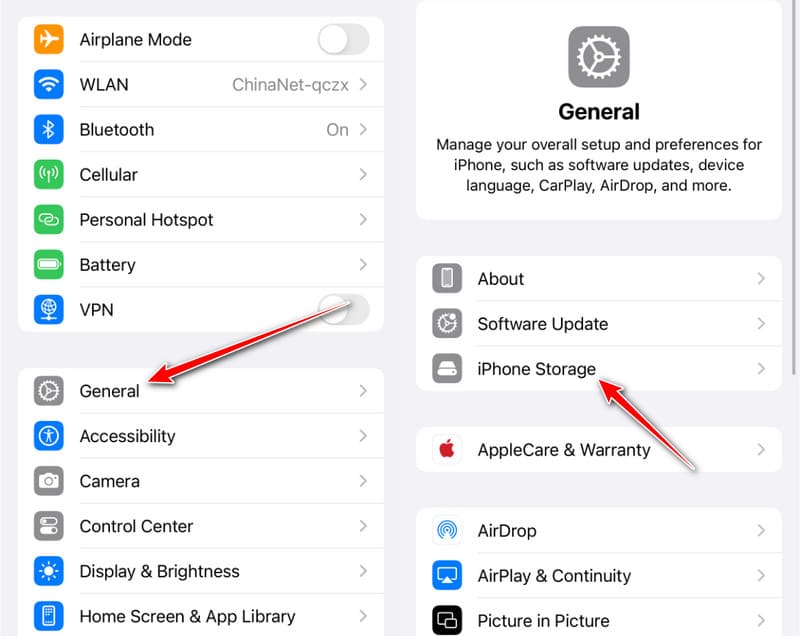
Steg 1. Öppet Inställningar på din iPhone.
Steg 2. Klicka Allmänt > iPhone-lagring.
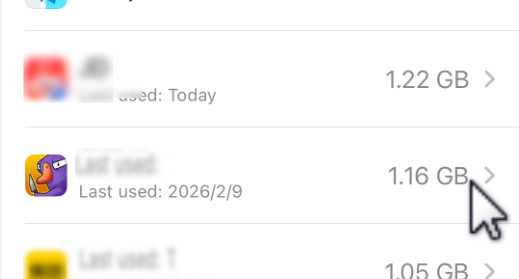
Steg 3. Tap the game app.
Steg 4. Klicka på Radera app knappen och välj Radera att bekräfta.
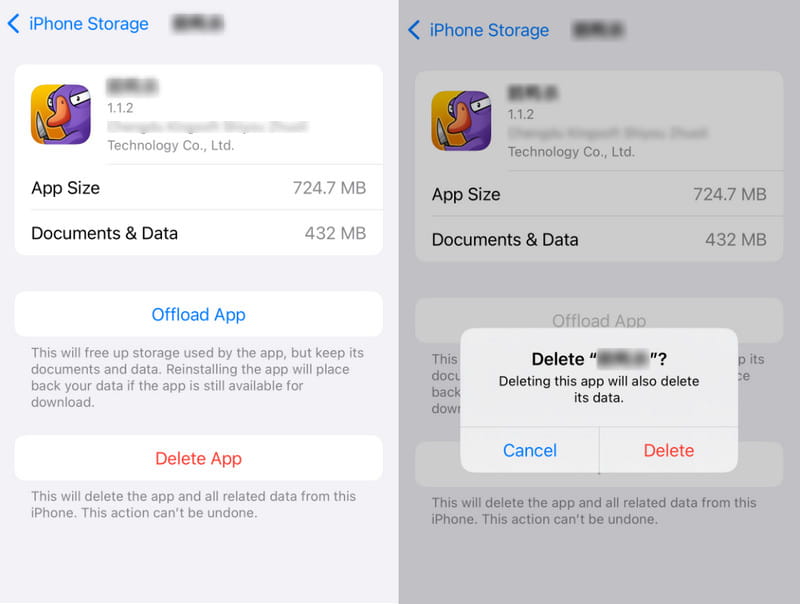
Tips: Choose "Offload" instead of "Delete". If you plan to use the app again later, it's recommended to choose the Avlastningsapp option. This will free up the storage used by the app while keeping your data intact. When you reinstall the app, your data will be automatically restored.
Part 2: Delete iPhone Games from Home Screen
Deleting games directly from the Home Screen is the quickest way to remove iPhone games you no longer play. It only takes a few seconds and there is no need to open Settings. Follow the steps below to learn how to erase game data on iPhone.
Steg 1. Locate the game app that you no longer need.
Steg 2. Tap and hold the game icon and select the Ta bort appen alternativ.
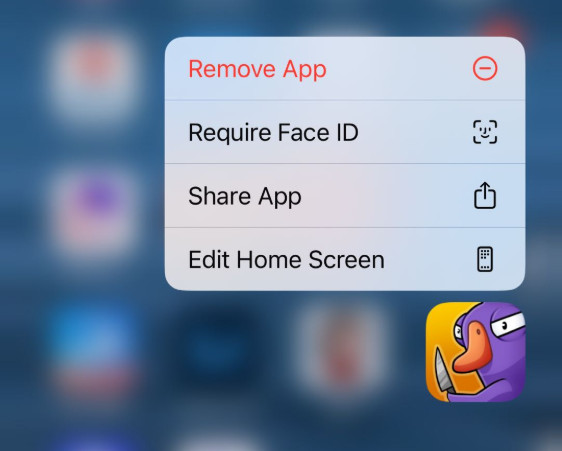
Steg 3. Klicka Radera app, and then the game app on your iPhone is gone.
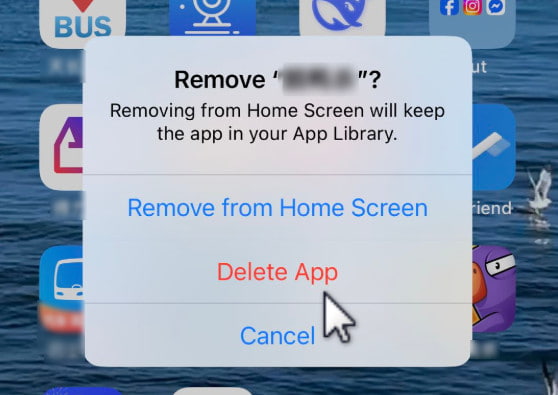
Tips: Remove from Home Screen: This option only removes the app icon from your Home Screen. You can find the app in the App Library. If you don't want the game to appear too obvious on your Home Screen without uninstalling the game, you can choose this mode.
Part 3: Delete Games from iPhone from App Library
If you can’t find a game on your Home Screen and you haven't deleted it before, it may be stored in the App Library. You can also delete games directly from there without going into Settings. Follow the steps below to remove a game from your iPhone through the App Library.
Steg 1. Swipe left to access the App-bibliotek.
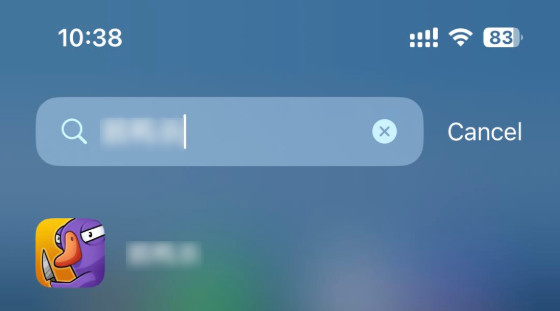
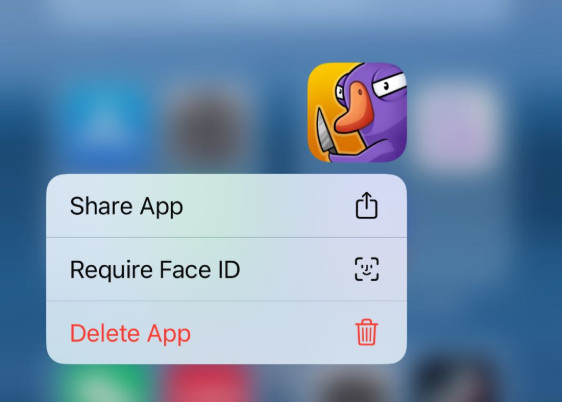
Steg 2. Long-press the game app. If you cannot find the game app, you can search in the top box.
Steg 3. Välja Radera app.
Tips: You can also follow similar ways to radera Snapchat på iPhone.
Part 4: How to Completely Remove iPhone Games and Prevent Data Recovery
Game deleted. Icon gone. But is your data truly gone? We're afraid not. The truth is, it may still be recoverable.
iOS simply marks that space as "available to overwrite" - the actual data remains on the device until new files happen to write over it. Data recovery tools are specifically designed to scan this unmarked space. Game saves, chat logs, cached images, even login credentials - all recoverable.
Om du är:
- Planning to sell or trade in your old iPhone
- Not fully confident in Apple’s factory reset
Then this is where Apeaksoft iPhone Eraser kommer in
What Sets Apeaksoft iPhone Eraser Apart from iOS’s Built-in Deletion?
iOS does not truly erase your data. It merely marks the storage space as reusable and hides files from the user interface. Recovery tools scan precisely this unmarked space. Apeaksoft, by contrast, actively overwrites that space with random characters - once, three times, or seven passes, depending on the level you select. Once overwritten, nothing comes back.
Delete Game Data on iPhone Thoroughly
- 3 erasing levels to protect your personal game data.
- Completely removes leftover game files that iOS deletion leaves behind.
- Prevents any chance of recovering game saves, chat logs, or cached images.
- Kompatibel med alla iPhone-modeller och iOS-versioner.
Steg-för-steg-guide
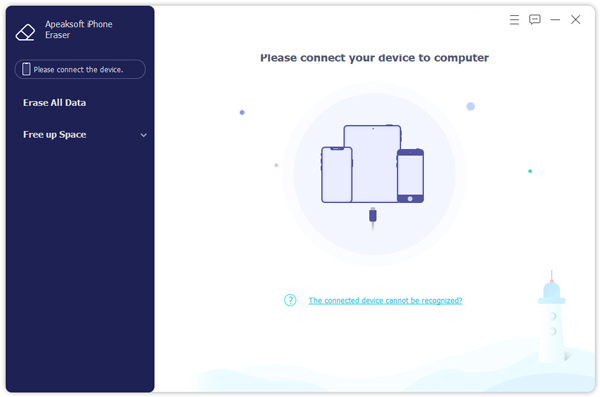
Steg 1. Connect your device to this software and select Frigör utrymme i den vänstra panelen.
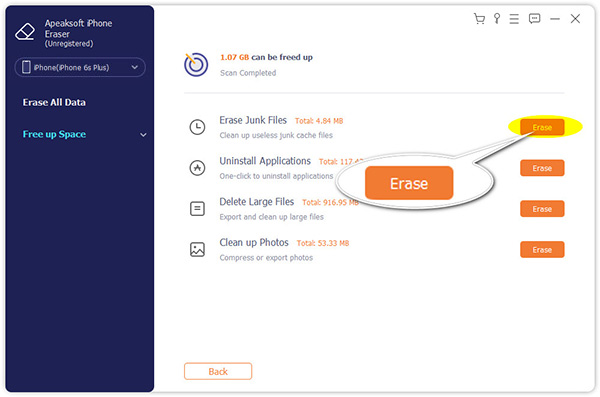
Steg 2. Klicka Radera efter Avinstallera applikationer.
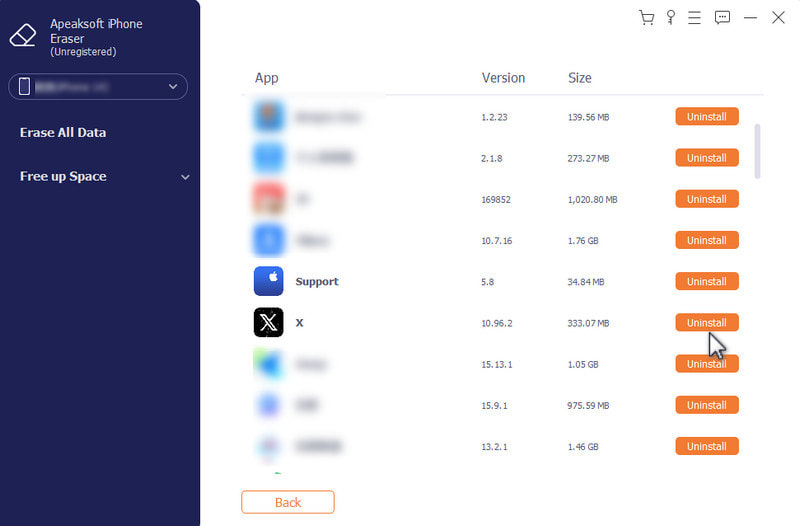
Steg 3. Klicka Avinstallera after the game app.
Part 5: FAQs About Deleting Games on iPhone
Are my Game Center profile or achievements gone when I uninstall games on iPhone?
Deleting iPhone games does not remove your profile or achievements. Go to Settings > Game Center to manually sign out or remove the account.
Will my subscription be canceled automatically after erasing games on iPhone?
Deleting the game does not cancel its subscription. You must cancel via Inställningar > [Ditt namn] > abonnemang.
If I delete a game from my iPhone, is it completely gone?
Deleting the game app only removes it from your device and frees up local storage, but the actual data may still exist until overwritten. If you want to ren iPhone till salu, you'd better use tools like Apeaksoft iPhone Eraser to permanently erase residual game data.
Slutsats
It doesn’t have to be complicated to delete games on iPhone. You have 3 reliable options: via Settings, from the Home Screen, or through the App Library. If you worry about leftover data, tools like Apeaksoft iPhone Eraser can help you erase game data permanently and thoroughly.
Relaterade artiklar
Du borde kunna radera låtar från din iPod touch/nano/shuffle/mini med eller utan iTunes genom att följa vår konkreta handledning.
Den här handledningen förklarar hur du tar bort musik från din iPhone i Apple Music-appen, Inställningar-appen, iTunes och mer effektiva verktyg.
Om du inte kan ta bort foton från din iPhone delar vår artikel sex effektiva lösningar för att åtgärda problemet och frigöra utrymme.
För att skydda din privata information bör du regelbundet radera meddelanden och chattar på din iPhone i olika situationer.



