


Så här tar du bort AirPods från ditt Apple-konto snabbt

AirPods är trådlösa öronsnäckor och hörlurar som släppts av Apple. De integreras sömlöst med Apple-enheter. Tack vare aktiv brusreducering och andra avancerade funktioner är Apple AirPods populära bland iPhone-, iPad- och Mac-användare. När du parar ihop dina AirPods med en iOS- eller Mac-enhet läggs det länkade Apple-kontot till i öronsnäckorna. Således kan du spåra dem via Hitta mina. Innan du säljer, ger bort, returnerar eller återvinner dina öronsnäckor, följ vår guide till ta bort AirPods från Apple ID.
SIDINNEHÅLL:
Del 1: Så här tar du bort AirPods från Apple ID på iPhone/Mac
Enligt Apple kan du ta bort AirPods från ditt Apple-ID i Hitta min-appen på en Apple-enhet. Annars kan du inte para ihop AirPods med en iPhone som är länkad till ett annat Apple-konto. Processen kräver ditt Apple-konto och lösenord.
Hur man tar bort AirPods från Apple ID på iPhone
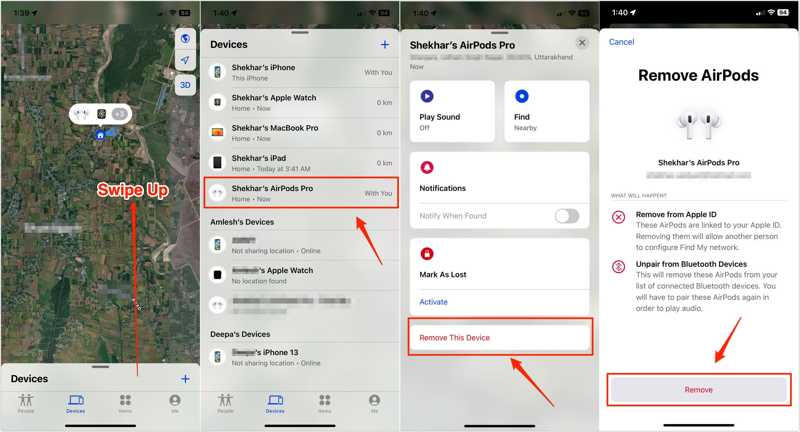
Steg 1. Öppna Hitta mig app på din iPhone.
Tips: Om du använder ett annat Apple-konto på iPhone loggar du in med kontot som är länkat till dina AirPods i Hitta mina.
Steg 2. Gå till Enheter fliken längst ner.
Steg 3. Välj dina AirPods från listan för att spåra dem på kartan.
Steg 4. Svep uppåt från botten för att expandera verktygsfältet och tryck på Ta bort den här enheten.
Steg 5. Klicka sedan på ta bort igen för att bekräfta det.
Så här tar du bort AirPods från Apple ID på Mac
Steg 1. Kör Hitta min-appen på din Mac. Du kan installera den gratis från App Store.
Steg 2. Gå till Enheter och välj dina AirPods.
Steg 3. Klicka på Mer information knappen på kartan.
Steg 4. Klicka på Ta bort den här enheten knapp.
Obs: Att bara återställa AirPods till fabriksinställningarna tar inte bort dem från Apple-ID.
Del 2: Så här tar du bort AirPods från Apple ID på webben
Enligt Apple kan man inte ta bort Apple-ID från AirPods utan den tidigare ägaren. Om du har ett par begagnade AirPods kan du be den tidigare ägaren att slutföra jobbet på distans via Hitta min-portalen.
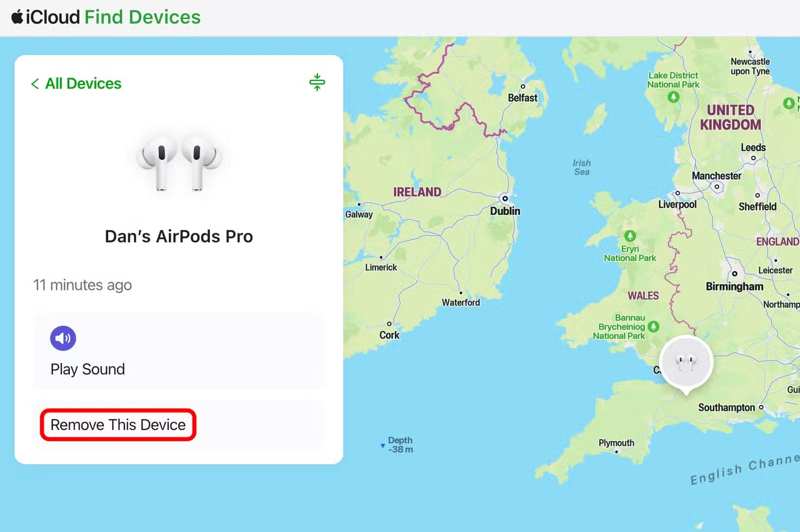
Steg 1. Gå till www.icloud.com i en webbläsare.
Steg 2. Logga in på det länkade Apple-kontot och lösenordet.
Steg 3. Gå till Hitta min för att fortsätta.
Tips: Eller besök www.icloud.com/find i din webbläsare och logga in på det länkade Apple-kontot.
Steg 4. Hitta och välj dina AirPods från Alla enheter lista.
Steg 5. Klicka på Ta bort den här enheten knappen efter att AirPods har spårats.
Steg 6. Välja ta bort i bekräftelsedialogrutan.
Del 3: Vad du ska göra om du inte kan ta bort AirPods från Apple ID
Att ta bort AirPods från det tidigare Apple-kontot är avgörande. Om du inte gör det kan det orsaka problem för den nya ägaren, eftersom öronsnäckorna kommer att förbli anslutna till det gamla kontot. Om du inte kan ta bort AirPods från Apple-ID kan du prova lösningarna nedan för att åtgärda problemet.
Lösning 1: Fabriksåterställning av AirPods
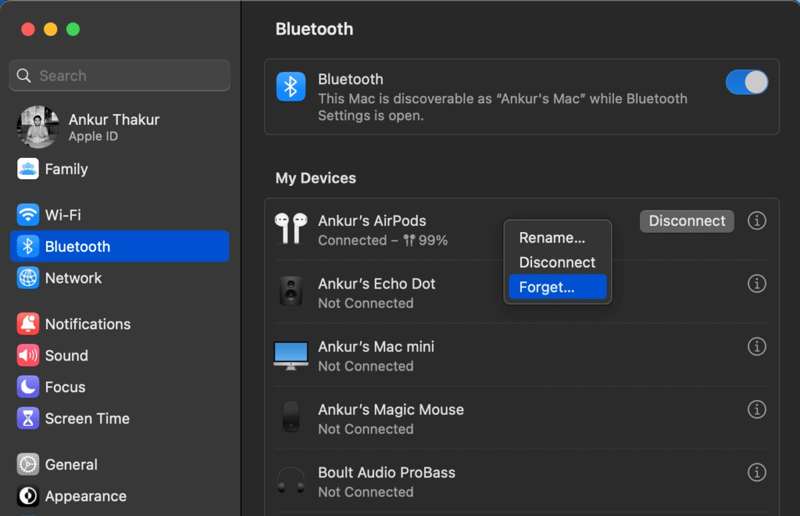
Steg 1. Med AirPods anslutna, kör Inställningar or Systeminställningar app.
Steg 2. Välj AirPods under ditt Apple-konto.
Steg 3. Scrolla ner och tryck på Glömde den här enheten knapp.
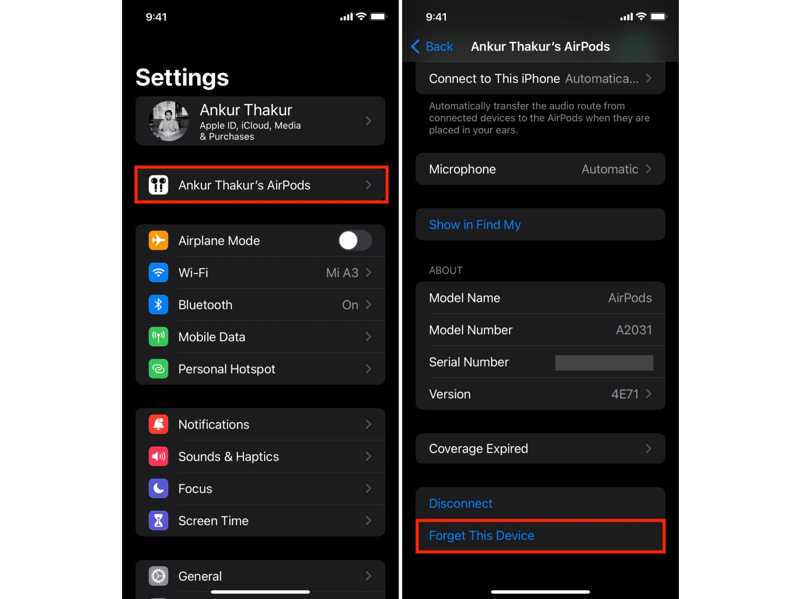
Steg 4. Klicka Glömt enheten Och välj Glöm enheten.
Steg 5. AirPods bör spela upp en ton för att indikera att de inte längre är parkopplade.
Steg 6. Lägg dem i laddningsfodralet och håll klaffen öppen.
Steg 7. För AirPods 4 och AirPods Pro 3 eller senare, dubbeltryck på framsidan av fodralet när statuslampan lyser. Dubbeltryck på samma område igen när lampan blinkar vitt. Dubbeltryck slutligen på det när lampan blinkar snabbare. Om lampan blinkar gult och sedan vitt har AirPods återställts.
För gamla AirPods, håll ner installationsknappen på baksidan av fodralet i 15 sekunder tills den lilla statuslampan börjar blinka gult och vitt.
Lösning 2: Ladda dina AirPods
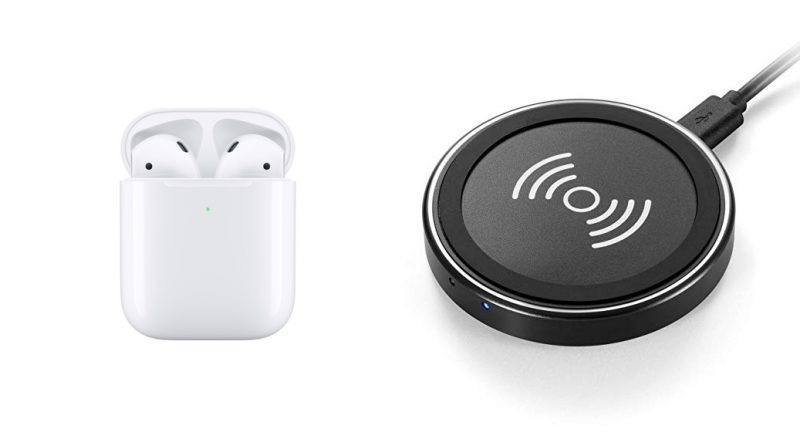
Om du inte kan ta bort AirPods från ett Apple-ID, ladda dina öronsnäckor först. Placera dem i laddningsfodralet och anslut dem till en strömkälla med en kompatibel kabel, eller sätt dem på en trådlös laddare. Vanligtvis kan det ta 50 till 60 minuter att ladda helt.
Ytterligare läsning
Lösning 3: Kontrollera Apples servrar
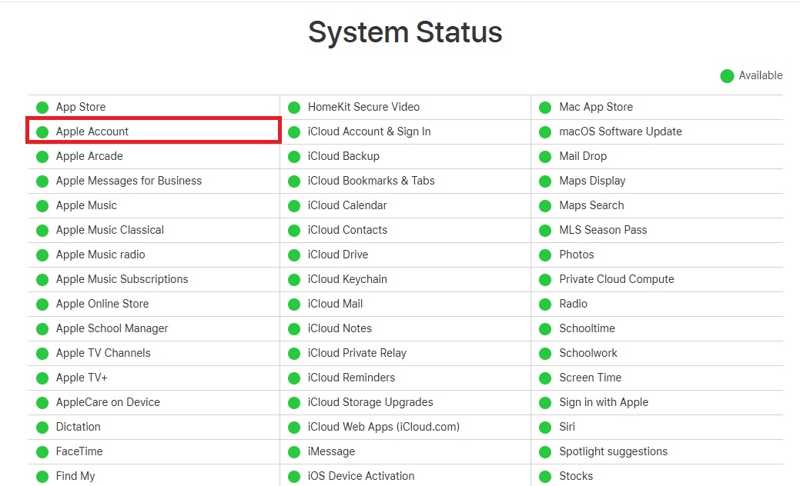
En annan lösning är att kontrollera statusen för Apples servrar. Gå till https://www.apple.com/support/systemstatus/ i en webbläsare och titta på de relevanta servrarna. Om något objekt är markerat med en gul eller röd ikon, vänta tills det fungerar igen och ta sedan bort AirPods från Apple-ID igen.
Del 4: Bonustips: Hur man tar bort Apple-ID från iPhone utan lösenord
Förutom att ta bort AirPods från Apple-ID kan du behöva ta bort Apple-kontot från din iPhone eller iPad. Från och med nu rekommenderar vi att Apeaksoft iFoneKit iOS-upplåsareDen kan ta bort konton från din iOS-enhet utan begränsningar.

Nedladdad av över 1,000,000 användare
- Ta bort Apple ID från en iPhone eller iPad i tre steg.
- Kräv inte ditt lösenord eller lösenord.
- Erbjud bonusfunktioner, som borttagning av MDM.
- Kompatibel med ett brett utbud av iOS och iPadOS.

Så här tar du bort Apple-ID från din iPhone utan lösenord
Steg 1. Installera borttagningsverktyget för Apple ID
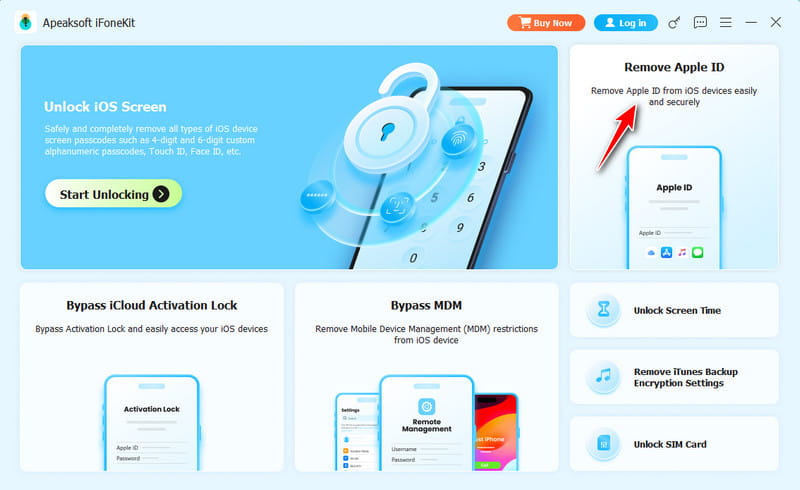
Starta programvaran för borttagning av Apple ID efter att du har installerat den på din dator. Den är tillgänglig på Windows 11 till 7 och Mac OS X 10.7 eller senare. Välj Ta bort Apple ID läge.
Steg 2. Anslut till din iPhone
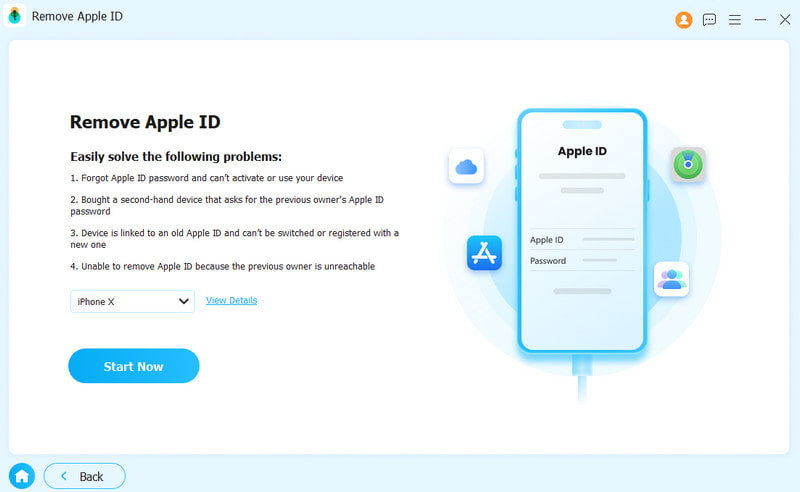
Anslut din iPhone till datorn med en Lightning-kabel. Se till att du litar på den här datorn. När programvaran har identifierat din enhet klickar du på Börja nu knapp.
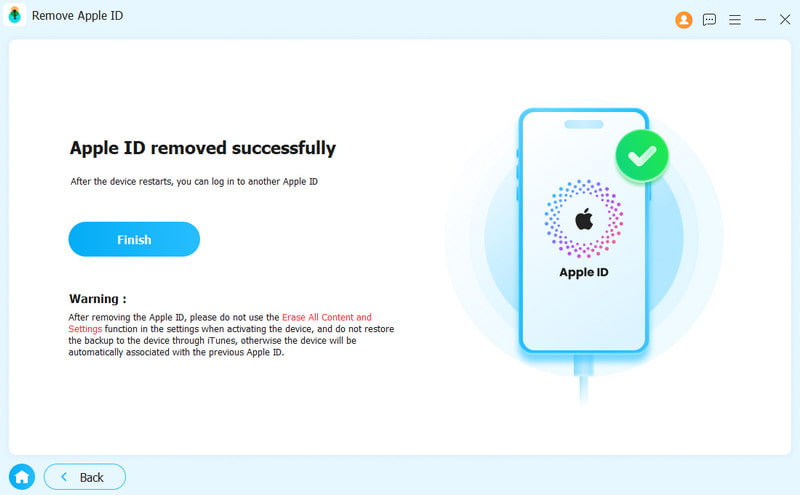
Steg 3. Ta bort Apple ID
Om Hitta min iPhone är inaktiverat kommer programvaran att börja ta bort Apple-ID:t. Om Hitta min iPhone är aktiverat återställer du alla inställningar på enheten. Klicka sedan på OK och slå Bekräfta igen att starta processen.
Slutsats
Denna guide visade hur man ta bort AirPods från Apple ID i olika situationer. Du kan följa våra detaljerade steg för att slutföra jobbet i Hitta min-appen eller webbportalen. Om du inte kan ta bort dem från Apple-ID kan du prova lösningarna för att åtgärda det. Dessutom rekommenderar vi Apeaksoft iFoneKit iOS-upplåsare för att ta bort Apple-ID från en iPhone eller iPad utan lösenord.

Relaterade artiklar




