How to Screen Record on Samsung Devices: A Full Guide

How do you screen record on a Samsung? In many situations, such as when scrolling through social media or playing games, you'll come across some fun moments. Many people want to save these moments but don't know how. This post offers 4 different ways to help you learn how to record the screen on Samsung devices. Start reading now to make sure you don't miss a single moment worth capturing in the future.
SIDINNEHÅLL:
How to Screen Record on Samsung with One UI in No Time
Since Samsung updated One UI to version 2.0, screen recording has become much more convenient. The recording tool has been built into One UI. You can quickly access the built-in Samsung screen recorder through Quick Settings. With just one tap, you can start recording right away. The recording result will be directly saved in your Gallery app. If you're not sure how to find this default screen recorder on your Samsung device, you can follow the steps below.
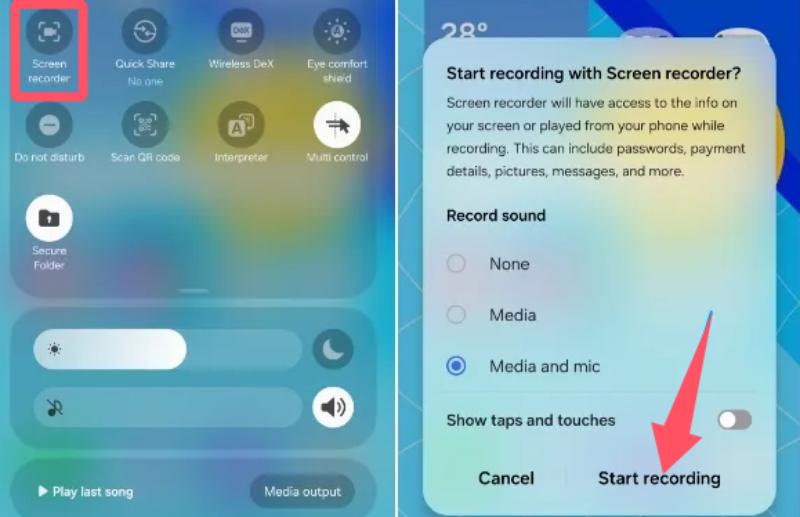
Steg 1. Scroll down from the top of the screen on your Samsung device and access the Snabbinställningar panel. Tryck på Skärminspelare knapp.
Steg 2. In the pop-up window, tap to select from the Spela in ljud options. Then, tap the Starta inspelning knapp.
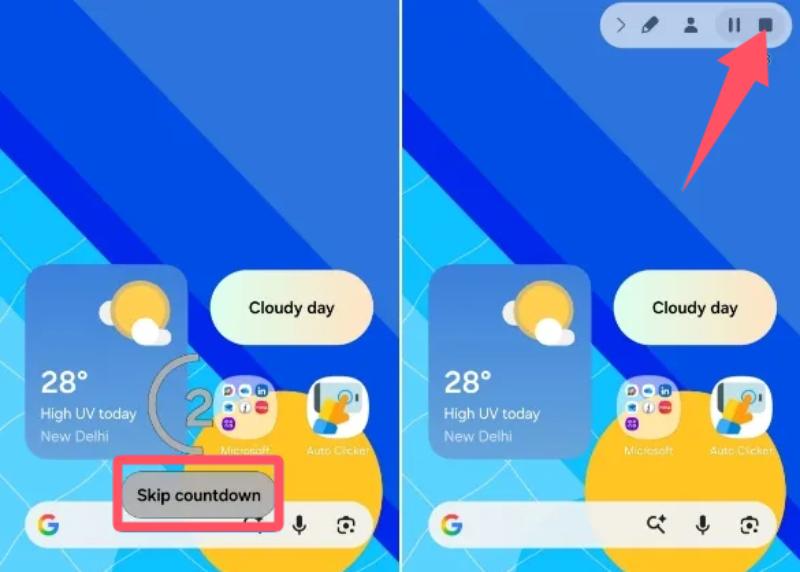
Steg 3. A countdown will appear on your screen. You can tap the Skip countdown button to start recording the screen on a Samsung device.
Steg 4. To end the recording, tap the Sluta button in the upper right corner. The recording will be saved in the Gallery automatically.
Tips: You can also find the default solution for taking screenshots on Samsung in Quick settings.
During Gameplay: How to Screen Record on Samsung Devices
The default method mentioned above can meet screen recording needs in most situations. However, for gamers, it may not be particularly convenient. The key issue is that while you're playing, you don't have enough time to access Quick Settings and launch the built-in screen recorder. Not to mention that you have to wait for the countdown to finish before recording can begin. By then, your gaming highlights might already be over! For gamers, Game Booster offers a more convenient way to screen record on Samsung devices during gameplay.
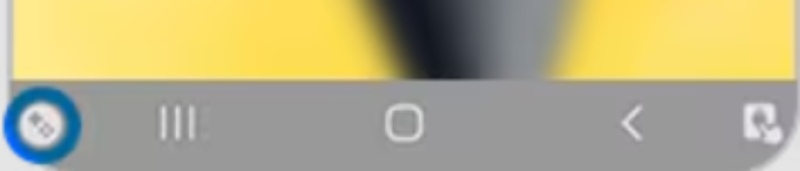
Steg 1. When you start the gameplay on your Samsung device, a small round panel will appear on the screen.
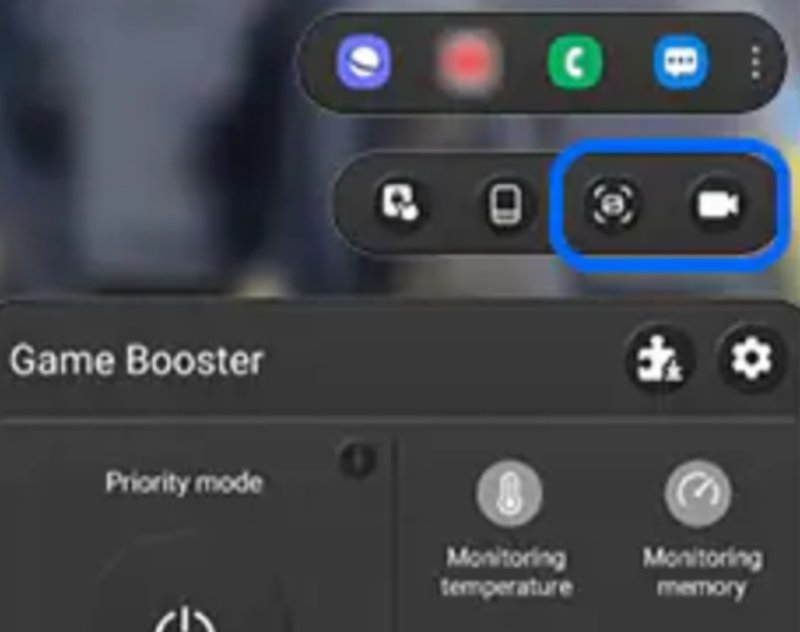
Steg 2. When you have a highlight in the game, tap the Game Booster panel to open a pop-up window.
Steg 3. To record the screen on Samsung during gameplay, tap the Spela in button. The recording will start automatically via this app för spelinspelare.
A Trustworthy Third-Party App to Screen Record on Samsung
If you find that the built-in Samsung screen recorder doesn't meet your needs, you can also use a third-party app to record your screen. After testing more than a dozen different apps, we found that Mobizen performed the best. For one thing, it's simple and convenient to use; you can quickly control the recording via a floating panel. For another, the app is not only free but also takes up very little storage space.
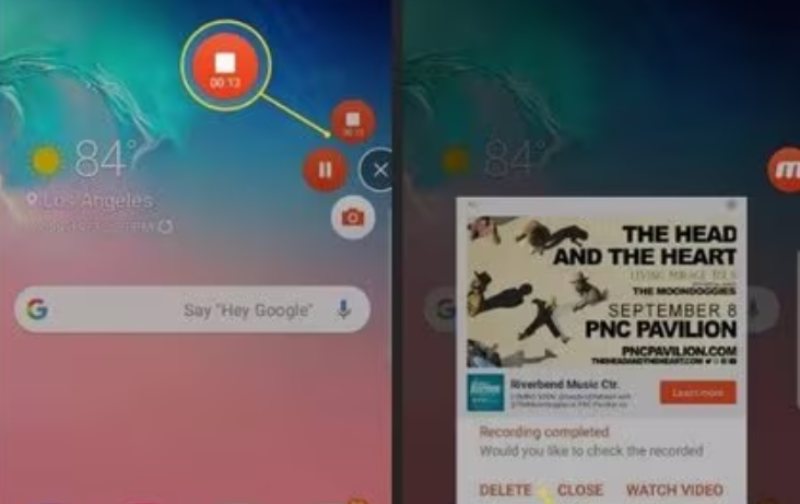
Steg 1. Launch Mobizen on your Samsung device. A small floating panel will appear on your screen.
Steg 2. Tryck på Spela in button. A pop-up window will ask for your confirmation. To continue the recording, tap the Börja nu knapp.

Steg 3. The recording will start automatically after 3 seconds. To finish screen recording on a Samsung device, tap the Sluta knapp.
Steg 4. In the pop-up window, tap the NÄRA button to finish the recording task. Or tap the TITTA PÅ VIDEO button to view the recording.
The Best Way to Screen Record on Samsung with Abundant Features
Whether it's a built-in Samsung screen recorder or a third-party app, they all rely on your device's specifications to function. In other words, once your device runs low on memory or has limited resources, you'll find that recording performance is significantly affected. Issues such as stuttering, frame drops, and audio-video desynchronization may occur. In addition, they all offer only basic recording options. If you want to share these recordings, you'll find that they require further editing.
To meet all these requirements, you'll need a powerful recorder with a wide range of features. Apeaksoft skärminspelare is the perfect choice. It offers high-quality screen recording and a variety of additional editing tools. You can fully rely on it to create professional and engaging screen recordings. If you want to screen record on a Samsung tablet using this tool, follow the steps below.

Nedladdad av över 1,000,000 användare
- Record any activities on Samsung devices with high quality.
- Take screenshots of the screen during the recording process.
- Tweak the desired recording parameters the way you want.
- Provide abundant editing tools to polish your recording.

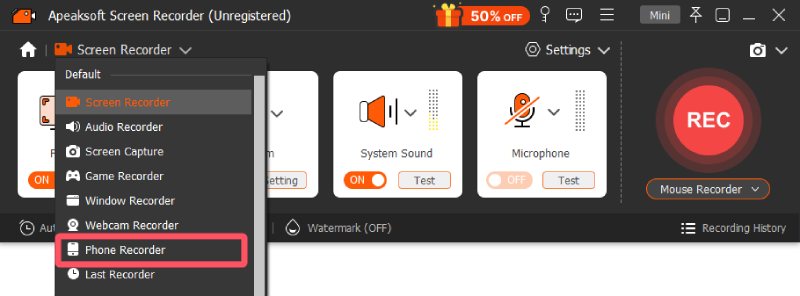
Steg 1. Launch Apeaksoft Screen Recorder on your computer. In the main interface, click the Telefoninspelare knapp under Screen Recorder fliken.
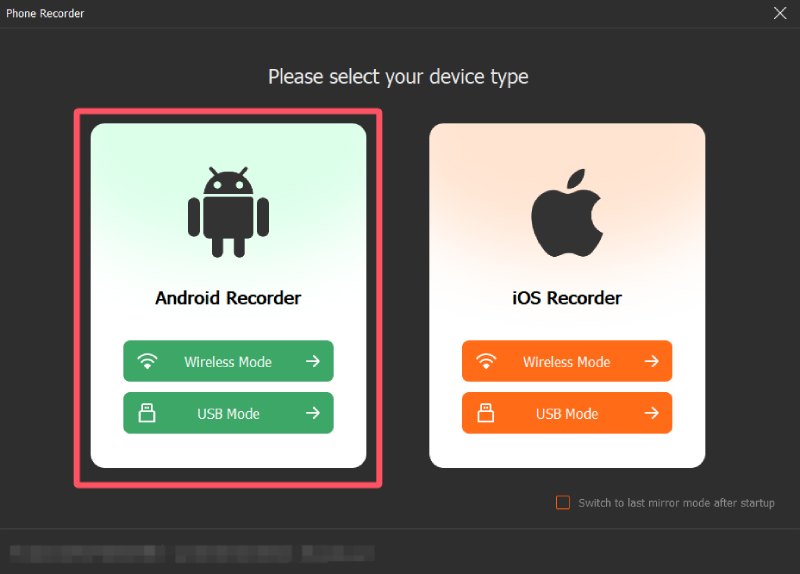
Steg 2. A window will pop up. To screen record on a Samsung device, tap the Android-inspelare knapp.
Steg 3. Connect your Samsung device to the computer using a USB cable. Follow the instructions to connect your Samsung device with Apeaksoft Screen Recorder.
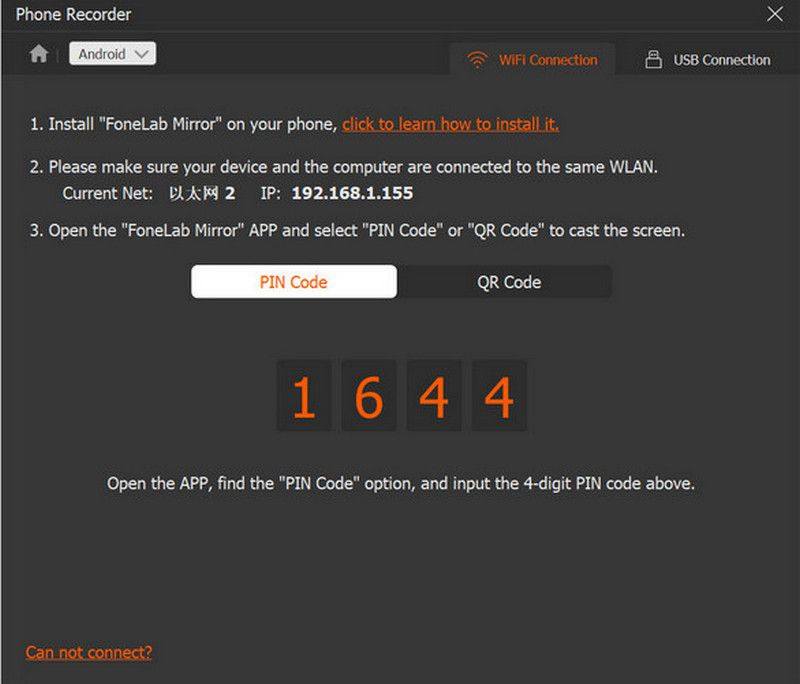
Steg 4. In the new window, you can adjust the recording settings for the output file. Click the Spela in button to start recording the Samsung Galaxy screen.
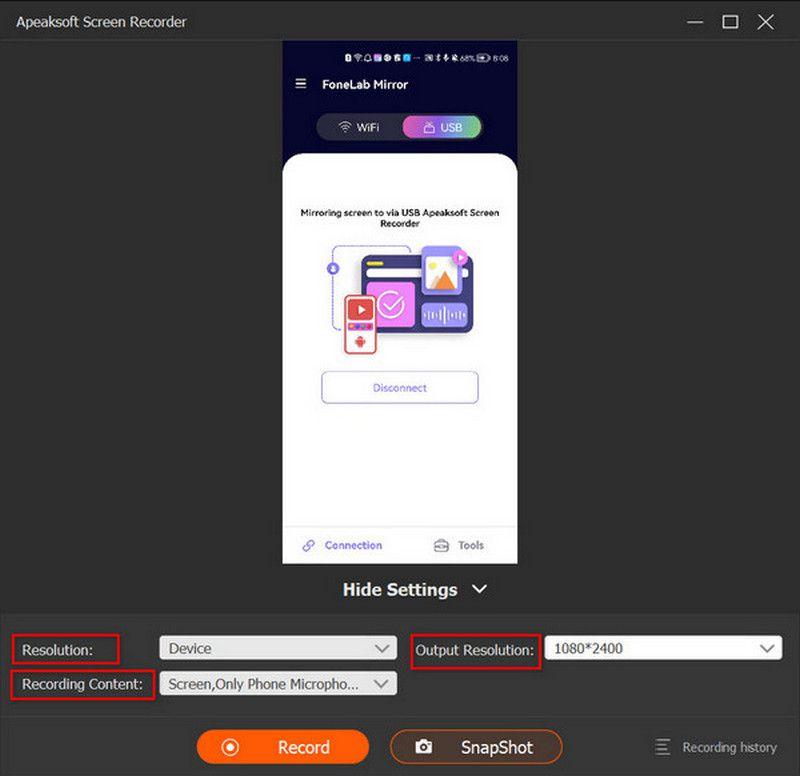
Steg 5. För att avsluta inspelningen, klicka på Sluta button. You can edit the recording before exporting the output video file.

[Bonus] Adjust Output Quality Before Screen Recording on Samsung
Many people may not realize that Samsung's screen recording feature offers additional parameter settings. You can find them in the settings to adjust the output parameters for your screen recording in advance. However, the settings only provide a limited number of options. If you want the results to meet your needs perfectly, you'll still need a professional tool like Apeaksoft Screen Recorder, which offers more customized options.
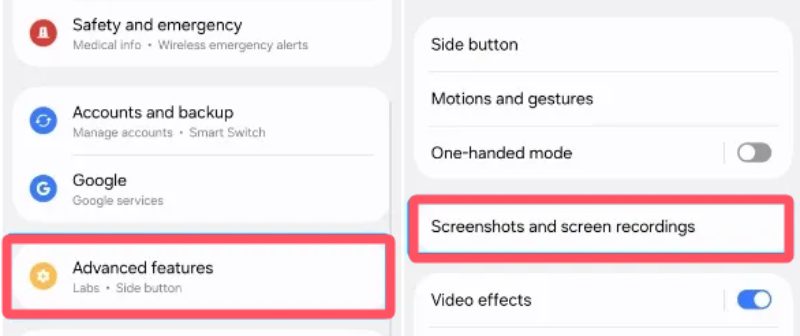
Steg 1. Open the Settings app on your Samsung phone. Scroll down and tap the Avancerade funktioner knapp.
Steg 2. Hitta och knacka på Screenshots and screen recording button to adjust the detailed parameters.
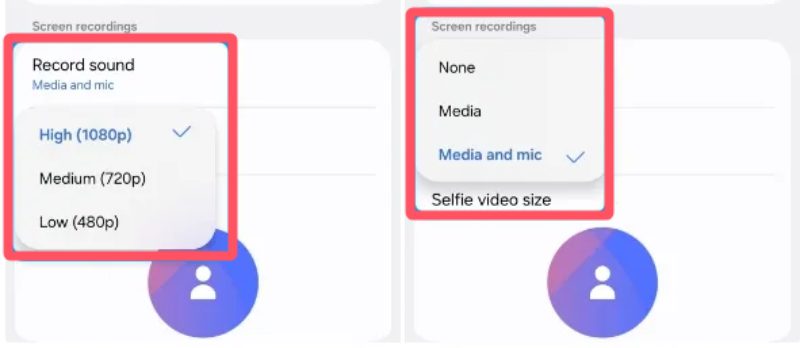
Steg 3. Enligt Skärminspelningar fliken, tryck på Videokvalitét och Spela in ljud buttons to adjust video quality and audio sources.
Slutsats
Nu har du lärt dig hur man skärminspelning på en Samsung device. Whether you use the built-in tool or a third-party app, you can quickly complete the task on your phone. While these options are convenient, they offer relatively limited recording options and post-production features. If you want better results, Apeaksoft skärminspelare kan hjälpa dig att uppnå dem.

Relaterade artiklar