How to Screenshot on Dell Laptop Easily in the Top 5 Intuitive Ways
关键精华
If you want to take screenshots on Dell, you can:
- If you want to take screenshots on Dell, you can:
- 绝大部分储备使用 打印屏幕 to capture the entire Dell screen and copy the screenshot to the clipboard.
- 绝大部分储备使用 Alt +打印屏幕 to capture only the active window on your Dell laptop.
- 绝大部分储备使用 Windows + 打印屏幕 to take a full-screen screenshot and automatically save it to the 图片 > 截图 文件夹中。
- 绝大部分储备使用 Windows键+ Shift + S to quickly open Snipping Tool and capture a selected area, window, or full screen.
- 绝大部分储备使用 剪取工具 to take and edit screenshots on Dell computers with built-in Windows features.
不知道 如何在戴尔笔记本电脑上截图? A screenshot is a quick way to capture and share important information. Dell computers support multiple screenshot methods. Follow this post to learn how to screenshot on Dell using keyboard shortcuts like Print Screen shortcuts, Windows + Shift + S, Windows built-in tools, and professional screenshot software.
页面内容:
- Method 1. How to Screenshot on Dell with Print Screen Shortcuts
- Method 2. How to Screenshot on Dell with Windows + Print Screen
- Method 3. How to Screenshot on Dell with Windows + Shift + S Shortcut
- Method 4. How to Screenshot on Dell with the Built-in Snipping Tool
- Method 5. Best Screenshot Tool for Dell Laptop
Method 1. How to Screenshot on Dell with Print Screen Shortcuts
If you want to take a screenshot on a Dell desktop or laptop, you can use its easy keyboard shortcut - the Print Screen key. It enables you to capture an image of the contents of a single window or the entire display. For example, you can 屏幕快照Google Maps on Dell with the print screen key with ease.
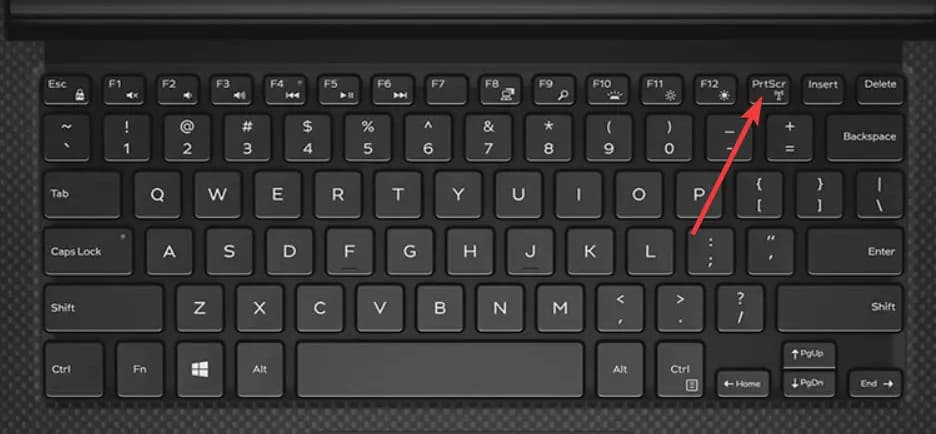
步骤 1。 The Print Screen key is located next to F12 on most Dell laptops. When you want to take a screenshot on Dell, you can simply press the PrtScr (Print Screen) key on your keyboard. This will capture the entire current screen.
If you need to capture an active window only, you can press the 其他 + PrtScn则 关键在一起。
步骤 2。 The screenshot will be copied to the system clipboard. You need to bring the image out of the clipboard before placing another item there. You can paste it into an application like 喷漆 or Adobe Photoshop and then save it as an image file from there.
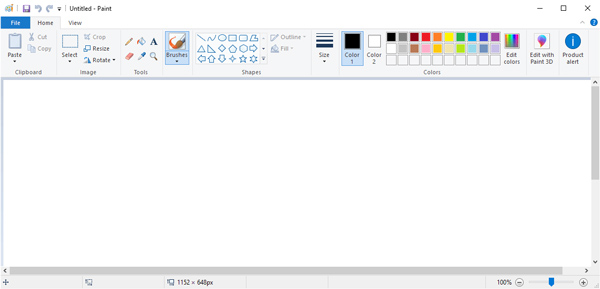
You can open Microsoft Paint and then press 按Ctrl + V 复制您的屏幕截图。 之后,您可以点击 已保存 button to save the screenshot in any popular image format like JPG, PNG, or GIF. Follow the same way, you can also take screenshots on a Toshiba.
Method 2. How to Screenshot on Dell with Windows + Print Screen
The Print Screen key only copies the captured image to the clipboard, meaning you can't save it directly, and need to paste it into tools like Paint before saving it. To save screenshots more efficiently, you can use the Windows + 打印屏幕 method, which automatically captures and stores the screenshot on your Dell computer.
步骤 1。 媒体中心 Windows + PrtScn together. You will see the screen briefly dim for a moment. It means the screenshot has been captured successfully.
步骤 2。 媒体中心 的Windows + E 打开 档案总管.
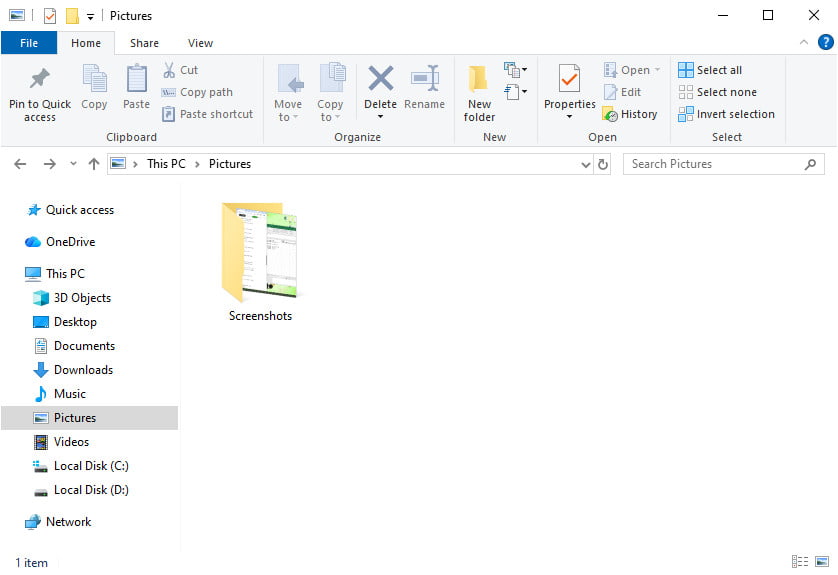
步骤 3。 You can find the saved screenshots under the 图片 > 截图 path on your Dell computer.
Method 3. How to Screenshot on Dell with Windows + Shift + S Shortcut
Another common method to take a screenshot on Dell is using the Windows键+ Shift + S shortcut. Unlike the traditional Print Screen key, this shortcut lets you select the exact area you want.
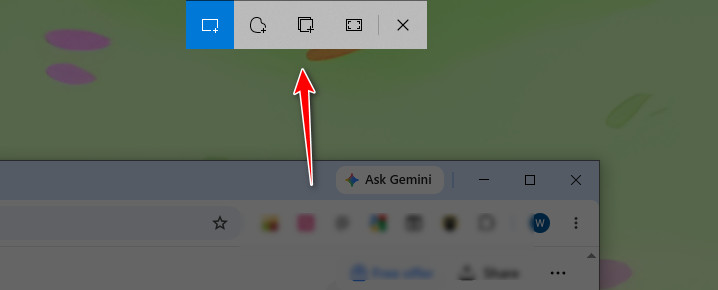
步骤 1。 媒体中心 Windows键+ Shift + S together. Your screen will become slightly dim, and a capture toolbar will appear at the top of your screen.
步骤 2。 Select your preferred snipping mode from the toolbar. From left to right, the options are 矩形剪, 自由剪裁, 窗口剪辑 或 全屏截图.
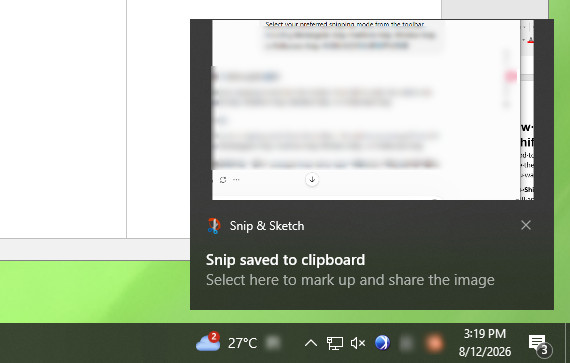
步骤 3。 Select the area you want to capture. Then, the screenshot will be copied to your clipboard automatically. A screenshot preview notification will pop up in the bottom-right corner.
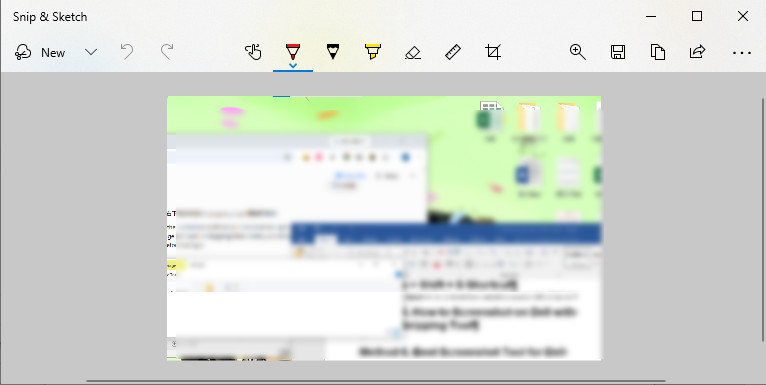
步骤 4。 Click the notification, and you will open 剪取工具 (或 剪裁和素描 on older Windows versions), where you can edit the screenshot.
步骤 5。 点击 已保存 button to store the screenshot on your Dell computer.
Method 4. How to Screenshot on Dell with the Built-in Snipping Tool
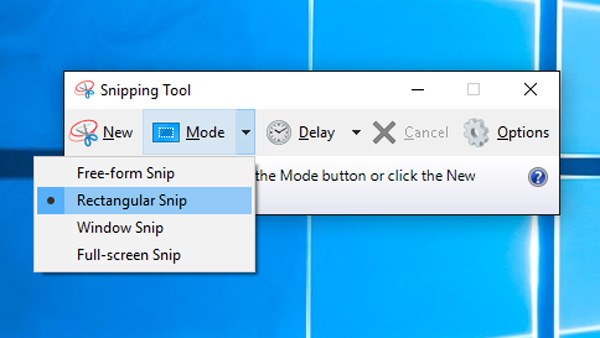
除了使用 Windows键+ Shift + S shortcut, you can open the built-in 剪取工具 directly to take screenshots on your Dell computer. It has been part of Windows since Vista. This default screenshot tool allows you to take a screenshot on Dell laptop/desktop with full screen or a custom region.
步骤 1。 你可以找到 狙击工具 应用程序通过 Windows搜索 功能。 需要在Dell上截图时,可以单击 开始 按钮然后键入 剪取工具 在Windows搜索中。
步骤 2。 Open Snipping Tool and press the 全新发布 button to take a screenshot on Dell. This operation will activate the capture cursor. Then you can freely capture your Dell computer screen.
步骤 3。 在Dell上截屏后,可以单击 已保存 button to save the screenshot on your computer in JPG, PNG, GIF, or HTML format. During this step, you are also allowed to use the 复制 按钮将屏幕截图复制到剪贴板。
Method 5. Best Screenshot Tool for Dell Laptop
Although Dell laptops provide several built-in ways to take screenshots, they may not meet all your needs when you want more advanced features. In case you want more choices, here in this part, we'd like to introduce another popular screenshot app, Apeaksoft屏幕录像机.
This screenshot tool allows you to freely capture any part of your Dell computer screen with ease. It enables you to take a screenshot on Dell with full screen, active window, and selected region. Moreover, it carries some editing features for you to directly edit your Dell screenshot.
步骤 1。 First, you can double-click on the download button to free install and run this screenshot software on your Dell computer.
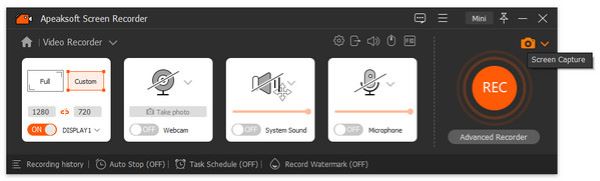
步骤 2。 选择 屏幕录制 option when you enter this screenshot tool to take a screenshot on Dell. This screenshot feature is totally free.
步骤 3。 选择“屏幕捕获”功能后,鼠标将变为十字形。 现在,您可以通过拖动鼠标自由截图Dell屏幕的任何区域。
步骤 4。 您可以编辑屏幕截图并调整其输出效果。 在这里,您可以在屏幕截图上绘制线条,箭头,边框以及所需的任何形状。 另外,您可以对其进行其他编辑操作。
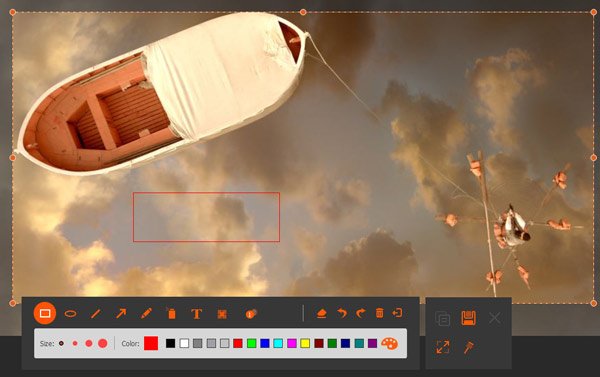
步骤 5。 You can click the Save button to save a screenshot on your computer. It can be saved in any popular image format like JPG, PNG, BMP, GIF, or TIFF. Besides the screen capture feature, you can use this Screen Recorder to 记录在线会议, video/audio calls, music, and more with high image and sound quality. Just free download it and give it a try.
结语
这就是全部 如何在戴尔上截图. Choose the right method based on your needs:
Quick full-screen capture: Use Print Screen or Windows + Print Screen.
Capture a selected area or window: Use Windows + Shift + S or Snipping Tool.
Edit screenshots and get more options: Use Apeaksoft Screen Recorder.