

Optimalizace výkonu Macu: Podrobný návod pro začátečníky

"Jak opravit lapající Mac? Pomoc!"
Mnoho uživatelů se s tímto problémem v určitém okamžiku setká – jejich Mac se náhle zpomalí, aplikace se otevírají věčně, rotující plážový míč se objevuje příliš často a trvá příliš dlouho, systém Mac zamrzne bez zjevného důvodu.
Zpomalený Mac může být frustrující, zvláště když se na něj spoléháte při práci nebo studiu. Naštěstí existuje několik způsobů, jak to zvládnout. optimalizovat výkon Macu! Postupujte podle tohoto průvodce a prozkoumejte praktické a efektivní způsoby, jak opravit pomalý Mac a zlepšit celkový výkon.
OBSAH STRÁNKY:
Část 1: Proč je váš Mac pomalý
Existuje mnoho důvodů, proč váš Mac běží pomalu. Ve většině případů se nejedná o hardwarový problém. Zde uvádíme některé běžné důvody, které vám mohou pomoci s řešením problémů:
- Příliš mnoho programů se spouští automaticky při spuštění Macu.
- Systémový odpad, jako jsou dočasné soubory, soubory protokolů a data v mezipaměti, se časem hromadí a zabírá úložný prostor.
- Existují velké soubory, které jsou skryté, ale zabírají místo na disku.
- Existují duplicitní soubory, které plýtvají úložným prostorem.
- Váš systém nebyl aktualizován na nejnovější verzi.
- ...
Část 2: Jak ručně zlepšit výkon Macu
Optimalizace úložiště Macu nemusí být složitá. Výkon vašeho Macu se znatelně zlepší provedením několika jednoduchých manuálních kroků, jako je vymazání mezipaměti, správa úložiště atd. Tato část vás jimi podrobně provede.
Poznámka: Některé názvy nabídek nebo umístění tlačítek se mohou v různých verzích macOS mírně lišit. Nebojte se – celkový postup zůstává z velké části stejný.
Vymažte mezipaměť systému
Vymazáním souborů mezipaměti Macu můžete odstranit dočasná systémová a aplikační data, která mohou zpomalit výkon.
Krok 1. Otevřená Nálezce a klepněte na tlačítko Go v horní nabídce.
Krok 2. vybrat Přejít do složky… a zadejte ~ / Library / cache.
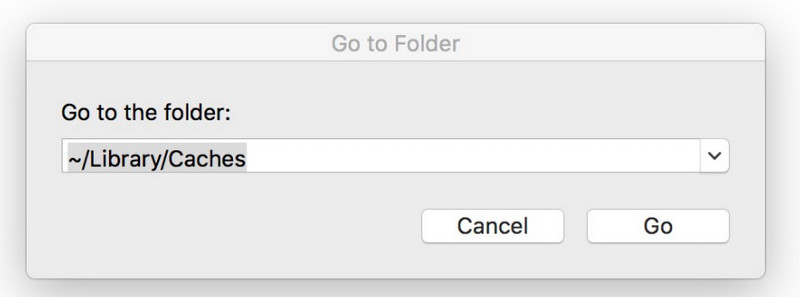
Tip: Můžete také použít kombinaci klávesových zkratek Shift + příkaz + G otevřete dialogové okno Přejít do složky přímo a zadejte cestu ke složce.
Krok 3. Vyberte a smažte soubory mezipaměti.
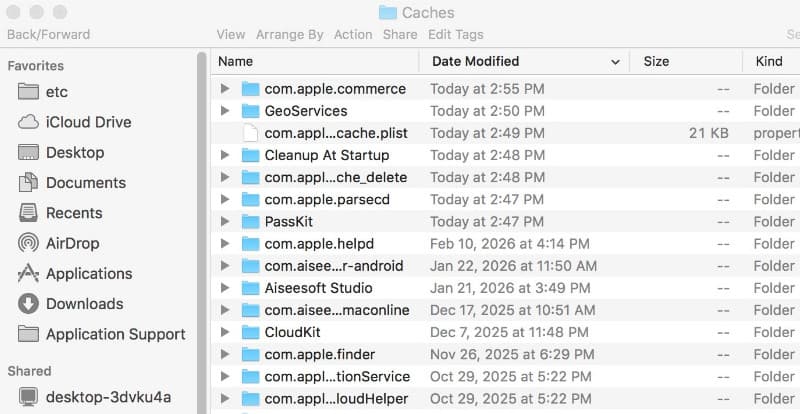
Tip: Pro média Command + vyberte všechny soubory mezipaměti najednou. Nesmažte soubory pomocí com.apple prefix, protože je může systém macOS vyžadovat.
Odebrat položky přihlášení
Omezení zbytečných položek pro přihlášení může zabránit automatickému spuštění příliš mnoha aplikací při spuštění Macu, což zrychlí dobu spouštění.
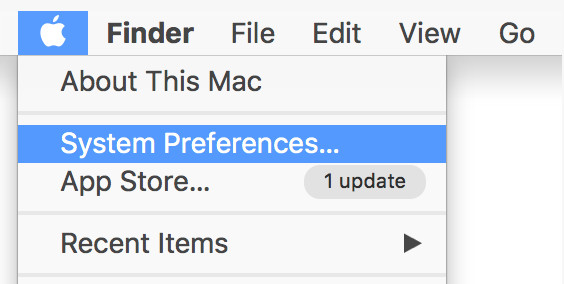
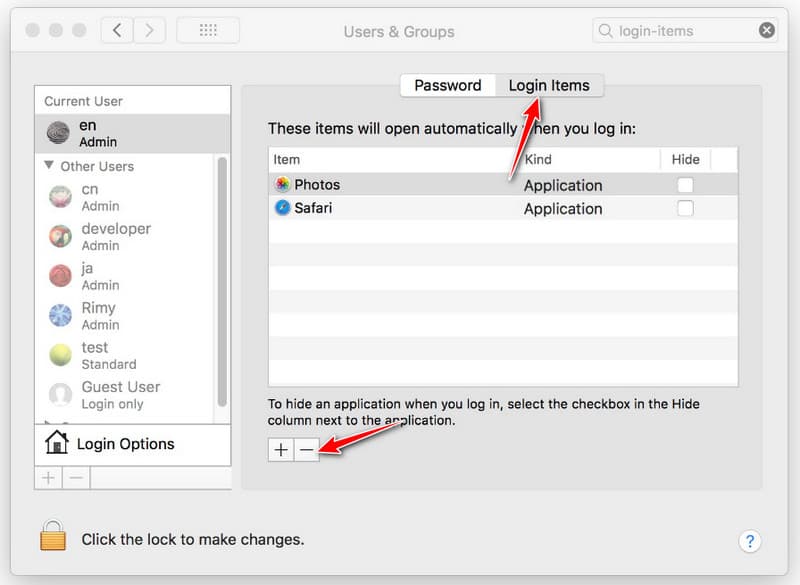
Krok 1. Klepněte na tlačítko jablko v levém horním rohu a vyberte Výkon systému.
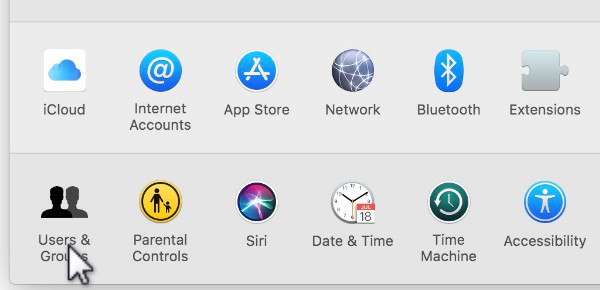
Krok 2. vybrat Uživatelé a skupiny v okně výzvy.
Krok 3. Přejít na Položky přihlášení možnost a vyberte nechtěné aplikace.
Krok 4. Klepněte na tlačítko bez tlačítko (-).
Odinstalujte nepoužívané aplikace
Mazání aplikací na Macu které již nepoužíváte, můžete uvolnit úložný prostor a omezit procesy na pozadí, které spotřebovávají paměť.
Uvolněte úložiště
Krok 1. Otevřená Nálezce na molu.
Krok 2. Vybrat Aplikace možnost z levého panelu.
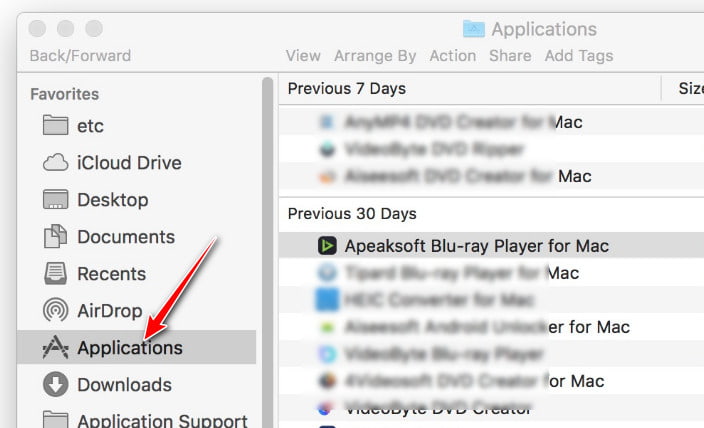
Krok 3. Vyberte aplikaci, kterou již nepoužíváte.
Krok 4. Přetáhněte to do Koš a vysypte koš. Nebo na něj můžete kliknout pravým tlačítkem myši a vybrat Přesunout do koše.
Aktualizujte MacOS
Udržování macOS v aktuálním stavu může zajistit, že váš systém bude těžit z nejnovějších vylepšení výkonu, oprav chyb a bezpečnostních záplat.
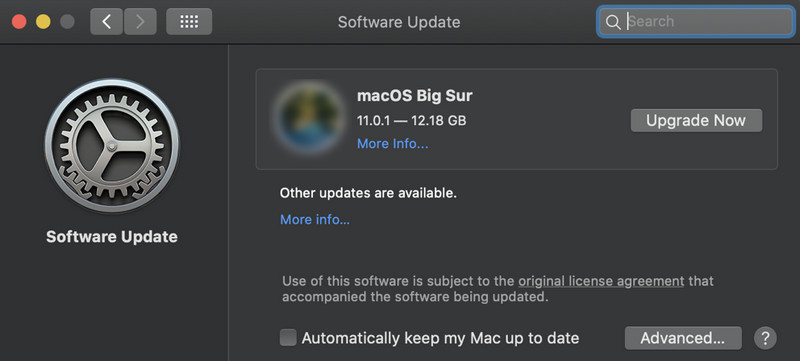
Krok 1. Přejděte do nabídky Apple v levém horním rohu a otevřete ji. Nastavení systému.
Krok 2. klikněte Obecné – Úložiště.
Krok 3. klikněte Aktualizujte teď pokud je k dispozici nová verze.
Vyčistěte pracovní plochu
Uspořádání plochy a odstranění nepoužívaných widgetů může pomoci snížit zatížení systému a zlepšit jeho odezvu.
Krok 1. Prohlédněte si soubory na ploše.
Krok 2. Vytvářejte složky pro uspořádání dokumentů a obrázků.
Krok 3. Přesuňte nepotřebné soubory do koše.
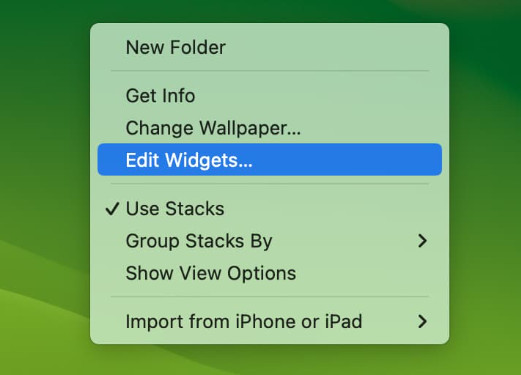
Krok 4. Klikněte pravým tlačítkem myši na plochu, vyberte Upravit widgetya klepněte na tlačítko mínus (-) na jakémkoli nepoužívaném widgetu jej odeberte.
Uvolněte úložiště
Správa a optimalizace úložiště může zabránit zahlcení disku, zajistit dostatek volného místa pro efektivní běh macOS a zrychlit celkový výkon.
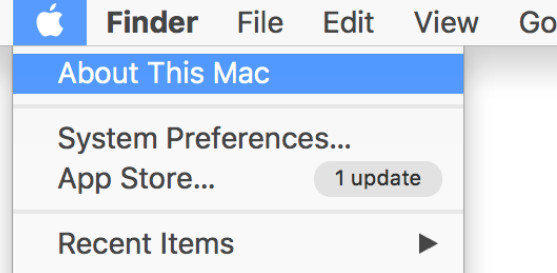
Krok 1. Přejděte do levého horního rohu a klikněte na logo Apple.
Krok 2. vybrat About This Mac.
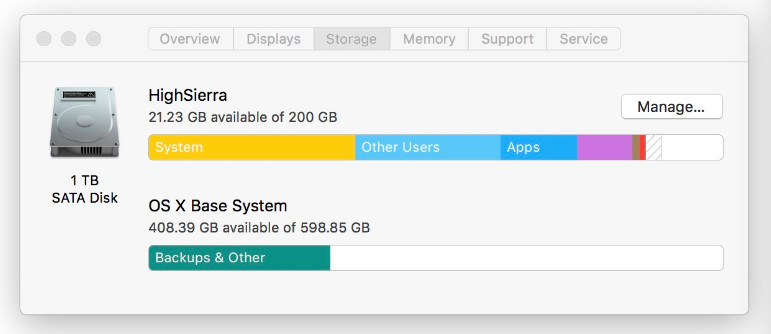
Krok 3. Vybrat Skladování a klepněte na tlačítko Řídit.
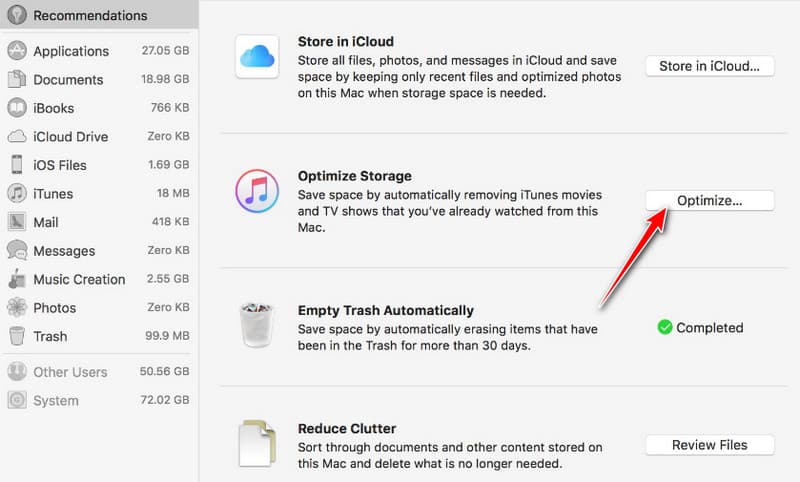
Krok 4. Stiskněte Optimalizovat tlačítko po Optimalizujte úložiště.
Část 3: Komplexní řešení pro optimalizaci Macu
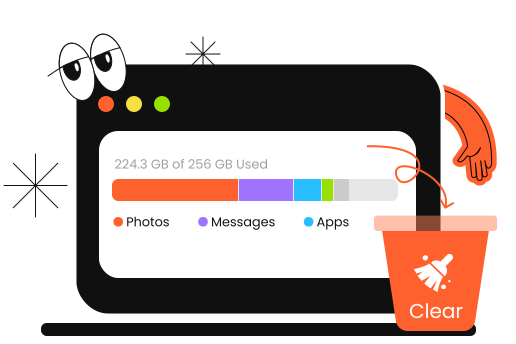
Pokud hledáte rychlejší a snadnější způsob, jak optimalizovat úložiště Macu, profesionální čistič Maců, jako je Apeaksoft Mac Cleaner je ideální volbou.
Univerzální optimalizátor pro Mac
- Prohledá a odstraní systémové nevyžádané/velké/staré/skryté/duplicitní soubory.
- Bezpečně smažte mezipaměť na Macu.
- Jedním kliknutím odinstalujete nepotřebné aplikace.
- Sledování využití CPU, paměti a disku.
- Bezpečné, rychlé a vhodné i pro začátečníky.
Bezpečné stahování
Krok 1. Stáhněte si tento výkonný optimalizátor pro Mac do svého počítače pomocí tlačítka výše.
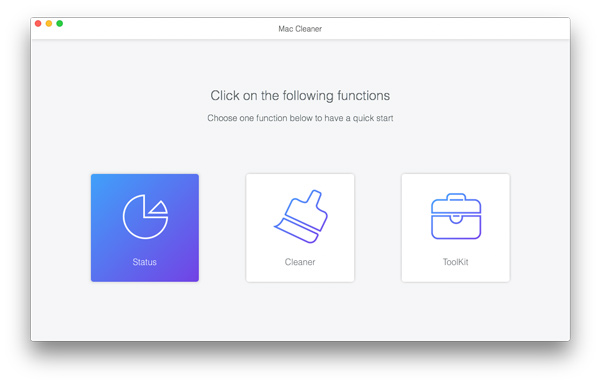
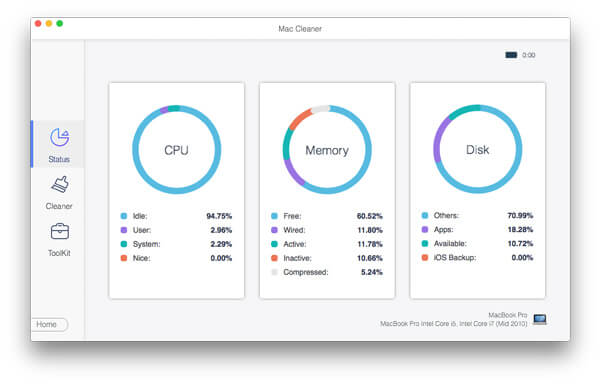
Krok 2. Chcete-li sledovat stav svého Macu, můžete zvolit první Status volba.
Zde můžete sledovat stav procesoru, paměti a disku na vašem Macu.
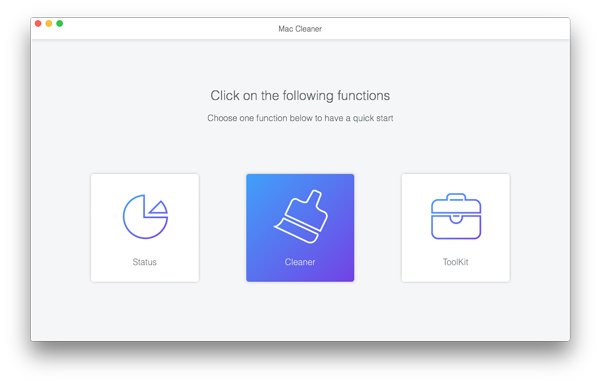
Krok 3. Pro optimalizaci úložiště na Macu můžete zvolit druhou možnost Čistič volba.
Zde můžete rychle a snadno vymazat nepotřebné/velké/staré/skryté/duplicitní soubory.
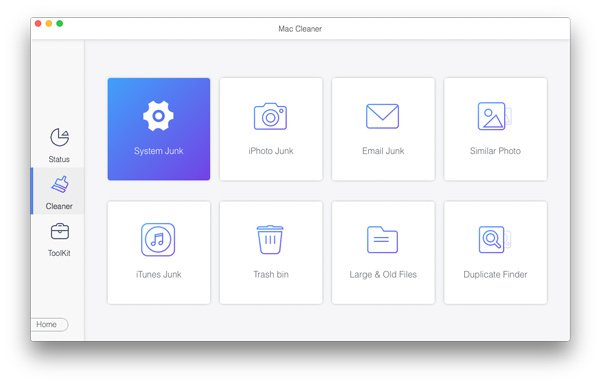
Tip: Tento software může být také užitečný, když potřebujete vymazat mezipaměť na Mac.
Část 4: Nejčastější dotazy k optimalizaci Macu
Je bezpečné čistit mezipaměť Macu?
Ano. Vymazání souborů mezipaměti na Macu je obecně bezpečné, protože soubory mezipaměti jsou dočasná data uložená systémem a aplikacemi za účelem zrychlení výkonu a jejich smazání váš Mac nepoškodí.
Jak často bych měl optimalizovat svůj Mac?
Pro většinu uživatelů stačí jednou měsíčně, aby jejich Mac fungoval hladce.
Jaký je nejlepší čistič Maců?
Mezi různými nástroji pro čištění Maců, Apeaksoft Mac Cleaner je vysoce doporučován pro svou jednoduchost a výkonný skenovací engine.
Závěr
Tento příspěvek představuje důvody, proč se váš Mac zpomaluje, a jak na to. optimalizovat úložiště Mac několika užitečnými metodami, ručně i automaticky. Doufám, že vám tento článek bude užitečný a vylepšíte rychlost svého Macu podle svých představ!
Související články




