


Jak obnovit konverzace WhatsApp z iCloudu

WhatsApp je jako aplikace pro rychlé zasílání zpráv oblíbená napříč všemi generacemi. Uchovává vaše chaty, zprávy a multimediální přílohy. WhatsApp však neukládá historii chatů na svém serveru a nemůže obnovit smazané zprávy. Na druhou stranu vám umožňuje zálohovat chaty do iCloudu na iPhonu. Když ztratíte důležité zprávy, můžete... obnovit WhatsApp z iCloudTento článek nabízí podrobný návod.
OBSAH STRÁNKY:
Část 1: Jak obnovit WhatsApp z iCloudu na iPhone
WhatsApp můžete obnovit z iCloudu, pokud jste si zálohovali chat. Proto je nejprve nutné zkontrolovat stav zálohy. Během procesu je navíc nutné WhatsApp znovu nainstalovat. Propojené telefonní číslo je nezbytné.
Krok 1. Otevřete si aplikaci WhatsApp.
Krok 2. Přejít na Nastavení Karta.
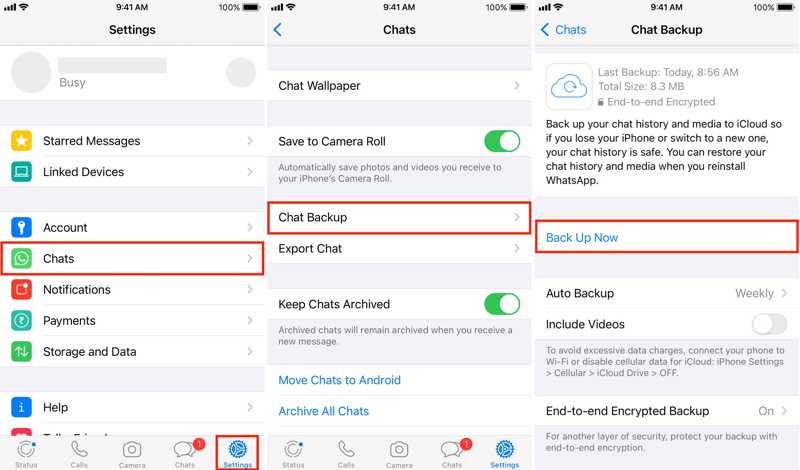
Krok 3. přejděte na Rozhovory a Zálohování chatu.
Krok 4. Zkontrolovat Poslední zálohování.
Tip: WhatsApp umožňuje automatické nebo ruční zálohování konverzací.
Krok 5. Vraťte se na domovskou obrazovku.
Krok 6. Dlouze stiskněte ikonu WhatsApp a vyberte Odebrat aplikaci.
Krok 7. Využít Smazat aplikaci A zvolte Vymazat .
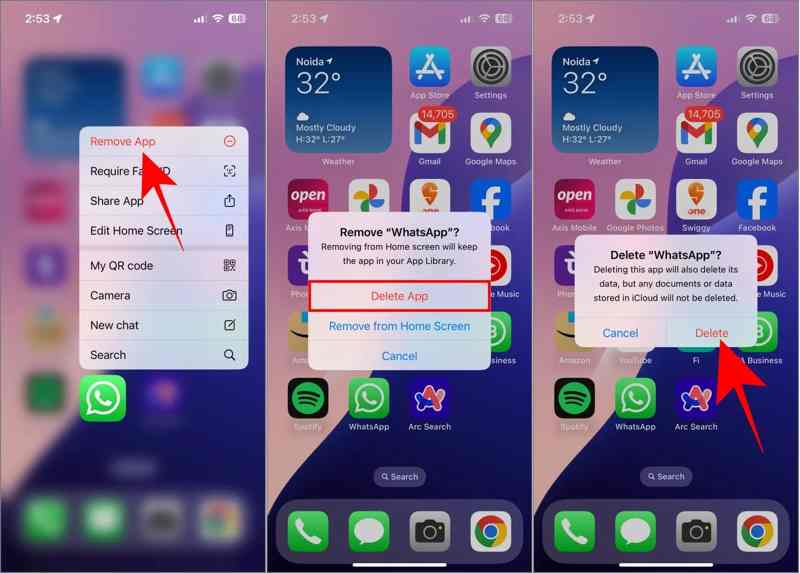
Krok 8. Restartujte iPhone a nainstalujte WhatsApp z App Storu.
Krok 9. Spusťte WhatsApp a nastavte ho se stejným telefonním číslem.
Krok 10. Nemusíte přímo přístup k iCloud Backup, ale klepněte Obnovit historii chatu na Obnovit z iCloud obrazovka.
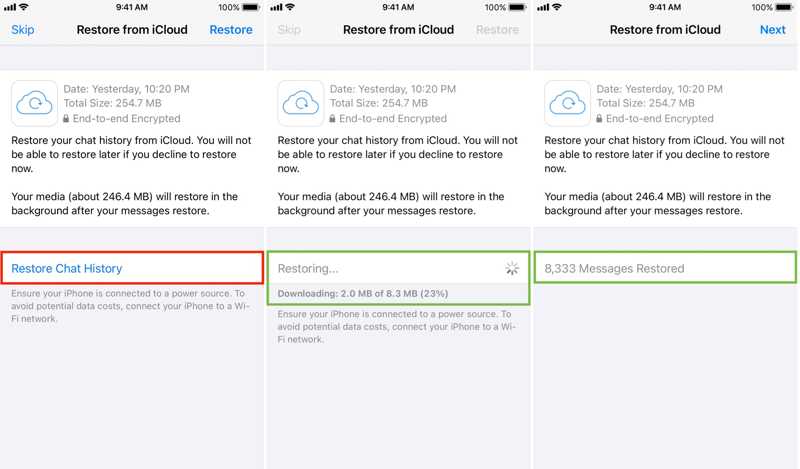
Krok 11. Jakmile to skončí, klepněte na další.
Krok 12. Dokončete proces nastavení.
Krok 13. Nyní najdete WhatsApp obnovený z iCloudu.
Část 2: Co dělat, když nemůžete obnovit WhatsApp z iCloudu
Jak dlouho trvá obnovení WhatsAppu z iCloudu? Obvykle to trvá 5 až 30 minut. Pokud to trvá déle, proces obnovení se může zaseknout. Vyzkoušejte k vyřešení tohoto problému následující řešení:
Řešení 1: Uvolněte prostor
Pokud se vám nedaří obnovit WhatsApp z iCloudu, nejprve zkontrolujte úložiště iPhonu. Pokud nemáte dostatek místa, musíte před obnovením uvolnit místo na iPhonu.
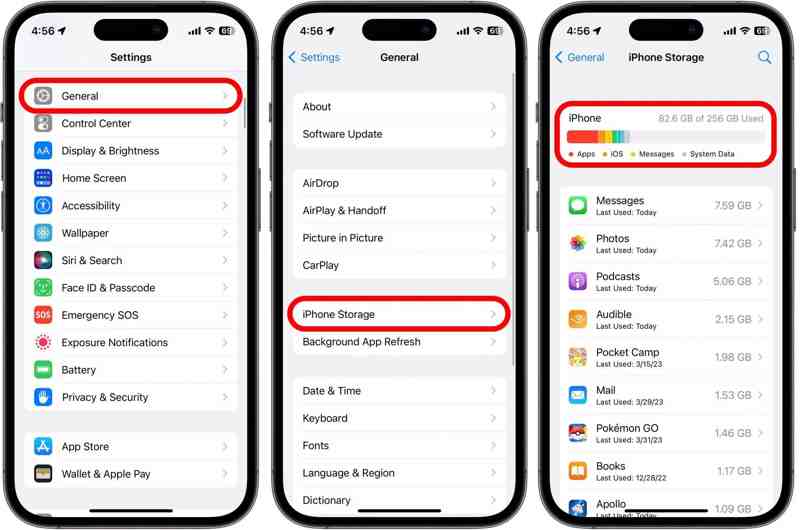
Krok 1. Spusťte Nastavení app.
Krok 2. Přejít obecně a iPhone Storage.
Krok 3. Zkontrolujte, zda je dostatek volného místa pro zálohu WhatsAppu. Pokud ne, odinstalujte nepotřebné aplikace, abyste uvolnili místo.
Další čtení
Řešení 2: Zkontrolujte síť
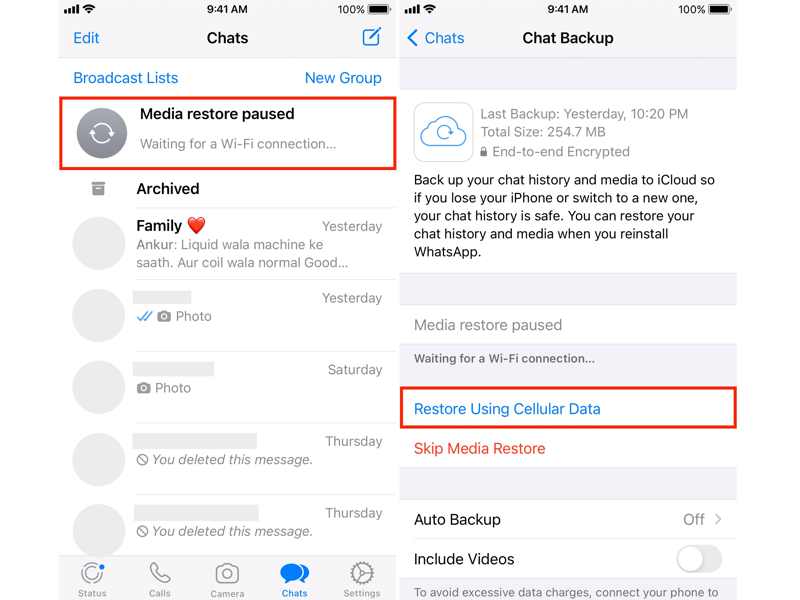
Obnovení WhatsAppu z iCloudu se zasekne, částečně kvůli špatnému internetovému připojení. Proces závisí na stabilní síti. Pokud chcete obnovit WhatsApp pomocí mobilních dat, musíte ve WhatsAppu povolit možnost Obnovit pomocí mobilních dat.
Řešení 3: Znovu nainstalujte WhatsApp
Dalším řešením, jak opravit zaseknuté obnovení WhatsAppu z iCloudu, je provést novou instalaci WhatsAppu. Odinstalujte aplikaci pro zasílání zpráv z iPhonu. Poté si ji znovu stáhněte z App Storu. Otevřete aplikaci a zkuste obnovit chaty.
Část 3: Jak obnovit WhatsApp bez iCloudu
Apeaksoft iPhone Obnova dat umožňuje extrahovat ztracená data z iCloudu bez nutnosti odinstalování aplikace. Pokud nemůžete obnovit WhatsApp z iCloudu kvůli chybějící zálohě, software vám může pomoci obnovit smazané zprávy WhatsApp přímo z paměti vašeho iPhonu.

Staženo více než 1,000,000 uživatelé
- Obnovte chaty WhatsApp ve třech krocích.
- Obnovte ztracené zprávy WhatsApp bez zálohy.
- Náhled zpráv WhatsApp a obnovení konkrétních položek.
- Pracujte pro zprávy WhatsApp a multimediální přílohy.
- Podpora nejnovějších verzí iOS a iPadOS.
Bezpečné stahování
Bezpečné stahování

Jak obnovit WhatsApp bez iCloudu
Krok 1. Nainstalovat iPhone Data Recovery
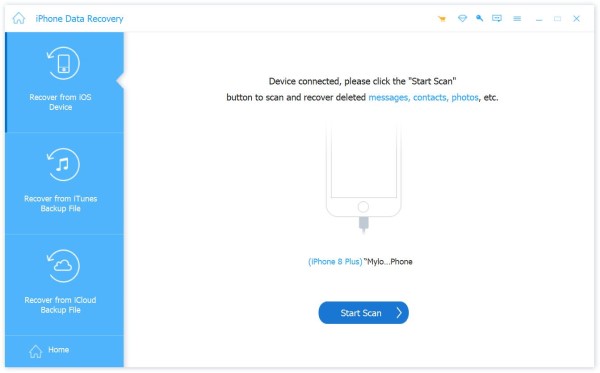
Spusťte software pro obnovu dat z iPhonu po jeho instalaci do počítače. Je kompatibilní se systémy Windows 11/10/8/7/XP/Vista a macOS 10.7 nebo novějšími. Vyberte Obnovení z zařízení iOS režim. Připojte iPhone k počítači pomocí kabelu Lightning. Jakmile software rozpozná váš iPhone, klikněte na Skenovat tlačítko pro vyhledání ztracených dat v paměti.
Krok 2. Náhled chatů WhatsApp
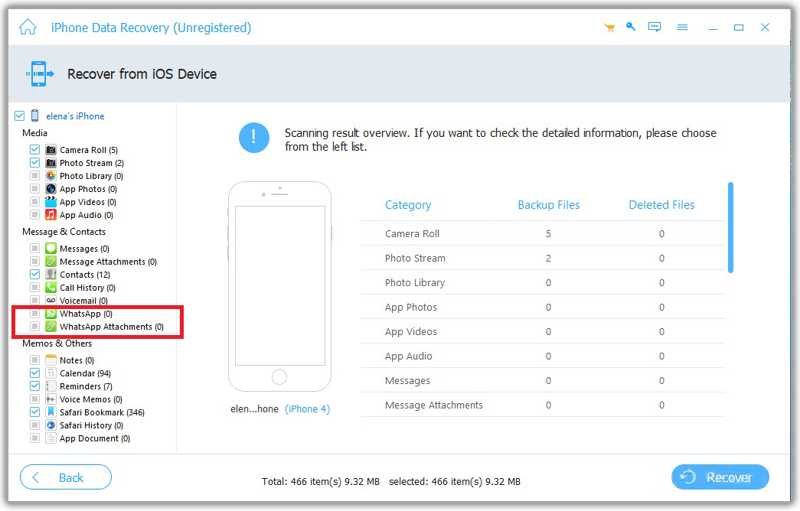
Po dokončení skenování dat se zobrazí okno náhledu. Na postranním panelu vyberte požadované datové typy, například WhatsApp a WhatsApp PřílohyPak si je můžete prohlédnout na hlavním panelu. Pokud je chatů příliš mnoho, vyberte Zobrazit pouze smazané filtrovat smazané zprávy.
Krok 3. Obnovte WhatsApp bez iCloud
Vyberte zprávy a přílohy WhatsApp, které chcete načíst. Klikněte na Zotavit se v pravém dolním rohu. V dialogovém okně klikněte na tlačítko Otevřená a vyberte výstupní složku. Nakonec klikněte na tlačítko Zotavit se znovu stiskněte tlačítko pro obnovení WhatsAppu bez záloh iCloudu.
Poznámka: Software nepřeruší stávající data na vašem iPhonu ani neodinstaluje WhatsApp.
Závěr
Tato příručka vysvětlila celý proces pro obnovení WhatsAppu z iCloudu pokud jste povolili automatické zálohování nebo jste si ručně zálohovali chaty do iCloudu. Dále jsme vysvětlili, co dělat, když se proces obnovy zasekne, zamrzne nebo selže. Apeaksoft iPhone Obnova dat je dokonalým řešením pro obnovení ztracených zpráv a příloh WhatsApp z paměti vašeho iPhonu bez zálohy iCloud. Navíc zjednodušuje pracovní postup díky uživatelsky přívětivému rozhraní.
Související články

 Apeaksoft iPhone Obnova dat
 Obnovte smazaná nebo ztracená data ze zařízení iOS, iTunes a záloh iCloud.
Bezpečné stahování
Bezpečné stahování



