Med udviklingen af smartphone kan folk nu tage billeder via telefoner i stedet for kamera. Der er dog også problemer med fotobesparelse. Hvis du er bruger af Samsung-enheder, kan du finde opbevaring til at gemme dine tidligere fotos er begrænset. Bortset fra telefonens hukommelse mister du også dine billeder med et forkert tryk eller til virus, selv ved at miste din telefon. For at løse disse problemer anbefaler artiklen her 4-metoder til dig på Samsung Photo Backup.

- Del 1: Brug Android Data Backup & Restore til Samsung Photo Backup
- Del 2: Gem og sikkerhedskopier Samsung-fotos til computeren
- Del 3: Sikkerhedskopier Samsung Fotos i Cloud (Samsung Cloud, Dropbox)
- Del 4: Sikkerhedskopier Samsung-fotos ved hjælp af en app
del 1: Brug Android Data Backup & Restore til Samsung Photo Backup
For de fleste Android-brugere bruger du Android Data Backup & Gendan til Samsung fotobackup er en nem og effektiv måde. Det giver dig sikkerhedskopi af Android-data sikkert og selektivt. Og bare med et enkelt klik kan du afslutte din Samsung-fotobackup. Hvad mere er, er du i stand til at indstille en adgangskode for at beskytte dit individuelle privatliv og importere sikkerhedskopi. Følg vejledningen, og prøv at sikkerhedskopiere dine Samsung-fotos.
Trin 1. Download Android Data Backup og gendannelse
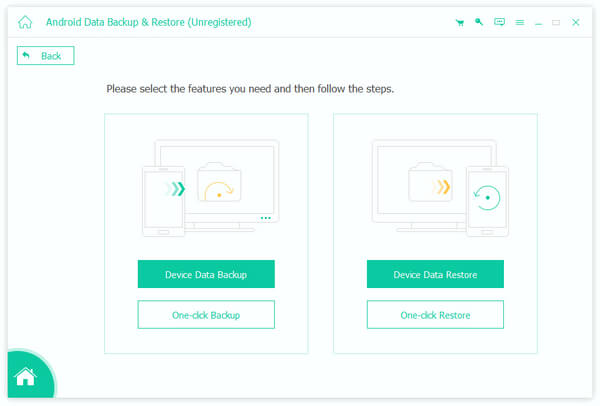
Download Android Data Backup & Restore fra det officielle websted og installer det på din computer. Start Android Data Backup & Restore, og så kan du se "Device Data Backup" og "Device Data Restore" i vinduet.
Trin 2. Slut Samsung enhed til computer
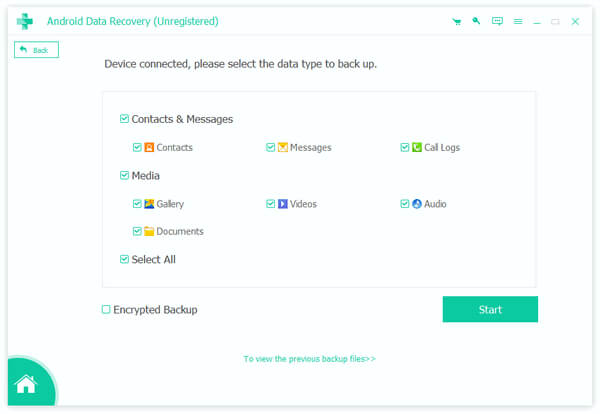
Slut din Samsung-telefon til din computer via et USB-kabel. Efter at have registreret din telefon, viser appen de data, du kan sikkerhedskopiere. Og så skal du vælge Billeder.
Trin 3. Sikkerhedskopier Samsung fotos
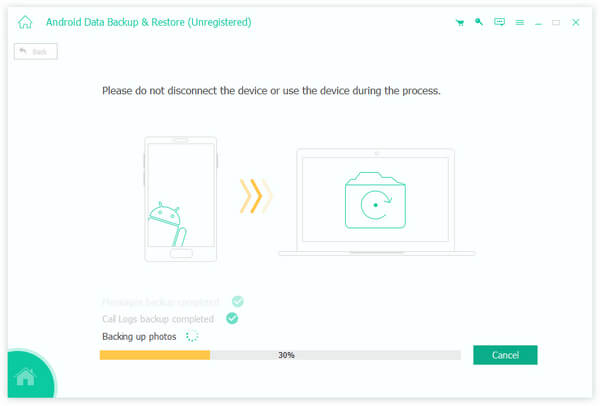
Når du har gjort dit valg, skal du begynde at sikkerhedskopiere dine fotos på din Samsung. Processen slutter om et par minutter. Du kan klikke på start for at forhåndsvise de billeder, du sikkerhedskopierede.
del 2: Gem og sikkerhedskopier Samsung-fotos til computeren
Faktisk kan du også sikkerhedskopiere Samsung-fotos til computeren uden tredjepartsværktøjer. Som du ved, kan Android Open Nature gøre det muligt for dig at sikkerhedskopiere data bare via et USB-kabel. Det mindsker problemerne ved at installere sikkerhedskopieringsprogrammer og gøre din Samsung fotobackup mere bekvem. Her er vejledningen til sikkerhedskopiering af fotos via USB.
Trin 1. Slut telefon til din computer
Slut din Samsung-enhed til din computer med det medfølgende USB-kabel. Indsæt den mindre ende af USB til din telefon, og indsæt den større ende af USB i din computer.
Trin 2. Monter telefonen som en harddisk
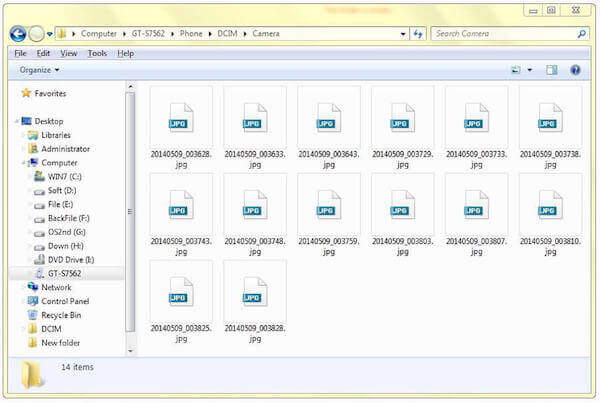
Din telefon registrerer automatisk forbindelsen. Når forbindelsen er forbundet godt, skal du finde den eksterne harddisk på din computer og åbne den.
Trin 3. Start din Samsung fotobackup
Når du åbner harddisken, vil du se alle mapper og filer, der er gemt på dit SD-kort. Find derefter DCIM mappe og åbn den, nu kan du vælge dine vigtige fotos og gemme dem på din computer. Hvis du har anden fotomappe, skal du bare gøre det her.
del 3: Sikkerhedskopier Samsung Fotos i Cloud (Samsung Cloud, Dropbox)
For at sikkerhedskopiere Samsung fotos kan sikkerhed være en af de mest importerede grunde, du overvejer. Sikkerhedskopiering af Samsung-fotos af Samsung Cloud og Dropbox kan løfte dit individuelle privatliv og datasikkerhed. Og Samsung Cloud og Dropbox fungerer uafhængigt af USB-kabler. Du kan lære instruktionerne, der følger, for at sikkerhedskopiere dine fotos.
1. Tag Samsung fotos op med Samsung Cloud
Når du sikkerhedskopierer Samsung-fotos med Samsung Cloud backup, du har brug for en Samsung-konto først. Samsung-konto er en indbygget tjeneste på din Samsung-telefon og hjælper dig med at sikkerhedskopiere data, der gemmes på din telefon.
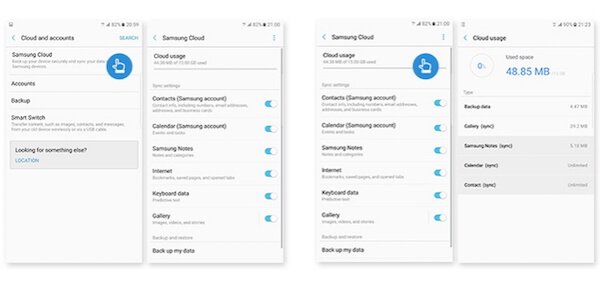
Trin 1. Tryk på "Indstillinger" på din Samsung-telefon. Rul ned på skærmen, find "Cloud og konti", og tryk derefter på den.
Trin 2. Tryk på "Samsung sky". Hvis du allerede har en Samsung-konto, kan du bare logge ind. Hvis du ikke har det, skal du først oprette en konto.
Trin 3. Tryk på "Sikkerhedskopier mine data", og vælg derefter Foto. Når du er klar, skal du trykke på "Sikkerhedskopier nu" på knappen på skærmen.
Her kan du også tænde Auto-sikkerhedskopiering for at gøre det automatisk. (Kan du ikke lide det? Bare Sluk og slet Auto Backup Pictures på Samsung Galaxy-telefonen)
2. Tag Samsung billeder op med Dropbox
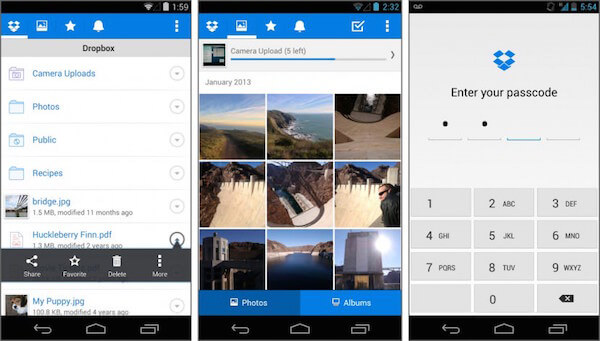
Dropbox er en skybaseret lagringsapp, der understøtter dig til at sikkerhedskopiere Samsung-fotos. En Dropbox-konto understøtter dig 2GB-plads gratis. Du kan betale for opgradering, hvis du vil have mere lagerplads.
Trin 1. Download Dropbox i din Samsung Play Butik på din telefon.
Trin 2. Når Dropbox er installeret, skal du køre den på din Samsung.
Trin 3. Log ind på din Dropbox-konto, hvis du allerede har. Hvis ikke, kan du trykke på SIGN UP for at indstille en ny konto.
Trin 4. Tryk på Menu, og tryk derefter på Indstillinger. Tryk så på Tænd kameraoverførsel, og vælg kun Billeder i Hvad skal du uploade. Du kan også indstille hvordan og hvornår du skal uploade.
del 4: Sikkerhedskopier Samsung-fotos ved hjælp af en app
Top 1: Sikkerhedskopier Samsung-fotos med Google Fotos
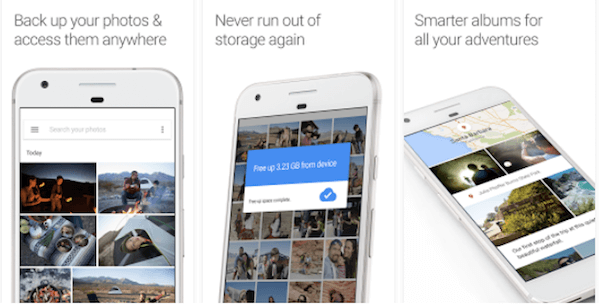
Hvis du vil have et værktøj til at hjælpe dig med at sikkerhedskopiere Samsung-fotos med ubegrænset opbevaring, kan du prøve Google Fotos. Når dine billeder ikke er større end 16 megapixel, kan du gemme dem så meget som du vil. Lagerbilleder kan gemmes i 15GB Google Konto lagring. Det kan også automatisk gemme alle fotos og videoer på dine enheder.
Trin 1. Download Google Fotos på dine Android-enheder.
Trin 2. Åbn denne app og log ind på din Google-konto. Tryk så på Menu, som er øverst på skærmen.
Trin 3. Tryk på Indstillinger, og tryk derefter på "Sikkerhedskopiér og synkroniser". Vælg derefter fotos, der skal sikkerhedskopieres.
Top 2: Sikkerhedskopier Samsung-fotos med Google+
Hvis du ikke ved, hvordan du vælger apps til sikkerhedskopiering af Samsung-fotos, kan du følge andre mennesker for at downloade Google+, som er blevet downloadet af over 10 millioner brugere i Google Play Store. Sikkerhedskopiering af dine fotos med Google+ gør dem også lettere at dele med folk, du vælger.
Trin 1. Download Google+ og installer det på dine Samsung-enheder.
Trin 2. Åbn Google+ appen, og log ind på din Google-konto. Tryk så på Menu-knappen for at gå til Indstillinger.
Trin 3. Tryk på "Kamera og fotos", og tryk derefter på "Automatisk sikkerhedskopiering". Sørg for, at Automatisk sikkerhedskopiering er slået til, og vælg at tage backup af fotos.

Top 3: Sikkerhedskopier Samsung-billeder med G Cloud Backup
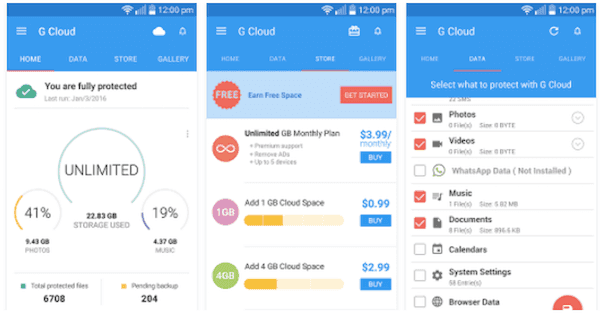
Hvis du finder den mest pålidelige og effektive måde at sikkerhedskopiere Samsung-fotos på, er G Cloud Backup, som har den høje sats i Google Play Butik, meget anbefalet til dig. Lagerpladsen, du kan sikkerhedskopiere, starter med 1 GB gratis og kan tjene op til 10 GB. Den understøtter også automatisk backup og uploader fotos, meddelelser og så videre, når Wi-Fi er tilsluttet.
Trin 1. Download G Cloud Backup gratis og installer den på dine Samsung-telefoner.
Trin 2. Start G Cloud Backup, og opret en konto, hvis du ikke har det.
Trin 3. Vælg, hvad du vil sikkerhedskopiere. Vælg bare billeder og begynd at sikkerhedskopiere.
Konklusion
Du kan prøve at sikkerhedskopiere Samsung-fotos ved hjælp af de fire Samsung backup apps vi nævnte ovenfor. Hver af dem kan give dig en vidunderlig oplevelse med de grundlæggende og avancerede funktioner. Jeg tror, du kan finde den mest effektive og passende måde. Hvis du har flere tanker om Samsung Photo Backup, kan du dele dem i kommentarer.