How to Add Music to Video with 5 Effective Methods

When making and retouching videos, the background music is a significant part. Music can add texture, color, and depth to your video and enhance the main elements. If you wish to spice up your video clips and make engaging videos on social media, applying music is a good idea. This guide shares the proven methods to add music to a video on your iPhone, Android phone, computer, or online without quality loss.
SIDEINDHOLD:
Part 1: A Quick Way to Add Music to a Video on a Computer
Apeaksoft Video Converter Ultimate is a great application to add music to a video on your desktop. In fact, it is a full-featured toolkit for video post-production. It allows you to retouch videos without technical skills, including applying background music.

Downloadet af over 1,000,000 brugere
- Add music to videos with three steps.
- Protect video quality during the process.
- Include a wide range of video editing features.
- Understøt næsten alle video- og lydformater.
- Preview the result with the built-in media player.
Sikker download
Sikker download
How to Add Music to Videos on Your Computer
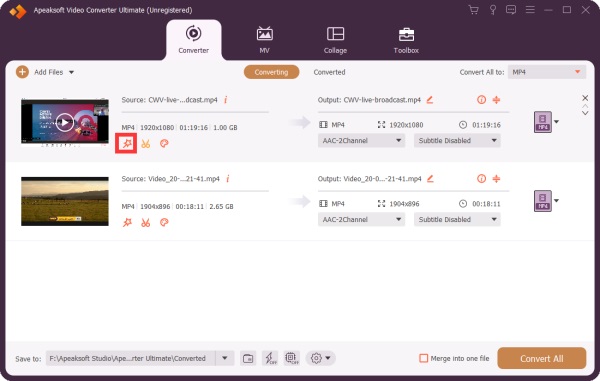
Trin 1 Importer videoer
Start the video editor software once you install it on your PC. There is another version for Mac OS X 10.12 or above. Click the Tilføj filer menu and import the video files you want to edit from your hard drive.
Trin 2 Add music to videos
Klik på knappen Redigere button on a video to open it in the video editor. Switch to the Audio tab. Click the Tilføj button and add the music to the video. Adjust the Bind og Forsinke according to the images. Click the Leg button to preview the result. Click OK at bekræfte det.
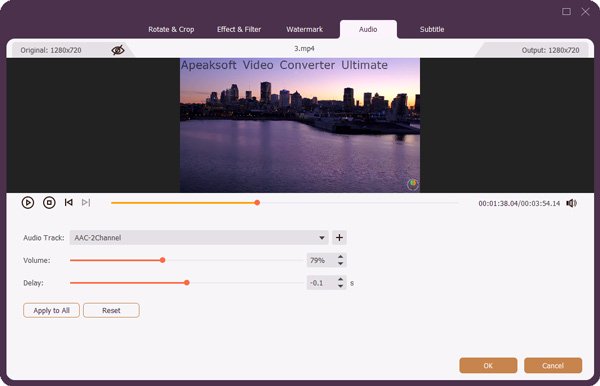
tips: If you want to add music to all videos, click Anvend på alle.
Trin 3 Eksporter resultater
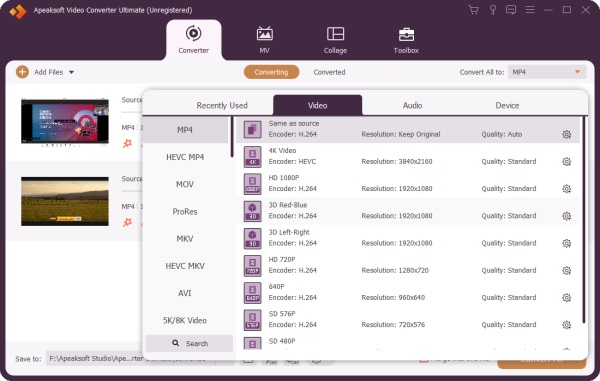
Klik på knappen Indstillinger knappen ved siden af Output Format at the bottom to trigger the profile dialog. Go to the Video tab, select the right format, and pick a preset. If you want to change the parameters, click the Indstillinger button with a gear icon. Set an output folder in the Gem til field. Finally, click the Konverter alle button to export all videos.
Part 2: How to Add Music to Video Online
Adding music to a video online for free without a watermark is another option. The benefit is that you can complete the job without installing anything. However, this way is unavailable for long videos. Moreover, you need a stable internet connection.
How to Add Music to Video on Adobe Express
Trin 1 Visit www.adobe.com/express/login in a browser.
Trin 2 Log in with an account.
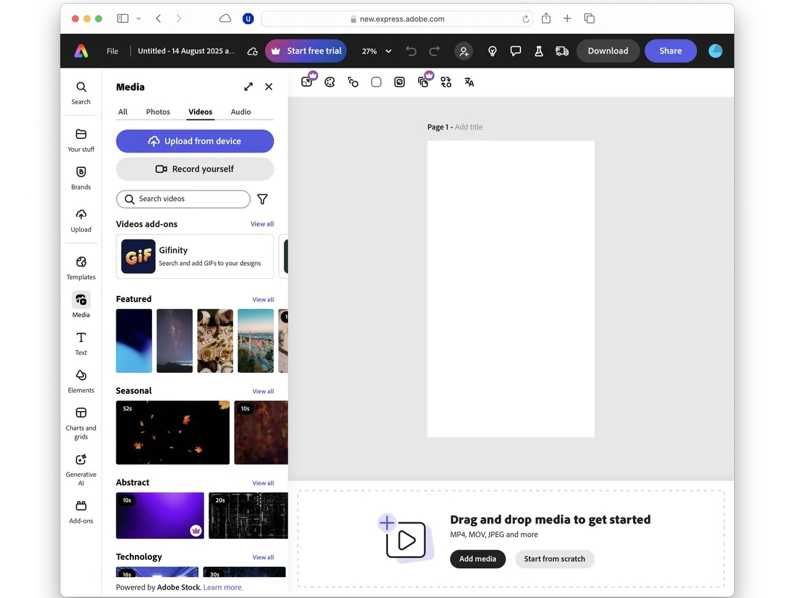
Trin 3 Gå til Videoer fane og klik Upload fra enhed at uploade en video.
Trin 4 Drag and drop the video file on the storyboard.
Trin 5 Klik derefter på Tilføj lyd at the bottom and import an audio track to add music to the video on Adobe Express.
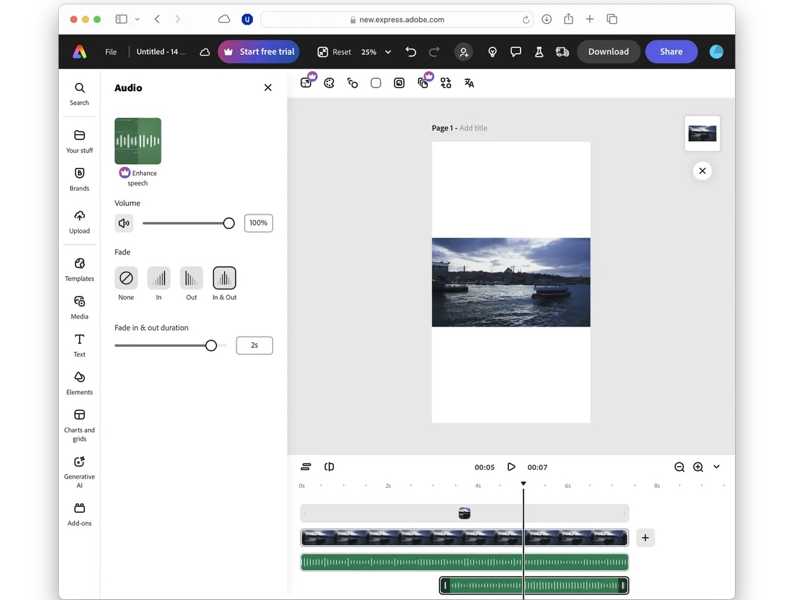
Trin 6 Klik på knappen Hent .
How to Add Music to a Video on Canva
Trin 1 Adgang www.canva.com i din browser.
Trin 2 Sign in with your account and password.
Trin 3 Klik på knappen Upload menu on the sidebar.
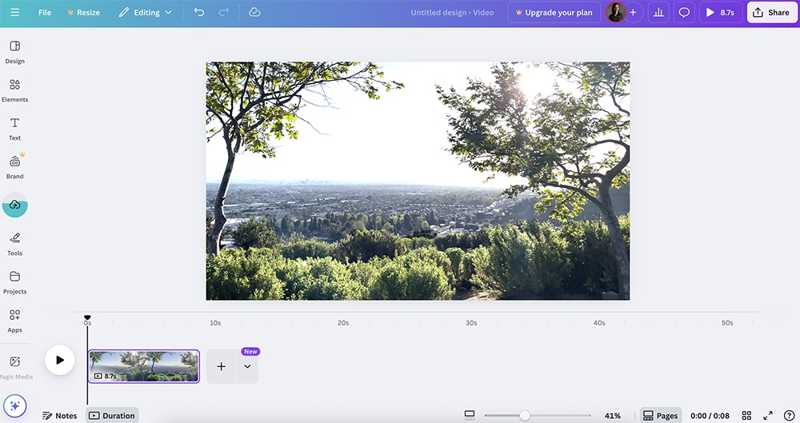
Trin 4 Klik på knappen Upload filer button and import the video and audio track you want to edit.
Trin 5 Drag and drop the video clip on the timeline.
Trin 6 Gå til Audio tab, drag and drop the audio track on the timeline to add music to the video on Canva.
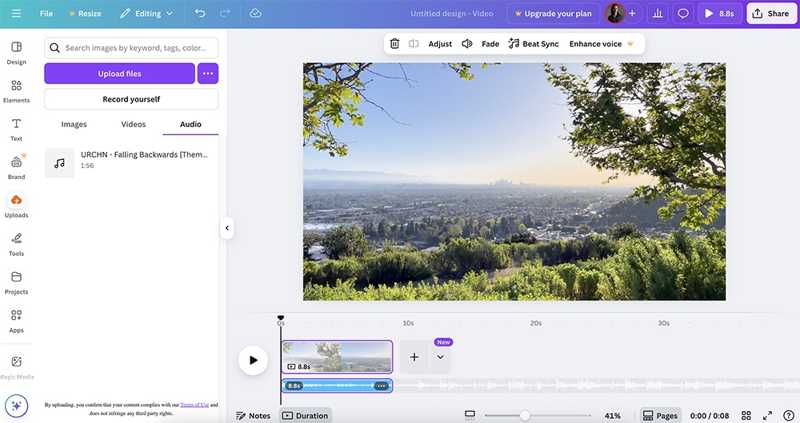
Trin 7 Klik på knappen Leg knappen for at se resultatet.
Trin 8 Finally, save and download the video file.
Part 3: How to Add Music to a Video on an iPhone
If you need to add music to a video on your iPhone, Apple's iMovie is a good option. This video editor app is available to most iPhones and is free to use. It lets you retouch a video file on the timeline.
Trin 1 Kør iMovie app på din iPhone.
Trin 2 Vælg den film mulighed under Start nyt projekt menu.
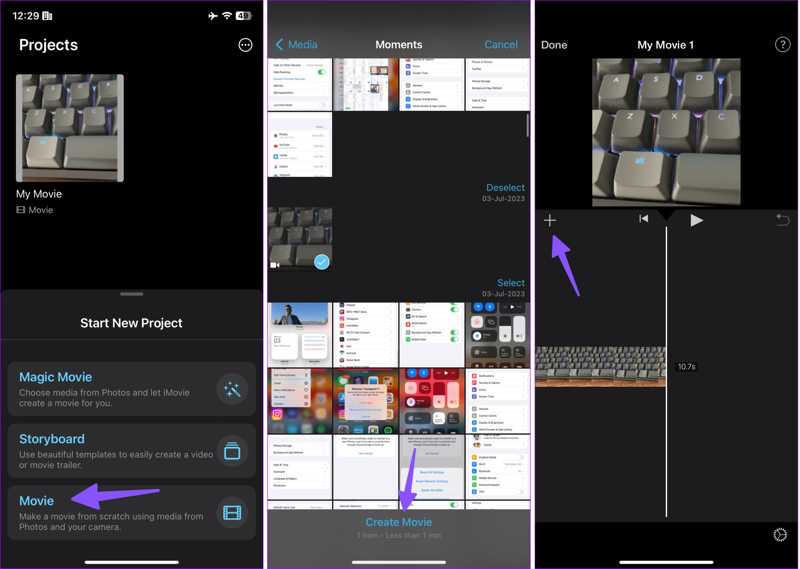
Trin 3 Select the desired video and tap the Opret film knappen nederst.
Trin 4 Tryk på ikonet Tilføj button under the media player and choose Audio.
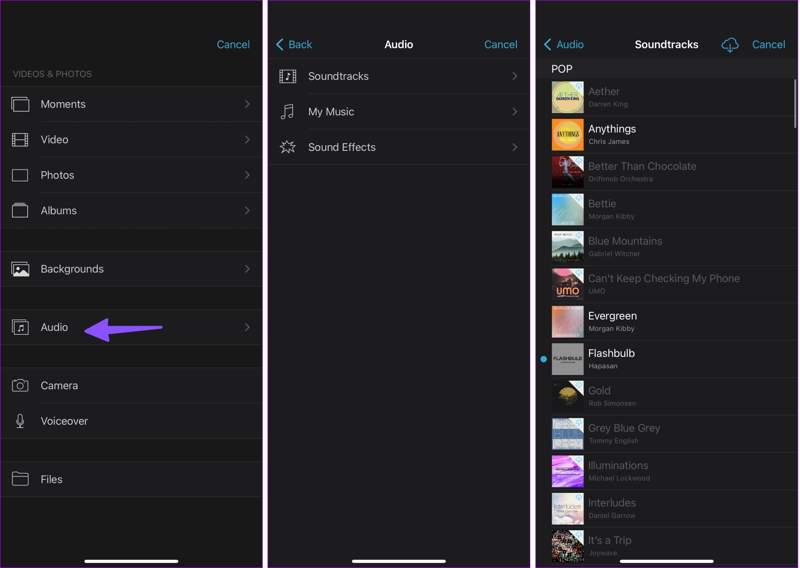
Trin 5 Type Lydspor, Min musik eller Sound Effects, and pick a proper track.
Trin 6 Once iMovie adds the music to the video on iPhone, tap the Leg knappen for at forhåndsvise den.
Trin 7 If you are satisfied, tap the Del knappen og vælg Gem video.
Trin 8 Then, you can find the result in your Photos app.
Yderligere læsning
Part 4: How to Add Music to Video on Android
Android doesn't come with native video editor apps. However, you can find a video editor app from the Google Play Store to add music to a video on your Android device. CapCut, for example, is a full-featured video editor app to apply background music quickly.
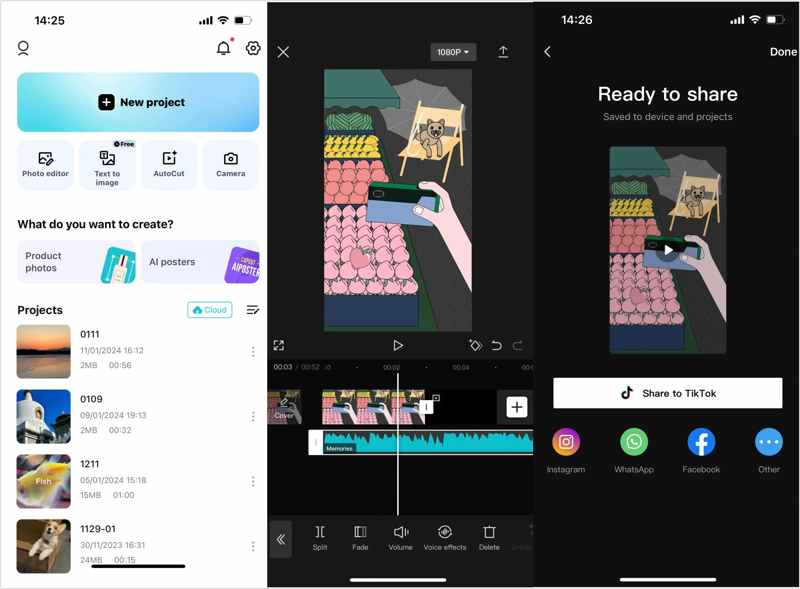
Trin 1 Install the video editor app on your phone from the Play Store.
Trin 2 Åbn den og tryk på Nyt projekt button to create a new project for adding music to a video on CapCut.
Trin 3 Next, select the desired video and tap Tilføj at fortsætte.
Trin 4 Vælg den Audio menu i bunden.
Trin 5 Select an appropriate song or audio track.
If you want to use the built-in library, tap the Hent button next to the desired track.
To use your song, tap the From device .
Trin 6 Til sidst skal du trykke på Del button and choose the destination.
tips: Most video editor apps on Android are free to download, but you need to purchase the in-app upgrade to get the advanced features, such as HD output.
Konklusion
Now, you should learn the five ways to føje musik til en video on a computer, online, on an iPhone, and on an Android device. You can choose a proper way according to your situation and platform, and follow the detailed steps to create appealing videos with background music. Apeaksoft Video Converter Ultimate is the ultimate way to retouch your videos without losing quality. Moreover, the concise interface simplifies the process, especially for ordinary people.
Relaterede artikler