

Hvad er Android-gendannelsestilstand, og hvordan bruger man den?

I dag har vi næsten altid vores smartphones og tablets i hånden hvert minut. De har indbyggede funktioner, som f.eks. at tage billeder, optage videoer og meget mere. Derudover findes der et hav af apps i Google Play Store og tredjeparts appbutikker. Ligesom andre digitale enheder kan Android-telefoner fryse eller sidde fast på grund af hardware- og softwarefejl. Heldigvis, Android Recovery Mode gør det muligt for brugere at foretage fejlfinding og genvinde adgang til Android-enheder.
SIDEINDHOLD:
Del 1: Hvad er Android-gendannelsestilstand
Hvad er Android Recovery Mode? Som tidligere nævnt er Recovery Mode i Android en unik opstartstilstand på alle Android-enheder. Den giver et sæt værktøjer til at diagnosticere og fejlfinde softwarefejl og -fejl uden at skulle gå ind i operativsystemet. Den bruges typisk til at udføre softwareopdateringer, nulstille fabriksindstillinger eller installere brugerdefinerede ROM'er, når din telefon sidder fast, fryser eller går ned.
Forklaring af muligheder i Android-gendannelsestilstand

Du kan få et par muligheder på skærmen Android Recovery Mode. Indstillingerne kan være lidt forskellige, afhængigt af din enheds mærke eller model. Vi forklarer de vigtigste muligheder for Android Recovery Mode nedenfor:
1. Genstart systemet nu: Genstart din Android-enhed til det normale system.
2. Anvend opdatering fra ADB: Tilslut din telefon til din computer, og opdater operativsystemet med Android SDK.
3. Slet data/fabriksnulstilling: Slet alle data på din enhed, inklusive fotos, videoer, musik, apps, appdata, brugerdefinerede indstillinger og mere. Fabriksnulstilling af en Android-enhed i gendannelsestilstand er et vigtigt trin i fejlfinding.
4. Monter/system: Monter datapartitionen eller systemet og rediger alt, hvad partitionen indeholder. Denne indstilling hjælper med at se, analysere og redigere alle data i systempartitionen.
Del 2: Sæt din Android-telefon i gendannelsestilstand
Hvordan aktiverer man gendannelsestilstand på Android? Generelt kan du sætte din enhed i gendannelsestilstand med knapkombinationen. Arbejdsgangen er dog lidt anderledes afhængigt af dit telefonmærke og -model.
Sådan sætter du en Google Pixel i gendannelsestilstand

Trin 1 Tryk længe på Power + Lydstyrke op knapperne sammen og sluk din telefon.
Trin 2 Hold derefter på Power + Lydstyrke ned knapperne i et par øjeblikke.
Trin 3 Når Bootloader-tilstand vises, slip alle knapper.
Trin 4 Vælg Gendannelsestilstand med Bind knapperne, og tryk på Strøm knappen for at bekræfte den.
Trin 5 Tryk derefter på Lydstyrke op + Tænd/sluk knapper, når billedet af Android-robotten vises.
Trin 6 Nu starter din Android i gendannelsestilstand.
Sådan aktiverer du gendannelsestilstand på en Samsung Galaxy
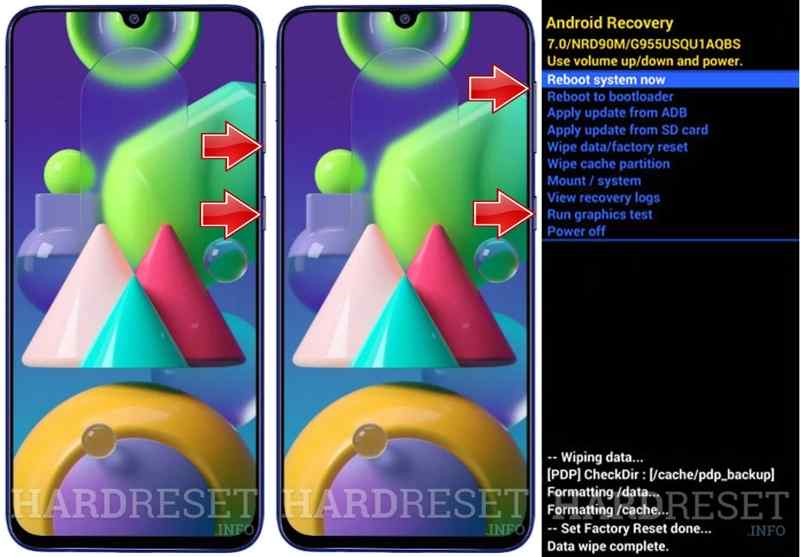
Trin 1 Hold Strøm knappen og sluk din telefon. Hvis din skærm ikke reagerer, skal du trykke længe på Strøm knappen, indtil din skærm bliver sort.
Trin 2 Hold Strøm + volumen op knapper eller Tænd/sluk + Lydstyrke op + Hjem/Bixby knapperne, indtil du ser Samsung-logoet.
Trin 3 Nu går din Android i gendannelsestilstand.
Sådan går du i gendannelsestilstand på Motorola
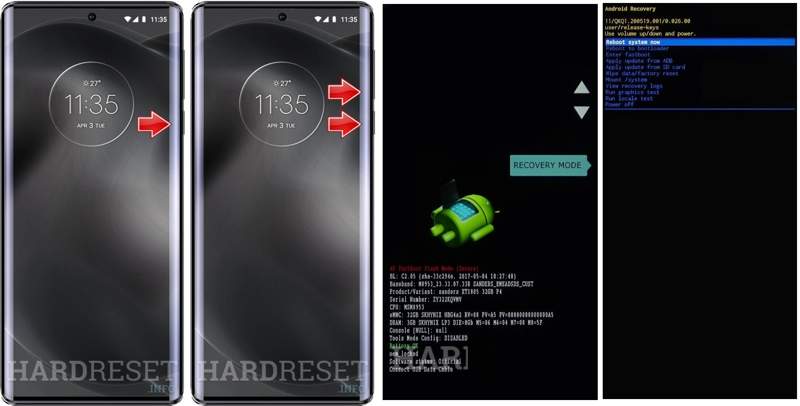
Trin 1 Hold nede i Strøm nøglen og sluk din telefon.
Trin 2 Tryk længe på Strøm + Lydstyrke ned knapperne sammen i cirka 10 sekunder, indtil Bootloader-tilstand kommer til syne.
Trin 3 Brug Bind taster til at vælge Recovery-tilstand, og ramt Strøm knappen for at bekræfte den.
Trin 4 Tryk Strøm knappen, mens du trykker kortvarigt på volumen op knappen på skærmen Ingen kommando.
Trin 5 Derefter går din Android i gendannelsestilstand.
Sådan åbner du gendannelsestilstand på OnePlus

Trin 1 Hold Strøm tasten for at slukke din telefon.
Trin 2 Hold Strøm + Lydstyrke ned knapperne et øjeblik.
Trin 3 Slip derefter Strøm knappen, når du ser OnePlus-logoet.
Trin 4 Vælg dit sprog, og åbn Gendannelsestilstand på din Android-telefon.
Sådan sætter du en Huawei Android-telefon i gendannelsestilstand
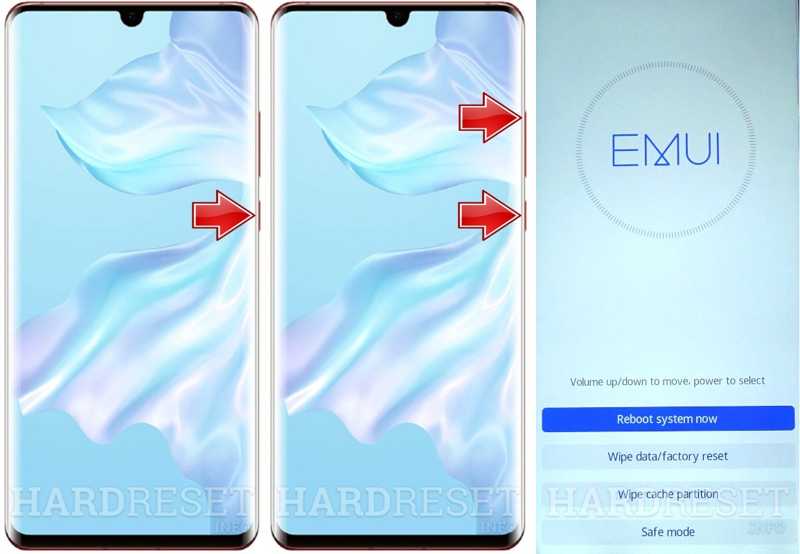
Trin 1 Tryk Strøm knappen og sluk din telefon.
Trin 2 Hold nede i Lydstyrke op + strøm Knapper på samme tid.
Trin 3 Når du ser skærmen Gendannelsestilstand, skal du slippe alle knapper.
Trin 4 Så kan du bruge din Bind knapper til at fremhæve Ryd data / fabriks tilstand i Android-gendannelsestilstand.
Del 3: Afslut gendannelsestilstand på Android
Efter fejlfinding skal du manuelt afslutte gendannelsestilstanden på Android. Det betyder, at du kan genstarte til standardskærmen. Vi demonstrerer arbejdsgangen for at afslutte Android-gendannelsestilstand nedenfor:

Trin 1 Brug din Bind tasterne til at fremhæve Genstart systemet nu valgmuligheden på skærmen Gendannelsestilstand.
Trin 2 Tryk derefter på knappen Strøm knappen for at bekræfte den.
Trin 3 Når din enhed genstarter, går den i standardtilstand.
Yderligere læsning
Del 4: Gendan data efter fabriksindstilling af Android i gendannelsestilstand
Fabriksnulstilling af Android i gendannelsestilstand sletter alle data og indstillinger på din enhed. Hvis du ikke har en sikkerhedskopi, Apeaksoft Android Data Recovery kan hjælpe dig med at få dine data og filer tilbage.
Den nemmeste måde at gendanne Android efter fabriksindstilling i gendannelsestilstand
- Gendan alle data fra Android efter en fabriksnulstilling.
- Udpak dine data fra en ødelagt eller nedbrudt telefon.
- Forhåndsvisning af mistede filer til selektiv gendannelse.
- Arbejd med fotos, videoer, kontakter, beskeder og meget mere.
- Understøtter en bred vifte af Android-mærker og -modeller.
Sikker download
Sikker download

Sådan gendannes Android-data efter fabriksindstilling i gendannelsestilstand
Trin 1
Opret forbindelse til din telefon
Åbn den bedste Android-gendannelsessoftware, når du har installeret den på din computer. Tilslut din telefon til din computer med et USB-kabel. Sørg for at aktivere USB Debugging tilstand på din telefon og vælg Overfør filerSoftwaren vil automatisk registrere din telefon.

Trin 2
Scan din telefon
Autoriser og tillad softwaren at få adgang til dine enheder. Vælg derefter de datatyper, du vil gendanne. Hvis du er usikker, skal du kontrollere Marker alt. Klik på Næste knappen for at begynde at scanne din telefon.

Trin 3
Datagendannelse
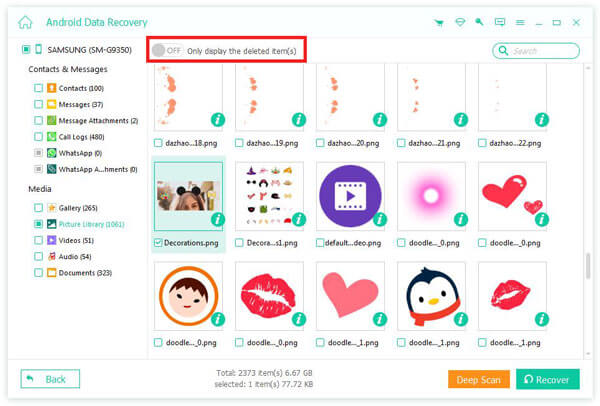
Efter scanningen kan du se dine gendannelige data på din enhed. Markér de ønskede filer og elementer. Hvis du ikke kan finde de ønskede filer, skal du klikke på Dyb scanning. Klik på Recover knappen, angiv en outputmappe og bekræft Android-gendannelse. Du kan f.eks. gendan slettede tekstbeskeder på din Android.
Konklusion
Nu burde du forstå hvad Android System Recovery Mode er. Endnu vigtigere er det, at vi demonstrerede, hvordan du sætter din enhed i gendannelsestilstand i henhold til din telefons mærke og model. Efter fejlfinding kan du afslutte gendannelsestilstand og starte i standardtilstand. Apeaksoft Android Data Recovery er en simpel måde at få datagendannelse efter en fabriksnulstilling.
Relaterede artikler
Denne artikel fortæller dig, hvordan du udfører Schok Volt SV55 FRP bypass med professionelle FRP bypass-værktøjer, når din Schok Volt SV55 er i FRP efter en fabriksnulstilling.
Denne artikel introducerer, hvordan du nulstiller Android-adgangskoden, inklusive adgangskoden til Android-telefonens skærm og adgangskoden til Google-kontoen på Android-telefonen.
Ved du ikke, hvor du finder papirkurven på din Android for at gendanne slettede billeder eller filer? Dette indlæg viser dig detaljeret, hvordan du gendanner papirkurven fra Android.
Kom og udforsk, hvordan du gendanner SD-kort til Android ved hjælp af en desktop-software - Apeaksoft Data Recovery eller en Android mobil SD-kortgendannelsesapp.



