

Sådan gendanner du mistede og slettede kontakter på Android-telefon

Android-telefoner er udstyret med nogle fantastiske funktioner, der kan redde dig fra ubehagelige situationer. En af dem er Kontakter-appen, der er forudinstalleret på Android-enheder. Den giver dig mulighed for at gemme et ubegrænset antal kontakter og telefonnumre. Derudover kan du administrere dem, f.eks. fjerne, tilføje, tildele nye personer, opdatere og meget mere. Denne guide deler flere gennemprøvede metoder til at... hent slettede telefonnumre fra din Android-telefon i en række forskellige situationer.
SIDEINDHOLD:
Del 1: Sådan finder du kontakter fra et SIM-kort på Android
Hvor gemmer Android kontakter? På en Android-telefon kan du gemme kontakter i din hukommelse og på SIM-kortet. Hvis du mister lokale kontakter, kan du fortryde slettede Android-kontakter fra SIM-kortet eller omvendt.
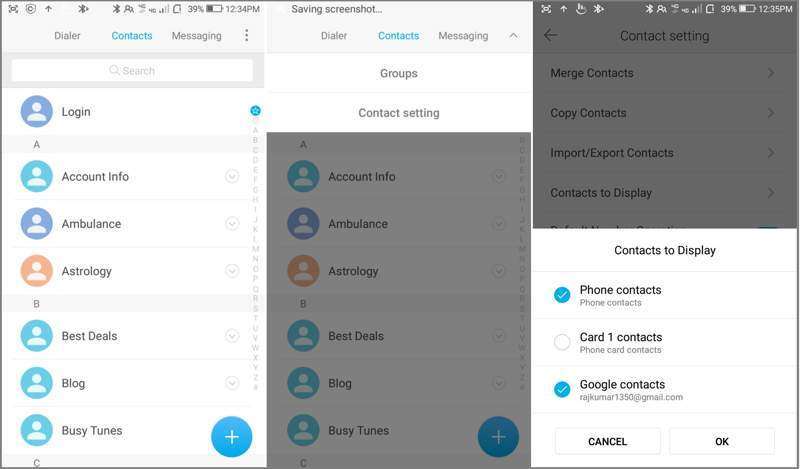
Trin 1 Åbn den indbyggede Kontakt os App på din telefon.
Trin 2 Tryk på ikonet Menu knap med et ikon med tre prikker.
Trin 3 Vælg Kontakter, der skal vises at fortsætte.
Trin 4 Vælg derefter Telefon kontakter, hvis du ved et uheld har slettet kontakter på SIM-kortet. Eller vælg dit SIM-kort, hvis du har slettet kontakter på din telefon.
Trin 5 Tryk på ikonet OK knappen, og du kan gendanne slettede kontakter fra SIM-kortet på din Android.
Del 2: Sådan gendannes kontakter fra papirkurven
På nogle Android-telefonmodeller kan du gendanne slettede kontakter på Android fra papirkurven eller papirkurvsmappen. De slettede kontakter gemmes i mappen i op til 30 dage. Før de fjernes permanent, kan du få dem tilbage på din enhed direkte.
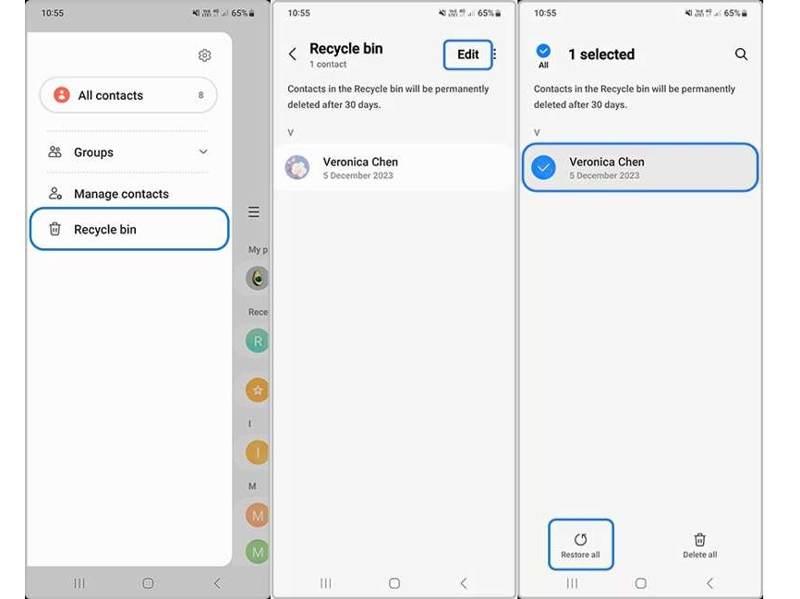
Trin 1 Kør appen Kontakter i appbakken.
Trin 2 Tryk på ikonet Hamburger knappen og vælg Papirkurven or Trash.
Trin 3 Hit the Redigere knappen og vælg den kontakt, du vil hente.
Trin 4 Tryk derefter på Gendan knap til at gendanne slettede kontakter på Android.
Trin 5 Når det er færdigt, kan du finde kontakterne på din kontaktliste.
Bemærk: Vi bruger en Samsung Galaxy-telefon som eksempel. Arbejdsgangen på andre telefonmærker kan være anderledes, men lignende.
Del 3: Sådan får du Android-kontakter tilbage fra Google
Når du køber en Android-telefon, skal du aktivere den med en Google-konto. Samtidig kan du synkronisere kontakter og andre data til din konto. Det giver dig mulighed for at gendanne kontakter fra Google til Android.
Sådan kopierer du Google-kontakter til Android
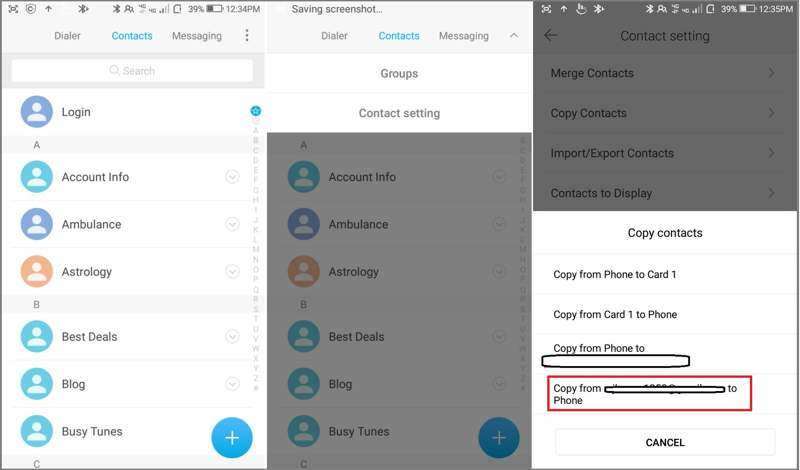
Trin 1 Åbn appen Kontakter.
Trin 2 Tryk på ikonet Menu knap med et ikon med tre prikker.
Trin 3 Vælg Kopier kontakter fra listen.
Trin 4 Tryk derefter på Kopiér fra [din Google-konto] til telefon.
Trin 5 Markér felterne ud for alle mistede kontakter, og tryk på Kopi.
Sådan gendanner du Google-kontakter på Android i Kontakter
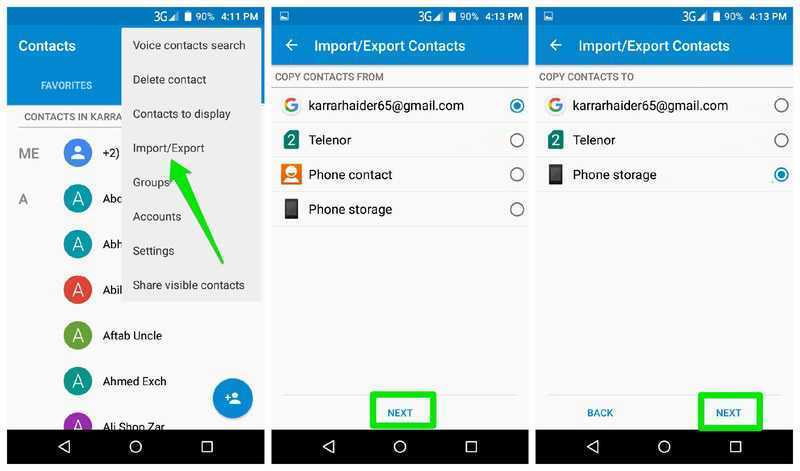
Trin 1 Tryk på ikonet Menu knap i din Kontakt os ca.
Trin 2 Vælg Import / Export fra kontekstmenuen.
Trin 3 Vælg din Google-konto under KOPIÉR KONTAKTER FRA, og tryk på Næste.
Trin 4 Vælg derefter din telefonlagerplads under KOPIÉR KONTAKTER TIL.
Trin 5 Til sidst skal du trykke på Næste og bekræfte gendannelse af Google-kontakter på Android.
Sådan gendanner du Google-kontakter på Android i Indstillinger
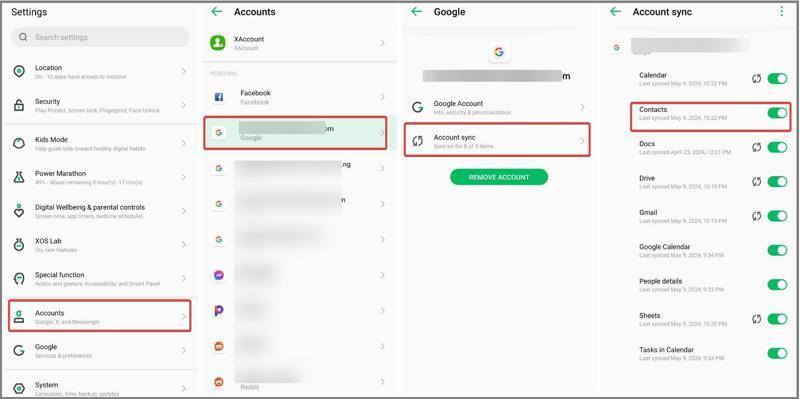
Trin 1 Når du har slettet kontakter, skal du gå til Indstillinger app'en, og tilslut din telefon til en internetforbindelse.
Trin 2 Vælg Adgangskode og konti og vælg din Google-konto.
Trin 3 Tryk på Kontosynkronisering og slå fra Kontakt os.
Trin 4 Slå derefter til Kontakt os for at få slettede kontakter tilbage på Android.
Del 4: Sådan gendannes kontakter på Android fra en sikkerhedskopi
Android-telefoner leveres med en indbygget funktion til sikkerhedskopiering og gendannelse, der bruger Google One til at sikkerhedskopiere de fleste data. Hvis du tidligere har oprettet en Android backup, kan du gendanne slettede kontakter på Android.
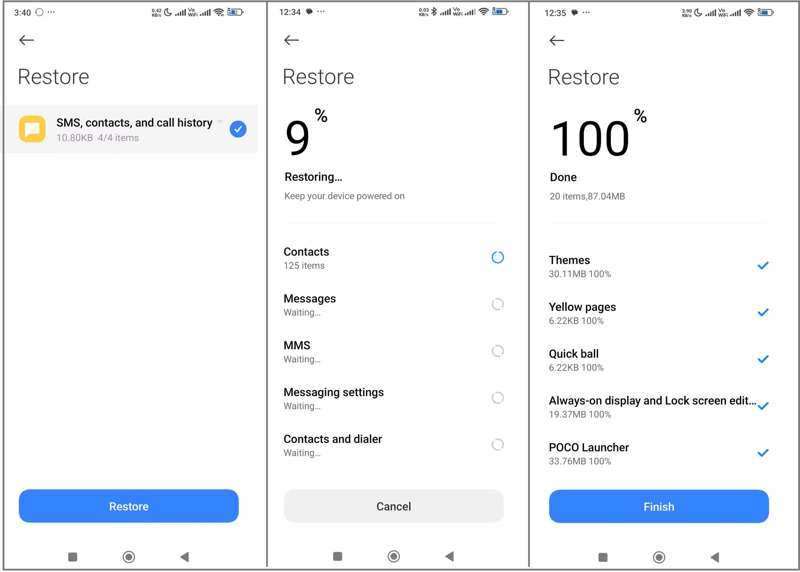
Trin 1 Kør Indstillinger ca.
Trin 2 Vælg Systemkrav or Om telefon.
Trin 3 Tryk på Backup og gendannelse eller den relaterede mulighed.
Trin 4 Vælg den rigtige sikkerhedskopi, der gemmer de slettede kontakter, og tryk på Gendan.
Trin 5 Trin 5: Vælg derefter SMS, kontakter og opkaldshistorik og tryk på Gendan igen.
Trin 6 Trin 6: Når det er færdigt, kan du finde dine kontakter på Android i den indbyggede Kontakter-app.
Del 5: Sådan henter du kontakter fra Android uden sikkerhedskopi
Hvis du ikke har synkroniseret eller sikkerhedskopieret dine kontakter, har du brug for et kraftfuldt datagendannelsesværktøj til at hente slettede kontakter på Android uden sikkerhedskopiering. Apeaksoft Android Datagendannelse, for eksempel i stand til at udtrække mistede kontakter fra din telefonhukommelse uden sikkerhedskopiering.
Den bedste måde at hente kontakter på Android uden sikkerhedskopiering
- Gendan slettede kontakter uden sikkerhedskopi.
- Tilgængelig i forskellige situationer, herunder en defekt enhed.
- Forhåndsvisning af mistede kontakter til selektiv gendannelse.
- Opbevar kontaktlinserne i deres oprindelige stand.
- Understøtter næsten alle Android-telefonmærker og -modeller.
Sikker download
Sikker download

Sådan henter du kontakter fra Android-telefonens hukommelse
Trin 1
Registrer din telefon
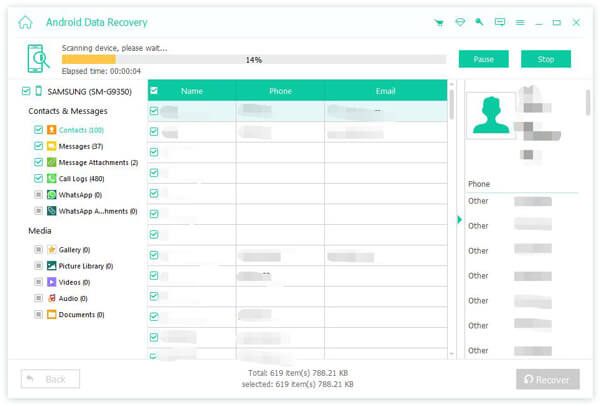
Start den bedste software til gendannelse af kontakter, efter du har installeret den på din computer. Tænd din telefon, gå til Indstillinger app, vælg Udvikler muligheder, og aktiver USB debugging tilstand. Tilslut derefter din telefon til din computer med et USB-kabel. Vælg, hvis du bliver bedt om det Overfør filer.

Trin 2
Vis kontakter
Marker afkrydsningsfeltet ud for Kontakt os og klik på Næste knappen for at begynde at scanne kontakter, der kan gendannes på din enhed. Følg instruktionerne på skærmen for at godkende og give tilladelse til adgang til din enhed. Efter scanningen skal du aktivere den Vis kun de slettede elementer og se slettede kontakter.

Trin 3
Gendan grupper sammen med telefonnumre
Sørg for at vælge de kontakter, du vil gendanne, og klik på Recover knappen nederst. Hvis du ikke kan finde de ønskede elementer, skal du klikke på Dyb scanning for at udføre en dybdegående scanning. Til sidst skal du angive en outputmappe og bekræfte gendannelse af Android-kontakter. Du kan også bruge dette program til Gendan slettede videoer på Android.
Konklusion
Denne guide har delt flere måder at gendan kontakter på din Android telefon. Efter at du har slettet kontakter ved et uheld, kan du kopiere dem fra dit SIM-kort. Hvis du har synkroniseret kontakter med din Google-konto, kan du kopiere, importere eller downloade kontakter til din telefon. Derudover giver en sikkerhedskopi dig mulighed for hurtigt at få kontakter tilbage. Apeaksoft Android Data Recovery giver dig mulighed for at gendanne mistede kontakter fra din telefonhukommelse uden en sikkerhedskopifil.
Relaterede artikler
Har du nogensinde slettet filer på din Android ved et uheld? Dette indlæg viser, hvordan du gendanner slettede filer fra Android, selvom du ikke har sikkerhedskopieret dem før!
Denne artikel viser, hvordan du kan se blokerede beskeder på Android-enheder fra Samsung, Google Pixel, One Plus, Asus, Motorola og mere.
Leder du efter den bedste Android-datagendannelsessoftware? Når så mange hævder at være de bedste Android-datagendannelsesværktøjer på markedet, hvordan vælger du?
Google kan sikkerhedskopiere og gendanne din enhed og administrere dine data effektivt. Denne guide viser dig, hvordan du henter Google Backup på Android.



