

So löschen Sie Spiele auf dem iPhone und entfernen Spieldaten vollständig

Möchten Sie Speicherplatz freigeben oder Spiele entfernen, die Sie nicht mehr spielen? iPhone-Spiele löschen Es ist einfacher als du denkst! Diese Anleitung zeigt dir, wie du Spiele auf dem iPhone sicher über die Einstellungen, den Startbildschirm oder die App-Mediathek löschst und wie du bei Bedarf verbliebene Daten endgültig entfernst.
SEITENINHALT:
- Teil 1: So löschen Sie Spiele auf dem iPhone über die Einstellungen
- Teil 2: iPhone-Spiele vom Startbildschirm löschen
- Teil 3: Spiele aus der App-Bibliothek vom iPhone löschen
- Teil 4: So entfernen Sie iPhone-Spiele vollständig und verhindern die Datenwiederherstellung
- Teil 5: Häufig gestellte Fragen zum Löschen von Spielen auf dem iPhone
Teil 1: So löschen Sie Spiele auf dem iPhone über die Einstellungen
Wenn Sie Speicherplatz freigeben oder Spiele entfernen möchten, die Sie nicht mehr spielen, ist das Löschen von Spielen direkt über die iPhone-Einstellungen die einfachste und effektivste Methode. In den Einstellungen sehen Sie, wie viel Speicherplatz jedes Spiel belegt. Befolgen Sie die unten stehenden Schritte, um die Spieldaten auf Ihrem iPhone sicher und schnell zu löschen.
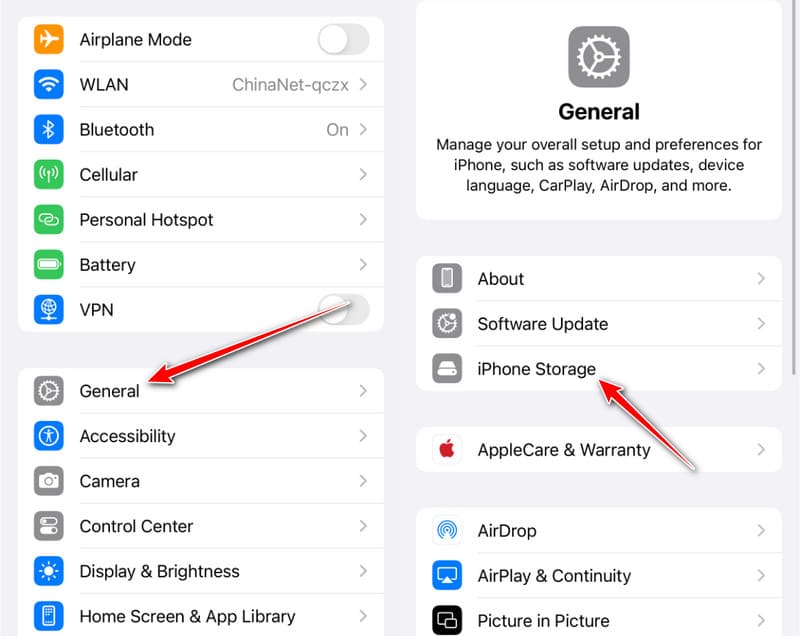
Schritt 1: Öffne Einstellungen auf deinem iPhone.
Schritt 2: Klicken Sie auf Allgemein> iPhone-Speicher.
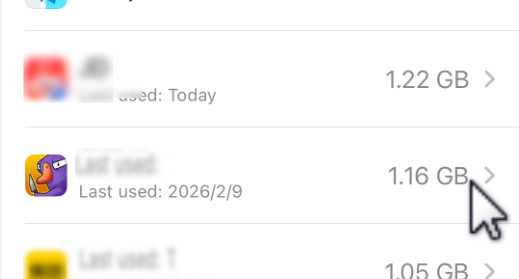
Schritt 3: Tippe auf die Spiel-App.
Schritt 4: Klicken Sie auf die App löschen Taste und wählen Sie Löschen zu bestätigen.
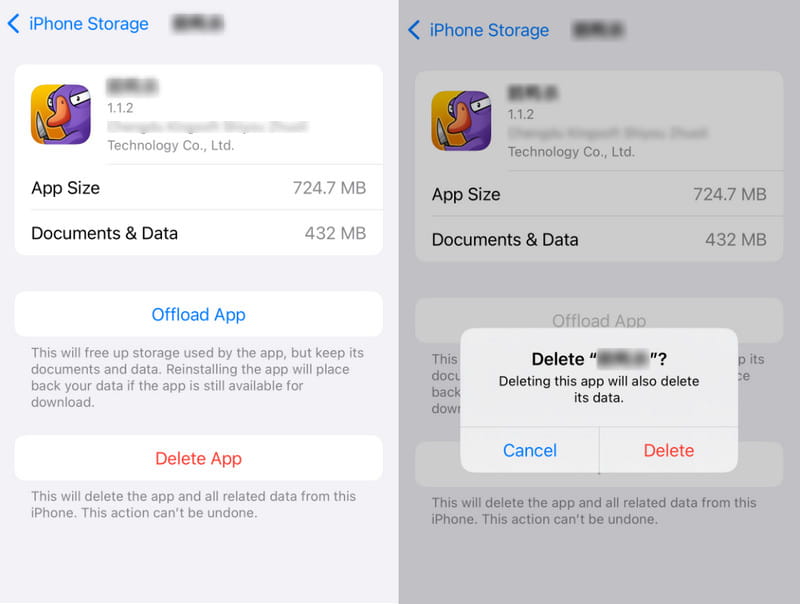
Tipps: Wählen Sie „Auslagern“ anstelle von „Löschen“. Wenn Sie die App später wieder verwenden möchten, empfiehlt sich die Option „Auslagern“. App ausladen Diese Option gibt Speicherplatz frei, der von der App belegt wird, während Ihre Daten erhalten bleiben. Bei der Neuinstallation der App werden Ihre Daten automatisch wiederhergestellt.
Teil 2: iPhone-Spiele vom Startbildschirm löschen
Das Löschen von Spielen direkt vom Home-Bildschirm ist der schnellste Weg, nicht mehr gespielte iPhone-Spiele zu entfernen. Es dauert nur wenige Sekunden und Sie müssen die Einstellungen nicht öffnen. Folgen Sie den unten stehenden Schritten, um zu erfahren, wie Sie Spieldaten auf Ihrem iPhone löschen.
Schritt 1: Suchen Sie die Spiele-App, die Sie nicht mehr benötigen.
Schritt 2: Tippen und halten Sie das Spielsymbol und wählen Sie die Option aus. App entfernen .
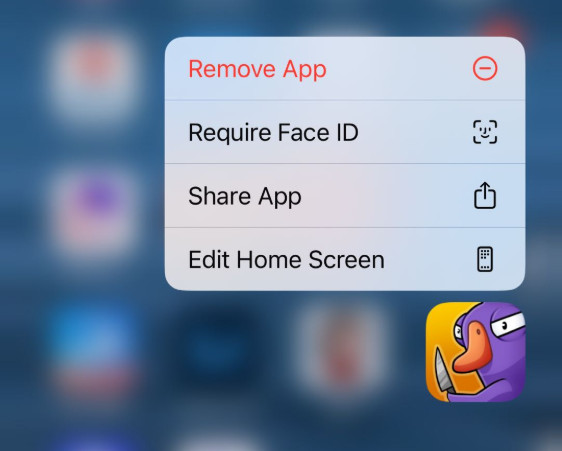
Schritt 3: Klicken Sie auf App löschenUnd dann ist die Spiele-App auf Ihrem iPhone verschwunden.
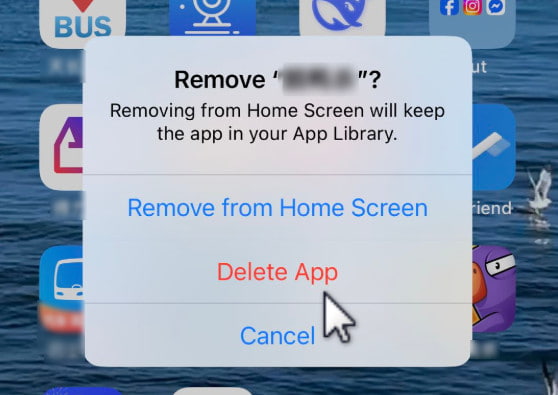
Tipps: Vom Startbildschirm entfernen: Diese Option entfernt lediglich das App-Symbol von Ihrem Startbildschirm. Sie finden die App weiterhin in Ihrer App-Bibliothek. Wenn Sie nicht möchten, dass das Spiel auf Ihrem Startbildschirm zu auffällig erscheint, ohne es zu deinstallieren, können Sie diese Option wählen.
Teil 3: Spiele aus der App-Bibliothek vom iPhone löschen
Wenn Sie ein Spiel nicht auf Ihrem Home-Bildschirm finden und es nicht zuvor gelöscht haben, befindet es sich möglicherweise in der App-Mediathek. Dort können Sie Spiele auch direkt löschen, ohne die Einstellungen aufzurufen. Befolgen Sie die unten stehenden Schritte, um ein Spiel über die App-Mediathek von Ihrem iPhone zu entfernen.
Schritt 1: Wischen Sie nach links, um auf die App-Bibliothek.
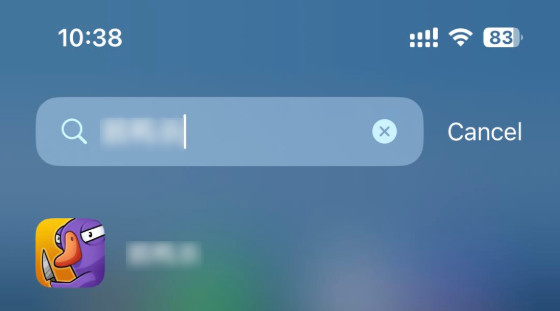
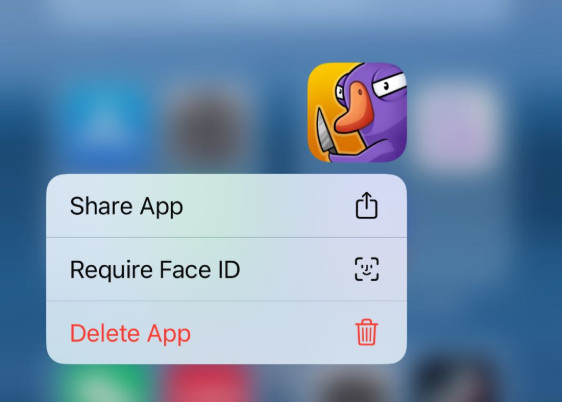
Schritt 2: Halten Sie die Spiel-App gedrückt. Falls Sie die Spiel-App nicht finden, können Sie in der Suchleiste oben suchen.
Schritt 3: Wählen App löschen.
Tipps: Sie können auch ähnliche Wege beschreiten, Snapchat löschen auf dem iPhone.
Teil 4: So entfernen Sie iPhone-Spiele vollständig und verhindern die Datenwiederherstellung
Spiel gelöscht. Symbol verschwunden. Aber sind Ihre Daten wirklich weg? Leider nein. Die Wahrheit ist: Sie lassen sich möglicherweise noch wiederherstellen.
iOS markiert diesen Speicherplatz lediglich als „zum Überschreiben verfügbar“ – die eigentlichen Daten bleiben auf dem Gerät erhalten, bis neue Dateien sie überschreiben. Datenwiederherstellungstools sind speziell dafür entwickelt, diesen unmarkierten Speicherplatz zu durchsuchen. Spielstände, Chatverläufe, zwischengespeicherte Bilder und sogar Anmeldedaten – alles lässt sich wiederherstellen.
Wenn du bist:
- Sie planen, Ihr altes iPhone zu verkaufen oder in Zahlung zu geben?
- Ich bin nicht ganz überzeugt von Apples Werksreset.
Dann ist dies der Ort Apeaksoft iPhone Radiergummi kommt in.
Was unterscheidet Apeaksoft iPhone Eraser von der in iOS integrierten Löschfunktion?
iOS löscht Ihre Daten nicht wirklich. Es markiert den Speicherplatz lediglich als wiederverwendbar und blendet Dateien in der Benutzeroberfläche aus. Wiederherstellungstools scannen genau diesen unmarkierten Bereich. Apeaksoft hingegen überschreibt diesen Bereich aktiv mit zufälligen Zeichen – je nach gewählter Stufe einmal, drei- oder siebenmal. Nach dem Überschreiben sind die Daten unwiederbringlich verloren.
Spieldaten auf dem iPhone vollständig löschen
- 3 Löschstufen zum Schutz Ihrer persönlichen Spieldaten.
- Entfernt vollständig alle Spielreste, die beim Löschen unter iOS zurückbleiben.
- Verhindert jegliche Möglichkeit, Spielstände, Chatprotokolle oder zwischengespeicherte Bilder wiederherzustellen.
- Kompatibel mit allen iPhone-Modellen und iOS-Versionen.
Sicherer Download
Sicherer Download
Schritt-für-Schritt-Anleitung
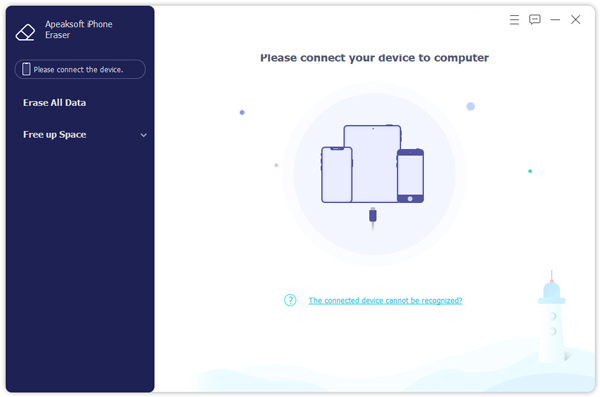
Schritt 1: Verbinden Sie Ihr Gerät mit dieser Software und wählen Sie aus Platz freigeben im linken Bereich.
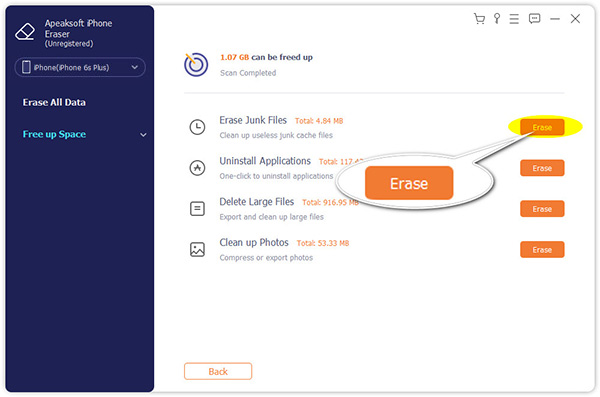
Schritt 2: Klicken Sie auf Löschen nachdem Deinstallieren Sie Anwendungen.
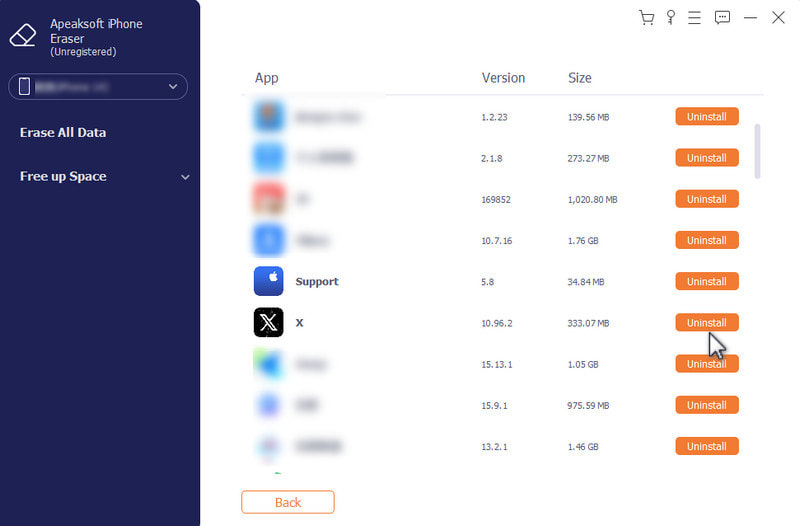
Schritt 3: Klicken Sie auf Deinstallieren nach der Spiele-App.
Teil 5: Häufig gestellte Fragen zum Löschen von Spielen auf dem iPhone
Gehen mein Game Center-Profil und meine Erfolge verloren, wenn ich Spiele auf meinem iPhone deinstalliere?
Das Löschen von iPhone-Spielen entfernt weder Ihr Profil noch Ihre Erfolge. Gehen Sie zu Einstellungen > Game Center manuell abmelden oder das Konto löschen.
Wird mein Abonnement automatisch gekündigt, wenn ich Spiele auf meinem iPhone lösche?
Das Löschen des Spiels beendet nicht das Abonnement. Sie müssen es über [Link einfügen] kündigen. Einstellungen > [Ihr Name] > Abonnements.
Wenn ich ein Spiel von meinem iPhone lösche, ist es dann endgültig weg?
Durch das Löschen der Spiel-App wird diese lediglich von Ihrem Gerät entfernt und lokaler Speicherplatz freigegeben. Die eigentlichen Daten können jedoch weiterhin vorhanden sein, bis sie überschrieben werden. Wenn Sie möchten, klares iPhone zu verkaufenUm verbleibende Spieldaten endgültig zu löschen, empfiehlt es sich, Tools wie Apeaksoft iPhone Eraser zu verwenden.
Fazit
Es muss nicht kompliziert sein Spiele auf dem iPhone löschenSie haben drei zuverlässige Möglichkeiten: über die Einstellungen, vom Startbildschirm oder über die App-Mediathek. Falls Sie sich Sorgen um verbleibende Daten machen, können Tools wie … Apeaksoft iPhone Radiergummi kann Ihnen dabei helfen, Spieldaten endgültig und gründlich zu löschen.
Ähnliche Artikel




