

User Guide
- Introduction
- Install and Register
- Remove Screen Password
- Bypass Google FRP
Try It Now!
Introduction
Thanks for choosing Apeaksoft DroidAide. This tool is dedicated to help you regain access to your Android phones in the easiest way. Moreover, it is a professional FRP bypass tool that helps you realize Samsung FRP bypass, Oppo bypass FRP, etc. Read more to explore how to access an Android phone without a password and how to bypass the FRP restriction screen.
Install and Register
Install
Step 1. Click the button below to download Apeaksoft DroidAide.
Step 2. Go to the top right corner of the page to find your download package. Click it and click Yes to allow the installation.
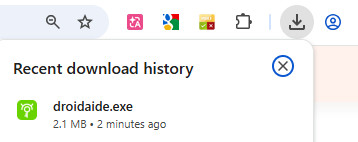
Step 3. Press Install in the middle of the page to start the installation. It takes a few seconds.
Register
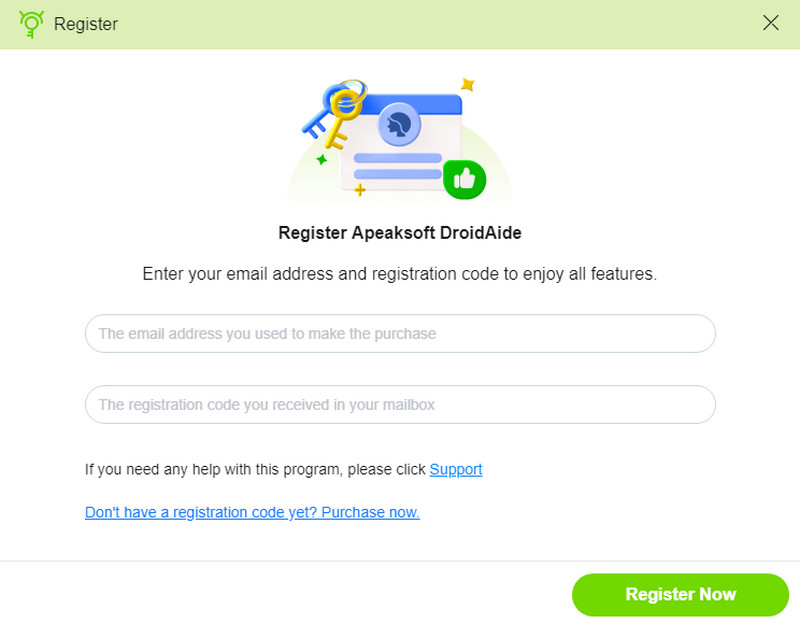
To register for more functions, you can perform your operation on the pop-up window when you have successfully installed Apeaksoft DroidAide.
Note: After you have purchased it successfully, you will receive an order confirmation letter where you will see a string of characters and numbers marked as Activation key, license code or KEYCODE(S). That is the registration code. Please keep it well.
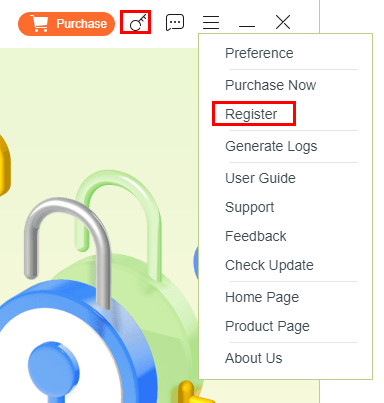
You can also find the window by clicking the hamburger menu or the key-like pattern in the top-right corner and clicking Register.
Remove Screen Password
Step 1. Launch and select
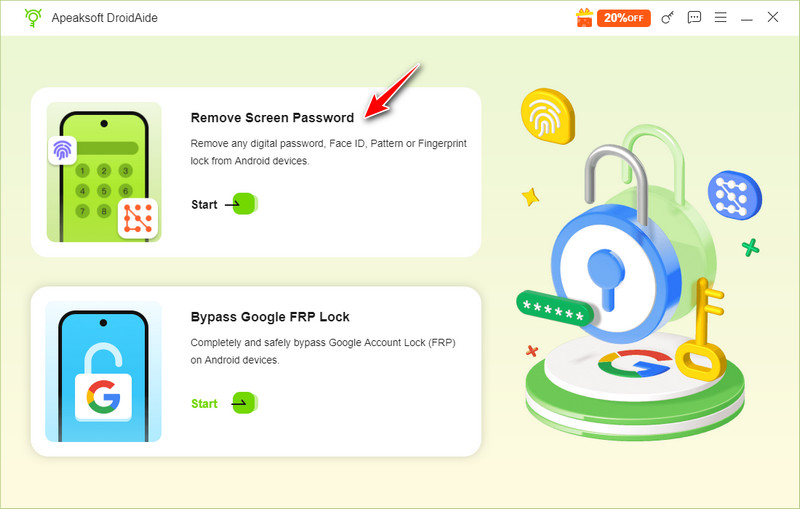
Launch Apeaksoft DroidAide. Choose the first option – Remove Screen Password on the main interface.
Step 2. Connect your device
Select the brand of your device and then connect your Android phone to your computer with a USB cable.
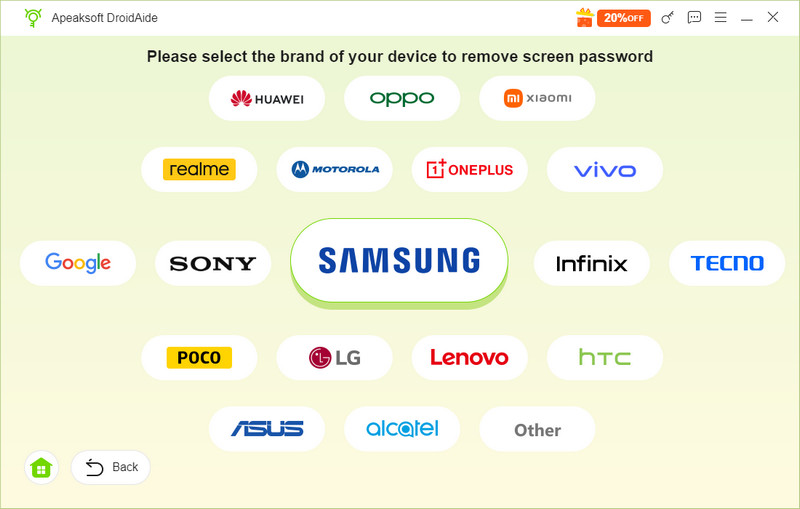
Step 3. Remove Now
Click the Remove Now button to access Android phones without a password successfully.
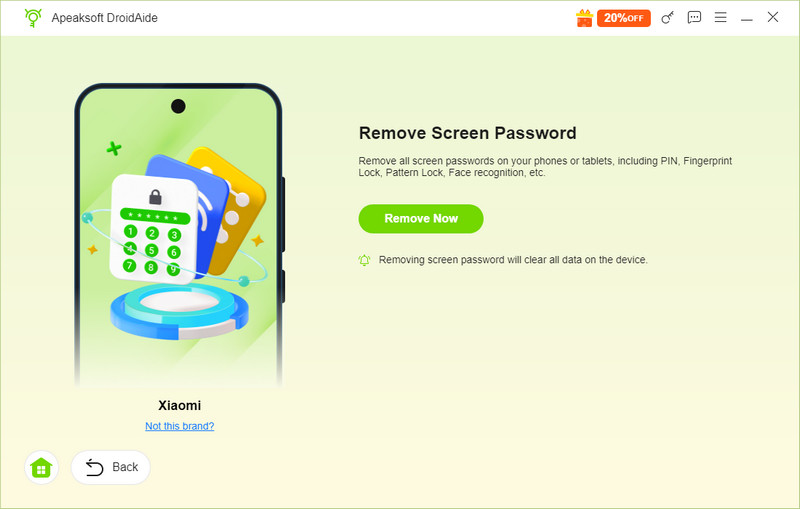
Note: The Remove Screen Password feature will help regain access to Android phones if you forget the password or if your phone becomes disabled or unresponsive. But something you should know is that:
1. Your data will be removed as well when you remove the Android screen password.
2. Please keep your device connected to the computer all the time while using it.
Bypass Google FRP
Step 1. Launch and select
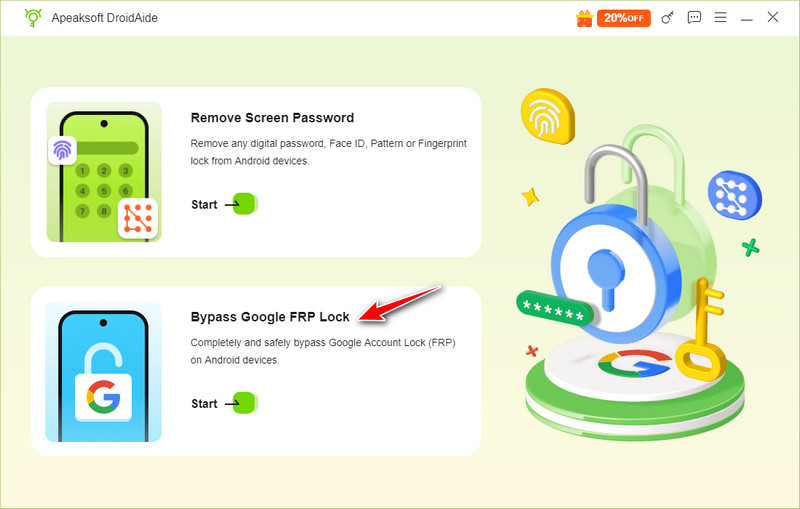
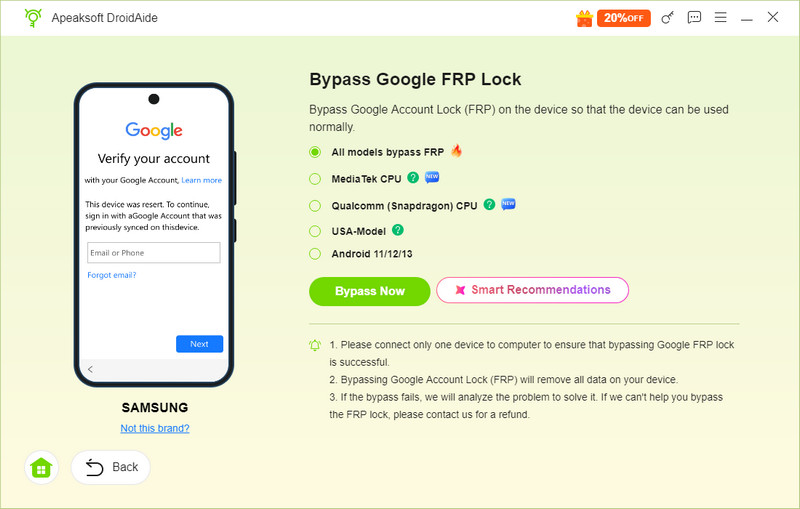
Launch the Apeaksoft DroidAide and select the second option – Bypass Google FRP Lock.
Step 2. Connect your device
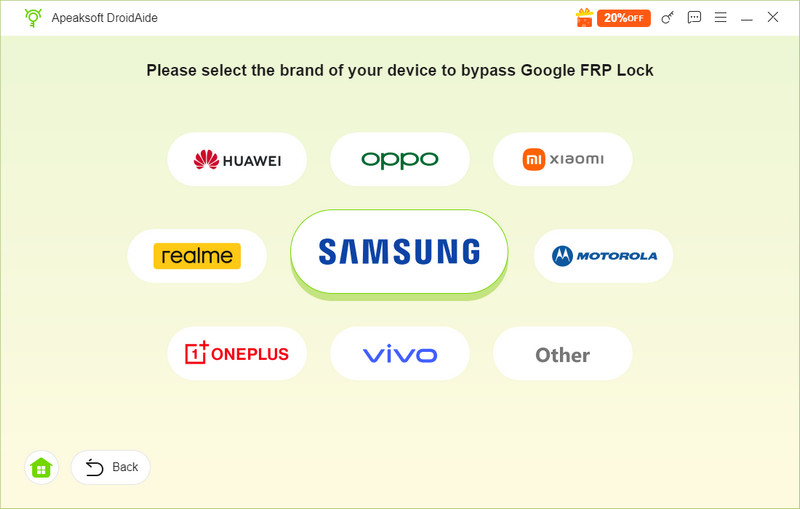
Connect your device to the computer with a USB cable. Your device’s brand will be recognized in the bottom right corner, or you can select your device’s brand on the interface.
Step 3. Bypass Now
Click the Bypass Now button to bypass FRP immediately.
Step 4. Configure the environment
Wait in patience for the software to configure the environment.
Note: If you want to have a Samsung FRP bypass, you should allow the Samsung debugging mode on your Samsung phone according to the instructions. Some other brands are also equipped with instructions on how to bypass FRP manually.
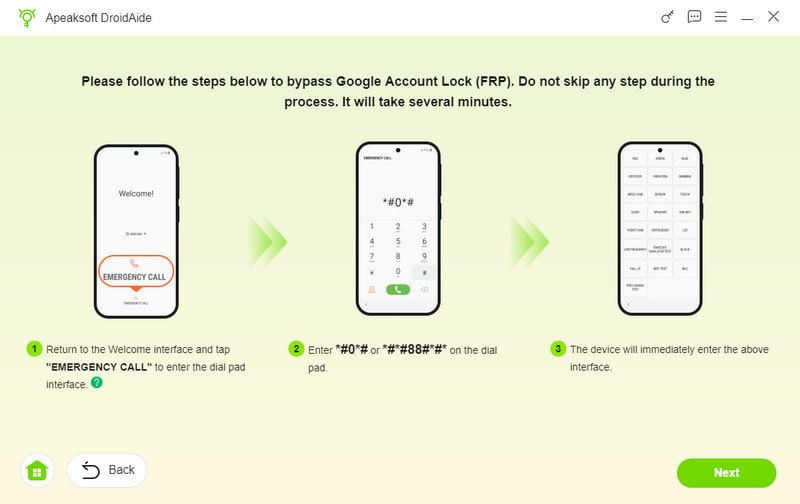
If your device’s brand doesn’t require a setting change, the environment configuration will be set automatically. Just wait in patience.
Step 5. Activate the device
Follow the instructions on the interface to activate your device after the environment configuration is completed.
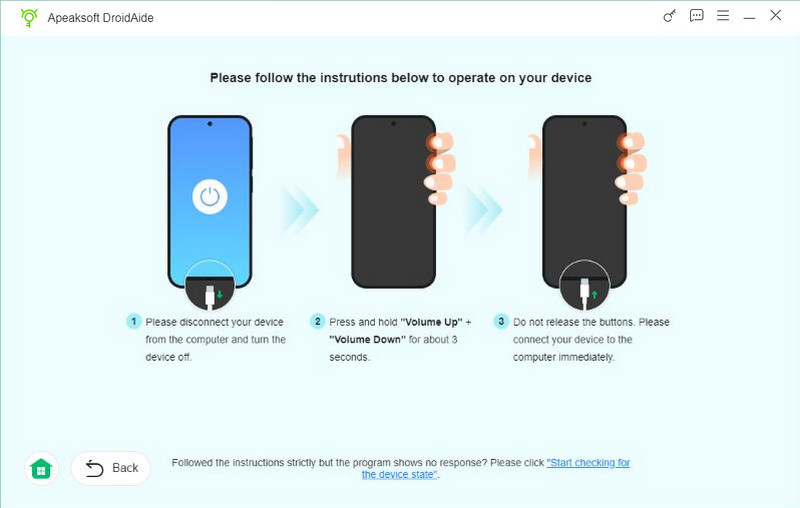
Step 6. Wait for the FRP bypass to be finished.
 Yes
Yes Thank you! Your feedback means a lot to us!