How to Fix Bad System Config Info on Windows 10/11

Βασικά Συμπεράσματα
- The stop code Bad System Config Info is usually a software error caused by corrupted registry or boot files.
- Sudden power loss and forced shutdowns always result in the BSOD Bad System Config Info error.
- Removing recent Windows updates or faulty drivers is a common fix for post-update blue screen issues.
Πληροφορίες κακής διαμόρφωσης συστήματος is one of the most common Blue Screen of Death (BSOD) errors on Windows 10 and Windows 11. This code usually appears during system startup or after a Windows update. When it appears, your computer is forced to crash and restart unexpectedly. If you are stuck with this frustrating blue screen, follow our guide to fix the Bad System Config Info issue step by step.
ΠΕΡΙΕΧΟΜΕΝΟ ΣΕΛΙΔΑΣ:
Why Does It Show bad_system_config_info
Before fixing the issue, it is helpful to understand the main triggers. Actually, most Bad System Config Info errors result from software issues instead of hardware damage. Common causes include:
- Incompatible device drivers
- Corrupted Windows system files or settings
- Incorrect boot configuration data (BCD)
- Faulty Windows updates
- Improper or interrupted system shutdowns
- RAM or hard disk errors
Identifying these causes allows you to apply targeted solutions without complicated operations.
How to Fix Bad System Config Info on Windows 10/11
After a basic understanding of why the Bad System Config Info error occurs, let's dive into how to fix this issue. This section will provide 7 possible and common methods for your reference. You can follow them one by one to troubleshoot this problem.
Method 1: Remove External Devices and Restart
In many cases, an incompatible external device or driver may cause the Bad System Config Info blue screen. Common devices include USB drives, external hard drives, and printers.
Βήμα 1. Shut down your computer first. Then, disconnect all external devices. Keep only your mouse and keyboard connected.
Βήμα 2. Restart your PC and check if the blue screen error remains. If it is normal, you can reconnect your devices one by one until you find the problematic one.
Method 2: Boot Windows into Safe Mode
If the error persists after you unplug the external devices, you can try booting Windows into Safe Mode. Safe Mode only loads essential basic drivers and system services, so you can further check whether it's a third-party app or a driver's problem.
Βήμα 1. Start your PC. When the Windows logo appears, press and hold the power button to turn off your PC. Repeat this process twice. On the third startup, Windows should enter the Αυτόματη Επισκευή οθόνη. Επιλέγω Επιλογές για προχωρημένους to enter the Windows Recovery Environment.
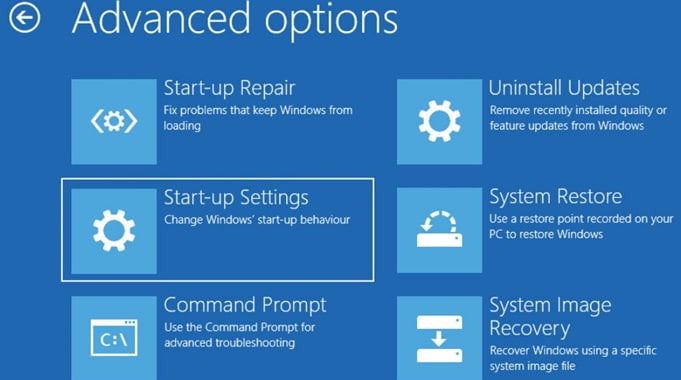
Βήμα 2. Επιλέξτε Ρυθμίσεις εκκίνησης > επανεκκίνηση.
Βήμα 3. After rebooting, press 4 or F4 to start Windows in Safe Mode. If your computer works smoothly in Safe Mode, the Bad System Config Info error may result from recently installed apps or faulty drivers.
Method 3: Repair Corrupted System Files with SFC and DISM
Sometimes, if some of the core system files or system images of Windows are damaged, it may cause a blue screen. In this case, you can use Windows built-in tools to scan and repair damaged system images automatically. For instance, SFC can scan protected system files, while DISM can check and repair the Windows system image.
Βήμα 1. Run Command Prompt as administrator.
Βήμα 2. First, run the sfc /scannow command to fix system file errors
Βήμα 3. After finishing the scan, execute the following DISM commands to repair Windows system images.
- DISM / Online / Καθαρισμός-Εικόνα / CheckHealth
- DISM / Online / Καθαρισμός-Εικόνα / ScanHealth
- DISM / Online / Καθαρισμός-Εικόνα / Επαναφορά Υγείας
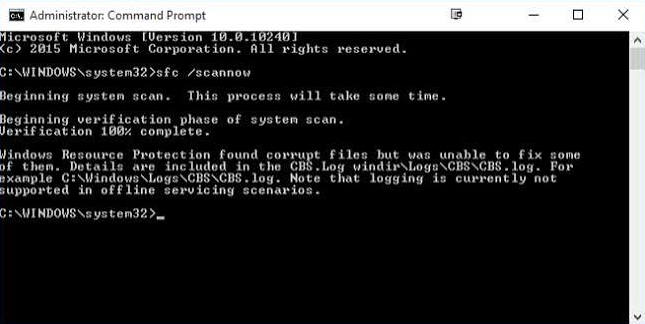
Βήμα 4. Restart your computer to see whether the issue exists.
Method 4: Rebuild Boot Configuration Data (BCD)
You can also troubleshoot the BSOD Bad System Config Info error by checking the boot configuration data. Sometimes, damaged BCD settings will prevent Windows from booting normally and trigger BSOD errors. Therefore, you can fix corrupted boot files via Command Prompt in Windows Recovery mode, thereby fixing the Bad System Config Info error.
Βήμα 1. Enter the Windows Recovery Environment.
Βήμα 2. Πηγαίνετε στο Αντιμετώπιση προβλημάτων > Επιλογές για προχωρημένους > Γραμμή εντολών.
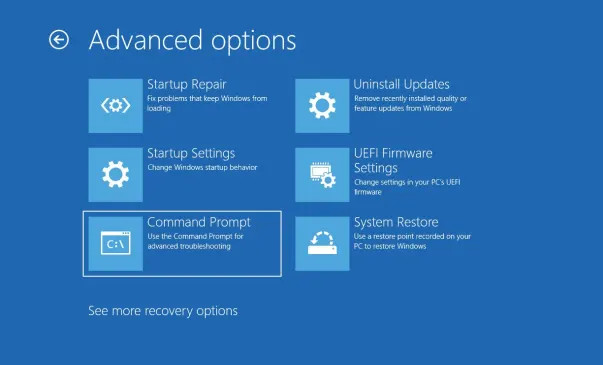
Βήμα 3. Execute boot repair commands to rebuild BCD and repair master boot records.
- bootrec / fixmbr
- bootrec / fixboot
- bootrec / scanos
- bootrec / RebuildBcd
Βήμα 4. After the process ends, restart your computer to check whether the blue screen issue remains.
Method 5: Uninstall Faulty Windows Updates
Many users encounter Bad System Config Info right after a failed Windows update. New update files may conflict with old system files and break configuration settings.
Βήμα 1. Enter Safe Mode.
Βήμα 2. Open Windows Settings, and go to Windows Update > Update history.
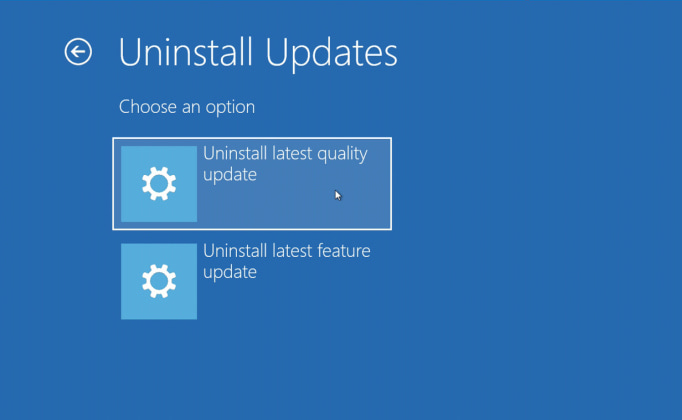
Βήμα 3. Select Uninstall updates and remove the most recently installed system patch. Reboot your PC to confirm if the error disappears.
Method 6: Test RAM and Hard Drive Health
Faulty memory or bad disk sectors can corrupt system data and cause continuous BSOD crashes.
Βήμα 1. Run the Windows Memory Diagnostic tool to check RAM errors.
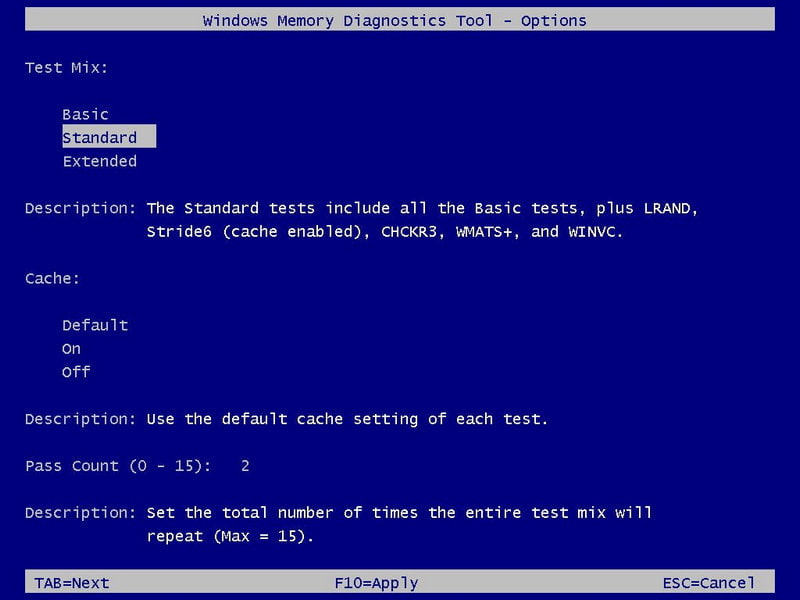
Βήμα 2. Use the built-in CHKDSK tool to scan and repair hard drive errors.
Βήμα 3. If hardware problems are detected, replace or repair your storage device to solve the error permanently.
Method 7: Restore or Reset Windows
If all previous methods fail to work, Επαναφορά Συστήματος or factory reset can be the last resort. System restore can roll back your computer to a previous normal state without deleting personal files. If restore points are unavailable or you still cannot fix this problem, you can try resetting Windows to fix the Bad System Config Info Windows 11 loop error.
Bonus: Recover Lost Files After Bad System Config Info Crash
BSOD bad_system_config_info errors may cause data loss, especially when you haven't had a chance to save important files. At this time, you can use professional Windows data recovery software, such as Apeaksoft Data Recovery, to restore lost data safely.

Λήψη από πάνω από 1,000,000 Χρήστες
- Recover lost files after the Bad System Config Info error.
- Scan your hard drive completely and thoroughly.
- Support recovery from both internal disks and external drives.
- Preview the data before the recovery.
- Works for all Windows versions.
Ασφαλής λήψη
Ασφαλής λήψη

Συμπέρασμα
This post has provided 7 methods to fix the stop code bad_system_config_info error. You can follow them one by one to troubleshoot your Windows blue screen. If there is any data loss after system crashes, professional recovery tools, such as Apeaksoft Data Recovery, can help you retrieve your important files easily.
 Apeaksoft Data Recovery
 Ανακτήστε τα διαγραμμένα ή χαμένα δεδομένα σε υπολογιστή Windows και Mac.
Ασφαλής λήψη
Ασφαλής λήψη
Σχετικά άρθρα