

Cómo restablecer de fábrica un teléfono o tableta Samsung rápidamente

Hay algunos escenarios en los que tienes que restablece de fábrica tu teléfono SamsungCuando el rendimiento de tu teléfono disminuye, un restablecimiento de fábrica puede eliminar archivos basura y mejorar la velocidad. Antes de vender tu dispositivo Samsung, deberías restablecerlo de fábrica y eliminar por completo tus datos para proteger tu privacidad. Además, es un paso esencial para solucionar problemas y corregir fallos de software. De todas formas, puedes aprender varias maneras de restaurar tu dispositivo a la configuración de fábrica en diversas situaciones.
CONTENIDO DE LA PAGINA:
- Parte 1: ¿Qué sucede al restablecer de fábrica un dispositivo Samsung?
- Parte 2: Cómo restablecer de fábrica un teléfono Samsung con un código
- Parte 3: Cómo restablecer de fábrica un teléfono Samsung en Configuración
- Parte 4: Cómo restablecer de fábrica un dispositivo Samsung en modo de recuperación
- Parte 5: Cómo restablecer de fábrica un Samsung de forma remota
Parte 1: ¿Qué sucede al restablecer de fábrica un dispositivo Samsung?
Restablecer la configuración de fábrica de un teléfono o tableta Samsung eliminará todos los datos del dispositivo, incluyendo fotos, videos, música, contactos, mensajes, cuentas, aplicaciones, datos de aplicaciones y configuraciones personalizadas. Para evitar la pérdida de datos, es recomendable hacer una copia de seguridad.
Ten en cuenta que restablecer la configuración de fábrica no permite desbloquear el FRP en la mayoría de los dispositivos Android. Por lo tanto, deberás ingresar tu cuenta de Google al configurar tu dispositivo después de restablecerlo.
Antes de restablecer de fábrica su teléfono Samsung
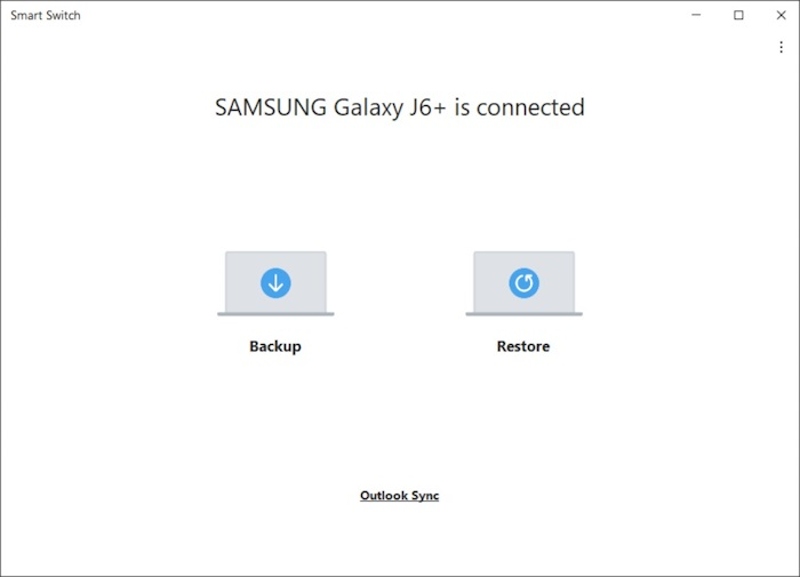
Paso 1: Haz una copia de seguridad de tu teléfono
Instalar Smart Switch en una computadora.
Utilice un cable USB para vincular la computadora y su teléfono.
Abra Smart Switch para leer el contenido en su dispositivo.
Haga clic en Información para continuar.
Si se le solicita, toque PERMITIR en la pantalla de su teléfono para crear una copia de seguridad.
Cuando termine, desconecte el teléfono.
Paso 2: Quitar cuentas
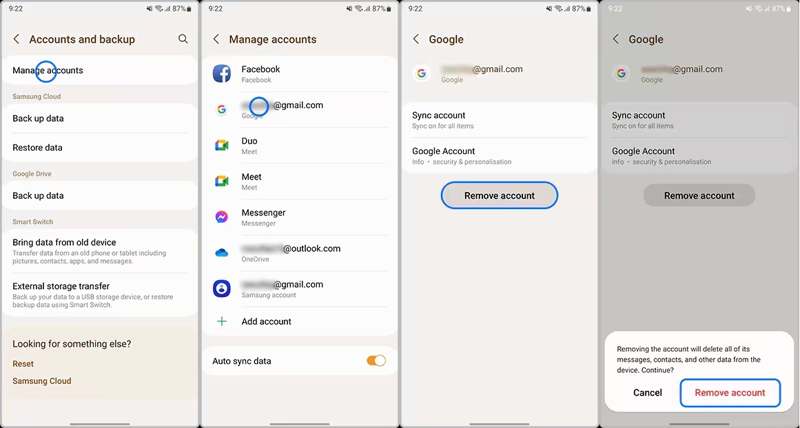
Ejecute el Configuración aplicación y elegir Cuentas y respaldo.
Pulsa para buscar Cuentas de administración y seleccione la cuenta de Google que desea eliminar.
Toque en el Eliminar cuenta .
Cuando se le solicite, seleccione Eliminar cuenta para confirmarlo
Parte 2: Cómo restablecer de fábrica un teléfono Samsung con un código
¿Qué es el código de restablecimiento de fábrica de Samsung? Es una secuencia numérica y alfanumérica para realizar tareas específicas, como restablecer la configuración de fábrica de un dispositivo Samsung sin contraseña. A continuación, explicamos los requisitos y el proceso:
Requisitos previos:
1. Su teléfono es accesible.
2. Tu pantalla está funcionando.
3. Estás utilizando un modelo antiguo de un teléfono Samsung.

Paso 1: Ejecute la aplicación Teléfono en su teléfono.
Paso 2: Escriba el código de reinicio: * 2767 * 3855 # or * # * # * # * # 7780.
Paso 3: Si el proceso no se inicia automáticamente, toque el botón Llamar.
Paso 4: Cuando se le solicite, ingrese sí para confirmarlo.
Parte 3: Cómo restablecer de fábrica un teléfono Samsung en Configuración
Una forma sencilla de restablecer la configuración de fábrica de un teléfono Samsung es con la función de restablecimiento de datos de fábrica integrada. Samsung ha añadido esta función a todos sus teléfonos y tabletas. El proceso puede variar ligeramente según el modelo de teléfono.
Requisitos previos:
1. Su dispositivo es accesible.
2. ¿Aún recuerdas la contraseña de tu cuenta?
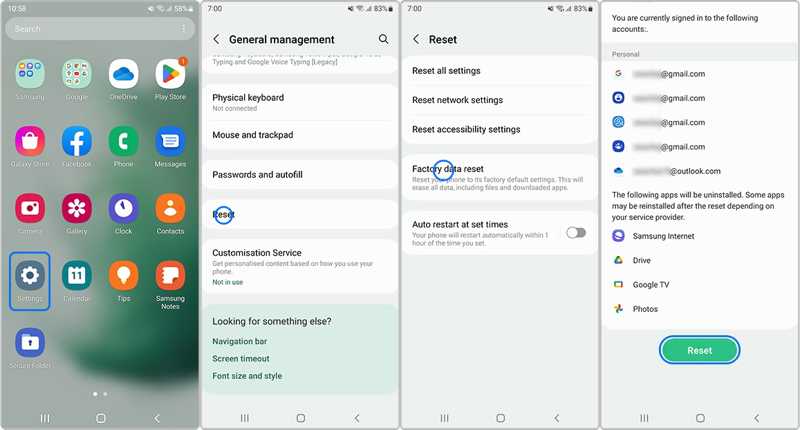
Paso 1: Abra el Configuración aplicación en la bandeja de aplicaciones.
Paso 2: Desplácese hacia abajo y elija Dirección General.
Paso 3: Pulsa para buscar Restablecer y elige Restablecer datos de fábrica.
Consejos: Si solo desea restablecer su teléfono Samsung a la configuración de fábrica sin eliminar datos, elija Restablecer todos los ajustes .
Paso 4: Lea la alerta y toque el Restablecer botón de nuevo
Paso 5: Si se le solicita, ingrese la contraseña de su cuenta o la contraseña de su teléfono.
Paso 6: Toque en el Eliminar todoBotón l para restablecer Samsung a los valores de fábrica.
Parte 4: Cómo restablecer de fábrica un dispositivo Samsung en modo de recuperación
Incluso si olvidó la contraseña de su teléfono o no puede acceder a su dispositivo, puede restablecer su teléfono. Modo de recuperación de Android Permite restablecer la configuración de fábrica de un teléfono Samsung con la pantalla bloqueada o sin contraseña. Este método requiere cierta experiencia técnica.
Requisitos previos:
1. Los botones de tu teléfono están funcionando.
2. Un cable USB.
3. Una computadora.

Paso 1: Mantenga pulsado el Energía Botón hasta que el teléfono se apague.
Paso 2: Conecte su teléfono a su computadora con un cable compatible.
Paso 3: Mantenga pulsado el botón Encendido/Bixby + Subir volumen botones juntos durante 5 segundos.
Paso 4: Una vez que su teléfono ingrese al modo de recuperación, suelte los botones.
Paso 5: Presione la tecla Volumen de Down Presione el botón varias veces para resaltar Borrar datos / restablecimiento de fábrica. Luego, golpea el Energía botón para seleccionarlo.
Paso 6: Cuando se le solicite, resalte Sí usando los botones de volumen y presione Energía para iniciar el restablecimiento de fábrica de Samsung sin contraseña.
Paso 7: Cuando esté hecho, resalta reiniciar el sistema ahora con los botones de volumen y pulsa Energía para reiniciar su dispositivo.
Nota: Si tu Samsung Galaxy Tab no se restablece de fábrica en el modo normal, puedes probar el modo de recuperación.
Parte 5: Cómo restablecer de fábrica un Samsung de forma remota
Si pierdes tu teléfono o no lo tienes en la mano, debes restablecerlo a la configuración de fábrica con SmartThings Find o Samsung Find. Es el administrador de dispositivos en línea para usuarios de Samsung. Encontrarás algunas funciones útiles, como restablecer Samsung a la configuración de fábrica de forma remota.
Requisitos previos:
1. Su dispositivo debe estar conectado a Internet.
2. Debe agregar una cuenta Samsung a su teléfono o tableta.
3. Recuerda las credenciales de tu cuenta Samsung.

Paso 1: Visita https://smartthingsfind.samsung.com/ en un navegador.
Paso 2: Haga clic en Iniciar Sesión e ingrese su cuenta Samsung y contraseña.
Paso 3: Haga clic en Iniciar Sesión de nuevo y golpear Muy de acuerdo en el cuadro de diálogo emergente.
Paso 4: Luego, el servicio localizará tu dispositivo en un mapa instantáneamente.
Paso 5: Haga clic en el botón Borrar datos botón en la caja de herramientas.
Paso 6: Si se le solicita, ingrese la contraseña de su cuenta.
Paso 7: Finalmente, lea la alerta y haga clic en el botón borrar Botón para iniciar un restablecimiento de fábrica del Samsung S8 u otro modelo.
Nota: Este método no puede eludir la protección de restablecimiento de fábrica de Samsung.
Consejo adicional: La mejor manera de recuperar datos después de un restablecimiento de fábrica de Samsung
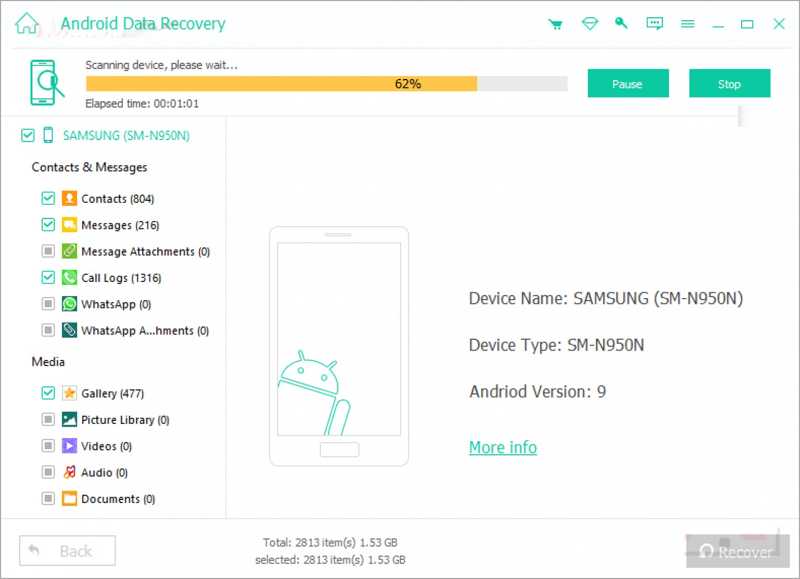
Es bien sabido que restablecer la configuración de fábrica de un Samsung borrará todos los datos del dispositivo. Si no hiciste una copia de seguridad de tu teléfono o tableta, Recuperación de datos de Android Apeaksoft Puede ayudarte a recuperar tus datos. Escanea la memoria de tu dispositivo y encuentra archivos perdidos.
La mejor manera de recuperar datos después de un restablecimiento de fábrica de Samsung
- Recupere datos de dispositivos Samsung sin respaldo.
- Disponible para restablecimiento de fábrica, eliminación accidental y más.
- Obtenga una vista previa de los archivos perdidos para recuperarlos de forma selectiva.
- Compatible con una amplia gama de tipos de datos.
- Compatible con casi todos los teléfonos y tabletas Samsung.
Descarga segura
Descarga segura

Cómo recuperar datos después de un restablecimiento de fábrica de Samsung
Paso 1: Instalar la herramienta de recuperación de Samsung
Ejecute el mejor software de recuperación de datos para Samsung después de instalarlo en su PC. Existe otra versión para Mac. Active... Depuración USB modo en su teléfono y conéctelo a su PC con un cable USB.
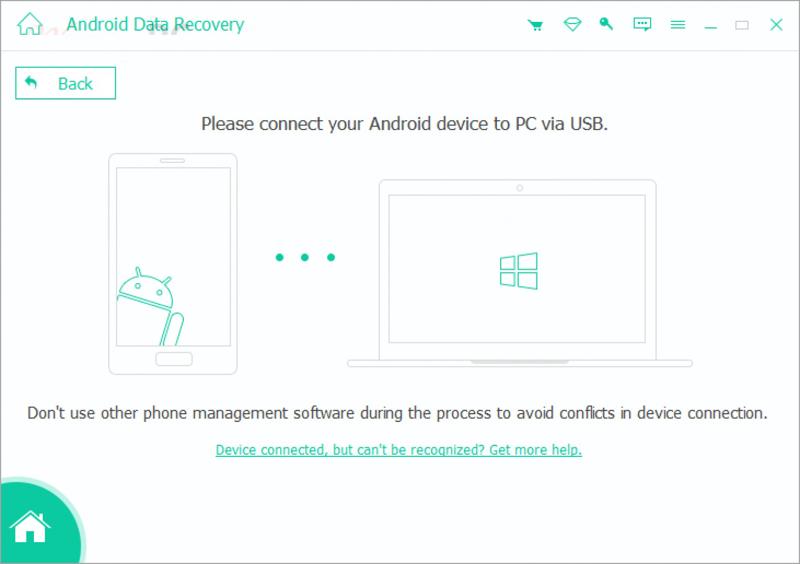
Paso 2: Vista previa de archivos perdidos
Autorice al software a acceder a su dispositivo. Luego, seleccione los tipos de datos que desea recuperar. Haga clic en el botón Siguiente Botón para comenzar a escanear su dispositivo. Al finalizar, podrá previsualizar los datos recuperables por tipo.

Paso 3: Recuperar datos de Samsung
Seleccione los archivos y elementos que desea recuperar y haga clic en el botón Recuperar Botón en la parte inferior. Establezca una carpeta de salida y presione el botón Recuperar Presione nuevamente el botón para confirmar la recuperación de datos.
Conclusión
Esta guía explica Cómo restablecer de fábrica una tableta Samsung o el teléfono en diversas situaciones. El código de restablecimiento es una forma rápida de restablecer la configuración de fábrica. También puedes acceder a Ajustes para restablecer tu dispositivo. Si tu teléfono está deshabilitado, debes ponerlo en modo de recuperación y restablecerlo a la configuración de fábrica. Samsung SmartThings Find es una herramienta en línea para restablecer la configuración de fábrica. Recuperación de datos de Android Apeaksoft Puede recuperar sus datos después de restablecer de fábrica su dispositivo Samsung.
Artículos Relacionados
Puedes intentar recuperar las notas de Samsung desde la copia de seguridad en la nube de Samsung. Si no es así, puedes usar un software de terceros para recuperar las notas de Samsung sin copia de seguridad.
Cuando cambia de Samsung a iPhone, puede transferir datos usando la aplicación Move to iOS, la computadora, el servicio en la nube y el software de terceros.
Aquí podrás aprender cuatro métodos para recuperar datos de un teléfono Samsung incluso si la pantalla del teléfono no se enciende o está rota.
Esta publicación te explicará en detalle cómo funciona la pantalla de bloqueo de Samsung. Aprenderás a configurarla, personalizarla y eliminarla fácilmente.



