


Cómo transferir contactos de un iPhone a una tarjeta SIM de 3 maneras posibles

"Cómo puedo Transferir contactos del iPhone a la tarjeta SIM?"
Según Apple, "tu iPhone no guarda los contactos en la tarjeta SIM". A diferencia de los teléfonos Android, los iPhone almacenan los contactos en iCloud o en cuentas vinculadas, en lugar de en la tarjeta SIM. ¿Cómo transferir los contactos de un iPhone antes de cambiar a un teléfono nuevo?
No te preocupes. Esta guía te mostrará cómo transferir contactos desde tu iPhone a través de iCloud, Google Contacts o una herramienta de transferencia.
CONTENIDO DE LA PAGINA:
- Parte 1: ¿Puedo transferir mis contactos del iPhone a la tarjeta SIM?
- Parte 2: Cómo transferir contactos de un iPhone a una tarjeta SIM (Explicación de los mejores métodos)
- Parte 3: Cómo transferir contactos del iPhone a la tarjeta SIM usando iCloud
- Parte 4: Cómo transferir contactos del iPhone a la tarjeta SIM mediante Google Contacts
- Parte 5: Cómo guardar contactos del iPhone en la tarjeta SIM por correo electrónico
Parte 1: ¿Puedo transferir mis contactos del iPhone a la tarjeta SIM?
Apple no permite a los usuarios transferir contactos directamente del iPhone a la tarjeta SIM. A diferencia de los teléfonos Android, que sí permiten exportar contactos al almacenamiento de la tarjeta SIM, el iPhone no cuenta con una función integrada para copiar contactos del iPhone a la tarjeta SIM.
Por lo tanto, si desea transferir contactos de un iPhone a una tarjeta SIM al cambiar de teléfono o crear una copia de seguridad, necesita usar un teléfono Android como intermediario. Primero debe transferir los contactos del iPhone al Android y luego exportarlos desde el Android a la tarjeta SIM.
Parte 2: Cómo transferir contactos de un iPhone a una tarjeta SIM (Explicación de los mejores métodos)
El método más directo y que ahorra tiempo para transferir contactos de un iPhone a una tarjeta SIM en cualquier iPhone/Android de forma cómoda es utilizando Apeaksoft MobieTransPermite transferir contactos, fotos, vídeos, audio, SMS y prácticamente todos los archivos entre iPhone y Android sin pérdida de datos.
Además de transferir datos, puedes añadir o eliminar cualquier contacto de tu iPhone. También permite encontrar y fusionar contactos duplicados con un solo clic. La ventana de vista previa te mostrará la información detallada de los contactos de tu iPhone. De esta forma, podrás importar los contactos de tu tarjeta SIM de forma selectiva y rápida.

Descargado por más de 1,000,000 usuarios
- Exporta rápidamente tus contactos del iPhone a la tarjeta SIM.
- Combina los contactos duplicados de iPhone y otros archivos.
- Añadir contactos a grupos.
- Gestiona o elimina tus contactos cuando quieras.
- Totalmente compatible con todos los modelos populares de iPhone y Android.
Descarga segura
Paso 1: Conecte iPhone y Android a MobieTrans
Descarga, instala e inicia Apeaksoft MobieTrans gratis desde los botones de arriba. Conecta el iPhone y el Android al mismo ordenador con cables USB. Este es un paso importante para guardar los contactos del iPhone en la tarjeta SIM.
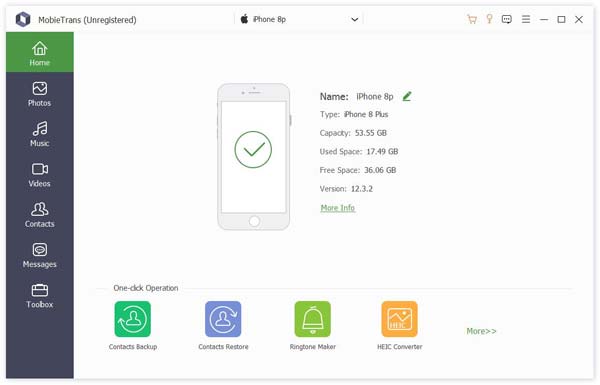
Paso 2: Escanear contactos de iPhone
Elija Contacto En el panel izquierdo. Espere un momento mientras el ordenador escanea todos los contactos almacenados en su iPhone.
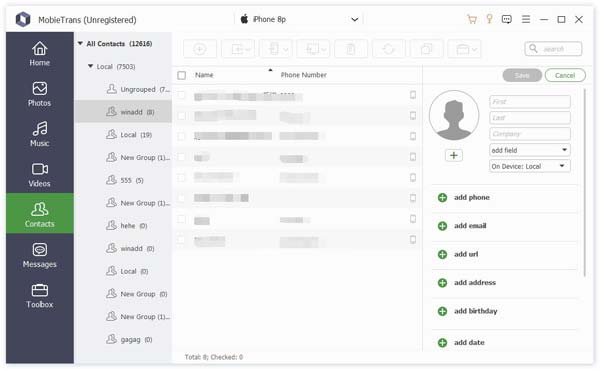
Paso 3: Copiar contactos del iPhone a la tarjeta SIM
Haga clic en Editar En la esquina superior derecha, edita la información de contacto de tu iPhone si es necesario. Previsualiza y selecciona los contactos que deseas transferir a la tarjeta SIM de Android. Finalmente, haz clic en el botón del teléfono y selecciona Android como carpeta de destino. Todos los contactos seleccionados de tu iPhone se transferirán directamente a Android.
Consejos: Apeaksoft MobieTrans es la herramienta más recomendada para guardar contactos en la tarjeta SIM desde iPhone y otros dispositivos. Por cierto, puedes transferir contactos de Blackberry a Android Con MobieTrans también en cuestión de clics.
Parte 3: Cómo transferir contactos del iPhone a la tarjeta SIM usando iCloud
Si desea transferir varios contactos a la tarjeta SIM, primero puede sincronizar los contactos del iPhone con el almacenamiento en la nube. Posteriormente, puede descargar los contactos a su teléfono Android u otros dispositivos. En general, necesita transferir los contactos del iPhone a iCloud, luego descargarlos a Android y exportarlos a la tarjeta SIM. Por supuesto, puede exportar contactos de iPhone a la tarjeta SIM con Gmail y otras herramientas similares también.
Paso 1: Contactos de respaldo a iCloud
Abra Configuración > Nombre completo > iCloud > Ver Todas. Activar ContactoSi has configurado un código de acceso para Tiempo en pantalla, se activará automáticamente.
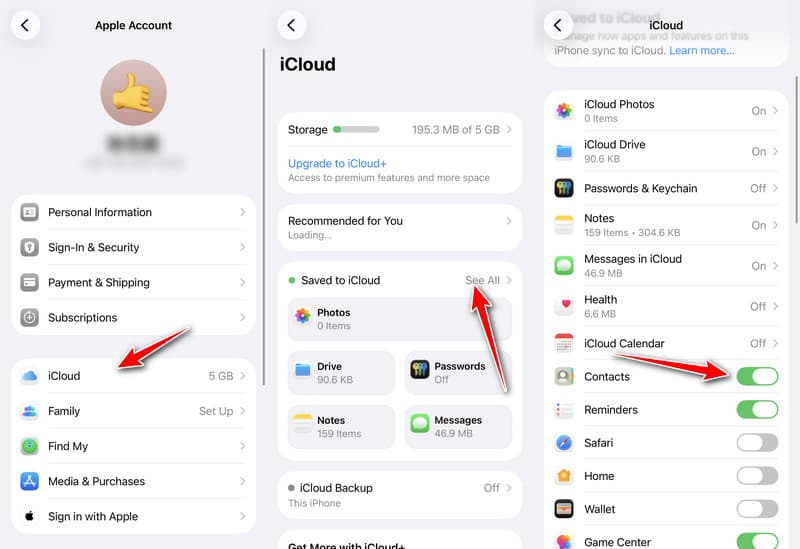
Paso 2: Descargar contactos en la PC
Visita iCloud.com en tu ordenador. Inicia sesión en tu cuenta de iCloud. Abre Contacto, seleccione los contactos que desea exportar, haga clic en el Compartir botón, y elija Exportar vCard para descargar los contactos como un archivo .vcf.
Paso 3: Transfiere contactos desde el iPhone a la tarjeta SIM
Conecta tu teléfono Android a la PC con un cable USB para transferir el archivo vCard descargado a tu teléfono Android. Abre el Contacto La aplicación importa los contactos del archivo .vcf. Elige el exportar contactos opción y elegir Tarjeta SIM como el destino.
Parte 4: Cómo transferir contactos del iPhone a la tarjeta SIM mediante Google Contacts
Si deseas transferir varios contactos de tu iPhone a la tarjeta SIM, también puedes usar Google Contacts como plataforma intermedia.
Paso 1: Abra Configuración en tu iPhone y ve a Aplicaciones - Contactos.
Paso 2: Haga clic en Contactos Cuentas y elija gmail. Activar Contacto.
Paso 3: Abre tu teléfono Android, inicia sesión con la misma cuenta de Google. Luego, abre Configuración > Cuentas > Google y habilitar Sincronización de contactosTus contactos sincronizados del iPhone aparecerán en la aplicación Contactos de Android.
Paso 4: Exporta los contactos de Android a la tarjeta SIM siguiendo los mismos pasos mencionados en el método anterior.
Parte 5: Cómo guardar contactos del iPhone en la tarjeta SIM por correo electrónico
Si desea copiar algunos contactos del iPhone a la tarjeta SIM, puede enviar un correo electrónico a su teléfono Android. Los contactos específicos de iPhone se guardarán en la tarjeta SIM por correo electrónico rápidamente. Tenga en cuenta que puede transferir un contacto desde el iPhone a la tarjeta SIM por correo electrónico cada vez. Aquí hay pasos detallados para guardar contactos en la tarjeta SIM desde el iPhone por correo electrónico.
Paso 1: Enviar contactos por correo electrónico
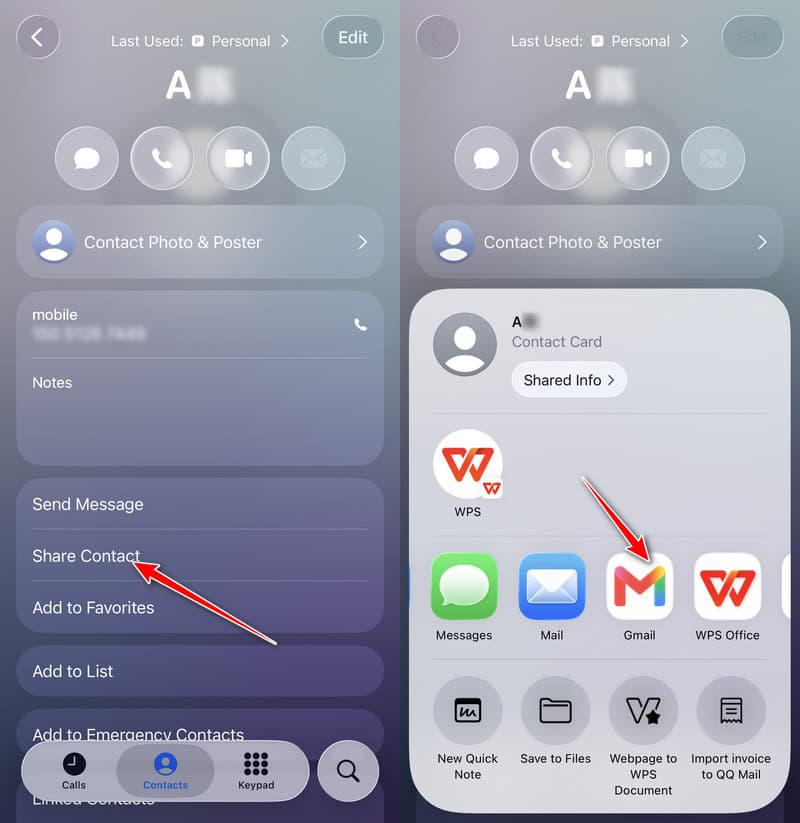
Abra el panel de Contacto Aplicación en iPhone. Elige el contacto que deseas guardar en la tarjeta SIM. Toca Compartir contactos Para enviar contactos de iPhone, elige una aplicación de correo electrónico y envía el contacto como un archivo vCard (.vcf).
Paso 2: Descargar contactos en Android
Descarga vCards desde el correo electrónico en Android. Ejecuta el Contacto aplicación e importar el contacto desde el archivo.
Paso 3: Guardar contactos del iPhone en la tarjeta SIM
Regrese a la pestaña Importar / Exportar contactos opción. Seleccionar Exportar a la tarjeta SIM Para transferir contactos a la tarjeta SIM desde un iPhone 4 o posterior.
Conclusión
Esta publicación ha compartido 4 formas útiles de Exportar contactos del iPhone a la tarjeta SIM utilizando un teléfono Android como puente. Además, tanto si quieres crear una copia de seguridad como transferir datos de iOS a un nuevo Android, puedes descargarlo gratis. Apeaksoft MobieTrans tener una oportunidad
 Apeaksoft MobieTrans
 Transfiere datos entre iOS, Android y PC con Windows.
Descarga segura
Artículos Relacionados




