How to Record a Microsoft Teams Meeting on Desktop and Mobile

If you need to review important information during a Microsoft Teams meeting later, saving a meeting recording can be very useful.
Mutta how to record a Microsoft Teams meeting? Don't worry! This guide explains in detail how to record on Microsoft Teams, who can record a meeting, and where Microsoft Teams recordings are stored. Keep reading!
SIVUN SISÄLTÖ:
Part 1: Why Record a Microsoft Teams Meeting
There are many reasons why you may want to record a Microsoft Teams meeting. For example, you need to review important information, keep a record of a discussion to avoid missing details, or share the meeting content with others.
Microsoft Teams enables you to capture audio, video, and screen-sharing content during a meeting. Note that everyone in the meeting will receive the notification when the recording starts.
Part 2: Who Can Record on Microsoft Teams
Before learning how to record in Microsoft Teams, you should first know that not everyone in the meeting can record the content. Whether you can record or not depends on your Teams account, organization policies, and role in the meeting. For example, guests and participants from another organization generally cannot record a Teams meeting.
| Rooli | Can Record |
| Meeting organizer | Kyllä |
| Yhteisjärjestäjä | Kyllä |
| Juontaja | Yes, if allowed by meeting settings |
| Regular attendee | Yleensä ei |
| IT admin | Controls who can record |
If you do not see the recording option in Teams, you can ask the meeting organizer or your IT administrator for recording authorization.
Part 3: How to Record a Microsoft Teams Meeting on Desktop
If you are attending a Teams meeting on a Windows or Mac, you can record the content in 2 main ways. You can use the built-in recording feature if you are allowed to record. Or, you can use professional Microsoft screen recorders, such as Apeaksoft Screen Recorder, if you need more recording and editing functions.
Method 1. Record a Teams Meeting with the Built-in Feature
Vaihe 1. Open the Microsoft Teams meeting screen.
Vaihe 2. Napauta Lisää: valikkorivillä.
Vaihe 3. valita Äänitä ja litteroi > Aloita äänitys.
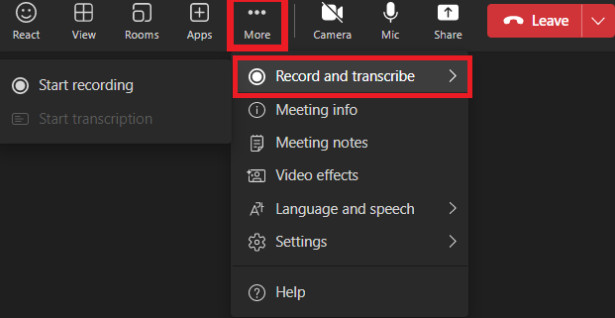
Vaihe 4. Napauta Vahvistaa aloittaa tallennuksen.
If you want to finish recording, just click More (...) > Äänitä ja litteroi > Lopeta nauhoitus.
Vinkki: Microsoft Teams will notify every attendant when recording starts. The recording will then be processed and saved to Microsoft 365 storage. If you are wondering how to record a Microsoft Teams meeting on a Mac, the built-in Teams method is similar.
Method 2. Record a Microsoft Teams Meeting More Flexibly
If you want to record a Microsoft Teams meeting more flexibly, Apeaksoft Screen Recorder is a useful alternative to the built-in recording feature.

Ladannut yli 1,000,000 Käyttäjät
- Schedule when to start or stop recordings.
- Choose to record the full screen or a custom area.
- Record video or audio separately and customize video and audio settings based on your preference.
- Highlight and mark important content during the meeting.
- Edit the recorded video afterward with simple adjustments.
Suojattu lataus
Suojattu lataus
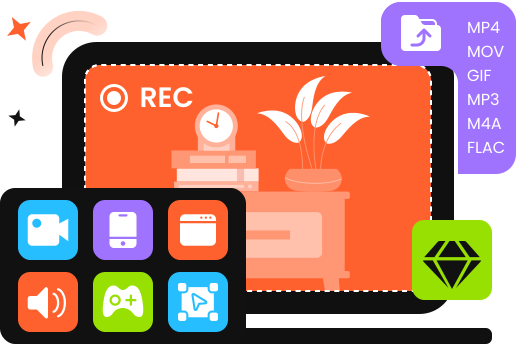
Vaihe 1. Download this Microsoft Teams meeting recorder from the button above.
Vaihe 2. Open the meeting Window. Select the recording area, then choose whether to record your webcam, system sound, microphone, or both.
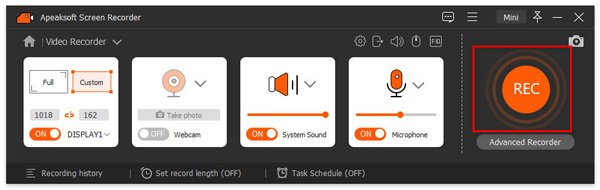
Vaihe 3. Valitse REC painiketta.
Vaihe 4. Highlight or mark the content if needed.
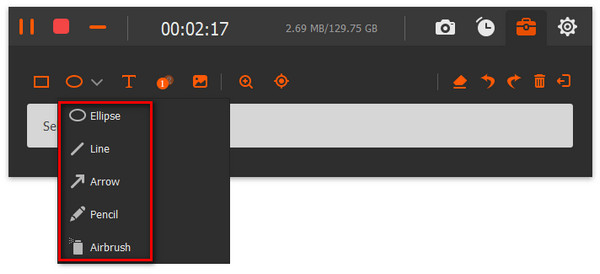
Vaihe 5. Valitse stop (red square shape) button when the meeting ends. Your recording will be saved automatically to the path you set.
Vaihe 6. Simply edit your recording based on your needs. For example, you can trim, compress, merge, convert, boost sound, and more.
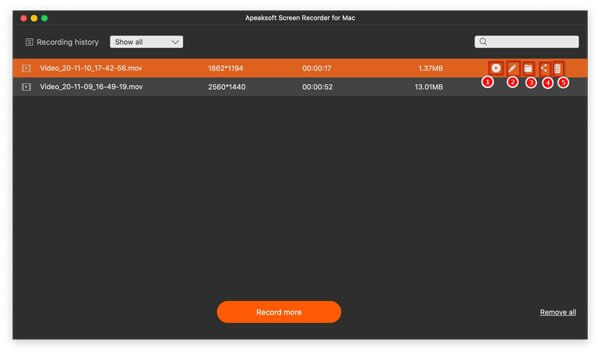
Vinkki: Tämä työkalu voi myös auttaa sinua tallenna iPhone-näyttösi. Therefore, you can also use this tool to record a Microsoft Teams meeting on mobile.
Part 4: How to Record on Microsoft Teams on Mobile
Microsoft Teams also allows users to record meetings on mobile. You can follow the simple steps below to learn how to record on Microsoft Teams if you are using Teams on an iPhone or Android phone.
Vaihe 1. Open the Microsoft Teams app and join the meeting.
Vaihe 2. Napauttaa More options (...) at the bottom menu bar.
Vaihe 3. valita Aloita äänitys.
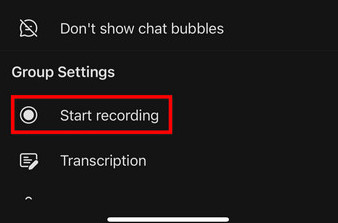
Vaihe 4. When you want to finish, tap More options (...) uudelleen ja valitse Lopeta nauhoitus.
Part 5: Where Are Microsoft Teams Recordings Stored
After recording the Teams meetings successfully, you may wonder where to find the recordings. So, where do Microsoft Teams recordings go after you stop recording? It depends mainly on whether the meeting is a regular meeting or a channel meeting.
| Kokouksen tyyppi | Recording Location | Kuinka löytää |
| Regular meeting | Organizer’s OneDrive > Recordings | Meeting chat |
| Channel meeting | Channel’s SharePoint site > Documents/Recordings | Channel conversation |
If you cannot find your recording, make sure you are checking the organizer's storage location rather than your own OneDrive. Recordings may also expire based on your organization's settings.
Yhteenveto
Recording a Microsoft Teams meeting can help you keep important information for later review or sharing. With the methods above, we hope you can easily record Teams meetings on your desktop or mobile device.
 Apeaksoft Screen Recorder
 Tallenna mitä tahansa videota ja ääntä puhelimen ja tietokoneen näytölle.
Suojattu lataus
Suojattu lataus
Aiheeseen liittyvät artikkelit