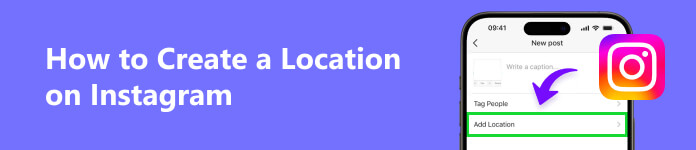
Lorsque vous souhaitez ajouter une touche personnelle à vos publications ou à vos stories, la création d'un emplacement personnalisé sur Instagram peut être utile. Vous pouvez créer vos propres emplacements sur Instagram, en vous assurant que votre contenu reflète exactement le lieu ou l'événement que vous souhaitez partager avec vos abonnés. Dans ce passage, nous vous montrerons 2 méthodes efficaces pour créer un emplacement sur Instagram, vous offrant la flexibilité de personnaliser vos publications et vos stories d'une manière qui vous est propre. Que vous cherchiez à promouvoir un événement spécial ou simplement à améliorer votre narration, ces méthodes vous aideront à comprendre comment créer un nouvel emplacement sur Instagram.
- Partie 1. Comment créer un nouvel emplacement sur Instagram (2 façons)
- Partie 2. Comment ajouter un emplacement à vos publications et à votre histoire
- Partie 3. FAQ sur la création d'un emplacement sur Instagram
Partie 1. Comment créer un nouvel emplacement sur Instagram (2 façons)
Solution 1. Créez l'emplacement avec le changeur d'emplacement iPhone [Meilleur ajustement]
Changeur d'emplacement iPhone peut vous expliquer comment créer un emplacement Instagram. Il peut vous aider à modifier l'emplacement GPS n'importe où dans le monde sur votre appareil iOS. Cet outil peut être incroyablement utile à diverses fins, de la protection de votre vie privée à l'amélioration de votre présence sur les réseaux sociaux. Dans cette partie, nous vous expliquerons les étapes à suivre pour créer efficacement un emplacement à l'aide de iPhone Location Changer.
4,000,000+ Téléchargements
Créez facilement l'emplacement sur Instagram.
Installez-le simplement sur l'ordinateur.
Fournit diverses fonctions utiles.
Prend en charge tous les modèles d'iPhone et d'iPad.
Étape 1 Téléchargez et installez le changeur d'emplacement iPhone
Accédez au site Web officiel de iPhone Location Changer, puis téléchargez et installez le programme sur votre ordinateur.
Étape 2 Connectez votre iPhone
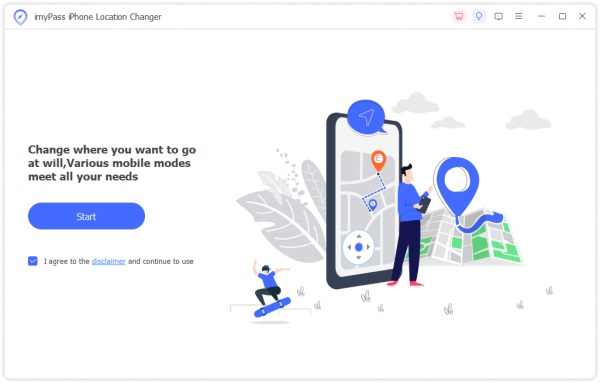
Lancez le changeur d'emplacement iPhone. Connectez votre iPhone à votre ordinateur à l'aide d'un câble USB.
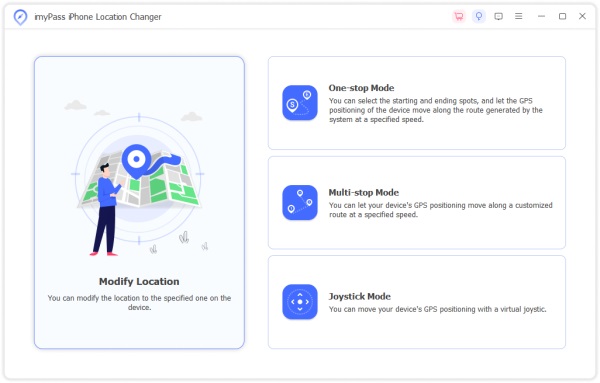
Étape 3 Choisissez le mode Modifier l'emplacement et sélectionnez un emplacement personnalisé
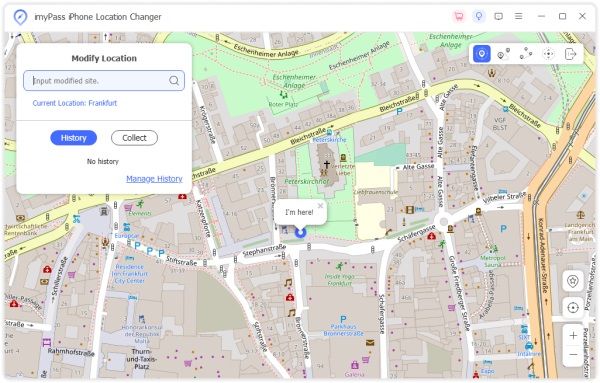
Cliquez sur la carte pour choisir l'emplacement que vous souhaitez définir sur votre iPhone.
Étape 4 Simulez votre position et vérifiez le changement de position sur Instagram
Cliquez sur Commencer à modifier bouton pour simuler l’emplacement choisi sur votre iPhone. Vérifiez votre emplacement Instagram pour vous assurer que les modifications ont pris effet.
Que vous testiez des applications basées sur la localisation ou que vous exploriez des utilisations créatives, ce programme offre une solution conviviale. Vous pouvez créer l'emplacement sur Instagram pour faire ressortir votre contenu.
Solution 2. Utilisez le système de localisation Facebook pour créer un emplacement
Dans ce tutoriel, nous vous aiderons à suivre les étapes pour créer efficacement un emplacement personnalisé sur Facebook.
Étape 1 Ouvrez Facebook et démarrez une publication
Lancez l'application Facebook ou accédez au site Web Facebook et connectez-vous à votre compte.
Étape 2 Sélectionnez l'enregistrement
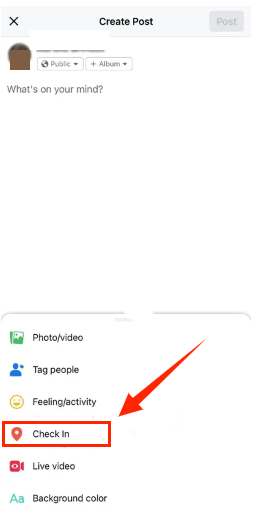
Lors de la création de votre message, vous verrez le Check-In option. Clique dessus.
Étape 3 Rechercher un emplacement personnalisé
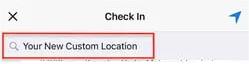
Vous pouvez autoriser Facebook à utiliser votre localisation dans les paramètres. Saisissez le nom de la localisation que vous souhaitez créer. Si elle n'existe pas, Facebook vous demandera de l'ajouter.
Étape 4 Ajoutez votre emplacement personnalisé
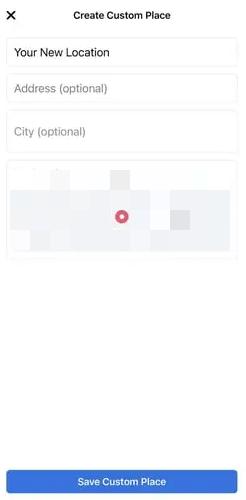
Remplissez l'adresse de localisation. Clique sur le Enregistrer un lieu personnalisé lorsque vous êtes invité à ajouter l’emplacement personnalisé. Votre emplacement personnalisé est désormais disponible pour être utilisé dans votre message ou votre enregistrement. Vous pouvez sélectionner l'emplacement personnalisé que vous venez de créer pour le marquer dans votre publication ou votre enregistrement. Terminez de rédiger votre message ou votre enregistrement, puis partagez-le.
Le système de localisation de Facebook vous permet de créer des emplacements personnalisés pour vos enregistrements, offrant ainsi un moyen simple d'ajouter une touche personnelle à votre contenu. Que vous partagiez un événement spécial ou que vous cherchiez simplement à améliorer votre narration, cette fonctionnalité vous permet d'adapter votre présence sur Facebook à vos préférences et à vos besoins. Explorez cette fonctionnalité et rendez vos publications et enregistrements sur Facebook encore plus attrayants et significatifs pour votre public.
Partie 2. Comment ajouter un emplacement à vos publications et à votre histoire
Publier avec le nouvel emplacement sur Instagram
Remarque : Pour créer un emplacement sur Instagram, vous avez besoin d'un compte créateur ou professionnel.
Étape 1 Exécutez votre Instagram
Lancez l'application Instagram sur votre appareil mobile et connectez-vous à votre compte si vous ne l'avez pas déjà fait.
Étape 2 Créer un nouveau message
Appuyez sur le + icône en bas au centre de l’écran pour commencer à créer un nouveau message.
Étape 3 Ajouter un lieu
Après avoir sélectionné une photo ou une vidéo et ajouté une légende (si vous le souhaitez), recherchez le Ajouter un emplacement option juste en dessous de votre légende. Appuyez dessus.
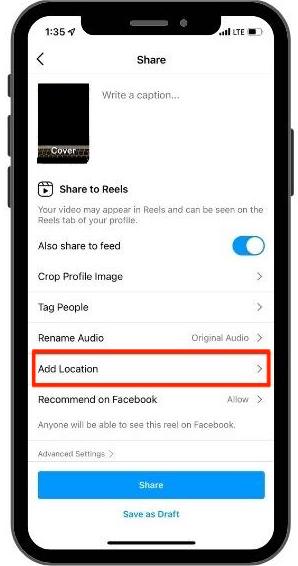
Étape 4 Rechercher et marquer l'emplacement
L'ajout d'un emplacement à votre publication Instagram au cours de ces quatre étapes simples aidera vos abonnés et les autres utilisateurs à découvrir votre contenu en relation avec cet emplacement spécifique.
La façon d'ajouter l'emplacement à votre histoire sur Instagram
Étape 1 Créez votre histoire Instagram
Ouvrez l'application Instagram et faites glisser votre doigt vers la droite depuis votre flux ou appuyez sur votre photo de profil dans le coin supérieur gauche pour ouvrir l'appareil photo et créer une histoire. Capturez une photo ou une vidéo ou sélectionnez-en une dans votre galerie en faisant glisser votre doigt vers le haut.
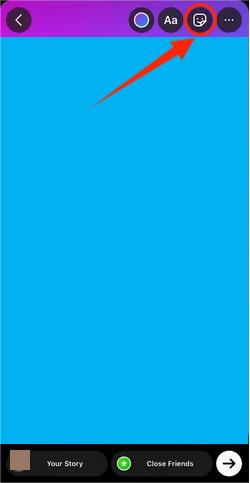
Étape 2 Ajouter un lieu
Recherchez le Autocollants et appuyez dessus. Parmi les options d'autocollants, vous trouverez l' Lieu autocollant. Appuyez dessus pour l'ajouter à votre histoire.
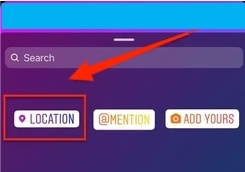
Instagram vous permettra ensuite de sélectionner l'emplacement que vous souhaitez ajouter. Vous pouvez saisir le nom de l'emplacement ou faire défiler les emplacements à proximité. Vous pouvez facilement créer un emplacement pour votre story sur Instagram.
Lectures complémentaires:Partie 3. FAQ sur la création d'un emplacement sur Instagram
Puis-je créer ma propre position sur les histoires Instagram ?
Oui, vous pouvez créer votre emplacement sur Instagram avec iPhone Location Changer et Facebook. Lorsque vous ajoutez un emplacement à votre publication ou à votre story, vous avez la possibilité de créer un nouvel emplacement s'il n'existe pas déjà dans la base de données d'Instagram.
Puis-je modifier votre position sur Instagram ?
Vous ne pouvez pas modifier directement les emplacements existants sur Instagram. Cependant, vous pouvez signaler des informations de localisation incorrectes ou obsolètes à Instagram, et ils peuvent les mettre à jour si nécessaire. Si vous souhaitez modifier l'emplacement associé à une publication ou une histoire particulière, vous pouvez le faire en modifiant ou en recréant la publication ou l'histoire avec l'emplacement souhaité.
Puis-je supprimer l’emplacement d’Instagram ?
Bien sûr, vous pouvez supprimer l'emplacement de votre publication sur Instagram. Vous devez simplement modifier la publication ou l'histoire, et lorsque vous arrivez au champ d'emplacement, supprimez l'emplacement que vous avez ajouté. Ensuite, vous supprimerez l'association de localisation de votre message.
Conclusion
Dans cet article, vous apprendrez comment créer un emplacement sur Instagram de 2 façons. Le changement d'emplacement de l'iPhone est le moyen le plus approprié pour le faire. Vous pouvez désormais naviguer en toute confiance dans le monde de la géolocalisation sur votre iPhone. Explorez cette fonctionnalité au maximum et tirez le meilleur parti des capacités de votre appareil.