Les informations de localisation sont attrayantes pour de nombreuses personnes. Lorsque vous installez une application sur votre appareil mobile, par exemple, il est probable qu'elle vous demande d'accéder à votre position. Les marques et les spécialistes du marketing vous envoient des publicités et des promotions personnalisées en fonction de votre localisation. Bien sûr, les informations de localisation sont parfois utiles. Par exemple, vous pouvez partager votre position avec votre famille et vos amis ou utiliser des applications de navigation sur vos appareils. Toutes ces activités nécessitent une fonctionnalité appelée services de localisation. Cet article parlera de cette fonctionnalité.

- Partie 1. Qu'est-ce que les services de localisation ? Doit-il être activé ou désactivé ?
- Partie 2. Comment activer/désactiver les services de localisation sur iOS/Mac
- Partie 3. Comment activer ou désactiver les services de localisation sur Android
- Partie 4. Comment activer/désactiver le service de localisation sur PC
- Partie 5. FAQ sur les services de localisation
Partie 1. Qu'est-ce que les services de localisation ? Doit-il être activé ou désactivé ?
La fonction Services de localisation fait partie de votre appareil numérique qui assure le suivi de votre géolocalisation tout au long de la journée à l'aide de la technologie GPS. Il fonctionne en arrière-plan ou au premier plan pour fournir des informations de localisation pour les applications, d'autres fonctionnalités et services sur votre ordinateur ou appareil mobile. En d’autres termes, les services de localisation sont une sorte de fonctionnalité de base sur les appareils numériques.
Les services de localisation doivent-ils être activés ou désactivés ? La réponse est complexe. Si vous le désactivez, certaines fonctionnalités cesseront de fonctionner. Apple Maps, Google Maps, les applications de météo et de réseaux sociaux, par exemple, ne peuvent pas trouver votre position après avoir désactivé les services de localisation. De plus, il est crucial de soutenir les services d’urgence.
Cependant, de nombreuses personnes choisissent encore de désactiver cette fonctionnalité afin de protéger leur vie privée et leur empreinte. Les applications, sites Web et autres services collectent en permanence des données sur votre localisation. En plus de diffuser des publicités personnalisées, ils peuvent transmettre vos données à d'autres personnes. La cybercriminalité et le harcèlement géolocalisés deviennent désormais une autre préoccupation majeure.
Par conséquent, vous devez peser les avantages et les inconvénients, puis prendre une décision en fonction de votre situation.
Partie 2. Comment activer/désactiver les services de localisation sur iOS/Mac
Bien qu'Apple n'ait pas ajouté le GPS sur les ordinateurs Mac, les services de localisation peuvent trouver votre position sur Mac en fonction de votre adresse IP. Pour activer ou désactiver les services de localisation sur votre iPhone, iPad ou MacBook, vous pouvez suivre les étapes ci-dessous.
Comment activer ou désactiver les services de localisation sur iPhone/iPad
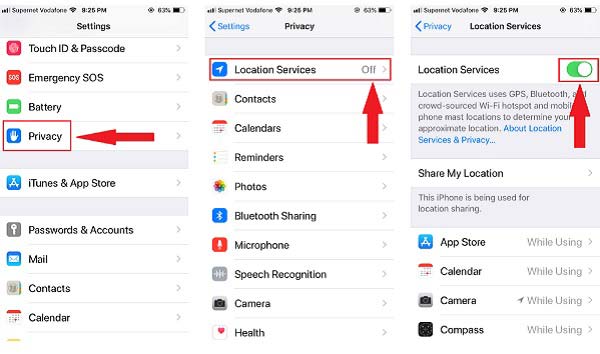
Étape 1 Ouvrez l'application Paramètres à partir de votre écran d'accueil.
Étape 2 Rendez-vous dans la section Politique de confidentialité or Confidentialité et sécurité onglet, et choisissez services de localisation.
Étape 3 Activez l'interrupteur à côté de services de localisation.
Étape 4 Localisez la liste des applications, appuyez sur une application et vous serez confronté à quatre options :
Jamais: L'application ne peut pas du tout accéder à vos données de localisation.
Demander la prochaine fois: Au prochain lancement de l'application, il vous sera demandé si vous souhaitez l'autoriser à accéder à vos données de localisation.
Lors de l'utilisation de l'application: L'application peut accéder à vos données de localisation lorsque vous l'utilisez.
Toujours: L'application peut accéder à vos données de localisation 24h/7 et XNUMXj/XNUMX.
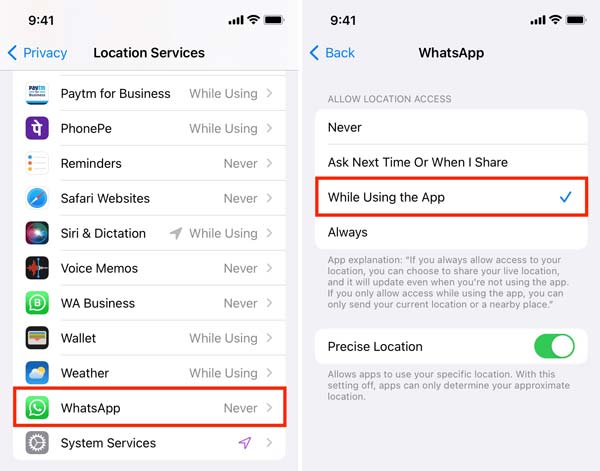
Choisissez une option appropriée en fonction de vos besoins. Définissez ensuite les autorisations pour toutes les autres applications de la liste.
Note: Vous pouvez désactiver les services de localisation directement dans l'application Paramètres. Ensuite, toutes les applications et services ne peuvent pas accéder à vos données de localisation.
Astuce bonus : comment protéger votre position sans désactiver les services de localisation sur iPhone
La meilleure façon de désactiver les services de localisation sur iPhone sans affecter les applications consiste à utiliser de faux emplacements. Si vous ne souhaitez pas partager votre position réelle avec votre famille ou vos amis sur les plateformes de réseaux sociaux, vous pouvez utiliser Changeur d'emplacement iPhone Apeaksoft pour modifier l'emplacement de votre iPhone sans interrompre les applications sur votre combiné.
4,000,000+ Téléchargements
Changez facilement la géolocalisation de votre iPhone ou iPad en une fausse géolocalisation sans désactiver les services de localisation.
Créez des itinéraires virtuels pour les appareils iOS.
Ne téléchargera ni n’installera aucune application.
Prend en charge les derniers modèles d'iPhone et d'iPad.
Voici les étapes pour changer de localisation afin de désactiver les services de localisation sur votre iPhone :
Étape 1 Connectez-vous à votre iPhone
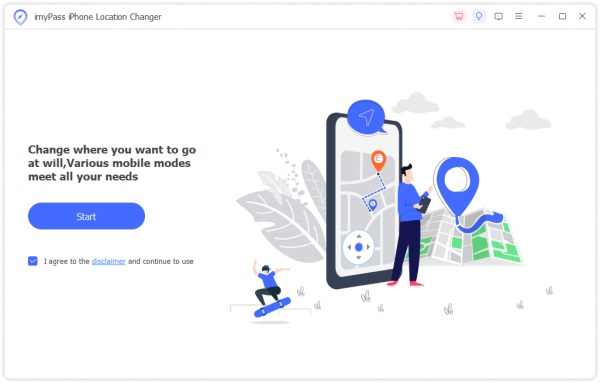
Installez ce changeur d'emplacement iPhone sur votre ordinateur et lancez-le. Branchez votre iPhone sur le même ordinateur avec un câble Lightning. Clique le Commencer bouton pour avancer.
Étape 2 Choisissez le mode Modifier l'emplacement
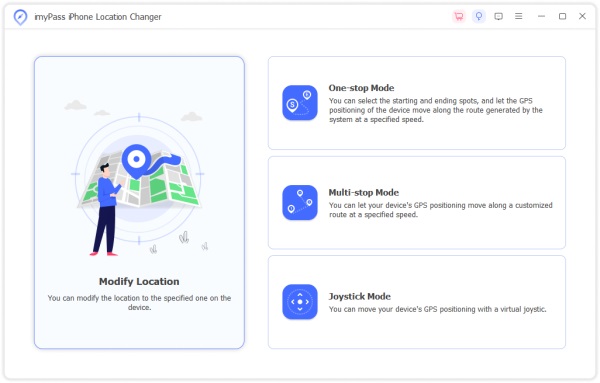
Il existe quatre modes : Modifier l'emplacement, Mode à guichet unique, Mode multi-arrêts et Mode joystick. Ici, nous choisissons Modifier l'emplacement. Les autres servent à réaliser des itinéraires virtuels.
Étape 3 Changer votre emplacement
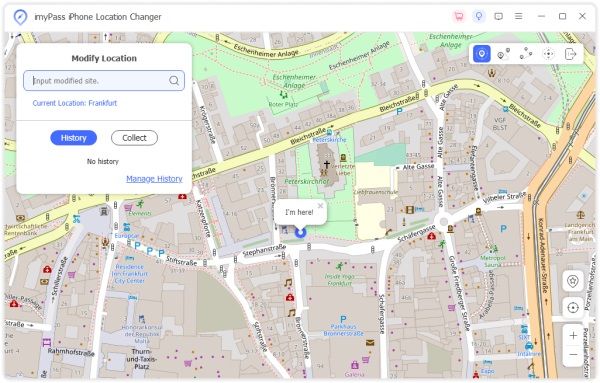
Saisissez une adresse précise dans le champ de la boîte de dialogue contextuelle ou cliquez sur la position cible sur la carte avec votre souris. Puis clique Confirmer Modifier pour changer immédiatement l'emplacement de votre iPhone.
 Plus connexes
Comment activer/désactiver les services de localisation sur Mac
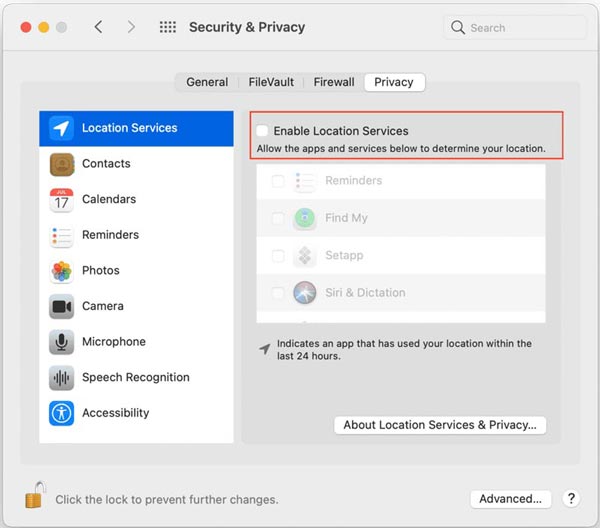
Étape 1 Pour activer ou désactiver les services de localisation sur Mac, cliquez sur le bouton Apple menu, et choisissez Préférences de système. Ouvert Sécurité et confidentialité sur la liste et passez au Politique de confidentialité languette.
Étape 2 Frappe le Verrouillage dans le coin inférieur gauche pour accéder au mode édition. Lorsque vous y êtes invité, entrez votre mot de passe et appuyez sur Déverrouiller.
Étape 3 Cochez la case à côté de Activer les services de localisation pour activer la fonctionnalité. Si vous avez l'intention de désactiver la fonctionnalité, décochez la case. Ensuite, vous pouvez autoriser des applications spécifiques à accéder à vos données de localisation en cochant les cases de la liste.
Partie 3. Comment activer ou désactiver les services de localisation sur Android
Les services de localisation sont également essentiels pour un large éventail d'applications et de fonctionnalités sur les appareils Android, de la navigation aux mises à jour météo, des publications sur les réseaux sociaux aux applications de vente au détail. Le flux de travail d'activation des services de localisation sur Android varie selon les appareils commercialisés par différents fabricants.
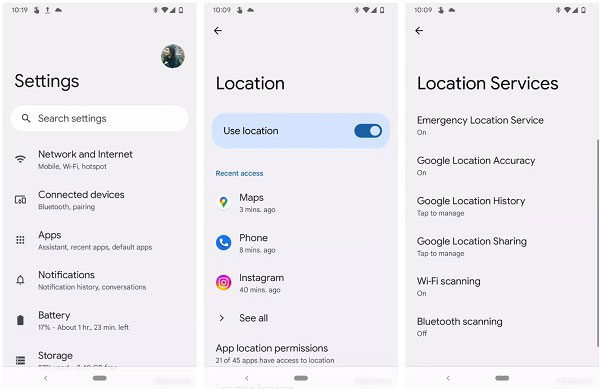
Étape 1 Exécutez l'application Paramètres sur votre téléphone.
Étape 2 Rendez-vous dans la section Biométrie et sécurité onglet puis choisissez Lieu sur Samsung Galaxy, Lieu sur OnePlus, Sécurité et localisation et alors Lieu sur Pixel, ou Politique de confidentialité et alors Lieu sur Xiaomi.
Étape 3 Basculer sur le Utiliser l'emplacement option. Ensuite, vous pouvez définir l'autorisation pour les services de localisation sur l'écran des paramètres de chaque application.
Partie 4. Comment activer/désactiver le service de localisation sur PC
La plupart des ordinateurs et ordinateurs portables ne sont pas équipés de la technologie GPS. Cependant, Microsoft a introduit une fonctionnalité de service de localisation dans Windows 10 et versions ultérieures. Il obtient votre position en utilisant votre adresse IP et votre position Wi-Fi. Pour activer ou désactiver le service de localisation sur votre PC, suivez les étapes ci-dessous :
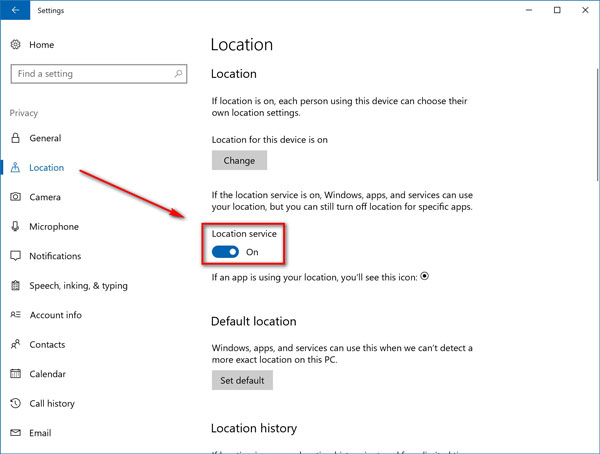
Étape 1 Ouvrez le Paramètres application de la Commencer menu dans le coin inférieur gauche.
Étape 2 Choisissez Politique de confidentialité , et passez à la Lieu section sur le côté gauche.
Étape 3 Activer ou désactiver le Service de localisation option.
Partie 5. FAQ sur les services de localisation
Comment puis-je vérifier mes services de localisation ?
Vous pouvez vérifier les services de localisation dans l'application Paramètres sur votre iPhone ou votre téléphone Android. Cette fonctionnalité peut être trouvée sur l'écran Sécurité et confidentialité sur un Mac ou dans l'application Paramètres sur un PC.
Puis-je voir tout l’historique de localisation sur mon iPhone ?
Oui. Accédez à l'application Paramètres, appuyez sur Politique de confidentialité , choisissez services de localisation, faites défiler vers le bas et sélectionnez services système. Activer Emplacements significatifs et votre historique de localisation sera enregistré.
Quelqu'un peut-il suivre mon téléphone si ma position est désactivée ?
Même si votre position est désactivée sur votre téléphone, d'autres peuvent toujours suivre votre position via votre adresse IP.
Conclusion
Maintenant, vous devez comprendre ce que sont les services de localisation et comment activer/désactiver les services de localisation sur iPhone, Android, Mac et PC correctement. Cette fonctionnalité est importante et vous pouvez décider de l'activer ou de la désactiver selon vos besoins. Changeur d'emplacement iPhone Apeaksoft est le meilleur moyen de modifier l'emplacement de votre iPhone sans interrompre l'utilisation de l'application sur votre appareil. Si vous avez d'autres questions, veuillez les noter ci-dessous.