

Le guide le plus détaillé pour retrouver l'application Calendrier disparue

« Je gère principalement mon emploi du temps grâce à mon calendrier, mais je viens de le supprimer par erreur. Comment puis-je le récupérer sur mon iPhone 17 ? »
Supprimer accidentellement l'application Calendrier de votre iPhone peut s'avérer très problématique, surtout si vous en avez besoin pour vous rappeler des dates importantes et pour gérer votre agenda. Depuis iOS 10, Apple vous permet de supprimer ou de désinstaller certaines applications intégrées, comme Calendrier. Poursuivez votre lecture pour découvrir trois méthodes efficaces pour vous faciliter la tâche. restaurer l'application Calendrier supprimée sur iPhone à différentes occasions.
CONTENU DE LA PAGE :
- Partie 1 : Vérifiez la bibliothèque d’applications : l’application Calendrier est-elle simplement cachée ?
- Partie 2 : Réinstaller l’application Calendrier sur iPhone depuis l’App Store
- Astuce bonus : Restaurez les événements du calendrier sur votre iPhone après la réinstallation.
- Partie 3 : Réinitialiser la disposition de l’écran d’accueil si l’icône du calendrier est introuvable
- Partie 4 : FAQ sur la restauration de l’application Calendrier supprimée sur iPhone
Partie 1 : Vérifiez la bibliothèque d’applications : l’application Calendrier est-elle simplement cachée ?
Il arrive parfois que l'application Calendrier ne soit pas supprimée. Si vous la supprimez accidentellement de l'écran d'accueil de votre iPhone, vous pouvez vérifier dans votre bibliothèque d'apps si elle est toujours présente, même si elle n'est plus visible sur l'écran d'accueil.
Étape 1 : Déverrouillez votre iPhone et continuez à glisser vers la gauche sur l'écran d'accueil jusqu'à atteindre le Bibliothèque d'applications interface.
Étape 2 : Découvrez Agenda l'application et appuyez longuement dessus.
Étape 3 : Sélectionnez « Ajouter à l'écran d'accueil ». L'application Calendrier apparaîtra alors sur votre écran d'accueil.
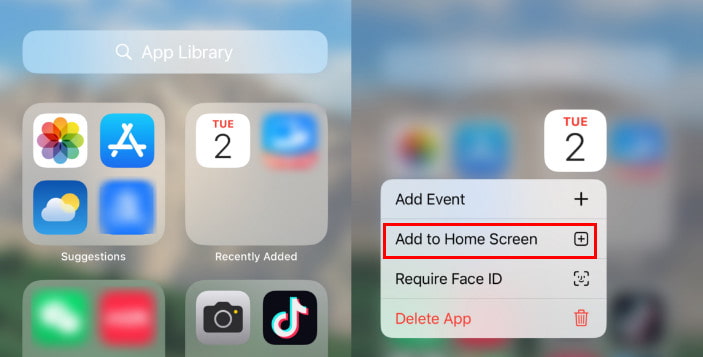
Conseils: Si vous ne trouvez pas l'option Ajouter à l'écran d'accueil, cela signifie que l'application est toujours sur votre écran d'accueil.
Partie 2 : Réinstaller l’application Calendrier sur iPhone depuis l’App Store
Si vous avez supprimé l'application Calendrier par erreur sur votre iPhone, pas de panique ! Vous pouvez la retrouver sur l'App Store. La procédure est très simple, comme pour l'installation de n'importe quelle autre application. Suivez les étapes ci-dessous pour continuer à gérer votre agenda.
Comment restaurer l'application Calendrier supprimée accidentellement sur votre iPhone
Étape 1 : Ouvrez le App Store sur ton iPhone.
Étape 2 : Sélectionnez l'onglet Recherche en bas de page.
Étape 3 : Entrer Agenda dans la boîte de recherche.
Étape 4 : Appuyez sur le bouton de téléchargement à côté de l'application.
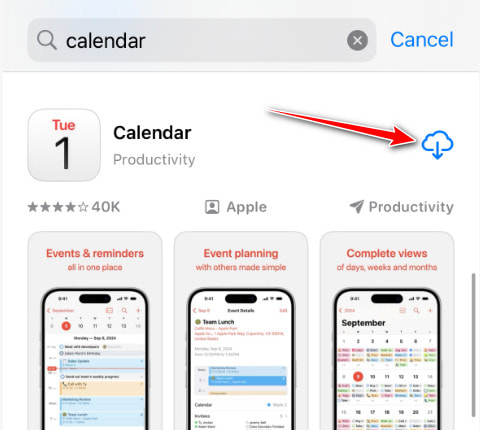
Conseils: Assurez-vous de télécharger la bonne application officielle intégrée d'Apple.
Astuce bonus : Restaurez les événements du calendrier sur votre iPhone après la réinstallation.
Nous savons que la plupart des données de calendrier synchronisées via iCloud, Google ou Exchange réapparaîtront automatiquement après la réinstallation de l'application Calendrier. Toutefois, si vous n'avez pas de sauvegarde ou si votre Le calendrier de l'iPhone ne se synchronisait pas.Certains événements de calendrier enregistrés localement peuvent ne pas être restaurés automatiquement. Est-il possible de récupérer des événements de calendrier supprimés sans sauvegarde ? Oui ! Il vous suffit d’un logiciel tiers. Après avoir testé avec soin plus de 10 logiciels de récupération de données de calendrier, nous recommandons celui-ci : Apeaksoft Récupération de Données iPhone enfin.
Restaurez facilement les événements supprimés de votre calendrier
- Compatible avec tous les appareils iOS et toutes les versions d'iOS, y compris la dernière version iOS 26.
- Récupérer les événements du calendrier de l'iPhone sans sauvegarde.
- Consultez un aperçu détaillé des événements du calendrier avant la récupération.
- Restaurez les données supprimées ou perdues à partir de la sauvegarde iTunes/iCloud.
Téléchargement sécurisé
Téléchargement sécurisé

Comment restaurer les événements supprimés du calendrier sur votre iPhone
Étape 1 : Connecter l'iPhone au PC
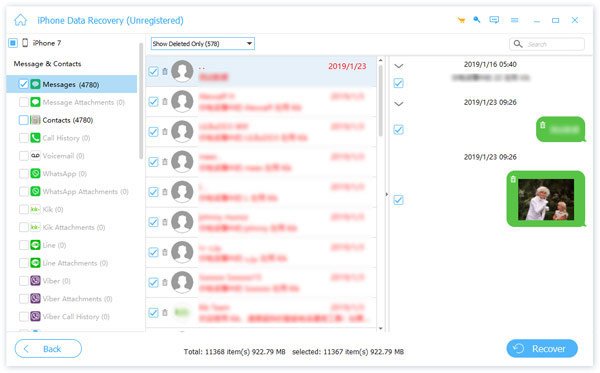
Téléchargez et installez Apeaksoft iPhone Data Recovery sur votre ordinateur. Lancez le logiciel et connectez votre iPhone à l'ordinateur à l'aide d'un câble USB. Ensuite, cliquez sur Start scan pour scanner votre combiné.

Étape 2 : Récupérer les événements supprimés du calendrier
Après la numérisation, vous verrez l'écran de type de données. Localisez le Mémos & Autres et consultez la section AgendaVous pouvez ensuite prévisualiser tous les événements du calendrier sur la droite.
Étape 3 : Récupérer les événements supprimés du calendrier
Enfin, choisissez les événements souhaités et cliquez sur Récupérer pour récupérer l'application Calendrier supprimée accidentellement sur l'iPhone.
Partie 3 : Réinitialiser la disposition de l’écran d’accueil si l’icône du calendrier est introuvable
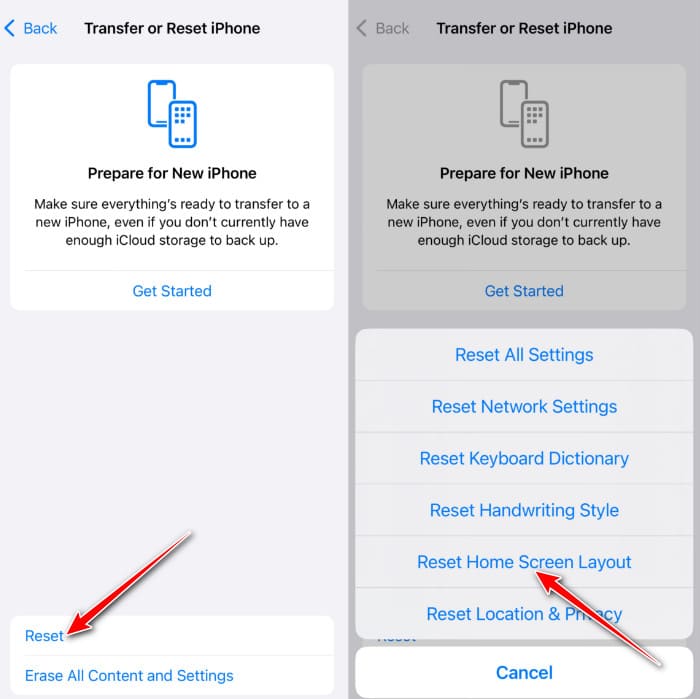
Si vous ne trouvez pas l'application Calendrier dans la bibliothèque d'applications, ou si vous ne vous souvenez plus dans quel dossier vous l'avez placée, vous pouvez rapidement rétablir l'emplacement par défaut des applications système en réinitialisant la disposition de l'écran d'accueil. Cette opération ne supprimera aucune application ni aucune donnée.
Étape 1 : Rendez-vous dans la section Paramètres et cliquez sur le Généralités bouton. Appuyez sur le Transférer ou réinitialiser l'iPhone .
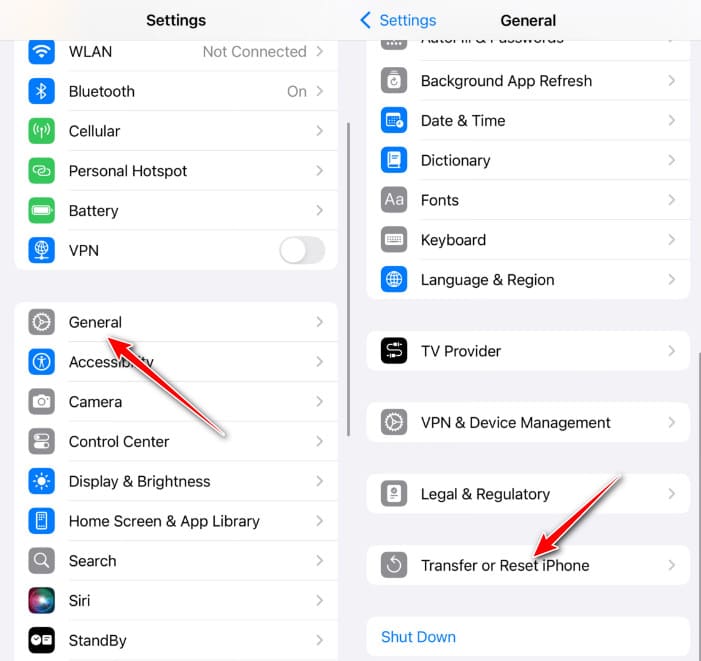
Étape 2 : Sélectionnez le Réinitialiser option, puis cliquez sur Réinitialiser l'écran d'accueilL'application Calendrier devrait maintenant se réactiver. Veuillez noter que cette opération supprimera tous vos dossiers d'applications et les replacera sur votre écran d'accueil.
Partie 4 : FAQ sur la restauration de l’application Calendrier supprimée sur iPhone
Pourquoi mon application Calendrier a-t-elle disparu de mon iPhone ?
Il arrive parfois que vous accédiez par inadvertance à un écran ou à un dossier, qui disparaît alors de votre écran d'accueil.
Où puis-je trouver l'application Calendrier sur iPhone ?
De manière générale, vous pouvez trouver l'application Calendrier à partir de votre écran d'accueil sur votre iPhone. De plus, vous pouvez également trouver l'application dans la bibliothèque d'applications. Si vous avez accidentellement supprimé l'application Calendrier sur votre iPhone, vous pouvez simplement réinitialiser la disposition de l'écran d'accueil dans un premier temps.
Est-il possible de récupérer des événements supprimés du calendrier de mon iPhone sans sauvegarde ?
Par défaut, vous ne pouvez pas récupérer les événements de votre calendrier supprimés de votre iPhone sans sauvegarde. Il est donc préférable de… sauvegardez votre iPhone régulièrement. Si vous le pouvez, recherchez un outil de récupération de données dédié comme Apeaksoft Récupération de Données iPhone.
Conclusion
Vous avez maintenant assimilé 3 étapes à suivre si vous ne trouvez pas l'application Calendrier sur votre iPhone. Si vous Vous avez accidentellement supprimé l'application Calendrier de votre iPhone.Il vous suffit de suivre les trois méthodes que nous avons présentées, et vous aurez de fortes chances de restaurer l'application Calendrier à son état d'origine. De plus, si vous souhaitez récupérer un événement Calendrier supprimé, Apeaksoft iPhone Data Recovery est un outil très utile.
Articles Relatifs
« Pourquoi mon calendrier Samsung ne se synchronise-t-il pas ? » Vous êtes-vous déjà posé cette question ? Cet article détaillé vous aidera à résoudre le problème de non-synchronisation du calendrier Samsung !
Google Agenda vous aide à planifier vos journées. Si votre planning est perdu, vous pouvez toujours récupérer les événements de Google Agenda de 3 manières.
Si vous supprimez par erreur un événement de calendrier dans Outlook, il est toujours récupérable sur votre PC. Découvrez comment récupérer un calendrier Outlook supprimé.
Vous souhaitez partager un emploi du temps sur le Calendrier sur iPhone avec vos collègues ? Apprenez simplement plus de détails sur les meilleures méthodes de l'article.



