

How to Clear All Cache and Cookies on Your iPhone/iPad

The cache is a storage location on your device where your browser keeps bits and pieces of websites. It stores images, fonts, HTML, CSS, JavaScript files, and more. When you visit a website for the first time, your browser downloads everything to display the page. Your browser saves cache in your memory. When you revisit the website, your browser displays the page quickly. However, it also takes up lots of space. Therefore, we explain how to clear the cache on Safari pour iOS.
CONTENU DE LA PAGE :
Part 1: What Is Safari Cache Data?
Safari cache temporarily stores web pages, images, JavaScript, data, and other information locally. If you browse the same web page next time, Safari will check the local cache and display the data directly without re-downloading it. According to developers, cache data can accelerate the load time and reduce the load on the server when you access websites.
If you browse websites frequently on Safari, the amount of cache data will accumulate as time goes by. That can bring serious problems, like YouTube videos not loading. Cache data may lead websites to load too slow. Moreover, it may occupy a large amount of space. Therefore, you'd better empty Safari cache from time to time.
Part 2: How to Clear All Safari Cache on iPhone
Apple allows you to clear all Safari cache, including browsing history, website data, and cookies. Furthermore, you can also clear cookies and cache, but keep your history. We demonstrate the workflows below:
How to Clear All Safari Cache and Cookies
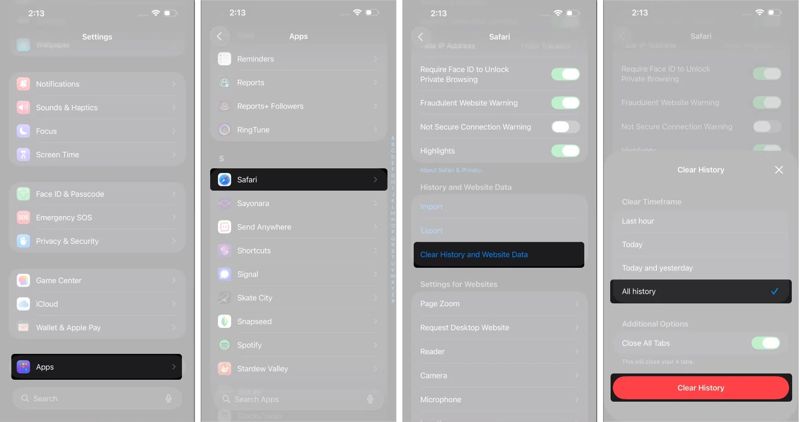
Étape 1 : Ouvrez le Paramètres application sur votre iPhone ou iPad.
Étape 2 : Faites défiler vers le bas et appuyez sur Apps.
Étape 3 : Choisir Safari et touchez Effacer l'historique et les données du site Web.
Étape 4 : Si vous y êtes invité, choisissez Toute l'histoireet appuyez sur Effacer l'historique to clear cache and cookies on Safari.
How to Delete Cache but Keep History
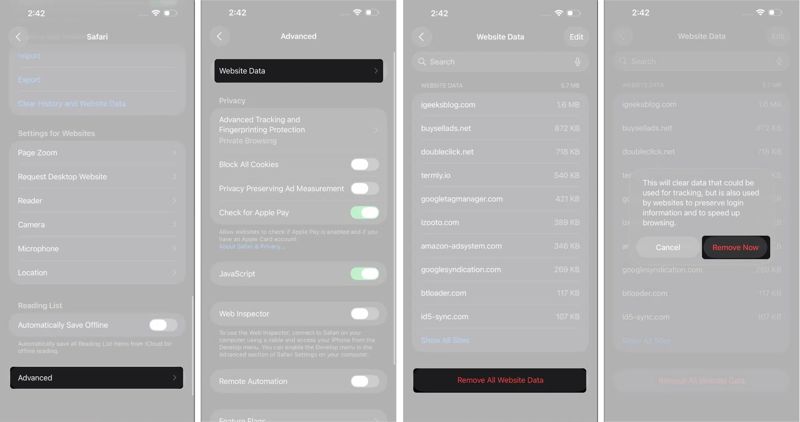
Étape 1 : Exécutez votre Paramètres app.
Étape 2 : Rendez-vous dans la section Apps onglet et choisissez Safari.
Étape 3 : Scroll down and tap Advanced.
Étape 4 : Exploiter Les données du site, et frapper Supprimer toutes les données du site Web au fond.
Étape 5 : Lorsque vous y êtes invité, appuyez sur le Supprimer maintenant bouton dans la boîte de dialogue de confirmation.
Part 3: How to Delete Specific Safari Cache on iPhone
Safari saves cache data for every website that you have browsed. If a web page is full of images and videos, the cache data may take up a lot of space. You can clear Safari cache for specific websites.
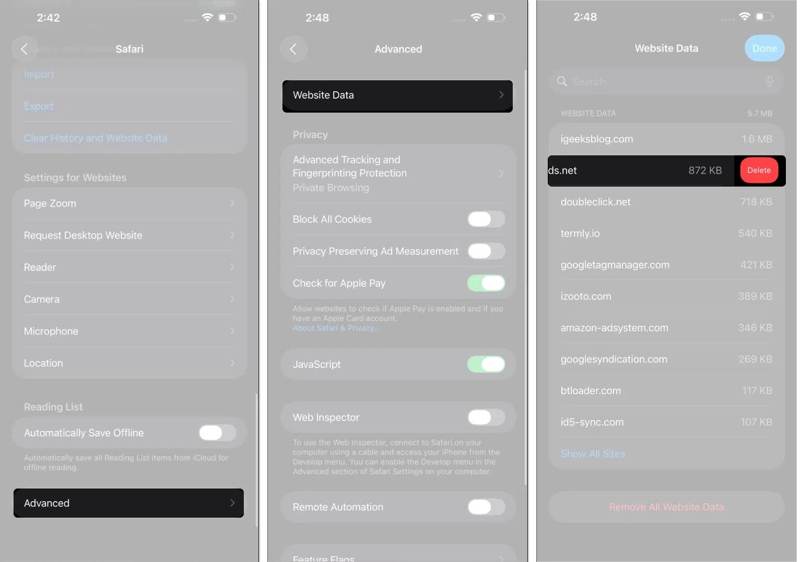
Étape 1 : Ouvrez le Paramètres application de votre écran d'accueil.
Étape 2 : Accédez à Apps, Safari et avancé.
Étape 3 : Exploiter Les données du site, and find the unwanted website. You can quickly locate it with the top search bar.
Étape 4 : Touch the website and swipe left.
Étape 5 : Ensuite, appuyez sur le effacer button to delete Safari cache.
Part 4: How to Block Cookies on Safari
Currently, major browsers are able to block cookies and protect your privacy. Safari includes an option to block all cookies on your iPhone or iPad. That can stop websites from tracking your online activities.
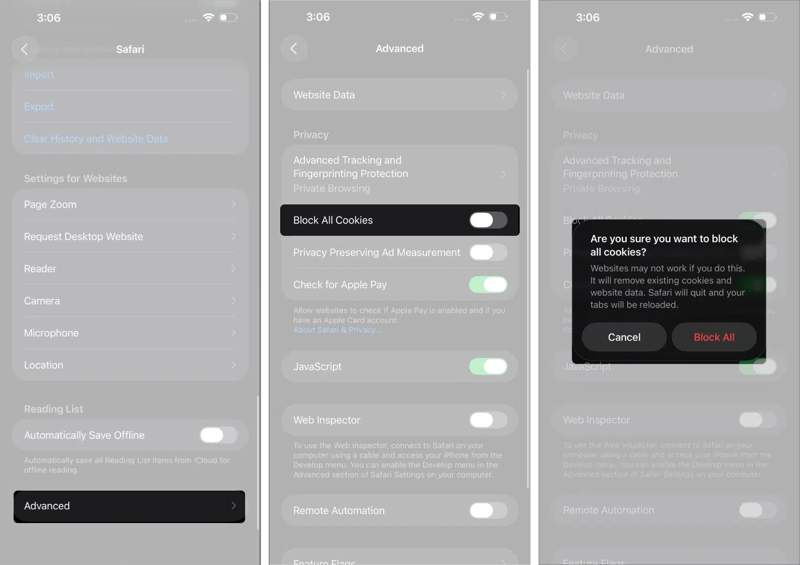
Étape 1 : Accédez à votre Paramètres app.
Étape 2 : Accédez à Apps, Safari et Avancé.
Étape 3 : Activer Bloquer tous les cookies.
Étape 4 : Lorsque vous y êtes invité, appuyez sur Bloquer tout dans la boîte de dialogue d'alerte.
Part 5: What to Do If You Cannot Clear Safari Cache
Some users reported that they cannot clear the cache on Safari, old browser history reappears, or the Clear History and Website Data button is greyed out. You can try a few solutions to fix this problem and free up Safari cache data.
Solution 1: Close All Tabs
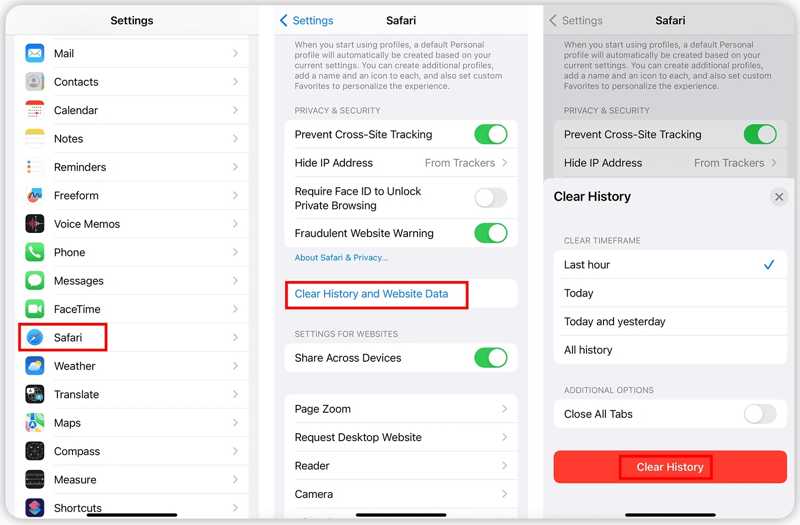
Étape 1 : Faites défiler vers le bas et allez à Apps dans votre Paramètres app.
Étape 2 : Choisir Safariet appuyez sur Effacer l'historique et les données du site Web.
Étape 3 : Assurez-vous d'activer Fermer tous les onglets.
Étape 4 : Choisir Toute l'histoire sous le CLEAR TIMEFRAME .
Étape 5 : Ensuite, appuyez sur Effacer l'historique pour le confirmer.
Solution 2: Unrestricted Web Content
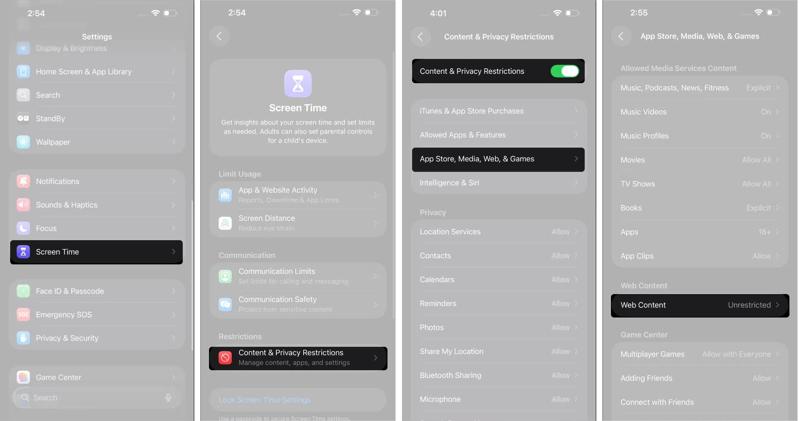
Étape 1 : Allez dans "Temps d'écran". dans votre Paramètres app.
Étape 2 : Exploiter Contenu et restrictions de confidentialité.
Étape 3 : Enter your Screen Time passcode.
Étape 4 : Ensuite, activez Contenu et restrictions de confidentialité.
Étape 5 : Choisir App Store, médias, Web et jeux.
Étape 6 : Exploiter Contenu Web, et sélectionnez Libre.
Étape 7 : Try clearing the browser cache on Safari again.
Solution 3: Turn off iCloud Sync for Safari
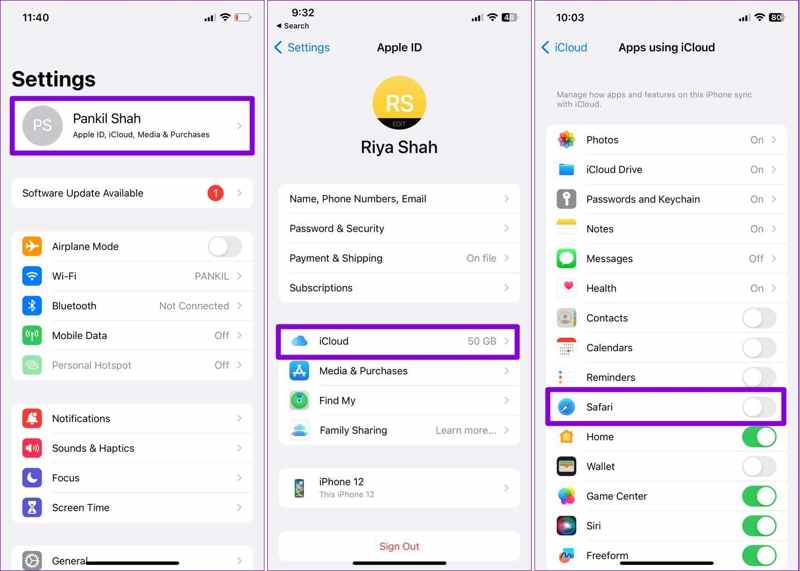
Étape 1 : Exécutez le Paramètres app.
Étape 2 : Appuyez sur votre profil et choisissez iCloud.
Étape 3 : Exploiter Tout Afficher sous le APPS UTILISANT ICLOUD .
Étape 4 : Désactiver Safari to disable iCloud sync for Safari.
Étape 5 : Back to the Settings app and empty Safari cache again.
Solution 4: Réinitialiser tous les paramètres
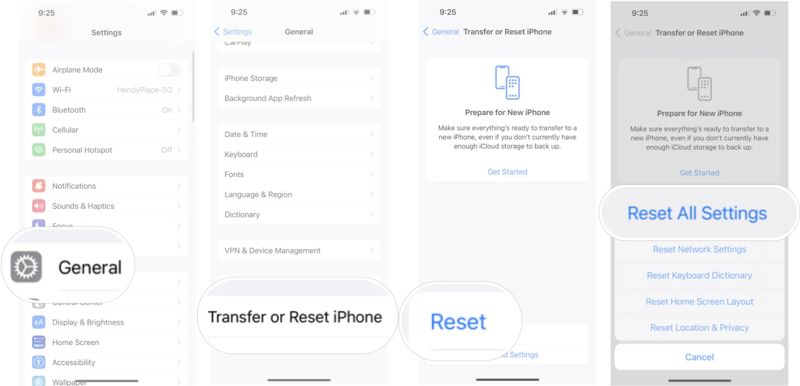
Étape 1 : Commencez votre Paramètres app.
Étape 2 : Allez dans Généralités, Transférer ou réinitialiser l'iPhone et Réinitialiser.
Étape 3 : Choisir Réinitialiser tous les réglages.
Étape 4 : Enter your iPhone passcode or Apple ID password.
Étape 5 : Then, confirm resetting all settings.
Étape 6 : When your iPhone restarts, clear Safari cache on iPhone again.
Note: This will also reset Network Settings, and the Wi-Fi password is also erased, However, you can quickly share Wi-Fi password from one iPhone to your iPhone without entering pascode.
Part 6: A Fast Way to Empty the Cache on Safari
The built-in option can clear the cache on Safari, but it does not always work. In addition to the common solutions, you can force empty Safari cache on your iPad or iPhone with a powerful tool, such as Apeaksoft iPhone Eraser. It uses advanced technology to completely erase all cache data on your iOS device without recovery. Moreover, the user-friendly design makes it an ideal option for ordinary people.
A Fast Way to Empty Safari Cache on iPhone and iPad
- Clear cache, cookies, and history on Safari with one click.
- Offer three security levels for different purposes.
- Proposez des fonctionnalités supplémentaires, comme la désinstallation d'applications.
- Compatible avec les dernières versions d'iOS et d'iPadOS.
Téléchargement sécurisé
How to Empty Safari Cache on Your iPhone
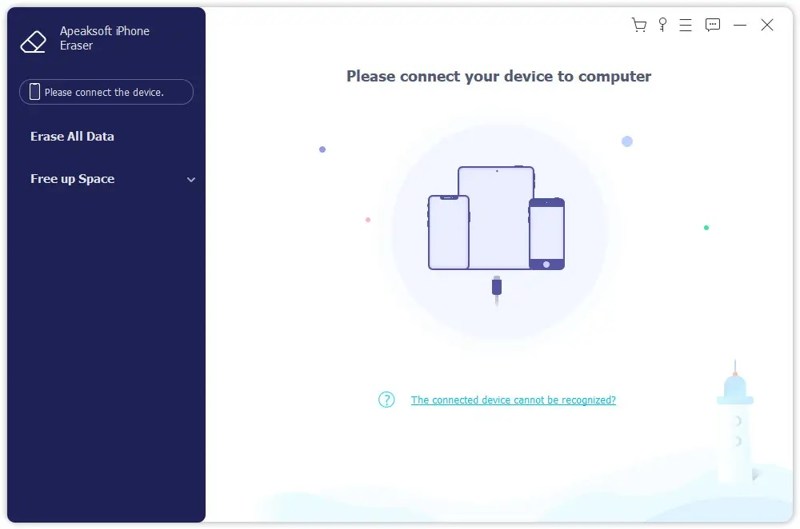
Étape 1 : Détectez votre iPhone
Launch the iPhone erasing software after you install it on your PC. It is compatible with Windows 11/10/8/7/XP/Vista. There is another version for Mac users. Connect your iPhone to your PC with a Lightning cable. If prompted, tap the Confiance button on your screen to trust this PC.
Étape 2 : Sélectionnez un niveau
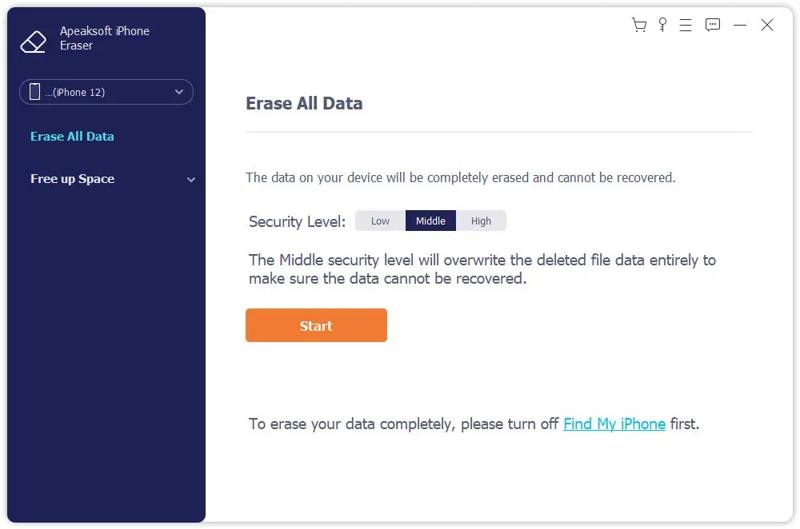
Une fois votre iPhone détecté, cliquez sur le bouton Effacer toutes les données option on the sidebar. Now, you will see three erasing levels:
Faible is used to quickly delete Safari cache on your iPhone.
Milieu will overwrite all cache data, browser history, cookies, and website data to make sure they cannot be recovered.
Élevée adopts military-level technology to wipe and erase Safari cache.
Choose a proper level according to your needs.
Étape 3 : Delete Safari cache
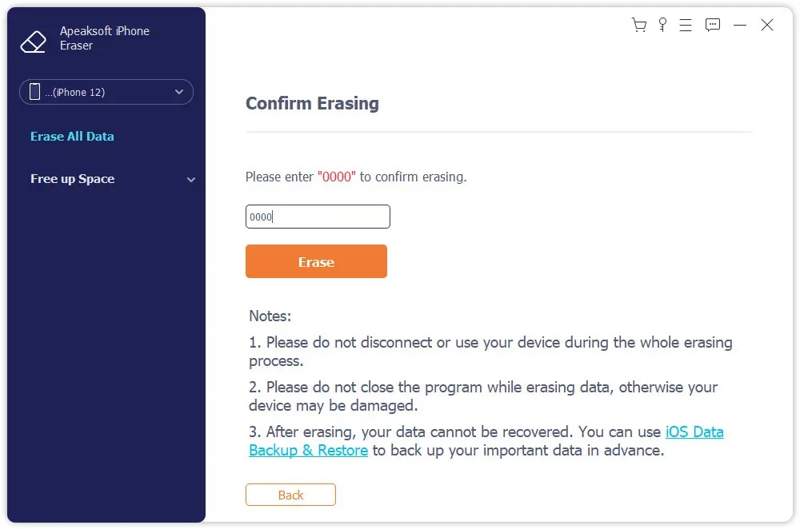
Cliquez sur Start button to confirm your selection. Next, enter 0000 dans le champ et cliquez sur le effacer button to begin deleting Safari cache on your iPhone immediately.
Note: Since anyone cannot recover your browsing data after erasing, you'd better sauvegardez votre iPhone d'abord.
Conclusion
Ce guide explique how to clear the cache on Safari on your iPhone or iPad. You can remove cache data, browsing history, cookies, and website data from your Safari or get rid of cache but keep history. Moreover, we also explained what you can do if you cannot delete Safari cache data. More importantly, we recommended Apeaksoft iPhone Eraser. It can help you get rid of all cache data on your iPhone or iPad quickly. All deleted data cannot be recovered.
Articles Relatifs
Si votre iPhone ne redémarre pas et entre constamment en mode de récupération, ce guide vous aidera à identifier le véritable problème et vous proposera des solutions immédiates.
Ce passage vous montre quatre façons simples et efficaces de déverrouiller votre carte SIM lorsque votre iPhone est verrouillé. Continuez à lire et découvrez plus de détails.
Si vous ne parvenez pas à supprimer des photos de votre iPhone, notre article vous propose six solutions efficaces pour résoudre ce problème et libérer de l'espace.
Avant de revendre votre iPhone, notre guide vous explique toute la procédure pour effacer vos données avant de le vendre.



