

Résolvez les problèmes de plantage des applications sur iPad : prise en charge d’iPadOS 26

Il n'y a rien de plus agaçant que d'être en pleine session de travail concentrée ou en train de regarder un film relaxant, lorsque son écran se fige et qu'on est renvoyé à l'écran d'accueil. Si vous rencontrez ce problème, Les applications sur iPad plantent sans cesseVous n'êtes certainement pas seul. Que vous utilisiez le dernier iPad Pro ou un modèle plus ancien, la stabilité logicielle n'est jamais totalement garantie.
Dans ce guide, nous explorerons les causes profondes des plantages d'applications sur iPad, en nous penchant plus particulièrement sur les coupables courants comme les plantages de l'application Facebook sur iPad, et nous vous fournirons une feuille de route complète pour remettre votre appareil en parfait état.
CONTENU DE LA PAGE :
Partie 1 : Pourquoi les applications iPad plantent-elles sans cesse ?
Lorsqu'une application plante, les utilisateurs d'iPad pensent souvent à une panne matérielle. En réalité, la plupart des plantages sont d'ordre logiciel. Ils se répartissent généralement en trois catégories :
Problèmes de gestion de la mémoire : La mémoire RAM (mémoire vive) de l'iPad est saturée.
Conflits logiciels : Une version obsolète d'iPadOS en conflit avec une application moderne.
Données corrompues : Un fichier d'installation défectueux qui empêche le lancement de l'application.
Si vous constatez que des applications plantent fréquemment sur iPad mini ou sur des modèles d'iPad plus anciens, le problème est souvent dû à un manque de mémoire vive disponible par rapport aux exigences des applications plus récentes et plus gourmandes en ressources.
Partie 2 : 10 solutions pour résoudre les problèmes de plantage d’applications sur iPad
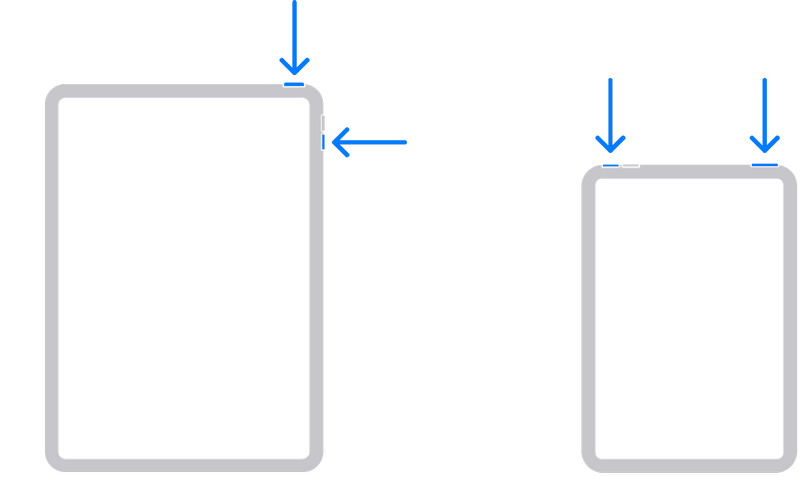
Méthode 1 : Forcer le redémarrage de votre iPad
Un simple redémarrage peut vider le cache temporaire qui pourrait être à l'origine du plantage de toutes les applications sur iPad.
Pour les iPad sans bouton d'accueil :
Appuyez et relâchez rapidement le Augmenter le volume puis le bouton le volume vers le bas bouton. Enfin, maintenez enfoncée la touche Top jusqu'à ce que le logo Apple apparaisse.
Pour les iPad avec un bouton d'accueil :
Tenez le Accueil et Top Appuyez simultanément sur les boutons jusqu'à ce que le logo apparaisse.
Méthode 2 : Mettre à jour les applications défectueuses
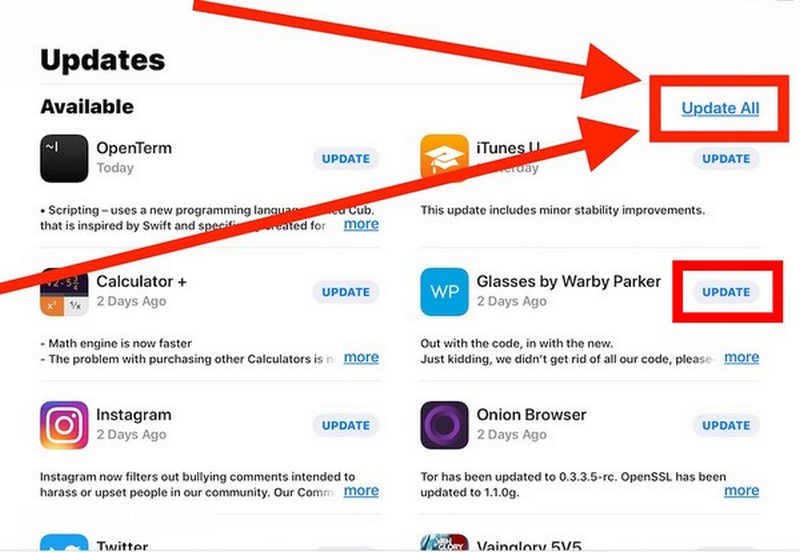
Si vos applications sur iPad continuent de planter, cela peut être dû au fait que les développeurs ont publié un correctif que vous n'avez pas encore installé.
Ouvrez l'App Store, appuyez sur votre profil et sélectionnez Tout mettre à jour ou mettez à jour les applications spécifiques qui plantent constamment sur votre iPad.
Méthode 3 : Vider le cache de l’application
De nombreux utilisateurs rencontrent des problèmes de plantage de l'application Facebook sur iPad. Cela est souvent dû à la taille importante de son cache ou aux processus d'actualisation en arrière-plan.
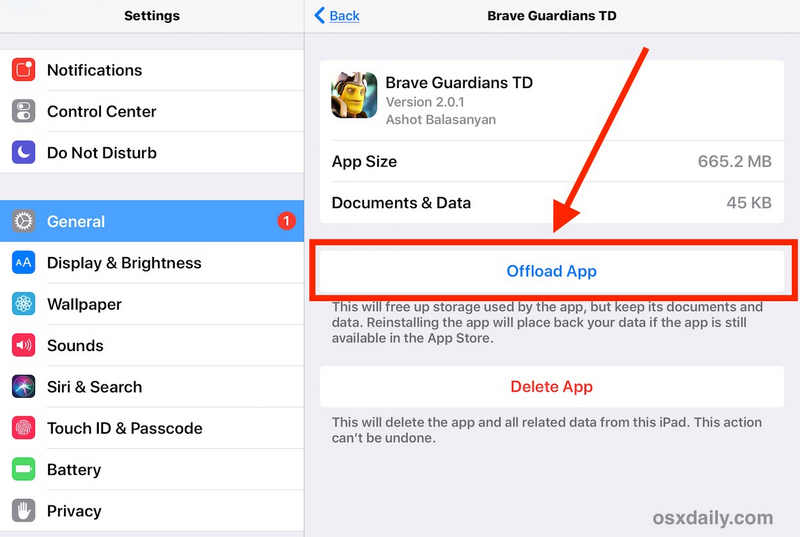
Étape 1 : Ouvrez le Paramètres l'application et appuyez sur le Généralités bouton. Sélectionner Stockage iPad.
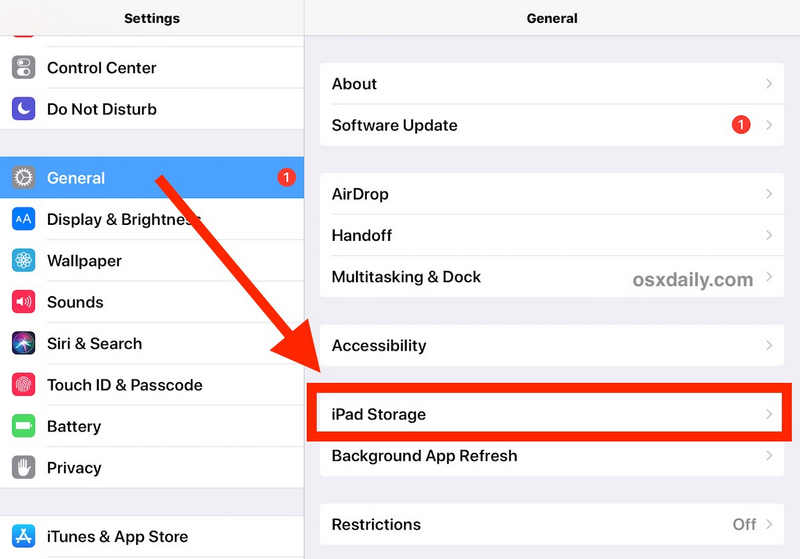
Étape 2 : Sélectionnez l'application qui plante sur votre iPad, puis appuyez sur Offload App .
Méthode 4 : Désactiver l’actualisation en arrière-plan
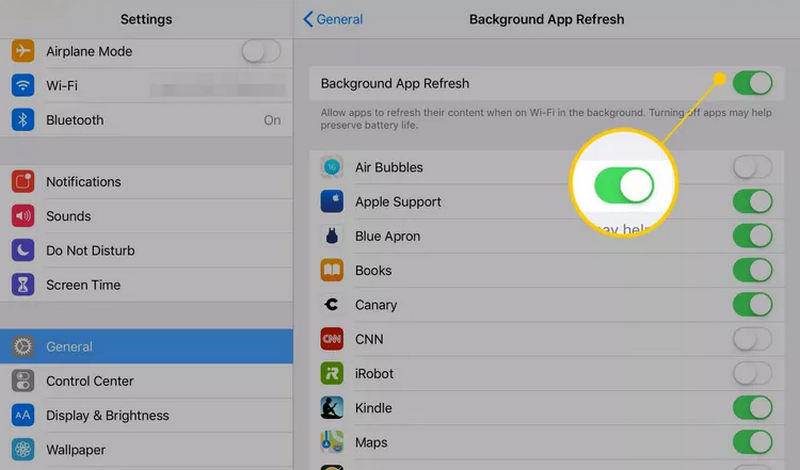
Étape 1 : Allez dans Paramètres et appuyez sur le Généralités bouton. Sélectionner Contexte App Actualiser.
Étape 2 : Accédez aux Réglages et appuyez sur le bouton Général. Sélectionnez Actualisation en arrière-plan.
Méthode 5 : Utilisation d’Apeaksoft iOS System Recovery
Si vous ne constatez pas seulement un dysfonctionnement d'une application, mais plutôt le plantage de toutes les applications sur votre iPad, le problème vient probablement d'iPadOS. Dans ce cas, Apeaksoft iOS System Recovery Il vous permet de résoudre facilement tous les problèmes et erreurs système. Il peut notamment vous aider à corriger les plantages d'applications sur votre iPad ou d'autres problèmes système, comme les problèmes d'écran, les erreurs de chargement, le logo de charge bloqué, etc.
Étape 1 : Télécharger, installer et lancer Apeaksoft iOS System Recovery sur votre ordinateur Windows ou Mac.
Téléchargement sécurisé
Téléchargement sécurisé
Étape 2 : Choisir Réparation de systèmesConnectez votre iPad à votre ordinateur. Ensuite, cliquez sur Commencer .
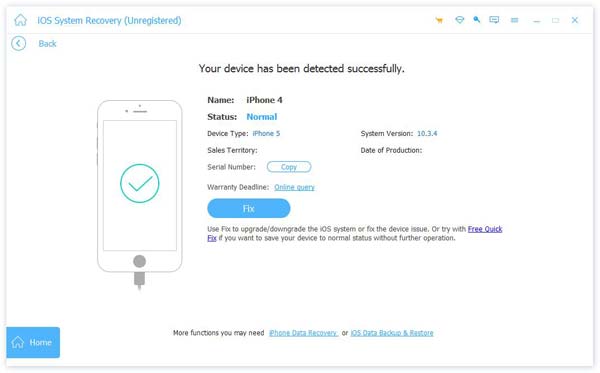
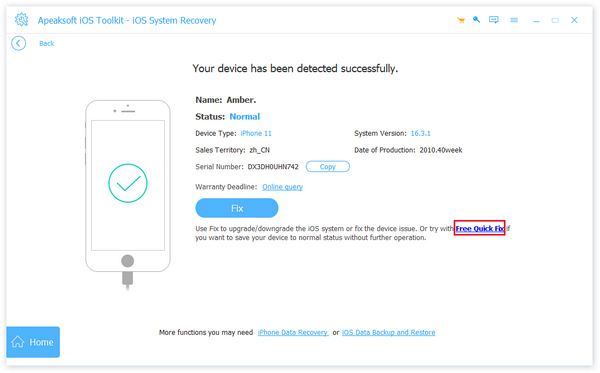
Étape 3 : Cliquez sur le bouton « Résolution rapide gratuite » pour tenter de résoudre les plantages d'applications sur votre iPad. Si cela ne fonctionne pas, cliquez sur le bouton… Fixer bouton pour continuer.
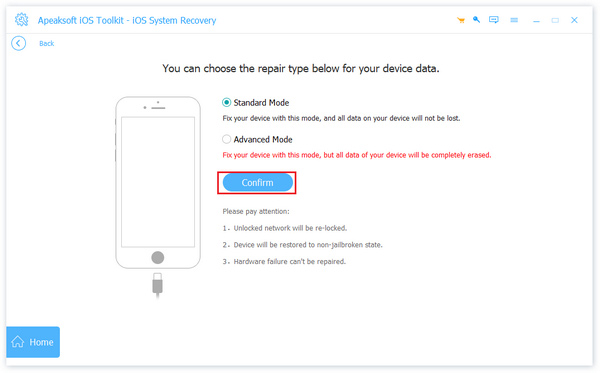
Étape 4 : Vous pouvez ensuite choisir entre deux modes :
Mode standard : Résolvez les problèmes système de votre iPad tout en conservant toutes vos données et informations.
Mode avancé : Résout en profondeur tous les problèmes système de l’iPad. Votre iPad sera également… réinitialisation d'usine.
Prenez votre décision et cliquez sur Confirmer pour continuer.
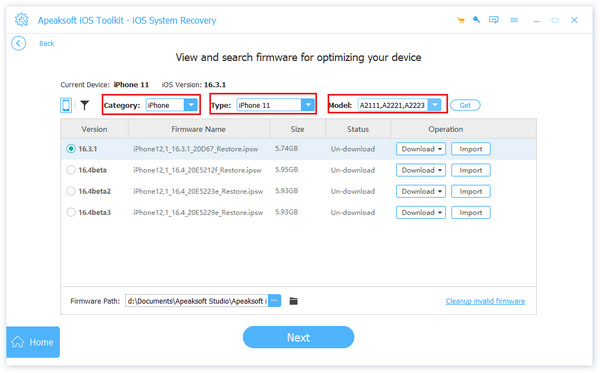
Étape 5 : Ici, vous pouvez sélectionner la version d'iPadOS souhaitée, que ce soit pour une mise à jour ou une rétrogradation. Ensuite, cliquez sur Suivant bouton permettant de résoudre tous les problèmes de plantage des applications sur iPad.
Lectures complémentaires
Méthode 6 : Vérifier l’espace de stockage disponible
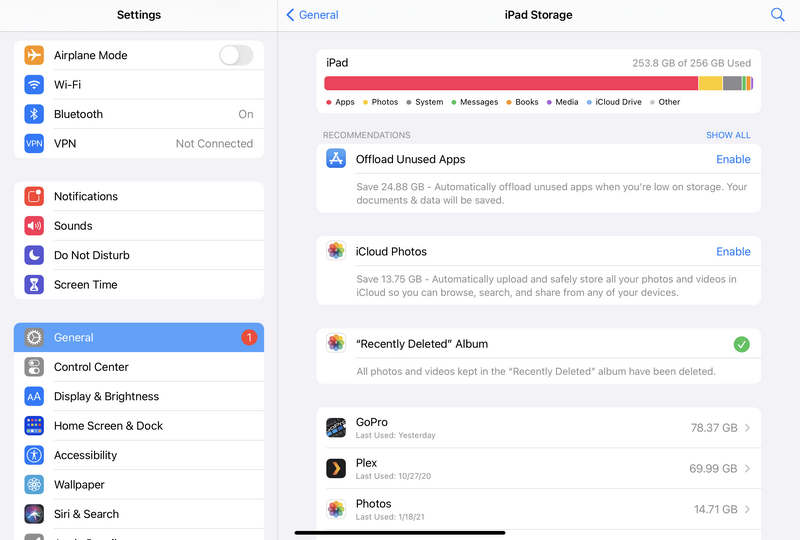
Un iPad ou un iPhone a généralement besoin d'au moins 10 à 15 % de sa capacité de stockage totale pour servir d'espace de travail aux applications. Si votre espace de stockage est saturé à 99 %, les applications iPad se bloquent car le système n'a plus de place pour stocker les données temporaires pendant leur exécution.
Ouvrez le Paramètres l'application sur votre iPad et appuyez sur Généralités bouton. Ensuite, sélectionnez Stockage iPad Pour vérifier l'espace de stockage disponible, réinitialisez-le. Si l'espace est limité, vous devrez désinstaller les applications inutiles ou supprimer certains fichiers.
Méthode 7 : En cas de limitations matérielles
Les modèles plus anciens, notamment l'iPad Mini 4 et les premiers modèles Pro, disposent d'une mémoire vive limitée. Si les applications plantent fréquemment sur votre iPad Mini, il est probable que vous ayez atteint les limites de votre matériel.
Dans ce cas, il vaut mieux limiter le multitâche. Par exemple, évitez d'utiliser le mode Split View si l'iPad exécute des applications gourmandes en ressources comme Lightroom ou Procreate.

Partie 3 : FAQ sur les plantages fréquents des applications iPad
Est-il judicieux de vider le cache de l'iPad ?
Oui, il est conseillé de vider le cache de votre iPad, mais uniquement si vous rencontrez des problèmes. Contrairement à un PC Windows ou un appareil Android, iPadOS est conçu pour gérer efficacement ses fichiers temporaires. Cependant, un vidage manuel devient nécessaire lorsque l'espace de stockage est saturé ou lorsque certaines applications commencent à planter.
Quels sont les signes d'usure d'un iPad ?
Décharge rapide de la batterie, plantages d'applications inexpliqués, ralentissements persistants, écran fantôme… Autant de signes indiquant que votre iPad est usé.
Quelle est la durée de vie moyenne d'un iPad ?
La durée de vie moyenne d'un iPad est d'environ 5 à 7 ans. Plus vous utilisez votre iPad, plus l'expérience se dégradera.
Conclusion
Un iPad est conçu pour être un outil fluide et intuitif. Les applications iPad plantent sans cesseCela rompt la magie. En suivant la hiérarchie des solutions — en commençant par un simple redémarrage, puis en passant par les mises à jour spécifiques aux applications comme le correctif pour les plantages de l'application Facebook sur iPad, et en terminant par la gestion du stockage système —, vous pouvez presque toujours résoudre le problème sans avoir à vous rendre au Genius Bar. Apeaksoft iOS System Recovery C'est également la meilleure solution pour tous les problèmes de plantage d'applications sur votre iPad. Ce logiciel corrige toutes les erreurs système et logicielles, et donc les dysfonctionnements des applications.
Articles Relatifs
Si votre iPad ne s'allume pas et que l'écran se fige, pas de panique ! Vous pouvez suivre nos solutions vérifiées pour résoudre ce problème rapidement.
Cet article complet vous explique pourquoi un iPhone ne se charge pas et comment résoudre ce problème sur votre téléphone sans perte de données.
Pour réparer un iPhone bloqué sur le logo Apple, vous pouvez lire notre guide concret et suivre nos solutions pour ré-accéder à votre appareil.
Voici sept solutions efficaces pour vous aider à réparer un iPhone lent et à améliorer rapidement les performances de votre téléphone.



