

Comment transférer rapidement des données d'un appareil Android à un autre ?

Rien n'est plus excitant que de passer à un nouveau smartphone, mais transfert de données d'Android à Android Transférer des données de votre ancien appareil vers le nouveau peut sembler complexe. Heureusement, il existe plusieurs méthodes pour transférer toutes vos données de votre ancien appareil vers le nouveau. En choisissant la bonne méthode, vous pouvez transférer vos contacts, photos, vidéos, messages, musique et bien plus encore sans perte de données. Ce guide présente les méthodes éprouvées, explique les prérequis et détaille les étapes à suivre.
CONTENU DE LA PAGE :
- Partie 1 : La méthode rapide pour transférer des données d'un appareil Android à un autre
- Partie 2 : Comment synchroniser des fichiers d’un appareil Android à un autre via Google Backup
- Partie 3 : Comment transférer des fichiers Android d’un ancien appareil vers un nouvel appareil Android
- Partie 4 : Comment transférer des fichiers entre appareils Android via Bluetooth
- Partie 5 : Applications de transfert de fichiers Android pour des marques spécifiques
Partie 1 : La méthode rapide pour transférer des données d'un appareil Android à un autre
Si vous avez besoin d'une méthode flexible pour transférer des fichiers d'Android à Android, Apeaksoft MobieTrans est une bonne option. Elle fonctionne avec la quasi-totalité des données de votre appareil Android. Plus important encore, elle transfère les données via un câble USB et ne nécessite pas de connexion réseau. Son interface intuitive la rend facile à utiliser.
Le moyen le plus rapide de transférer des données d'un appareil Android à un autre via USB
- Transférez rapidement des données entre appareils Android.
- Prévisualisation des données pour un transfert sélectif.
- Compatible avec les photos, la musique, les vidéos, les contacts, etc.
- Inclut des fonctionnalités bonus, comme un créateur de sonneries.
- Compatible avec la quasi-totalité des marques et modèles Android.
Téléchargement sécurisé
Comment transférer des données d'Android vers Android
Étape 1 : Installer le transfert Android vers Android
Lancez le logiciel de transfert de fichiers Android après l'avoir installé sur votre ordinateur. Connectez les deux appareils Android à votre ordinateur à l'aide de câbles USB. Le logiciel les reconnaîtra immédiatement. Si vous y êtes invité, faites confiance à l'ordinateur.
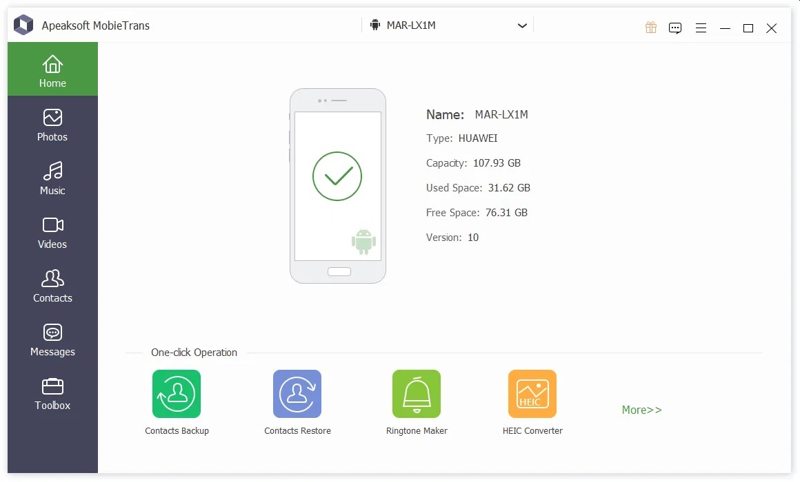
Astuce: Assurez-vous d'activer USB Debugging mode sur les deux appareils.
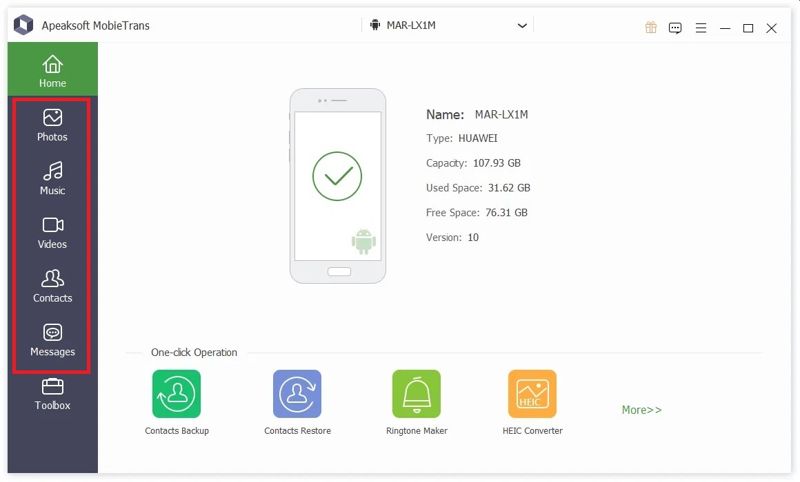
Étape 2 : Prévisualisez vos données
Sélectionnez le périphérique source dans la liste des options. Choisissez le type de données à transférer, par exemple : Photoset consultez les données sur votre téléphone.
Étape 3 : Transférer des données d'Android à Android
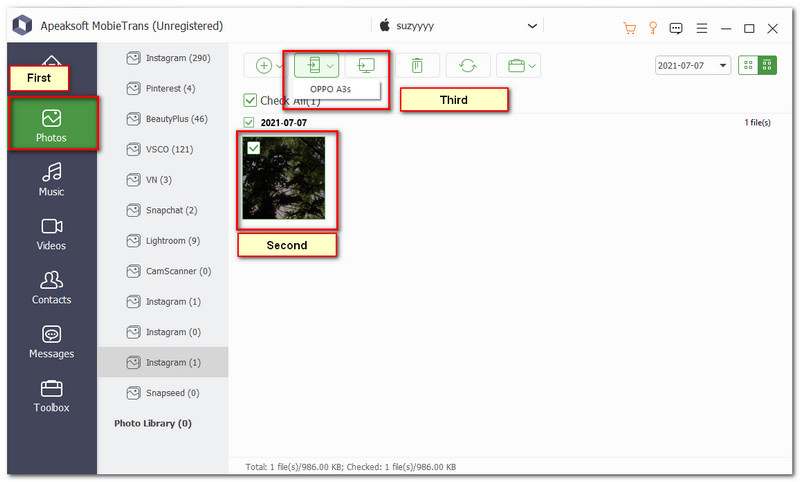
Sélectionnez tous les fichiers et éléments que vous souhaitez synchroniser, cliquez sur Numéro de téléphone Cliquez sur le bouton situé dans la barre de menu supérieure et sélectionnez l'appareil cible. Attendez la fin du processus, puis déconnectez les deux appareils.
Partie 2 : Comment synchroniser des fichiers d’un appareil Android à un autre via Google Backup
Pour activer un téléphone Android, vous devez vous connecter à un compte Google. Vous pourrez ensuite sauvegarder votre téléphone sur ce compte. La restauration de cette sauvegarde vous permettra de transférer des données d'un appareil Android à un autre sans fil. Sauvegarde sur le cloud Google peuvent inclure des fichiers multimédias, des contacts, des calendriers, des données d'applications, des SMS et des paramètres de l'appareil.
Exigences
1. Un compte Google avec un espace de stockage suffisant.
2. Une connexion internet stable.
Étape 1 : Exécutez le Paramètres application sur votre ancien téléphone.
Étape 2 : Appuyez sur votre profil et choisissez Google.
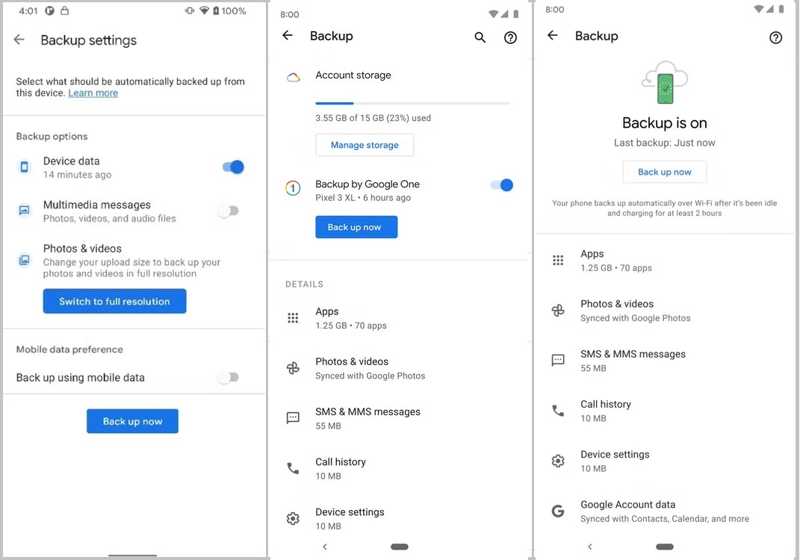
Étape 3 : Choisissez Sauvegarder, et activez Sauvegarde par Google One.
Astuce: Si la sauvegarde automatique ne se lance pas, appuyez sur Sauvegarder maintenant pour sauvegarder manuellement votre téléphone.
Étape 4 : Allumez votre nouveau téléphone et appuyez sur Start Pour le configurer.
Étape 5 : Connectez-vous à un réseau Wi-Fi.
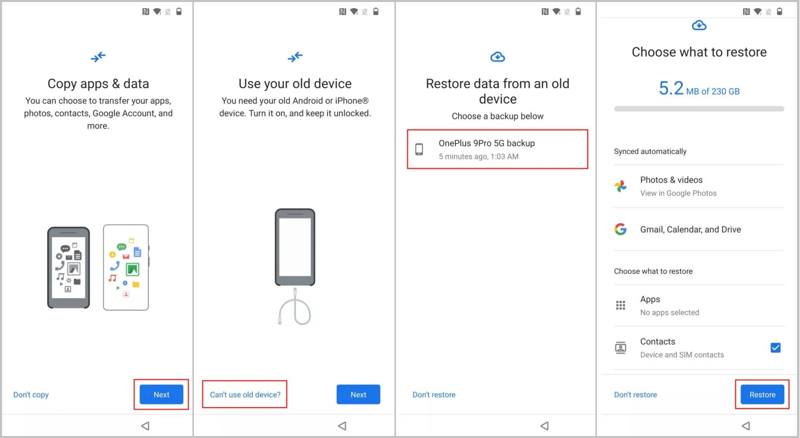
Étape 6 : Exploiter Suivant sur le Copier les applications et les données avec l'écran du tableau des commandes prêtes.
Étape 7 : Presse Impossible d'utiliser l'ancien appareil et connectez-vous à votre compte Google.
Étape 8 : Choisissez la sauvegarde la plus récente, cochez les types de données souhaités et appuyez sur Restaurer.
Partie 3 : Comment transférer des fichiers Android d’un ancien appareil vers un nouvel appareil Android
Lors de la configuration d'un nouvel appareil Android, vous pouvez transférer toutes vos données depuis un autre appareil Android. Nous utilisons un Pixel 9 Pro sous Android 16 comme exemple pour illustrer la procédure. Pour les versions antérieures, le processus peut être légèrement différent.
Exigences
1. Un réseau stable.
2. Appareils Android compatibles.
Étape 1 : Allumez votre nouvel appareil et appuyez sur Commencer.
Étape 2 : Choisissez Appareil Pixel ou Android.
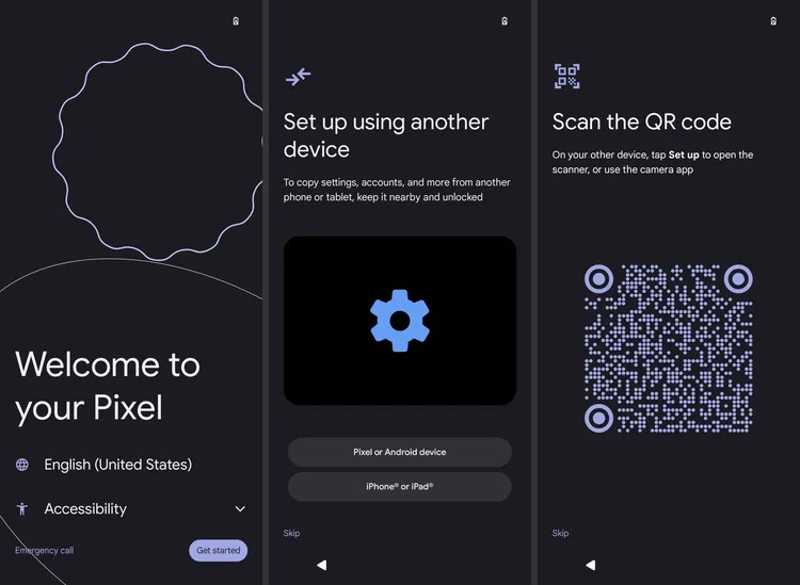
Étape 3 : Prenez l'ancien téléphone et scannez le code QR.
Astuce: Si la sauvegarde automatique ne se lance pas, appuyez sur Sauvegarder maintenant pour sauvegarder manuellement votre téléphone.
Étape 4 : Lorsque vous y serez invité, saisissez le code PIN de votre ancien téléphone dans votre nouvel appareil.
Étape 5 : Suivez les instructions à l'écran pour configurer la carte SIM, le déverrouillage facial ou l'empreinte digitale.
Étape 6 : Sur le Copier les applications et les données l'écran, appuyez sur le Suivant .
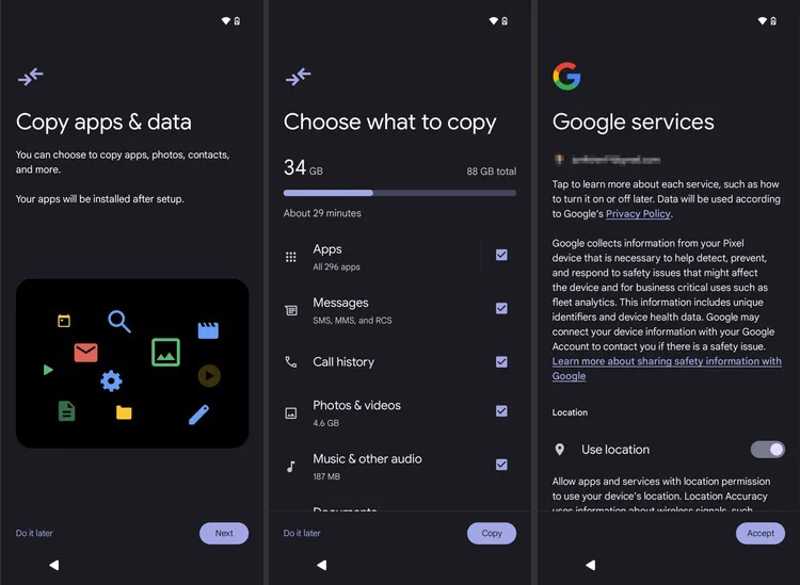
Étape 7 : Cochez les types de données souhaités et appuyez Copier.
Étape 8 : Ensuite, terminez la configuration en suivant les instructions.
Partie 4 : Comment transférer des fichiers entre appareils Android via Bluetooth
Après la configuration, vous pouvez transférer des fichiers d'un appareil Android à un autre via Bluetooth. La connexion sans fil est compatible avec la quasi-totalité des appareils Android. Elle est uniquement disponible pour le transfert de fichiers et, de plus, la vitesse est faible.
Exigences
1. Appareils Android accessibles.
2. Placez deux appareils ensemble.
Étape 1 : allumer Bluetooth in Paramètres or Quick Settings sur les deux appareils.
Étape 2 : Exploiter Scanner pour découvrir l'autre appareil.
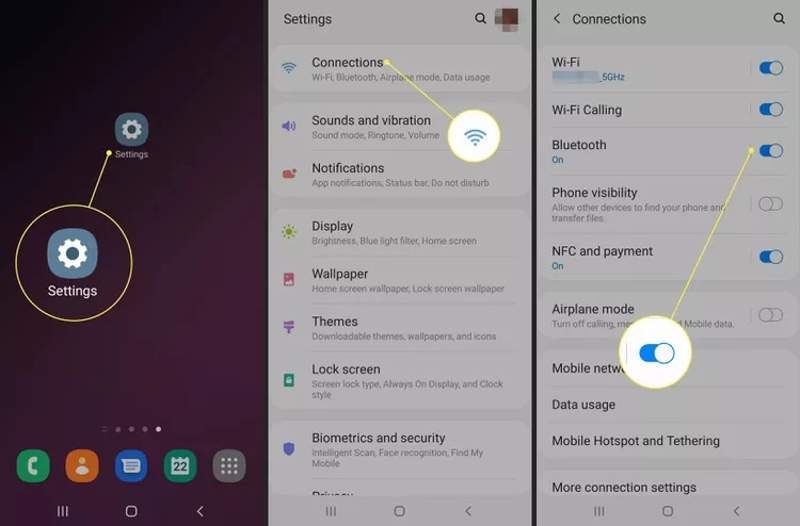
Étape 3 : Choisissez l'autre appareil sous Appareils disponibleset appuyez sur OK pour l'associer.
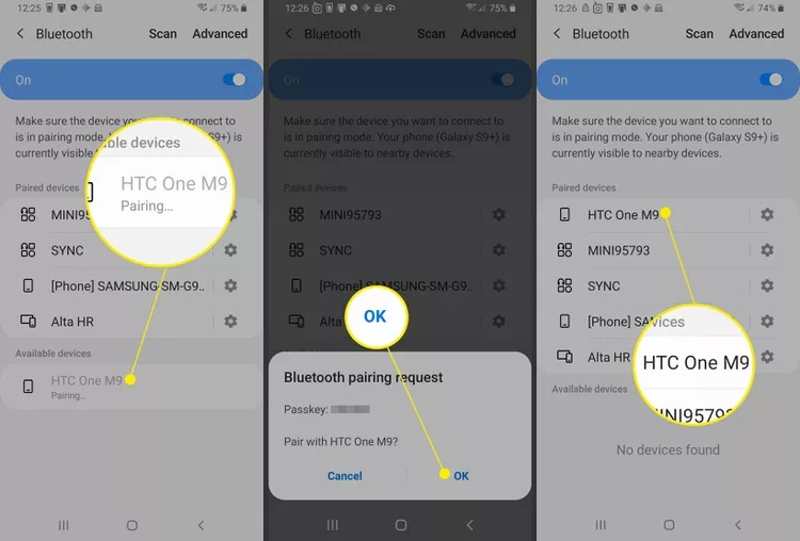
Étape 4 : Ouvrez le Documents officiels or Galerie application sur l'appareil source.
Étape 5 : Sélectionnez le fichier ou la photo que vous souhaitez transférer.
Étape 6 : Frappe le Partagez bouton, choisissez Bluetooth, et sélectionnez le périphérique cible.
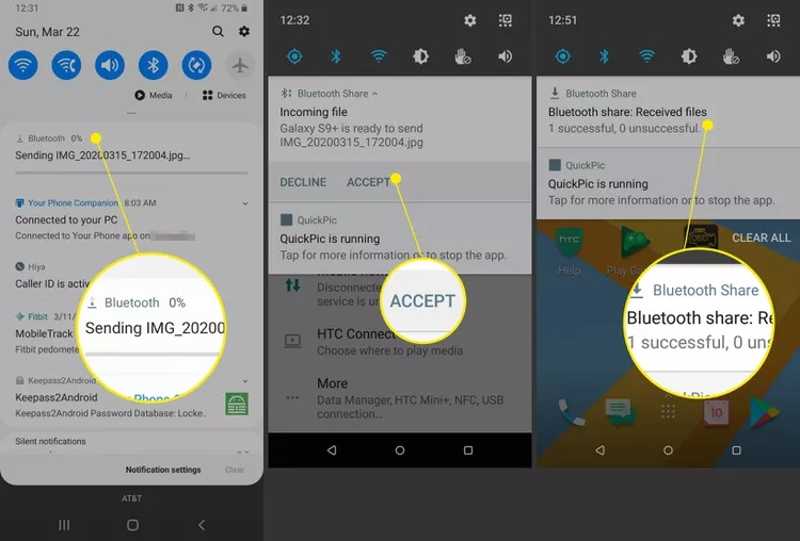
Étape 7 : Tournez-vous vers l'appareil cible et appuyez sur Accepter pour recevoir le fichier.
Partie 5 : Applications de transfert de fichiers Android pour des marques spécifiques
Les principaux fabricants ont publié des applications permettant à leurs clients de transférer des données d'Android à Android, comme Samsung Smart Switch et LG Mobile Switch. Ces applications sont entièrement gratuites à télécharger et à utiliser pour configurer rapidement leurs téléphones ou tablettes Android.
Comment transférer des données d'Android vers Samsung avec Smart Switch
Étape 1 : Installer smart Switch sur les deux appareils Android.
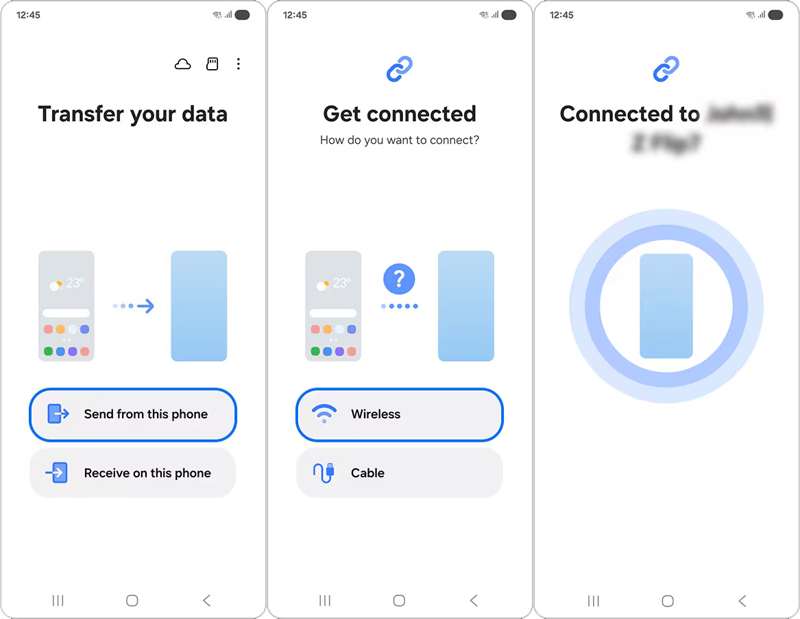
Étape 2 : Ouvrez-le sur l'appareil source, appuyez sur Envoyer depuis ce téléphoneet choisissez Sans-fil.
Étape 3 : Choisissez Galaxie/Android continuer.
Étape 4 : Lancez l'application sur l'appareil cible, appuyez sur Recevoir sur ce téléphoneet choisissez Sans-fil.
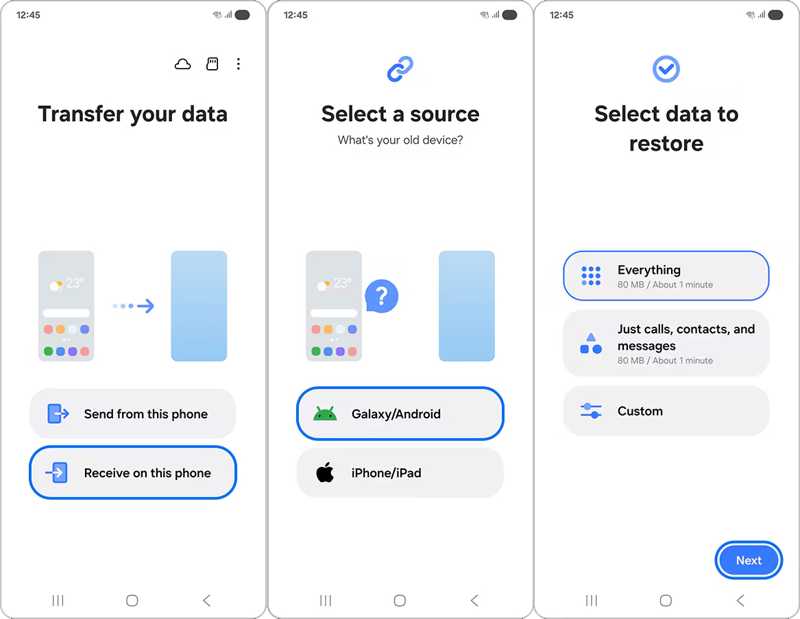
Étape 5 : Ouvrez l'application Appareil photo sur votre appareil source et scannez le code QR sur votre appareil cible.
Étape 6 : Ensuite, choisissez Toutou appuyez sur Encadrement Sur Mesure et sélectionnez les types de données souhaités.
Étape 7 : Appuyez sur Suivant pour commencer la synchronisation des données d'Android à Android.
Comment transférer des données Android vers un Pixel avec l'outil de transfert de données Google
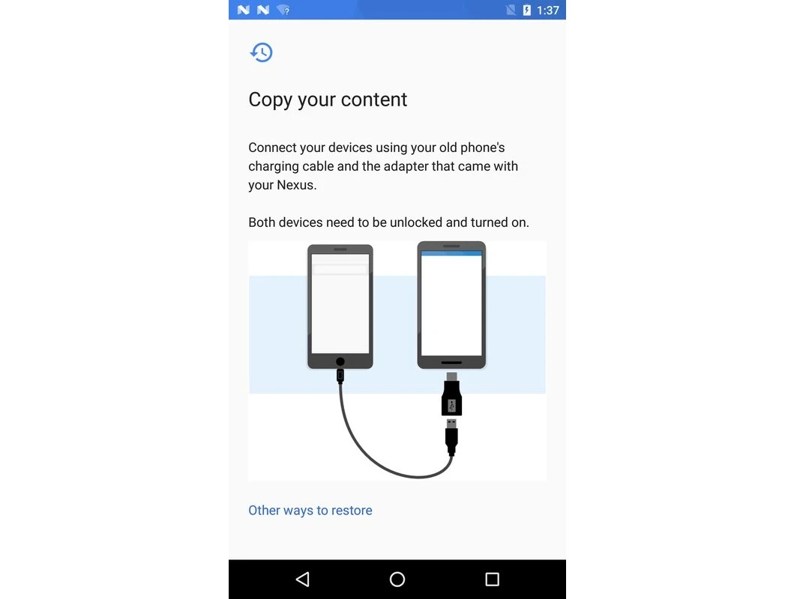
Étape 1 : Connectez les deux appareils Pixel à l'aide d'un câble et d'un adaptateur.
Étape 2 : Exécutez le Outil de transfert de données app.
Étape 3 : Choisissez Transférer des données depuis un téléphone existantet appuyez sur Suivant.
Étape 4 : Acceptez la demande et accordez l'autorisation.
Étape 5 : Appuyez sur le Copier bouton permettant de lancer le transfert d'un appareil Android vers un autre.
Comment transférer toutes vos données entre appareils Android et LG Mobile Switch ? Comment transférer des données entre Android et LG Mobile Switch ?
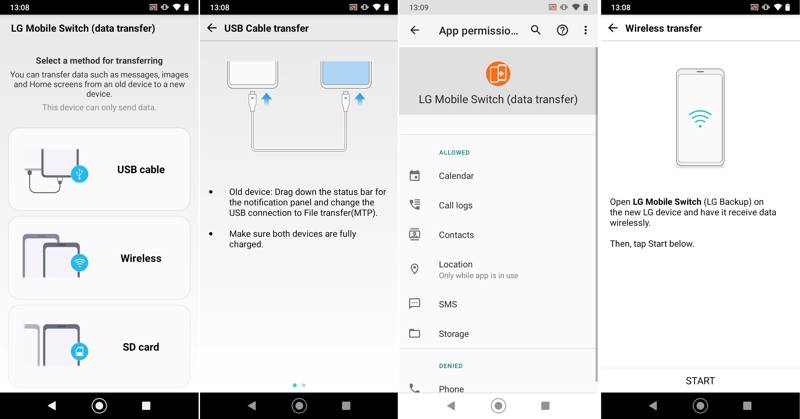
Étape 1 : Installez LG Mobile Switch et lancez-le sur vos anciens et nouveaux appareils.
Étape 2 : Choisissez le type de connexion approprié en fonction de votre situation.
Étape 3 : Ensuite, connectez les deux appareils comme indiqué.
Étape 4 : Une fois la connexion établie, sélectionnez les types de données que vous souhaitez transférer.
Étape 5 : Enfin, appuyez sur le Start bouton permettant de démarrer le transfert de données d'un appareil Android à un autre.
Comment transférer des données d'un appareil Android à un autre à l'aide de Mi Mover
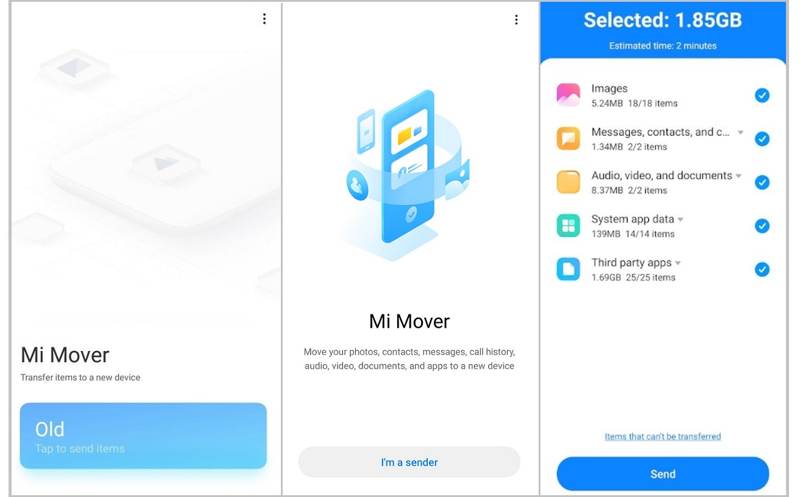
Étape 1 : Installez Mi Mover sur votre téléphone Xiaomi et autres appareils.
Étape 2 : Connectez les deux appareils au même Wi-Fi.
Étape 3 : Lancez l'application sur l'appareil cible et choisissez l'option de réception.
Étape 4 : Ouvrez l'application sur l'appareil source et choisissez l'expéditeur.
Étape 5 : Sélectionnez l'appareil cible dans la liste pour l'appairer.
Étape 6 : Choisissez les données à envoyer et gardez les deux appareils à proximité.
Étape 7 : Confirmez le transfert d'un téléphone Android à un autre et commencez.
Conclusion
Ce guide explique comment obtenir Transfert de fichiers Android Lorsque vous changez de téléphone ou si vous souhaitez accéder à vos données entre vos appareils, vous pouvez choisir la méthode qui vous convient le mieux en fonction de nos options de partage et transférer vos données d'un appareil Android à un autre. Apeaksoft MobieTrans est un moyen rapide de terminer le travail.
Articles Relatifs
Si vous avez soudainement oublié le schéma de verrouillage de votre téléphone Android, cet article vous expliquera comment le déverrouiller sans effort.
Vos messages vocaux importants sont conservés dans votre messagerie vocale. Si vous les avez perdus, consultez cet article pour récupérer vos messages vocaux supprimés sur Android.
Google peut sauvegarder et restaurer votre appareil, en gérant efficacement vos données. Ce guide vous explique comment récupérer une sauvegarde Google sur Android.
Vous découvrirez ici six méthodes efficaces pour récupérer vos SMS Android sur smartphone, même sans fichier de sauvegarde.



