Hogyan javítsuk ki, ha az iPhone folyamatosan kéri az Apple ID jelszót

„Az elmúlt hónapban problémám volt az iPhone-ommal. Gyakran kéri, hogy jelentkezzek be az Apple ID-mmel és jelszavammal. Hogyan oldhatom meg ezt a problémát?” Az Apple ID és a jelszó kulcsszerepet játszik az iOS-eszközökön. Lehetővé teszi a felhasználók számára, hogy hozzáférjenek az Apple szolgáltatásaihoz, az iCloudtól az iPhone keresése funkcióig, az iMessage-től a Face ID-ig és sok másig. Ha a… Az iPhone folyamatosan kéri az Apple ID jelszavát, előfordulhat, hogy kizárásra kerülsz ezekből a szolgáltatásokból. Cikkünk bemutatja, hogyan javíthatod ki ezt a hibát.
OLDAL TARTALMA:
1. rész: Miért kér folyamatosan jelszót az iPhone?
Ha az iPhone folyamatosan az Apple ID-t és a jelszót kéri, az bosszantó, és előfordulhat, hogy a készülék használata közben megszakad a probléma. Mielőtt áttekintenénk a megoldásokat, először beszéljük meg a gyakori okokat:
- 1.Megváltoztatta az Apple ID jelszavát egy másik eszközön.
- 2.Az iPhone elakad egy alkalmazás letöltése vagy egy termék vásárlása közben.
- 3.Módosítottad az Apple ID adataidat, és nem frissítetted őket az iPhone-odon.
- 4.Nemrég hozzáadtál egy új Touch ID-t vagy Face ID-t.
- 5.Az iMessage vagy a FaceTime aktiválási problémákat tapasztal.
- 6.Szoftverhibák vagy hibák.
2. rész: Mi a teendő, ha az iPhone folyamatosan jelszót kér
Mit tehetsz, ha az iPhone véletlenszerűen kéri az Apple ID jelszavadat? Ezt a problémát magad is megoldhatod. Az alábbiakban bemutatjuk a bevált megoldásokat, amelyeket egyesével is elvégezhetsz.
1. megoldás: Indítsa újra az iPhone készüléket
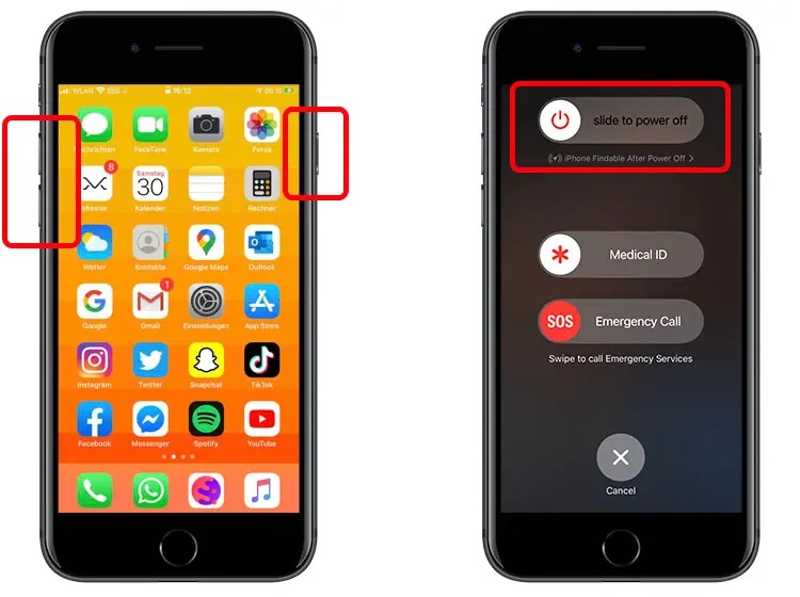
Lépés 1. iPhone X és újabb készülékeken tartsa lenyomva a kötet gomb és a Oldal gomb együtt.
iPhone 8 és korábbi modellek esetén tartsa lenyomva a Oldal or Sleep / Wake gombot.
Lépés 2. Amikor megjelenik a kikapcsolási képernyő, engedje el a gombot vagy gombokat.
Lépés 3. Mozgasd a csúszkát, és kapcsold ki a készüléket.
Lépés 4. Néhány perccel később nyomja meg hosszan a Oldal or Sleep / Wake gombot, amíg meg nem jelenik az Apple logó.
2. megoldás: Jelentkezzen be újra az Apple ID-be
Lépés 1. Ha az iPhone-od jelszót kér Face ID helyett, futtasd a következőt: beállítások app.
Lépés 2. Koppints a profilodra, görgess le, és koppints a Kijelentkezés.
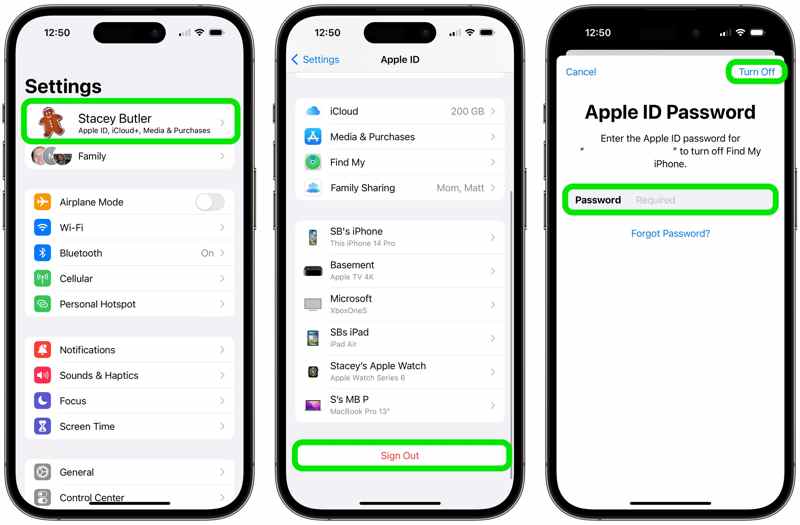
Lépés 3. Írd be az Apple ID jelszavadat, majd koppints a Kikapcsolása ha az iPhone keresése engedélyezve van.
Lépés 4. Válassza ki a megtartani kívánt adattípusokat, majd koppintson a Kijelentkezés újra.
Lépés 5. Indítsa újra az iPhone-t, és futtassa a beállítások app.
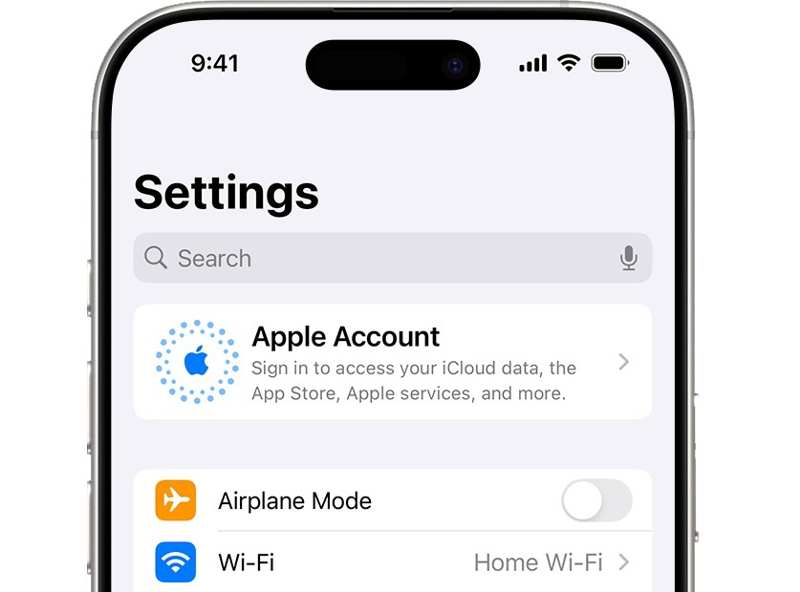
Lépés 6. Érintse Apple fiók, választ Jelentkezzen be manuálisan, majd adja meg Apple ID azonosítóját és jelszavát.
3. megoldás: Frissítse az Apple ID beállításait
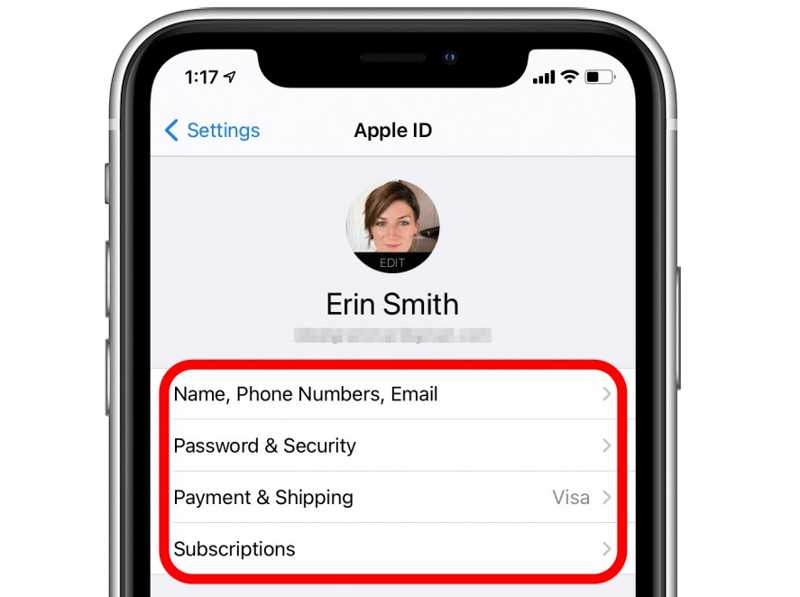
Lépés 1. Ha az iPhone-od Apple ID-t és jelszót kér, miután egy másik eszközön módosítottad az adataidat, menj a saját oldaladra. beállítások app.
Lépés 2. Koppintson a profiljára.
Lépés 3. Érintse Név, Telefonszámok, E-mailben ellenőrizheti és frissítheti az információkat.
Lépés 4. Ezután válasszon Fizetés és vásárlás, és frissítse fizetési adatait.
További olvasnivalók
4. megoldás: Kapcsolja ki az iMessage-t és a FaceTime-ot
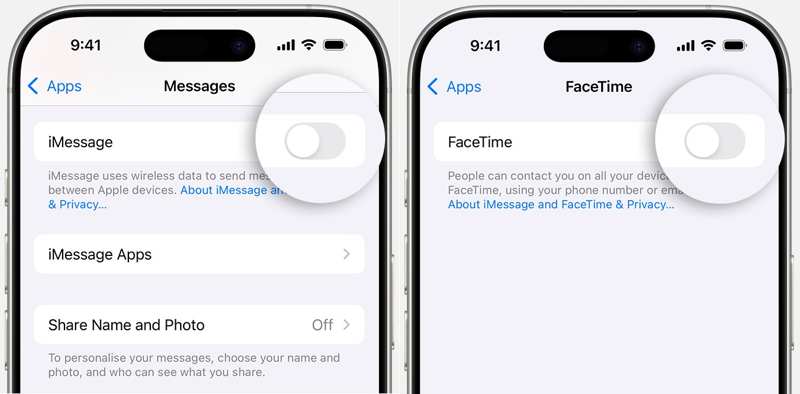
Lépés 1. Amikor az iPhone jelszót kér az iMessage vagy a FaceTime miatt, nyissa meg a beállítások app.
Lépés 2. Tovább Apps, és válasszon Üzenetek or FaceTime.
Lépés 3. Kapcsolja ki iMessage or FaceTime.
Lépés 4. Indítsa újra az iPhone készülékét.
Lépés 5. Ezután aktiváld újra az iMessage-et vagy a FaceTime-ot.
5. megoldás: Az Apple ID jelszó online visszaállítása
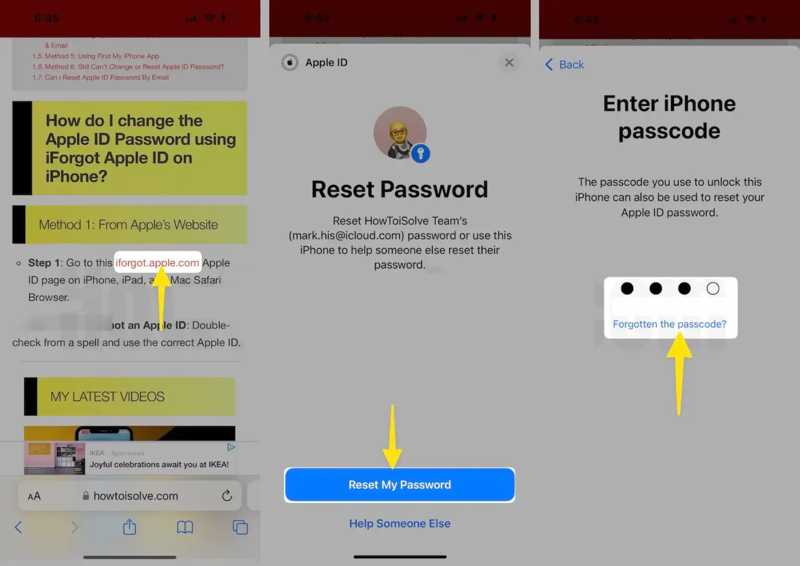
Lépés 1. Látogasson el az ifogot.apple.com oldalra egy böngészőben.
Lépés 2. Érintse Jelszó visszaállítása, és adja meg az iPhone jelszavát.
Lépés 3. Írjon be egy új Apple ID jelszót, majd koppintson az folytatódik, és nyomja meg csinált.
Lépés 4. Ezután frissítse az új jelszót az iPhone-ján.
3. rész: Egyablakos megoldás az iPhone jelszókérés javítására
Alternatív megoldás egy új Apple ID-fiók használata, ha az iPhone folyamatosan kéri az Apple ID jelszavát. Apeaksoft iOS feloldó képes eltávolítani a régi Apple ID-t az iPhone-ról technikai ismeretek nélkül.
Egyablakos megoldás az iPhone jelszókérésének javítására
- Az Apple ID eltávolítása iPhone-ról jelszó nélkül.
- Különböző helyzetekben elérhető, beleértve a letiltott eszközt is.
- Biztosítson bónusz funkciókat, például jelszóval feloldható feloldást.
- Támogassa a legújabb iPhone és iPad modelleket.
Biztonságos letöltés
Biztonságos letöltés

Hogyan javítsuk ki az iPhone jelszó kérését
Lépés 1. Csatlakozzon iPhone-jához
Indítsa el az iOS Unlocker alkalmazást, miután telepítette a számítógépére. Mac-re is elérhető. Csatlakoztassa iPhone-ját a számítógépéhez Lightning-kábellel. Válassza ki a Apple ID eltávolítása módban, és kattintson a Kapcsolat gombot.
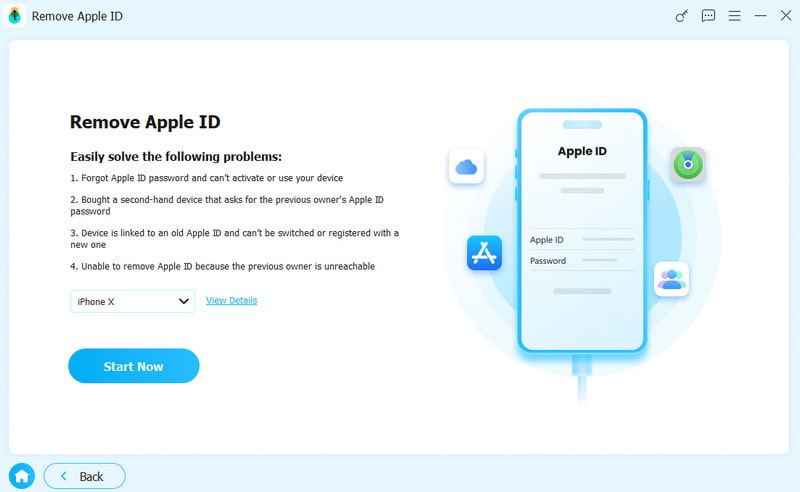
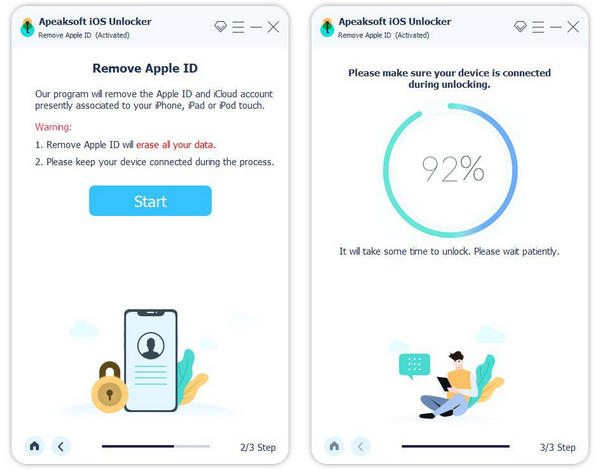
Lépés 2. Apple ID eltávolítása
Ha az iPhone keresése le van tiltva, a szoftver automatikusan eltávolítja az Apple ID hitelesítő adatait.
Ha az iPhone keresése engedélyezve van, és az iOS 11.3-as vagy korábbi verzióját futtatja, állítsa vissza az eszköz összes beállítását. Ezután a szoftver elvégzi a többi munkát.
Ha az iPhone keresése engedélyezve van, és az iOS 11.4-es vagy újabb verzióját futtatja, kapcsolja be a kétfaktoros hitelesítést. Térjen vissza a szoftverhez, és erősítse meg az Apple ID eltávolítását. Ha ezzel végzett, hozzon létre egy új Apple ID-t és jelszót az iPhone-ján.
Összegzés
Megoldásainkat követve megoldhatja azt a problémát, hogy iPhone-ja folyamatosan kéri az Apple ID-hez társított e-mail jelszót. Az általános megoldások segíthetnek gyorsan megszabadulni a problémától. Ha ezek nem érhetők el, próbálja ki az egyablakos megoldást, Apeaksoft iOS feloldó.
Kapcsolódó cikkek