


Hogyan távolítsuk el a képernyőzár jelszavát az iPhone-ról

A képernyőzár eltávolítása Az iPhone-on található képernyőzár hasznos lehet, ha nem szeretnél biztonsági intézkedéseket, például jelszót, Face ID-t vagy Touch ID-t használni a készüléked közvetlen eléréséhez. Valójában ez kényelmesebbé teszi az iOS-készüléked elérését, ha otthon vagy privát környezetben szeretnéd használni. Ez az útmutató bemutatja a bevált módszereket a képernyőzárak feloldására különböző helyzetekben, beleértve azt is, ha elfelejtetted a jelszót.
OLDAL TARTALMA:
1. rész: Hogyan távolítsuk el a képernyőzárat az iPhone-on a Beállításokból
Az iPhone képernyőzár jelszavának eltávolításának legegyszerűbb módja a Beállítások alkalmazás. Ennek előfeltétele, hogy az eszköz továbbra is elérhető legyen, és hogy még mindig emlékezzen a zárképernyő jelszavára.
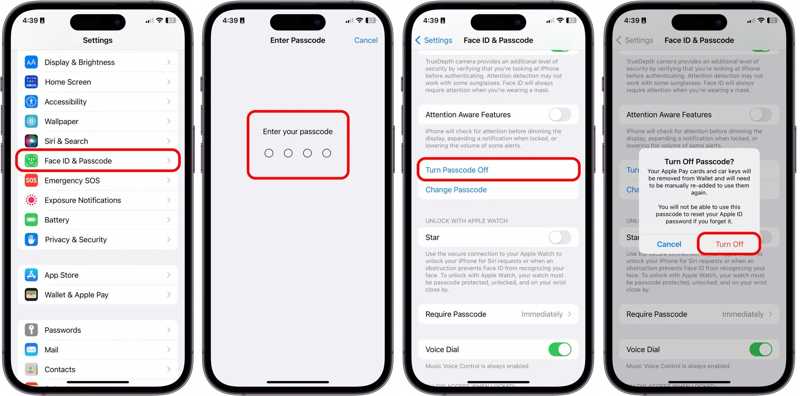
Lépés 1. Kapcsold be az iPhone-odat, és futtasd a beállítások app.
Lépés 2. Érintse meg a Arc-azonosító és jelszó or Érintse meg az ID és a Jelszó lehetőséget opciót.
Lépés 3. Adja meg a jelszavát.
Lépés 4. Érintse meg a Kapcsolja ki a jelszót gombot.
Lépés 5. Olvasd el a figyelmeztetést és válassz Kikapcsolása annak megerősítésére.
2. rész: Hogyan lehet eltávolítani a képernyőzárat iPhone-on, ha elfelejtette a jelszavát
1. út: Hogyan távolítsuk el a képernyőzárat iPhone-on az iPhone törlése segítségével
Ha elfelejtette iPhone jelszavát, kizáródik az eszközéről. Az iOS 15.2 óta az Apple bevezette a Biztonsági zárolás funkciót az iPhone-okba. Ez a funkció a következőt kínálja: Töröld az iPhone-t or Elfelejtett jelszó lehetőség az iPhone képernyőzárának, valamint más adatok feloldására.
iOS 17-es és újabb verziókon
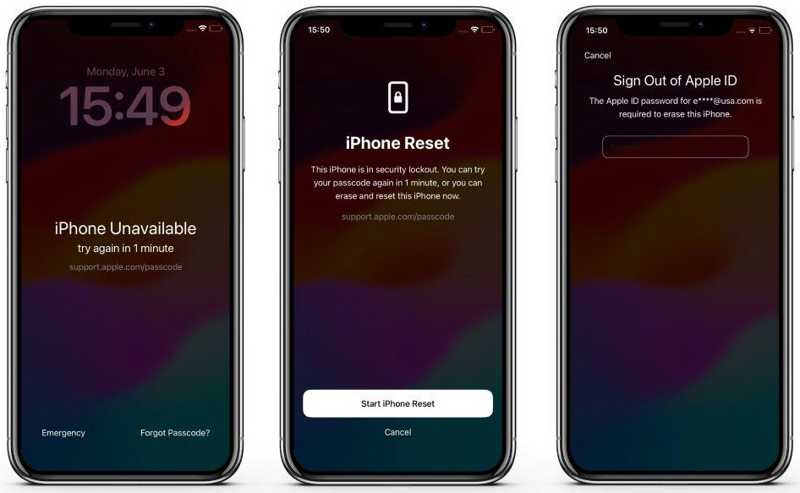
Lépés 1. Ismételten adjon meg rossz jelszót, amíg a iPhone nem elérhető megjelenik a képernyő.
Lépés 2. Érintse meg a Elfelejtett jelszó opciót.
Lépés 3. A pop-art design, négy időzóna kijelzése egyszerre és méretének arányai azok az érvek, amelyek a NeXtime Time Zones-t kiváló választássá teszik. Válassza a Indítsa el az iPhone visszaállítását.
Lépés 4. Írd be az Apple-fiókod jelszavát.
Lépés 5. Miután az iPhone újraindult, állítsa be újra.
iOS 15.2-es és újabb verziókon
Lépés 1. Indítsa el a iPhone nem elérhető képernyő helytelen jelszóval.
Lépés 2. Érintse meg a Töröld az iPhone-t opciót.
Lépés 3. Olvasd el az értesítést, és koppints az Töröld az iPhone-t újra.
Lépés 4. Írd be a csatolt Apple-fiók jelszavát.
2. út: Hogyan távolítsuk el az iPhone zárolási képernyőjét a Find My alkalmazásban
Ha engedélyezve van az iPhone keresése vagy az iPad keresése, eltávolíthatja az iPhone zárolási képernyőjét egy kölcsönvett Apple eszközről. Ez azt jelenti, hogy a feladatot akkor is elvégezheti, ha elfelejtette iPhone jelszavát.
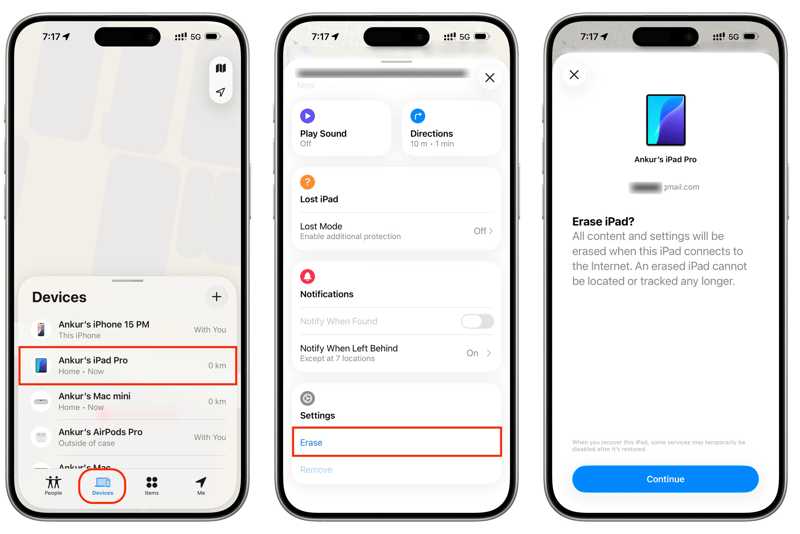
Lépés 1. Nyissa meg a Keresse meg a My alkalmazás egy kölcsönvett Apple eszközön.
Lépés 2. Jelentkezz be az iPhone-odhoz társított Apple-fiókkal és jelszóval.
Lépés 3. Menj a Eszközök fülre, és válassza ki az eszközét.
Lépés 4. Bontsa ki az alsó eszköztárat, és koppintson a Törli.
Lépés 5. Olvasd el a figyelmeztetést, és koppints folytatódik.
Lépés 6. Írd be a telefonszámodat, vagy hagyd figyelmen kívül, majd koppints Törli.
Lépés 7. Írd be az Apple-fiókod jelszavát, és koppints Törli újra. Ez a folyamat a gyári beállítások visszaállítása az iPhone.
3. út: Hogyan távolítsuk el a zárolási képernyő jelszavát az iCloud.com oldalon
Az iPhone zárolási képernyő jelszavának eltávolításának egy másik módja az iCloud.com. Ennek előfeltétele, hogy az iPhone keresése funkció be legyen kapcsolva a készüléken, mielőtt elfelejtette volna az iPhone jelszavát.
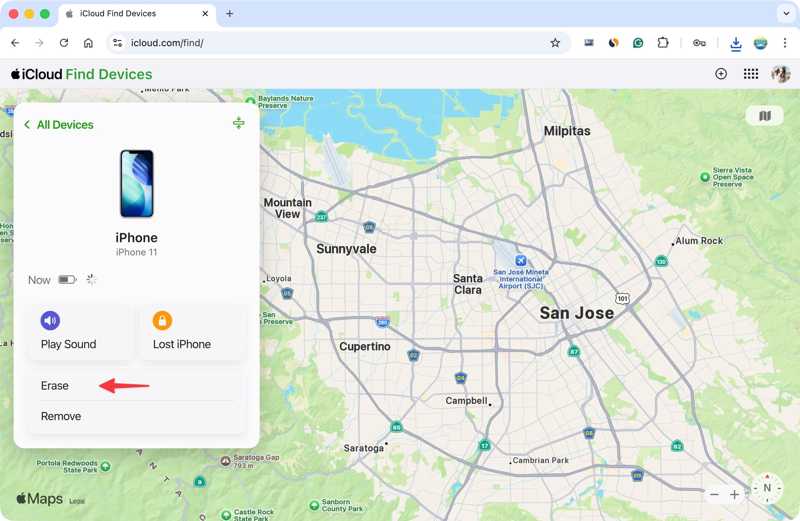
Lépés 1. Látogasson el a www.icloud.com/find weboldalra egy böngészőben.
Lépés 2. Jelentkezz be Apple-fiókodba és jelszavaddal.
Lépés 3. Válaszd ki az iPhone-odat a következők közül: Minden eszköz lista.
Lépés 4. Miután az Apple nyomon követte az eszközödet, kattints a Törli or Törölje ezt az eszközt gombot.
Lépés 5. Írja be telefonszámát, és kattintson a gombra Következő.
Lépés 6. Kattintson az Törli gombra a zárolási képernyő jelszavának és egyéb adatok eltávolításának megkezdéséhez.
4. út: Hogyan távolítsuk el a zárolási képernyőt iPhone-on számítógéppel
A helyreállítási mód egy másik lehetőség az iPhone zárolási képernyőjének eltávolítására, ha elfelejtette a jelszót. Ehhez a módszerhez számítógép és egy kompatibilis kábel szükséges. Még akkor is elérhető ez a módszer, ha az iPhone le van tiltva.
Lépés 1. Csatlakoztassa iPhone-ját a számítógéphez USB-kábellel.
Lépés 2. Nyissa meg az iTunes alkalmazást Windows vagy macOS Mojave vagy korábbi rendszeren. macOS Catalin vagy újabb rendszeren futtassa a Findert.
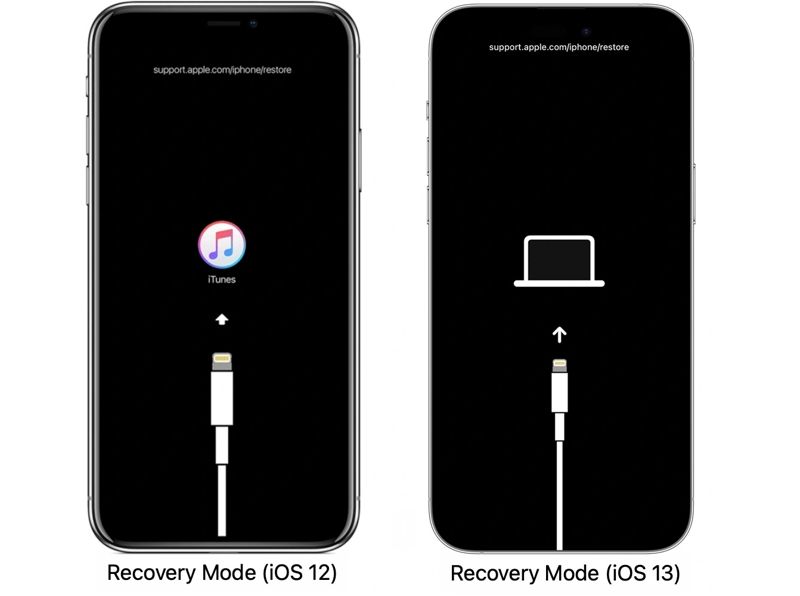
Lépés 3. Helyezze iPhone készülékét helyreállítási módba:
iPhone-on Home gomb nélkül
- Gyorsan nyomja meg és engedje el a Hangerő növelése gombot.
- Ugyanezt tegye a Hangerő csökkentő gombbal is.
- Tartsa lenyomva az oldalsó gombot, amíg az iPhone helyreállítási módba nem lép.
iPhone 7/7 Plus készüléken
- Tartsa lenyomva a hangerő le + Oldal gombokat együtt.
- Amikor megjelenik a Helyreállítási mód, engedje el a gombokat.
iPhone-on Home gombbal
- Nyomja meg hosszan a gombot Kezdőlap + Sleep / Wake gombok egyszerre.
- Engedd el a gombokat, miután az iPhone helyreállítási módba lépett.
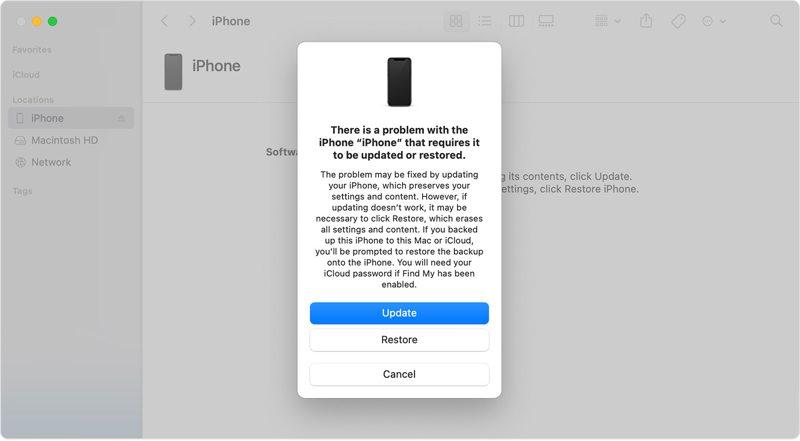
Lépés 4. Ezután kattintson a Visszaállítás gombra a képernyőzár eltávolításának megkezdéséhez, ha elfelejtette jelszavát.
3. rész: Hogyan lehet eltávolítani a képernyőzárat iPhone-on jelszó nélkül
Apeaksoft iFoneKit iOS feloldó a legjobb módja annak, hogy eltávolítsd a jelszót a képernyőzárról iPhone vagy iPad készülékeden, ha elfelejtetted a jelszavadat. Az egyszerű kialakítás leegyszerűsíti a munkafolyamatot, különösen a hétköznapi emberek számára.

Letöltötte több mint 1,000,000 Felhasználók
- Három lépésben távolítsa el az iPhone zárolási képernyőjét.
- Dolgozzon jelszavakkal, Face ID-kkel és Touch ID-kkal.
- Szerezze vissza teljes hozzáférését iOS-eszközéhez jelszó nélkül.
- Kínáljon bónusz funkciókat, például az MDM megkerülését.
- Elérhető az iOS és iPadOS legújabb verzióiban.
Biztonságos letöltés
Biztonságos letöltés

Hogyan távolítsuk el a képernyőzárat az iPhone-on
Lépés 1. Telepítse az iPhone feloldó eszközt
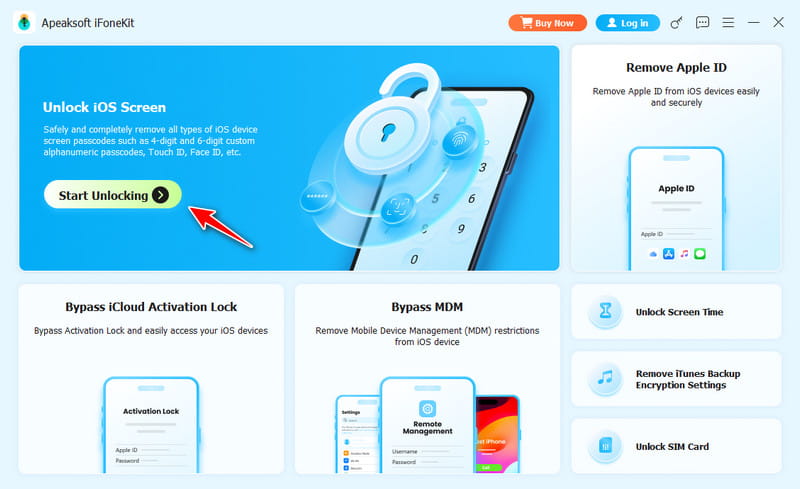
Indítsa el az iPhone feloldó szoftvert a számítógépére telepítés után. Van egy másik verzió is Mac-re. Válassza a Oldja fel az iOS képernyőjét módot a folytatáshoz.
Lépés 2. Kapcsolódás az iPhone-odhoz
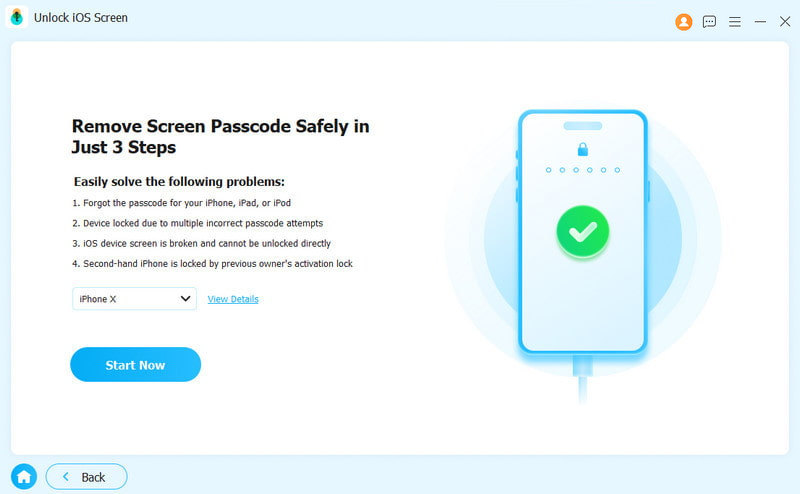
Csatlakoztasd iPhone-odat a számítógépedhez Lightning kábellel. Győződj meg róla, hogy megbízhatónak minősítetted ezt a számítógépet. Miután a szoftver felismeri a készülékedet, kattints a Kapcsolat gombra a firmware letöltésének megkezdéséhez.
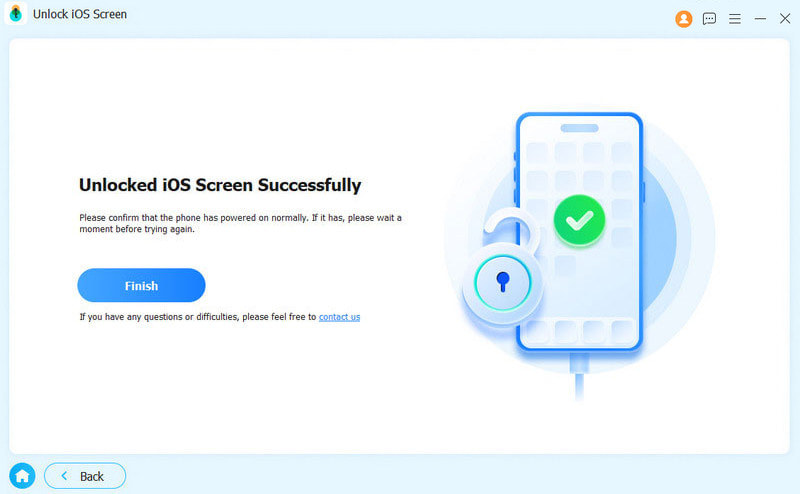
Lépés 3. iPhone zárolási képernyő eltávolítása
A firmware letöltése után kattintson a OK a megerősítő párbeszédpanelen. Ezután nyomja meg a Megerősítés újra gombra a firmware ellenőrzéséhez. Ezután a szoftver elindítja a folyamatot.
Összegzés
Ez az útmutató hat módszert mutatott be képernyőzár eltávolítása az iPhone-on különböző helyzetekben. Ha az eszköze elérhető, kikapcsolhatja a zárolási képernyőt a Beállítások alkalmazásban. Ha nem érhető el, válasszon egy megfelelő módot, és kövesse a részletes lépéseket a képernyőzár feloldásához. Apeaksoft iFoneKit iOS feloldó az egyablakos megoldás a zárolási képernyő jelszó nélküli eltávolítására.
 Apeaksoft iFoneKit
 Az összes iOS-jelszó feloldása iPhone, iPad és iPod készüléken.
Biztonságos letöltés
Biztonságos letöltés
Kapcsolódó cikkek




