

Ripristino iTunes iPhone/iPad non funzionante - Cause e risoluzione dei problemi

Ripristinare il tuo iPhone o iPad tramite iTunes è abbastanza comune, ma a volte le cose non vanno come previsto. Se visualizzi messaggi come "Si è verificato un problema durante il ripristino dell'iPhone" o il tuo dispositivo si blocca in modalità di ripristino o DFU, significa che il ripristino tramite iTunes non funziona correttamente.
Perché fa questo Errore di ripristino di iTunes si verificano e come puoi risolverli? Continua a leggere per trovare le risposte!
CONTENUTO DELLA PAGINA:
Parte 1: Che cos'è l'errore di ripristino di iTunes
L'errore di ripristino di iTunes si riferisce a un errore che si verifica quando si tenta di ripristinare un iPhone, iPad o iPod allo stato iOS originale o aggiornato utilizzando il software iTunes (o Finder in macOS Catalina e versioni successive).
Si verifica durante il processo di ripristino di iOS, sia durante il ripristino da un backup che durante l'aggiornamento del firmware del dispositivo. A seconda del codice di errore specifico, può verificarsi in qualsiasi fase: iniziale, intermedia o finale.
Questo errore indica il fallimento del processo di ripristino a causa di errori di iTunes o dei tuoi dispositivi, come interruzioni di comunicazione, errori di verifica del firmware, ecc. Tuttavia, non significa che il dispositivo sia danneggiato in modo permanente. Puoi leggere la nostra ulteriore illustrazione per risolvere il problema di conseguenza.
Le forme degli errori
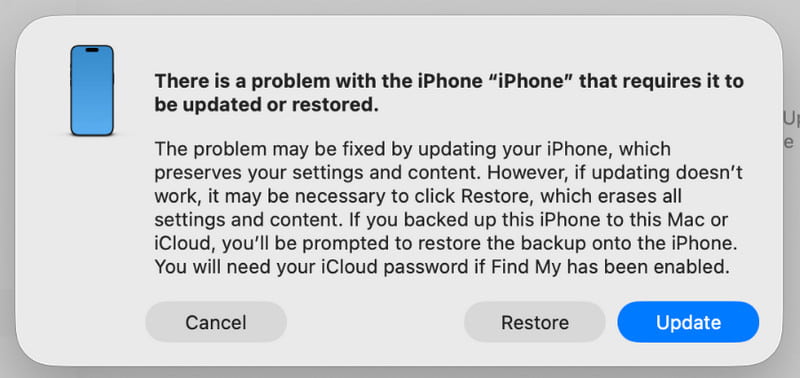
In genere, vedrai un'interfaccia simile alla seguente (in iTunes o Finder):
- Viene visualizzata una finestra di dialogo in iTunes/Finder, che indica Si è verificato un problema durante il ripristino del tuo iPhone, iTunes non è riuscito a ripristinare l'iPhone perché si è verificato un errore, ecc.
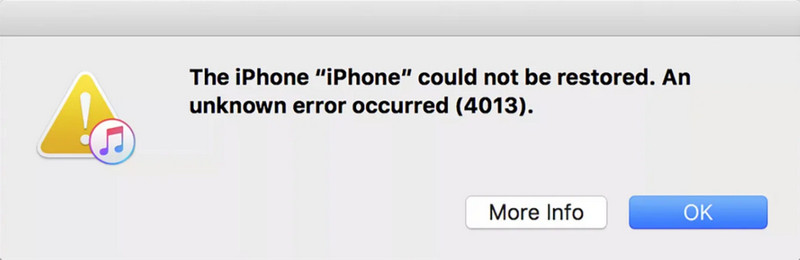
- La finestra di dialogo conterrà un codice di errore specifico, ad esempio Errore 9, Errore 4013, Errore 14, ecc.
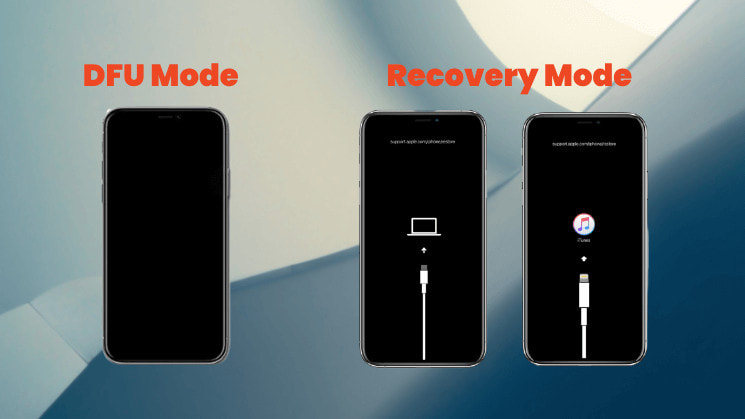
- Il tuo dispositivo stesso potrebbe rimanere bloccato Recovery Mode (che mostra una schermata nera con un cavo USB e l'icona di iTunes) o su una schermata nera in Modalità DFU (schermo nero), impossibile avviarsi normalmente.
Codici di errore comuni di ripristino di iTunes e relativi significati
| Errore | Descrizione |
| Errore 2, 4, 7 | iTunes non è riuscito a installarsi o ad avviarsi |
| Errore 9, 14, 2001, 2002 | Il dispositivo non può essere riconosciuto o la connessione è interrotta |
| Errore 21, 3194 | Verifica del firmware o errore del server |
| Errore 50, 13010, 1671 | Backup o sincronizzazione non riusciti |
| Errore 53 | Ripristino non riuscito a causa di Touch ID o di una restrizione hardware. |
| Errore 4013, 4014 | Ripristino o aggiornamento non riuscito |
| Errore 1630–1641, 3000–3999 | Errore di installazione del firmware o di ripristino iOS |
| Errore 13014 | iTunes non riesce a leggere il dispositivo |
| Errore 14xx | Comunicazione fallita con i server Apple |
Parte 2: Cause comuni dell'errore di ripristino di iTunes
1. Problemi di connessione USB (più comuni)
È la causa più comune di errori di ripristino di iTunes. Questi problemi possono includere:
- Un cavo dati danneggiato/non originale/non certificato MFi.
- Una porta USB del computer è allentata, sporca o instabile.
- Utilizzando la porta USB sulla parte anteriore del case del computer (si consiglia di utilizzare la porta USB posteriore direttamente sulla scheda madre).
2. Problemi con il software del computer
Gli errori di ripristino di iTunes possono anche derivare da problemi software sul computer, tra cui:
- Una versione obsoleta di iTunes non compatibile con il tuo dispositivo.
- Il sistema operativo del tuo computer (Windows/macOS) deve essere aggiornato.
- I software di sicurezza come firewall o antivirus interferiscono con la comunicazione tra iTunes e il server.
- Il file hosts del computer è stato modificato.
3. Problemi hardware del dispositivo
In alcuni casi, gli errori di ripristino di iTunes sono dovuti anche a problemi hardware del dispositivo, tra cui:
- Il dispositivo è stato danneggiato dall'acqua o è caduto, danneggiando i componenti interni.
- Guasto fisico del chip di archiviazione (memoria flash NAND), più comune nei dispositivi più vecchi.
- Riparazione e sostituzione non ufficiali precedenti di componenti incompatibili.
4. Problemi di rete e server
Anche i problemi relativi alla rete possono causare errori di ripristino di iTunes, come:
- Una connessione di rete instabile interrompe il download del firmware.
- I server Apple sono temporaneamente occupati o in manutenzione.
5. Conflitti software
Talvolta, anche i conflitti software possono impedire il completamento corretto del processo di ripristino, tra cui:
- I file di sistema modificati (solitamente dopo un jailbreak) rendono il dispositivo incompatibile con il processo di ripristino ufficiale.
- Tu hai hai declassato il tuo iPhone a una versione precedente che non è più verificata o firmata da Apple.
Parte 3: Come risolvere l'errore di ripristino di iTunes
1. Controllare la connessione USB:
- Prova a sostituire il cavo dati con uno originale o certificato MFi.
- Collegare il cavo dati alla porta USB 2.0 posteriore del computer (solitamente quella nera).
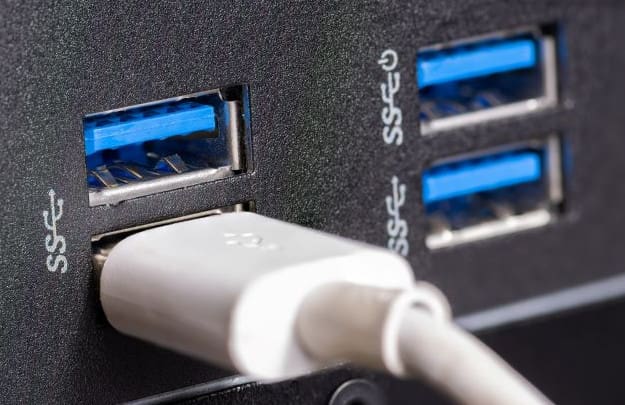
- Assicurarsi che la porta USB e il connettore del cavo dati siano puliti e non allentati.
2. Aggiorna software:
- Aggiorna il tuo iTunes all'ultima versione.
- Aggiorna il sistema operativo del tuo computer (Windows o macOS) all'ultima versione.
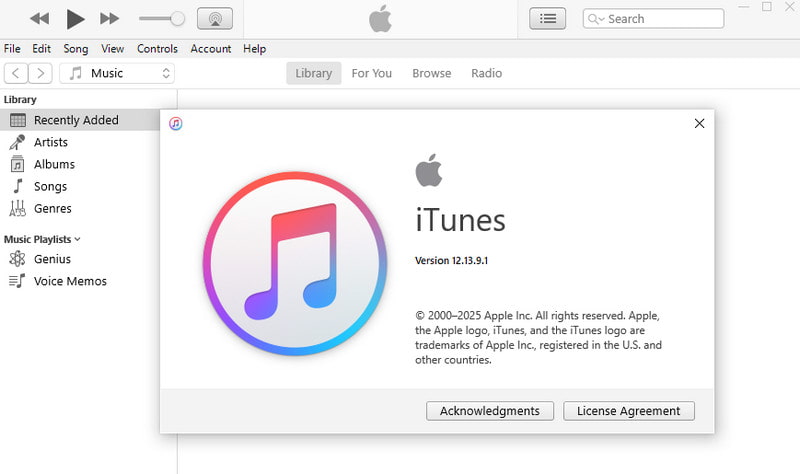
- Aggiorna il sistema operativo del tuo computer (Windows o macOS) all'ultima versione.
Windows:
Passo 1: Clicca su Inizio menu nell'angolo in basso a destra e scegli Impostazioni profilo.
Passo 2: Vai su Aggiornamento e sicurezza, quindi fare clic Controlla aggiornamenti.
Mac:
Passo 1: Clicca su Apple logo nell'angolo in alto a sinistra dello schermo e seleziona Impostazioni di sistema (o Preferenze di sistema sulle versioni precedenti di macOS).
Passo 2: Vai su Generale > Aggiornamento software, quindi fare clic Aggiorna ora e segui le istruzioni per installare l'ultima versione di macOS.
3. Riavviare il dispositivo:
A volte puoi anche provare a eseguire un riavvio forzato del dispositivo.
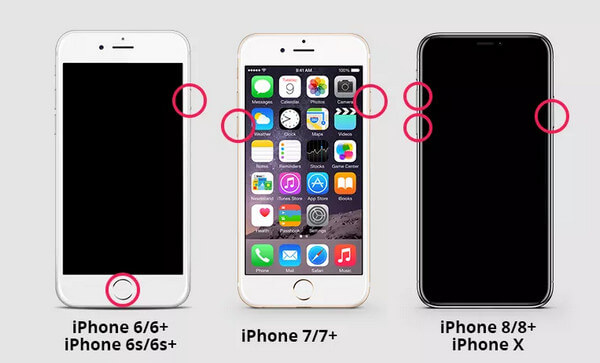
iPhone 8 e successivi
Passo 1: Premere e rilasciare rapidamente il Volume su volume giù pulsanti uno per uno.
Passo 2: Tenere premuto il tasto Side fino a quando appare il logo Apple.
iPhone7/7+
Passo 1: Tenere premuto il tasto volume giù e Side pulsante allo stesso tempo.
Passo 2: Rilascia entrambi i pulsanti quando appare il logo Apple.
iPhone6/6+
Passo 1: Tenere premuto il tasto Casa pulsante e il Lato (o superiore) pulsante contemporaneamente.
Passo 2: Rilascia entrambi i pulsanti quando appare il logo Apple.
4. Riavviare in modalità di ripristino/modalità DFU per il ripristino:
Invece di cliccare direttamente Ripristinare, metti manualmente il dispositivo in modalità di ripristino o modalità DFU, quindi iTunes ti chiederà di procedere con il ripristino. Questo fornisce un ambiente di ripristino più pulito.
5. Utilizzare software professionale
Se hai provato tutti i metodi sopra indicati ma hai ancora fallito, puoi cercare aiuto da un software professionale come Apeaksoft iOS System Recovery per correggere gli errori di ripristino di iTunes. È progettato per risolvere i problemi del sistema iOS e può aiutarti a risolvere gli errori di ripristino in modo semplice e veloce.
Il miglior strumento per correggere gli errori di ripristino di iTunes
- Correggi gli errori di ripristino di iTunes con un clic.
- Fornisci una funzionalità di riparazione gratuita per riparare rapidamente il tuo dispositivo.
- Ripara il sistema iOS senza cancellare i dati esistenti.
- Supporta tutti i dispositivi iOS e l'ultima versione iOS 26.
- Interfaccia user-friendly.
Download sicuro
Download sicuro

Passo 1: Scarica questo software dal pulsante qui sopra. Avvia il software e seleziona Ripristino sistema iOS.
Passo 2: Premere il tasto Inzia ora pulsante dal Sistema di riparazione opzione.
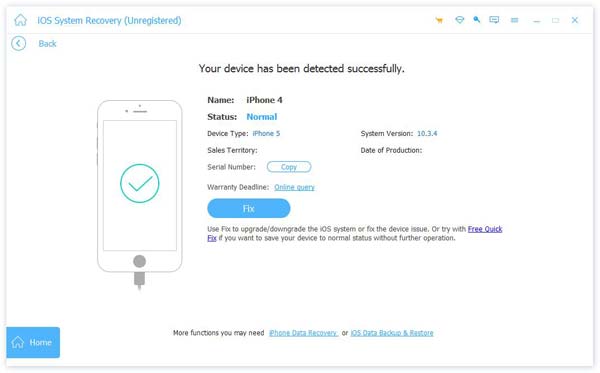
Passo 3: Clicca su Inizio pulsante per continuare.
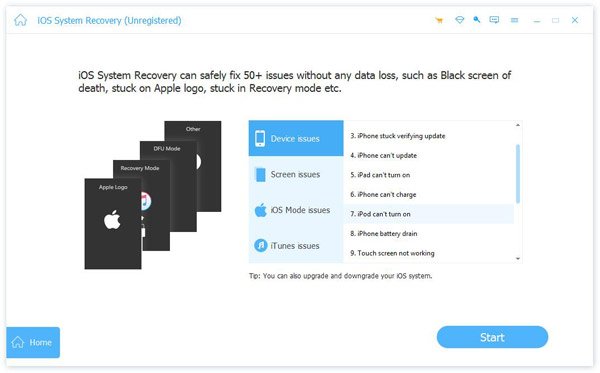
Passo 4: È possibile fare clic Correzione rapida gratuita collegamento per una soluzione rapida.
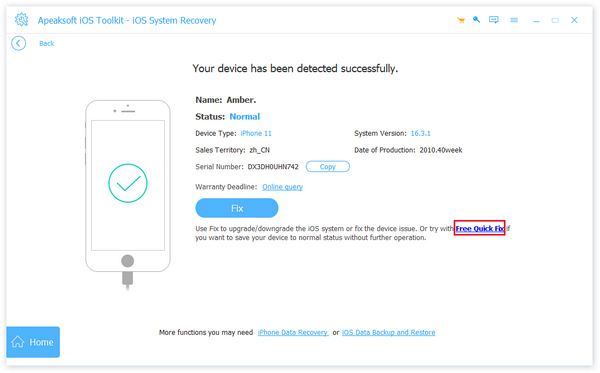
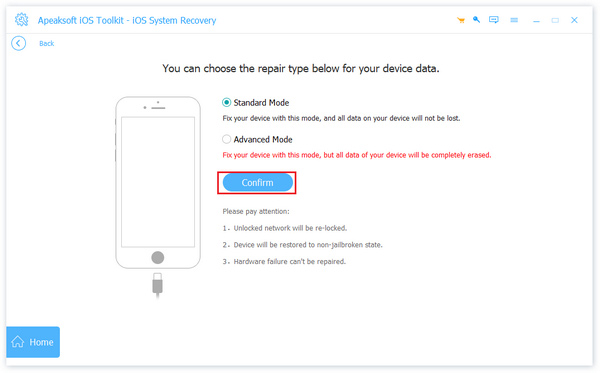
Passo 5: Se l'errore di ripristino di iTunes persiste, è necessario premere il pulsante Fissare pulsante e scegli una modalità Standard/Avanzata per continuare.
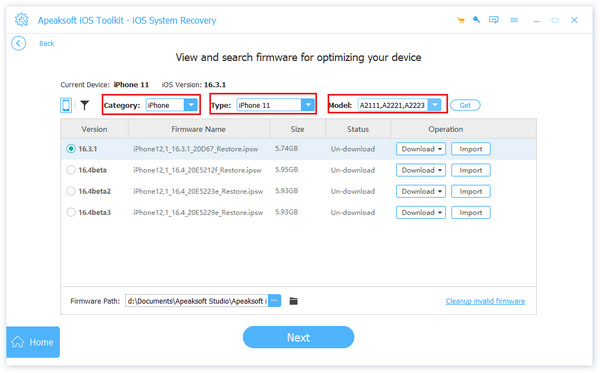
Passo 6: Imposta il firmware corrispondente del tuo dispositivo.
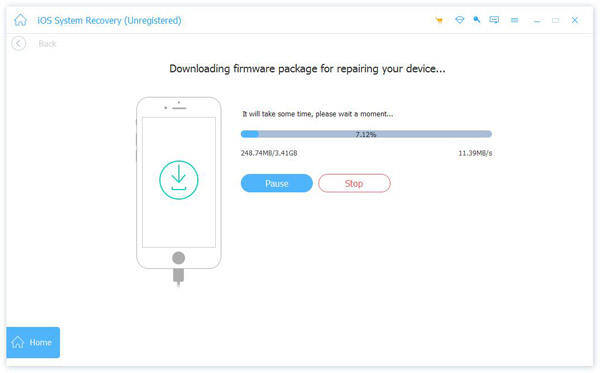
Passo 7: Attendi che il software scarichi il firmware per riparare il tuo dispositivo.
Conclusione
iTunes non è riuscito a ripristinare l'iPhone perché si è verificato un errore? Non preoccuparti! Crediamo che dopo aver seguito i passaggi e i metodi di risoluzione dei problemi descritti in questa guida, potrai risolvere il problema e ripristinare la normalità del tuo dispositivo.
Articoli Correlati
Se il tuo iPhone si blocca in modalità di ripristino, puoi scoprire diversi metodi per uscirne rapidamente.
Come ripristinare le impostazioni di fabbrica dell'iPhone senza iTunes? Questa pagina mostra 4 semplici modi per resettare (disattivato) iPhone senza iTunes, anche senza Apple ID / password / computer.
L'iPhone subisce un riavvio infinito dopo l'aggiornamento a iOS 17/18/26? Ecco 3 modi sicuri per risolvere il problema e riportare l'iPhone alla normalità dopo l'avvio in loop (iPhone 17/16/15/14 inclusi).
Se il tuo iPhone si è bloccato durante l'aggiornamento iOS 26/18/17/16/15/14/13/12, leggi questo articolo. Scopri 3 diversi modi per risolvere facilmente il problema del blocco degli aggiornamenti dell'iPhone.



