

Come recuperare i contatti persi o cancellati su un telefono Android

I telefoni Android sono dotati di alcune funzionalità straordinarie che possono salvarti da situazioni spiacevoli. Una di queste è l'app Contatti preinstallata sui dispositivi Android. Ti consente di memorizzare un numero illimitato di contatti e numeri di telefono. Inoltre, puoi gestirli, ad esempio rimuovendoli, aggiungendoli, assegnando nuove persone, aggiornandoli e altro ancora. Questa guida condivide diversi metodi comprovati per recuperare numeri di telefono cancellati dal tuo telefono Android in diverse situazioni.
CONTENUTO DELLA PAGINA:
Parte 1: Come trovare i contatti da una scheda SIM su Android
Dove vengono salvati i contatti su Android? Su un telefono Android, puoi salvare i contatti nella memoria e nella scheda SIM. Se perdi i contatti locali, puoi ripristinare i contatti Android eliminati dalla SIM o viceversa.
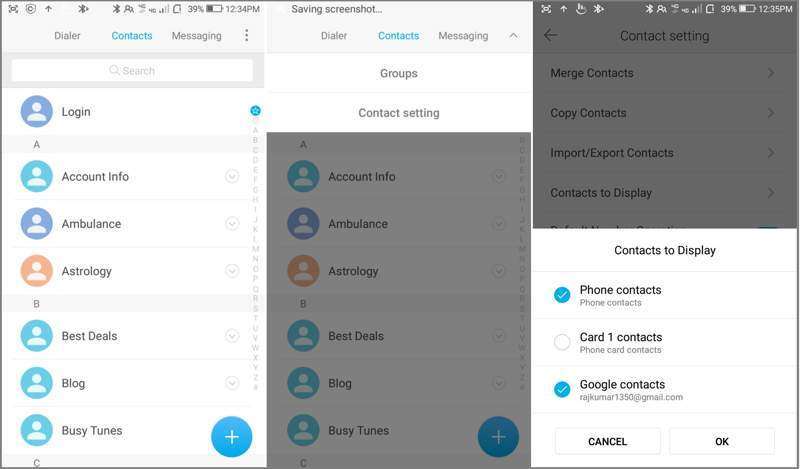
Passo 1: Apri il built-in Contatti App sul tuo telefono.
Passo 2: Clicca il Menu pulsante con un'icona a tre punti.
Passo 3: Scegli Contatti da visualizzare procedere.
Passo 4: Quindi, selezionare Cellulare contatti se hai eliminato accidentalmente dei contatti dalla scheda SIM. Oppure seleziona la tua scheda SIM se hai eliminato dei contatti dal telefono.
Passo 5: Clicca il OK pulsante e potrai recuperare i contatti cancellati dalla scheda SIM del tuo Android.
Parte 2: Come recuperare i contatti dal cestino
Su alcuni modelli di telefono Android, è possibile recuperare i contatti cancellati su Android dal Cestino. I contatti eliminati vengono conservati nella cartella per un massimo di 30 giorni. Prima che vengano rimossi definitivamente, è possibile recuperarli direttamente sul dispositivo.
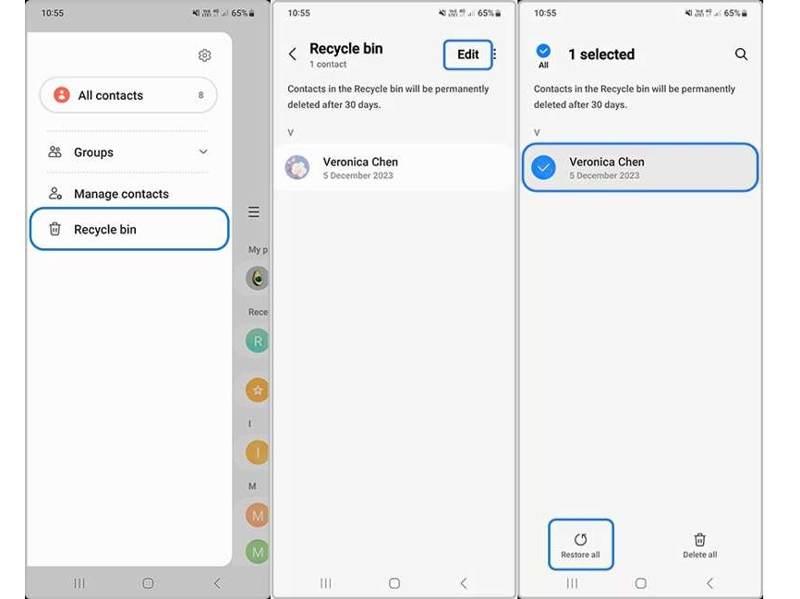
Passo 1: Avvia l'app Contatti nella barra delle applicazioni.
Passo 2: Clicca il Hamburger pulsante e scegliere Cestino or Cestino.
Passo 3: Colpire il Modifica e seleziona il contatto che vuoi recuperare.
Passo 4: Quindi, tocca il Ripristinare pulsante per ripristinare i contatti eliminati su Android.
Passo 5: Una volta terminato, potrai trovare i contatti nella tua rubrica.
Nota: Prendiamo come esempio un telefono Samsung Galaxy. Il flusso di lavoro su altri marchi di telefoni potrebbe essere diverso, ma simile.
Parte 3: Come recuperare i contatti Android da Google
Quando acquisti un telefono Android, devi attivarlo con un account Google. Allo stesso tempo, puoi sincronizzare contatti e altri dati con il tuo account. Questo ti dà la possibilità di ripristinare i contatti da Google ad Android.
Come copiare i contatti Google su Android
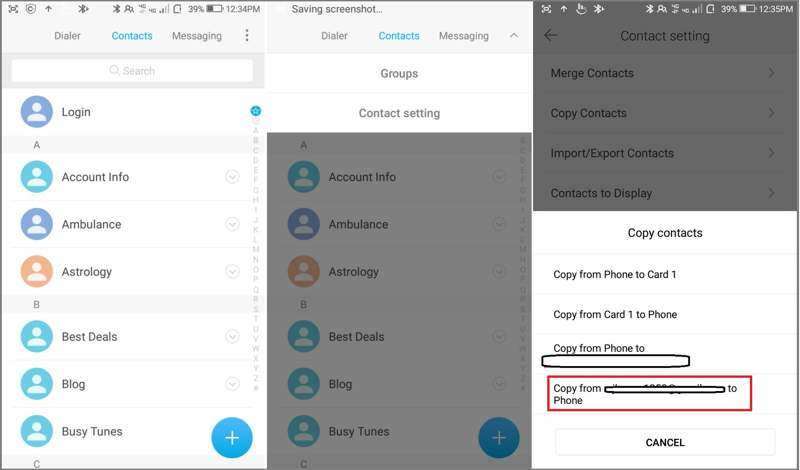
Passo 1: Apri l'app Contatti.
Passo 2: Clicca il Menu pulsante con un'icona a tre punti.
Passo 3: Scegli Copia contatti dalla lista.
Passo 4: Quindi, toccare Copia da [il tuo account Google] al telefono.
Passo 5: Seleziona le caselle accanto a tutti i contatti persi e tocca Copia.
Come recuperare i contatti Google su Android in Contatti
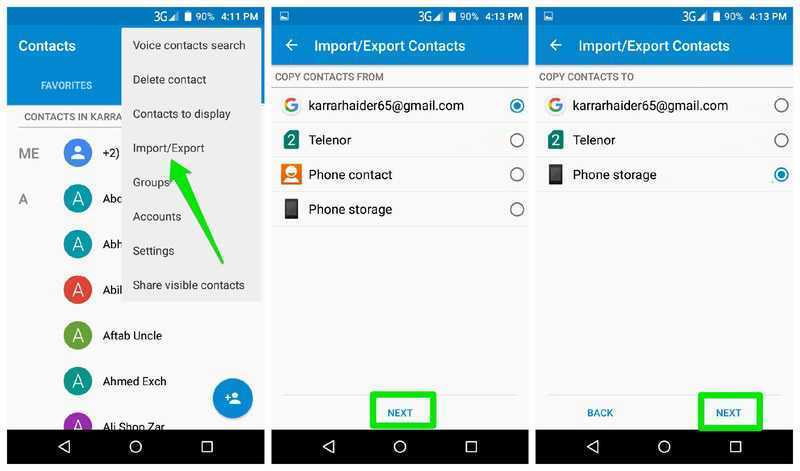
Passo 1: Clicca il Menu pulsante nel tuo Contatti app.
Passo 2: Scegli Import / Export dal menu di scelta rapida.
Passo 3: Seleziona il tuo account Google in COPIA CONTATTI DAe tocca Avanti.
Passo 4: Quindi, seleziona la memoria del tuo telefono in COPIA I CONTATTI IN.
Passo 5: Infine, tocca Avanti e conferma il recupero dei contatti Google su Android.
Come recuperare i contatti Google su Android nelle Impostazioni
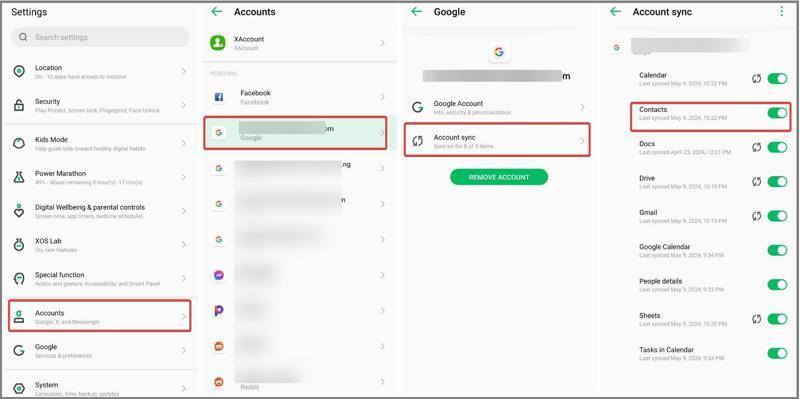
Passo 1: Una volta eliminati i contatti, vai su Impostazioni profilo app e collega il telefono a una connessione Internet.
Passo 2: Scegli Password e account e scegli il tuo account Google.
Passo 3: Tocca Sincronizzazione dell'account e staccare Contatti.
Passo 4: Quindi, attiva Contatti per recuperare i contatti eliminati su Android.
Parte 4: Come ripristinare i contatti su Android da un backup
I telefoni Android sono dotati di una funzione di backup e ripristino integrata, che utilizza Google One per eseguire il backup della maggior parte dei dati. Se in precedenza hai creato un Backup Android, puoi ripristinare i contatti eliminati su Android.
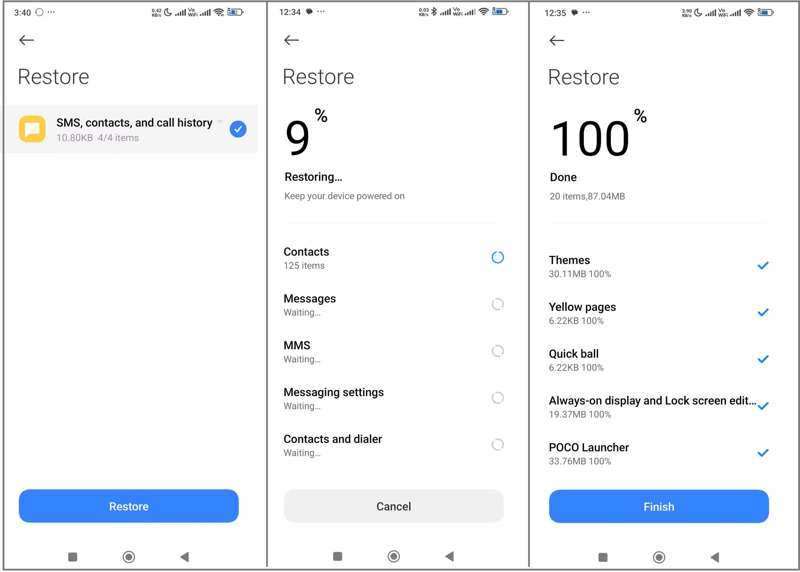
Passo 1: Corri il Impostazioni profilo app.
Passo 2: Scegli Sistema or Info sul telefono.
Passo 3: Tocca Backup e ripristino o l'opzione correlata.
Passo 4: Scegli il backup corretto che memorizza i contatti eliminati e tocca Ripristinare.
Passo 5: Passaggio 5: quindi, seleziona SMS, contatti e cronologia delle chiamate e tocca Ripristinare nuovamente.
Passo 6: Passaggio 6: Una volta completata l'operazione, potrai trovare i tuoi contatti su Android nell'app Contatti integrata.
Parte 5: Come recuperare i contatti da Android senza backup
Se non hai sincronizzato o eseguito il backup dei tuoi contatti, hai bisogno di un potente strumento di recupero dati per recuperare i contatti eliminati su Android senza backup. Apeaksoft Recupero dati Android, ad esempio, è in grado di estrarre i contatti persi dalla memoria del telefono senza backup.
Il modo migliore per recuperare i contatti su Android senza backup
- Recupera i contatti eliminati senza backup.
- Disponibile per varie situazioni, incluso un dispositivo rotto.
- Visualizza in anteprima i contatti persi per un recupero selettivo.
- Mantenere i contatti nelle loro condizioni originali.
- Supporta quasi tutte le marche e i modelli di telefoni Android.
Download sicuro
Download sicuro

Come recuperare i contatti dalla memoria del telefono Android
Passo 1: Rileva il tuo telefono
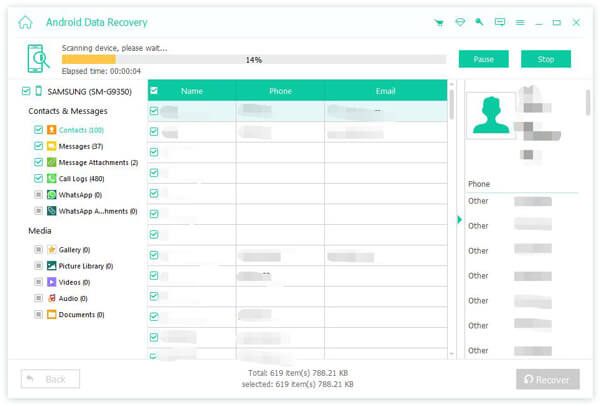
Avvia il miglior software di recupero contatti dopo averlo installato sul tuo computer. Accendi il telefono, vai su Impostazioni profilo app, scegli Opzioni dello sviluppatoree abilitare Debug USB modalità. Quindi, collega il telefono al computer con un cavo USB. Se richiesto, seleziona Trasferisci file.

Passo 2: Anteprima dei contatti
Spuntare la casella accanto a Contatti e fare clic sul Avanti per avviare la scansione dei contatti recuperabili sul tuo dispositivo. Segui le istruzioni sullo schermo per autorizzare e consentire l'accesso al tuo dispositivo. Dopo la scansione, attiva Mostra solo gli elementi eliminati e visualizzare i contatti eliminati.

Passo 3: Recupera i gruppi insieme ai numeri di telefono
Assicurati di selezionare i contatti che desideri recuperare e fai clic su Recuperare pulsante in basso. Se non riesci a trovare gli elementi desiderati, clicca Scansione profonda per eseguire una scansione approfondita. Infine, imposta una cartella di output e conferma il recupero dei contatti Android. Puoi anche usare questo programma per recuperare i video cancellati su Android.
Conclusione
Questa guida ha condiviso diversi modi per ripristinare i contatti sul tuo Android Telefono. Dopo aver eliminato accidentalmente i contatti, puoi copiarli dalla scheda SIM. Se hai sincronizzato i contatti con il tuo account Google, puoi copiarli, importarli o scaricarli sul telefono. Inoltre, un backup ti consente di recuperare rapidamente i contatti. Apeaksoft Android Data Recovery consente di recuperare i contatti persi dalla memoria del telefono senza un file di backup.
Articoli Correlati
Hai mai cancellato accidentalmente file dal tuo Android? Questo post ti mostrerà come recuperare i file cancellati da Android anche se non hai mai eseguito un backup!
Questo articolo mostra come visualizzare i messaggi bloccati sui dispositivi Android di Samsung, Google Pixel, One Plus, Asus, Motorola e altri.
Stai cercando il miglior software di recupero dati per Android? Con così tanti che si vantano di essere i migliori strumenti di recupero dati per Android sul mercato, come fare la scelta?
Google può eseguire il backup e il ripristino del tuo dispositivo, gestendo al meglio i tuoi dati. Questa guida ti mostrerà come recuperare il backup di Google su Android.



